Open the Door via DTMF
Users can use the unlock tab during the call to open the door. You are required to set up the same DTMF code in the door phone and the guard phone.
Set it up on the web Phone > Remote Relay > Remote Relay By DTMF interface.
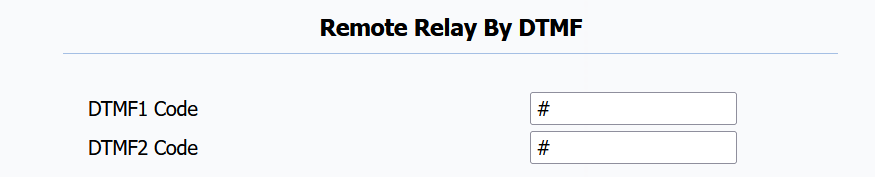
DTMF1/2 Code: Set the DTMF code for the remote relay, which is # by default.
Open the Door via HTTP Command
The device supports remote door opening via an HTTP command. Simply enable this feature and input the HTTP command (URL) for the device. This will trigger the relay connected to another intercom device, e.g., a door phone, and open the door.
Set it up on the Phone > Remote Relay > Remote Relay By HTTP interface.
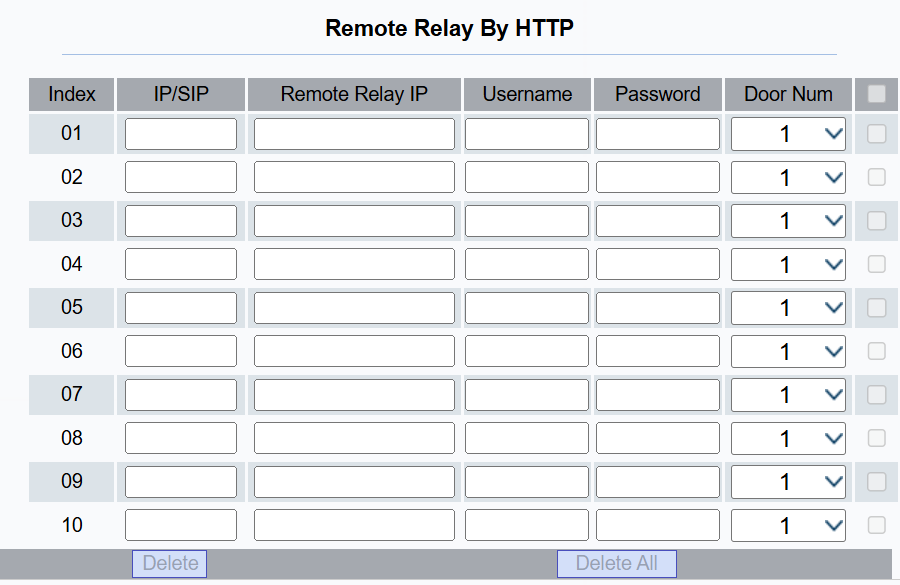
IP/SIP: Enter the IP address or SIP account to trigger a certain remote relay by sending an HTTP message.
Remote Relay IP: Specify the IP of the door phone.
Username: Enter the username the same as that configured on the door phone’s web interface.
Password: Enter the password the same as that configured on the door phone’s web interface.
Door Num: Check the relay to be triggered. DoorNum1 corresponds to Relay A; DoorNum2 corresponds to Relay B, and so on.
Note
Please refer to Open the Door via HTTP Command for detailed configuration.
Unlock Key Configuration
You can customize the unlock tab and select the relay type on the talking screen for the door opening.
Navigate to the web Phone > Remote Relay > Softkey In Talking Page interface.

Status: With the unlock tabs enabled on the talking screen, the unlock tabs will appear during a call.
Type: Select the relay trigger type according to the actual setup.
Scroll down to set up the unlock tab on the Monitor screen.

Status: With the unlock tab enabled, the unlock tab will appear on the monitoring screen.
Type: Select the relay trigger type according to the actual setup.
To set up the unlock tab on the call preview screen on the same interface.

Status: With the unlock tab enabled, the unlock tab will appear on the monitoring screen.
Display Name: Name the key.
Type: Select the relay trigger type according to the actual setup.