With the backup function, sub-gateway devices can be replaced without losing existing configurations, helping to reduce operational costs and minimize downtime.
Before Getting Started
Make sure the home center device is connected to the akubela Cloud and is online.
The new flush mounted modules and HyPanels must be the same models as the original devices.
The following configuration data that can be backed up:
Type | Backup Data |
System Settings |
|
Devices |
|
User Web Portal Configuration | Permission management settings |
NOTE:
Custom shortcut cards on the homepage and Zigbee device bindings (associations) CANNOT be backed up.
For KNX devices, ETS project data is the primary source; cloud backups are supplementary. Cloud backups will not overwrite ETS data.
Check supported akubela HyPanel models and firmware versions:
Device | Firmware |
HyPanel (PS51) | 51.1.39.23 and later |
HyPanel V2 (PS51(V2)) | 251.1.39.7 and later |
HyPanel Plus (PS52) | 52.1.39.11 and later |
HyPanel KeyPlus (KS53) | 53.1.39.10 and later |
HyPanel Pro (PG71) | 71.1.39.44 and later |
HyPanel Ultra (PH81) | 281.1.39.29 and later |
HyPanel Supreme (PHX1) | 1001.1.39.27 and later |
HyPanel Elite 10 (PH59) | 159.1.39.137 and later |
SmartPanel (X933H) | 933.1.39.10 and later |
SmartPanel Elite 10 (PH58) | 119.1.39.10 and later |
NOTE:
HyPanel Elite 7(PG42), HyPanel Lite(KS41), and G31 gateway do NOT support backup.
If you need to replace any of these devices, please refer to their respective user guides to perform a fresh setup.
Configuration
Backup Data
Both automatic and manual backups are effective methods for preserving device data.
Automatic backup ensures configuration data is saved regularly.
Manual backup is recommended before replacing a device to guarantee that the most recent configuration is stored.
Manual Backup
Go to Settings > System Settings > Cloud Backup, and tap Immediate Backup.
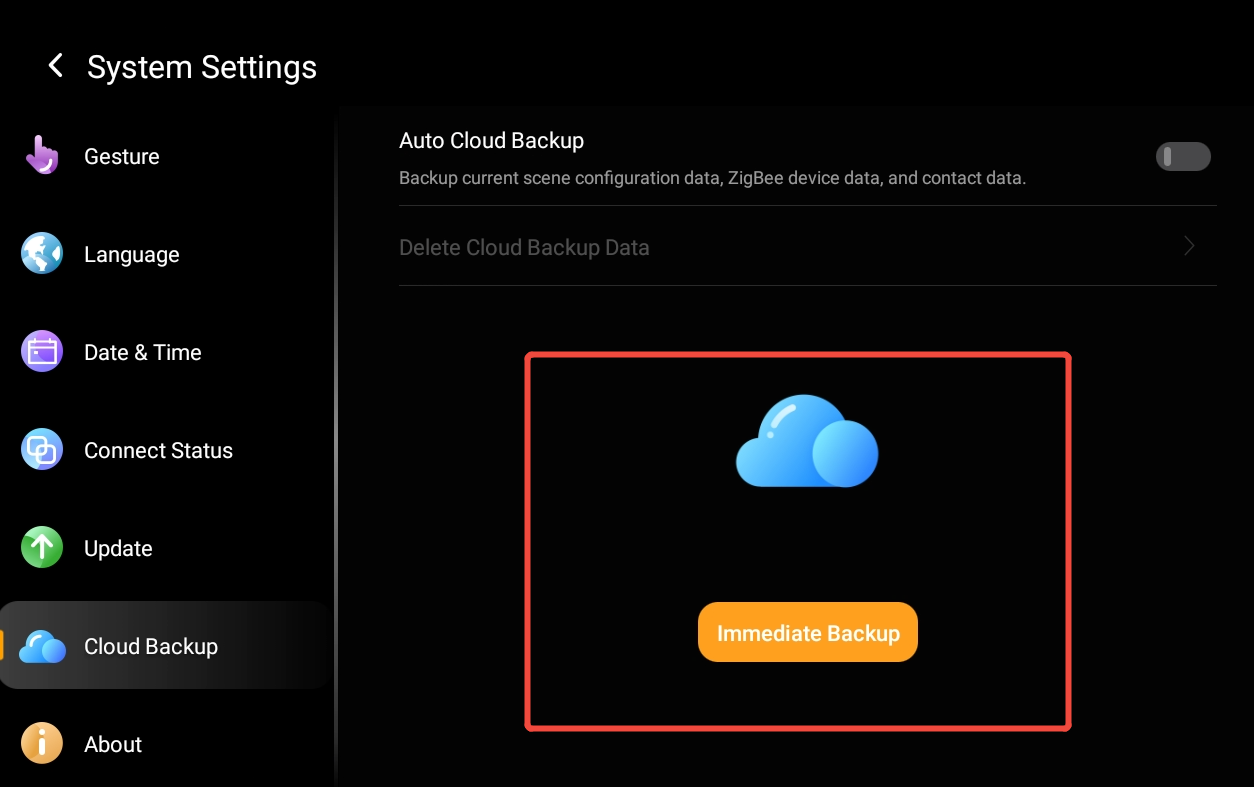
Wait for the confirmation prompt indicating that the backup is complete.
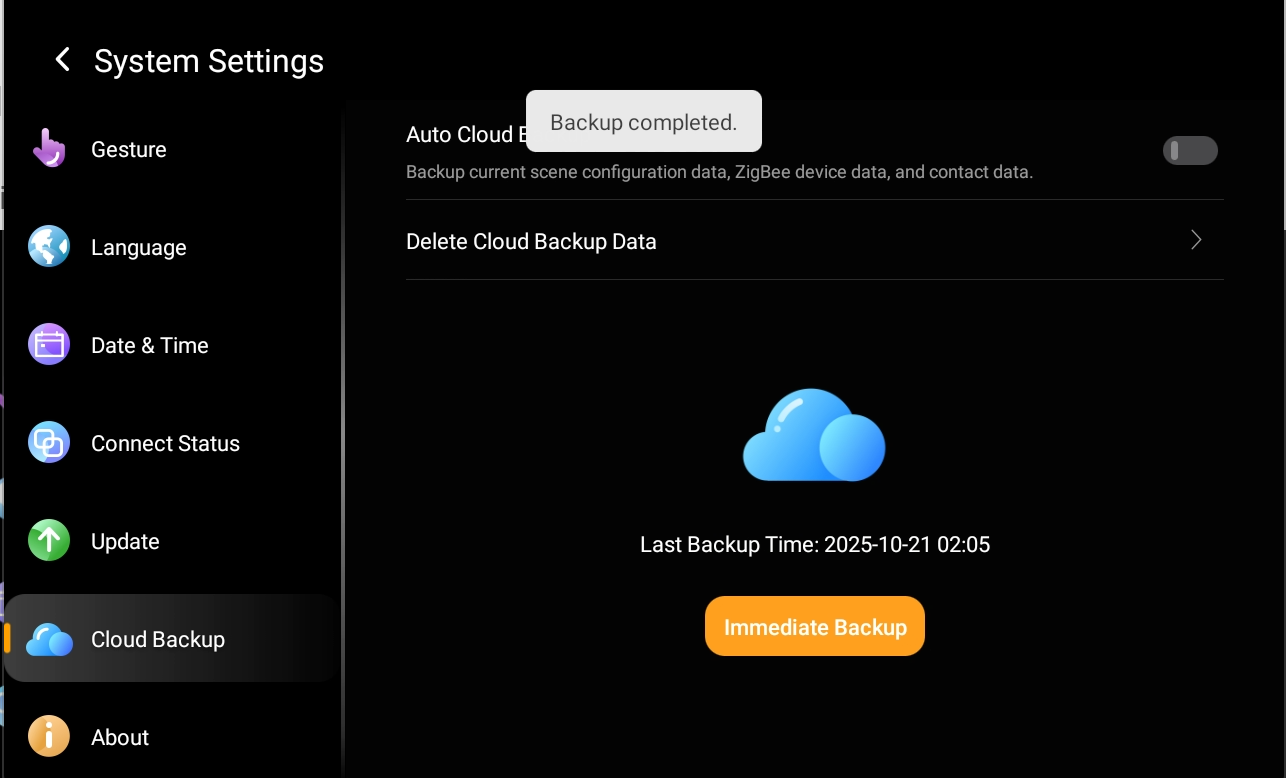
Automatic Backup
REQUIREMENTS:
Ensure the panel are online and connected to the akubela Cloud.
Verify the network connection is stable.
If a manual backup has already been performed on the same day as a scheduled automatic backup, no additional automatic backup will occur that month.
Automatic backups are performed per month, starting from the last successful backup.
If a backup fails, the system will retry daily until successful.
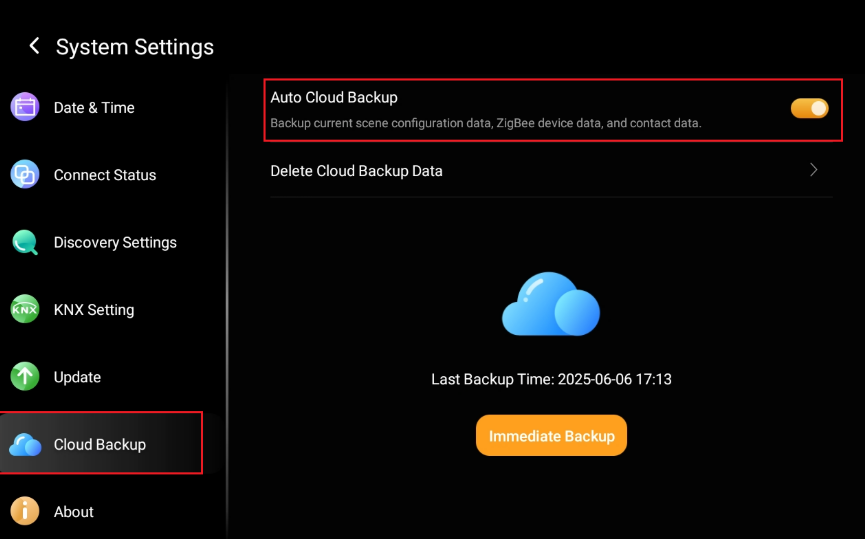
Go to Settings > System Settings > Cloud Backup, then enable Auto Cloud Backup.
TIP:
The first time this feature is enabled, an immediate backup will be performed automatically.
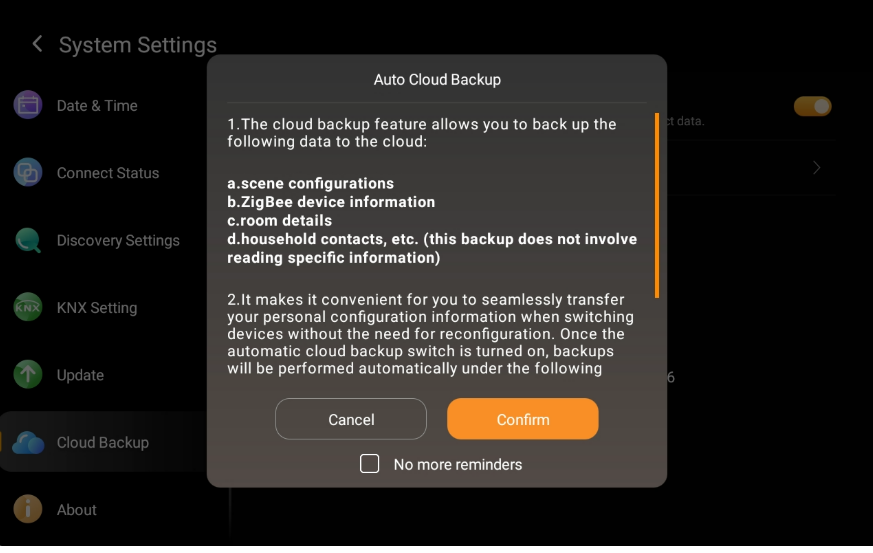
Review the onscreen reminders and tap Confirm.
Set up the New HyPanel
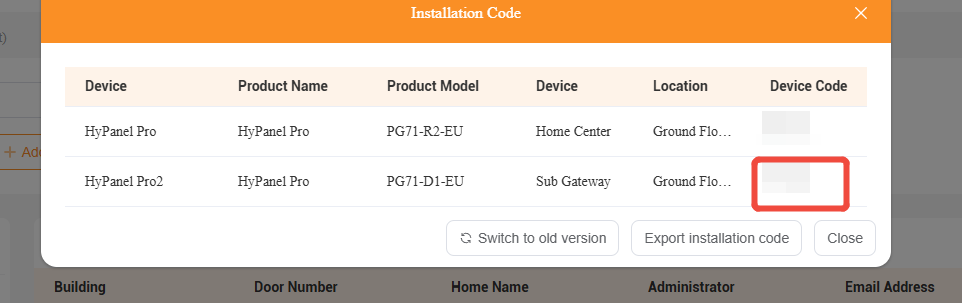
Find the installation code for the sub-gateway device on the cloud.
Complete the initial setup on the new HyPanel using this installation code.
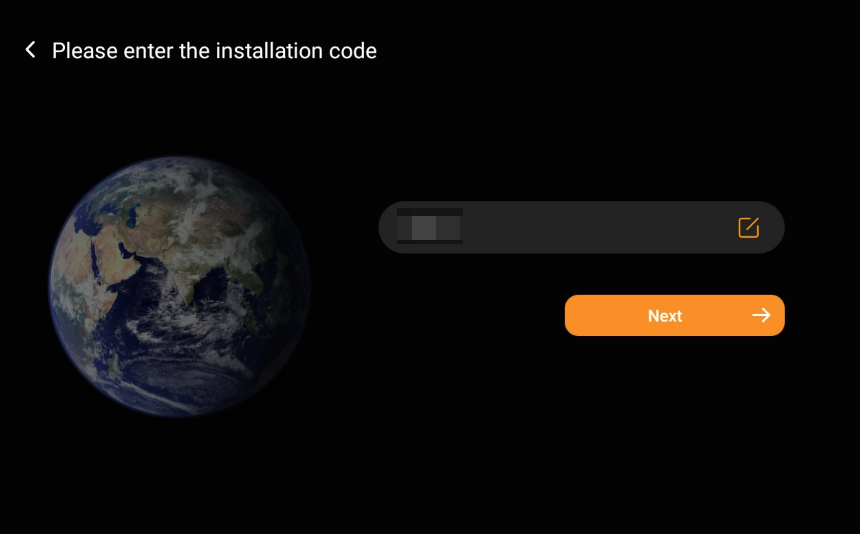
The system will automatically restore backup data from the cloud to the new sub-gateway device.

NOTE:
For KNX devices, once the initial setup and cloud data restoration are complete, it is strongly recommended to re-download all configuration data from ETS to ensure full synchronization.