You can easily upgrade the IR22 controller’s firmware via the HyPanel’s device web portal, keeping your device up to date and functioning properly.
Before Getting Started
Ensure the IR Controller(IR22) is connected to the HyPanel and is online.
Check the current firmware version on the HyPanel by tapping [the desired IR Controller card] >
 .
.
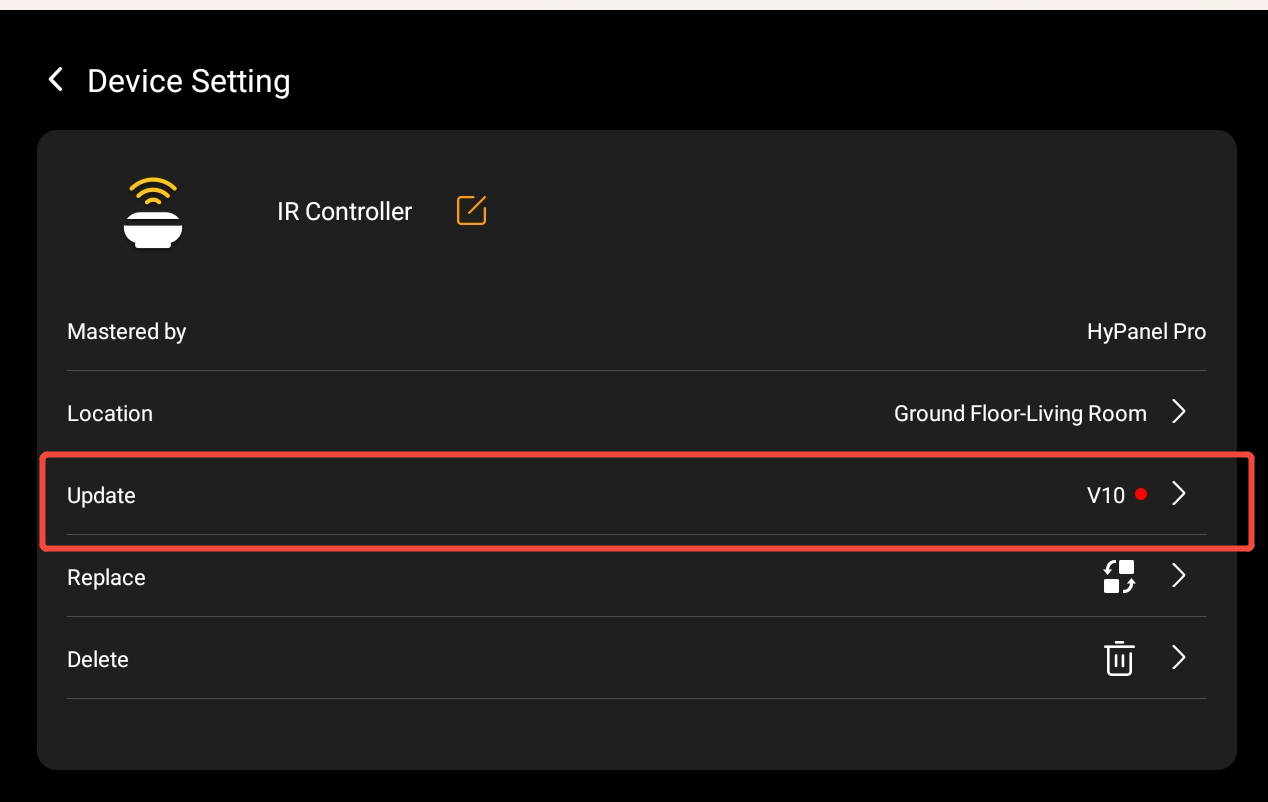
Download the latest firmware from Knowledge Base, and make sure the file format is .bin.
Upgrade Steps
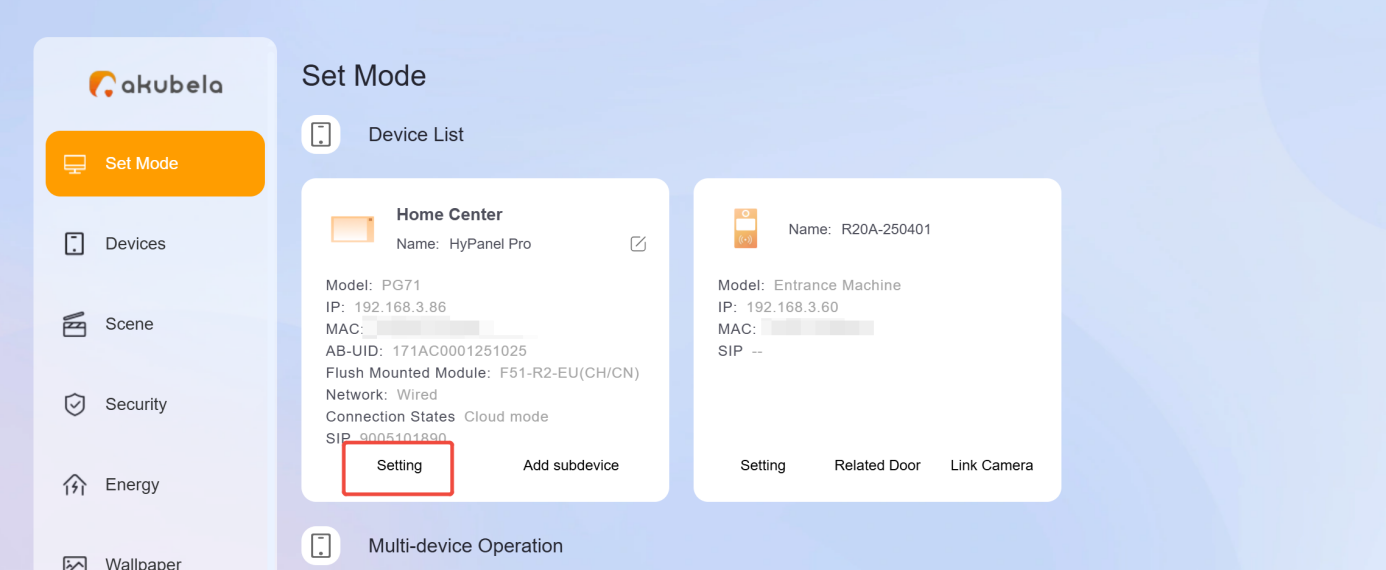
Login the home center’s device web portal. The default user name and password are both admin.
Click the Settings of the HyPanel device to which the IR22 connects to, then go to Settings > Accessories > Upgrade.
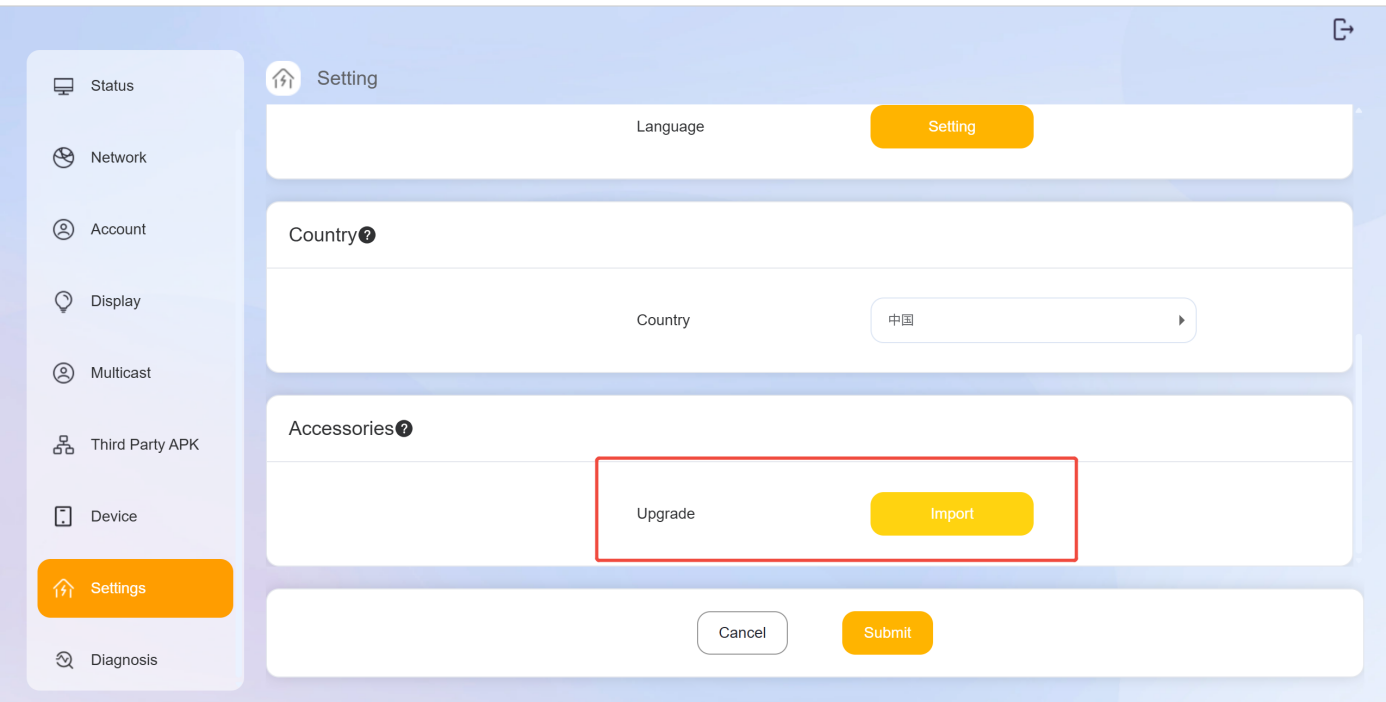
Select the IR22 firmware file (.bin), then click Submit.
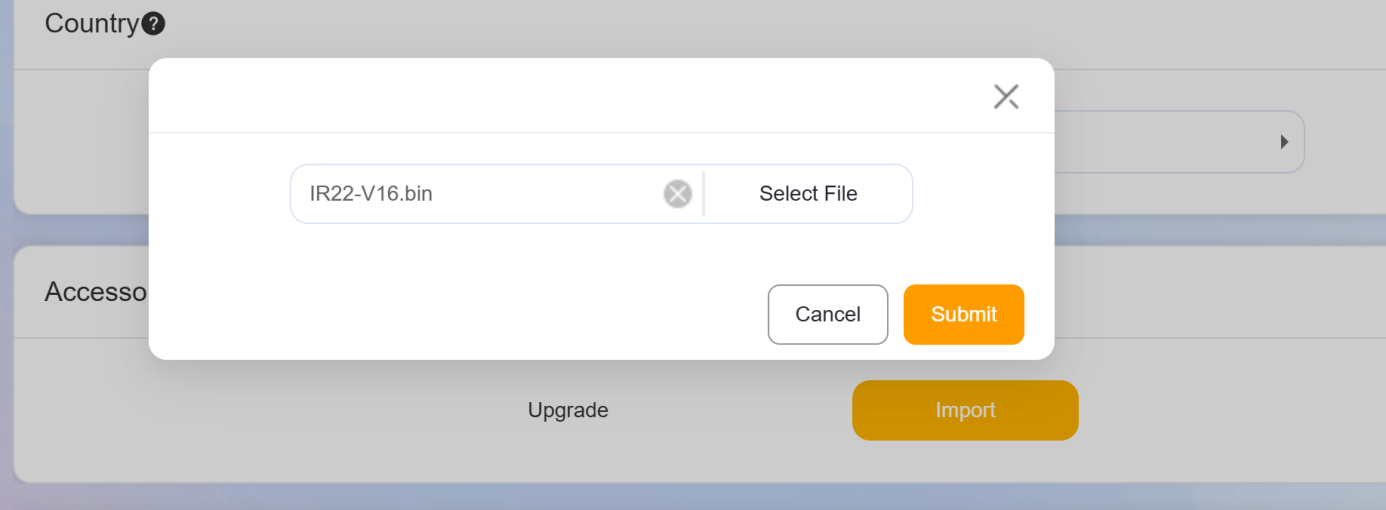
On the HyPanel, go to [the desired IR Controller card] >
 > Update. The panel will indicate when new firmware is available.
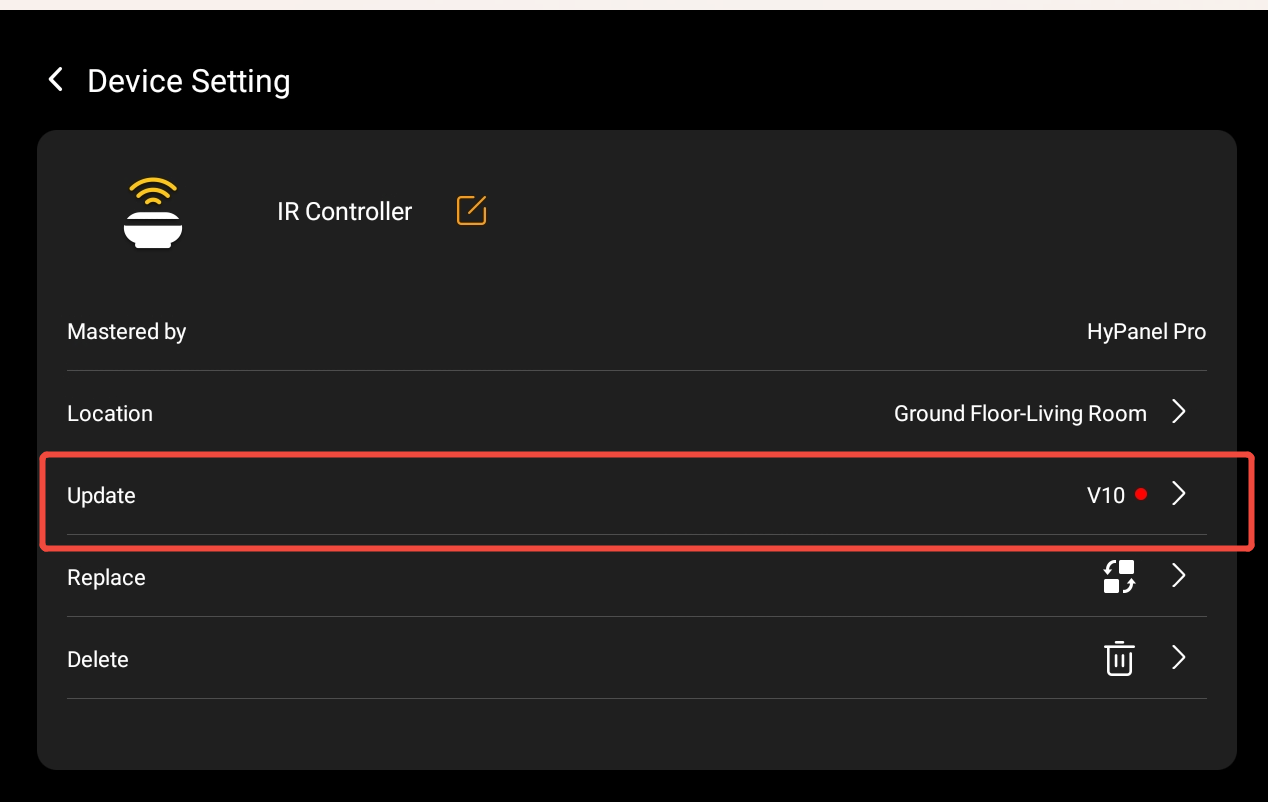
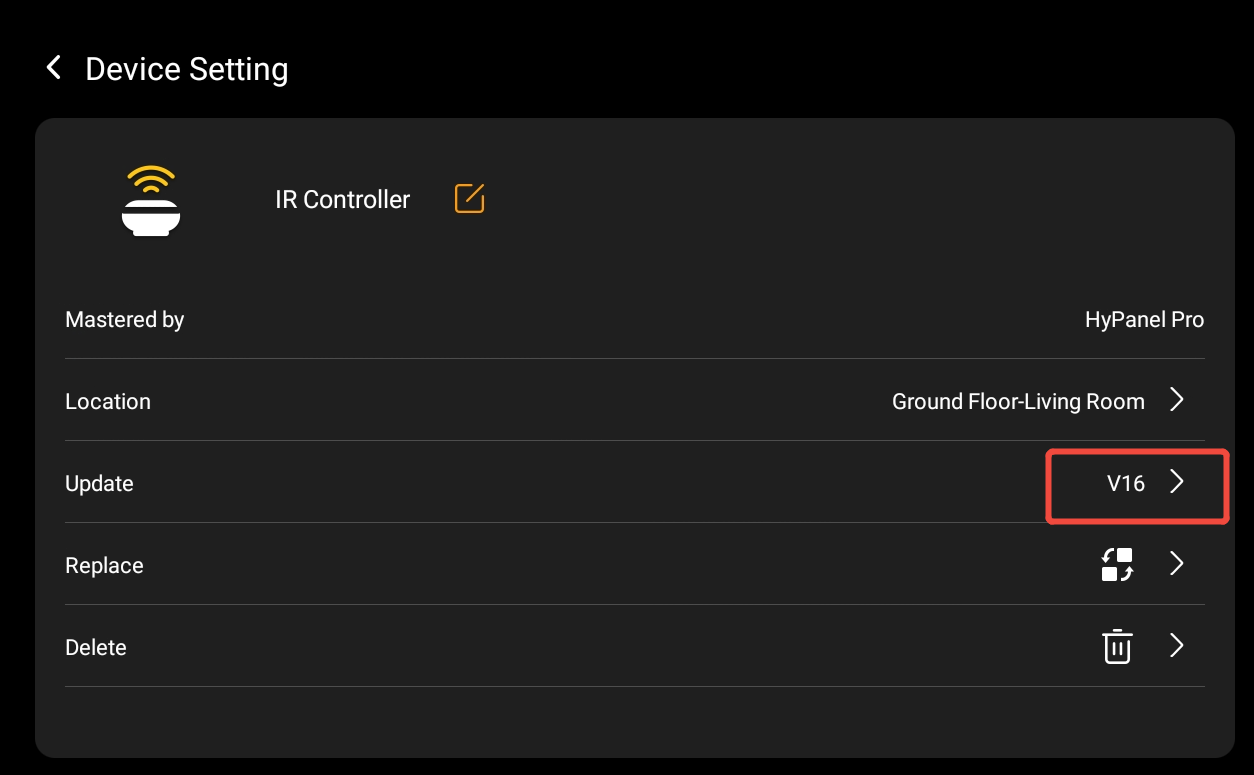
Wait until the new firmware version is displayed on the HyPanel.
NOTE:
If the upgrade is interrupted, the device will retry automatically. If more than six minutes pass, the uploaded file may become invalid. In that case, re-upload the firmware file and restart the upgrade.
If multiple IR controllers are connected to the same HyPanel device, you only need to upload the firmware once to upgrade all of them.