The MAC address uniquely identifies the smart lock in your system. It is needed when adding the lock to a system, troubleshooting issues, or performing other related tasks.
NOTE:
SL20, SL21, and SL50 support integration with Akuvox SmartPlus Cloud.
If the Smart Lock Has Already Been Added to a Family
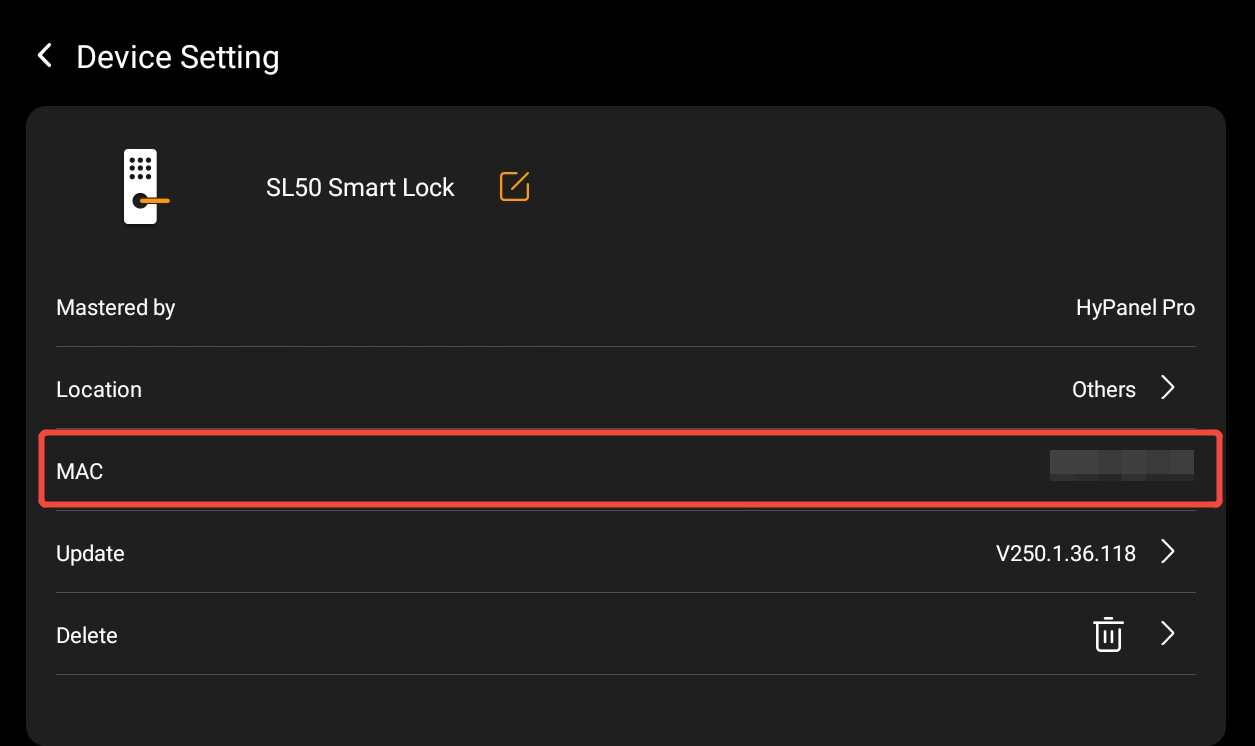
Method 1: Check on the HyPanel
On the HyPanel, tap the desired smart lock card, then tap  to view its details.
NOTE:
Available for SL60 and SL50.
The smart lock must be connected to the HyPanel.
Method 2: Check in the BelaHome App
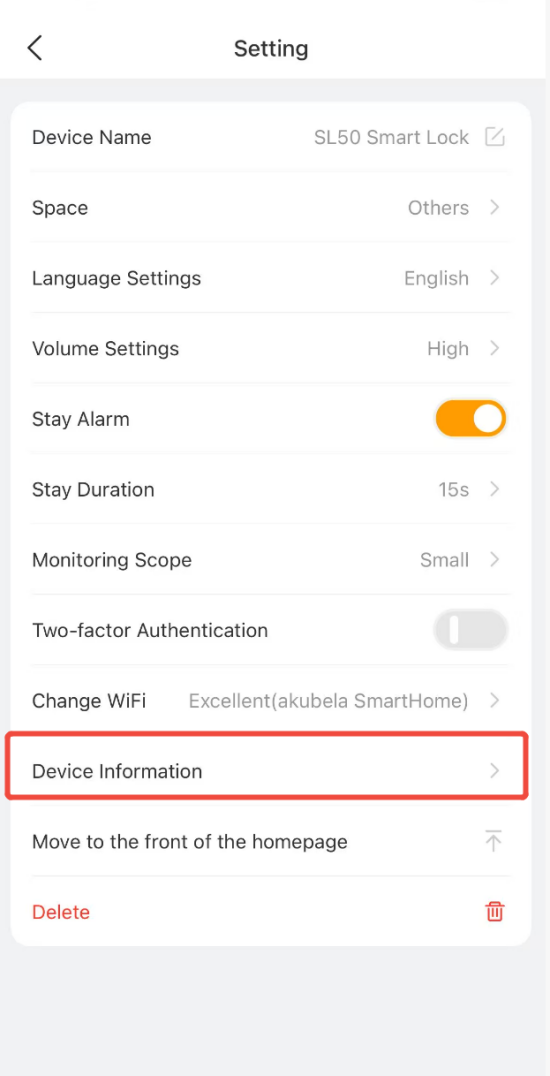
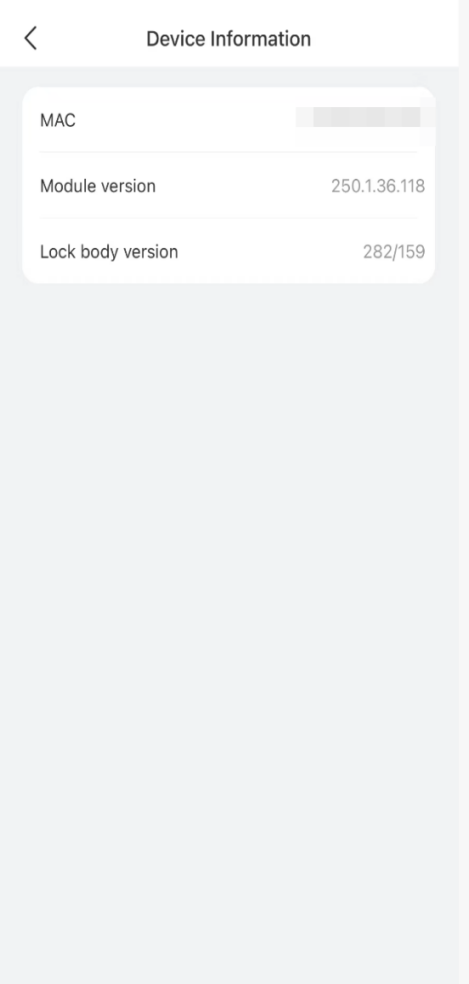
In the BelaHome app, tap [the desired smart lock card] >  > Device Information to view the MAC address.
NOTE:
Available for SL60, SL50, SL30, and SL20.
The smart lock must be connected to the HyPanel.
A BelaHome app account is required for login.
If the Smart Lock Has Not Been Added to a Family
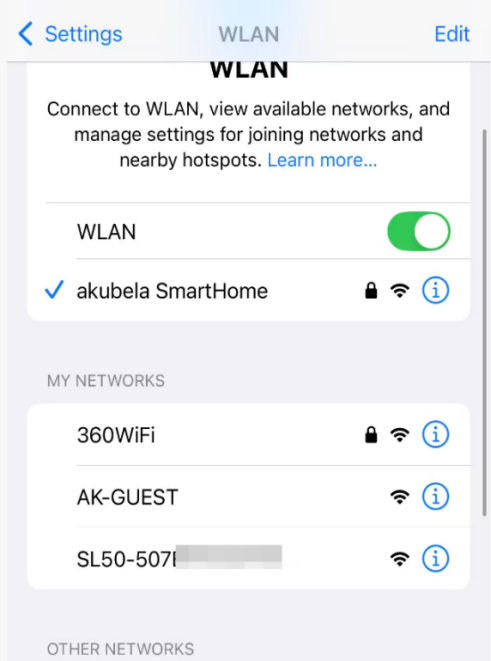
Method 1: Check via the Smart Lock Hotspot
When you connect your smartphone to the smart lock’s hotspot, the hotspot name contains the MAC address.
NOTE:
Available for SL60, SL50, SL30, and SL20.
The smart lock must be in pairing mode.
Method 2:Check the Device Label
Check the label on the smart lock for the printed MAC address.
NOTE:
Available for SL30, SL21, and SL20.
For F2 or C6 Smart Locks, or If Other Methods Are Not Applicable
NOTE:
F2 and C6 do not support the methods above.
Method: Contact Technical Support
Provide the home center device’s MAC address to akubela technical support so they can check the MAC address of the connected smart lock.