About This Manual
This guide applies to version 7.15.2004(Android).
Akuvox MySmart App is a mobile app that works with the Akuvox MySmart server and smart intercom products. With the app, you can see and talk to visitors, open doors, monitor, and issue virtual keys from your mobile phone, making door access management simpler and more convenient.
Update Time: September 2026
Get Started
Before You Use
To make login and setup as smooth as possible, have the following items available:
An internet connection through a Wi-Fi network or cellular data service through a carrier.
MySmart App. You can download and install this App on the Google Play Store.
Your MySmart account.
To obtain an account, provide an Email address and/or a phone number (if you'd like to log in or reset your password via SMS) to your service provider. You will then receive an Email from Akuvox with your username, password, and a QR code for login. Or, you can enter your phone number and log in with a verification code sent via SMS.
Login
Agree to the Terms & Policies before logging in.
Enter your username and password, or scan the QR code in the Welcome email by tapping the scan icon in the upper-left corner.
Ensure your role is Enduser.
Tap Login.
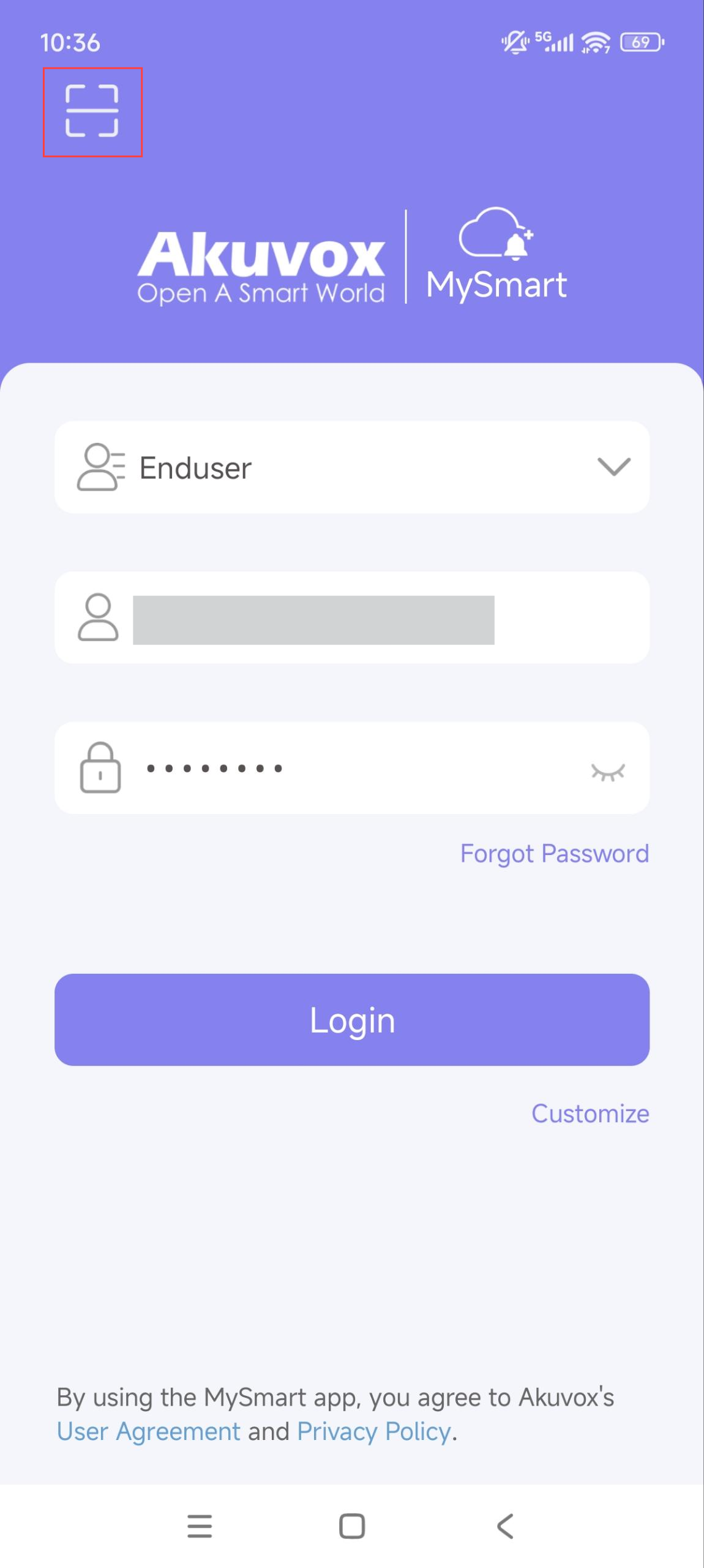
A PIN setting page will display upon your first-time login. You can set the PIN for door access or set it later.
Link
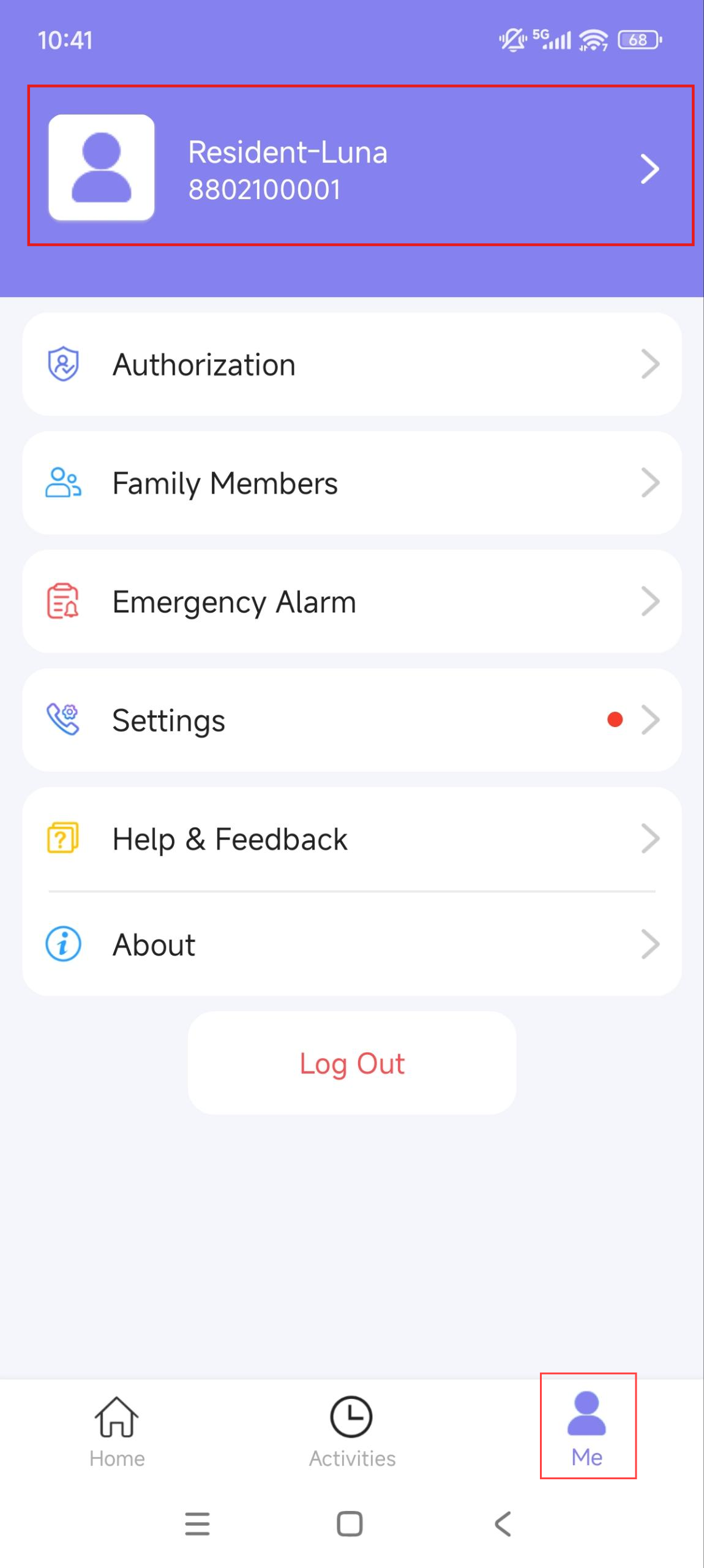
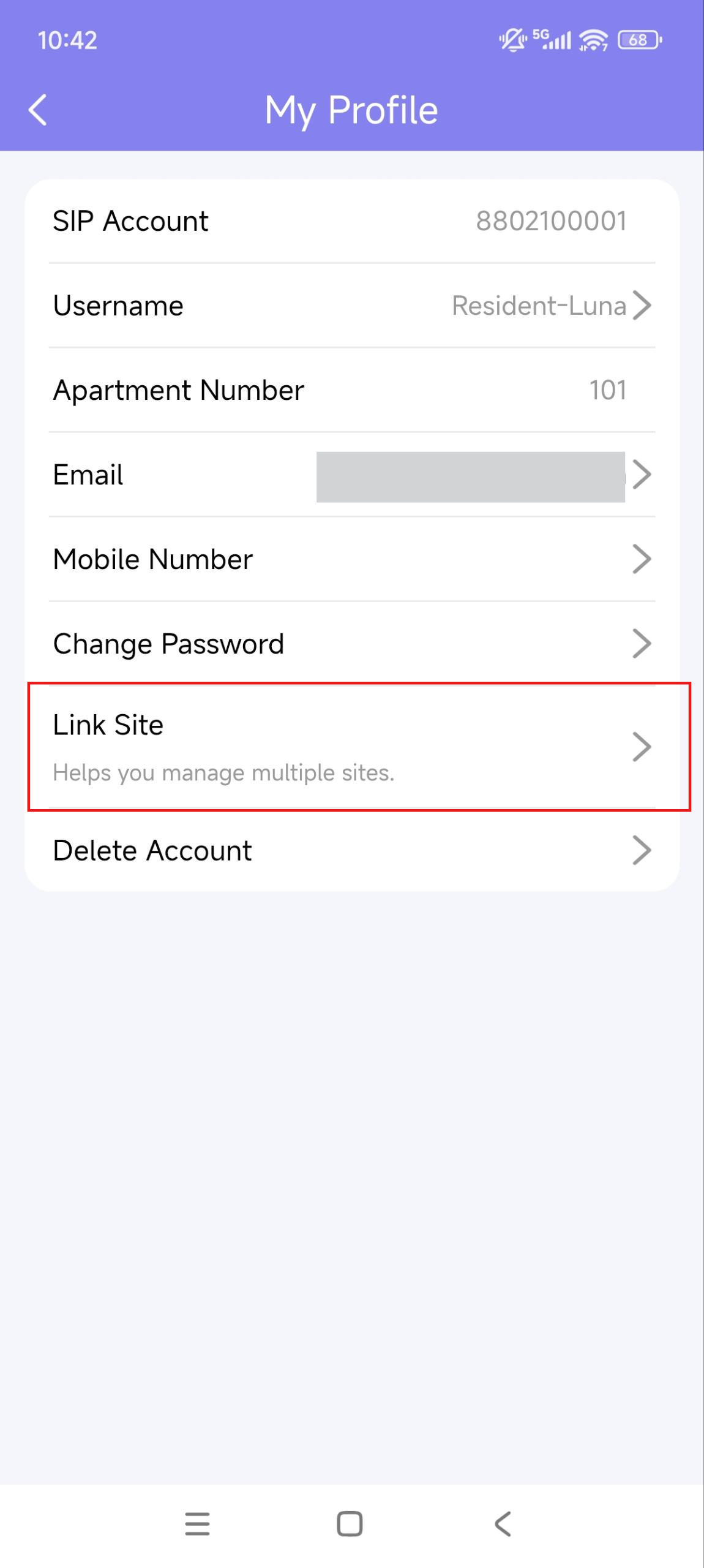
You can link other MySmart accounts to manage multiple sites through one account.
Tap Me > [account name] > Link Site.
Switch Display Mode
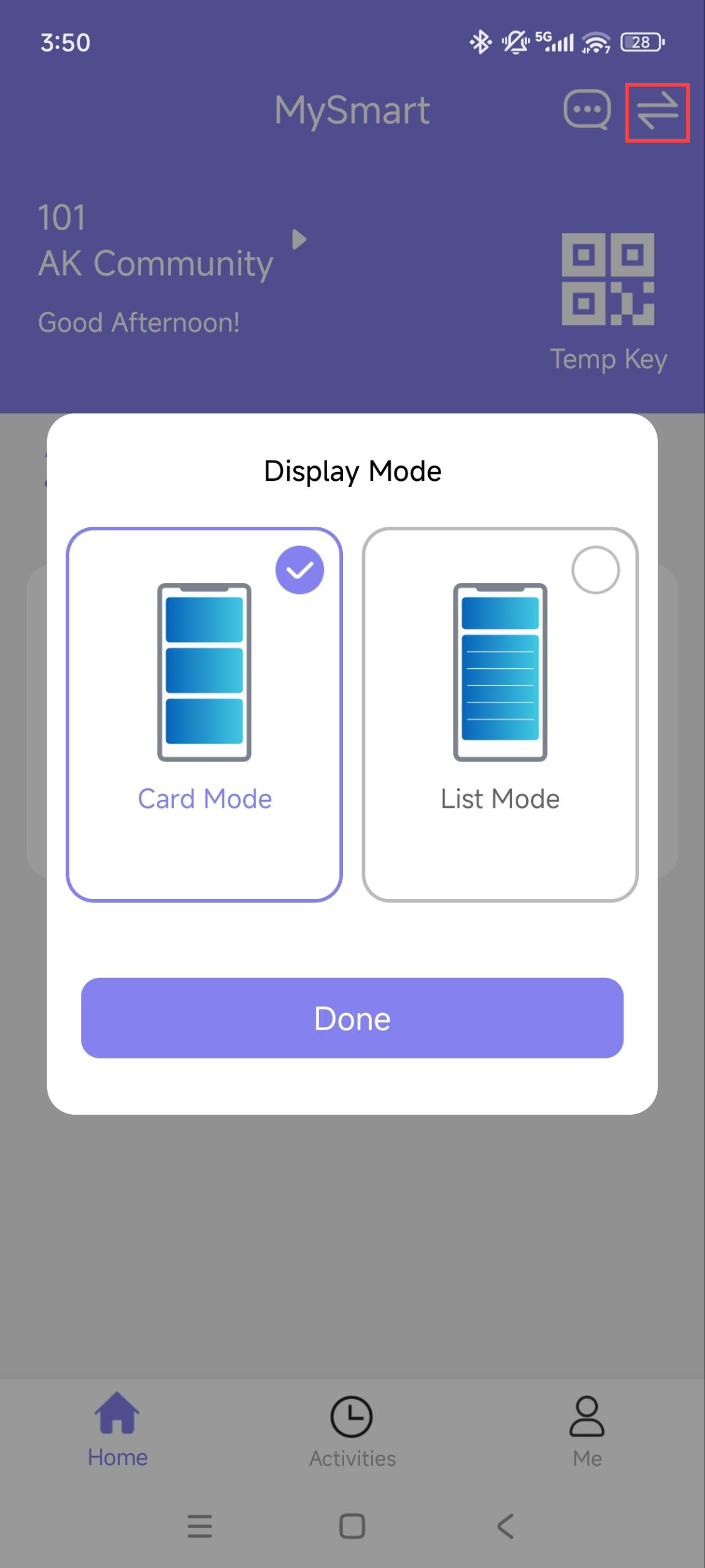
The MySmart App supports two homepage display modes: Card Mode and List Mode.
The main difference:
Card Mode is device-oriented. You can tap the functional icons on desired devices to make calls, open doors, or monitor. If a door phone controls multiple doors, you need to tap the Open Door icon and select the door to open.
List Mode is door-oriented. You can directly tap the desired door to open. To make a call or monitor, tap the Call or Monitor icon and select the desired device to carry out the action.
Card Mode | List Mode |
|---|---|
|
|
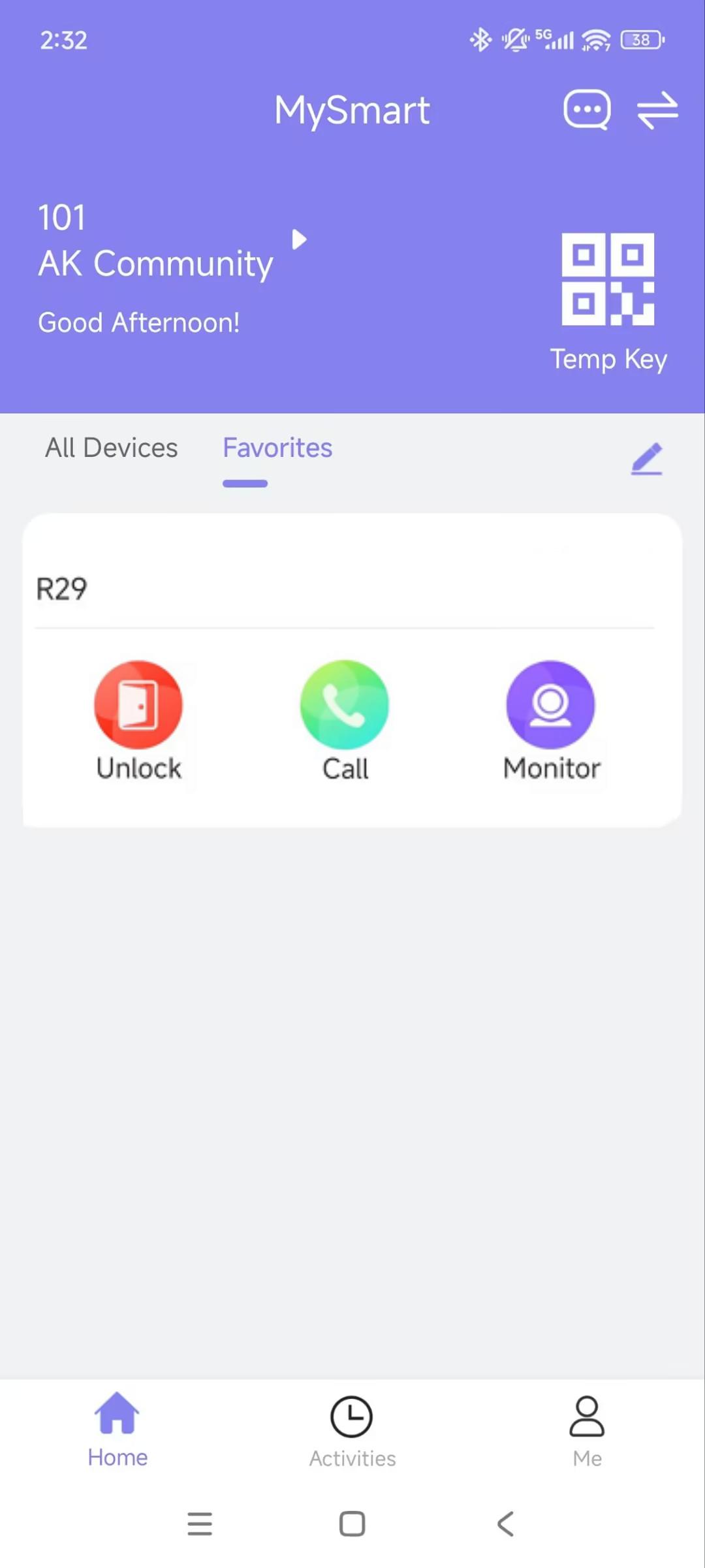
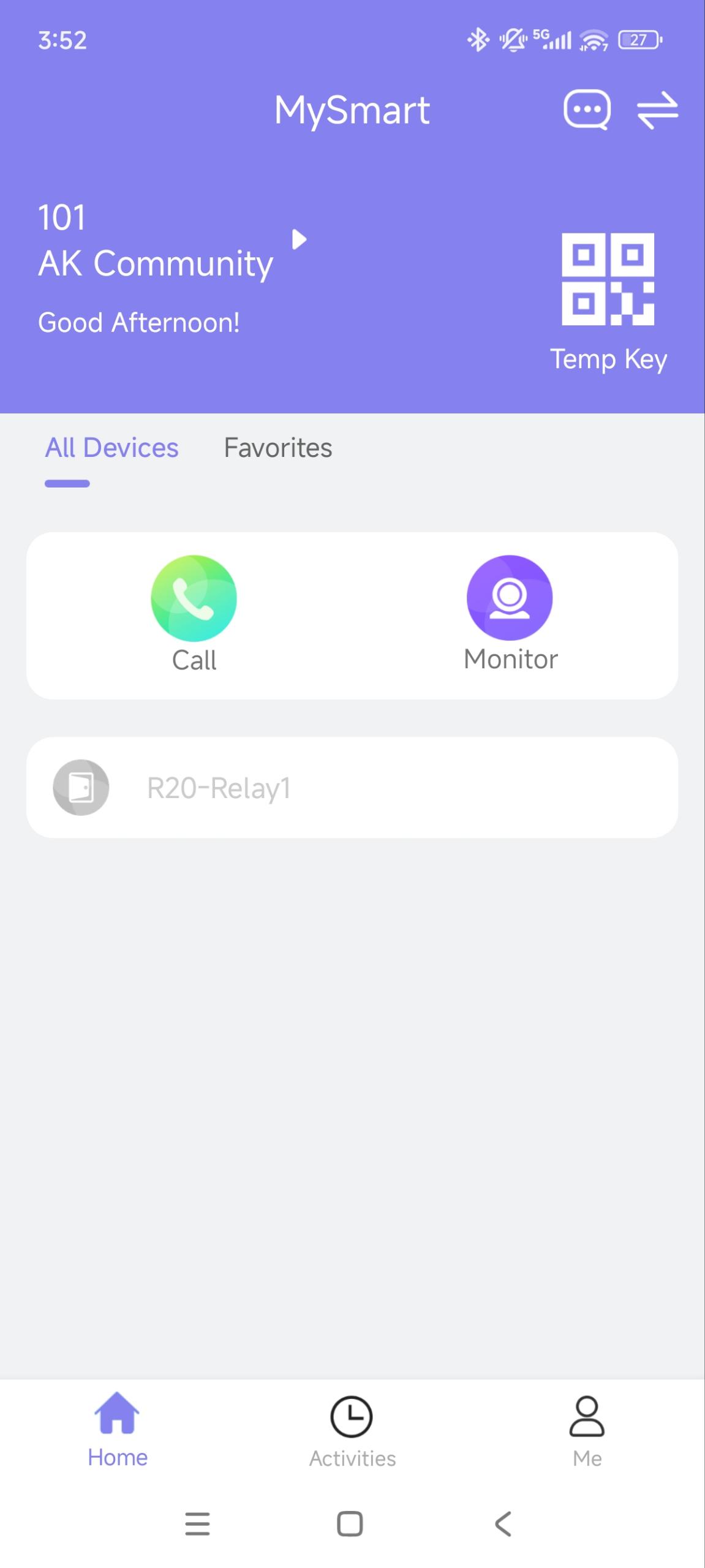
Tap  in the upper-right corner to switch between Card Mode and List Mode.
Door Access
There are various access control options such as NFC, Bluetooth, PIN code, temp keys, and facial recognition. You can choose any of them based on your habits and preferences.
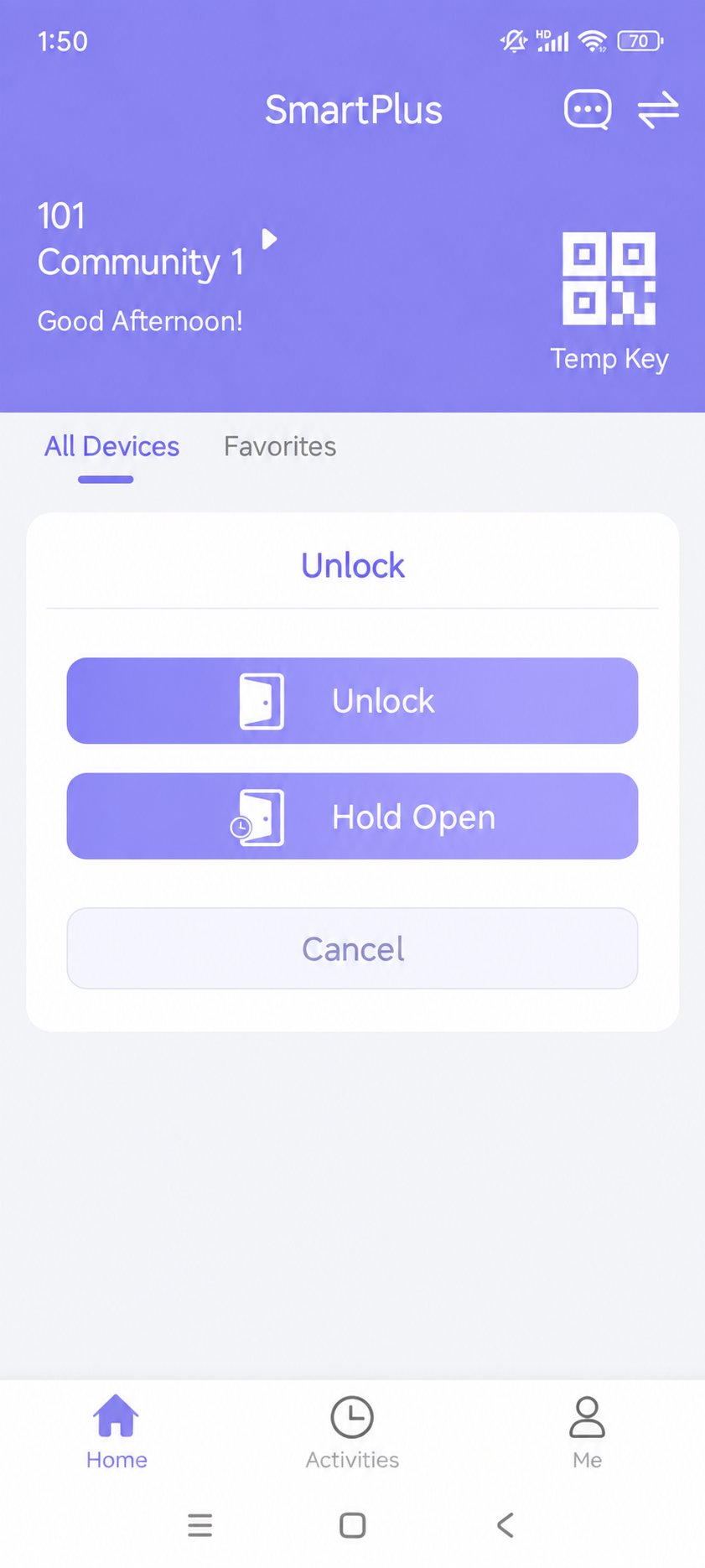
Keep the Door Open
You can keep the door open at certain times for some events when your service provider enables this feature for you.
On the homepage, tap Unlock.
Then, tap Hold Open to set up the schedule.
.jpg)
Remote Opening
You can open the door directly for your visitors by tapping the specified button.
Tap Unlock on the homepage. If there are multiple doors, tap the desired one.
Opening the Door During a Call
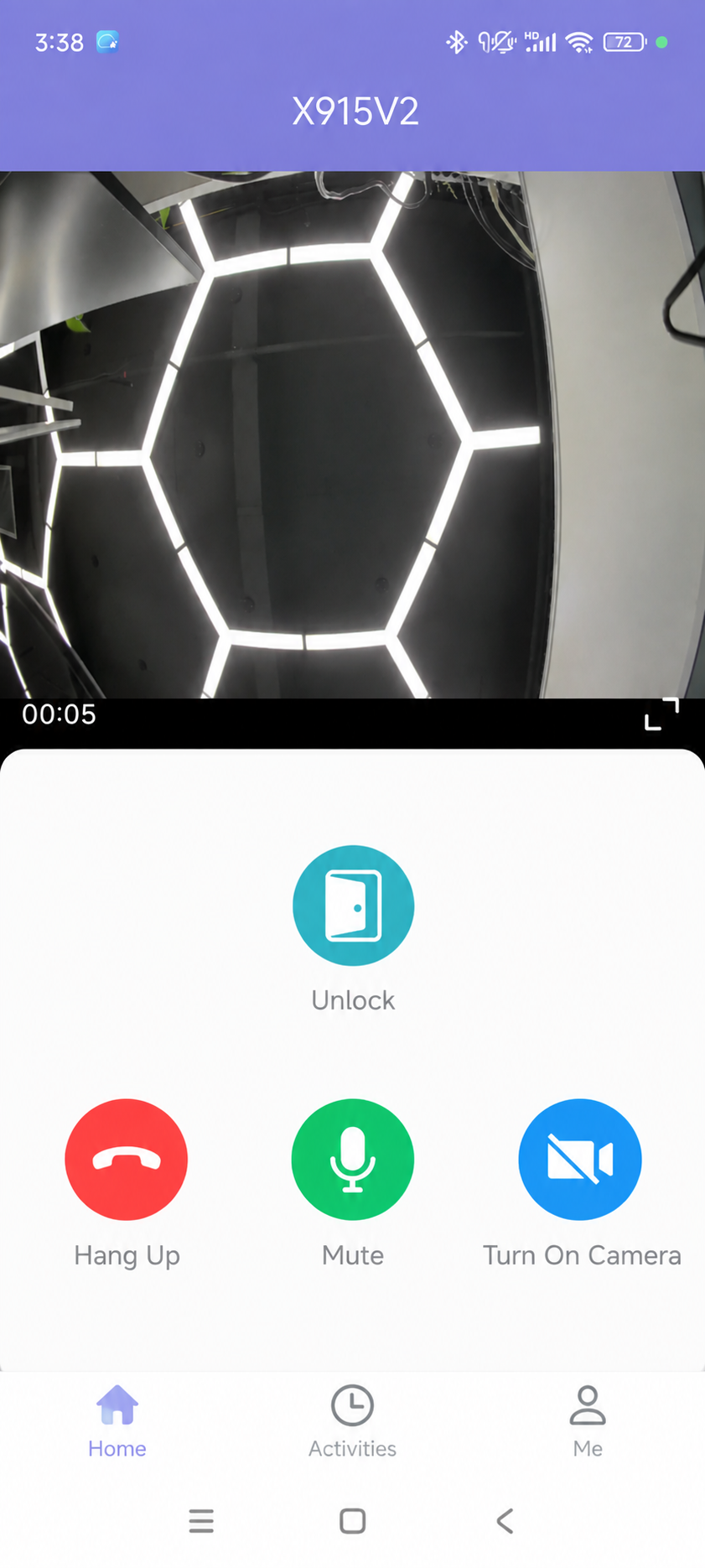
You can make or receive a call. During a call, you can open the door for visitors, mute the microphone, and hang up the call.
Tap Unlock to open the door.
Tap Mute to silence your microphone while on the call.
Tap Hang Up to end the call.
Tap Turn On Camera/Turn Off Camera to turn your phone’s camera on/off in video calls. Your choice to turn on/off will be applied to later video calls with the device.
Note
To use the Turn On Camera/Turn Off Camera feature, you must grant MySmart camera access permission.
Opening the Door while Monitoring
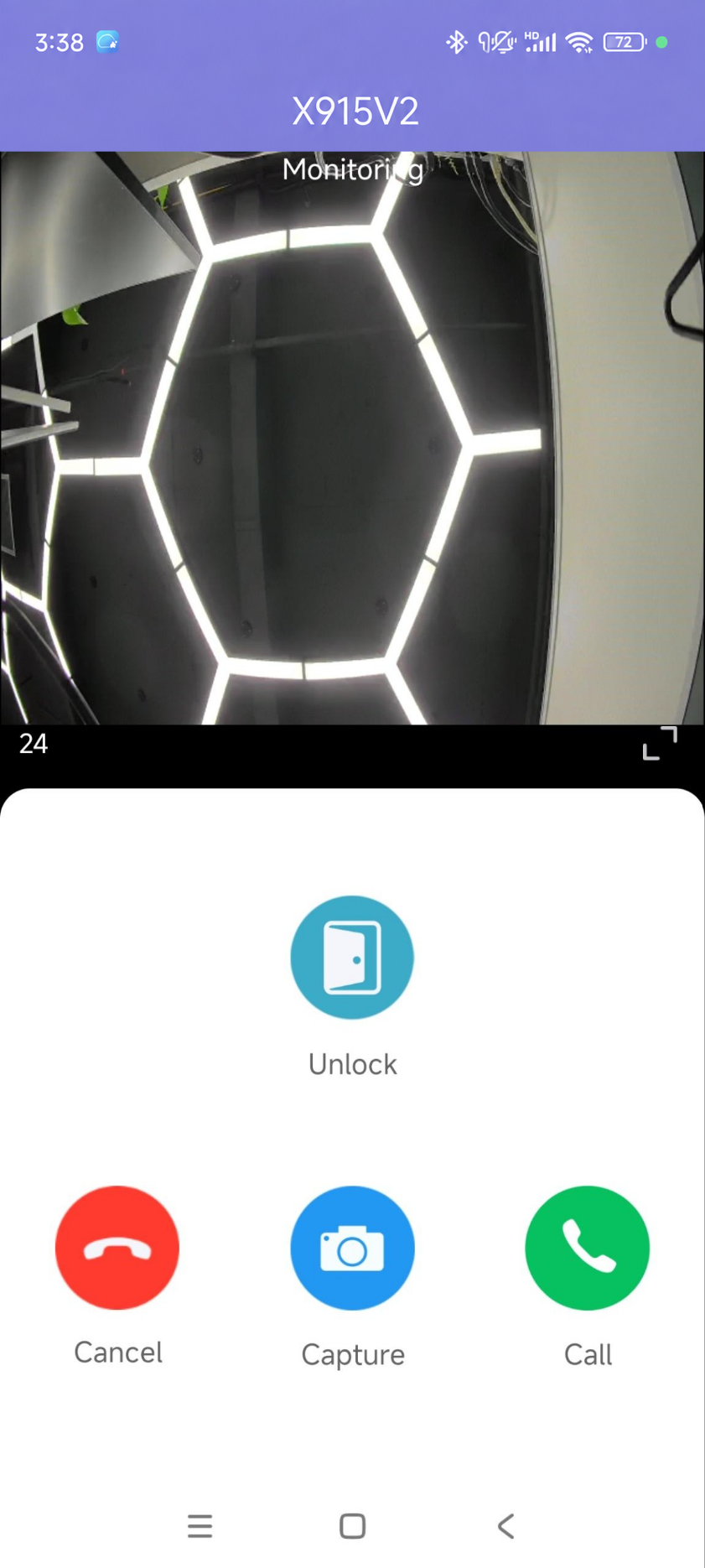
You can watch the live video to know who is standing in front of your door, and then decide whether to open the door or not.
Tap
 of the desired device on the homepage.
Tap Unlock on the monitoring page.
Besides, you can:
Tap Cancel to exit the current page.
Tap Capture to make a screenshot.
Tap Call to make a call with the visitor.
Note
Akuvox devices without cameras do not have a monitor button
Opening the Door During a Call Preview
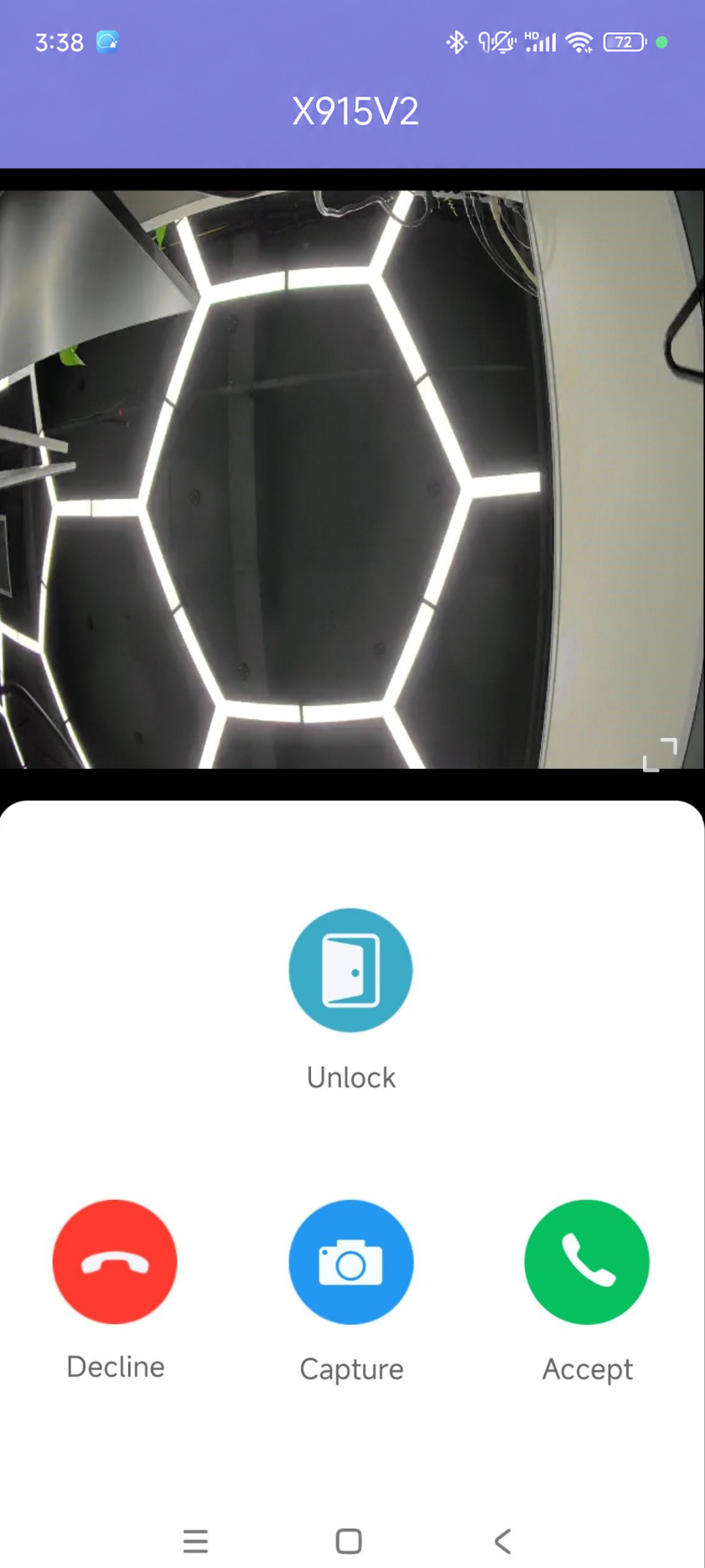
When someone calls, you can preview the monitoring streams to see who it is before answering the call.
On the call-receiving page, tap Unlock to open the door.
If the door phone is linked with a third-party camera, you can switch the live streams between the door phone and the camera.
Open Doors with Temp Keys
A Temp Key can be a QR code or an 8-bit PIN. You can customize its validity period and the times for use, and the key will be valid immediately after you create it.
You can issue temp keys for your visitors, housekeepers, dog walkers, etc.
Create Temp Key for Visitors
To issue a Temp Key, do the following:
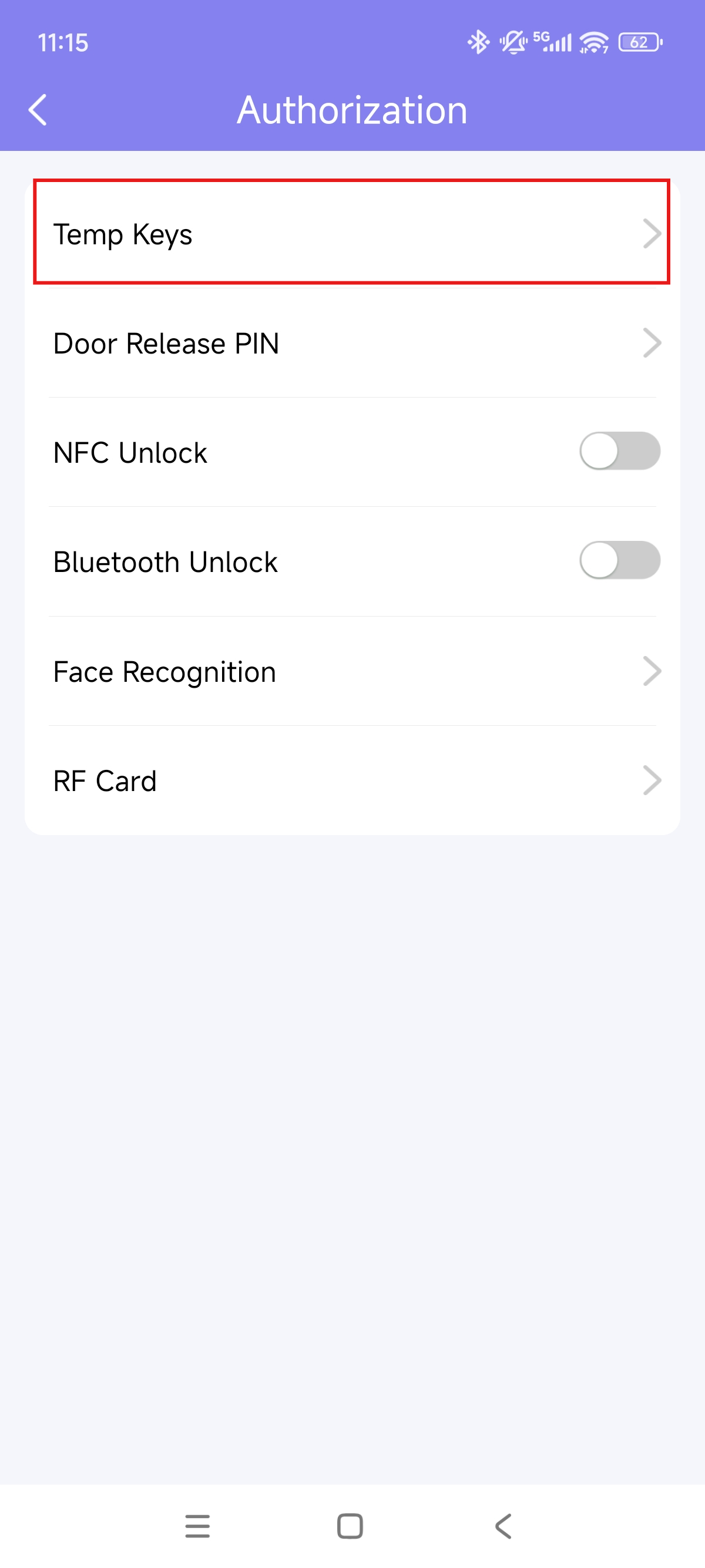
Tap + Temp Key on the homepage or tap Me > Authorization > Temp Keys.
Tap +Temp Key.
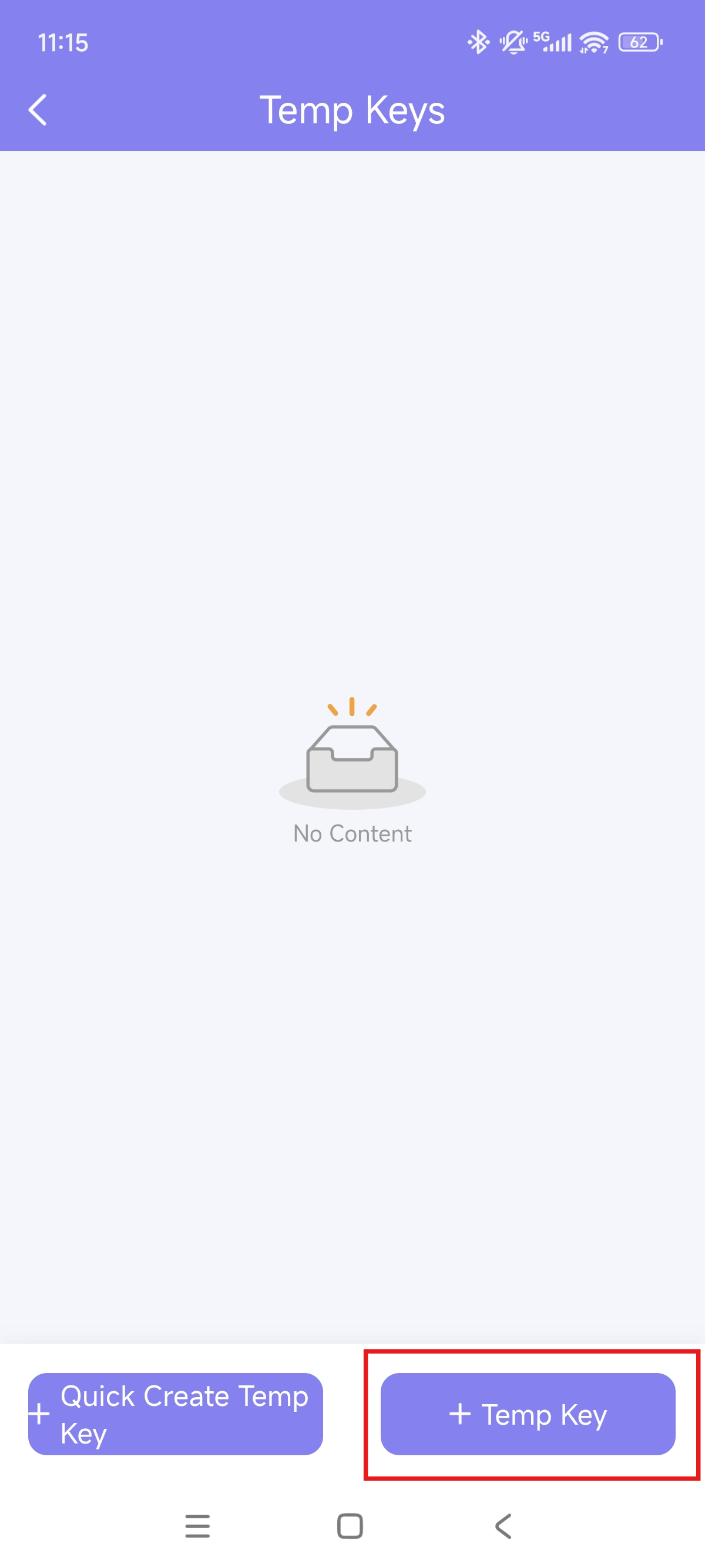
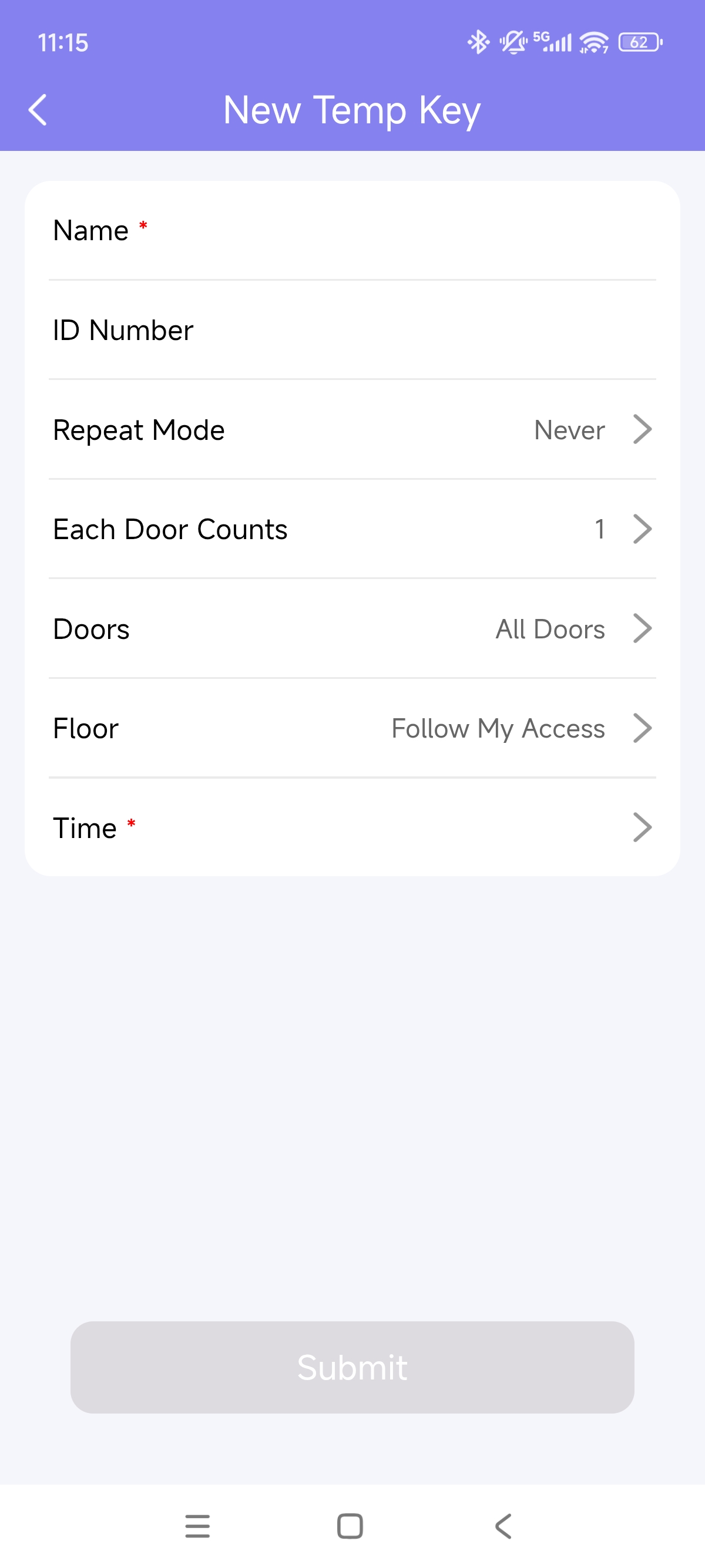
Enter the username and set the ID number.
Set the Repeat Mode: Never, Daily, or Weekly. If Never is selected, set the valid times of the key on each device. The total times are equal to Each Door Counts * the number of selected doors.
Select the door to be opened.
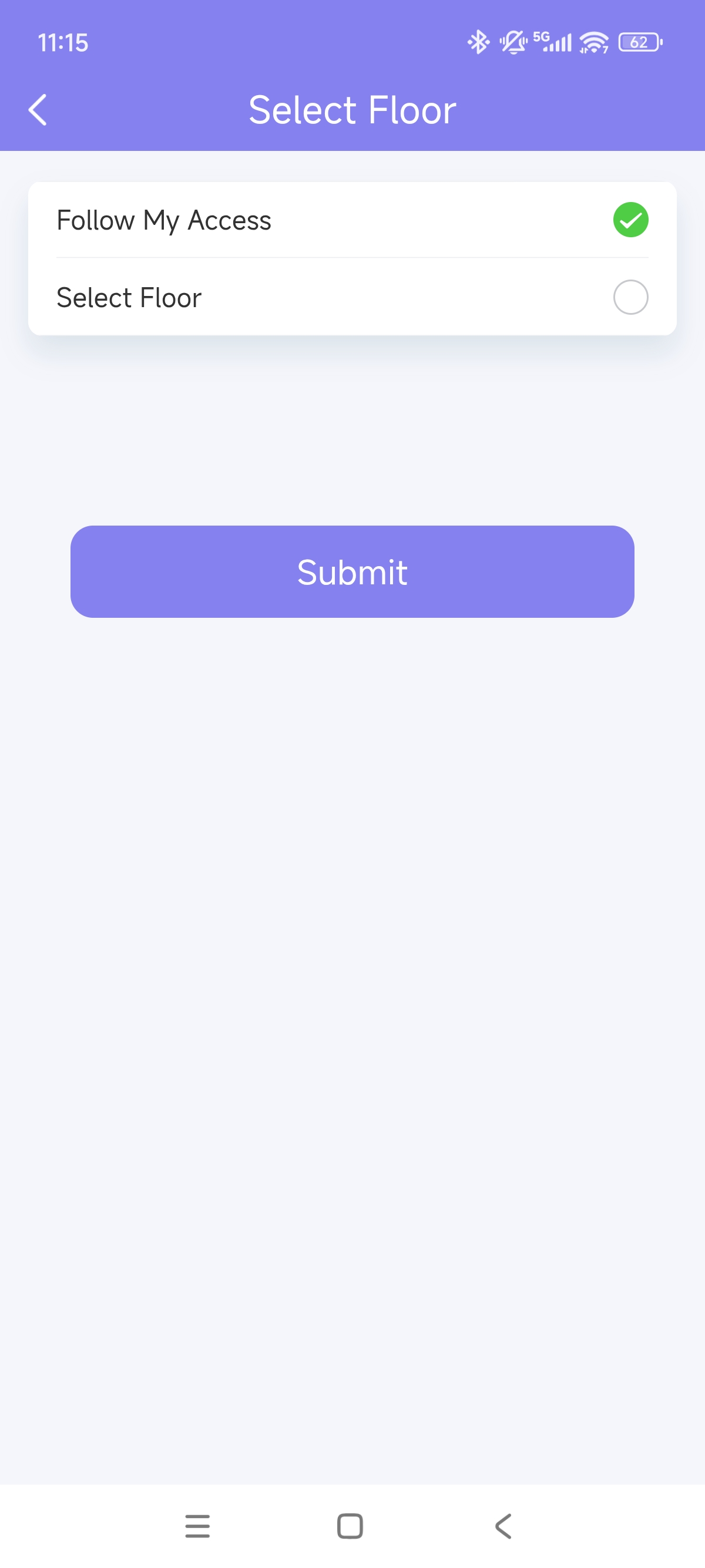
Choose the floor(s) accessible to the visitor. This option is only available for community users' accounts and works with the Akuvox EC33 elevator control system.
Follow My Access: It means the visitor has the same accessible floor permission as you.
Choose Floor: Select specific floors and buildings from available choices.
Specify the time for using the temp key.
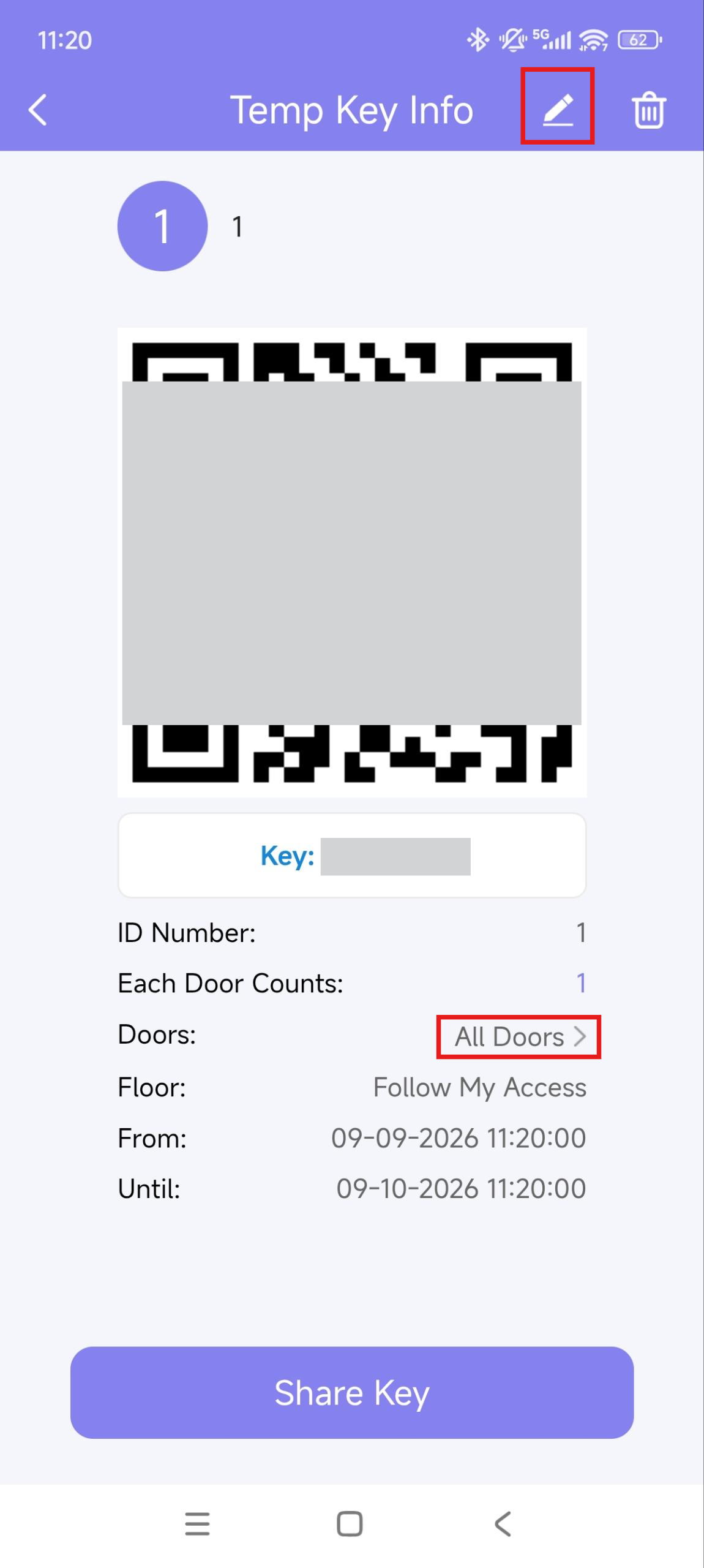
After the temp key is created and before it expires, you can change the valid time of the key by clicking the Edit icon in the upper-right corner.
Share the key through desired methods by tapping Share Key.
Create a Temp Key for a Delivery Person
The delivery temp key is one-time only. Its repeat mode is Never by default. A delivery person with this key is allowed to access all public doors that you can open.
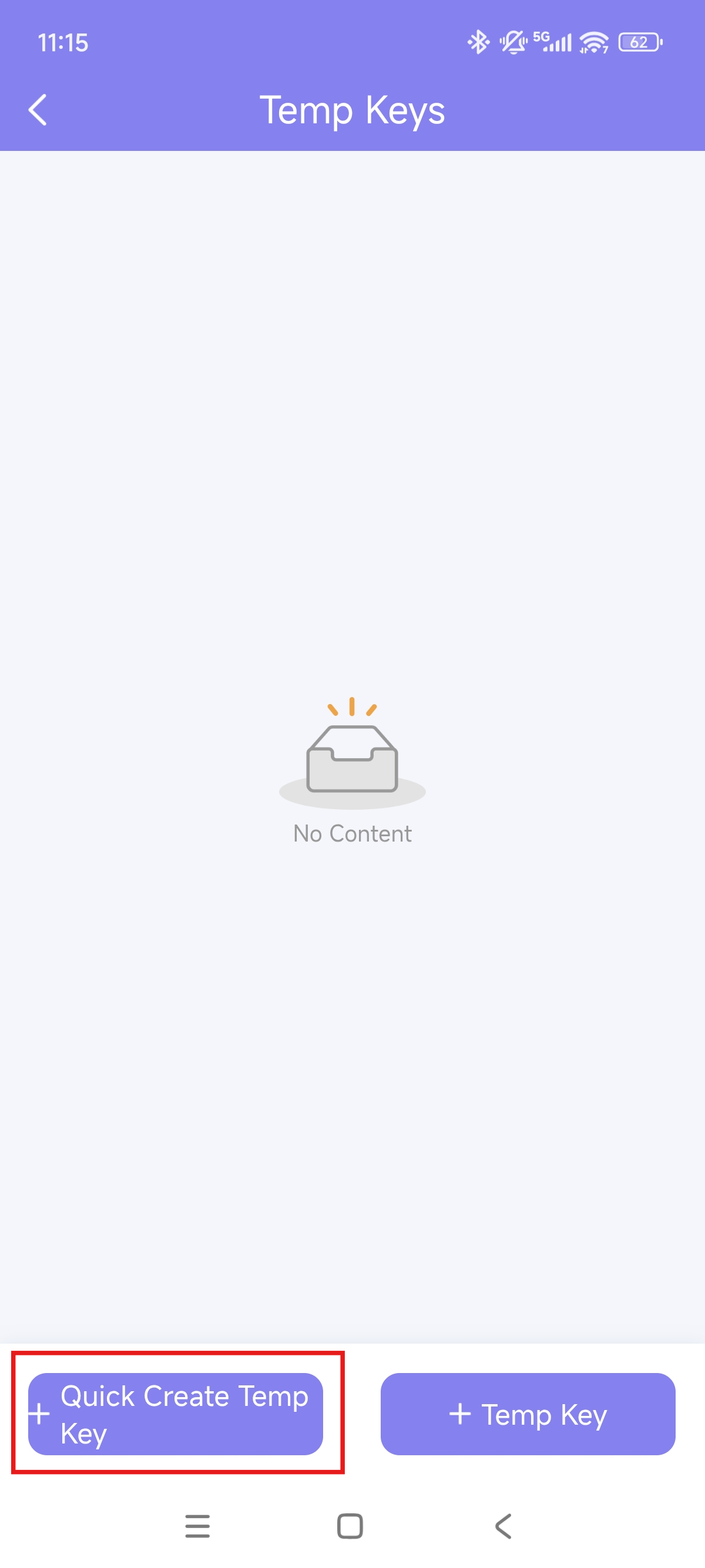
Tap +Temp Key on the homepage or go to Me > Authorization > Temp Keys.
Tap + Quick Create Temp Key, and a key will be auto-created.
Use the Temp Key
See the following to learn how to use the keys:
A QR code key. Tap Temp Key on the door phone's screen, and place the QR code in front of its camera. When the camera reads the code, the door will open automatically.
A PIN code key. Tap PIN on the door phone's screen, enter the code and confirm, and the door will open automatically.
Open Doors with Face ID
Using the facial recognition feature helps you open the door fast and safely.
Set up Face ID
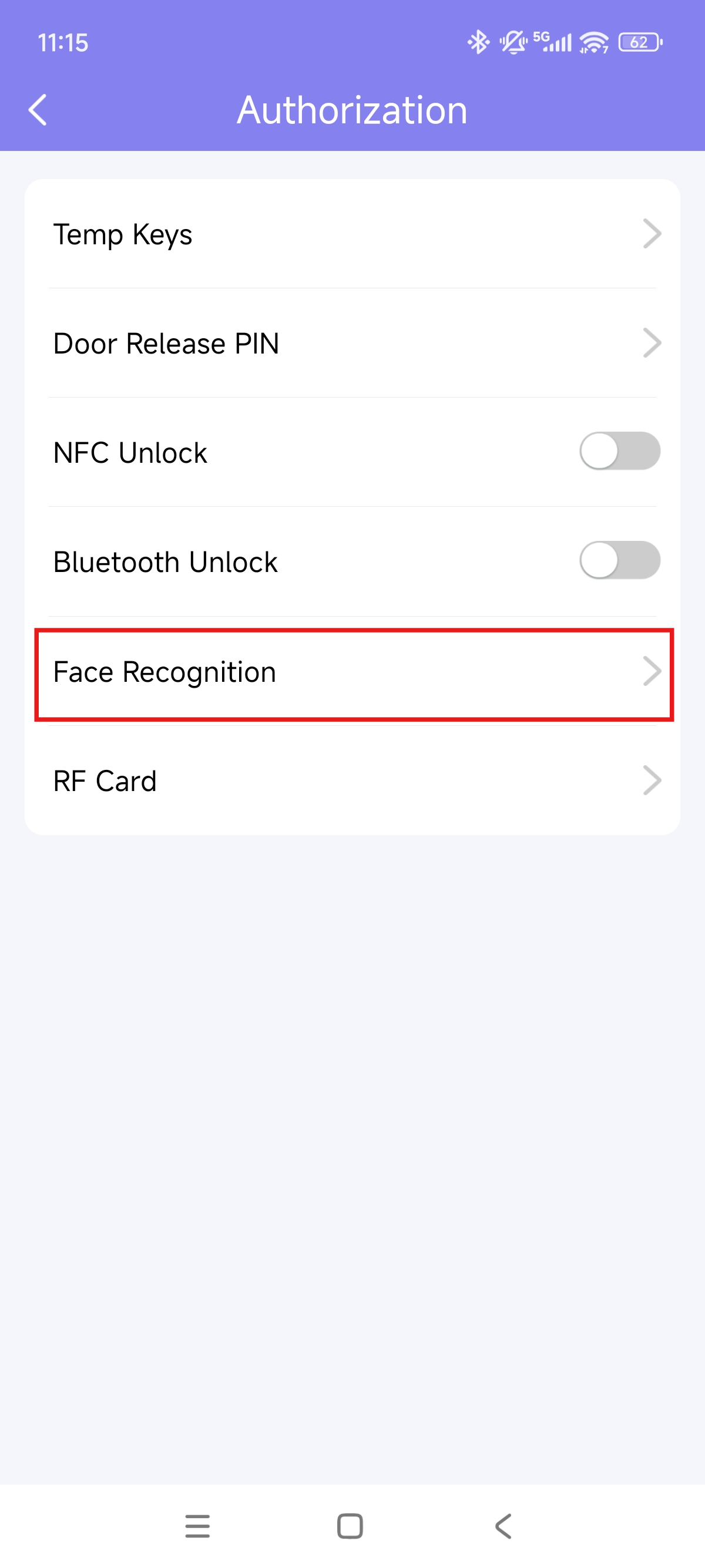
Go to Me > Authorization > Face Recognition.
Tap Get Started or choose a photo from the album, then follow the on-screen instructions.
.jpg)
Set up Face ID for Family Members
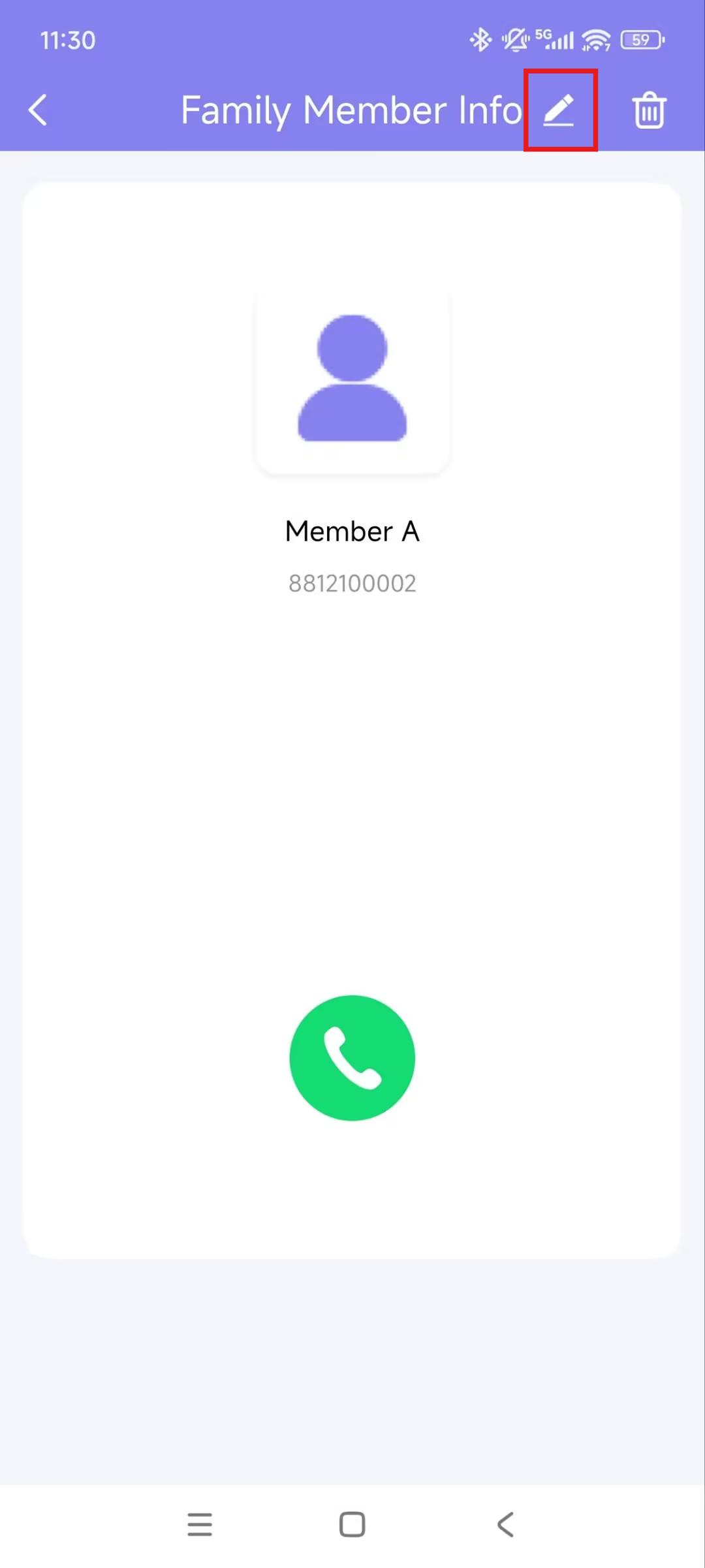
Tap Me > Family Members and select the target family member.
Click the Edit icon in the upper-right corner.
Tap Face Recognition.
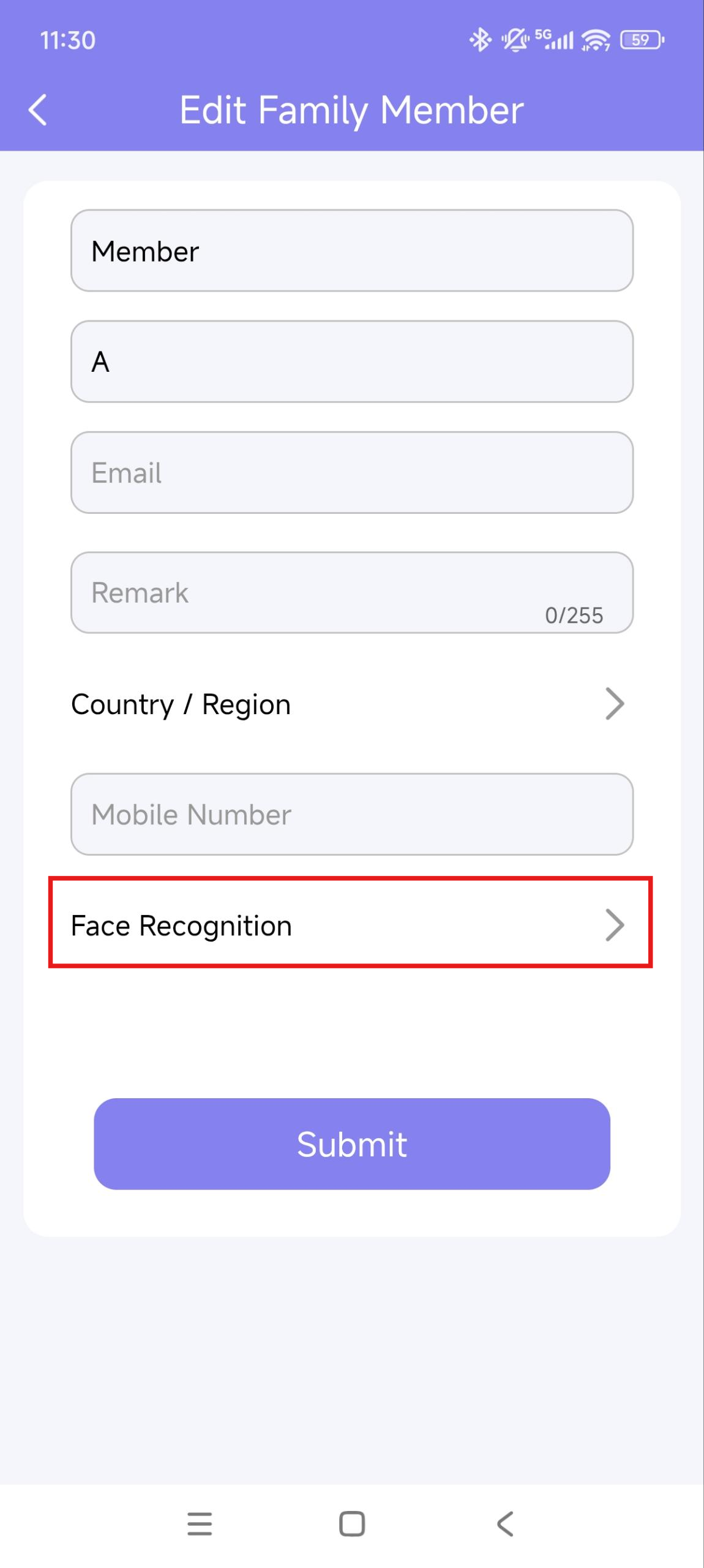
You can set the face ID by:
choosing a front-face photo from the album.
tapping Get Started and making sure the member's face stays fully in the frame until the registration finishes.
Open Doors with NFC
It is convenient to use a phone with an NFC feature to open the door. You just need to put your phone near the door phone's card reader, then the door will open.
Note
This method does NOT work on iPhones and Android phones without the NFC feature.
Enable NFC to Unlock
Go to Me > Authorization, and turn on NFC unlock.
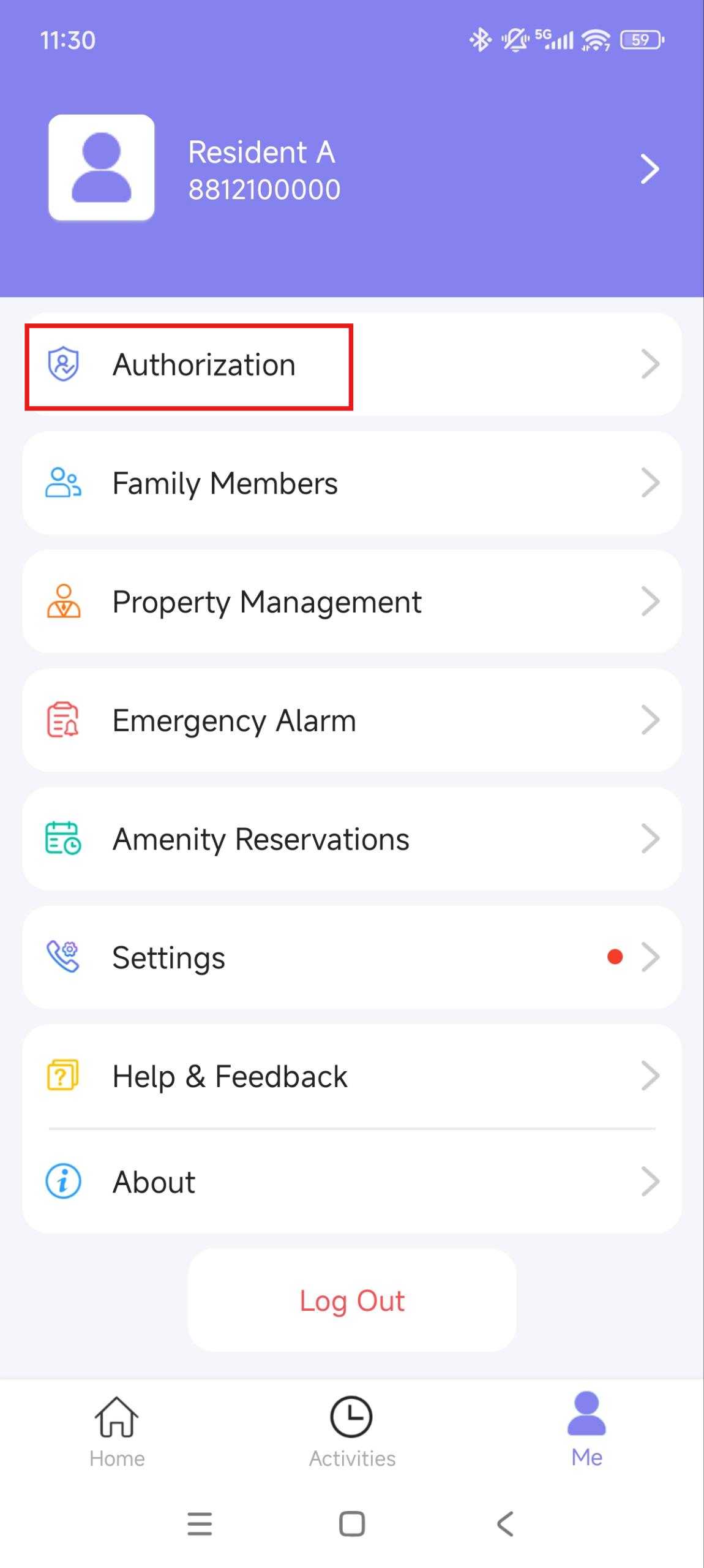
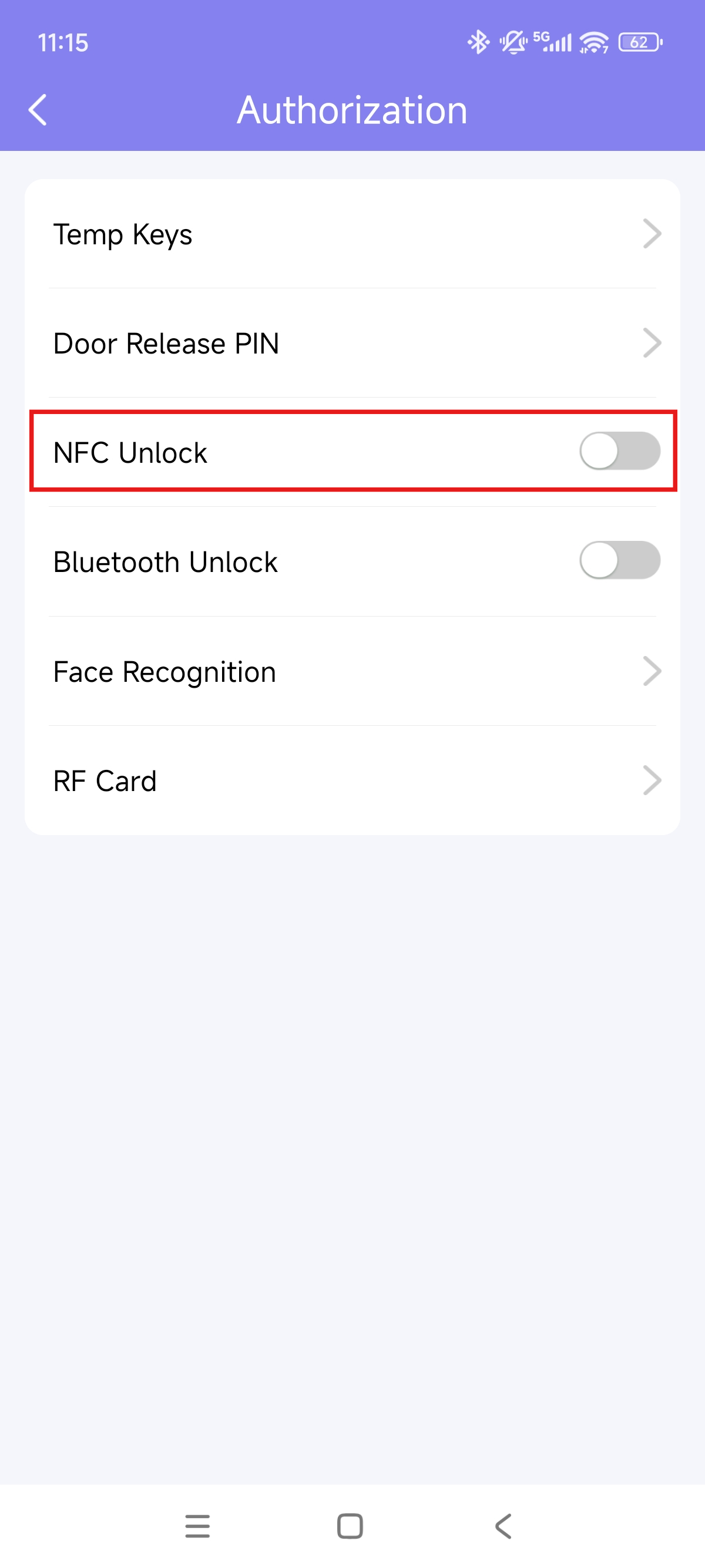
Use NFC to Open Doors
Ensure NFC is turned on, both on your Android phone and in the MySmart App, before using this feature.
Wake up your phone.
Place the NFC detection areas of your phone on the door phone's card reader area for a few seconds. Then, the door will open automatically.
Open Doors with Bluetooth
Alternatively, you can use a Bluetooth connection to open the door without touching it.
Note
To learn about the supported door phones and detailed steps for Bluetooth door opening, please refer to Open the Door via Bluetooth.
Enable Bluetooth Unlock
Ensure Bluetooth is enabled on your phone and MySmart App before using this feature.
Go to Me > Authorization, enable Bluetooth Unlock, and follow the on-screen instructions.
Select a Bluetooth Unlock Mode between Shake, Hands-free, and Tap as Card.
Shake: Place your phone near the door unit, shake your phone a few times, and the door will open automatically.
Hands-free: Your phone must be within about 3.3 feet (1 meter) of the door phone, and the door will open automatically.
Tap as Card: Open the door by placing the mobile phone near the door phone.
If you select Hands-free mode, follow the on-screen instructions to complete Permission Settings.
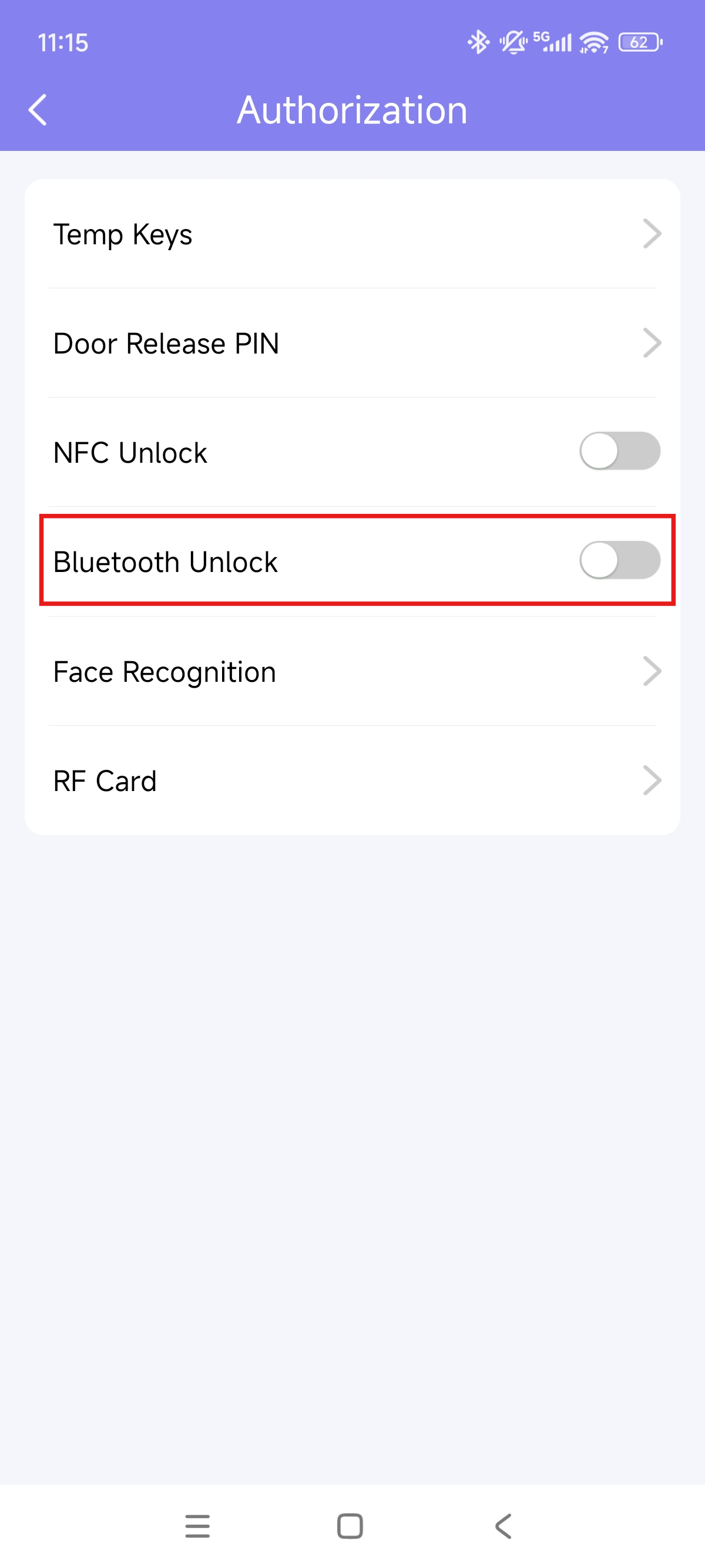
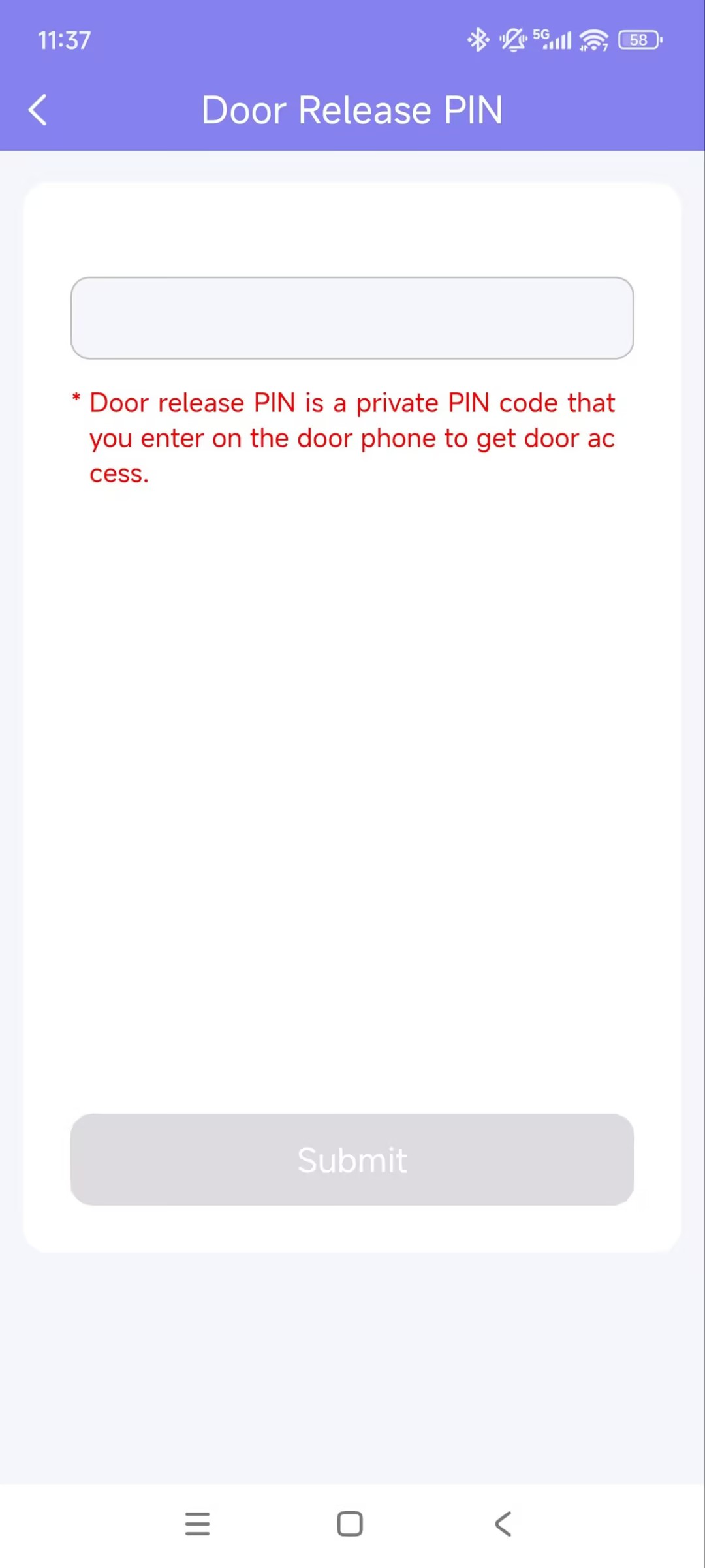
Open Doors with a PIN Code
You can set a private PIN code for door entry.
On your first login, you are asked to set up a PIN code for your private use. You can skip this step to set it up later.
Tap Me > Authorization > Door Release PIN.
Enter the PIN code within 2 to 8 digits.
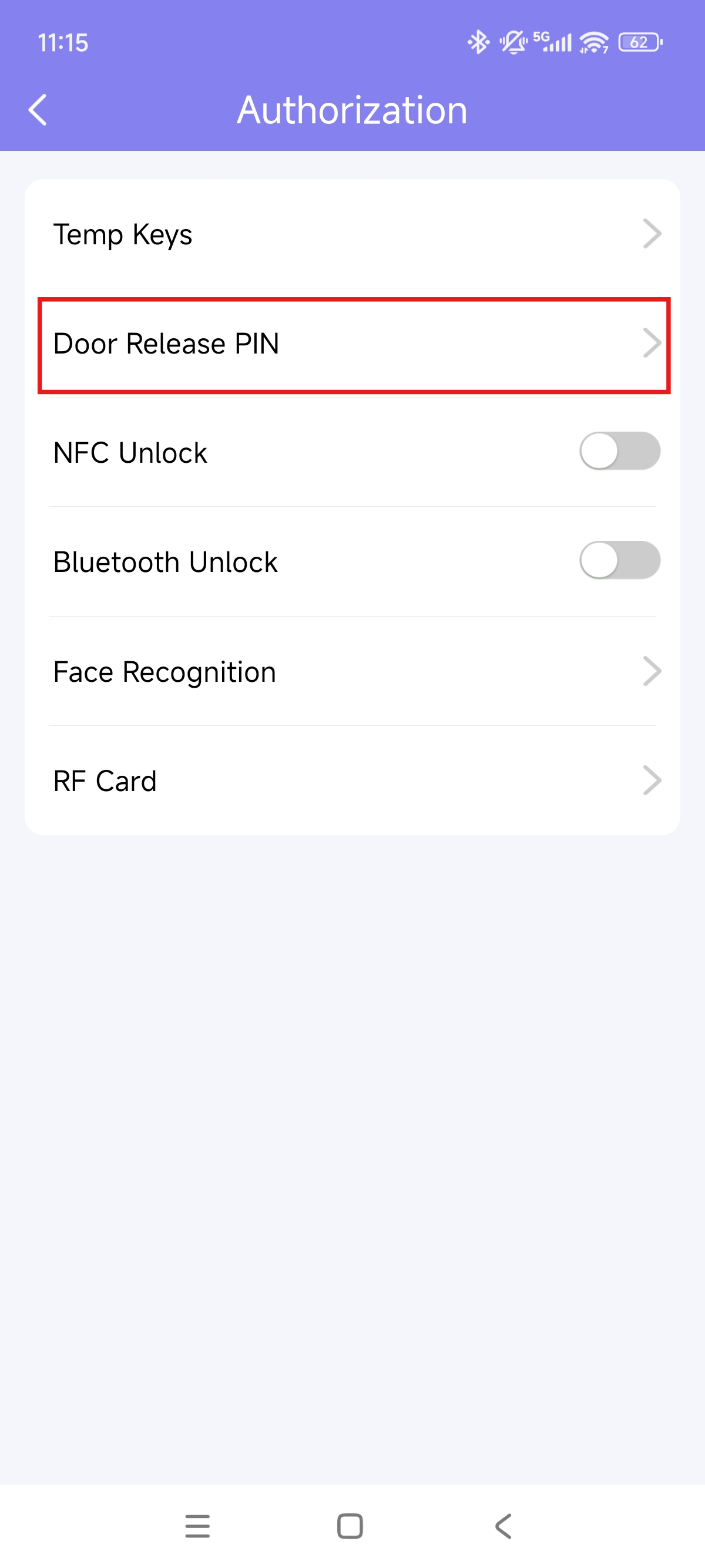
Open Doors with an RF Card
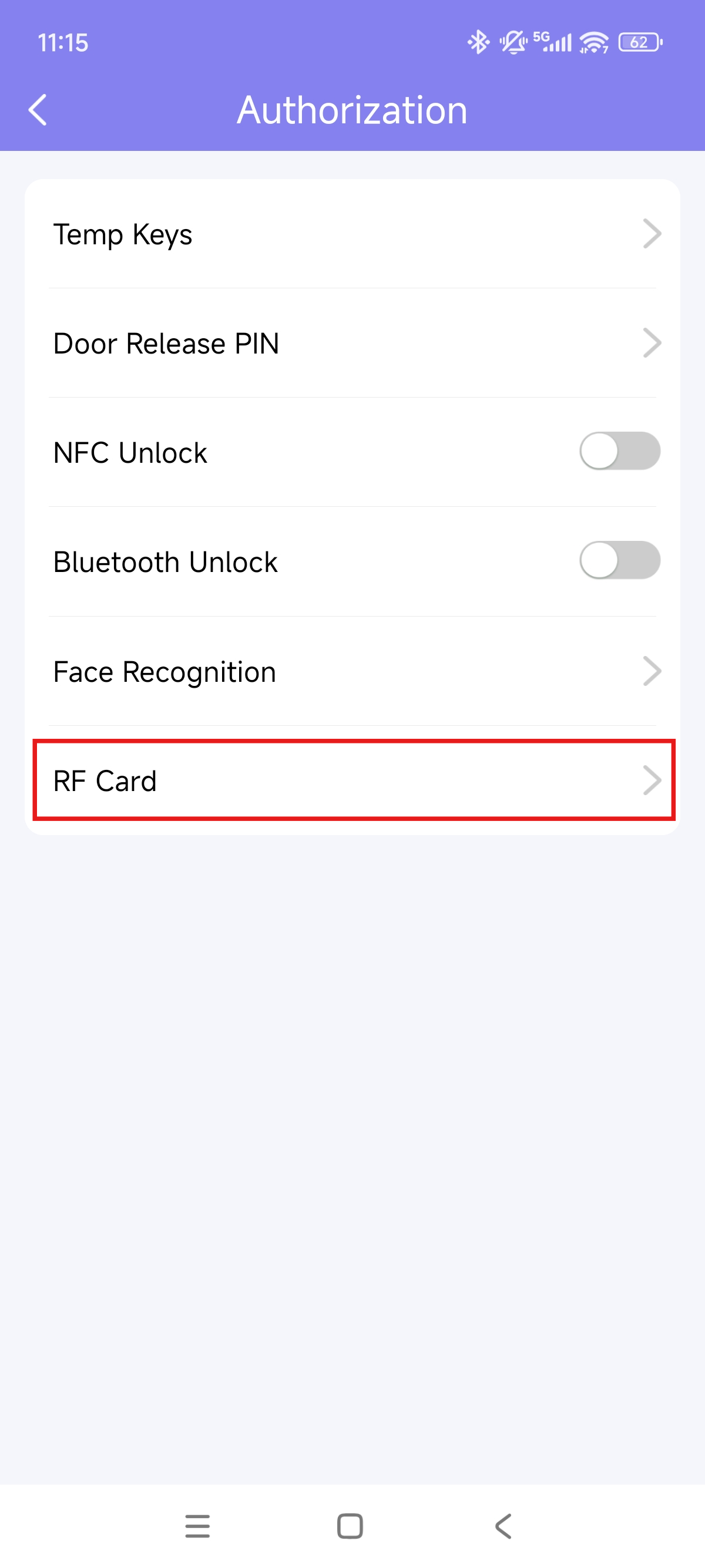
To manage RF cards, follow the steps below:
Go to Me > Authorization > RF Card.
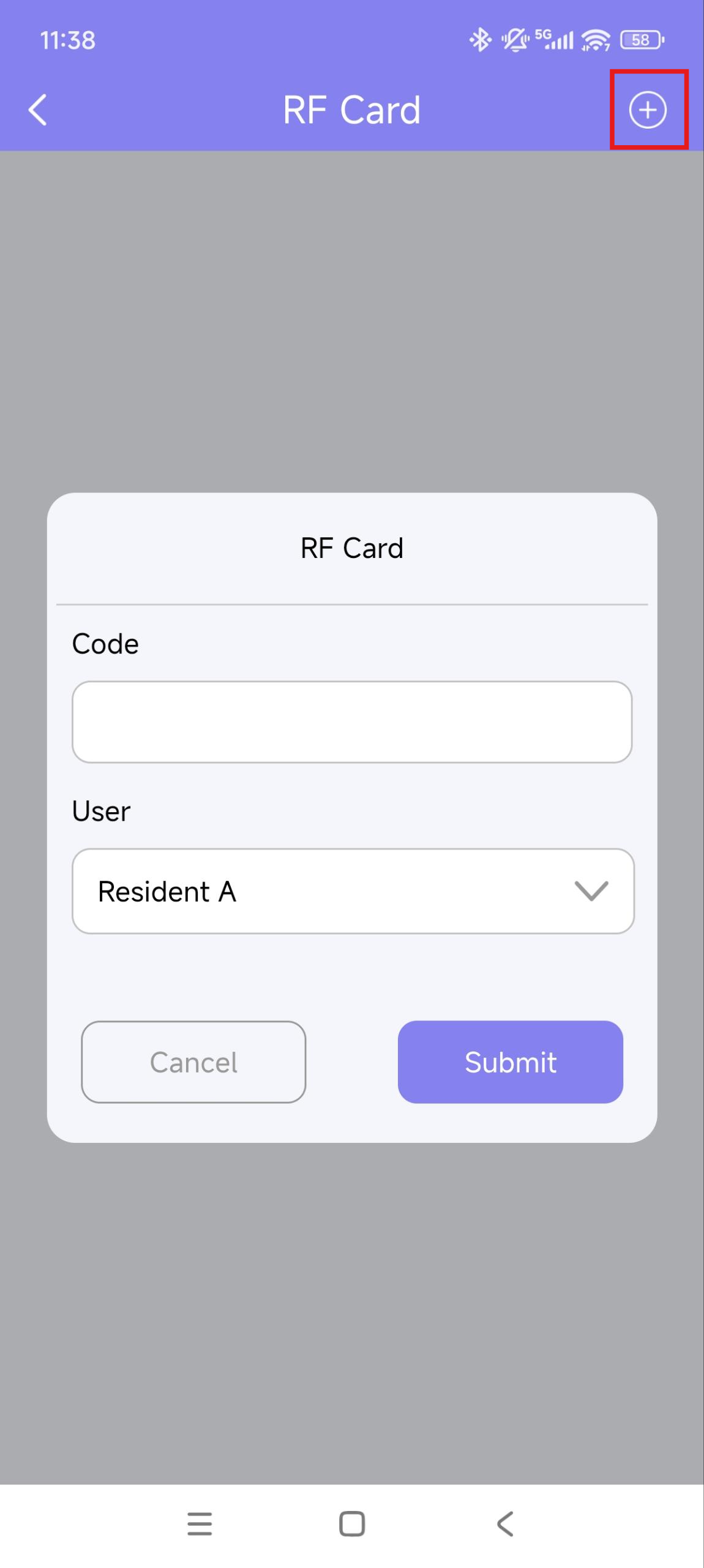
Tap + in the upper-right corner to add a card.
Enter the card code.
Assign the RF card to the desired user by tapping
 .
.
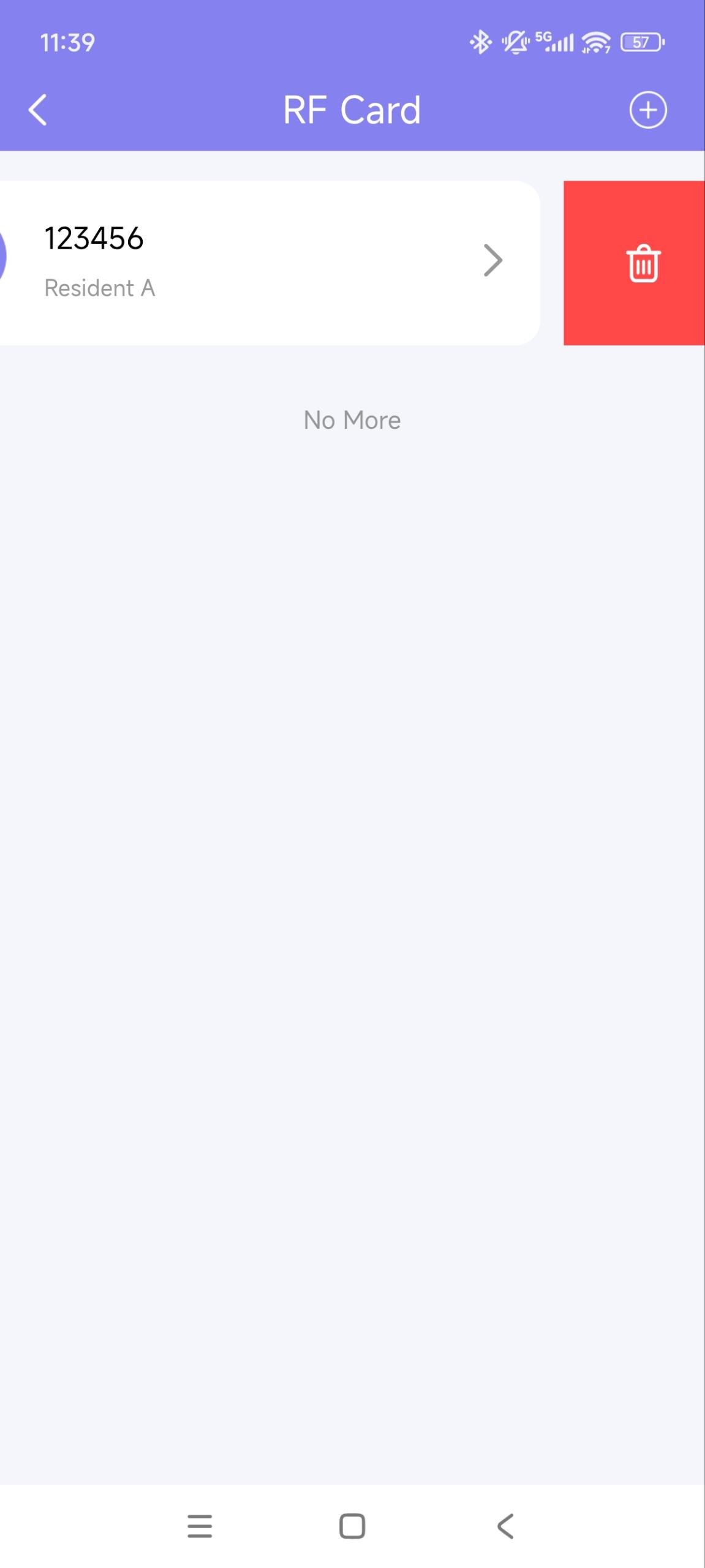
After adding the card, you can tap.png) to edit it; hold the card, and swipe to the left to delete.
to edit it; hold the card, and swipe to the left to delete.
Open Doors by ID Access
The ID Access feature is designed for users with South American ID cards.
You can enroll the RUN and Serial numbers on your ID cards into the Akuvox MySmart Cloud system. Then, you can open doors conveniently by using the QR code on the ID cards.
Note
The QR code on your ID cards may be too small for the door phone to scan.
It is strongly suggested to take a photo of and enlarge the QR code for door opening.
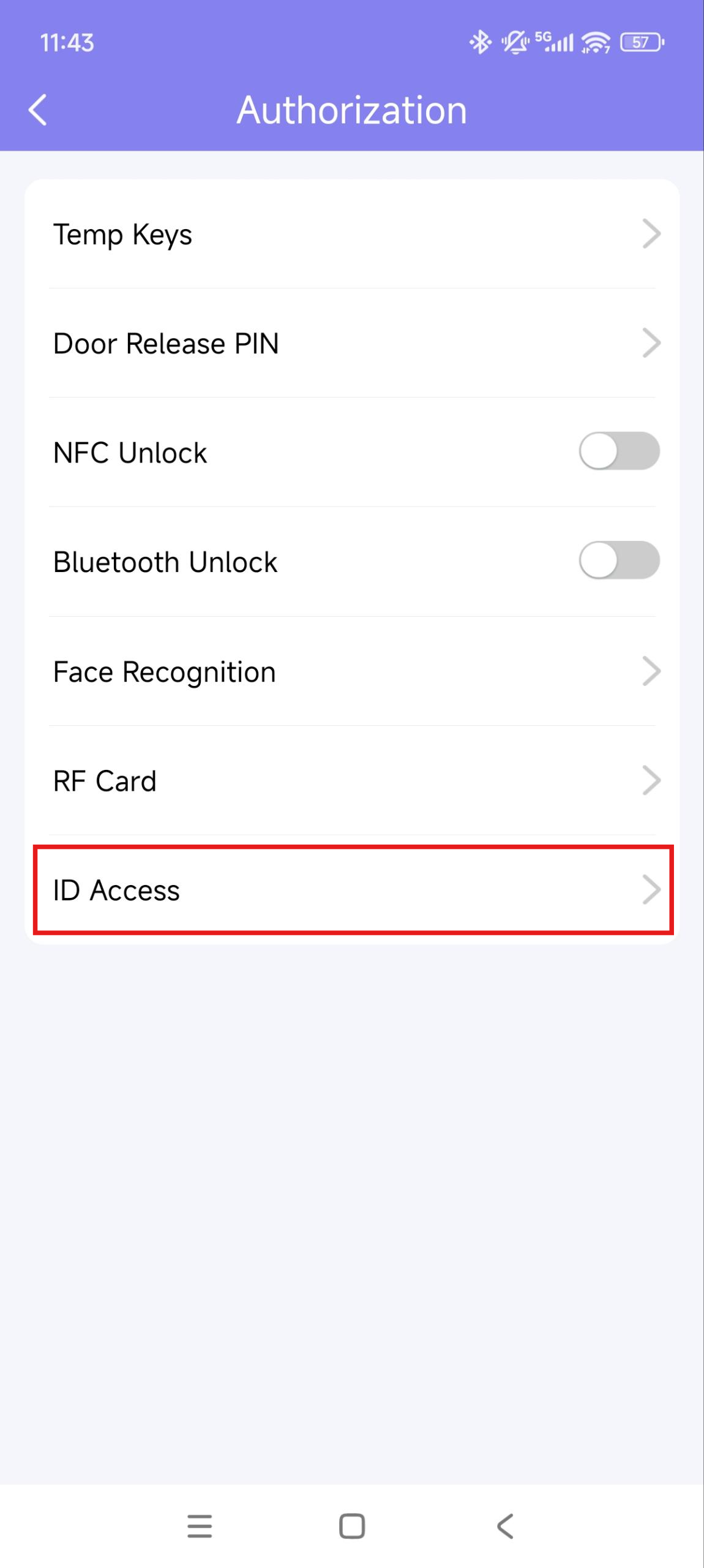
Tap Me > Authorization.
Tap ID Access and select the ID Access type: RUN Only or RUN+Serial.
Enter the number and tap Confirm.
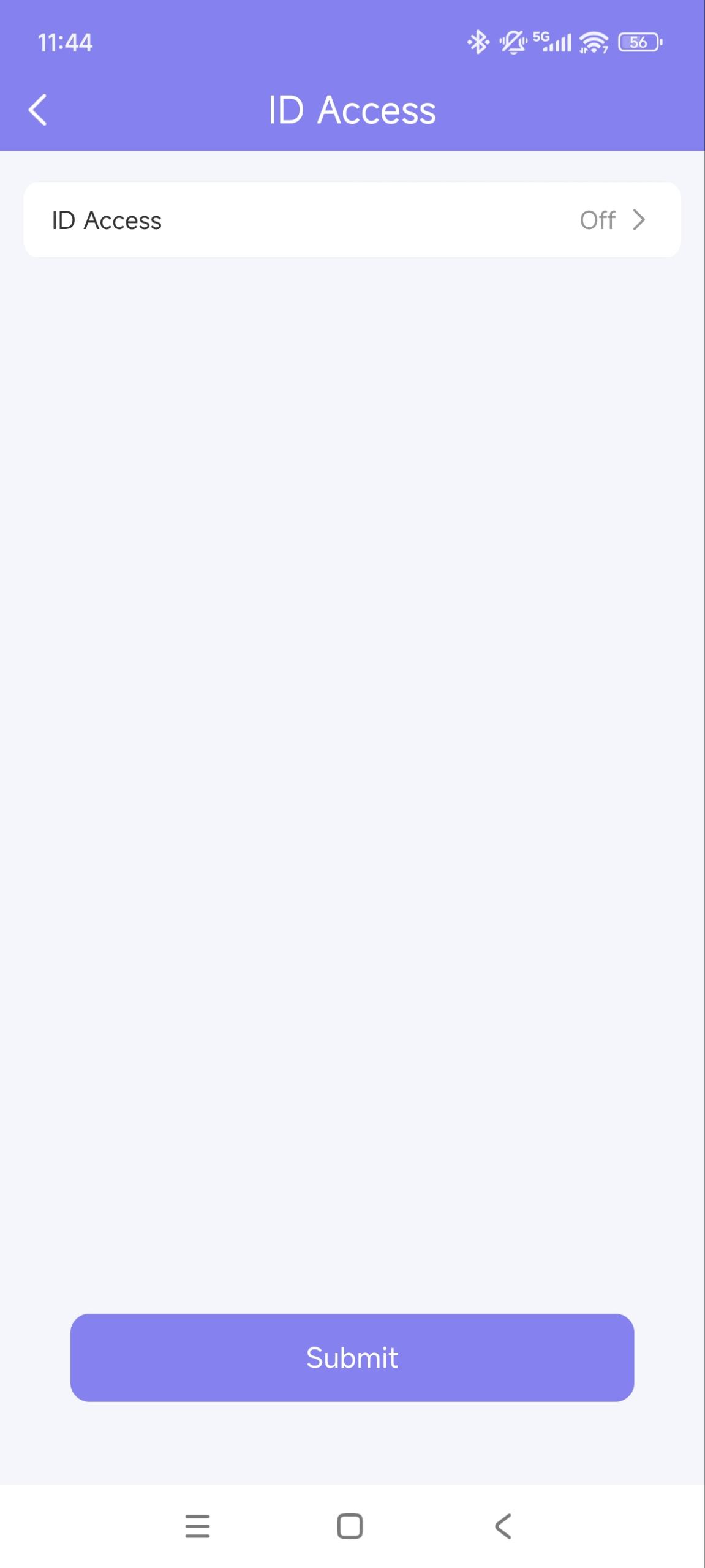
4. Click Submit to save the settings.
Open the Garage Door
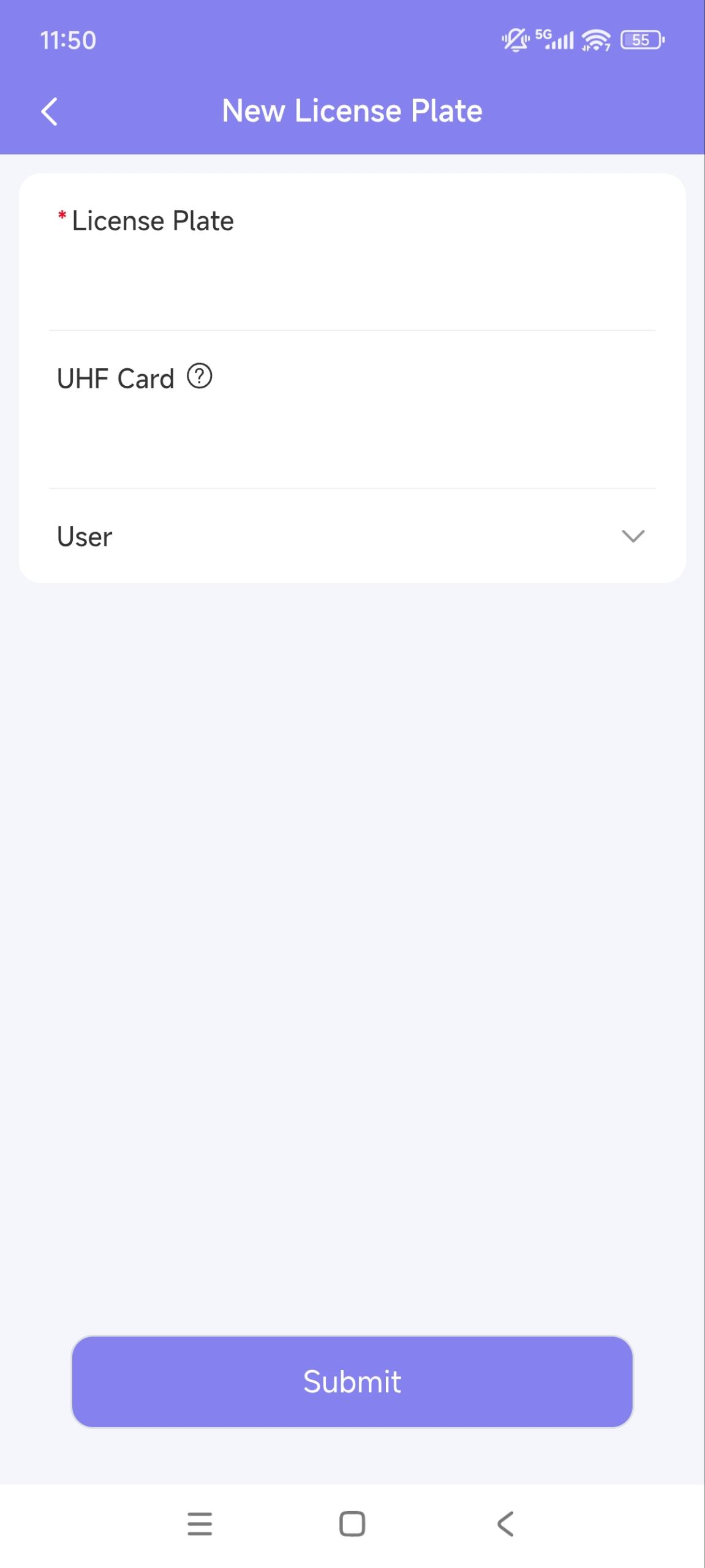
You can add your license plates or UHF cards. When you drive in/out, your garage door can be opened automatically.
Note
This feature is ONLY available for single-house project users.
The license plate is identified by a third-party LRP camera.
The UHF card is identified by the Akuvox long-range card reader ACR-CRP12.
Make sure devices are installed and configured properly by your installers before using the license plate or UHF cards to open doors.
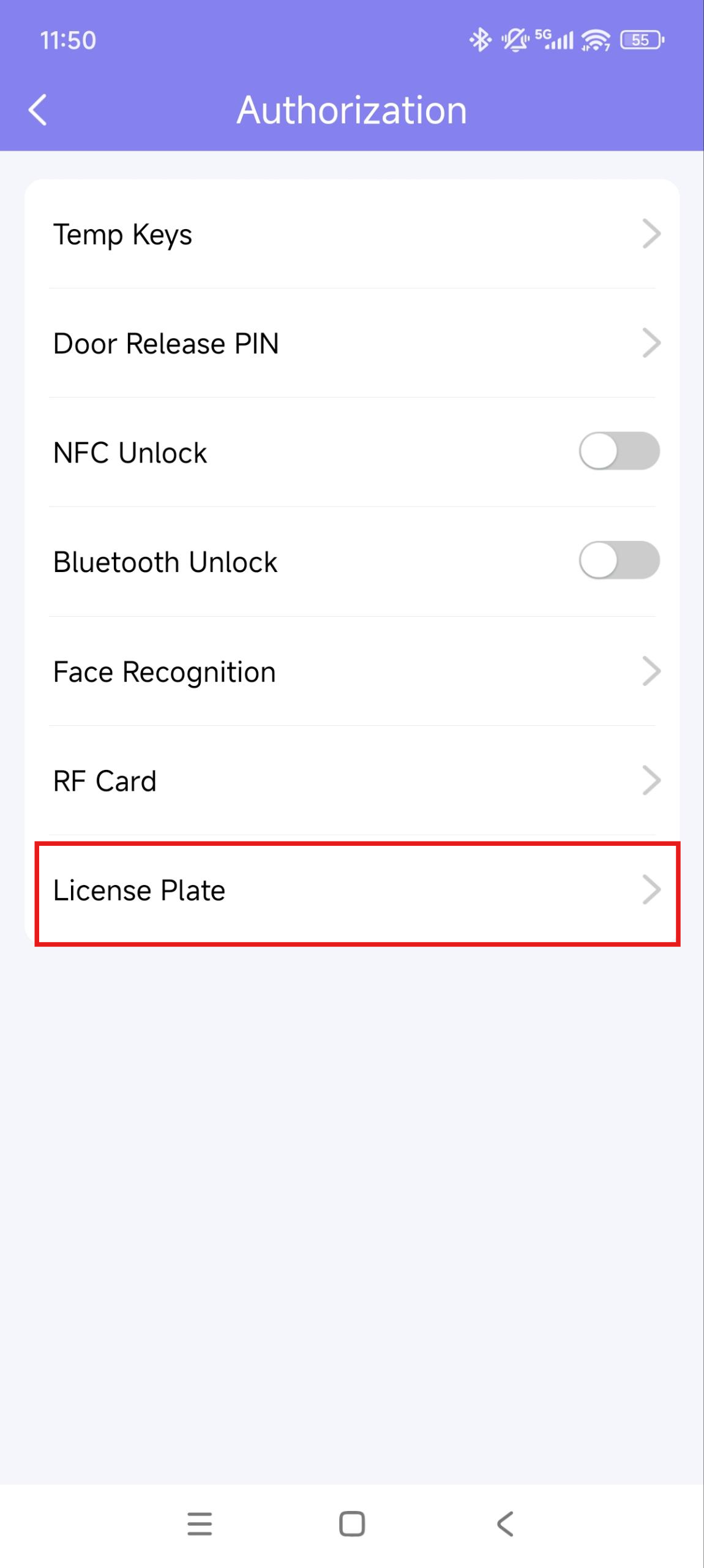
Tap Me > Authorization > License Plate.
Tap + in the upper-right corner.
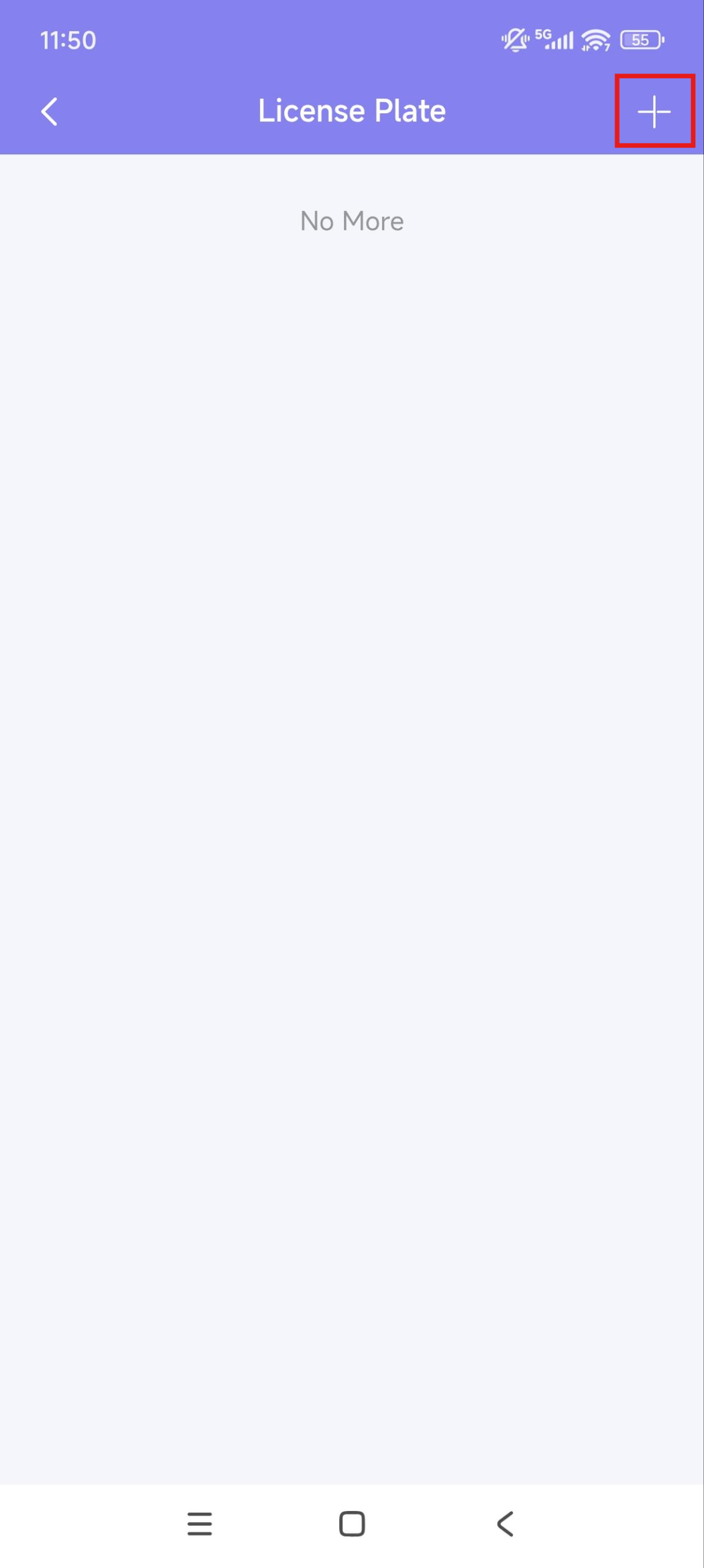
Enter the License Plate information.
Enter the UHF card code if it is used.
Select the user.
Calling
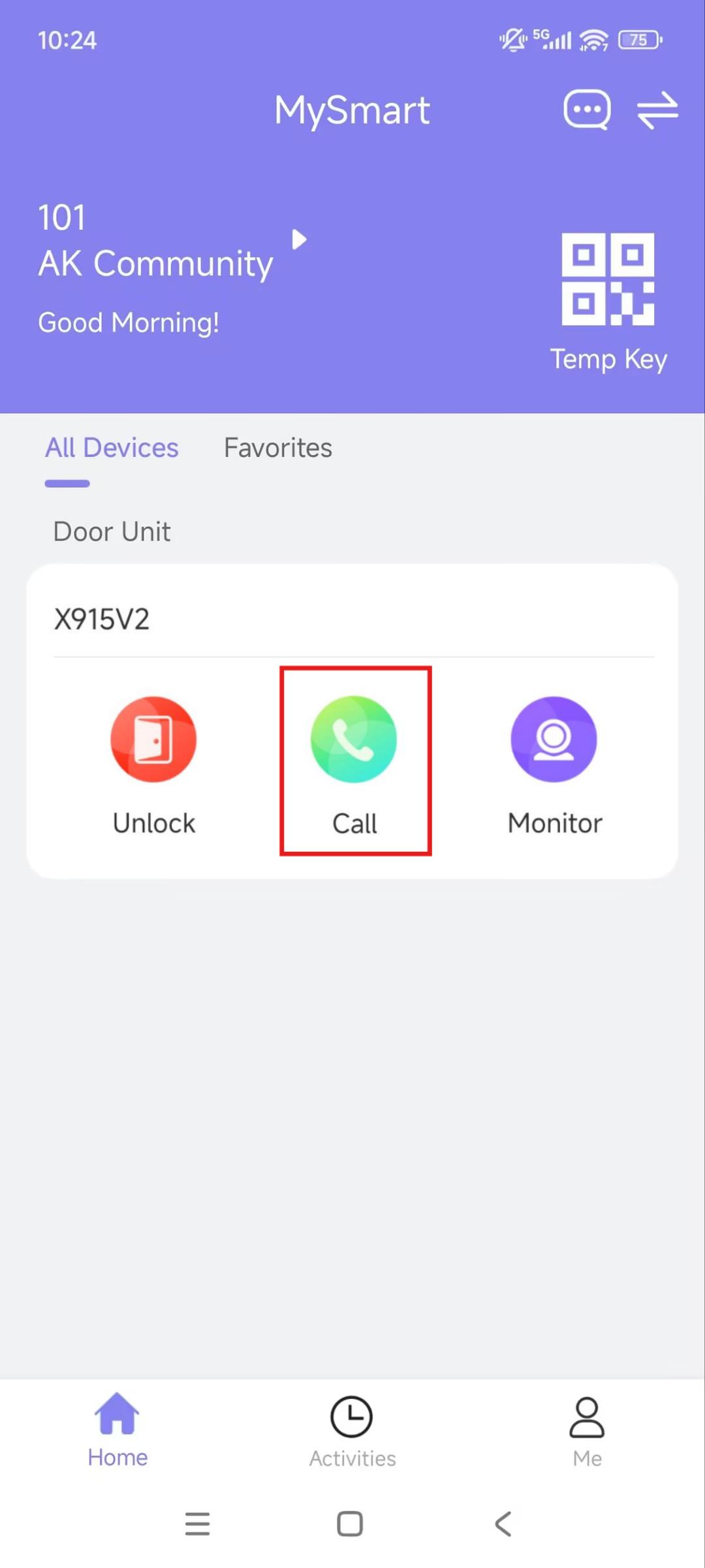
To start a call, tap Call on the homepage, on the monitoring page, or choose a family member.
Call a Device
Tap Call of the desired device on the homepage.
Call a Family Member
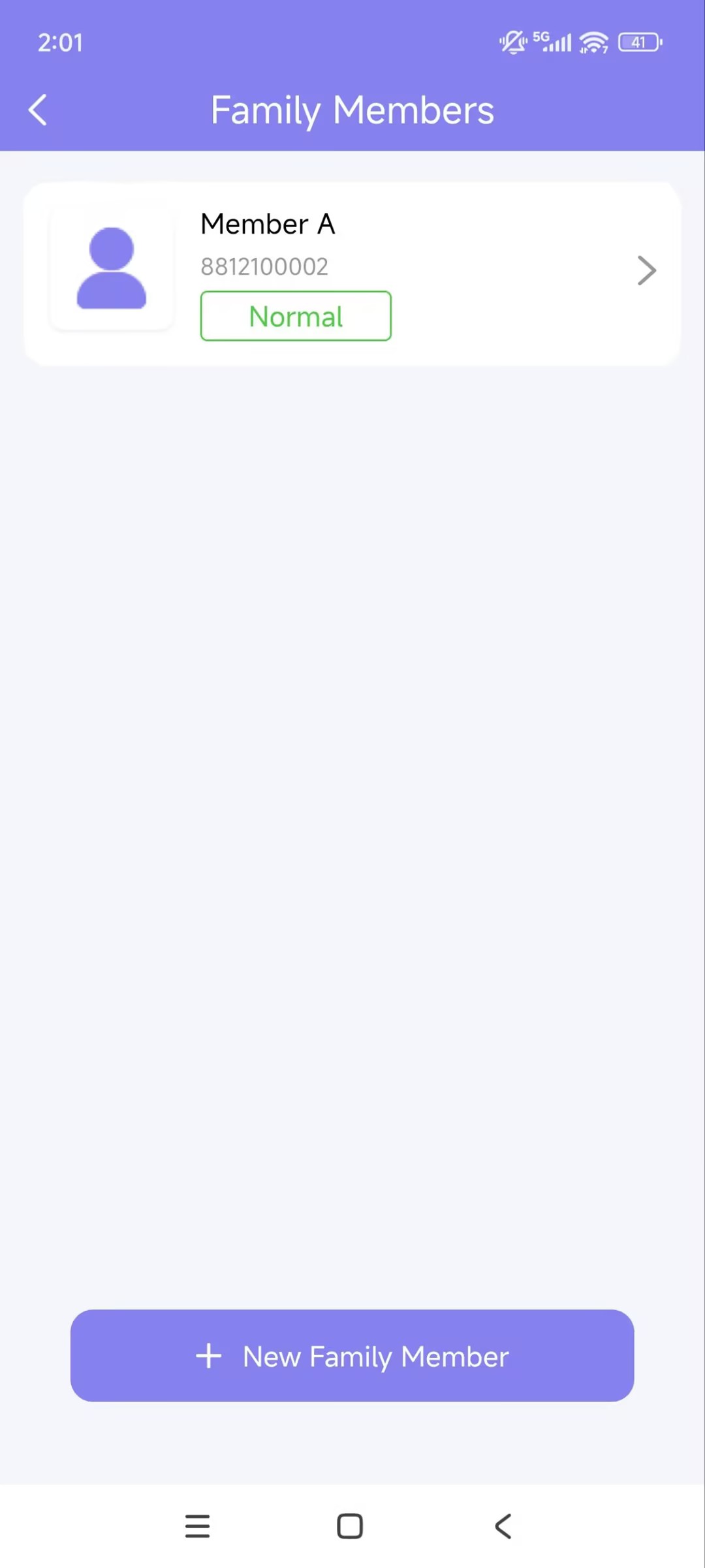
Tap Me > Family Members.
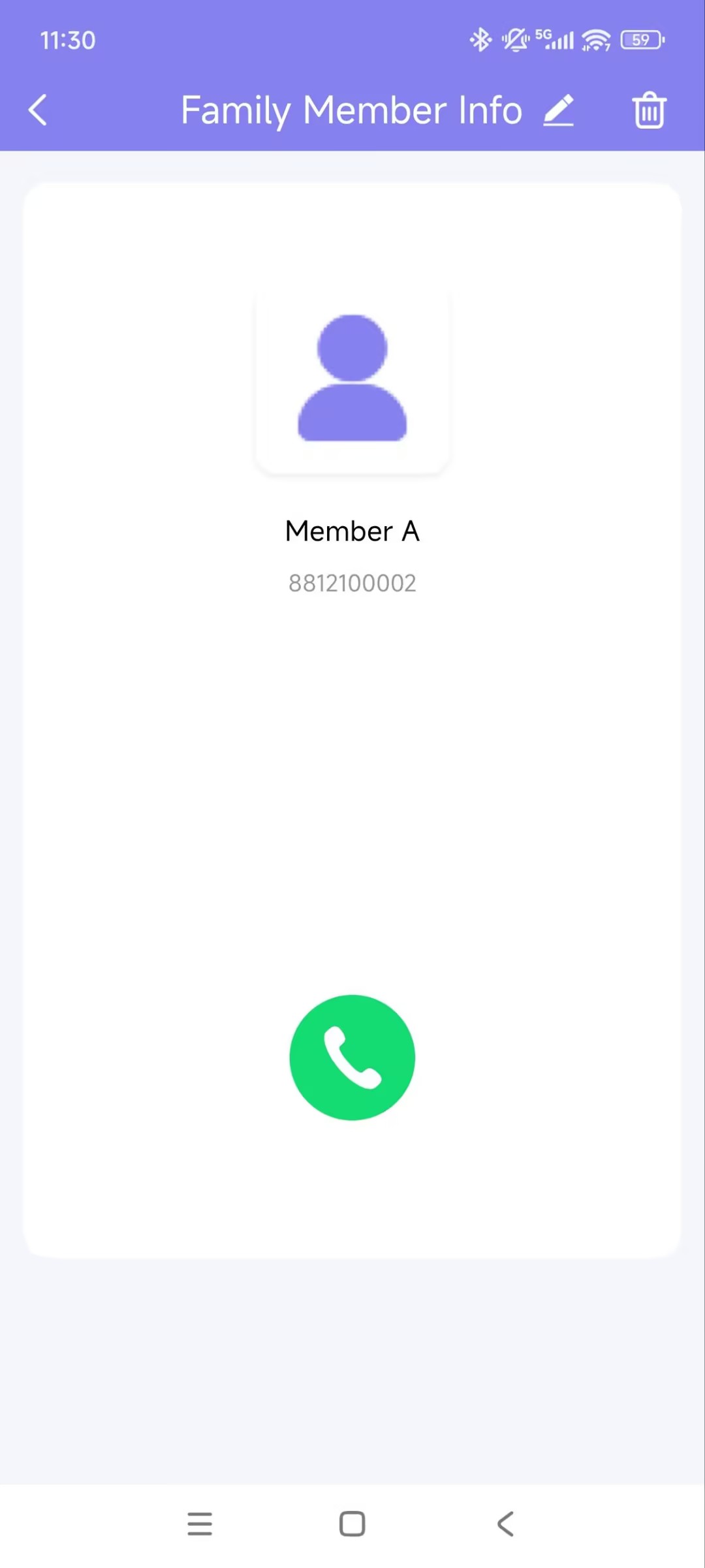
Select the member you want to call.
Tap the Call button.
Note
Only audio calls are allowed between app users.
Contact Preference
Only with the family master account can you set up the contact preference.
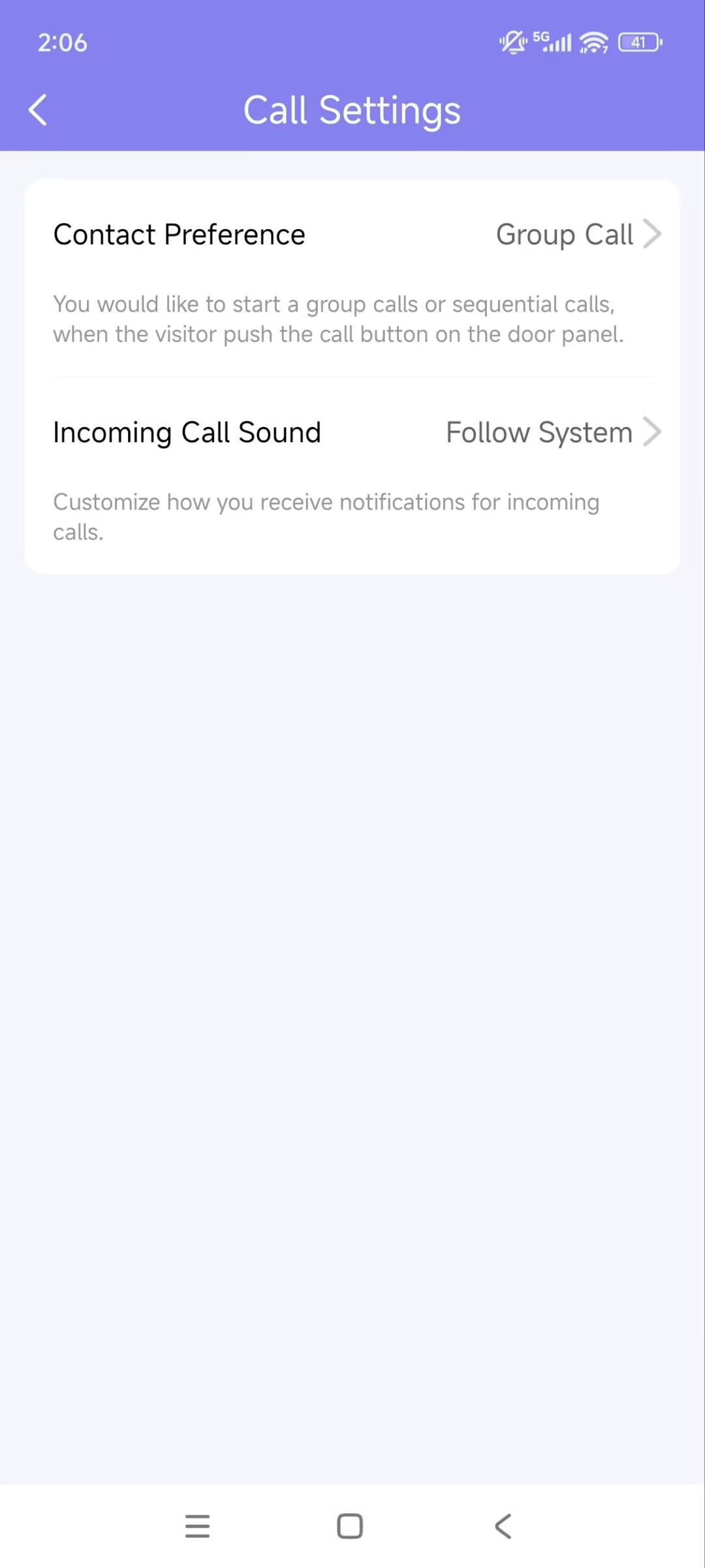
Go to Me > Settings > Call Settings.
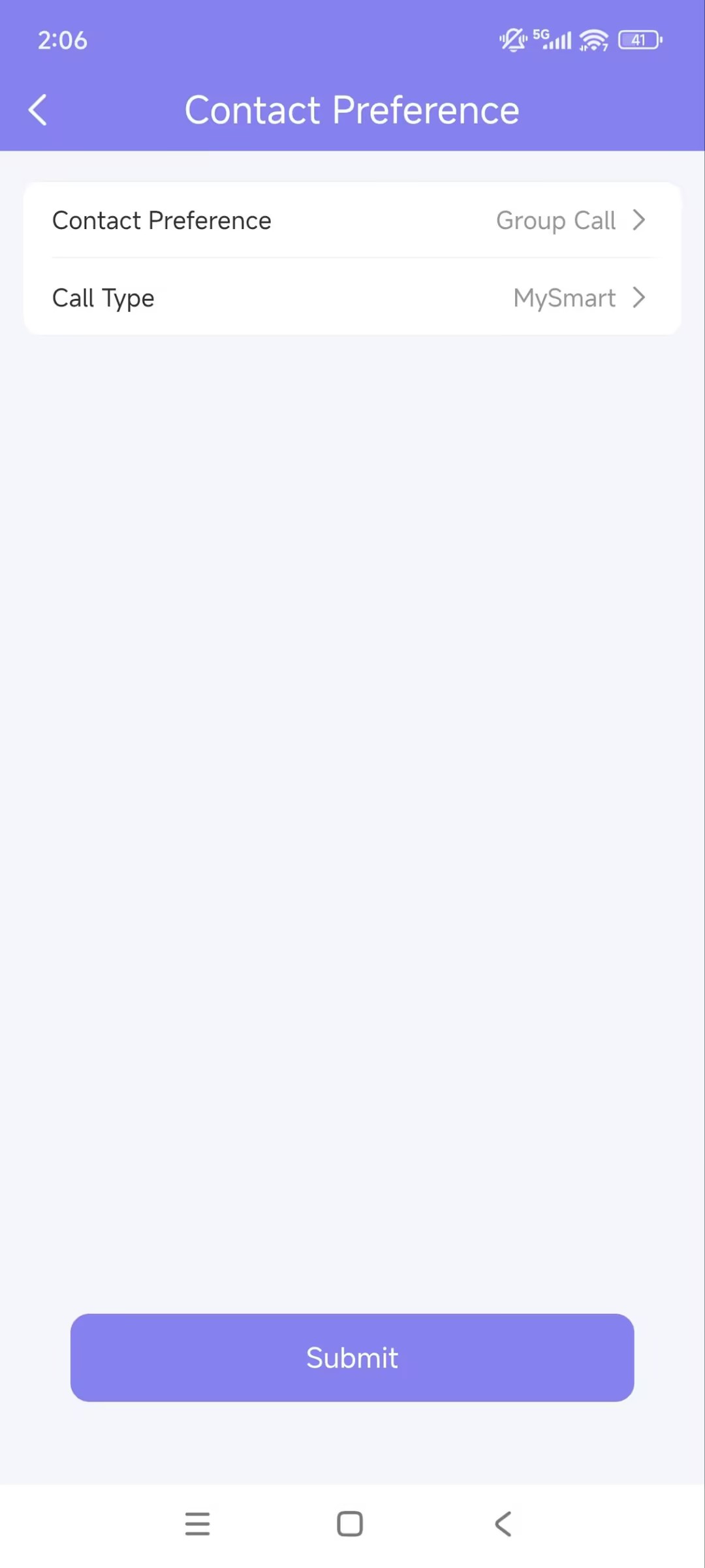
Tap Contact Preference.
Choose a call type and follow the on-screen instructions.
Group Call. All indoor monitors will receive the call. At the same time, family members will receive it in their apps.
Sequence Call. The devices and family members in the same family will be called based on the selected order.
Receive Calls from a Different Site
This occurs when you have multiple sites under one account. For example, when you switch to Site1, you can still receive calls from the door phone at Site2.
The call receiving page will display the information on Site2.
The logs will only be displayed on Site1.
Incoming Call Sound
You can select the notification sound when receiving an incoming call.
Tap Me > Settings > Call Settings > Incoming Call Sound.
Select the desired option.
Follow System: Use your mobile phone's default sound.
Sound On: Use the MySmart default sound.
Mute: Mute the incoming call sound.
Security
Monitor
You can check the monitoring streams from either Akuvox intercom devices or third-party cameras to see who the visitor is or what's happening at your front door.
See Door Phone Stream
Tap
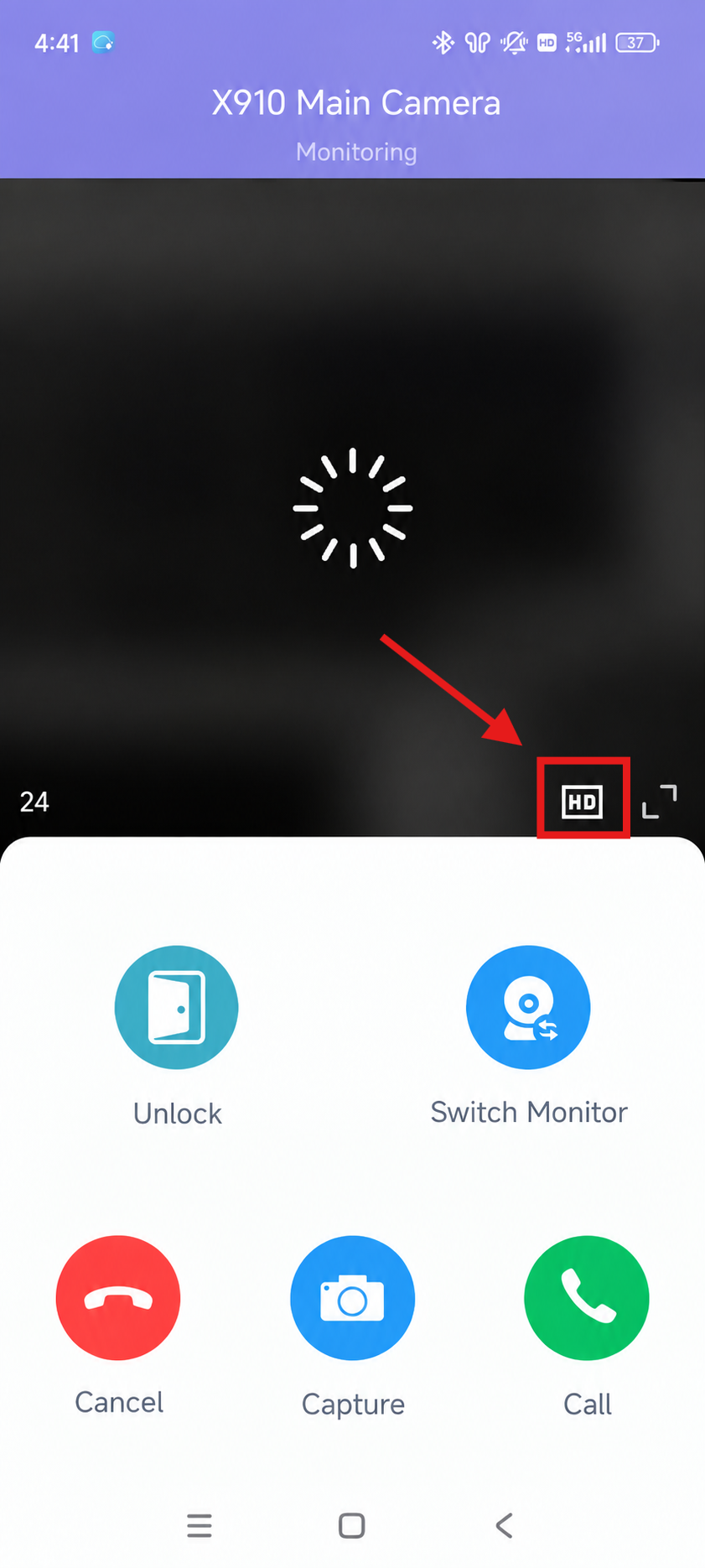
 of the desired device on the homepage. The live stream will be shown for 30 seconds.
Note
Devices without cameras do not have a monitor button
.
Besides, you can:
Tap Cancel to exit the current page.
Tap Capture to make a screenshot.
Tap Call to make a call with the visitor.
When viewing the live stream of the door phone X910, you can switch the video format between High Definition(HD) and Standard Definition(SD).
HD has a higher resolution and presents a clearer image.
See Third-party Camera Stream
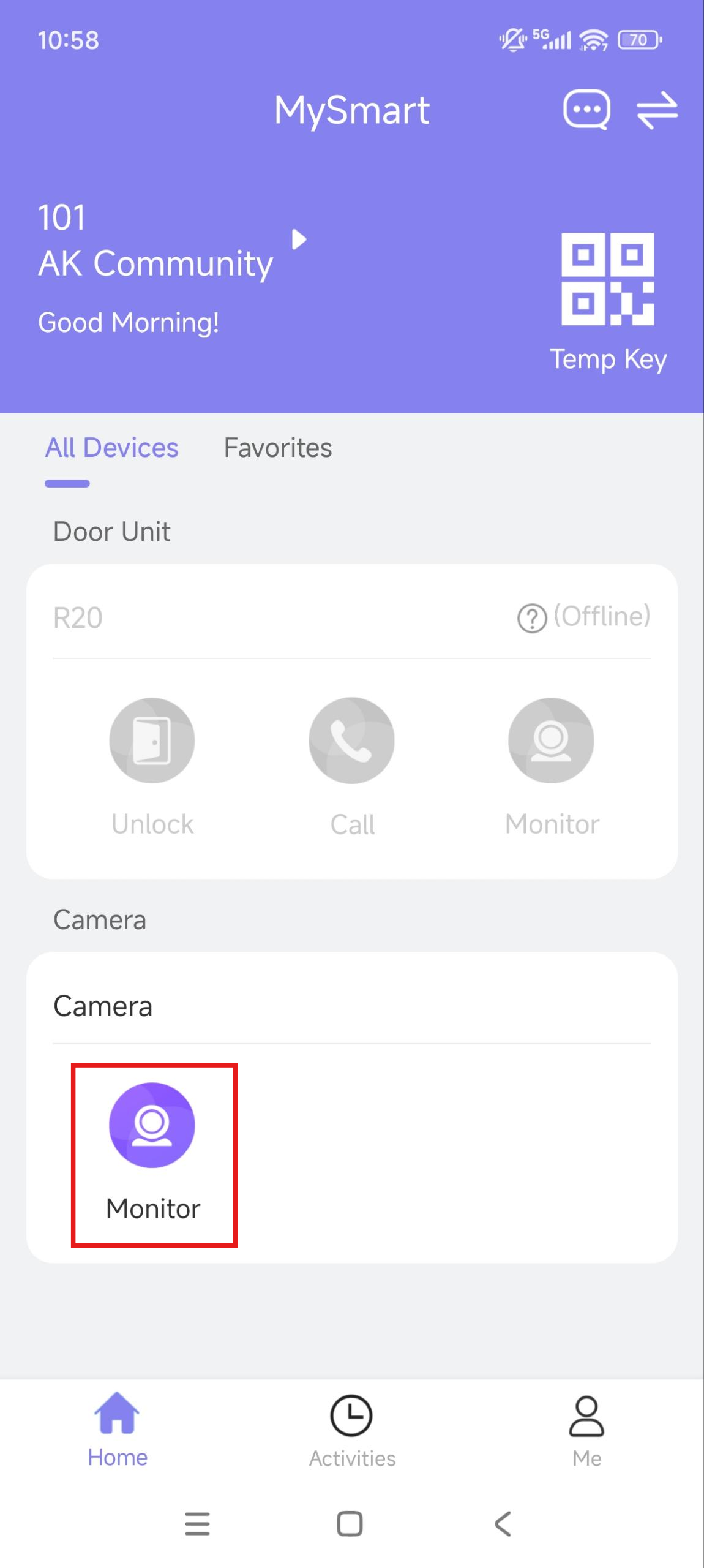
If your house or your community has third-party cameras installed, you can see their streams directly on the app. Besides, these cameras can be linked with Akuvox door phones.
When the camera is not linked with a door phone
Tap Monitor of the camera. The live stream will be shown for 30 seconds.
When the camera is linked with a door phone, tap Monitor of the door phone on the homepage. Then, tap Switch Monitor to switch live videos between the door phone and the camera.
Emergency Alarm
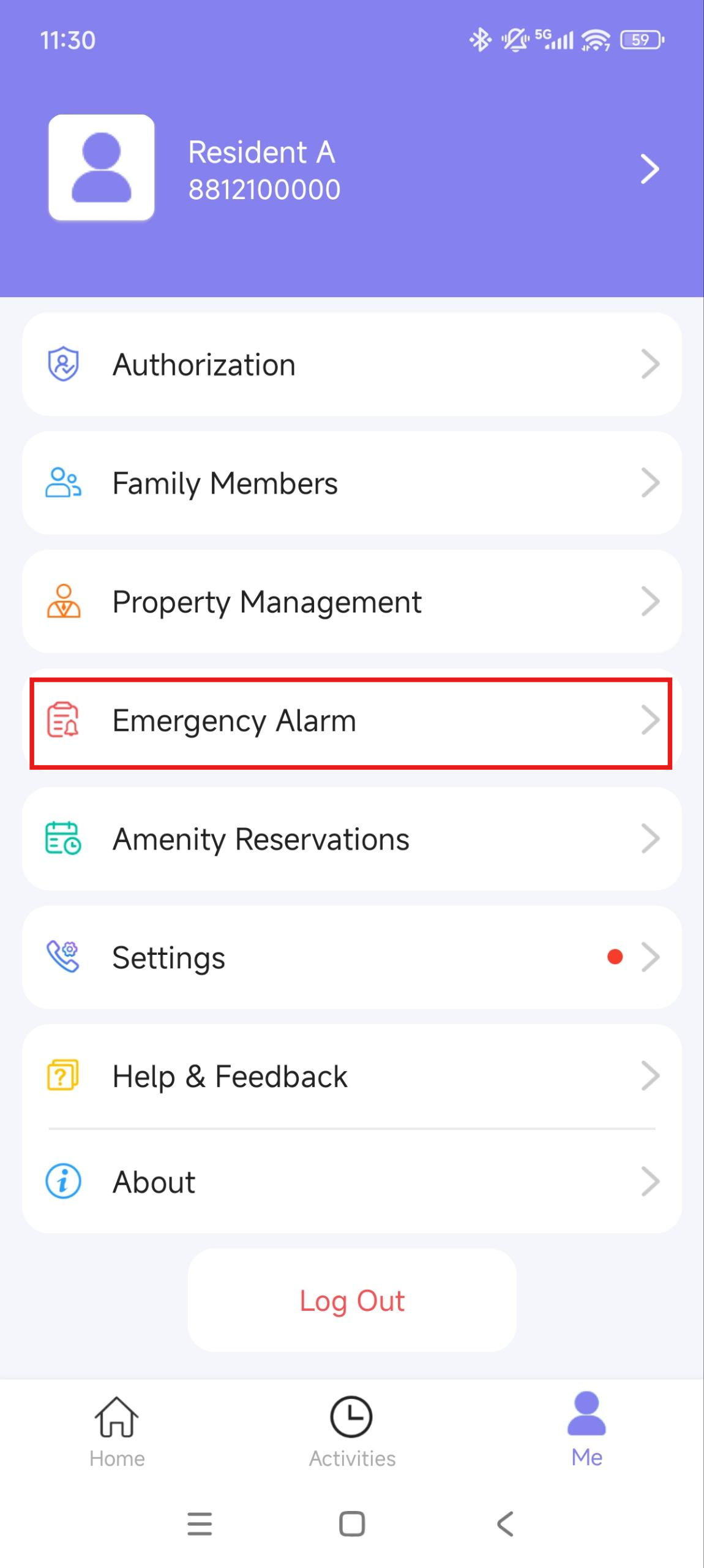
You can receive emergency alarm notifications when all doors open or close automatically.
Tap Me > Emergency Alarm to see and deal with warnings.
Motion Detection
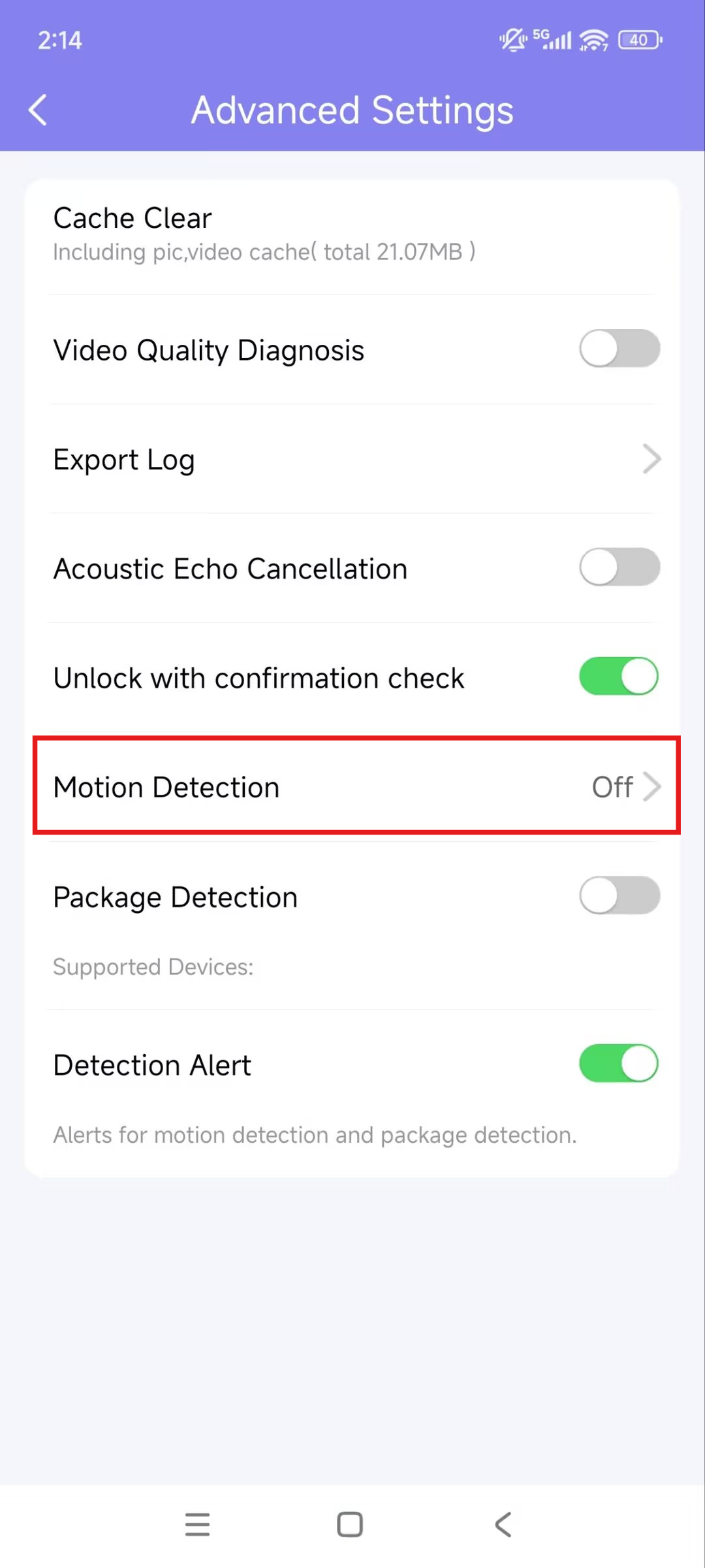
With the MySmart family master account, you can turn on the motion detection function and choose its detection type.
Tap Me > Settings > Advanced Settings > Motion Detection.
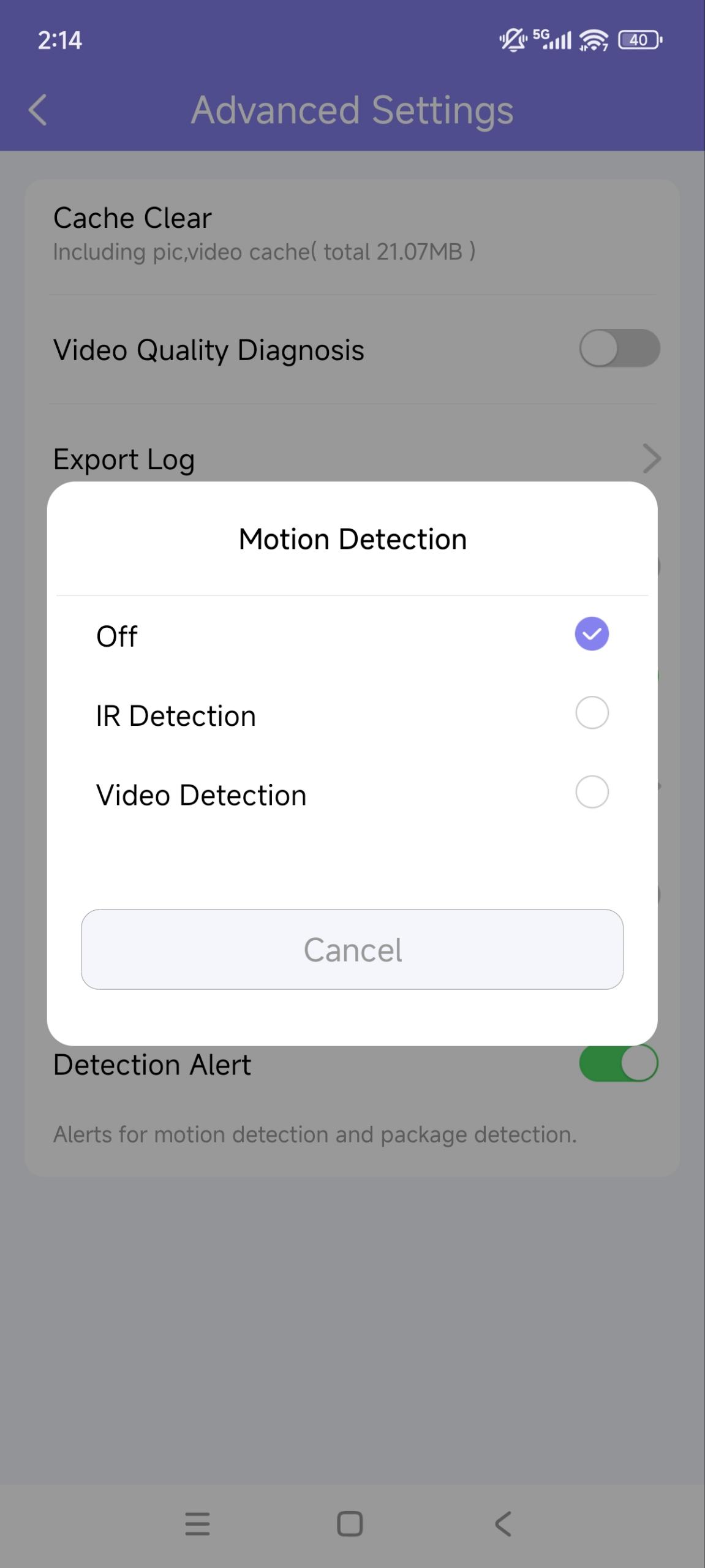
Select between IR Detection and Video Detection.
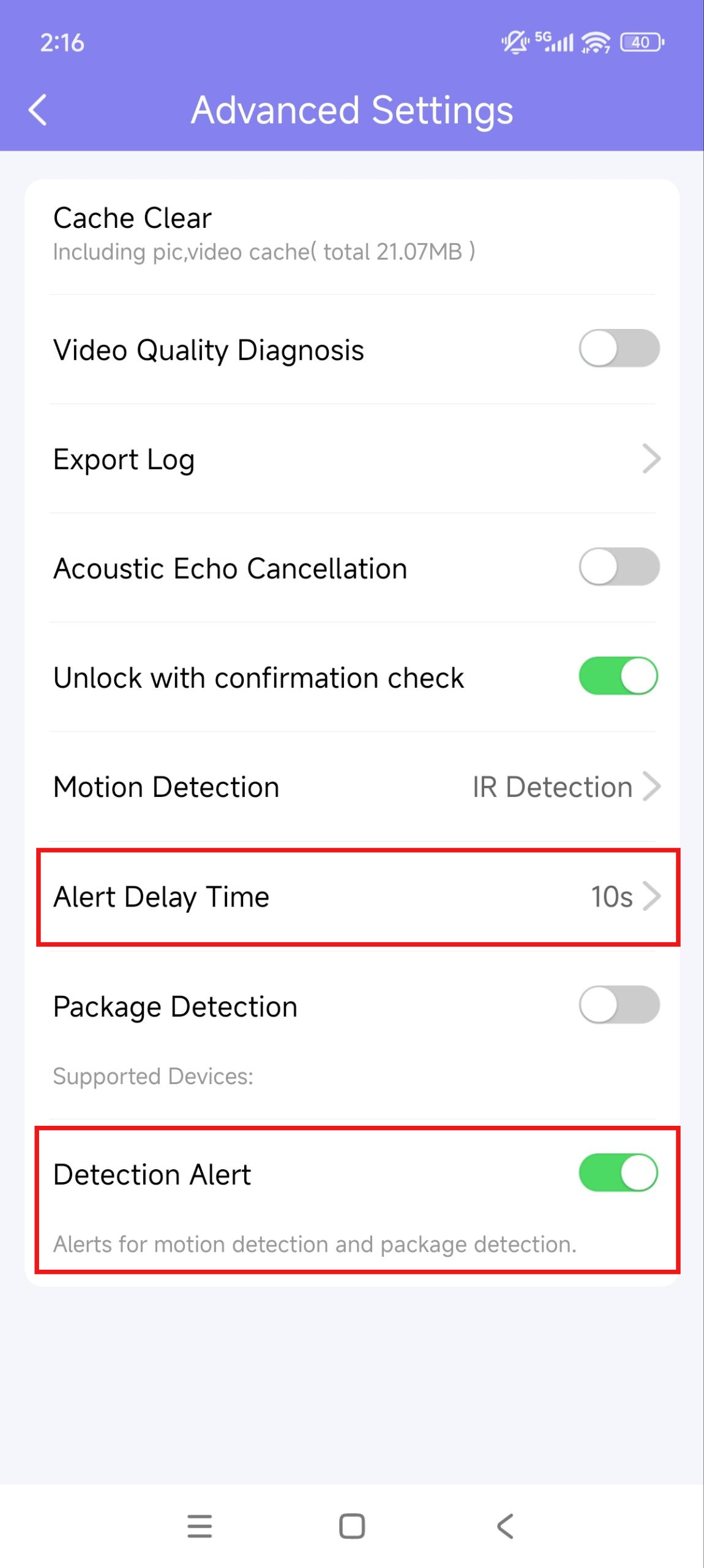
Then, you can set up the Alert Delay Time(10 seconds by default) and Detection Alert. When detection alert is enabled, a notification will be sent to you whenever an alert is triggered by a suspicious motion.
Arm and Disarm Indoor Monitors
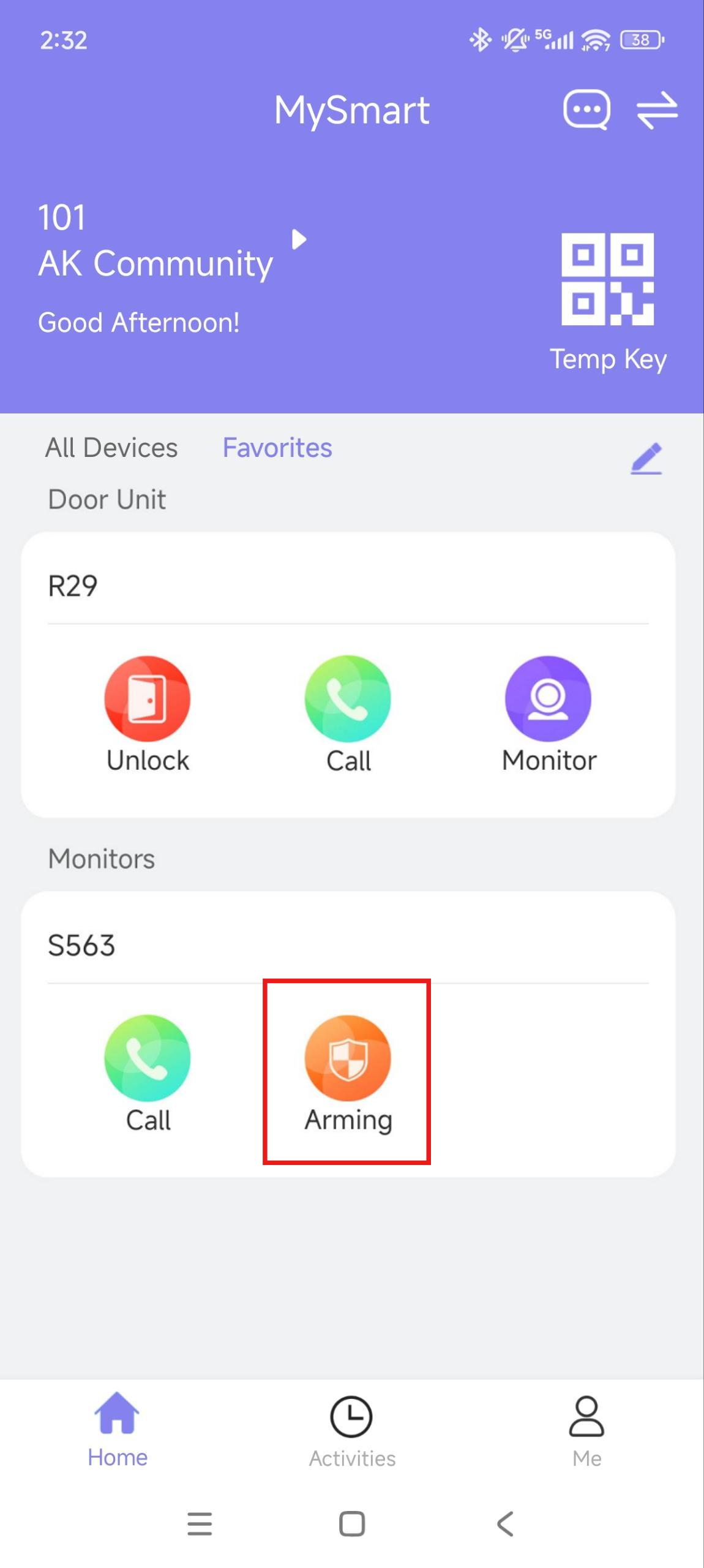
You can arm or disarm indoor monitors on the homepage of the MySmart App when your service provider enables the Arming Function of the indoor monitor for you.
Tap Arming to select the arming mode or disarm.
Bookings
Receive Bookings Notification
You can receive booking notifications after property managers make reservations for you. You can also conveniently make reservations to use amenities on your MySmart App.
Note
ONLY community residents can use this feature.
Tap
 in the upper-right corner of the homepage.
Tap the Amenity Reservation notification.
Tap Check to view the notification details.
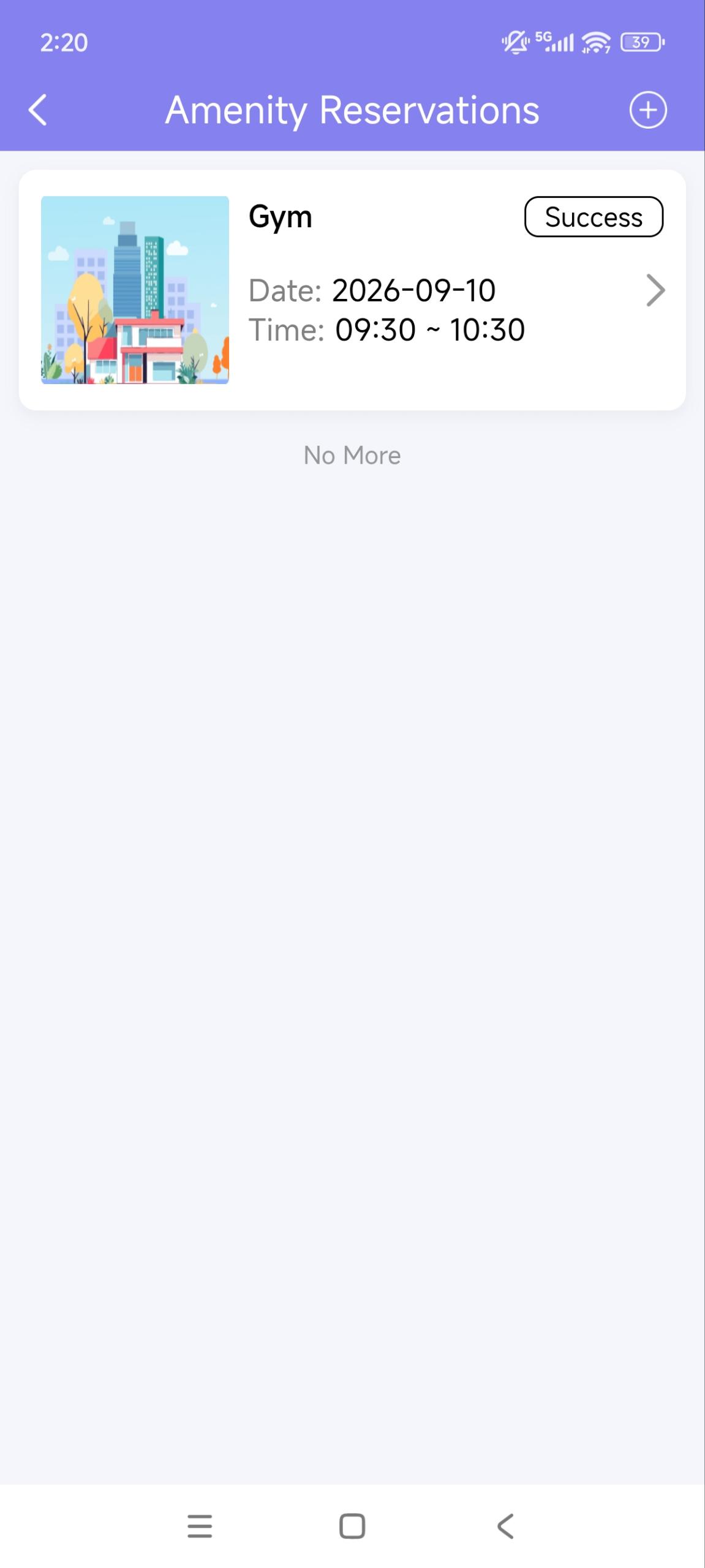
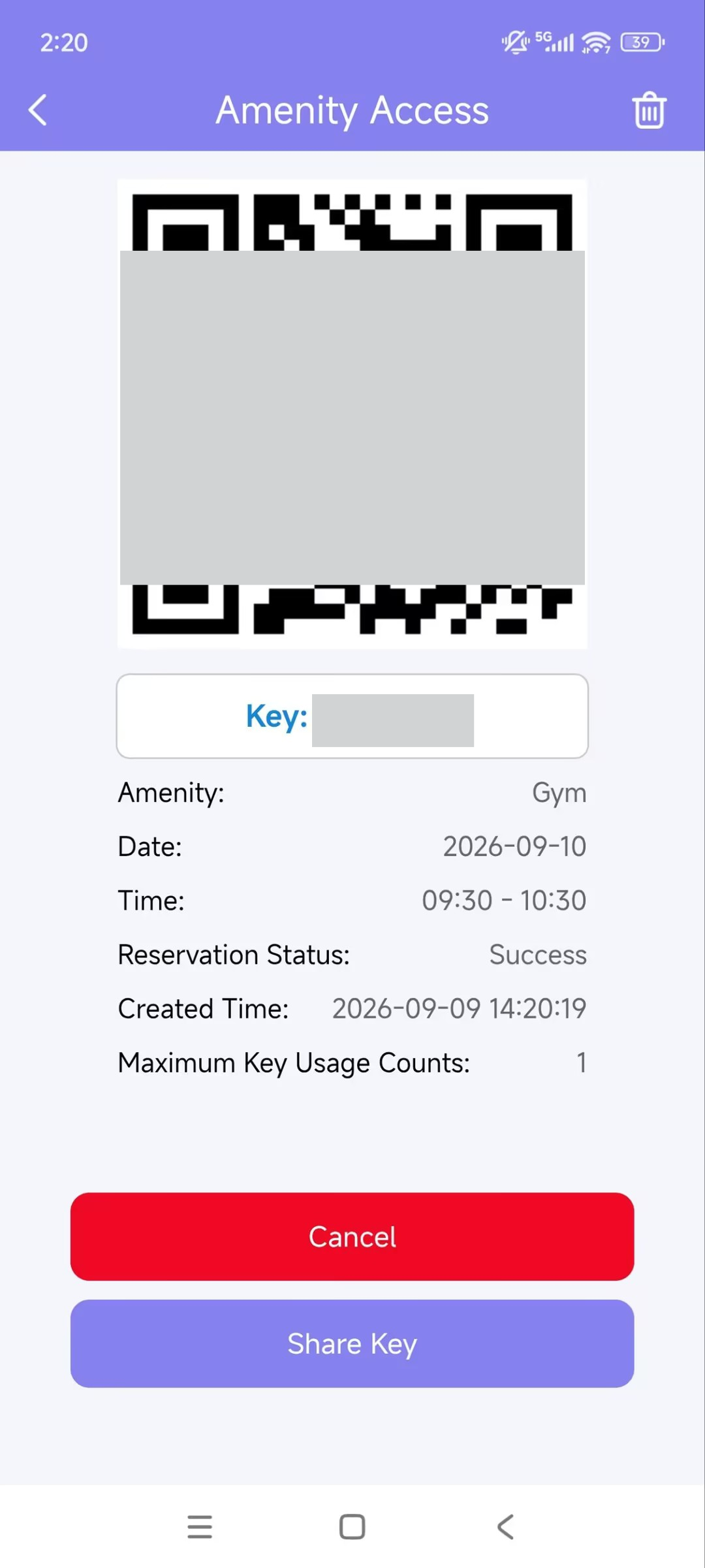
The reservation information will be displayed. You can use the QR code and key to open the amenity door.
Make a Reservation
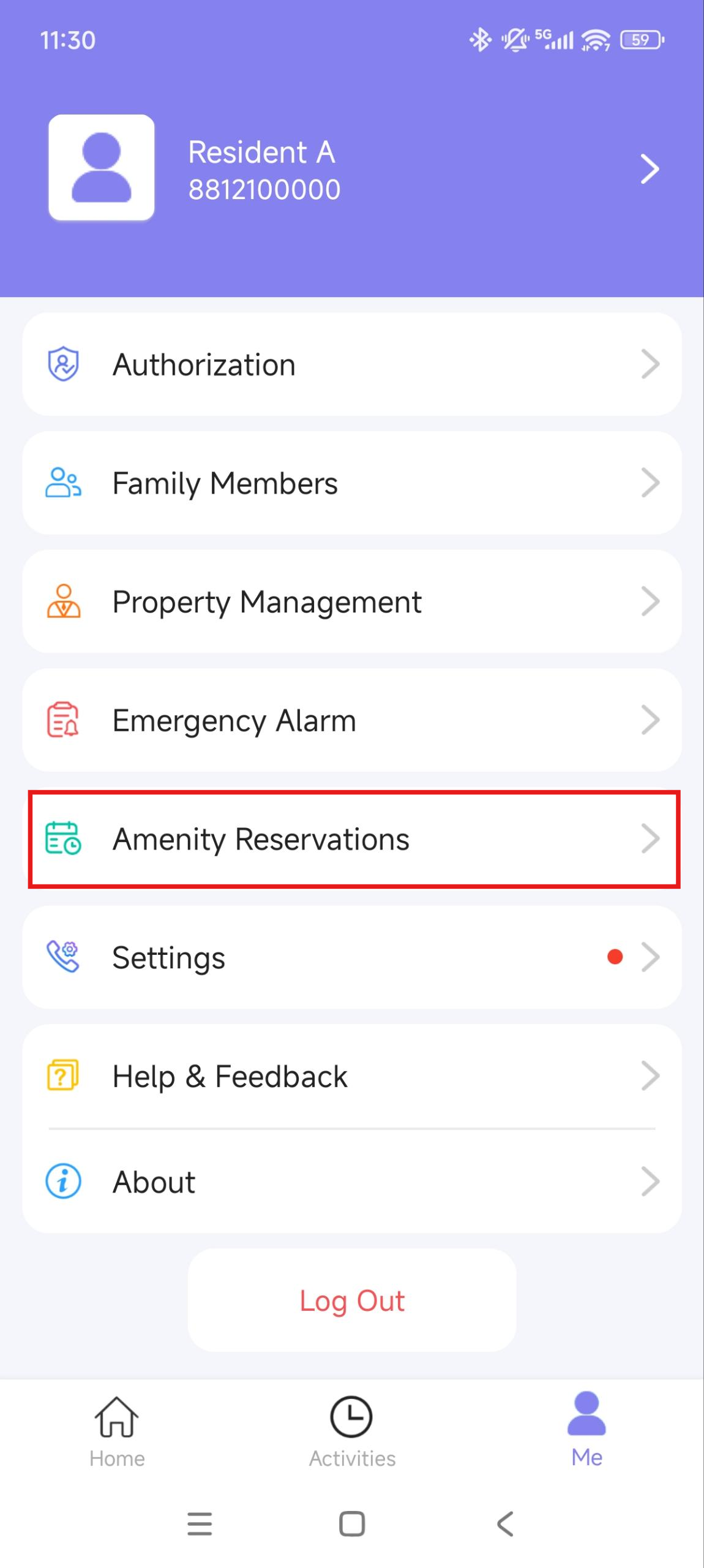
Tap Me > Amenity Reservations.
Tap + in the upper-right corner.
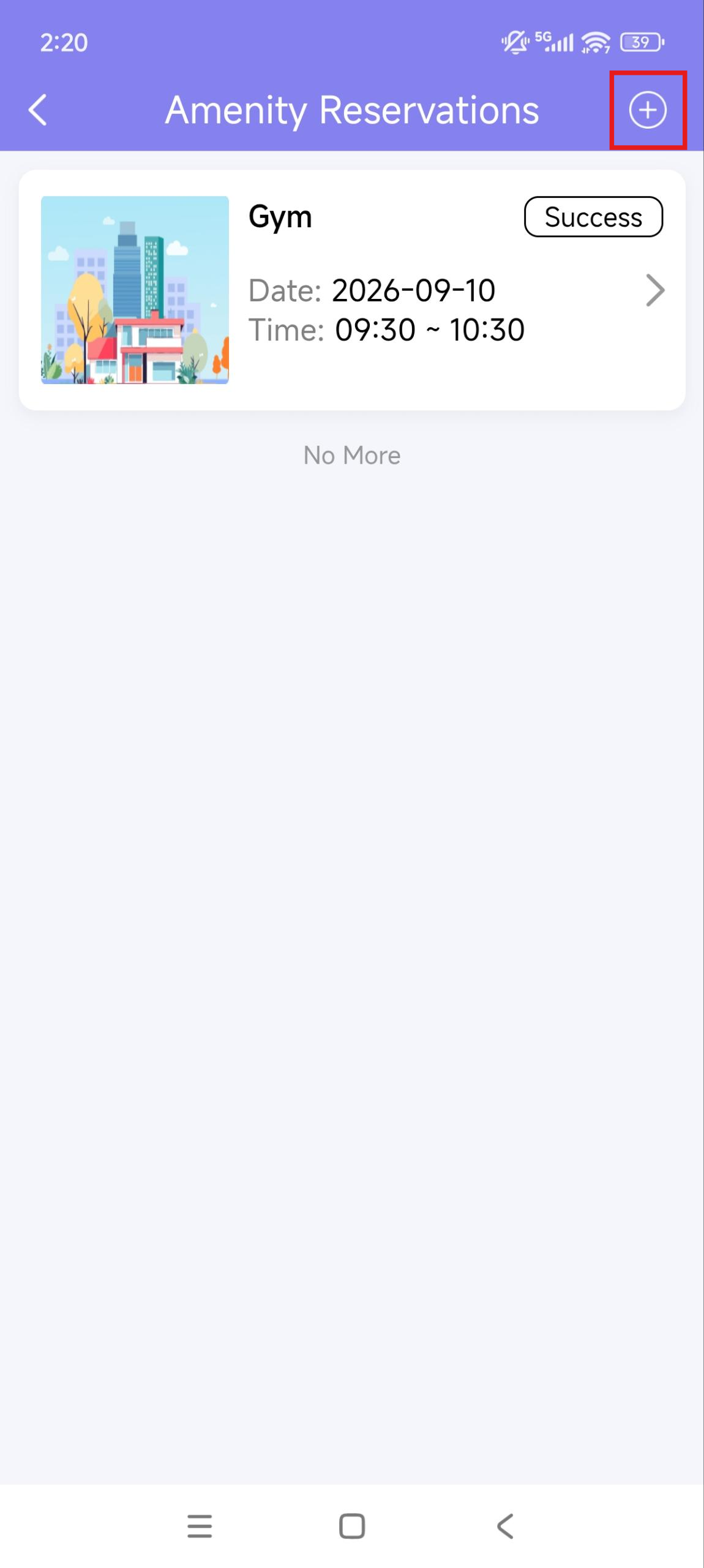
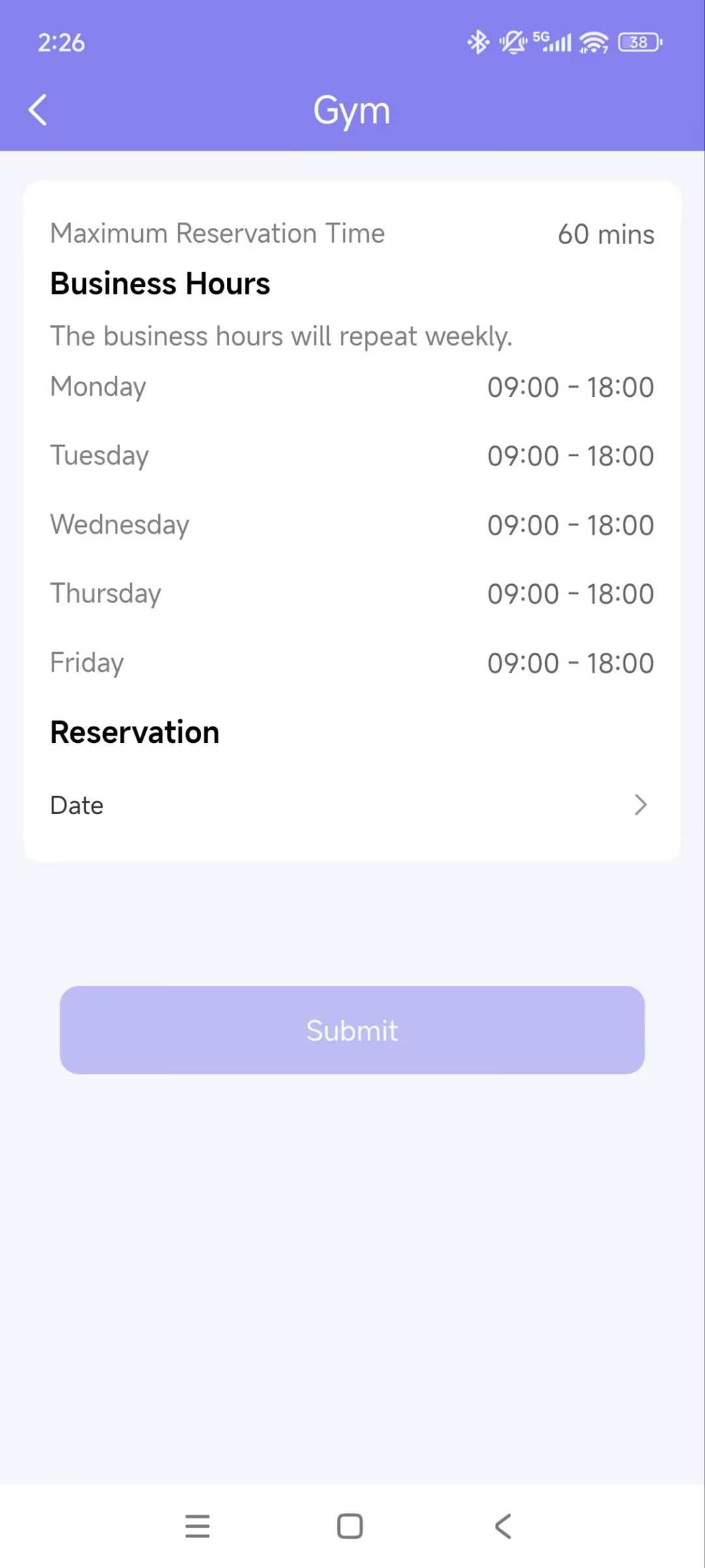
Select the desired amenity.
Select the date and time.
Tap Submit and then Confirm.
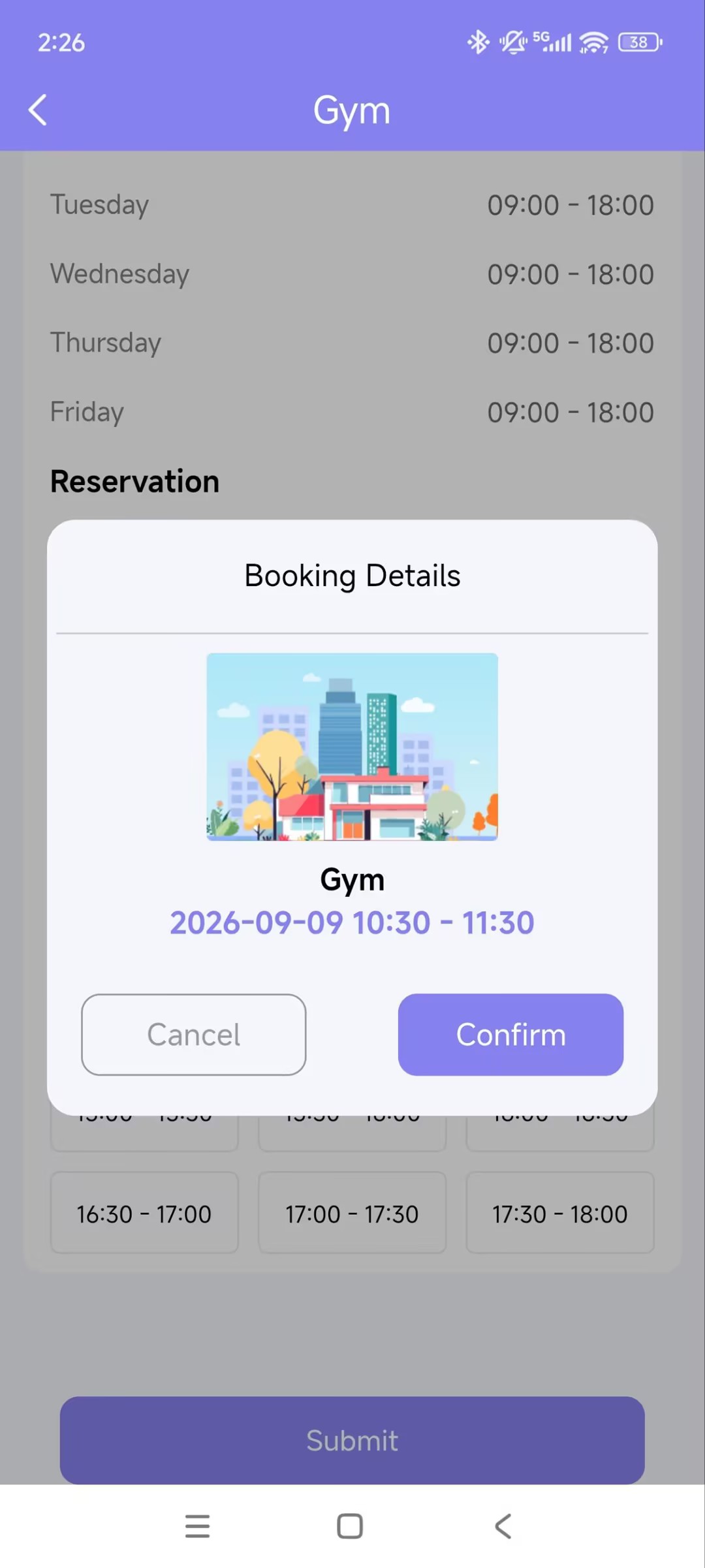
The new reservation will be displayed on the Amenity Reservation page. Tap to check the details, including the temporary key.
Devices
Favorite Your Devices
Note
Only community residents can use this feature.
The Favorite Device feature enables you to easily add or remove the devices you use most.
Favorite Devices in Card Mode
Tap Favorites on the homepage.
Tap Add to Favorites, and tick the desired devices.
Tap
 at the upper left corner. The favorite devices will automatically display on the Favorites list.
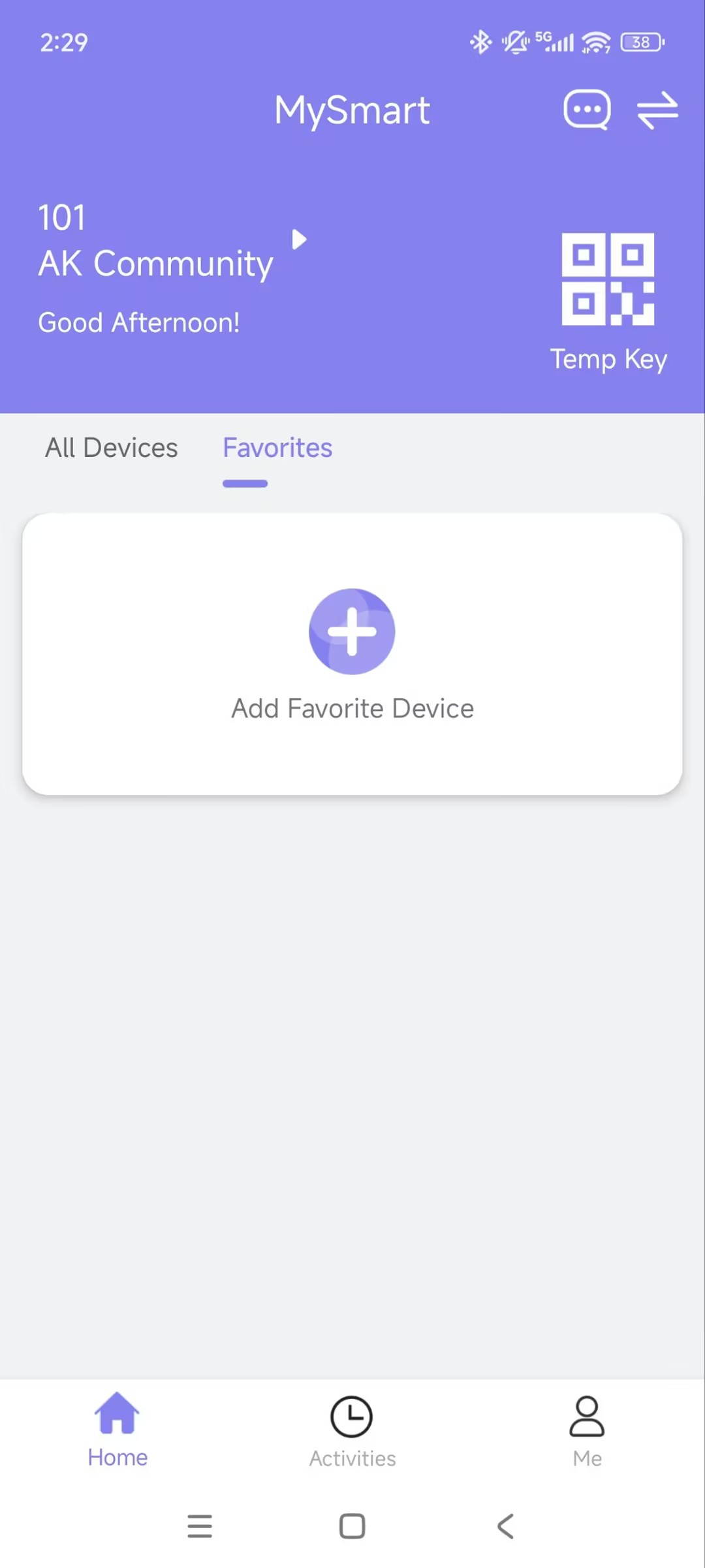
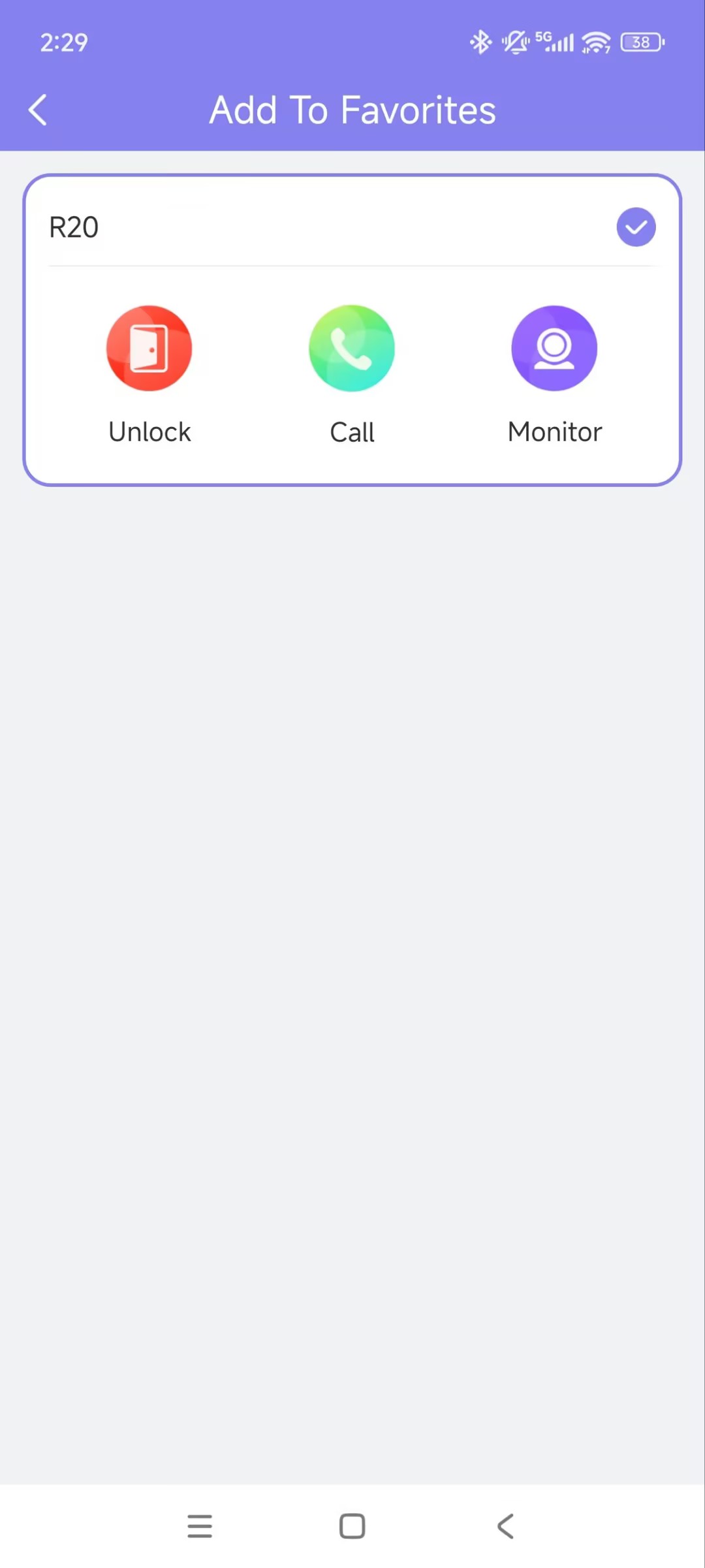
To reorder your favorite devices, tap  at the upper right.
Note
Once you switch the MySmart account, the previous account’s Favorites will be cleared.
Messages and Notifications
Go to the Notification Center
You can receive messages from the MySmart server, the security center, all sites, and more.
Messages include package delivered, temp key used, voice messages, etc.
Note
Only the R29 door phone supports pushing package room messages.
Voice messages are stored for 1 month.
S539 and X915V2 door phones support leaving voice messages for residents.
Only family master accounts can delete messages.
Tap the message icon in the upper-right corner of the homepage.
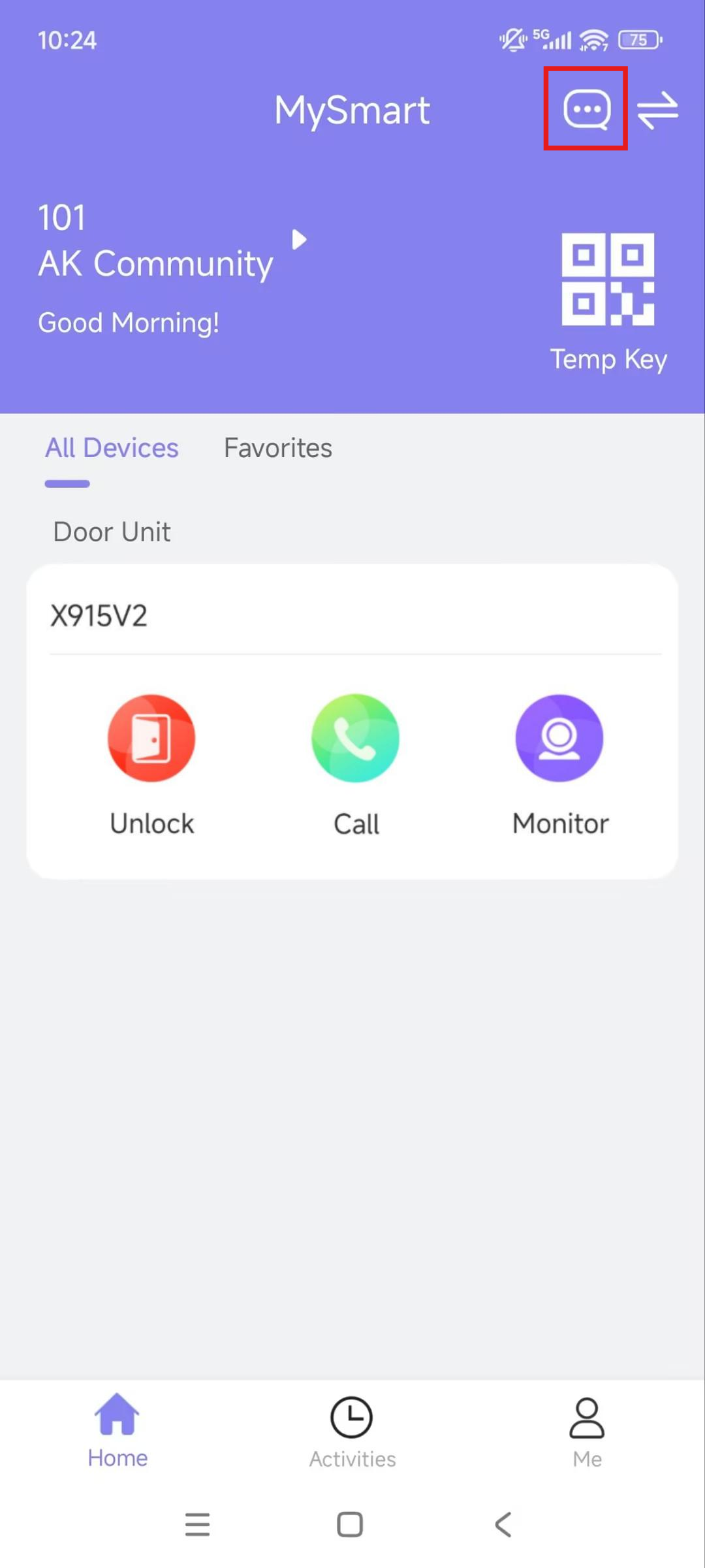
To remove all red dots with one tap, tap
 and all the messages will be read automatically.
Tap the desired message to see the details and copy the content if needed.
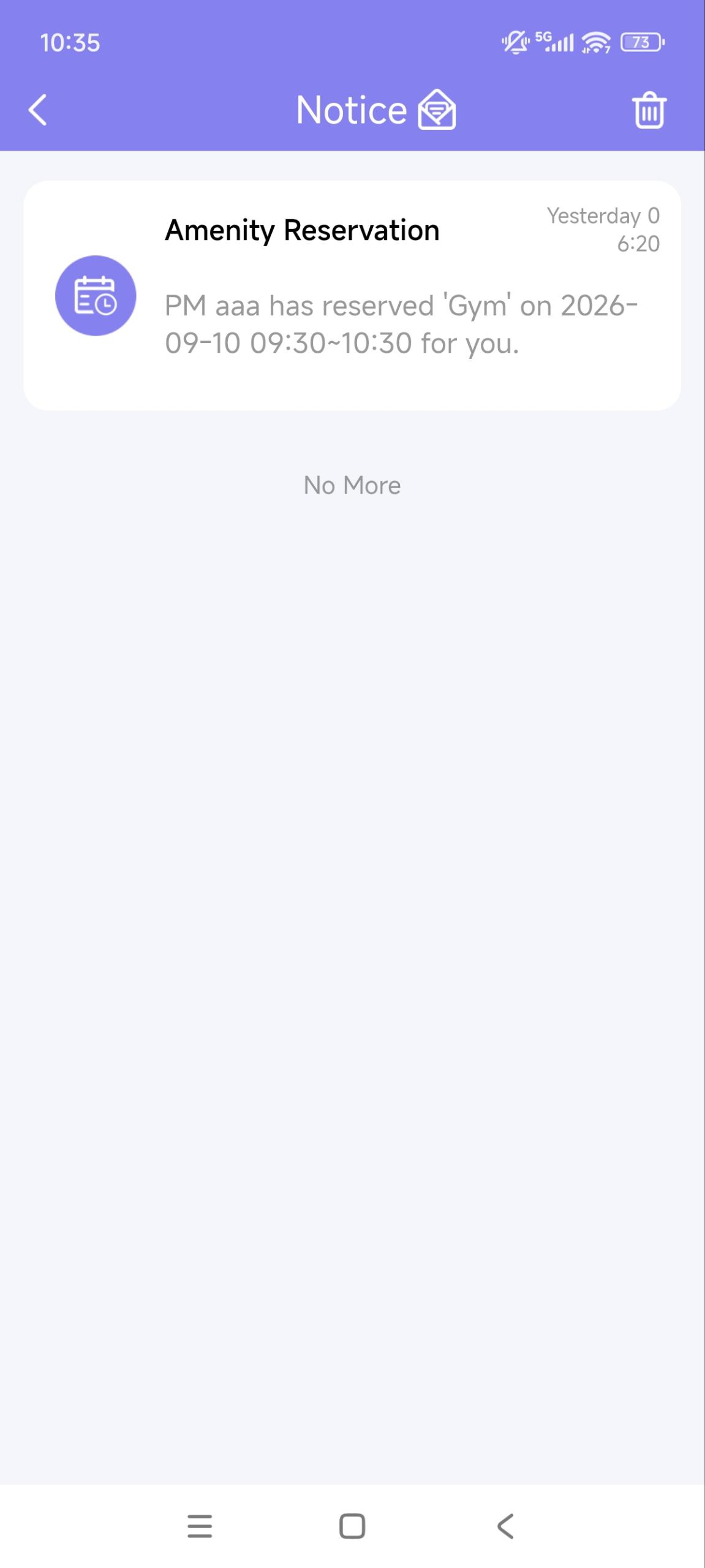
Receive Offline Push Notifications
When the app is running backstage, it will push the following types of pop-up messages:
Messages sent from the MySmart server and property managers
Temp key used messages
Package room messages
Voice messages
Motion alerts
Alarms
Emergency Alarm: All Public Doors are Open/Closed. Please note that only when property managers enable the notification will you receive this notice.
Package detection alerts
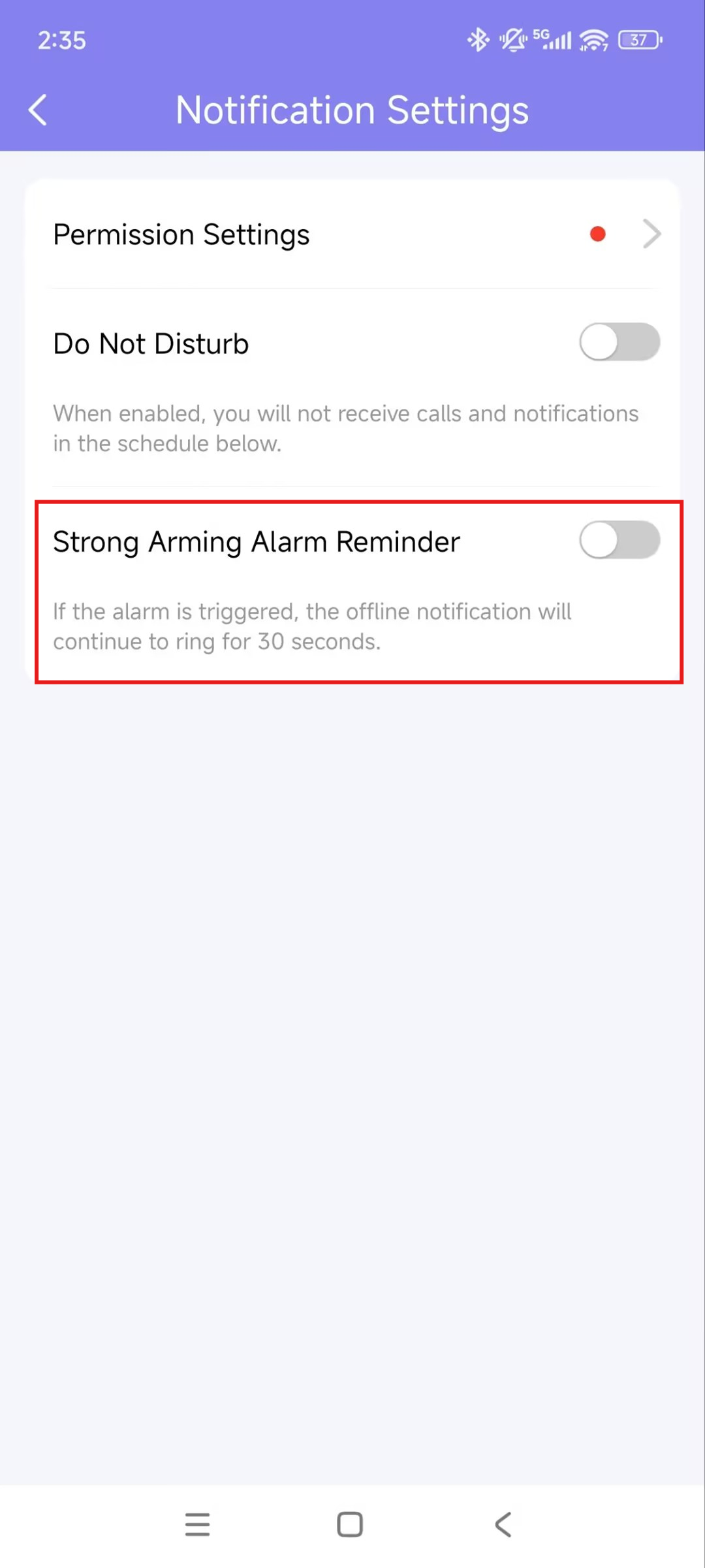
Strong Arming Alarm Reminder
If this feature is enabled, the alarm ringtone will ring continuously for 30 seconds when the alarm is triggered.
Go to Me > Settings > Notification Settings.
Enable or disable Strong Arming Alarm Reminder. Ringing will stop when the device is disarmed.
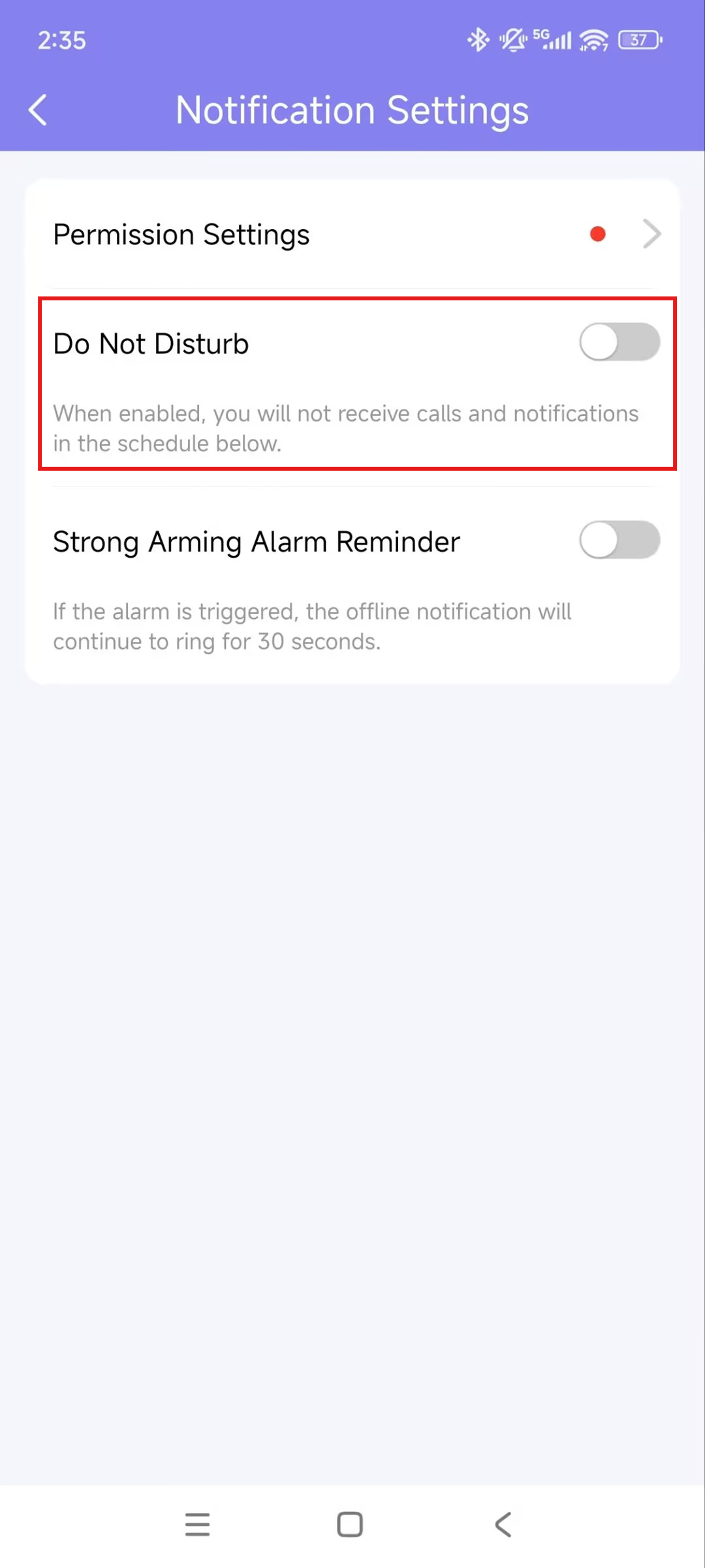
Not to Receive Calls and Notifications
The app can silence all calls and notifications (except alarm warnings) when you do not want to be disturbed.
Go to Me > Settings > Notification Settings.
Turn on Do Not Disturb.
Set up a Time Schedule.
Call histories will still be recorded while Do Not Disturb is enabled, and you can view messages and notifications received during this time by tapping the message icon on the homepage.
Logs and Histories
You can check the following types of logs by tapping Activities on the bottom menu.
Door Logs: All the calling and door-opening histories.
Call History: All the outgoing/incoming/missed calls.
Capture Logs: All snapshots you made of live videos or videos recorded.
Detection Logs:
Motion Detection: Suspicious movement is detected by the door phone.
Package Detection: Someone puts or takes the package within the camera detection area of the door phone.
Set up, Export, and Upload Logs
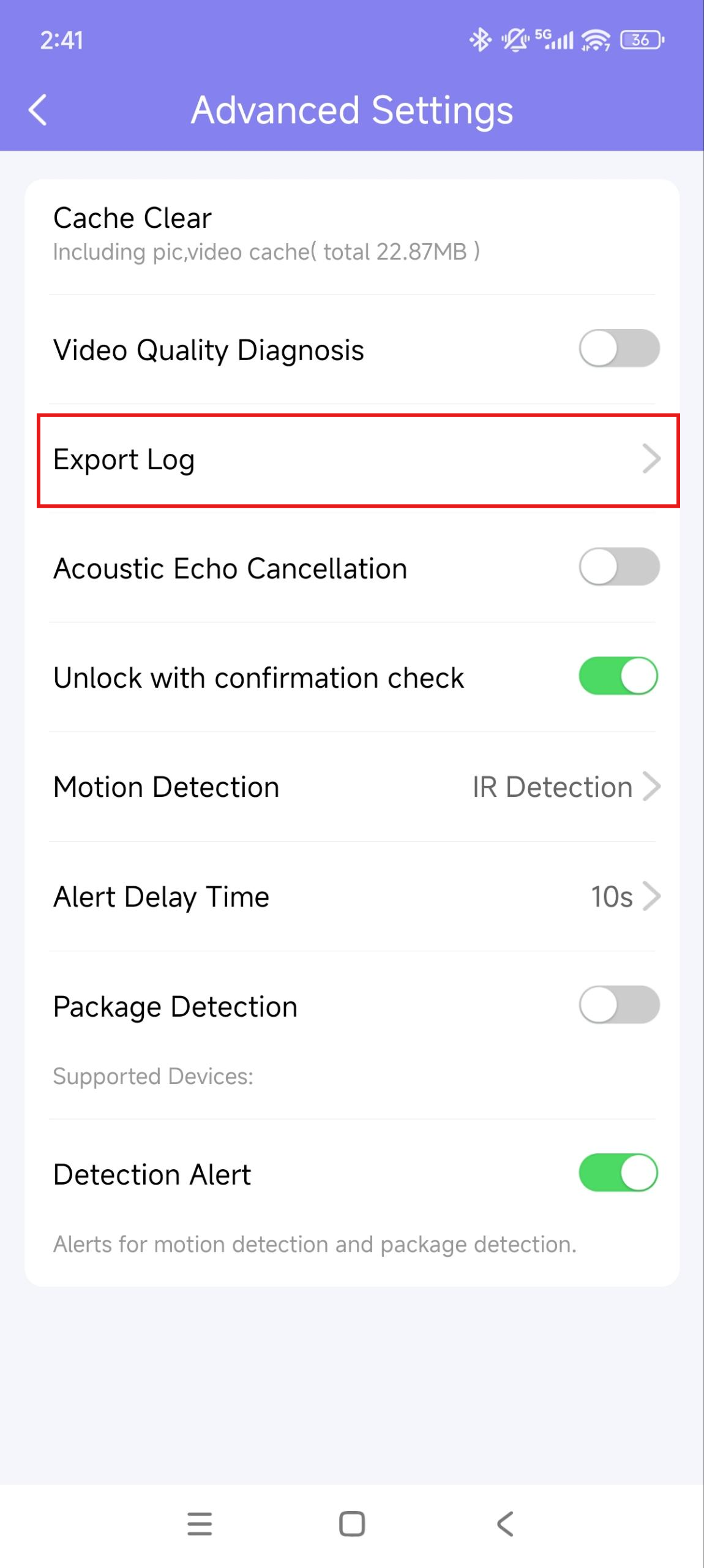
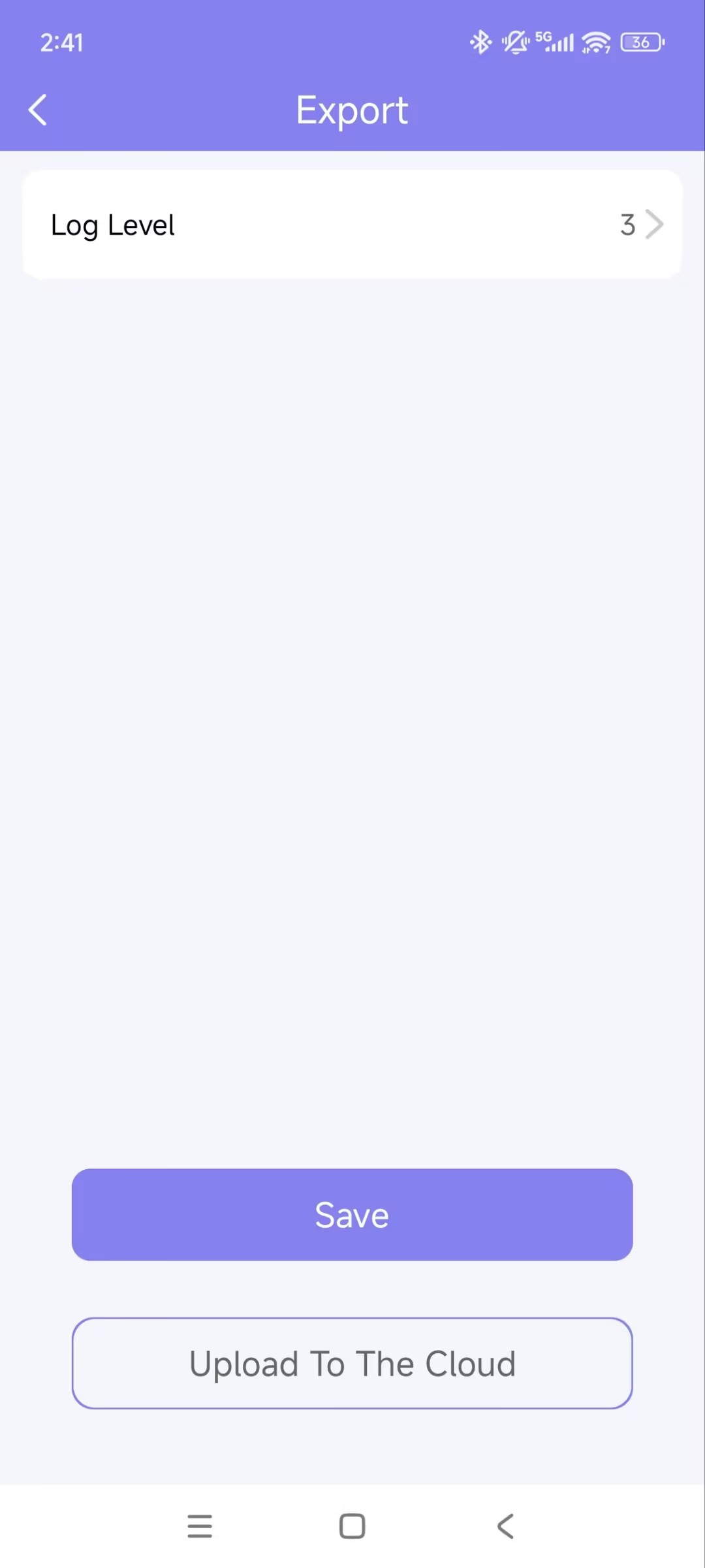
The log has 7 levels. The level is 3 by default. The higher the level is, the more detailed the log content is. You can export and send detailed logs to Akuvox technical engineers to analyze problems if the device malfunctions.
Go to Me > Settings > Advanced Settings > Export Log.
Select a level and tap Save. You can ask our technical engineer for detailed information on each level.
To upload the current log to the MySmart server, tap Upload To The Cloud.
Advanced Settings
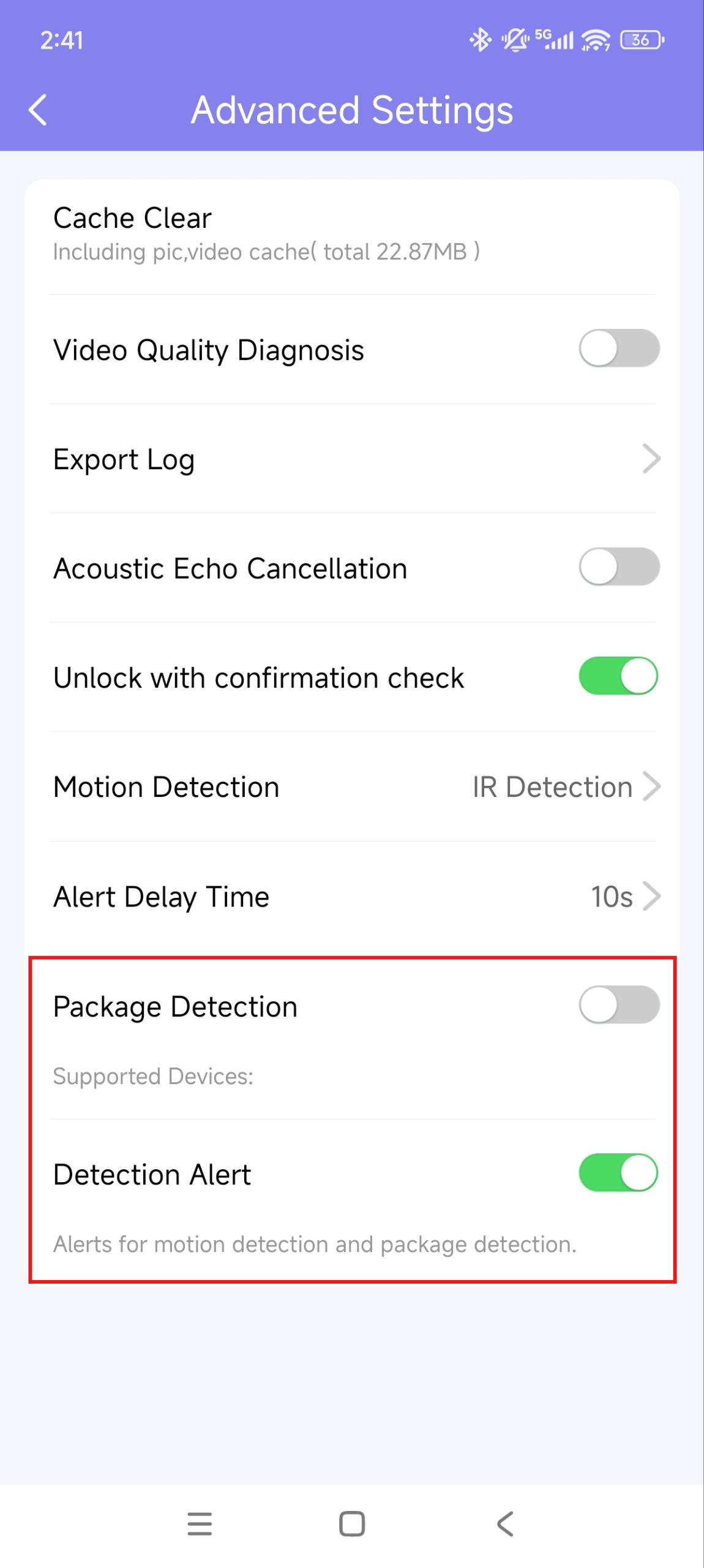
Package Detection
Akuvox door phone X910 supports the package detection feature, sending notifications to your MySmart App when it detects a package in or out of its camera detection area.
The setting is ONLY available for MySmart master accounts.
Tap Me > Settings > Advanced Settings.
Enable/disable Package Detection.
Enable/disable Detection Alert. This decides whether to send notifications to you when package detection happens.
Check Video Communication Qualities
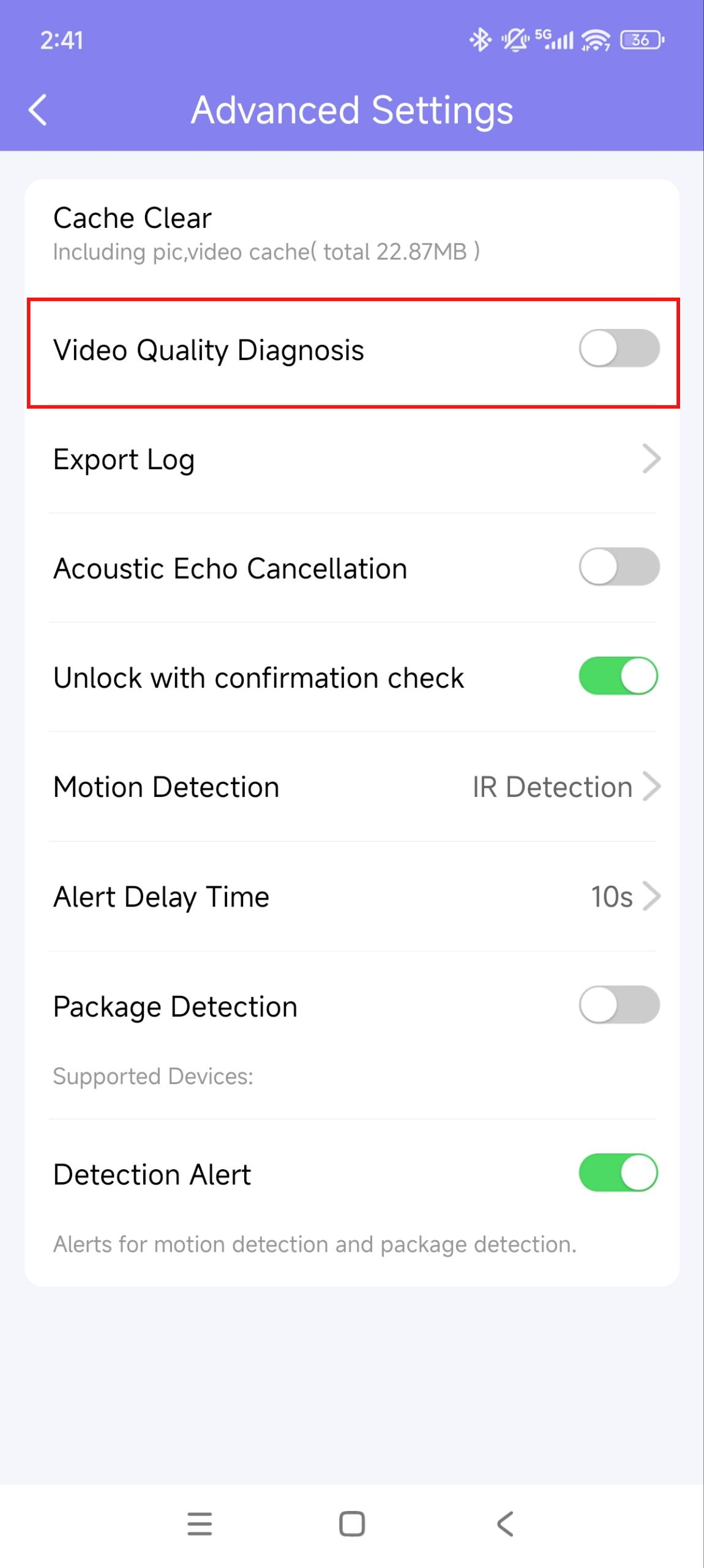
You can use Video Quality Diagnosis to check real-time video quality. It can be applied to video calls, live monitoring videos, and preview pages.
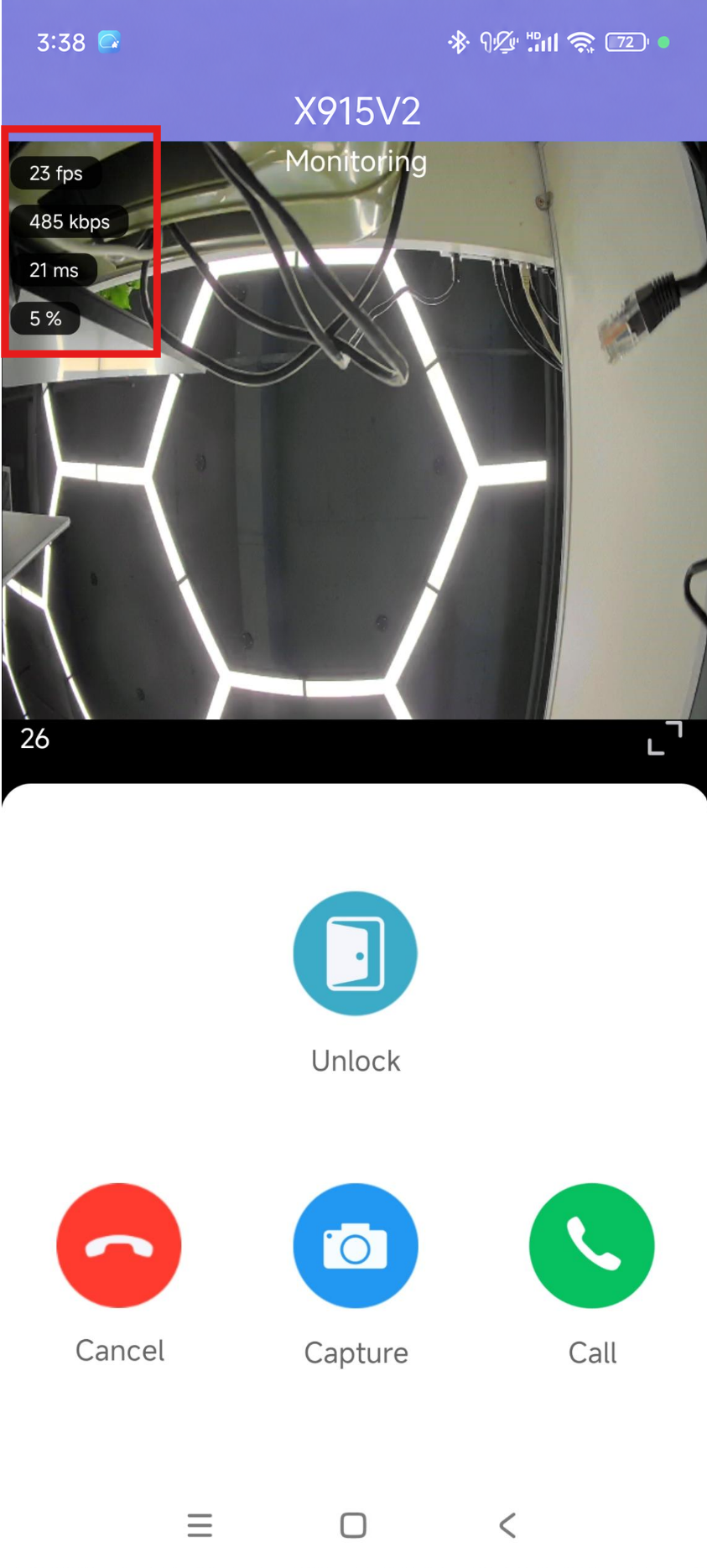
Go to Me > Settings > Advanced Settings, and turn on Video Quality Diagnosis. Then you can see information below shown in the upper-left corner of the app:
fps: frames per second. If the value is low, it'll give a slow-motion or motion-blur effect to your video.
bps: bits per second. The higher the bps rate is, the faster the download or upload time will be.
packet loss rate: The lower the rate is, the better the network will be.
rtt: round-trip time. It’s the total time taken by a data packet as it travels from its source to the destination and back.
Enable Confirmation Prompts when Opening Doors
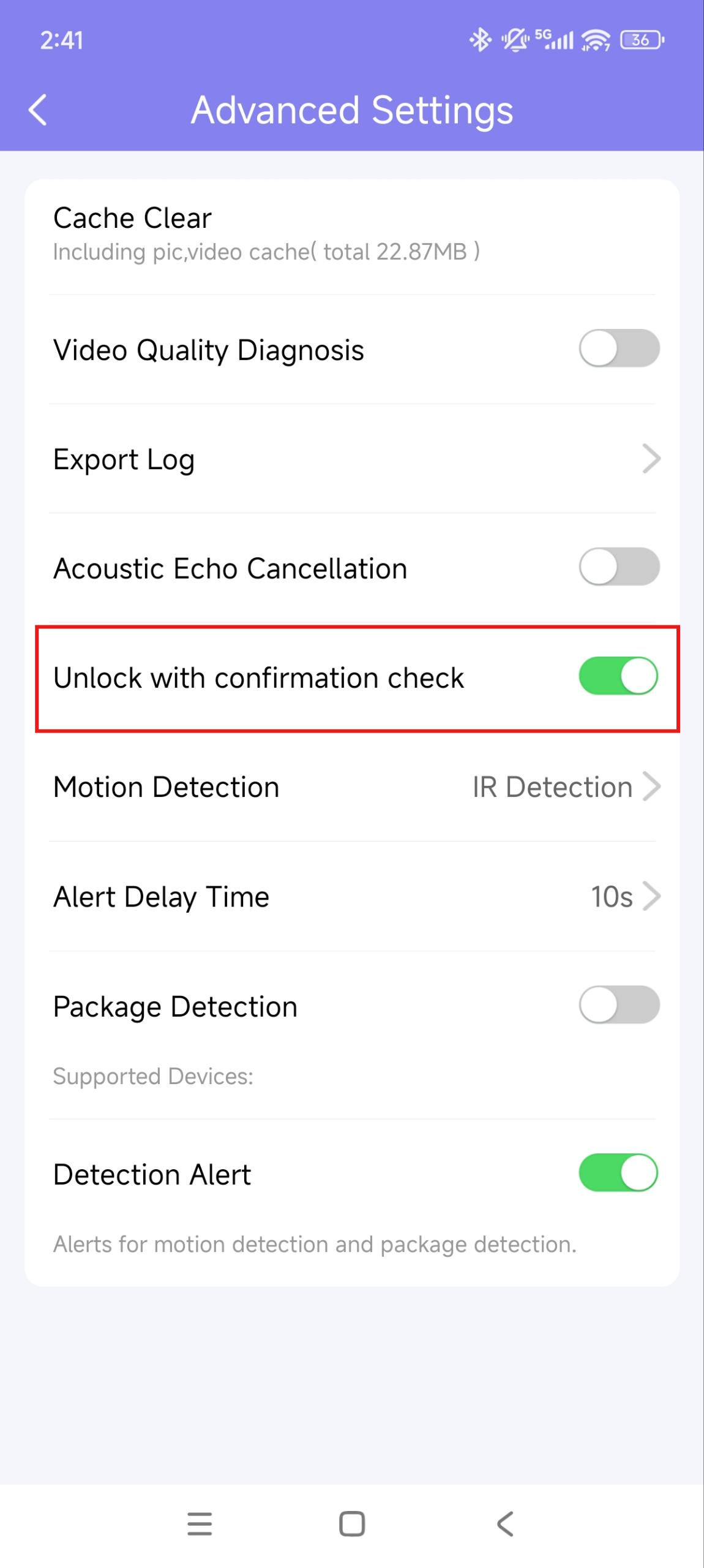
The unlock with confirmation feature prompts you to confirm your door opening command when you tap the unlock button. This helps prevent accidental unlocking and allows you to double-check before opening the door.
To enable this feature, go to Me > Settings > Advanced Settings, and enable Unlock with confirmation check.
Clear Cache to Improve App Performance
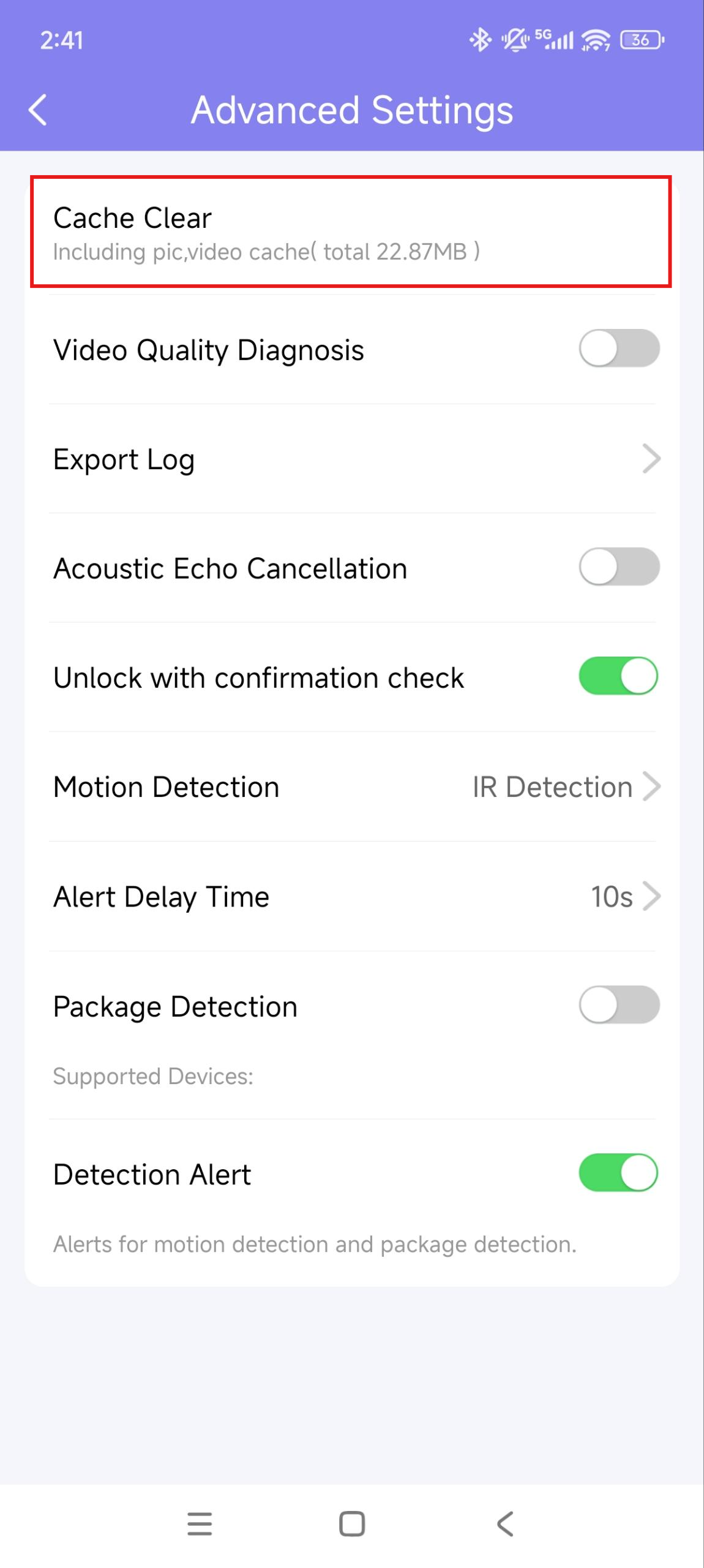
After using the app for a long time, you can clear the cache to run the app better and free up storage space. Go to Me > Settings > Advanced Settings, and tap Cache Clear.
Account Settings
View and Change Account Information
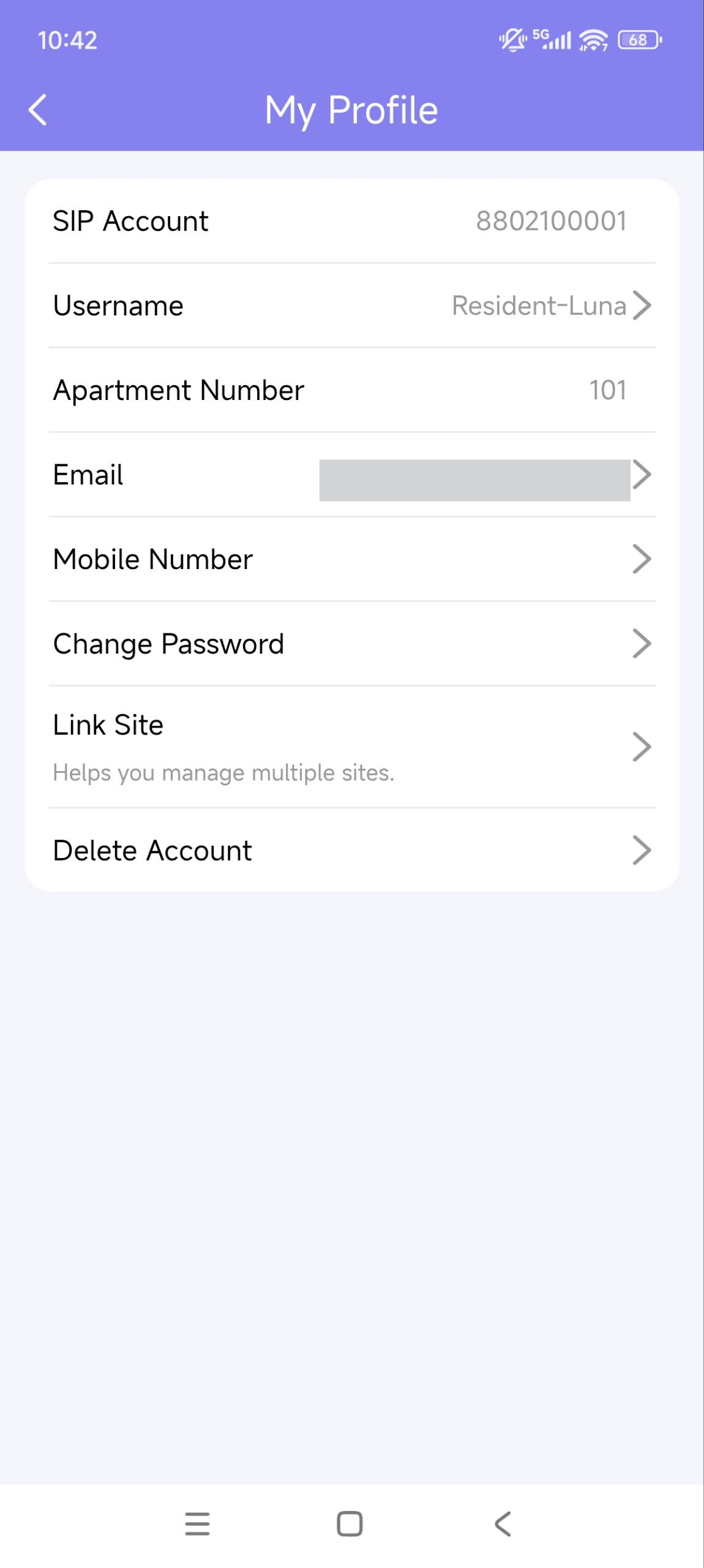
You can check your account information, including your SIP account, username, apartment number, Email, and mobile number. For better security, you can make a change to the username and login password.
Check your account information
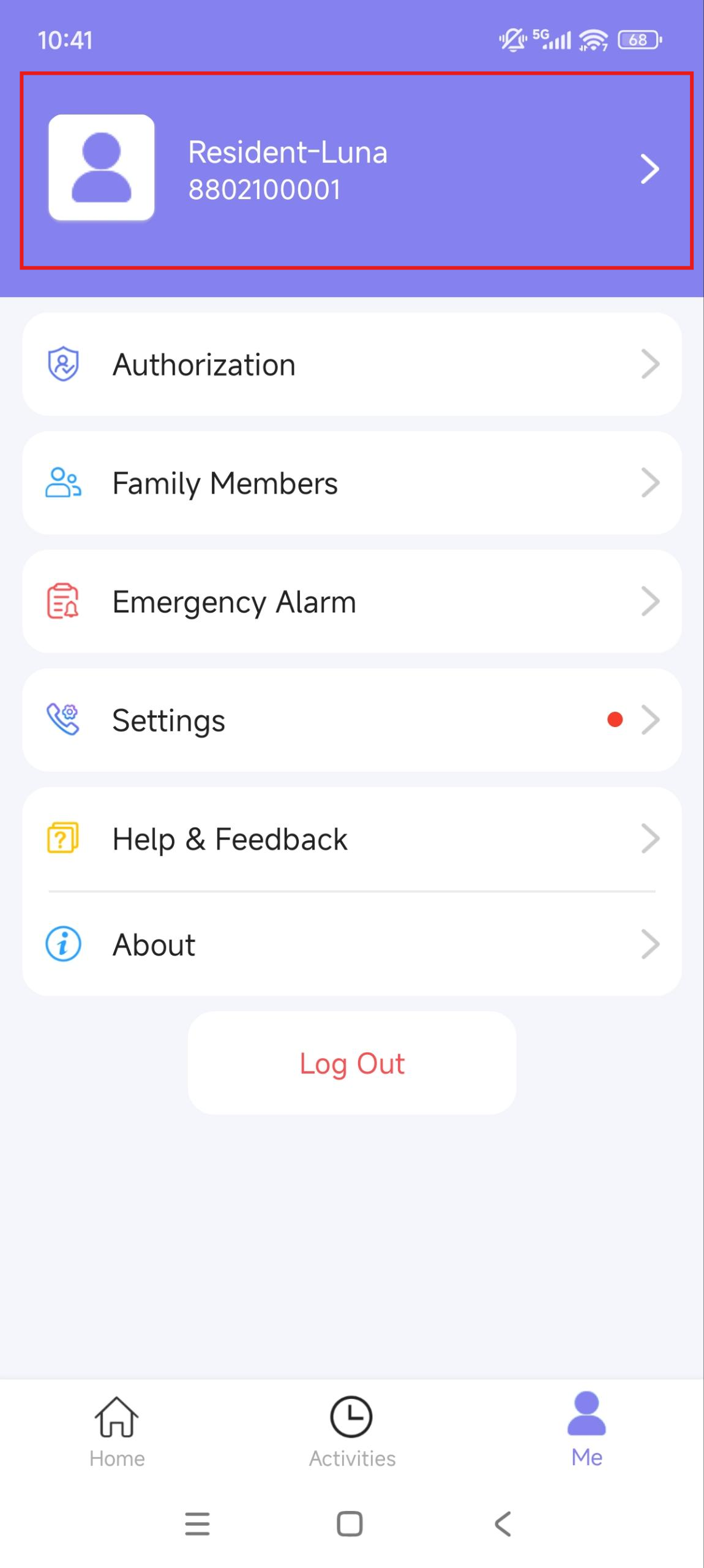
Tap Me on the bottom bar.
Tap [your name], and you can see the details.
Change your username
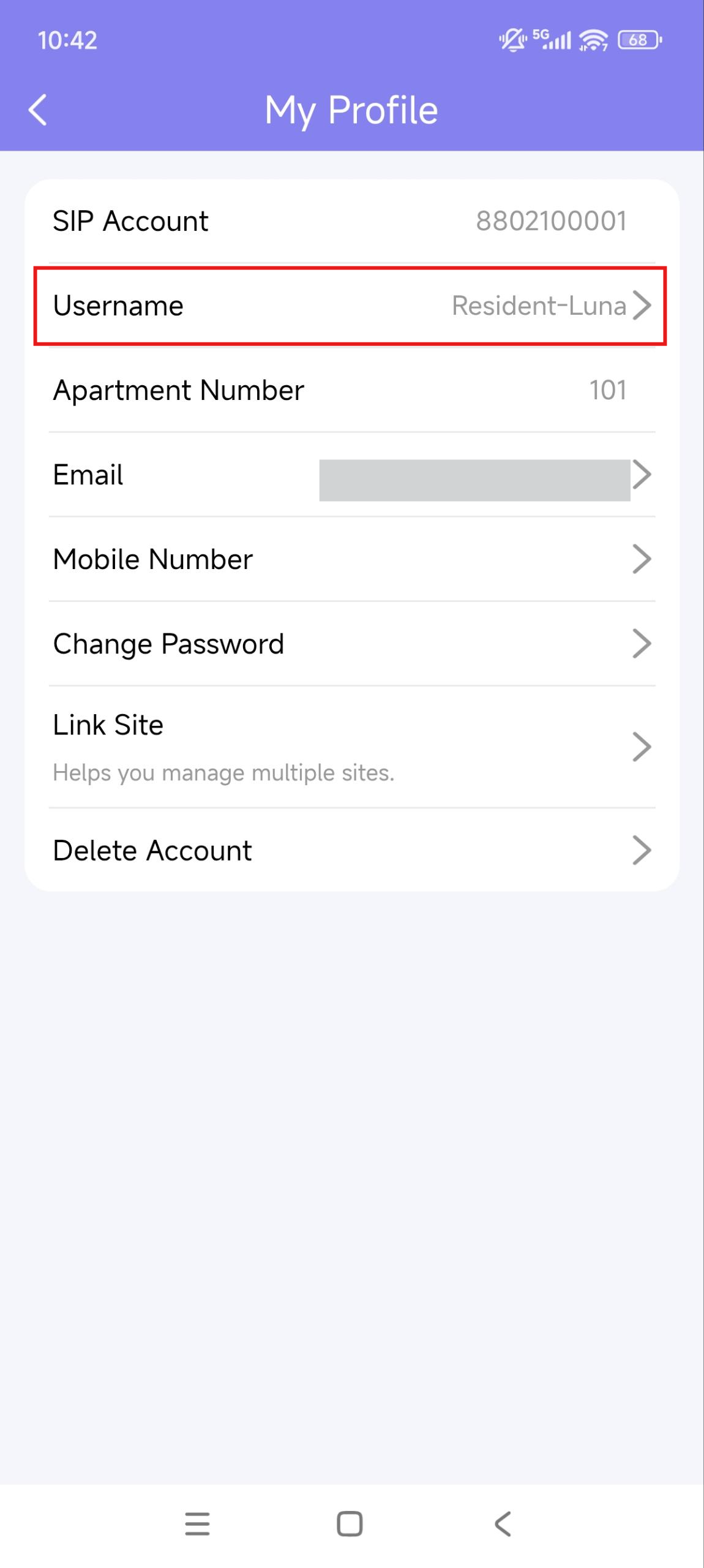
Go to Me > [your name].
Tap Username and type in new names in the boxes.
Tap Confirm to validate the change.
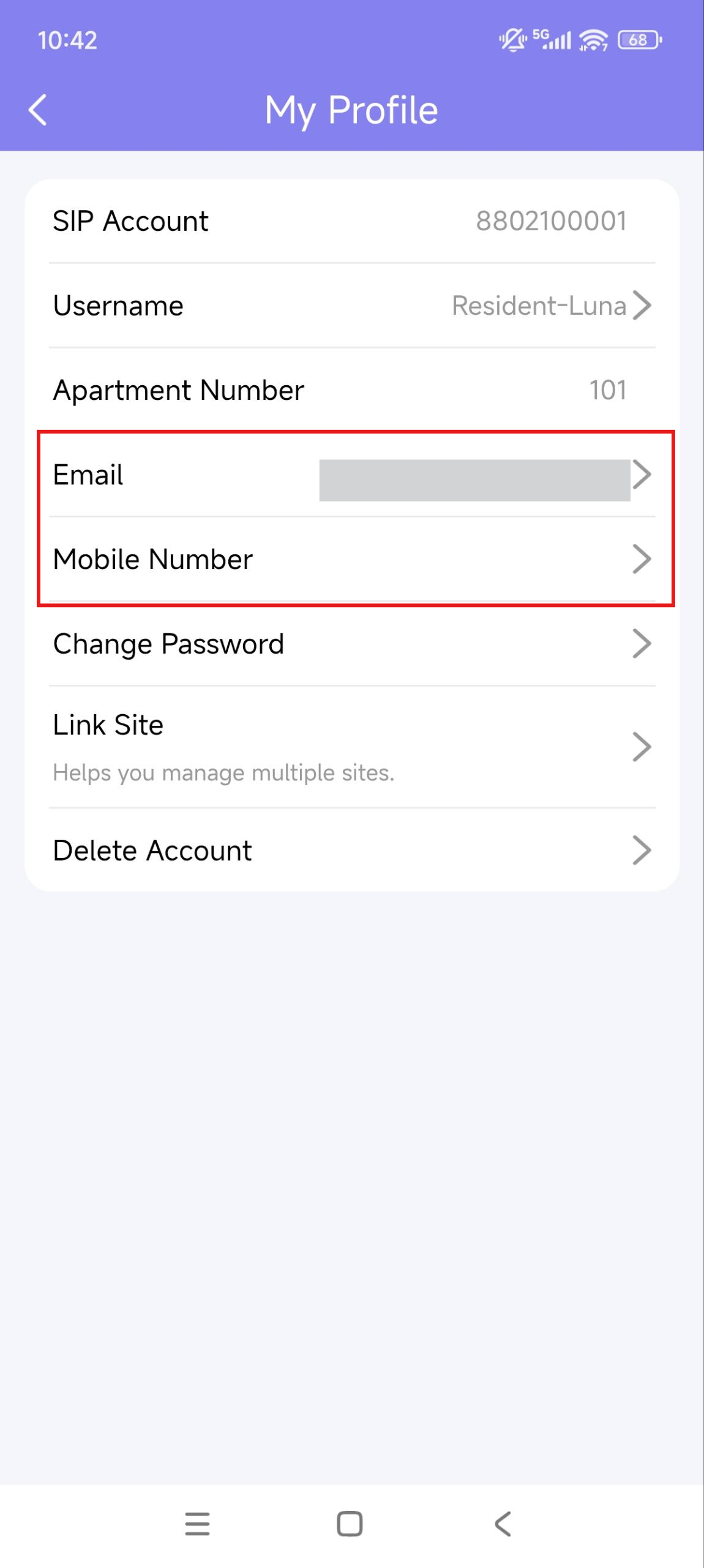
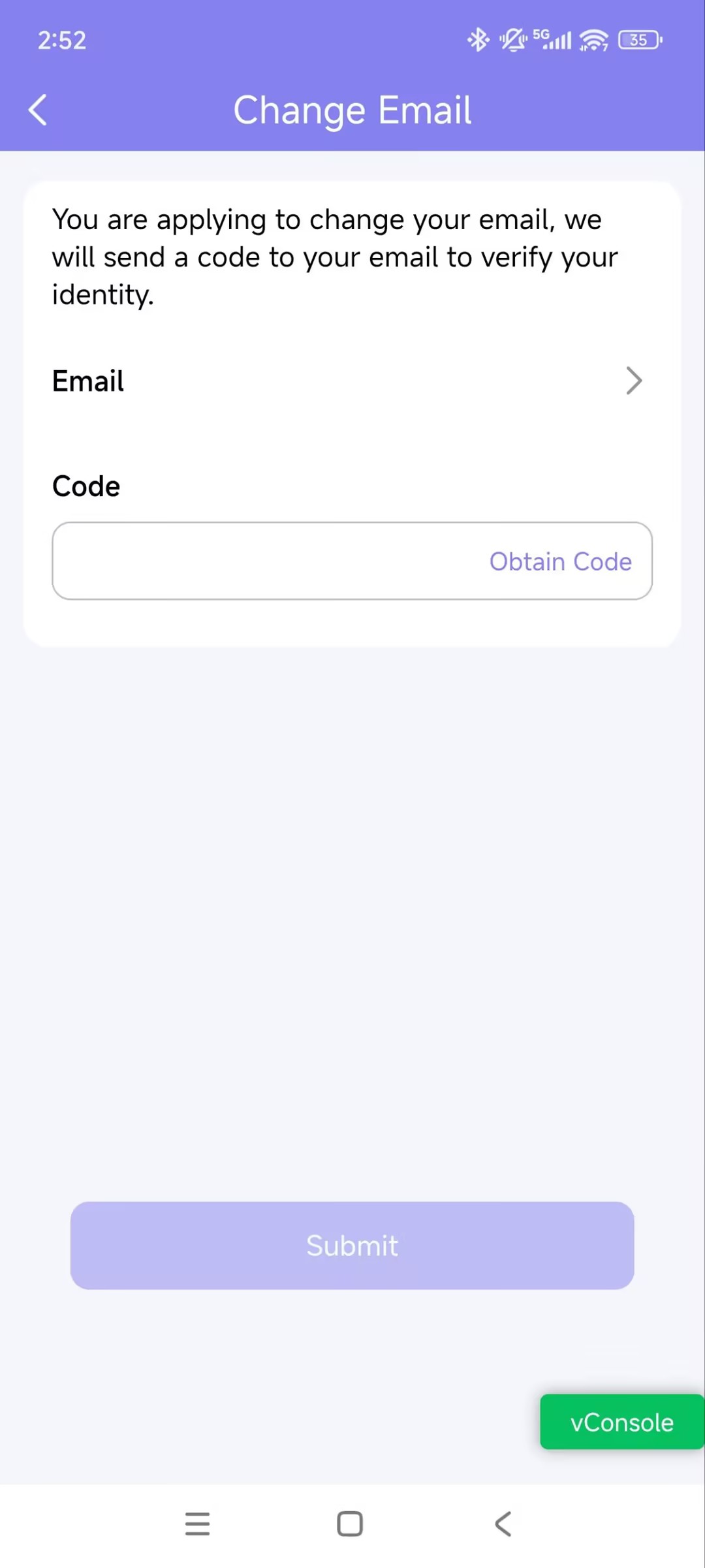
Change your mobile phone and email
Go to Me > [your name].
Tap Email or Mobile Number.
Choose the authentication mode: Email or Password. Enter the password or verification code you received from your mobile phone or email.
Tap Confirm to validate the change.
You need to log in again after the change.
Change a weak or compromised password
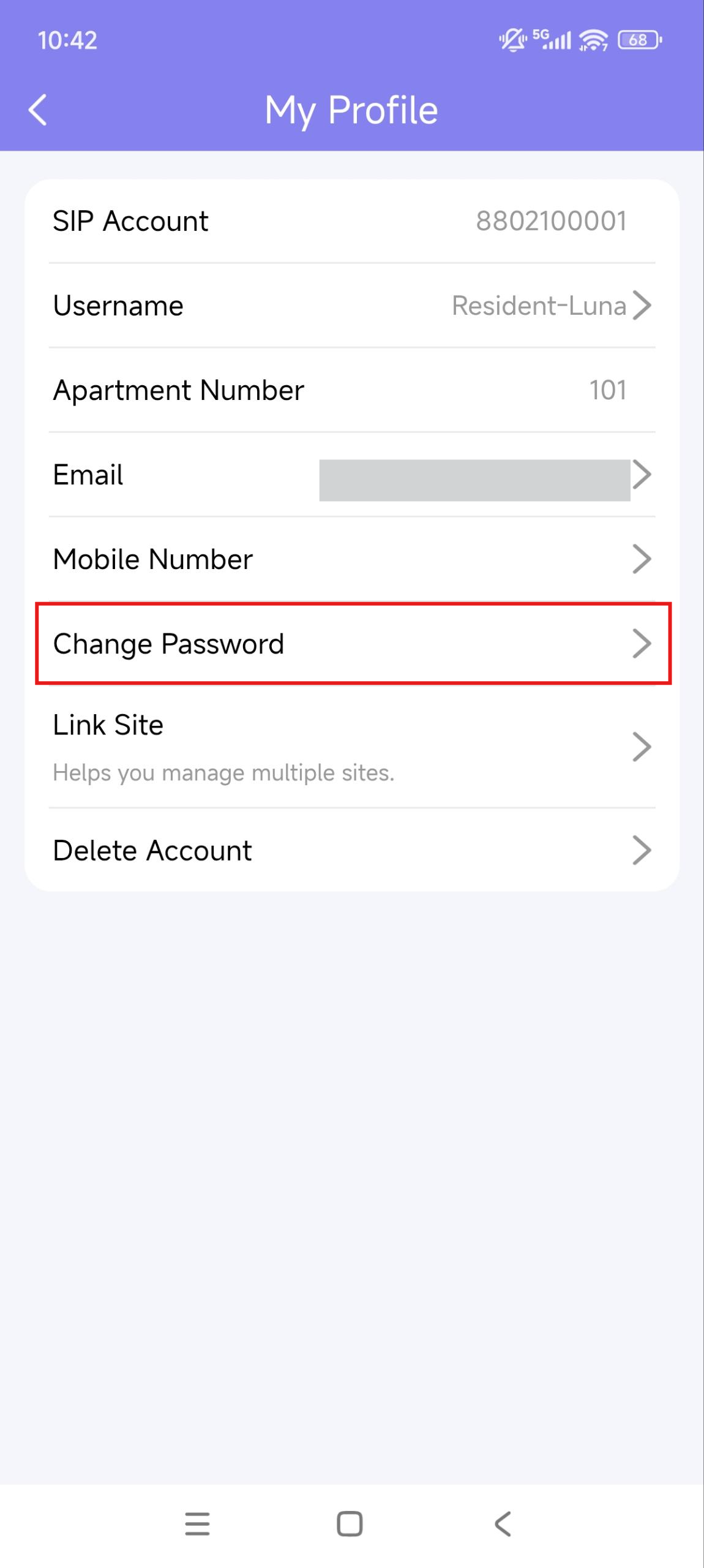
You can change a compromised or weak (for example, it is easily guessed or has been used for a long time) login password, by doing the following:
Go to Me > [your name].
Tap Change Password.
Create a new password. When doing so, you are asked to enter your old password.
Tap Submit to validate the change.
Forgot password
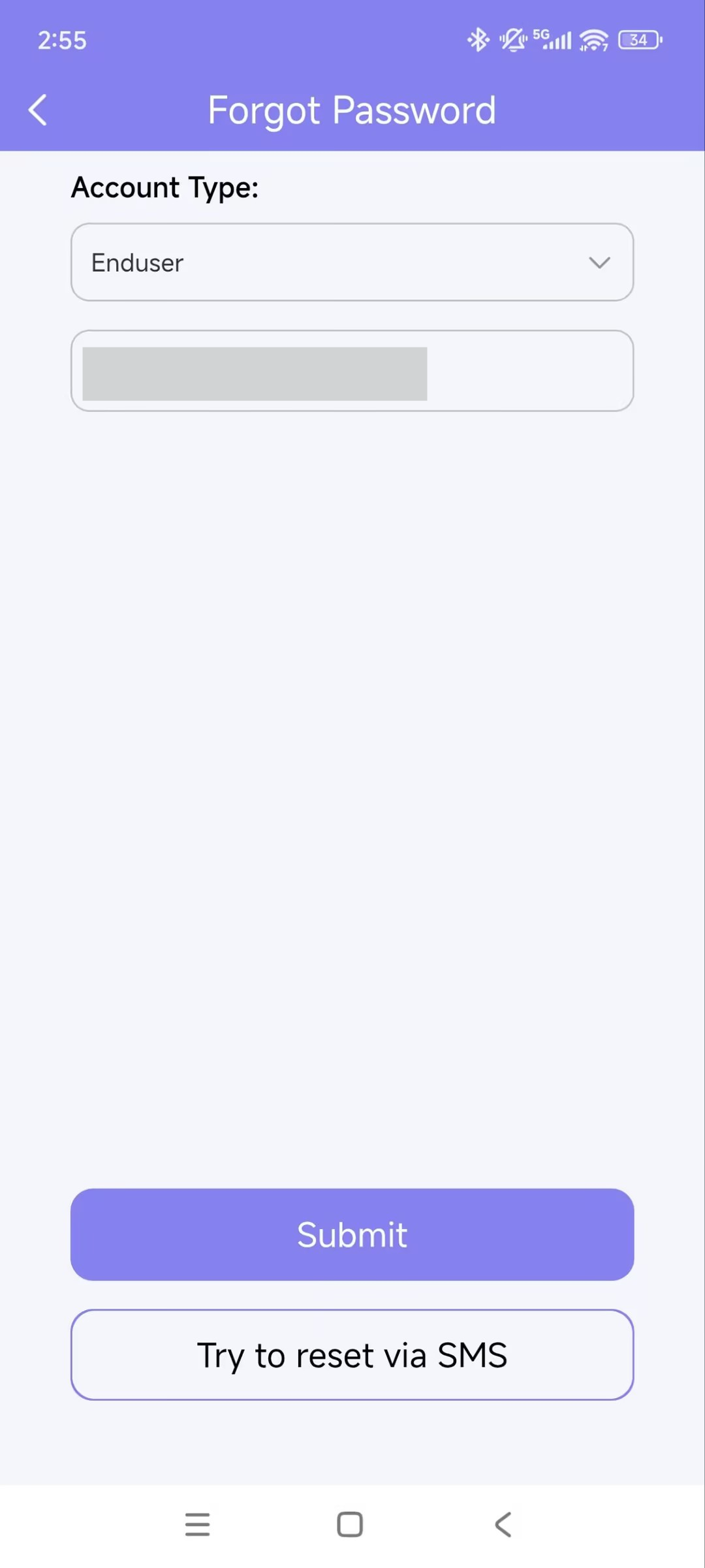
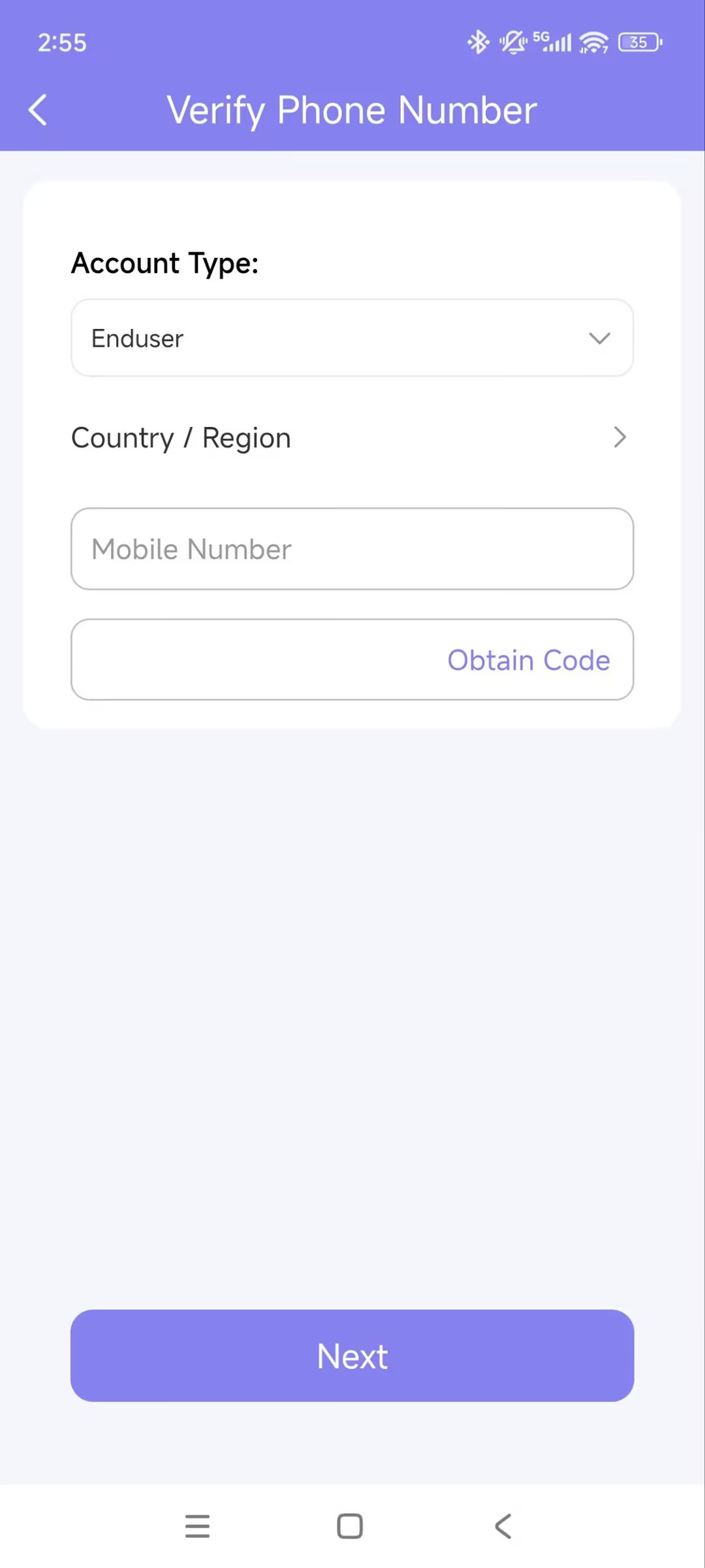
If you forget your login password, tap Forgot Password on the login page. You can reset your password using Email or message:
Email. Select your account type and enter your email address. Then, you will receive an email containing a link that will redirect you to the reset page.
SMS.
Tap Try to reset via SMS.
Select Country/Region code.
Enter your mobile number and tap Obtain Code.
Enter the verification code you received. Tap Next and follow the on-screen instructions.
Family Member Account Management
If you are using the family master account, you can add family members and create accounts for them, so they can log in to the MySmart App and use MySmart services.
Add Family Member Accounts
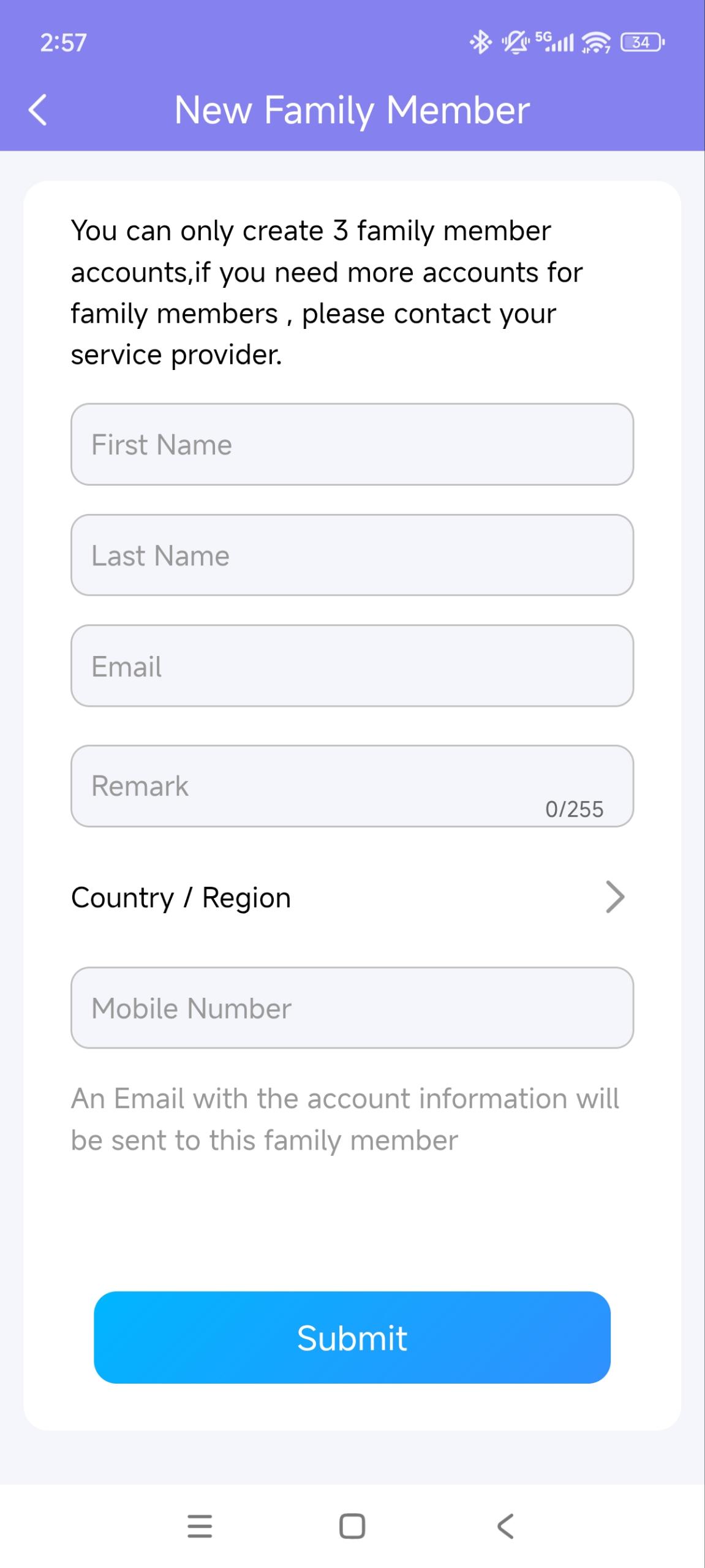
Go to Me > Family Members.
Tap + New Family Member.
Enter username and email address.
You can add remarks for the family members to indicate their identities.
Note
If you entered the member’s email address:
The login credentials and password reset email will be sent to the member’s email address.
If you only entered the member’s phone number:
Both the login credentials and password reset email will be sent to your (the family master’s) email.
If you did not enter the member’s email address or phone number:
The member uses the SIP number and password to log in, and the password reset email will be sent to your (the family master’s) email.
Tap Submit.
Once a family member is created, you can call him/her by selecting him/her from the list.
You can check, edit, and remove the members on the Family Members page at any time.
.jpg)
Edit/Delete Family Member Accounts
You can modify the information of the family member accounts after creating them.
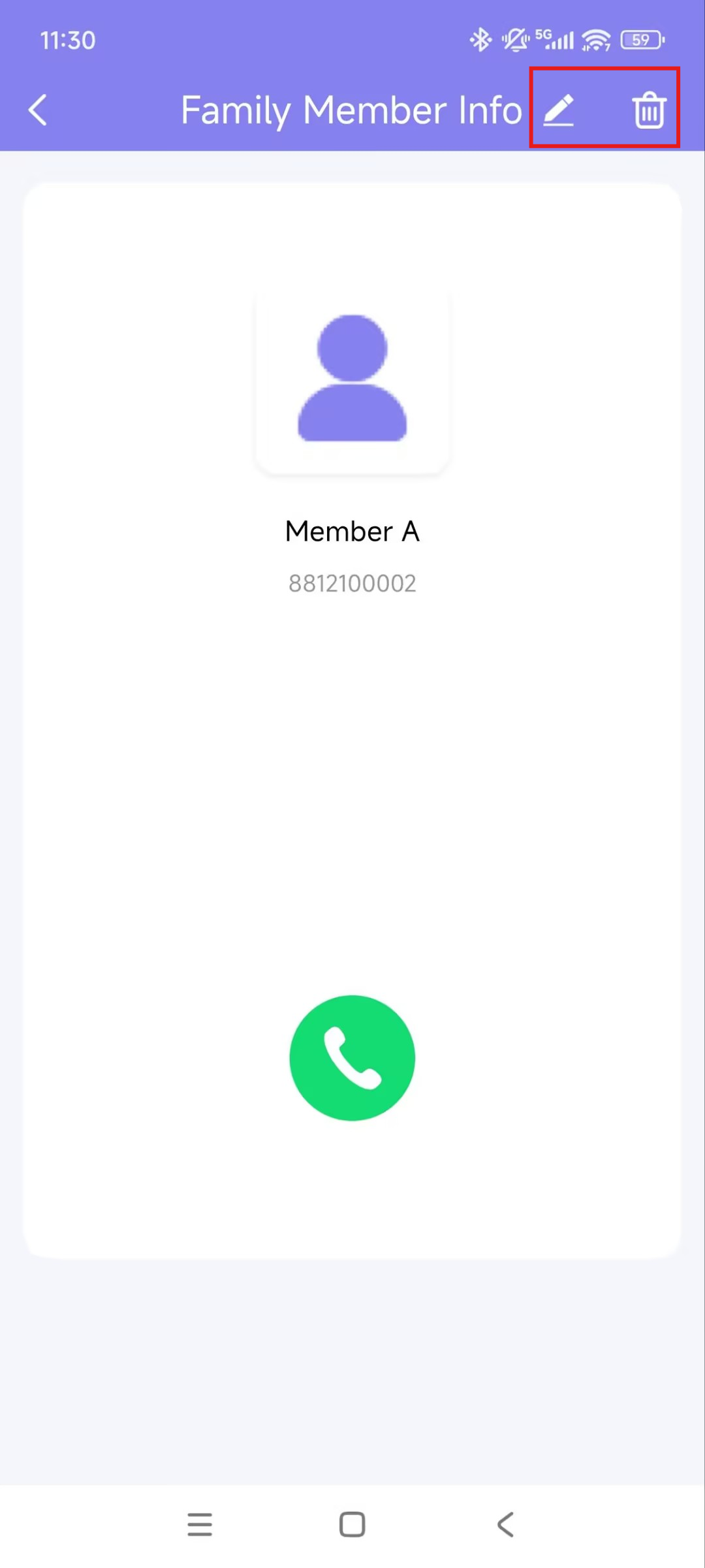
Tap Me > Family Members and select the target family member.
Modify the account by clicking the Edit icon in the upper-right corner.
Delete the account by clicking the Delete icon.
Delete Your Account
You can delete your account at any time. Once your account is deleted, you will not be able to sign in to MySmart anymore.
To delete the account, do the following.
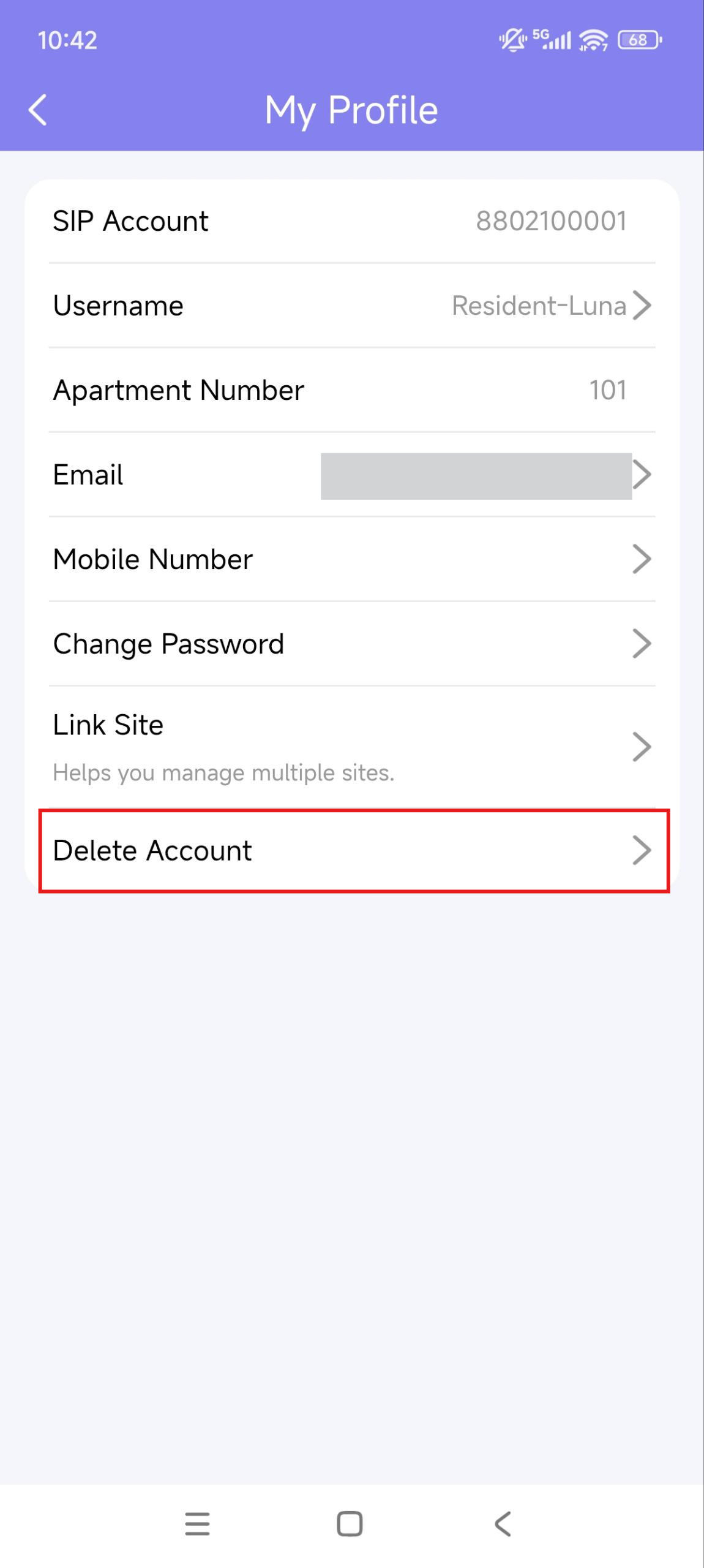
Go to Me > [your name] > Delete Account.
Tap Confirm when you're asked.
Enter the correct verification code.
The code will be sent to:
Your email or phone number, if you use either of them to apply for the account, or
The family master's email or phone, if you did not provide any of your information when applying.
Log Out
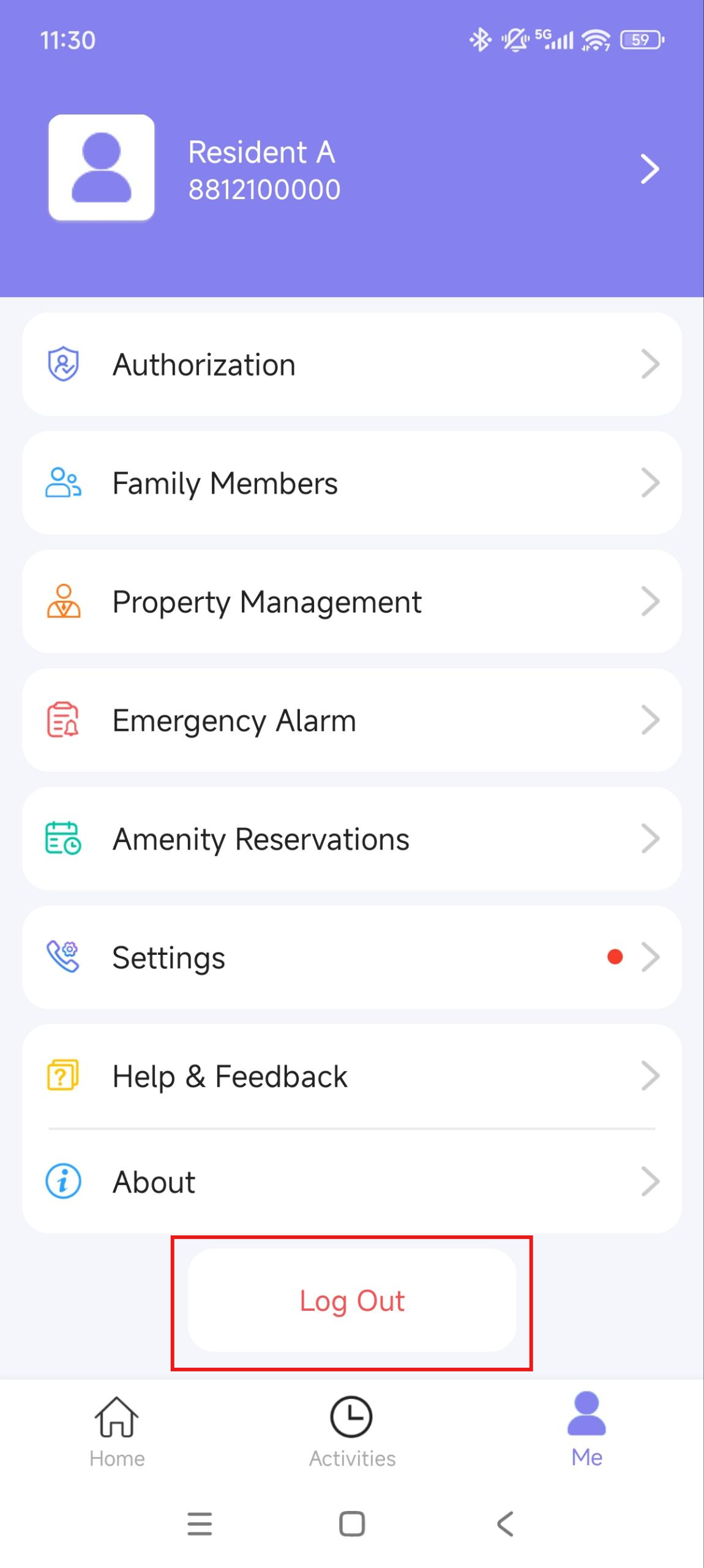
To sign out of MySmart, tap Me > Log Out.
Support
Update
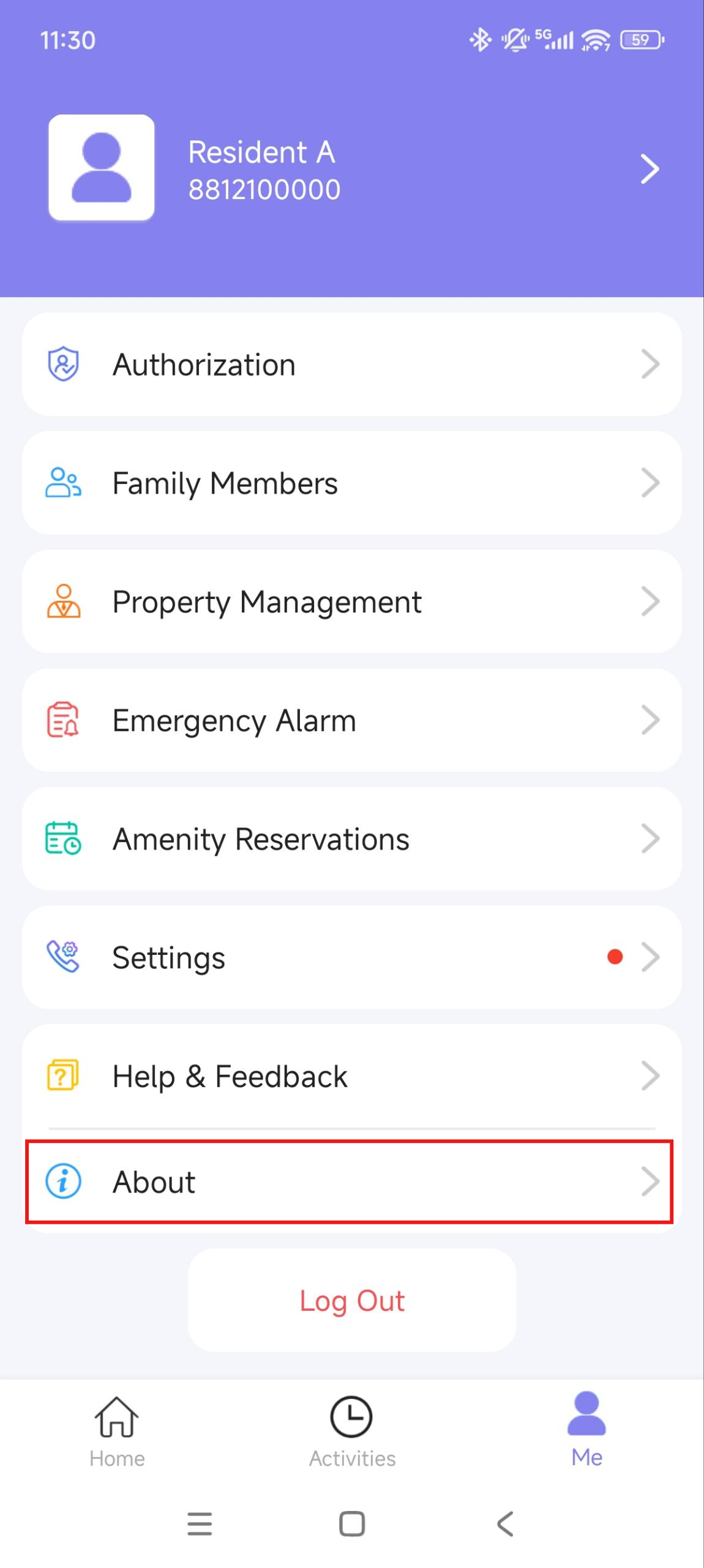
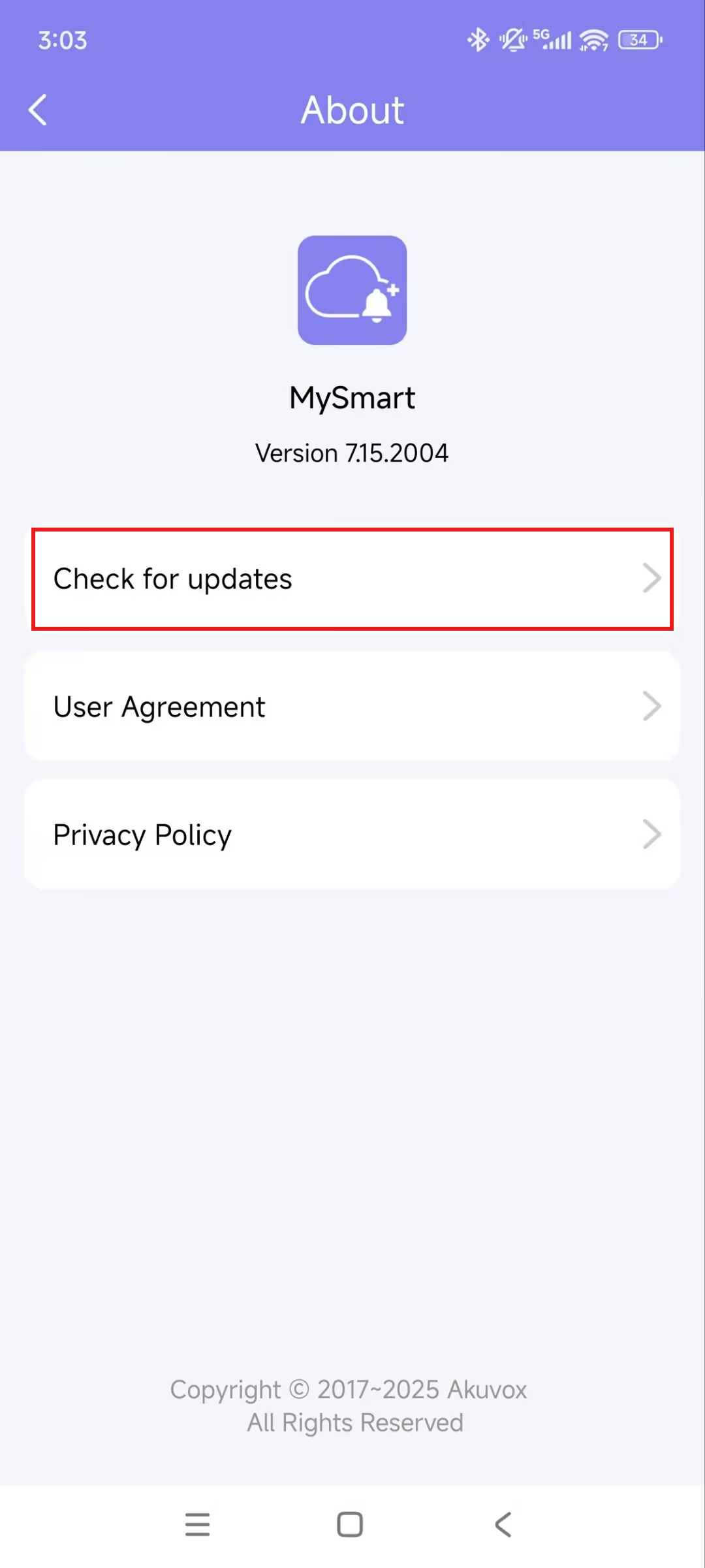
Go to Me > About to see the current software version. Tap Check for Updates; it will open the Google Play Store automatically, then you can check whether it is the latest one.
Your settings and data will remain unchanged when you update the app to the latest version.
FAQ
(1) Can't call out on the App?
Check that your network is working.
Update the App to the latest version.
If the above doesn't work, please go to Me > Settings > Advanced Settings > Export Log, and send the log to Akuvox technical engineers.
(2) Can't see pictures when calling or monitoring?
Only audio calls are supported between Apps.
Update the App to the latest version.
Check that door phone cameras are working.
If the above doesn't work, please go to Me > Advanced > Export Log, and send the log to Akuvox technical engineers.
(3) Can't log in due to forgotten password?
Go to the login page > Forgot Password. You can reset your password using Email or message:
Email. Enter your email address, and you will receive an email with a new password.
SMS. Tap Try to reset via SMS
Enter your mobile number and tap Obtain Code.
Enter the verification code you received. Tap Next and follow the on-screen instructions.
(4) How to obtain an account?
Provide your Email address and/or a phone number (if you'd like to log in or reset your password via SMS) to your service provider. You will then receive an Email from Akuvox with your username, password, and a QR code for login. Or you can enter your phone number and log in with a verification code sent via SMS.
If you want to create sub-accounts for your family members, go to Me > Family Members.
Contact Us
For more information about the product, please visit us at www.akuvox.com, or feel free to contact us by
Sales email: sales@akuvox.com
Technical support email: support@akuvox.com
Telephone: +86-592-2133061 ext.7694/8162
We highly appreciate your feedback about our products.