You and your family members can make calls with each other, and send and receive messages anytime through HyPanel Lux.
Register family administrator account
If you are the first person in your family to register the account, you will be the family administrator. The administrator of the family has the permissions to create and manage family member accounts.
TIP:
When the weather forecast displays on all panels, it indicates successful Cloud connectivity.
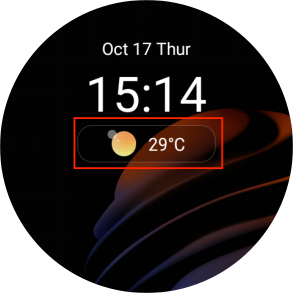
When devices connected to the cloud
To register the account when the devices within your family are connected to the cloud, do any of the following:
Contact your service provider to register and activate your administrator account.
Self-register your account by following the steps below.
Tap Account Registration
 on the home screen, or go to
  > System Settings > About > Family > Family Account. A QR code displays on the screen.
Do one of the following:
 If you already have an account associated with other families
a. Open BelaHome app, and log into your account.
b. Tap Me > Scan icon, and scan the QR code.
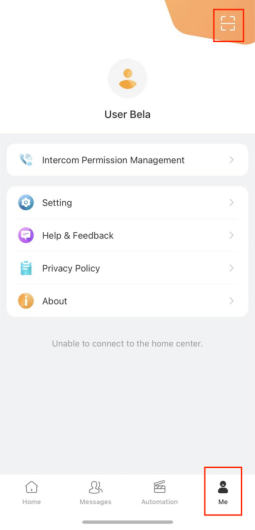
c. Tap Join the Family.
d. You can switch the families on the app’s home screen.
If you are a new user
a. Open BelaHome app, and tap on the scan icon at the upper left.
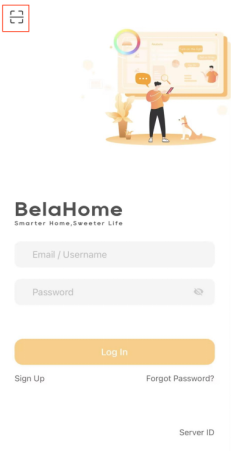
b. Scan the QR code.
c. Enter a valid email address. The login credential will then be sent to this email.
d. Log into the BelaHome app with the credentials you receive.
When devices running in Auto Discovery mode
When devices are running in Auto Discovery mode and never connected to the cloud, the temporary administrator account has default username and password that are both Admin888.
You can also log into the BelaHome app by scanning QR code:
Ensure that your phone and and devices are in the same local network.
Go to
 > System Settings > About > Family > Family Account. A QR code displays on the screen.
Open BelaHome app, and tap on the scan icon at the upper left.
Scan the QR code.
NOTE:
After setting a new password, scanning the QR code does not work for logging in.
Once the administrator account is created, you can login to BelaHome app and create family member accounts. Click here to see detailed instructions.
Make voice calls
You can group call or make one-to-one call with any device, including the door phones, in your family, or family member’s through HyPanel. You can also receive their calls on HyPanel Lux.
To make calls, do as the following:
Select Contacts
 .
.On the Contacts screen , do any of the following:
Tap Family Group to group call all panels within the family. They will auto-answer the call.
Select the family member or device you want to call.
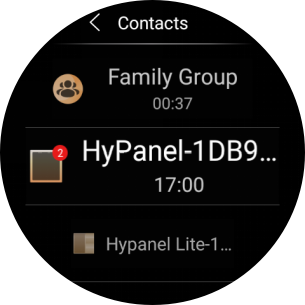
On the conversation screen, tap
 .
.
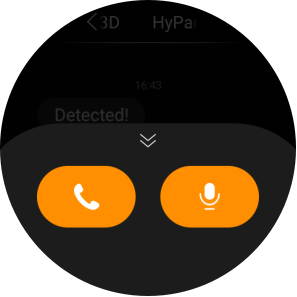
What else you can do on the voice call screen: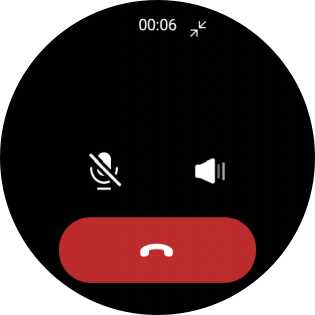
Tap
 to silence your microphone, so the called will not hear your voice.
Tap
 to adjust the volume.
Tap
 to hang up the call.
Send audio messages
HyPanel Lux allows you to send and receive voice messages.
Go to Contacts
 .
.Tap Family Group to send all contacts a message, or select any desired member or device to sent messages to.
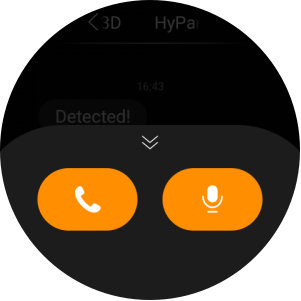
In the conversation, tap and hold
 to record an audio message. Each message should be within 30 seconds.
To cancel before sending, slide your finger away while you are recording.
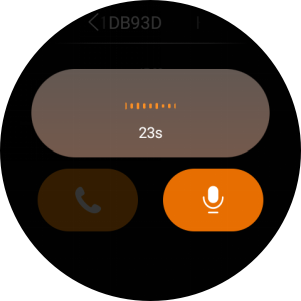
Lift your finger to send the message.