In many projects, controlling who can open a door is only part of the security requirement. It is equally important to know what happens after the door is unlocked.
By connecting a door sensor to the controller, the system can respond automatically when abnormal situations occur.
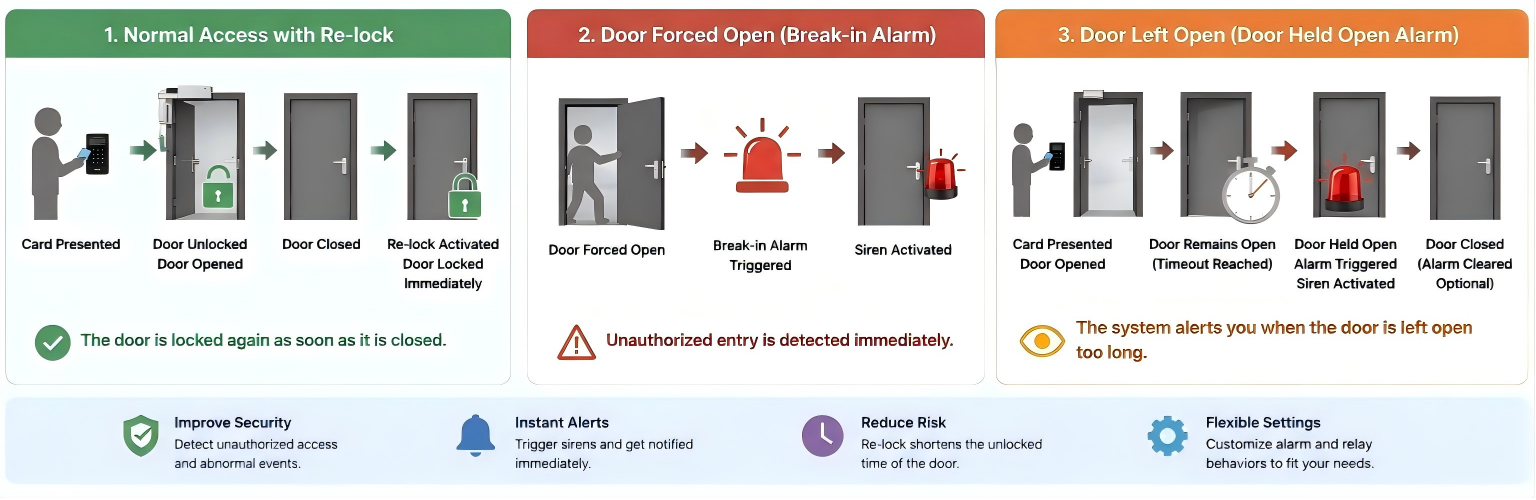
This guide introduces three features that help improve door security:
Feature | Trigger Condition |
Break-in Alarm | Door opened without a valid access event. |
Door Held Open Alarm | Door remains open beyond the configured timeout. |
Re-lock | Door closes before the relay timer expires. |
Key term: DPS (Door Position Switch)
DPS is the internal label for the door sensor input ports on the A095 controller.
All three features above depend on a correctly configured DPS to detect the door state.
Compatible Model and Minimum Firmware
A095: 95.30.11.9
A094: 92.30.11.19
This article takes A095 as an example.
Hardware Setup
Before configuring any software settings, confirm the following connections:
The door lock is connected to the relay output.
The door sensor is connected to an input.
An external siren or warning device connected to an auxiliary output(AUX OUT).
Step 1: Configure the Door Sensor
The DPS (Door Position Switch) configuration tells the controller how to interpret the electrical signal from your door sensor.
This step must be completed before configuring any of the three features in this guide.
Go to Access Control > Door > DPS.
Enable the DPS port wired to the door sensor.
Set the Trigger Option to match the sensor type.
Select High if the sensor circuit opens (separates) when the door opens — this is the most common type.
Select Low if the sensor circuit closes when the door opens.
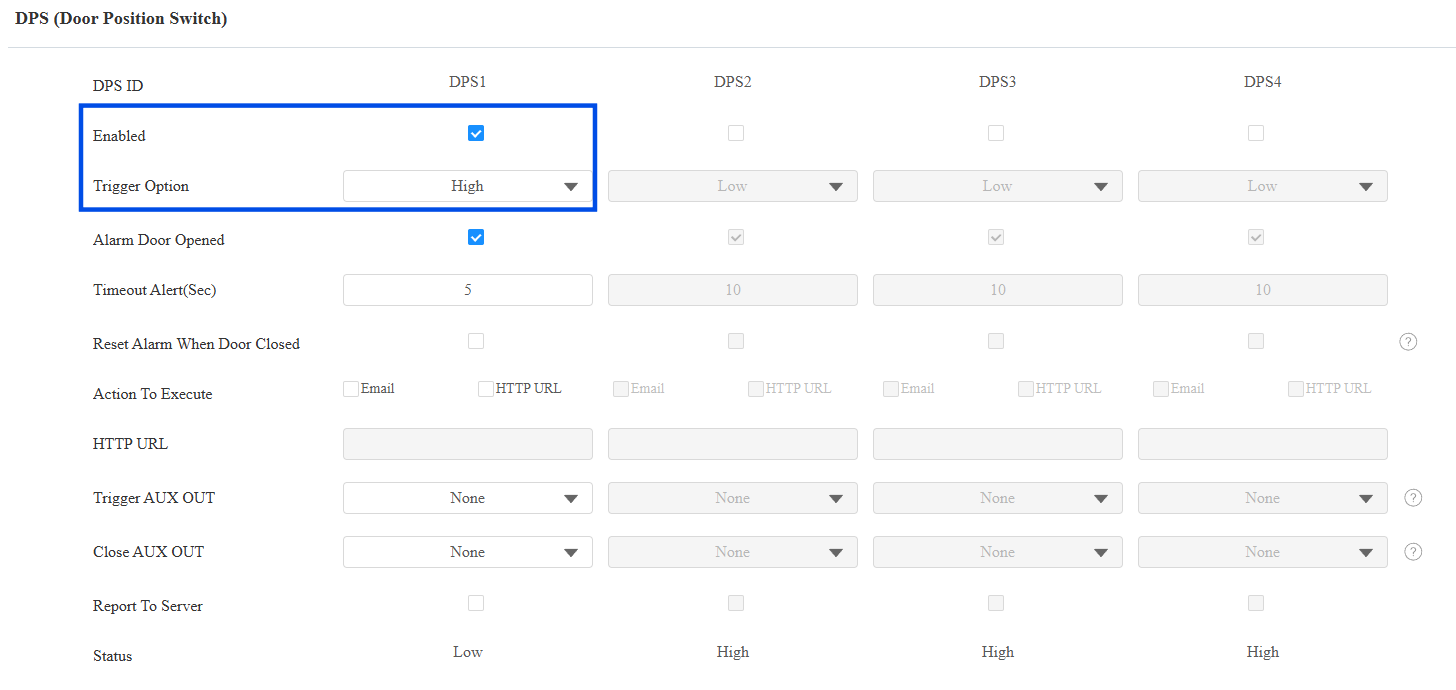
Then, bind this DPS to a Door.
Go to Access Control > Door.
In the Door Sensor dropdown for your door, select the DPS you just configured (e.g., DPS1).
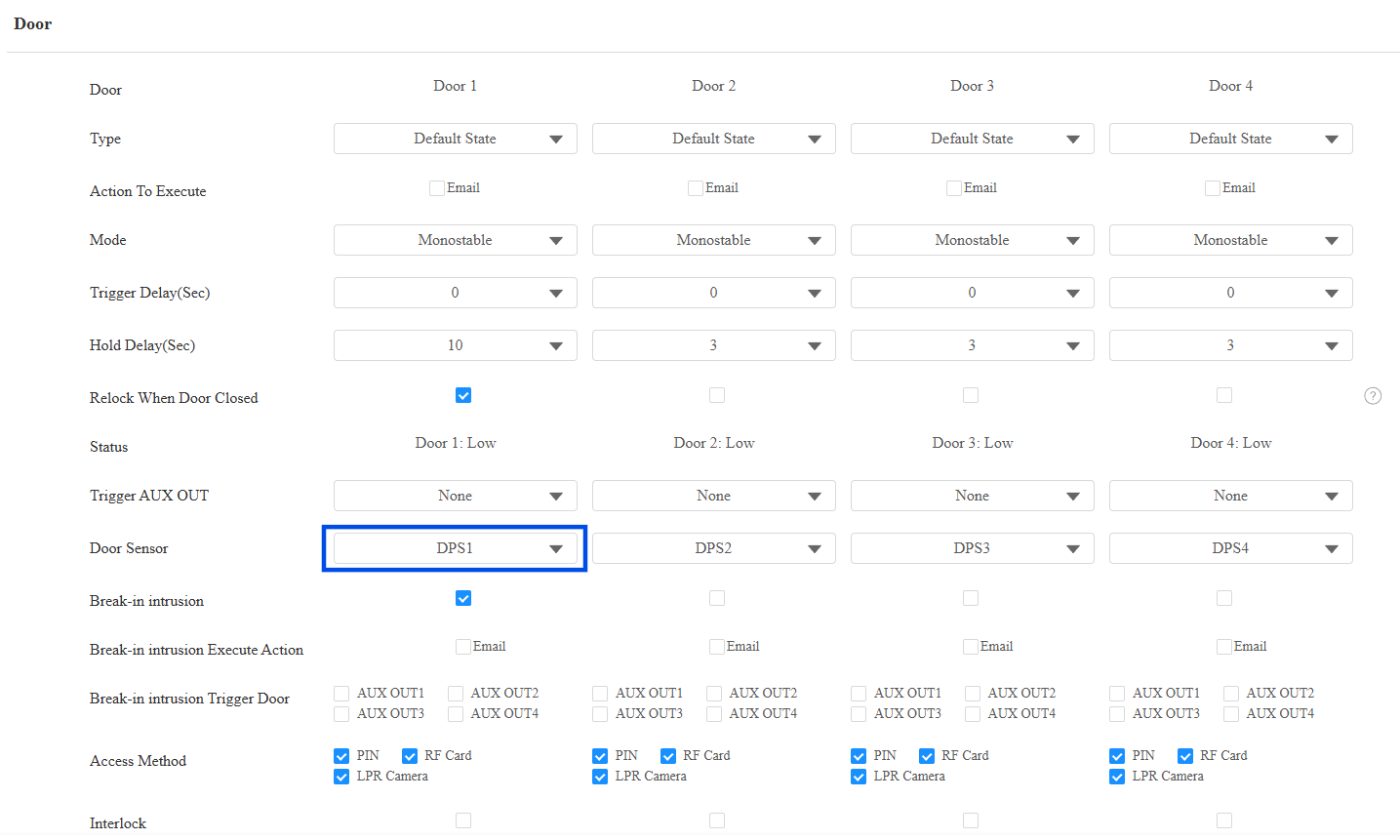
Click Submit.
Step 2: Configure AUX OUT for a Siren
If you plan to use Break-in Alarm or Door Held Open Alarm, configure the AUX OUT connected to the siren first.
Go to Access Control > Auxiliary Output.
Set the Action Type to AUX OUT.
Set the Hold Delay that determines how long the siren keeps activated.
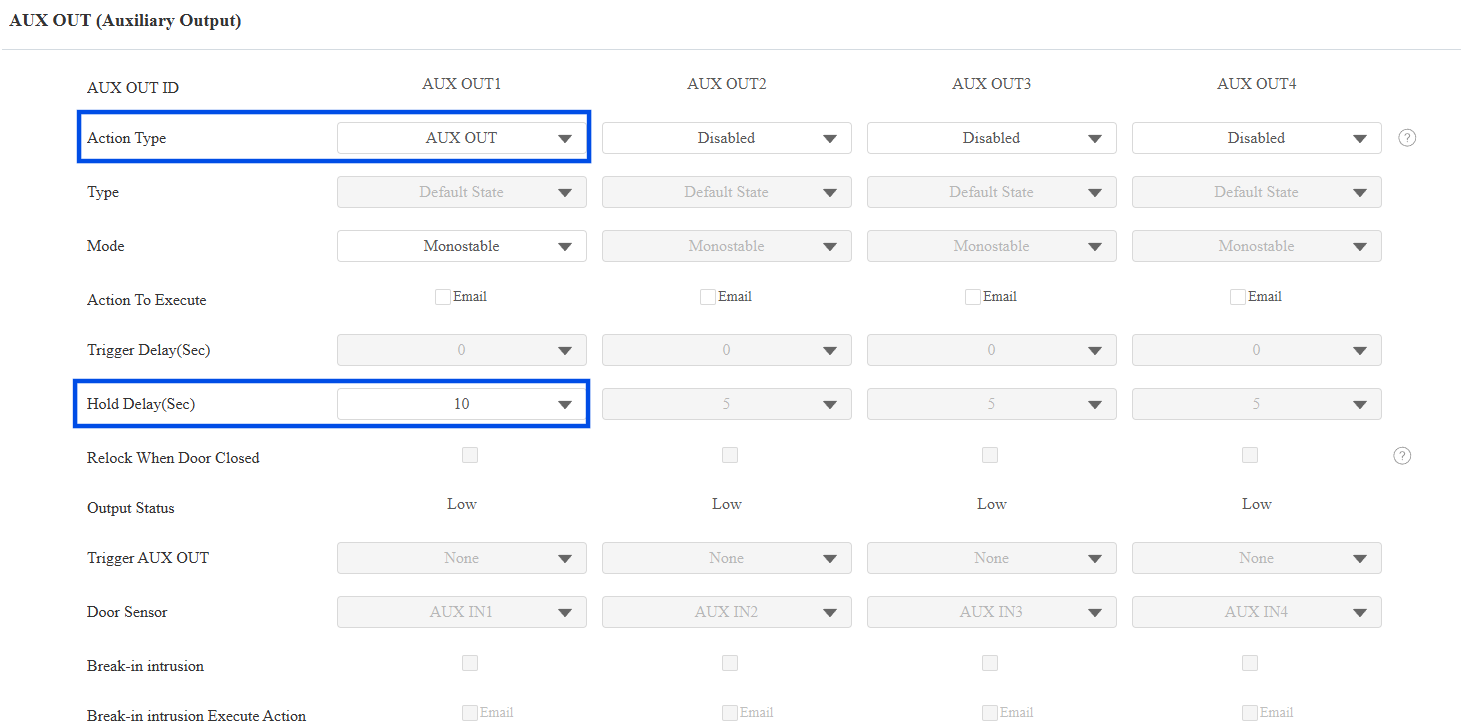
Click Submit.
Scenario 1: Break-in Alarm
The Break-in Alarm triggers when the door sensor detects the door opening without a valid access event (such as a card swipe and PIN entry). This indicates a forced entry.
Go to Access Control > Door.
Enable Break-in intrusion for the relevant door.
Enable the AUX OUT that is connected to the siren, e.g., AUX OUT 1.
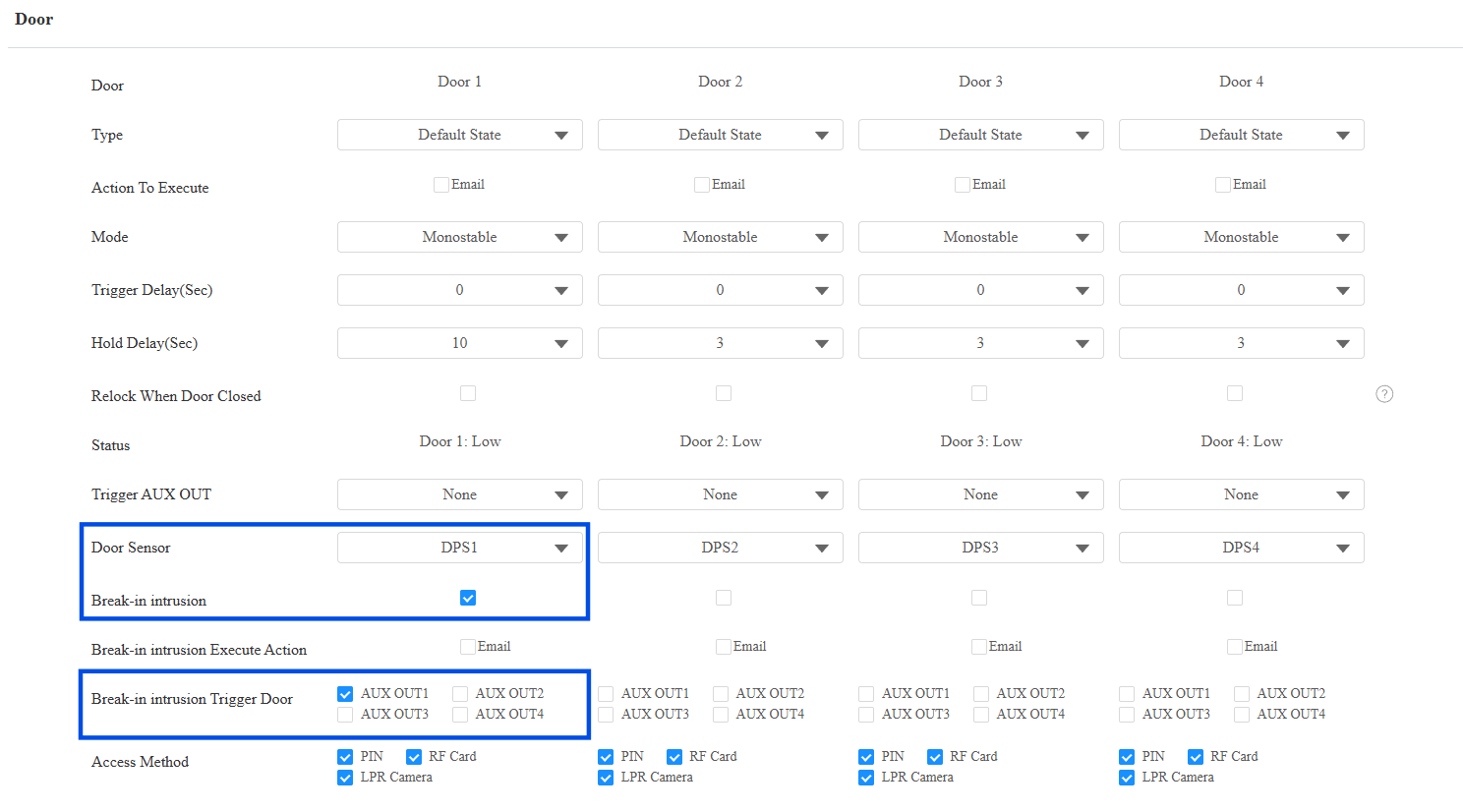
Click Submit.
After configuration, when a forced entry is detected:
Door sensor reports the door opened.
No valid access record exists.
Controller triggers AUX OUT.
Siren sounds.
Scenario 2: Door Held Open Alarm
The Door Held Open Alarm triggers when a door remains open for longer than a configured number of seconds.
Go to Access Control > Door > DPS.
Enable Alarm Door Opened and set the Timeout Alert.
When the door-opening time exceeds the configured limit, the Alarm Door Opened event will be triggered.
(Optional)Enable Alarm When Door Closed. The alarm will be cleared when the door is closed.
Select the Trigger AUX OUT that is connected to the siren.
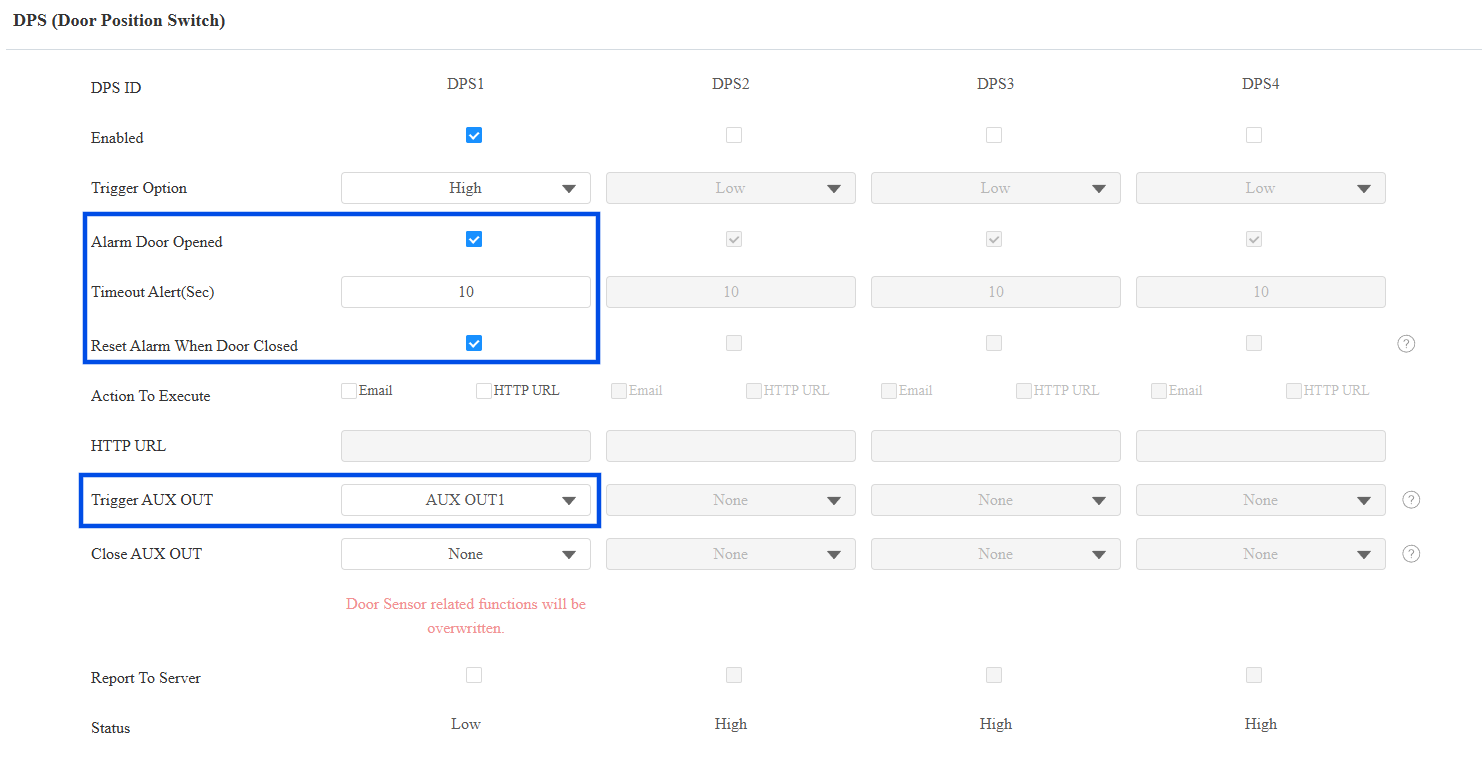
Click Submit.
After configuration, when the door is opened by a valid credential:
Timer starts.
The door remains open longer than the configured timeout.
AUX OUT is triggered.
Siren sounds.
Scenario 3: Re-lock
Normally, the lock remains unlocked for the full configured duration.
For example, if the unlock time is set to 10 seconds:
The door unlocks.
The user opens the door.
The user closes the door after 3 seconds.
The lock remains unlocked for another 7 seconds.
Although the door is already closed, it is still technically unlocked. The Re-lock feature helps solve this problem.
Go to Access Control > Door.
Enable Relock When Door Closed for the relevant door.
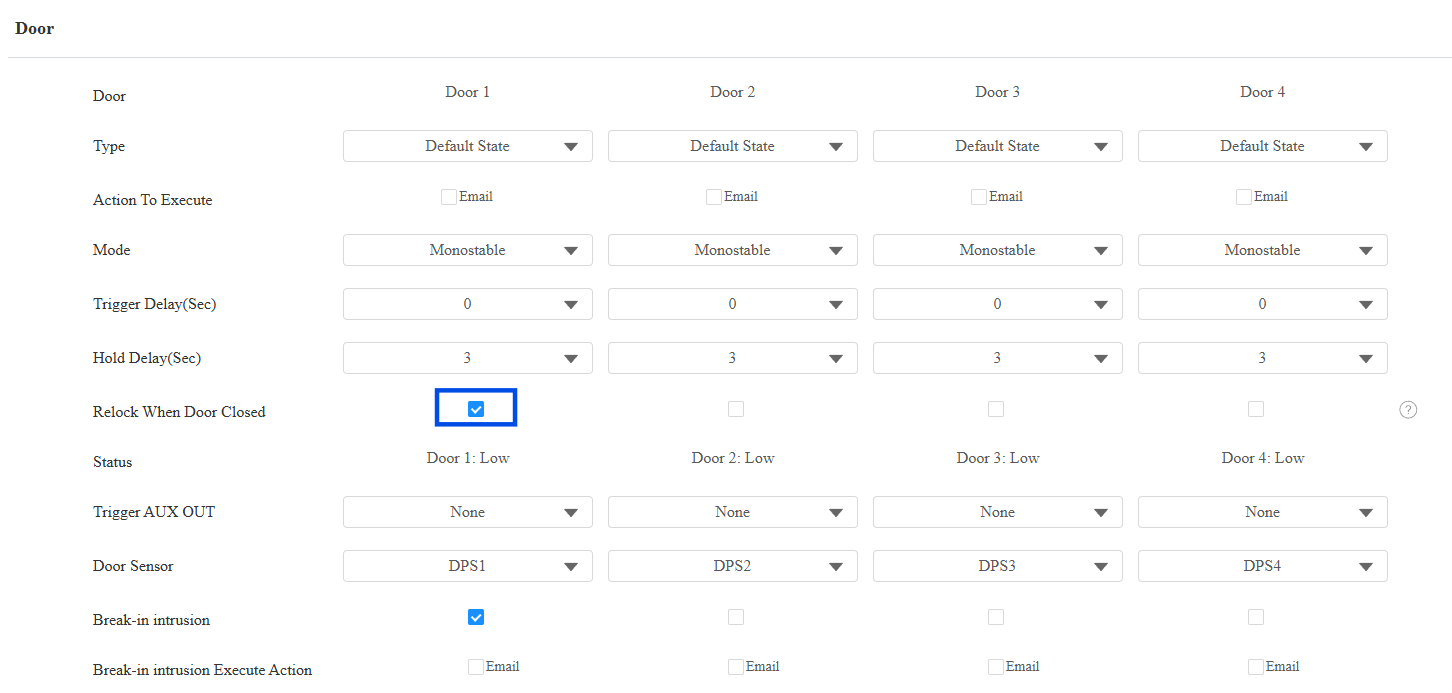
Click Submit.
After configuration, when a user opens the door and then closes it:
The device detects the closed state through DPS.
Relay deactivates immediately.