Akuvox door phone R20K-L supports inserting a SIM card for connection to the LTE network. You can use the AK-Partner App to configure the network conveniently instead of logging in to the device’s web interface.
Note
R20K-L’s firmware version should be 320.30.11.34 or higher.
The AK-Partner App’s version should be 1.0.8(Android)/1.0.6(iOS) or higher.
Enable Bluetooth on the Door Phone
To configure the LTE network with the app, ensure the Bluetooth feature of the door phone is enabled. It is enabled by default, so if you haven't changed this setting, skip this step.
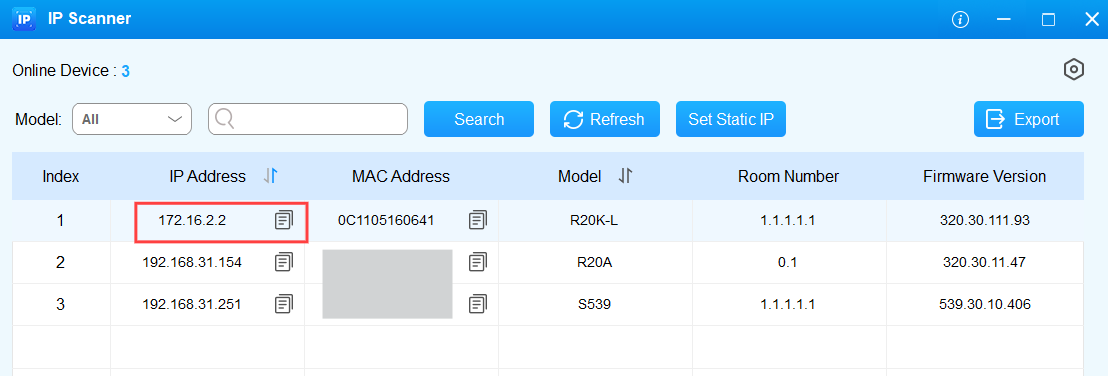
Use the device IP(scanned by IP Scanner) to log in to its web interface. The initial username and password are admin.
Click Access Control > BLE.
Enable BLE feature.

Click Submit.
Configure LTE on the AK-Partner
Ensure your mobile phone has Bluetooth turned on before configuration.
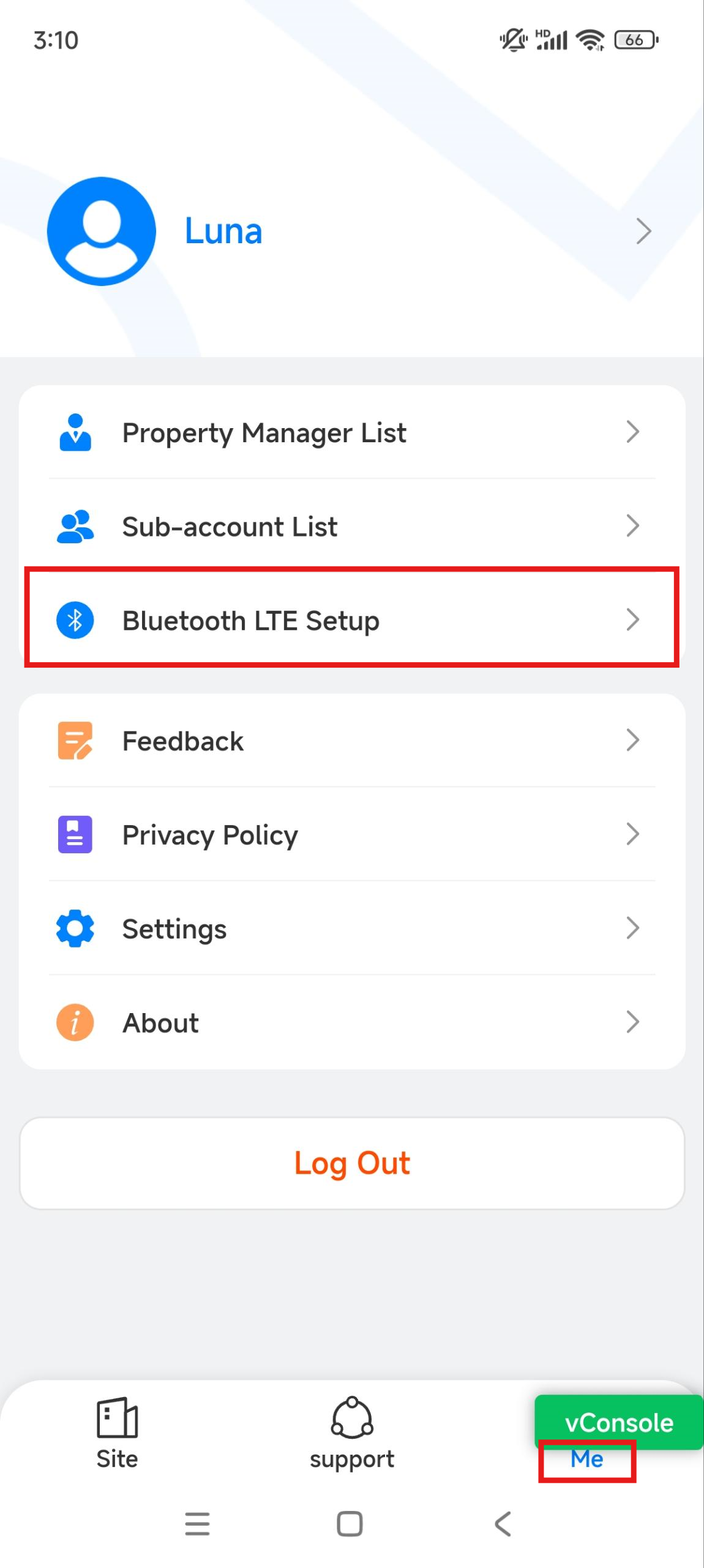
Tap Me > Bluetooth LTE Setup.
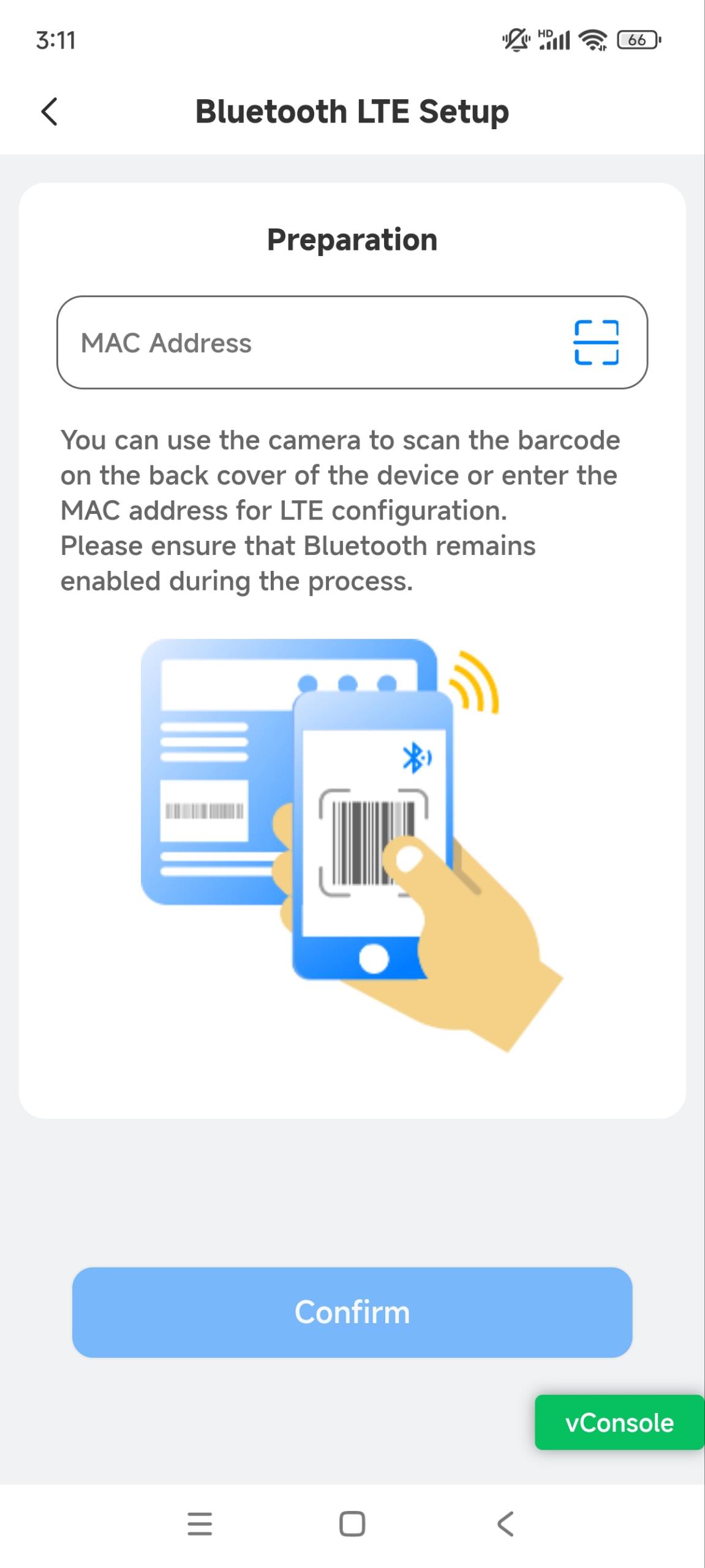
Enter the MAC manually or scan the barcode on the back of the device to fill it in automatically.
Tap Confirm.
Enable Cellular Network and choose the desired APN.
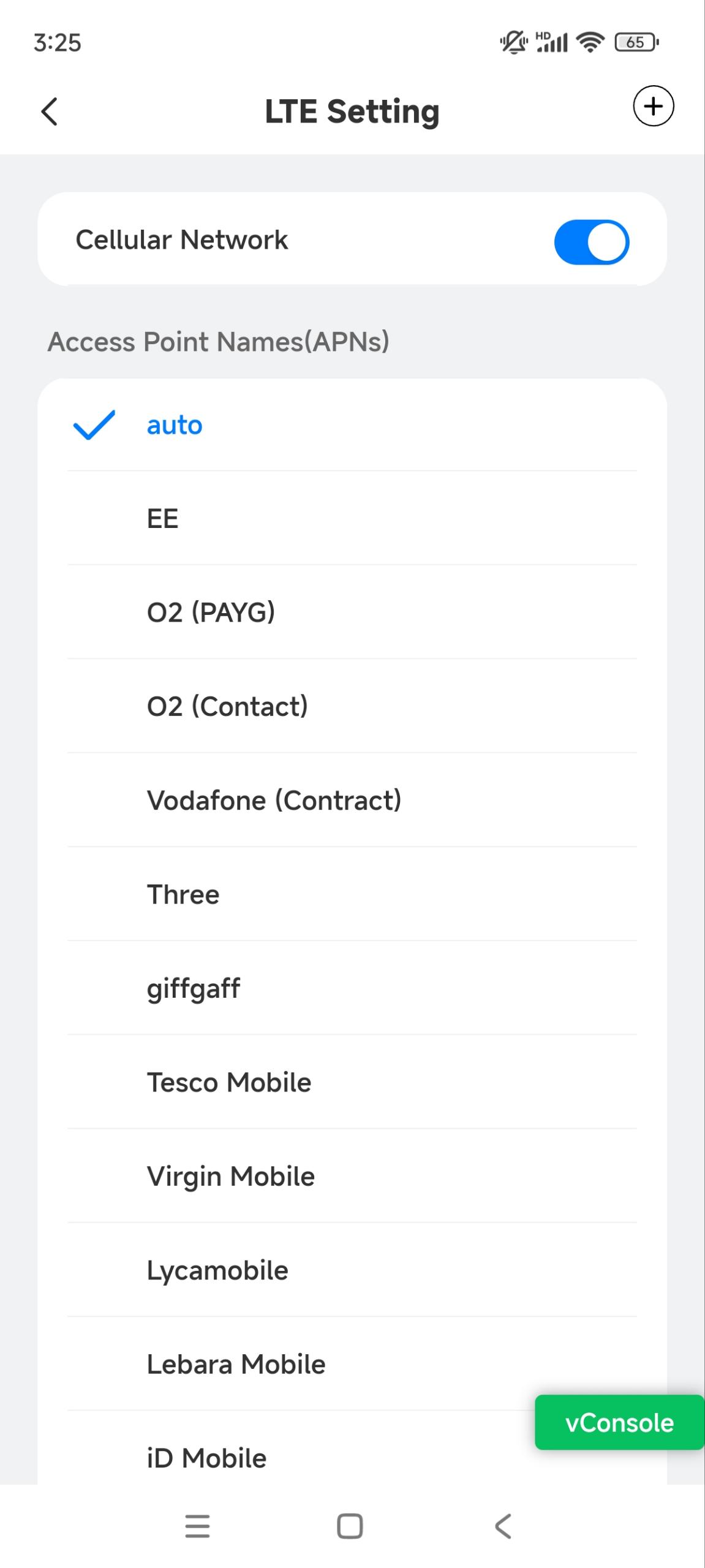
After configuration, the device IP will change to a static IP obtained from the carrier.
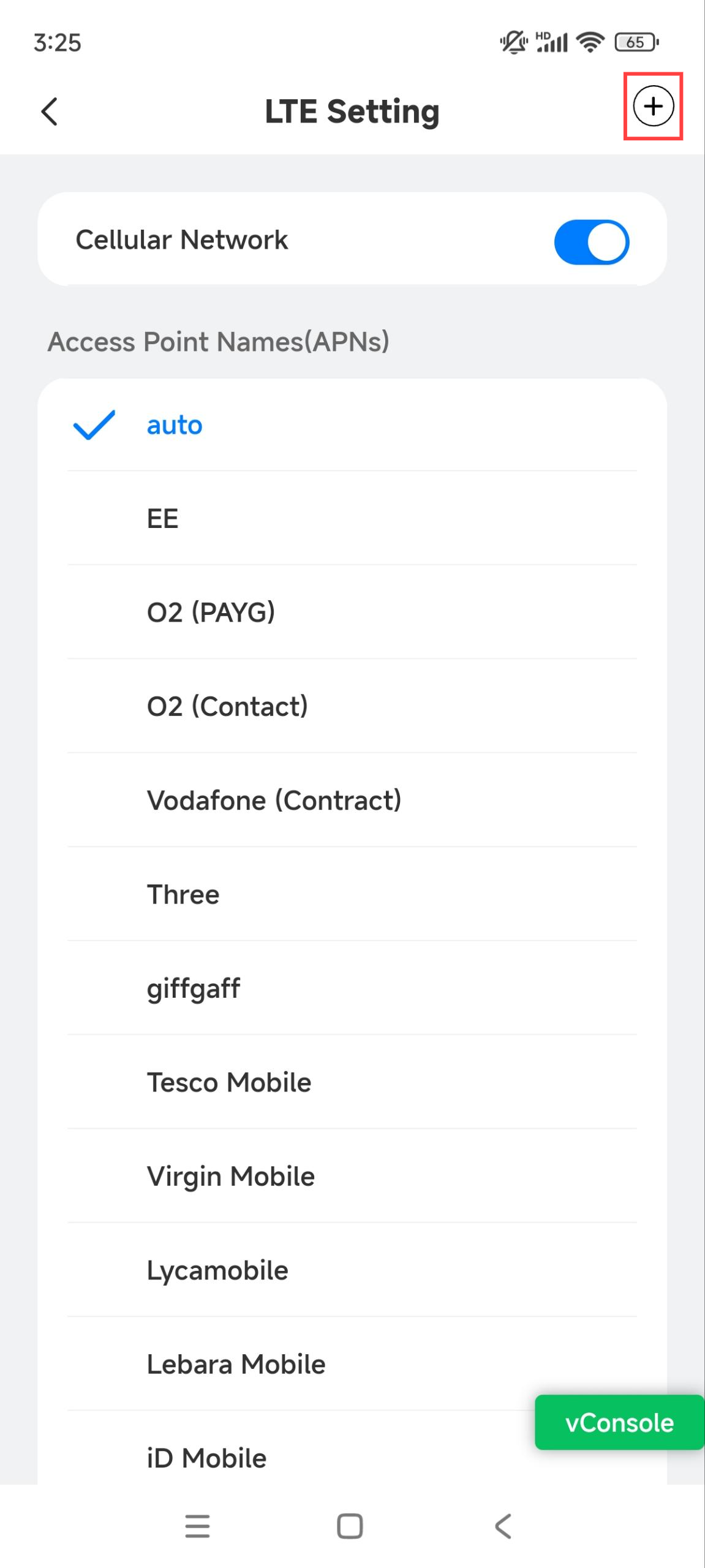
Add a New APN
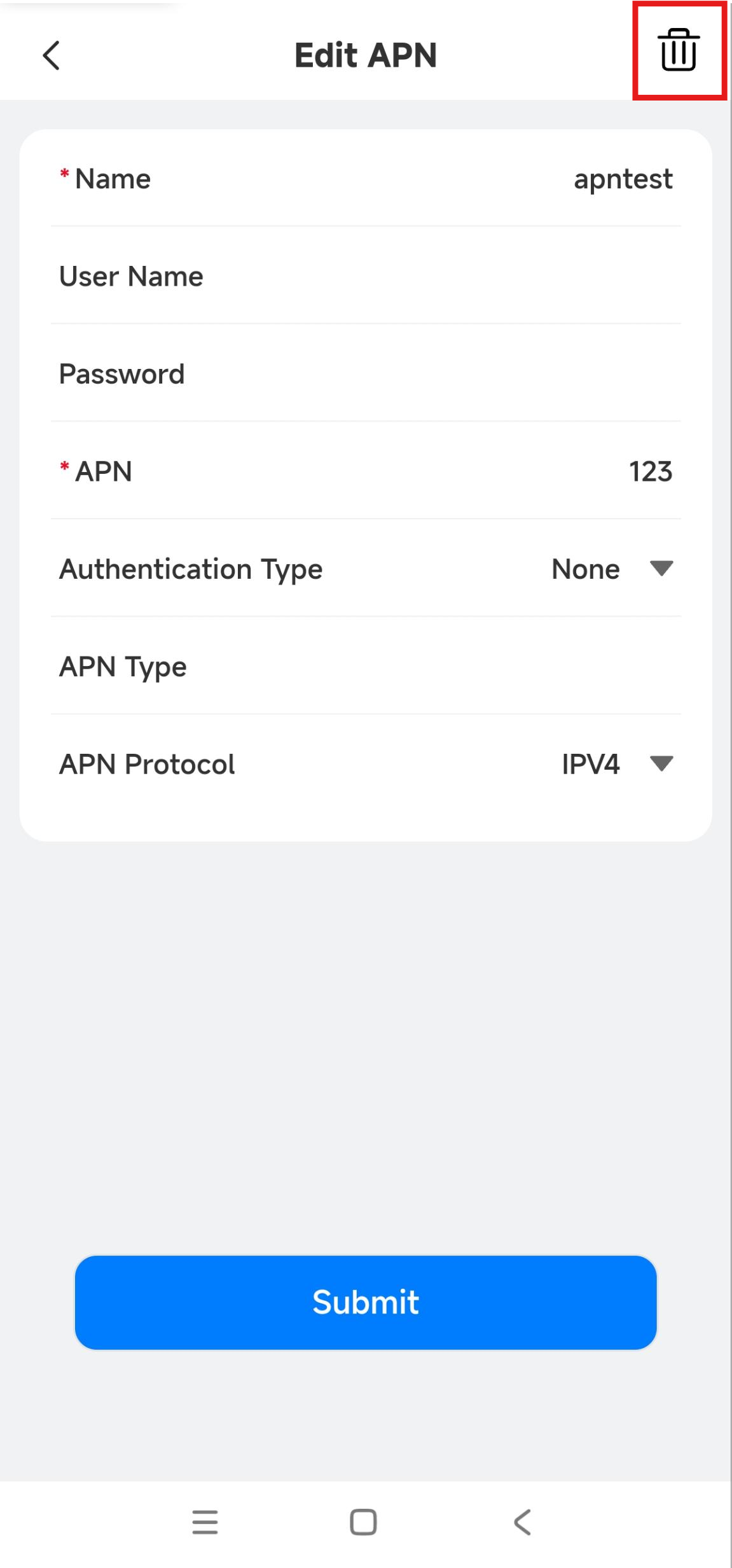
You can add a new APN by tapping + in the upper-right corner. Please confirm the settings with the network provider.
You can add 8 new APNs at most.
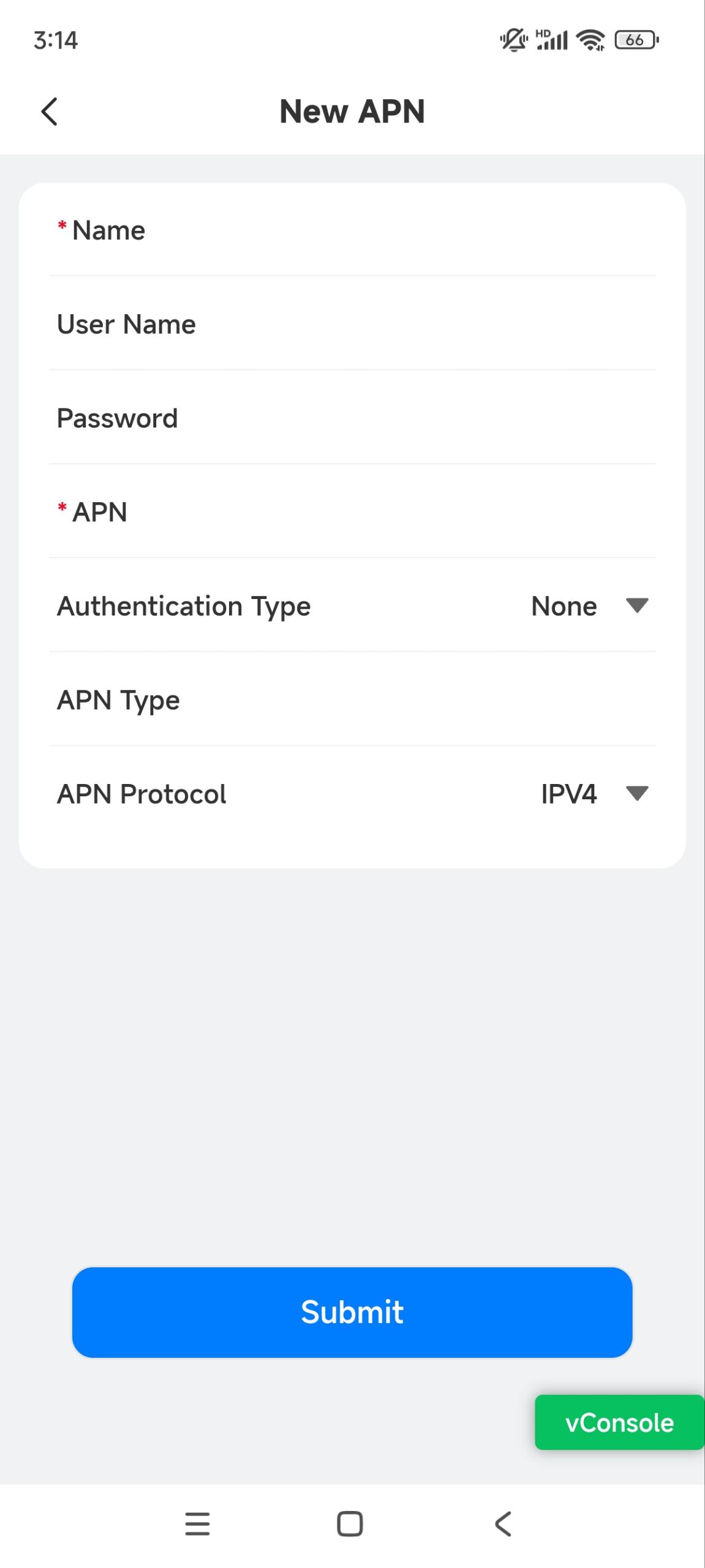
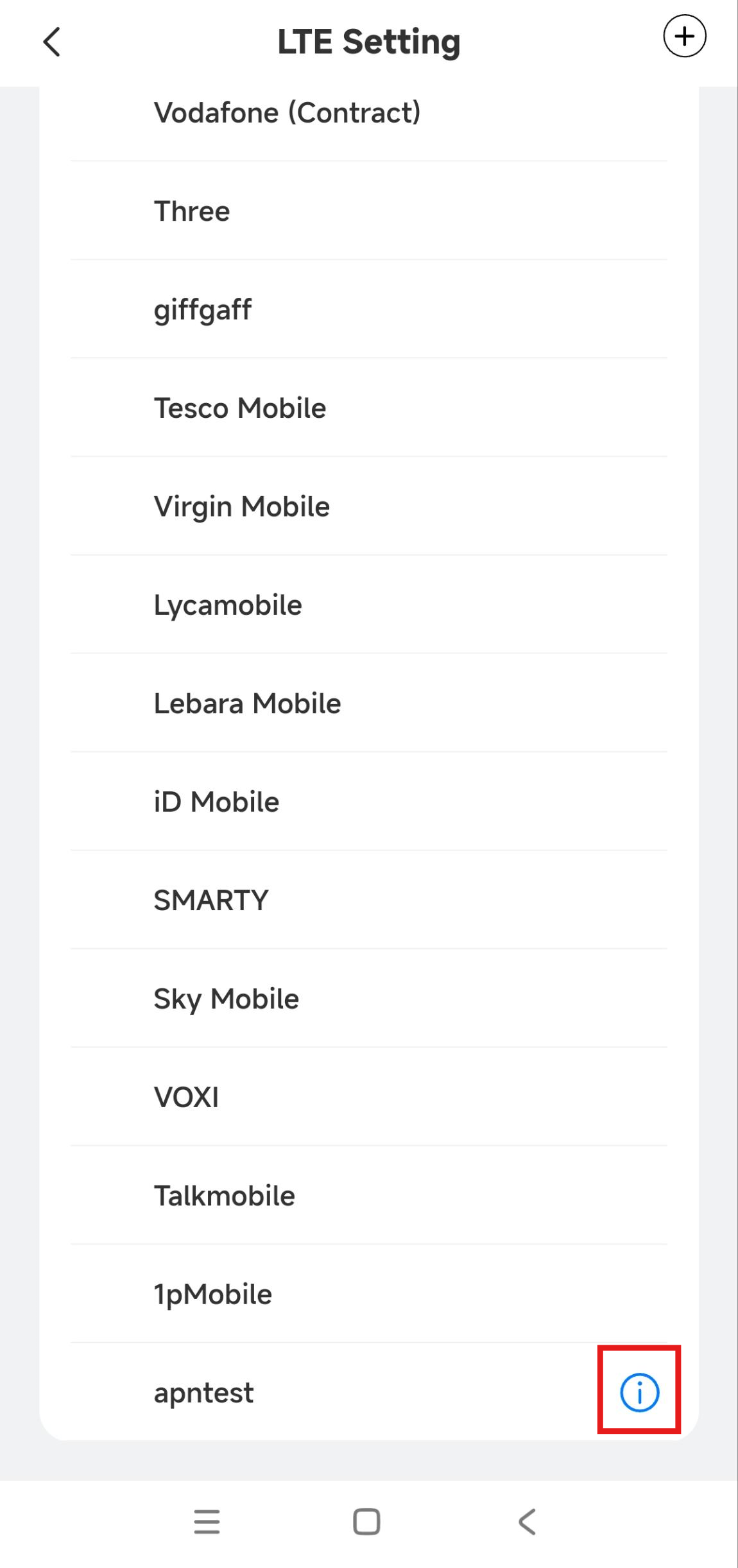
After adding the APN, you can tap  to modify its settings and tap
  to delete it.