MR03 supports non-contact sleep and vital signs monitoring for scenarios such as elderly care, healthcare facilities, and patient rooms. It can monitor a person's sleep status in the bed area and provide breathing rate and heart rate information without using cameras or wearable devices.
In Sleep Monitoring mode, MR03 focuses on bed-area monitoring, vital signs detection, and sleep analysis. The collected data can be reviewed through the Sleep Report, which provides sleep stages, breathing and heart rate trends, key sleep indicators, and automatically generated analysis results.
Prerequisites
Install MR03 in Side Mount mode for Sleep Monitoring.
Configure the room and bed area so that the bed is within the detection area.
Ensure that the device can continuously detect the person in the bed area.
Configure Sleep Monitoring
Step 1: Select Sleep Monitoring Mode
Long-press the physical button on MR01’s top until it announces its IP address.
Use the device IP to log in to its web interface. The initial username and password are admin.
Go to Fall Settings > General Settings.
Select Sleep Monitoring as the Working Mode.
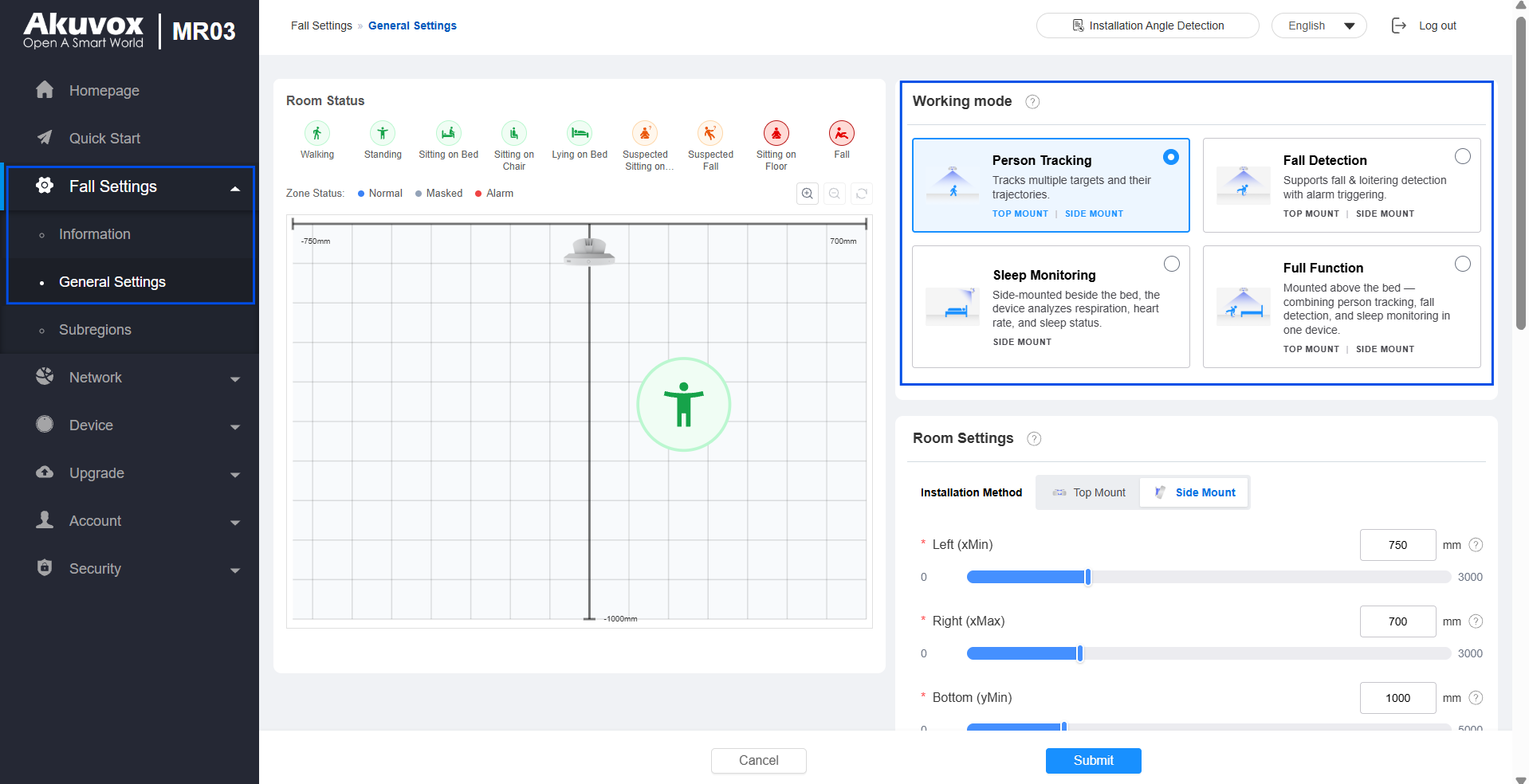
Click Submit.
Step 2: Define the Monitoring Area
Configure the Room Settings according to the actual installation environment so that the bed is within the effective detection area.
Go to Fall Settings > General Settings.
Select Side Mount installation method.
Define the detection area based on the room size by setting the xMin, xMax, yMin, and yMax.
Define the Maximum Detection Height.
Set the Installation Height based on the actual scenario.
Enter the device Installation Location name.
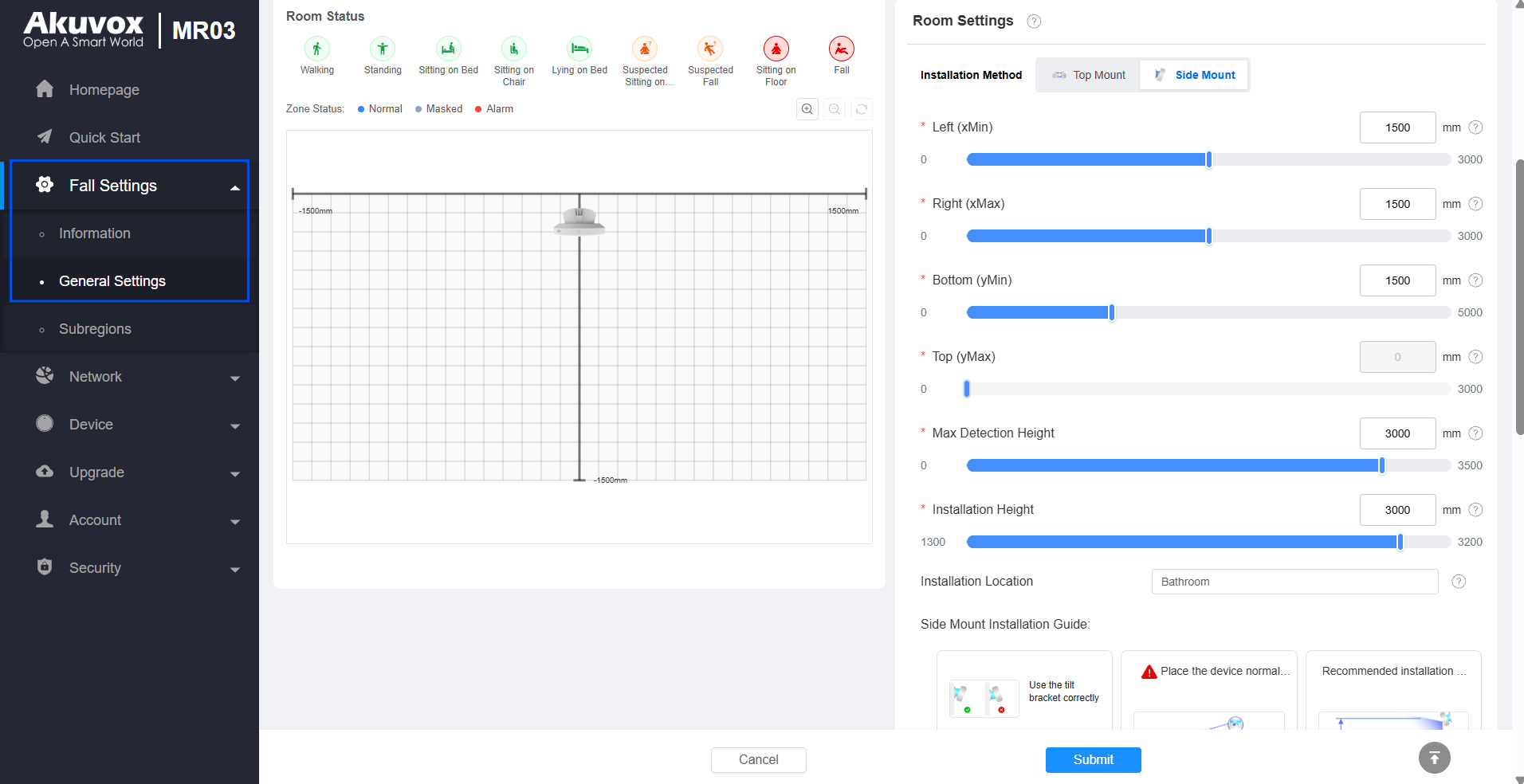
Submit the settings.
Recommendation:
Ensure the configured detection area covers the actual activity area while avoiding unnecessary empty space.
Step 3: Define the Bed Area
The bed area should be clearly defined to allow MR03 to identify the person's bed presence and monitor sleep-related information.
Go to Fall Settings > Sub-regions.
Click +Add Subregion to create a sub-region.
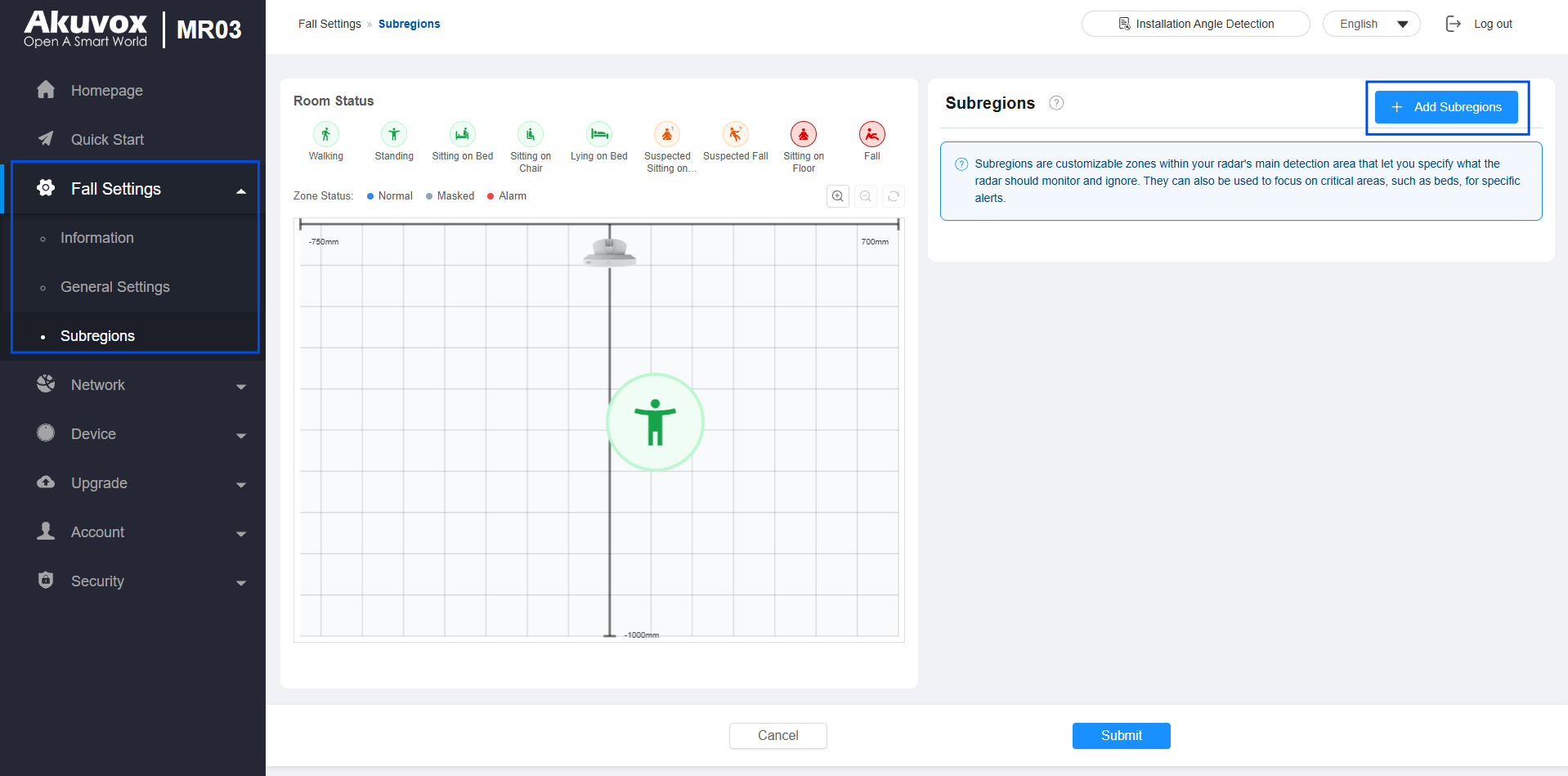
Customize the Region Name.
Select the Bed region type.
Define the sub-region size and position by setting xMin, xMax, yMin, and yMax.
Configure other settings as needed.
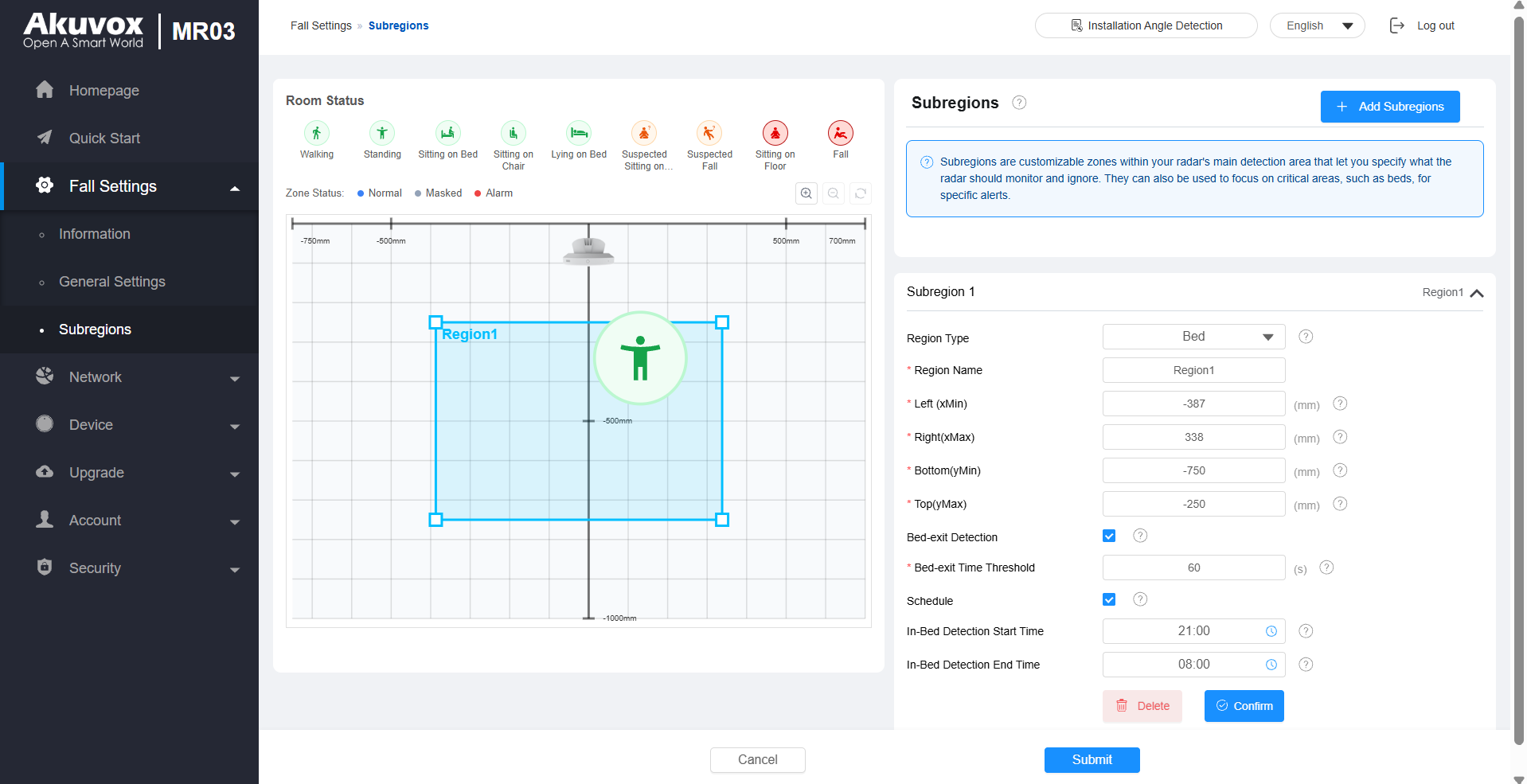
Click Submit.
Step 4: Configure Vital Signs Monitoring
Configure the normal ranges and alarm-related parameters for breathing and heart rate monitoring.
Go to Fall Settings > General Settings > Vital Signs Settings.
Set the Normal Breathing Range.
Set the Heart Rate Range. MR03 uses these ranges to identify abnormal vital sign conditions.
Enable Weak Vital Signs Alarm.
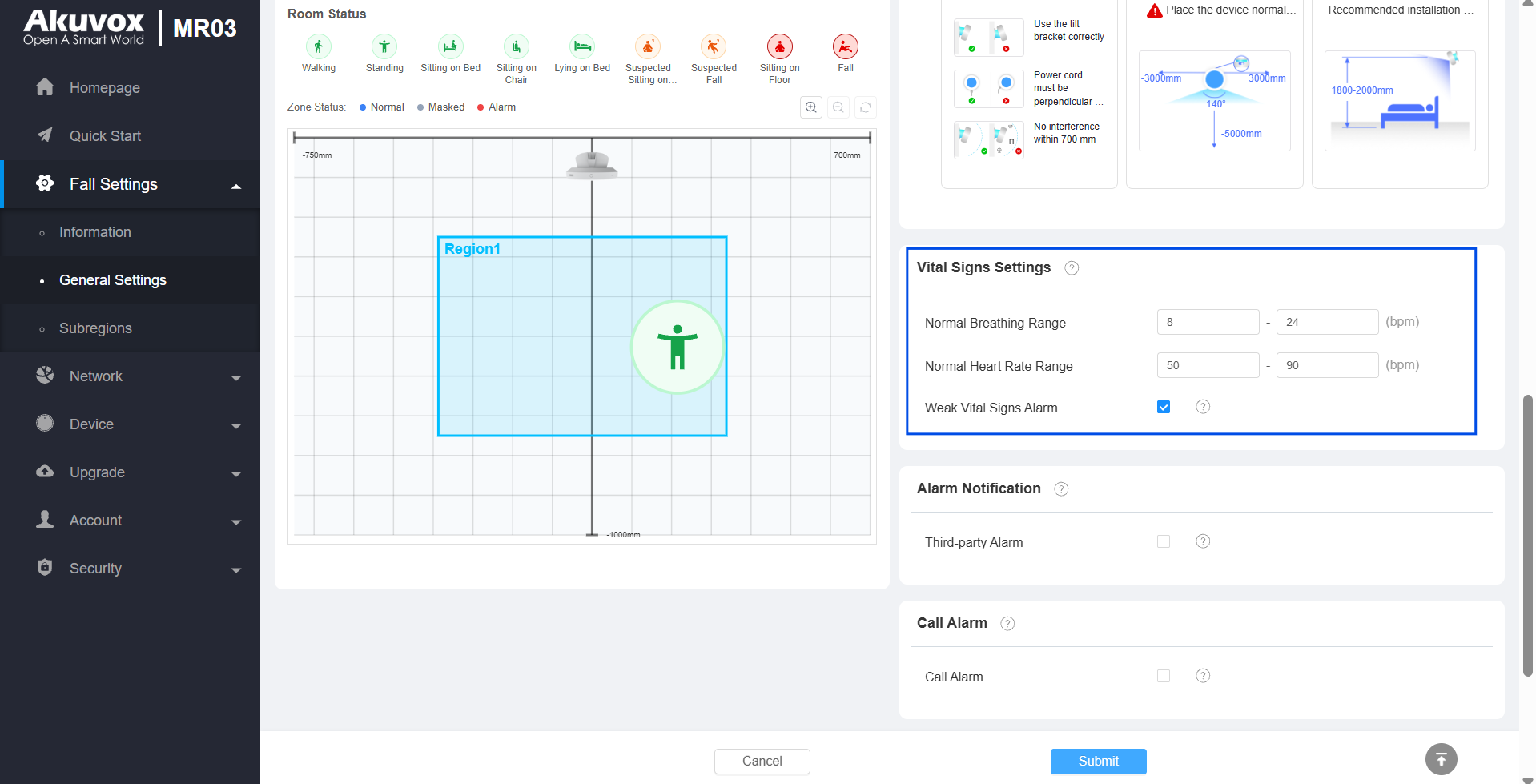
Click Submit.
Monitor Sleep and Vital Signs
Once configured, MR03 continuously monitors the person in the defined bed area and collects sleep and vital signs data.
Sleep data is collected during the monitoring period from 20:00 on the selected day to 08:00 on the following day.
The monitoring results include:
Sleep stages
Sleep duration
Bedtime and wake-up time
Bed exits
Breathing rate
Heart rate
Breathing abnormalities
Heart rate abnormalities
Other sleep-related indicators
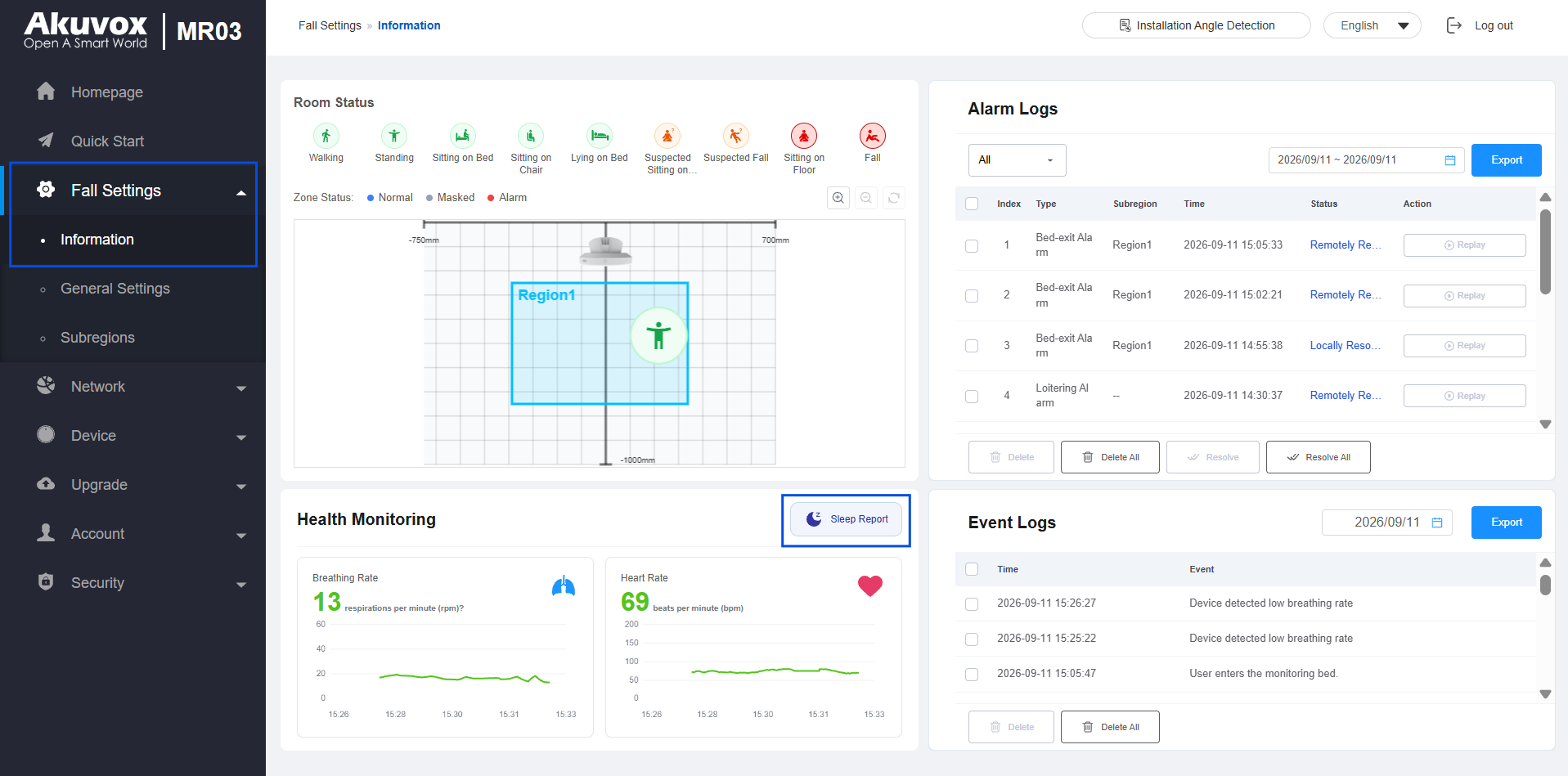
Check the dynamic Breathing Rate and Heart Rate data on the Fall Settings > Information interface.
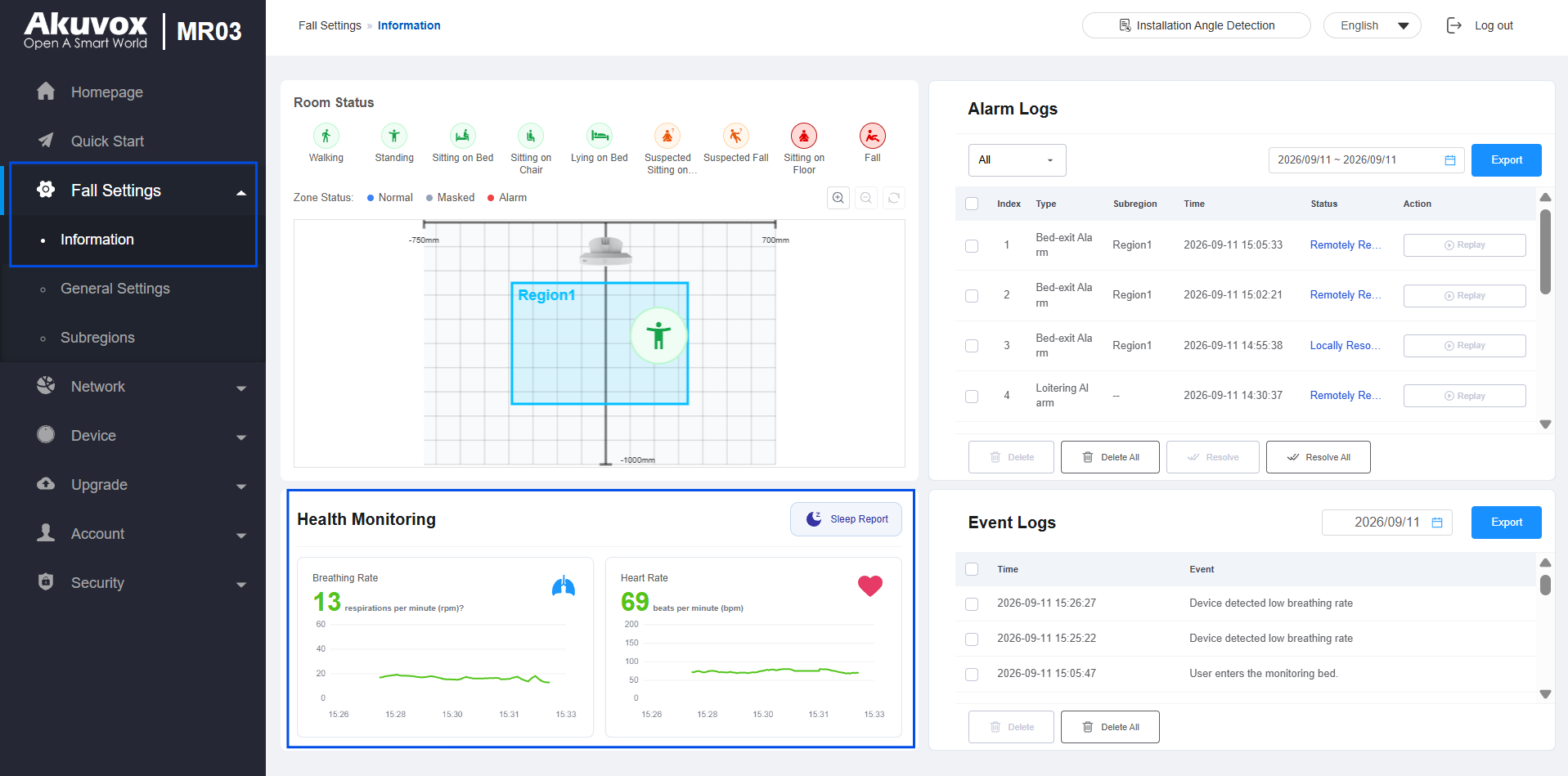
Abnormal breathing and heart rate conditions can be recorded as events or alarms according to the configured detection rules.
View the Sleep Report
The collected sleep data is summarized in the Sleep Report. The report provides:
Overall Score: A comprehensive assessment of sleep quality.
Sleep Data: Key sleep time points and sleep-stage timeline.
Breathing: Breathing-rate trend and statistical values.
Heart Rate: Heart rate trend and statistical values.
Data Analysis: Automatically generated sleep quality and breathing health analysis.
Check the report on the Fall Settings > Information interface. Click Sleep Report.