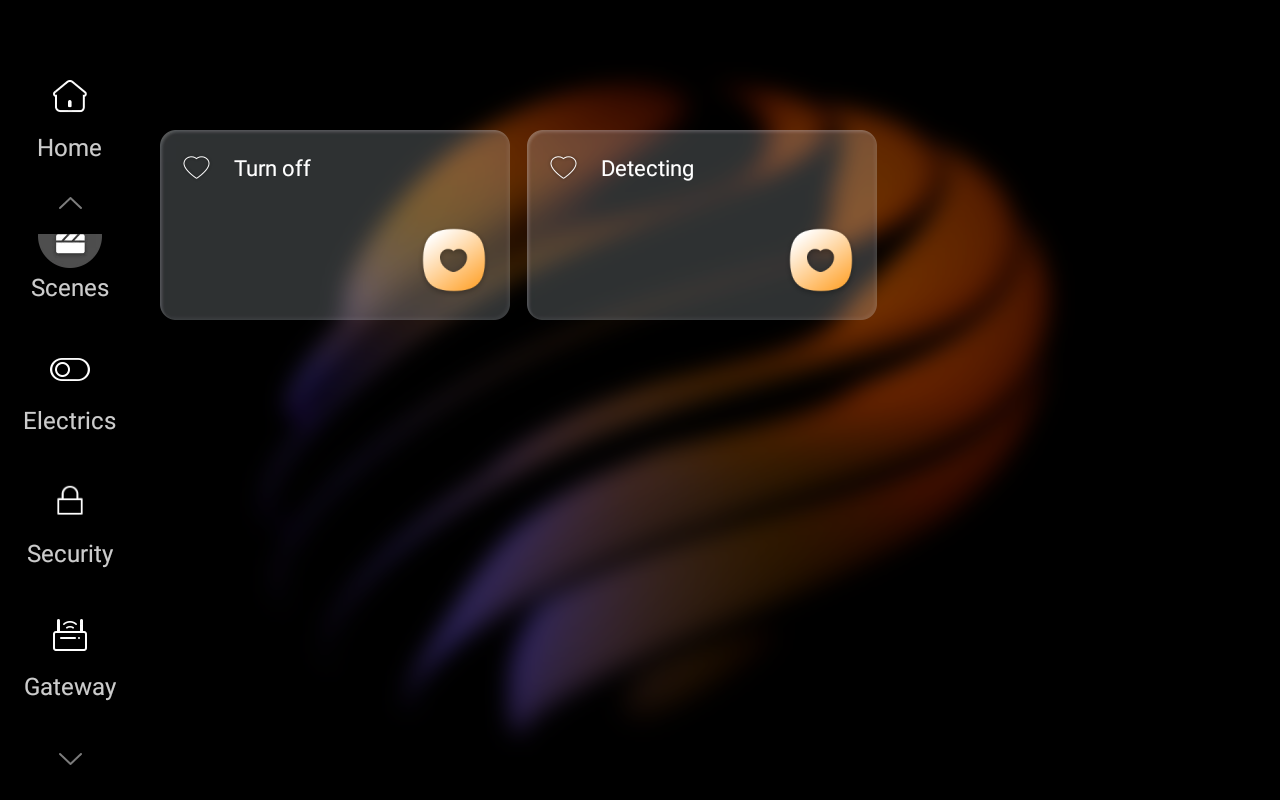
A scene consists of the condition and task. The preset tasks could be activated when the conditions are met. You can create automation scenes to automate your home devices, ensuring they perform exactly as you want, precisely when you need them.
What you should know
Below are three scene types categorized according to the selected conditions.
Auto scene: Activated based on a schedule, an event, or actions.
Note
Auto scenes are not displayed on the panels.
Manual scene: Activated by a tap or click on the scene image.
Auto and manual scene: Activated based on a schedule, event, or tap/click.
Scene icons vary based on their type and display device.
Scene Type | Symbol | Where to Display | Comment |
Auto |
| User web portal | If the icon is white, the scene is disabled. Tasks won't trigger automatically. Tap to enable it. |
| BelaHome app | ||
Manual |
| User web portal | |
| BelaHome app | ||
Auto & Manual |
| User web portal | |
| BelaHome app |




Create a Scene
Scenes can be created on the user web portal and the BelaHome app.
Using the user web portal
Via the home center device’s IP address
Ensure your computer and the devices are on the same local network.
Open a browser and enter the home center device’s IP address into the address bar.

c. Log in using the administrator account credentials. If the device has never been connected to the cloud, the default username and password are both Admin888.
Go to https://my.akubela.com (Only available when the device is connected to the cloud)
Type https://my.akubela.com in the browser.
Enter the administrator account credentials.
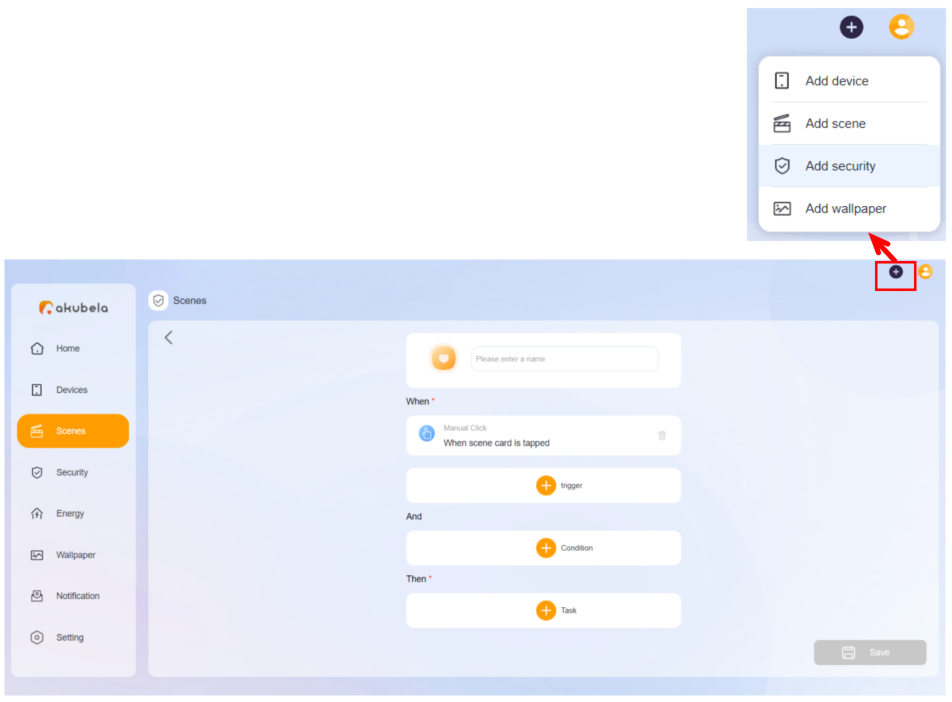
Click on
 in the upper right corner, and select Add scene. The creating screen opens.
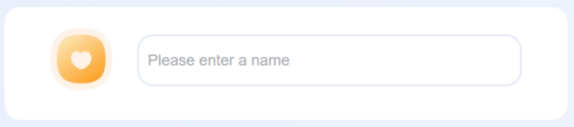
Give the scene a name.
(Optional) Add an image by clicking on
 . The image is displayed along with the scene name on the Scenes screen.
Click on
 to set the trigger condition. Trigger conditions refer to the specific events or conditions that directly cause the task to start executing.
Note
If you select two or more trigger conditions, the preset task(s) will be activated when any of one them is met.
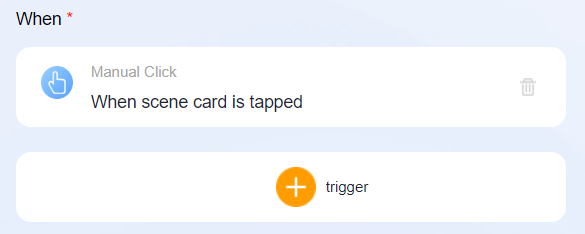
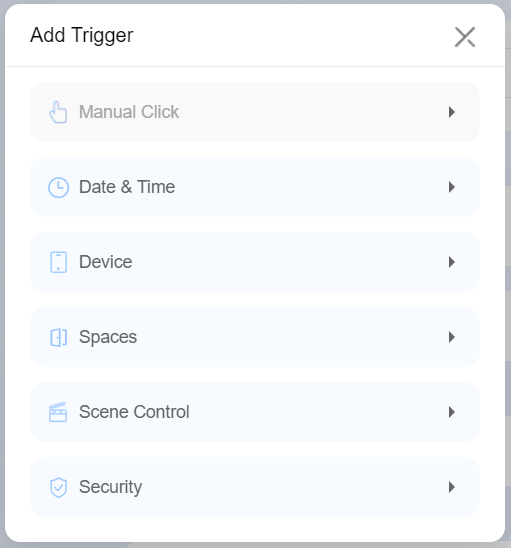
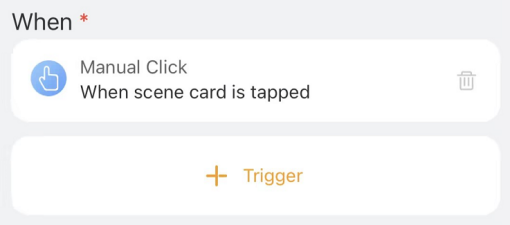
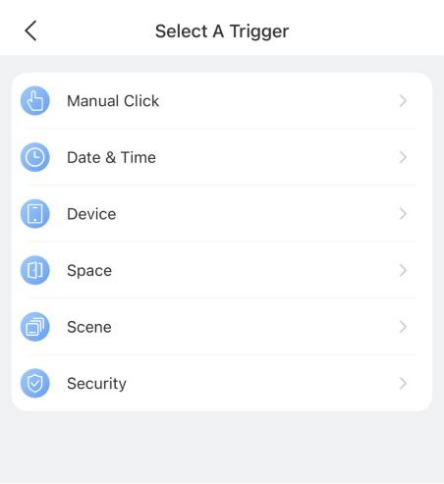
Manual Click: Trigger task(s) by tapping the scene card on the panels, BelaHome app, or the user web portal.
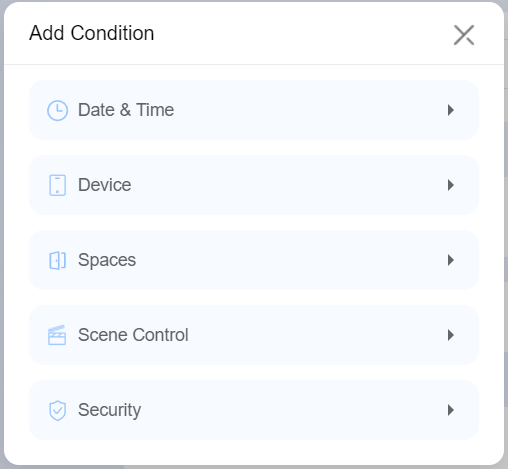
Date&Time: Schedule task(s) to activate at specific times, such as sunset, and on particular days as required.
Device: Trigger task(s) based on device actions, like motion detection, door lock activity, or changes in temperature/humidity.
Spaces: Trigger tasks based on specific actions performed by all devices of the same type or on value changes within a designated area.
Scene Control: Trigger task(s) when a scene’s auto-run feature is enabled or disabled, or when the scene runs.
Security: Trigger the task(s) when the system is armed or disarmed in a specific security mode, or when an alert is activated.
(Optional) Click on
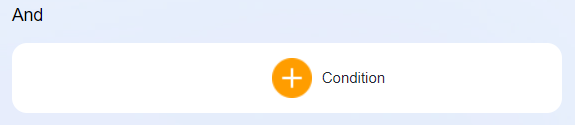
 to set preconditions. Preconditions are the status of the system or designated party, or additional criteria evaluated before the scene is triggered. For example, a precondition could be “It is after 6:00 PM” or “The security system is disarmed.”
Tip
When devices are connected to the Cloud, a Weather option becomes available.
Note
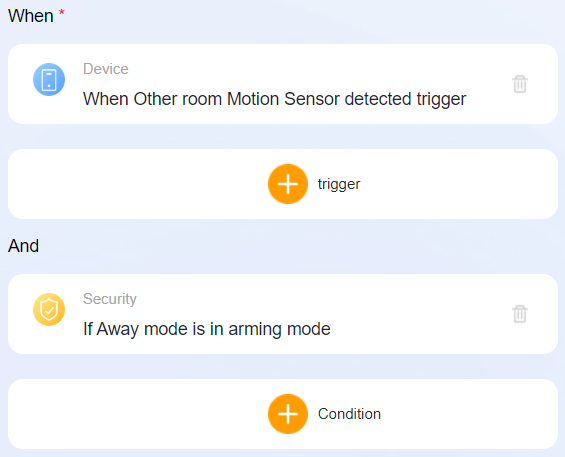
If both trigger conditions and preconditions are added, the scene will be activated when:
Preconditions were already met, and
Any of the trigger condition are satisfied.
For example, if your system is armed in the Away mode(precondition), and the motion sensor detects something suspicious(trigger), the preset tasks will be activated. Please refer to the image for the configuration.
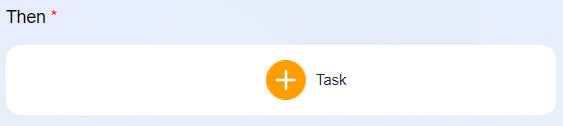
Set task(s). Click on
 , and select the desired task(s).
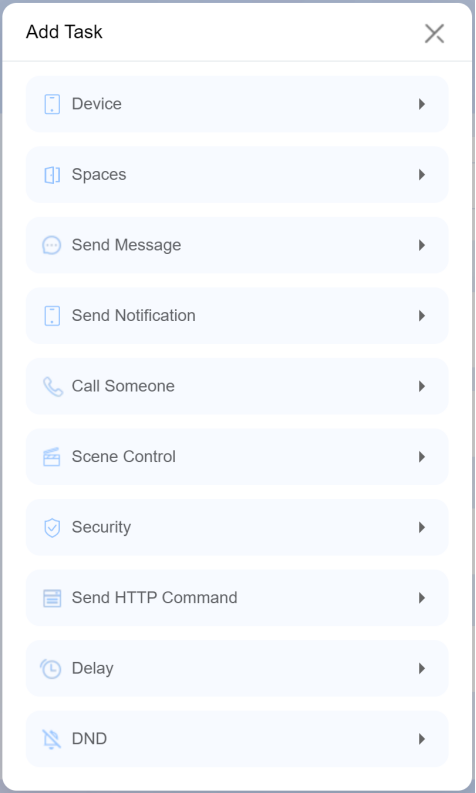
Device: Activate designated device to turn on, off, or perform actions as specified.
Spaces: Devices of identical types within a designated area perform uniform actions, like collectively turning on/off all lights.
Send Message: Send a message to designated smart panels and family members.
Send Notification: Send a notification to panels and family members.
Call Someone: Call any family member(s) or panels.
Scene Control: To trigger, enable, or disable other scenes.
Security: To arm or disarm the security system in a specific security mode.
Send HTTP Command: Send a HTTP command to certain devices.
Delay. Make the system wait for a period of time before performing the task.
DND. To turn on/off the DND function of certain panels.
Click Save.
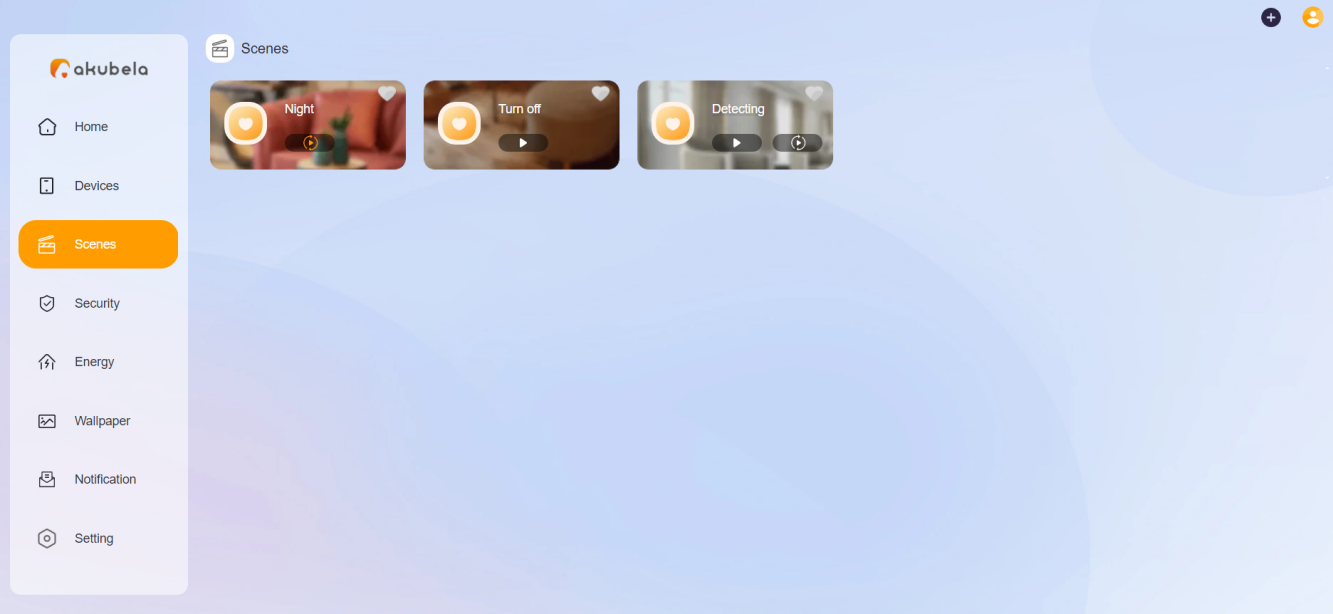
The created scenes display on the user web portal.
Using BelaHome App
Log in with the account credentials. If the devices have never connected to the Cloud, the username and password are both Admin888 by default.
Tap
 >
>  > Add scene.
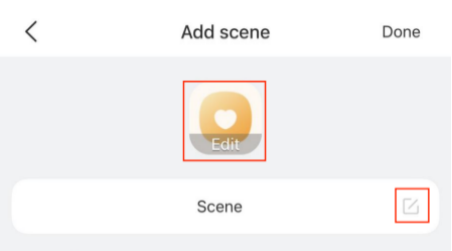
Name the scene, and choose an image for it if needed.
Tap
 to select the trigger condition. If multiple trigger conditions are added, the scene can be triggered when any of them are met.
(Optional) Tap
 to select the precondition(s).
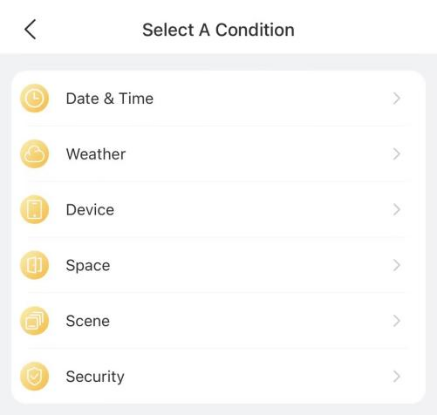
Tap
 to set the tasks to be activated when the conditions are satisfied.
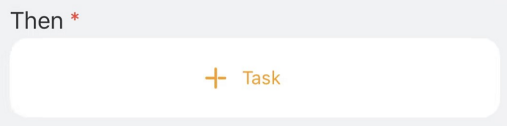
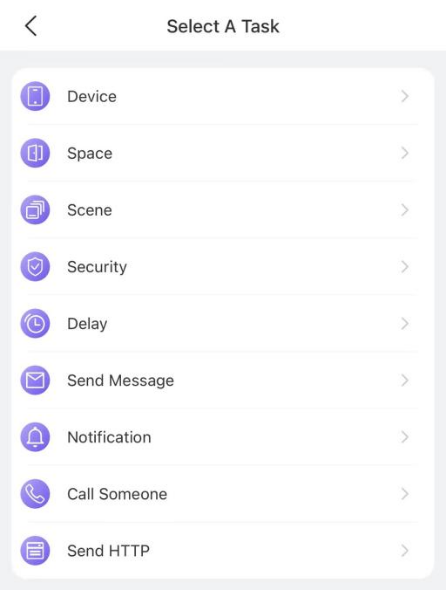
Tap Done at the top right corner to save the settings.
The created scenes display on the BelaHome’s Automation screen.
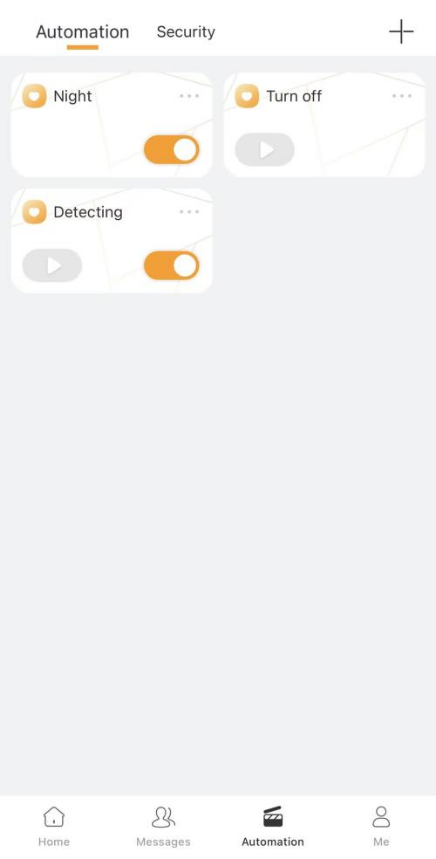
Automatically, the newly-created scenes(except the scenes without a manual condition) will display on all panels within the home.