System Log
System logs can be used for debugging purposes.
To set it up, go to Upgrade > Advanced > System Log interface.
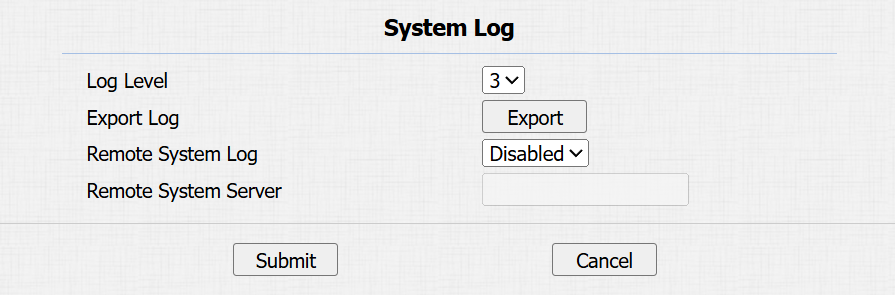
Log Level: Select log levels from 1 to 7 levels. You will be instructed by Akuvox technical staff about the specific log level to be entered for debugging purposes. The default log level is 3. The higher the level is, the more complete the log is.
Export Log: Click the Export tab to export a temporary debug log file to a local PC.
Remote System Server: Set the remote server address to receive the device log. The remote server address will be provided by Akuvox technical support.
PCAP
PCAP is used to capture the data package going in and out of the devices for debugging and troubleshooting purposes.
Set it up on the Upgrade > Advanced > PCAP interface.

Specific Port: Select the specific ports from 1-65535 so that only the data packet from the specific port can be captured. You can leave the field blank by default.
PCAP: Click the Start tab and Stop tab to capture a certain range of data packets before clicking the Export tab to export the data packets to your Local PC.
Remote Debug Server
When the device is having a problem, you can use the remote debug server to access the device log remotely for debugging purposes.
To set it up, go to the Intercom > Advanced interface.
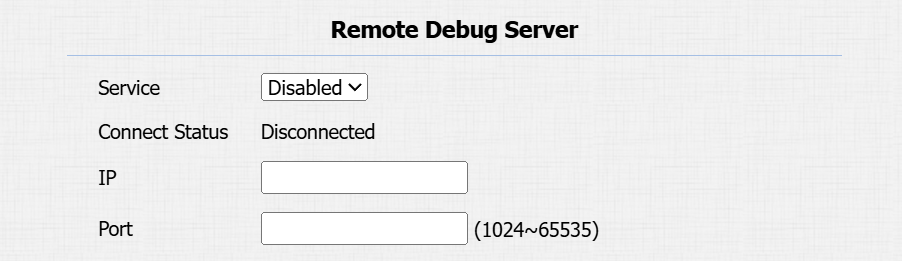
Connect Status: Display the connection status between the device and the server.
IP: Enter the IP address of the server.
Port: Enter the port of the server.