Enter Applications Screen
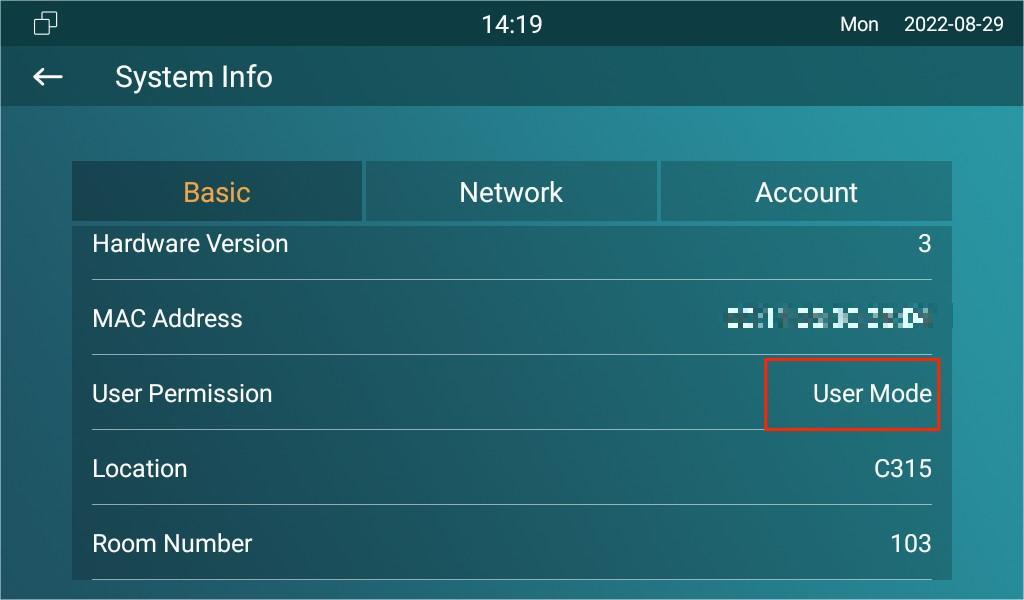
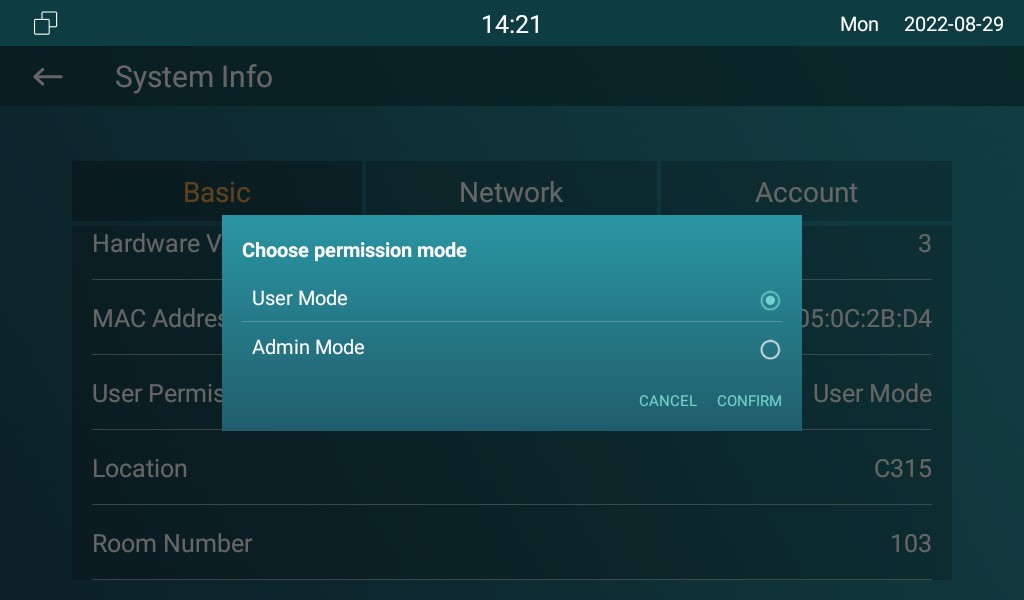
The indoor monitor supports User and Admin modes. In Admin mode, you can access both the third-party and default applications.
To do the configuration on device Settings > System Info screen. You can press on User Mode 10 times and press Admin Mode, and then Confirm.
Install Third-party App
You can install the third-party app to your device on the device web Phone > App interface. Choose a suitable .apk file from the PC to upload.

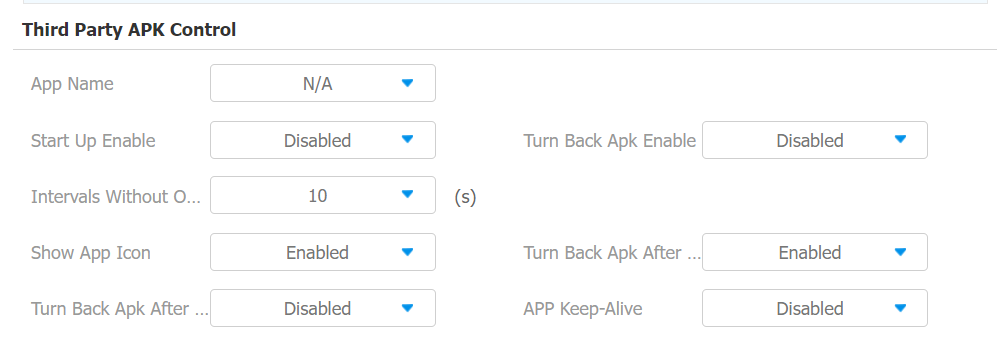
To configure the installed third-party app on the web Phone > Key/Display > Third Party APK Control interface, you can click App Name to select the installed APK files for configuration. Then, enable or disable each field for the specific configuration you need.
Parameter Set-up:
-
App Name: select the app to be configured.
-
Interval Without Operating (Sec): enable it to set the app returning time interval when there is no operation on the device.
-
Start Up Enable: enable it if you want the app to run automatically when the device is turned on.
-
Turn Back App After Awakening: enable it if you want the device to return to the app when the screen is awakened.
-
APP Keep-Alive : enable it if you want the app to stay running without being turned off.
-
Turn Back App After Calling: enable it if you want the app to return automatically after finishing a call (this feature applies to all the apps).
-
Show App Icon: enable it if you want the app icon to be displayed on the screen.
Smart Living Setting
You can control the home sensor through an HTTP command on the device web Phone > Smart Living interface.
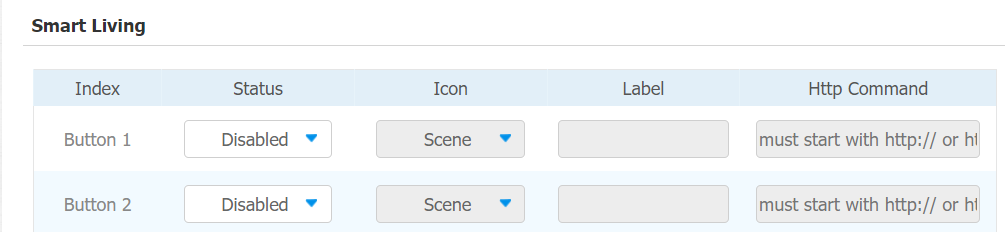
Parameter Set-up:
-
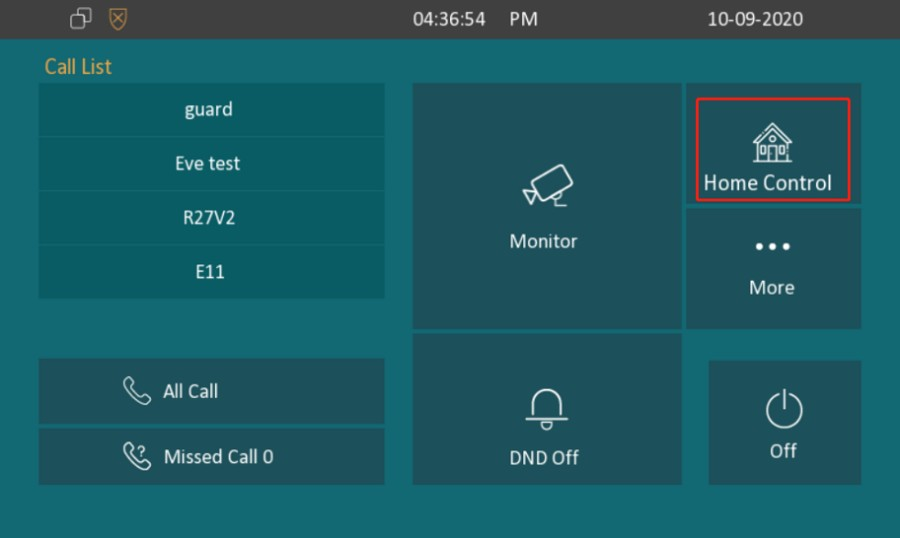
Status: enable or disable this button. If disabled, the button will not appear on the home control page.
-
Icon: select Scene or Light. If Scene is selected, the icon is displayed as a scene icon. Select Light, the icon is a light icon.
-
Label: it is used to customize the button display name.
-
HTTP command: set up the HTTP command to trigger the sensor.
- To configure Smart Living button on Phone > Key/Display interface.
Display Third-party Webpage after Booting Up
If you want the device screen to go to any third-party servers or the third-party webpage after the device's boot-up, you can type in their URL.
To set it up, you can go to Phone > Web View > URL.

Third-party Integration via API
To allow the third-party devices to integrate with the indoor monitor, you need to set up API authentication by setting up a username and password. You also need to select the authentication code for the API-based integration.
To set the API authentication, go to Security > API interface.

Parameter Set-up:
-
API: enable the API if you allow the device to be integrated with the third-party devices via API.
-
Auth Mode: select the authentication mode.
-
Allowlist: select it when you only allow the device in the allow list to integrate with the indoor monitor.
-
Digest: select it when you apply the Digest mode for the third-party integration.
-
None: select none if all the devices are allowed to integrate with the indoor monitor with all forms of the authentication mode.
-
-
User Name: type in the username used for the authentication.
-
Password: type in the password used for the authentication.
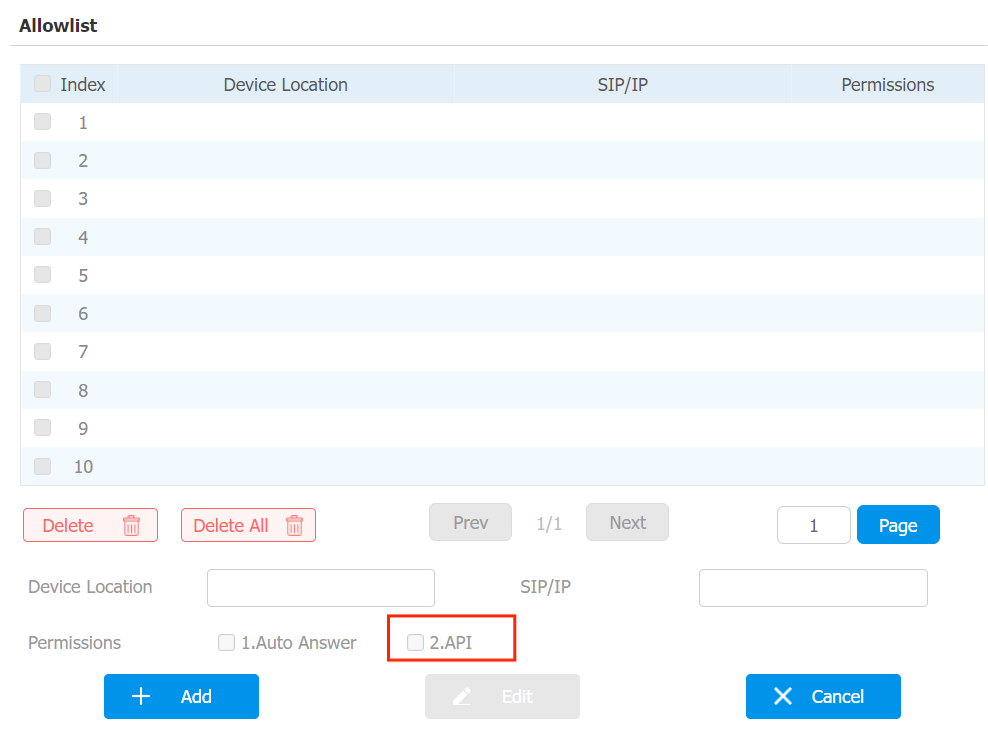
Before the API integration, you need to enable the API permission and create allow list by entering the location and IP address of the device to be integrated with the indoor monitor.
To set it up, go to Security > Allowlist interface.