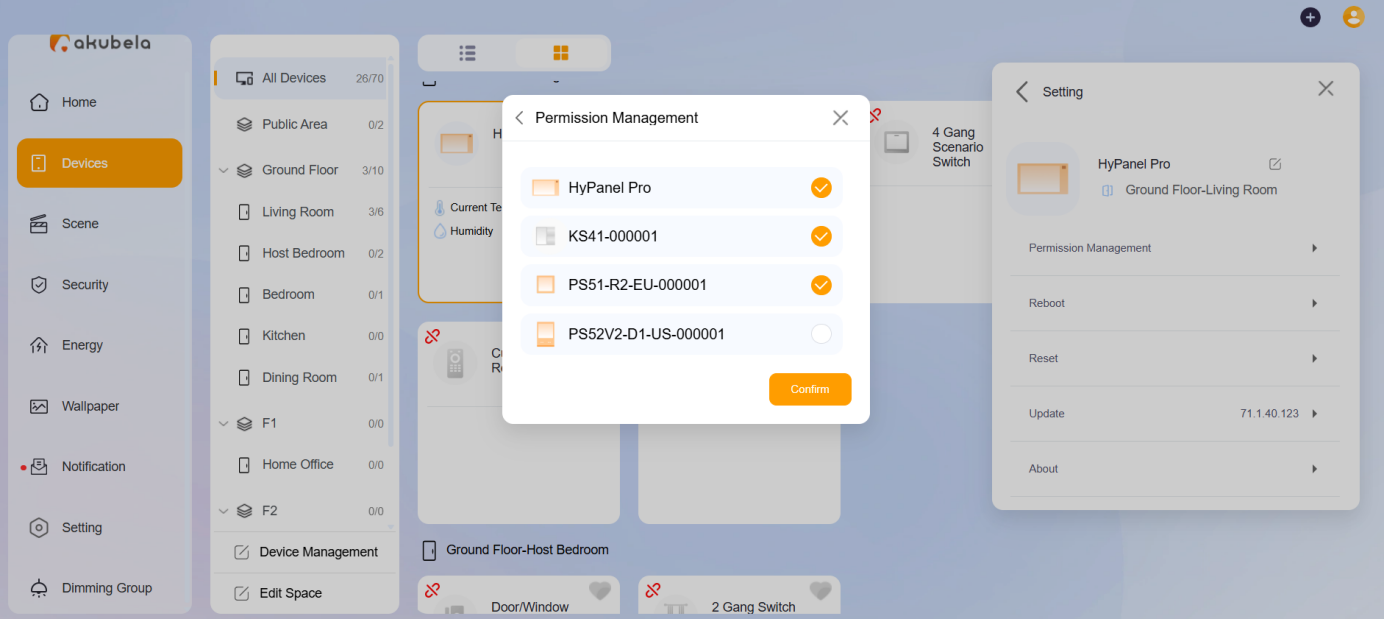
You can manage which rooms, devices, and features are visible on specific panels. These settings are ideal for restricting access in guest rooms, children's bedrooms, or common areas.
Customize a Specific Panel
To adjust the permissions for a single device:
Click Devices > [Any panel] >
 .
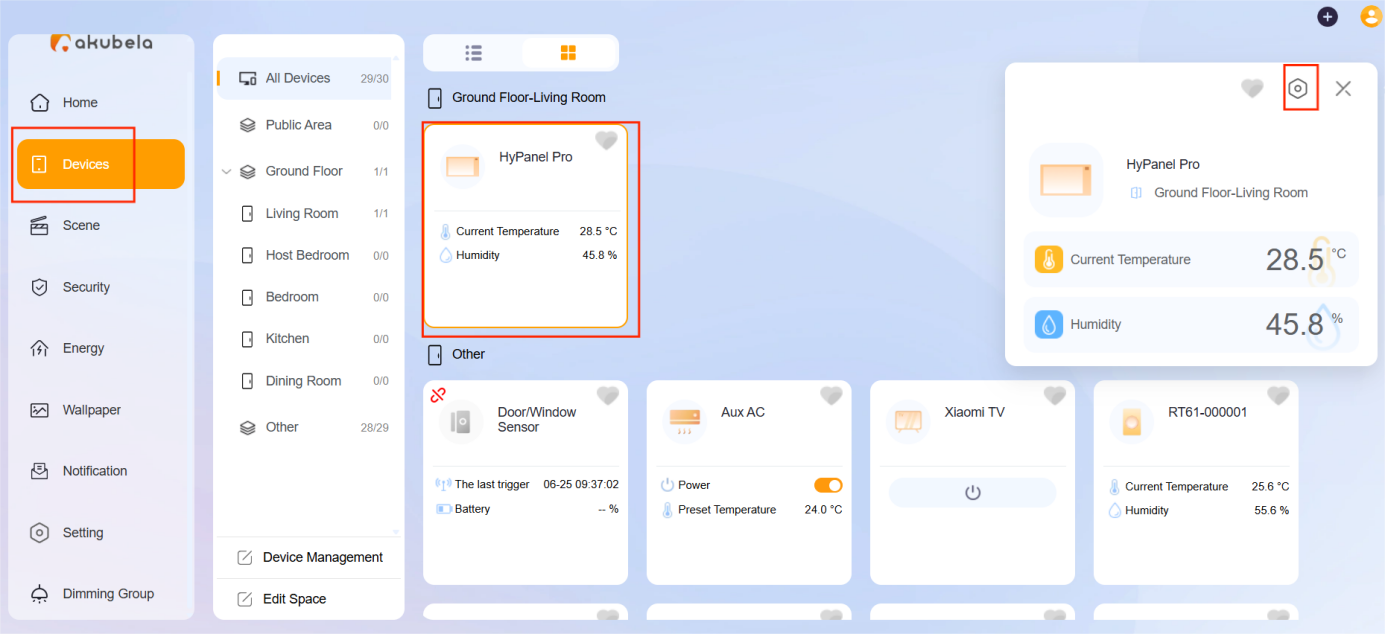
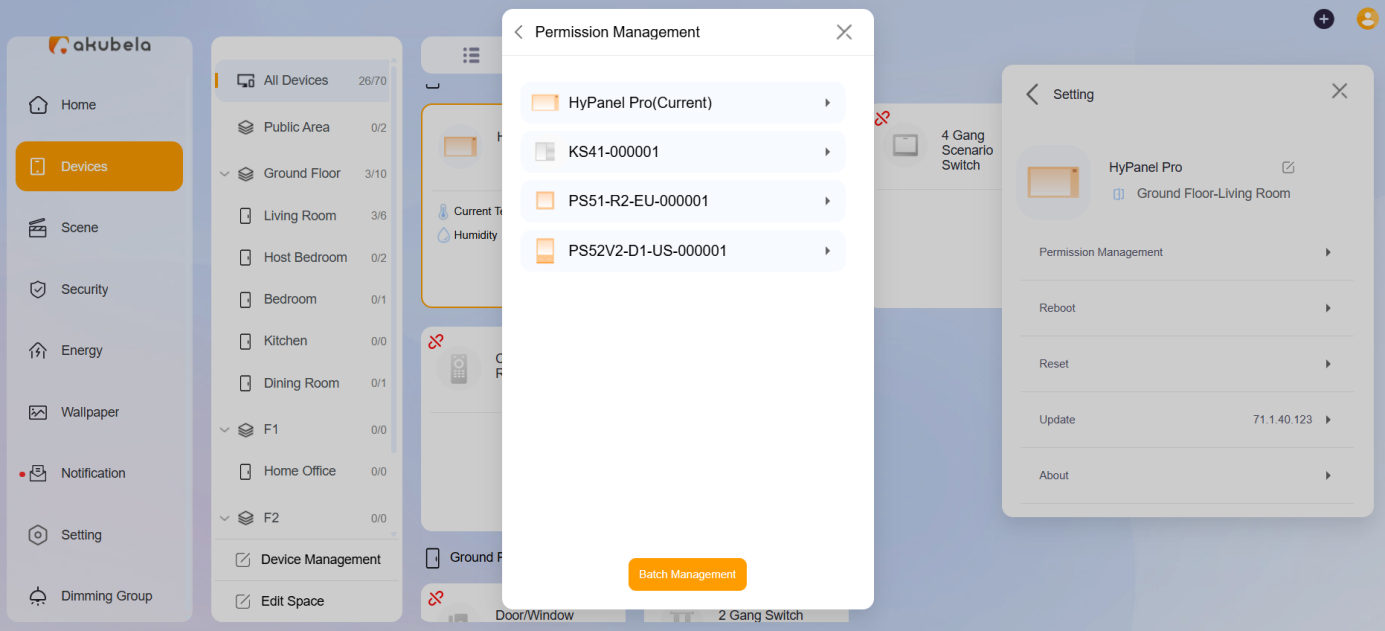
Select Device permissions and choose the desired panel from the list.
Toggle the visibility for the following categories:
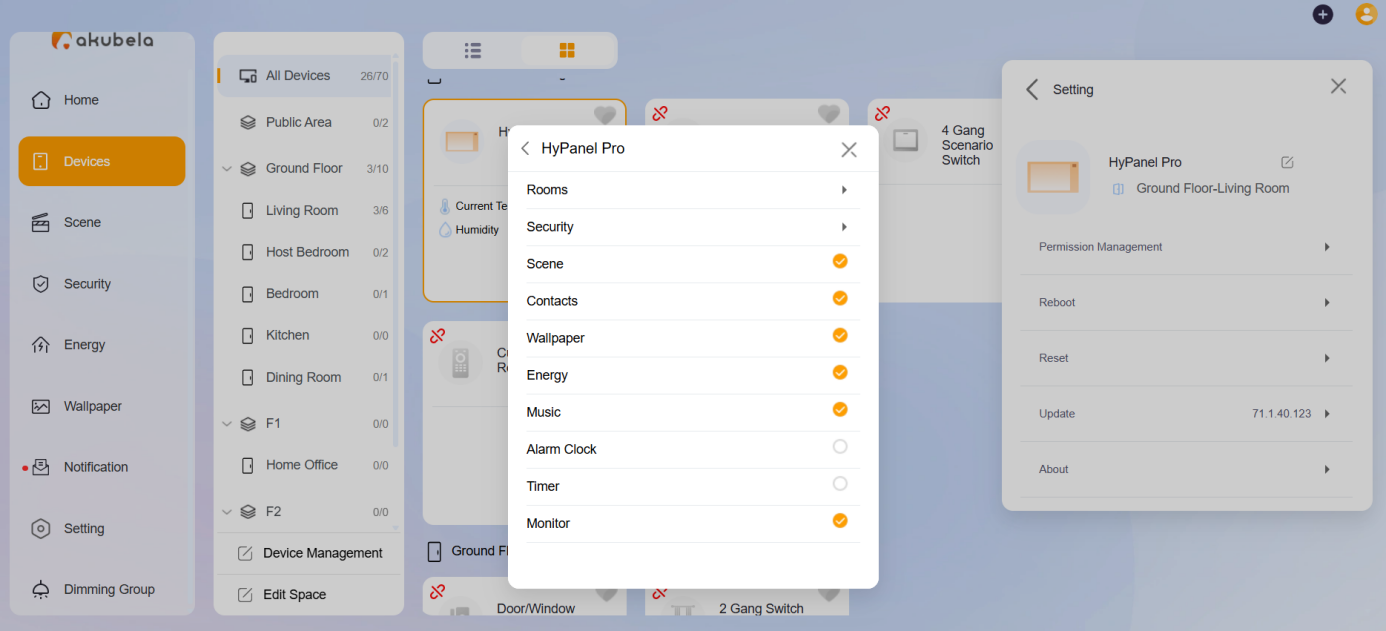
Rooms: Hidden devices will not be available for scenes or security configurations.
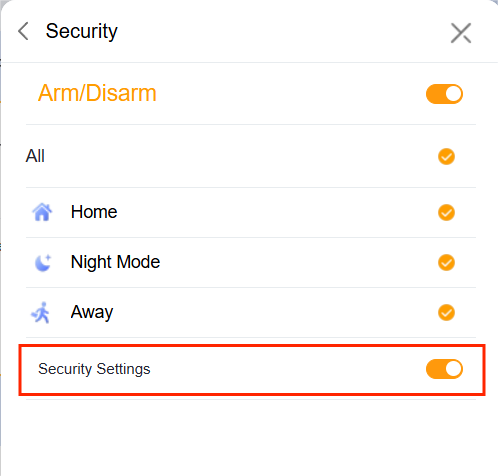
Security: To prevent unauthorized changes to your security setup, toggle off Security Settings to hide the configuration entry on the panel.
Scene: Hidden scenes will still function if triggered by an automatic schedule or sensor.
Contacts: Hiding contacts prevents outgoing calls from the panel, but incoming calls can still be answered via the connected app account.
Batch Configure Panels
To save time when managing multiple panels, you can apply the same permission set to several devices at once.
Click Devices > [Any panel] >
 .
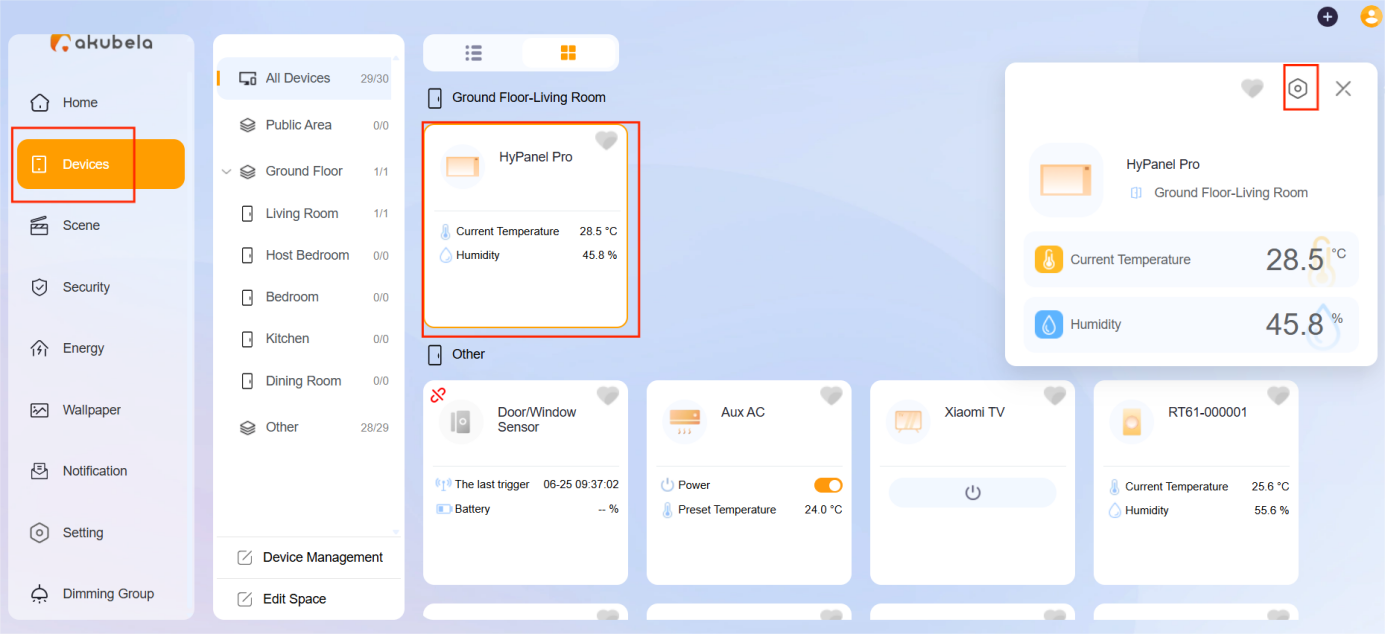
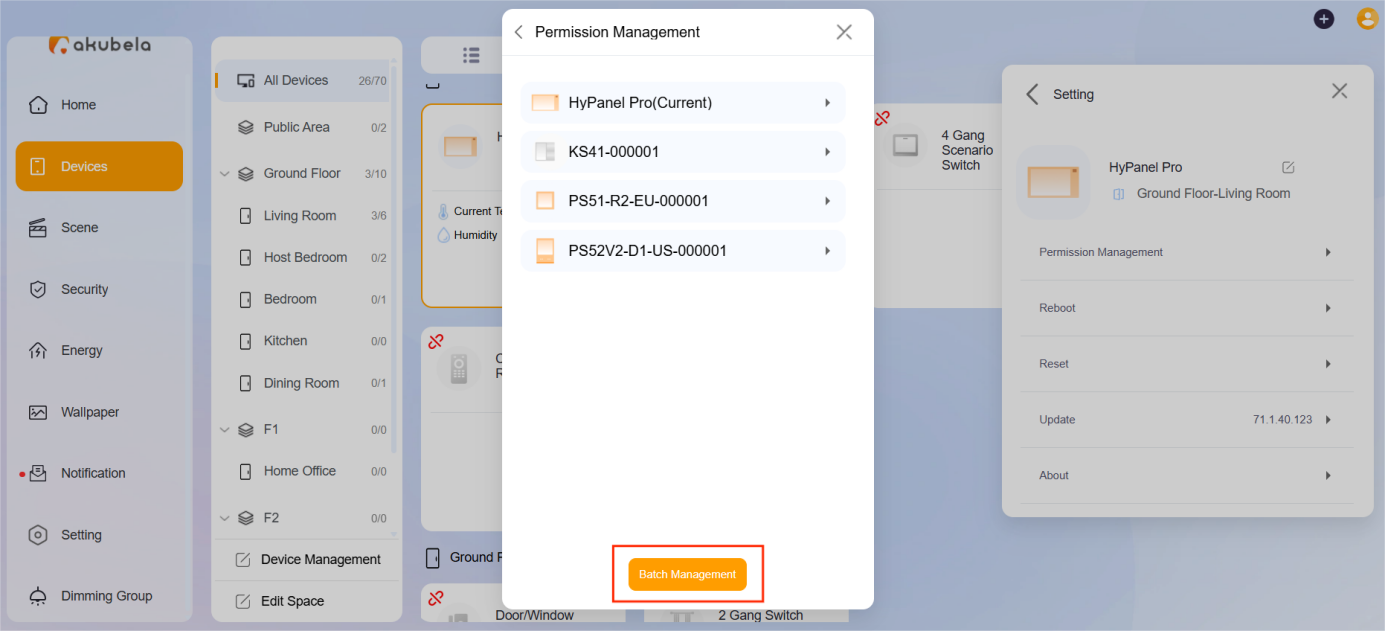
Select Device permissions > Batch Management.
Select the rooms and features you want to be displayed.
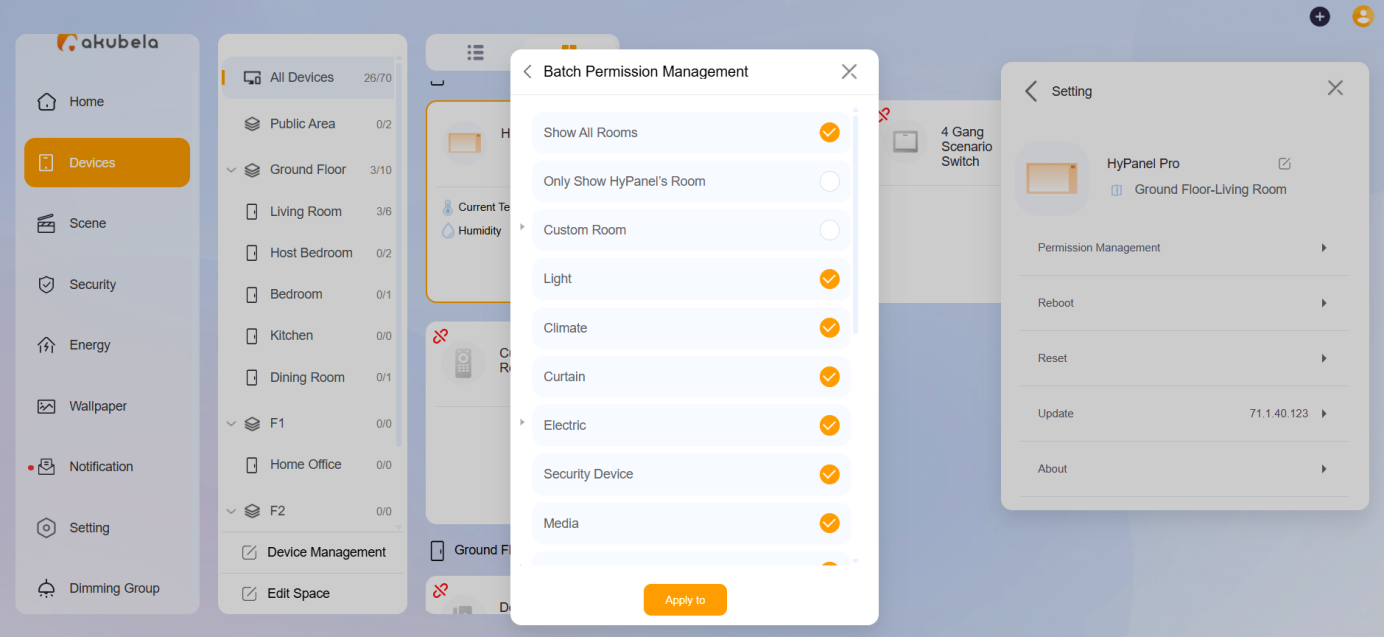
Click Apply to, select all the panels you wish to update, then click Confirm.