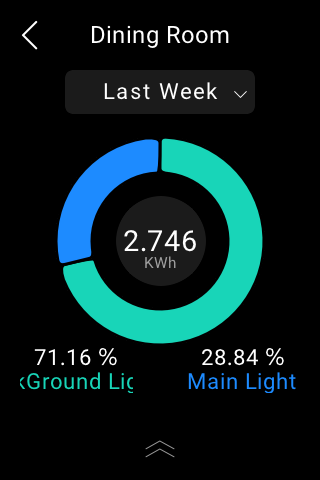
Use the Energy feature to track the power consumption of your devices, rooms, and whole home.
NOTE:
When HyPanel Lite serves as a home center device, the Energy feature is not available.
When HyPanel Lite serves as a gateway device, the Energy feature is not displayed on the Functions screen by default. To access this feature, please go to the user web portal and enable it.
This feature only works with relays connected to HyPanel Lite and smart devices that can collect energy data.
On the Home screen, tap Energy
 .
.On the Energy screen, you can see the previous day’s data, including:
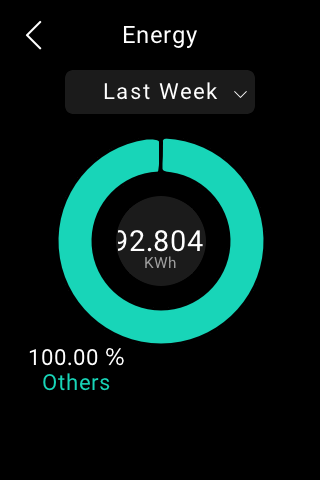
The whole home power usage data showed in the center of the circle.
Top 3 power consumers.
The rest of rooms’ total energy consumption (Other).
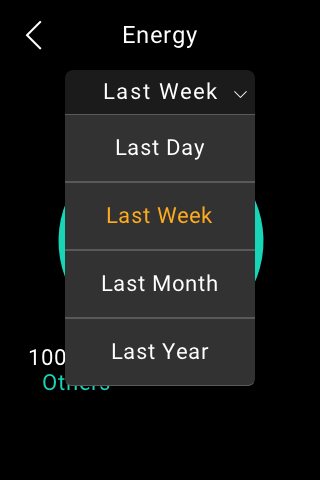
To see energy consumption of last week, or last month, tap
 next to the time period.
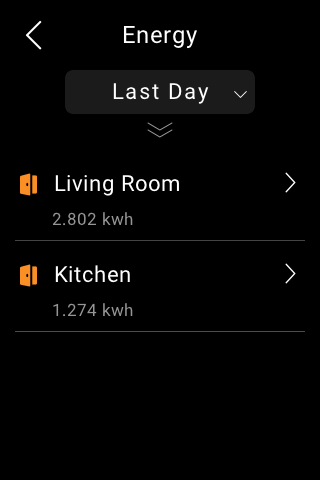
To track each room’s power usage, swipe up from the bottom of the screen. The details screen opens.
To track each device’s power usage in a room, tap
 next to the room name. The room’s details screen opens.