Palm vein recognition allows users to open doors using their palm vein pattern. The device captures the vein structure beneath the skin during enrollment, then uses that data to verify identity at the access device.
After enrollment on a supported device, the system uploads the biometric data to the cloud and distributes it to all access-controlled devices the user is authorized to use. As project managers, you can enroll users during initial account creation or at any time from the user detail page.
Before You Start
Make sure the enrollment device is connected to the cloud and online.
Compatible Model and Minimum Version
Model | Minimum Firmware Version |
|---|---|
E16P | 416.30.12.20 |
X915P | 2915.30.10.803 |
Watch the Video Guide
Prefer a visual walkthrough?
Watch: [Installer][PM]Enroll Palm Vein for Door Access in Smart Access Cloud
Configuration
Step 1: Configure the Device
Navigate to the device IP in a browser. Log in with the username and password (admin/admin by default).
Go to Device > LCD > Key In Homepage Of The Default Theme. For X915P, the path is Setting > Key/Display > Key In Homepage Of The Building Theme.
Set the Home Page Recognition Method to Palm Vein or Face & Palm Vein.
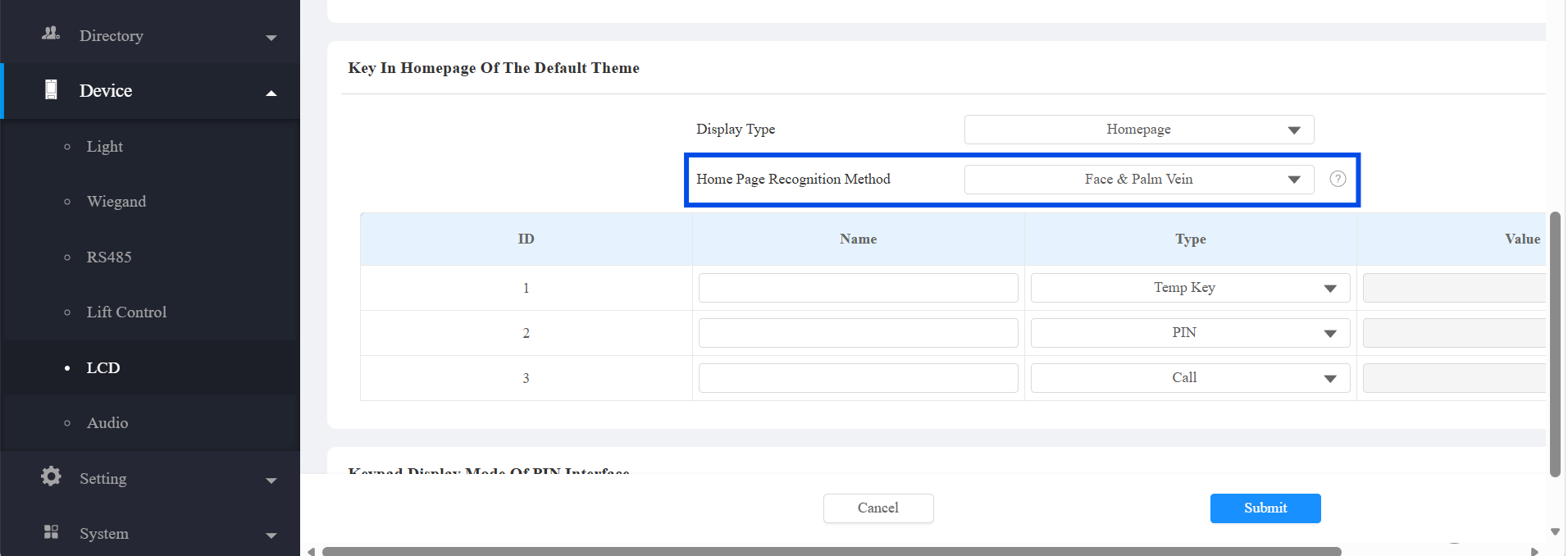
Click Submit.
Step 2: Enroll the User on the Cloud
Log in to the cloud platform with your project manager account.
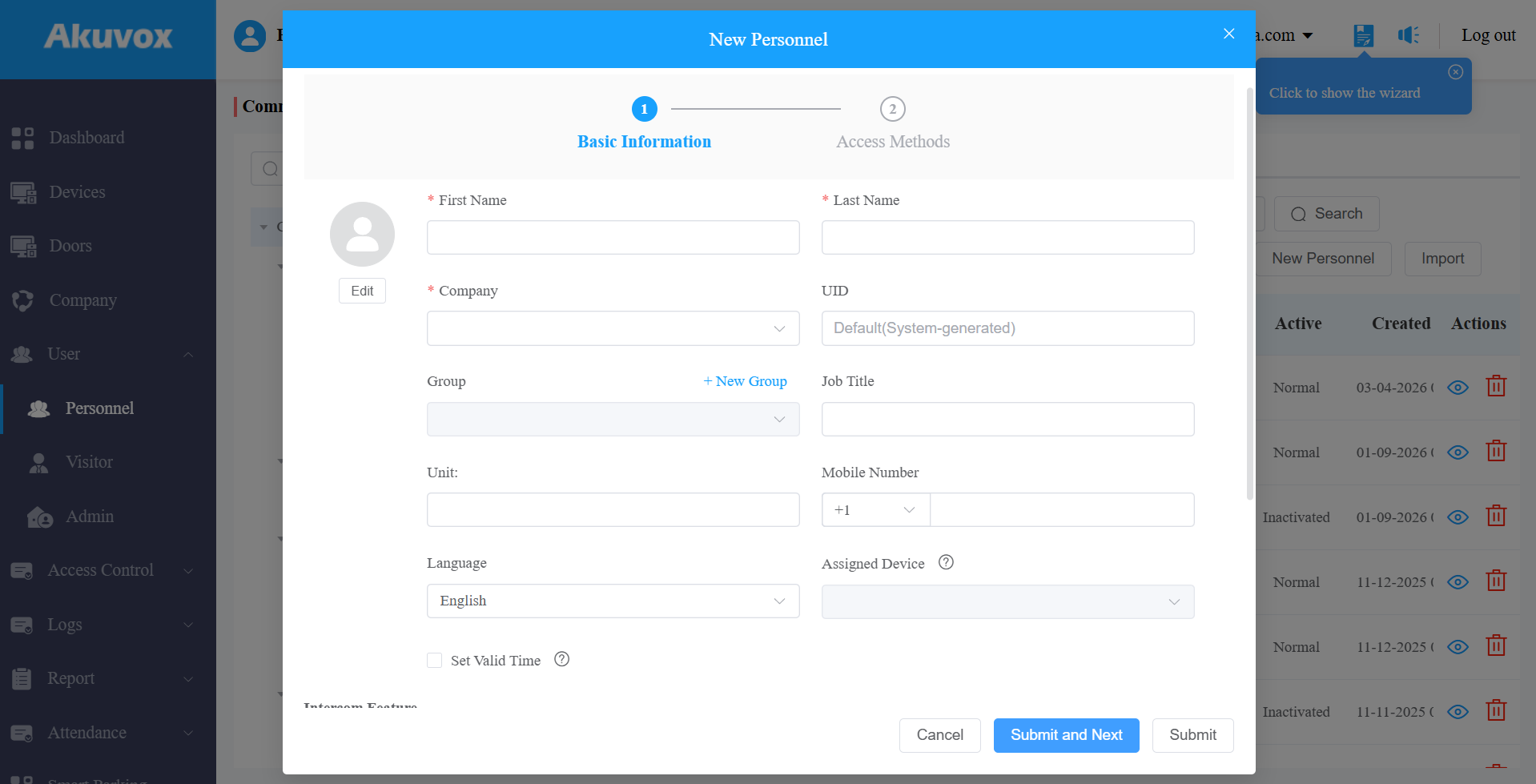
Click User > Personnel > New Personnel. To modify a current user, click
 .
.Complete all required fields in the Basic Info section.
Click Submit and Next. The system creates the account immediately at this point.
Click the Palm Vein icon on the Access Methods page.
Select an enrollment device from the list. Only devices that support palm vein are shown.
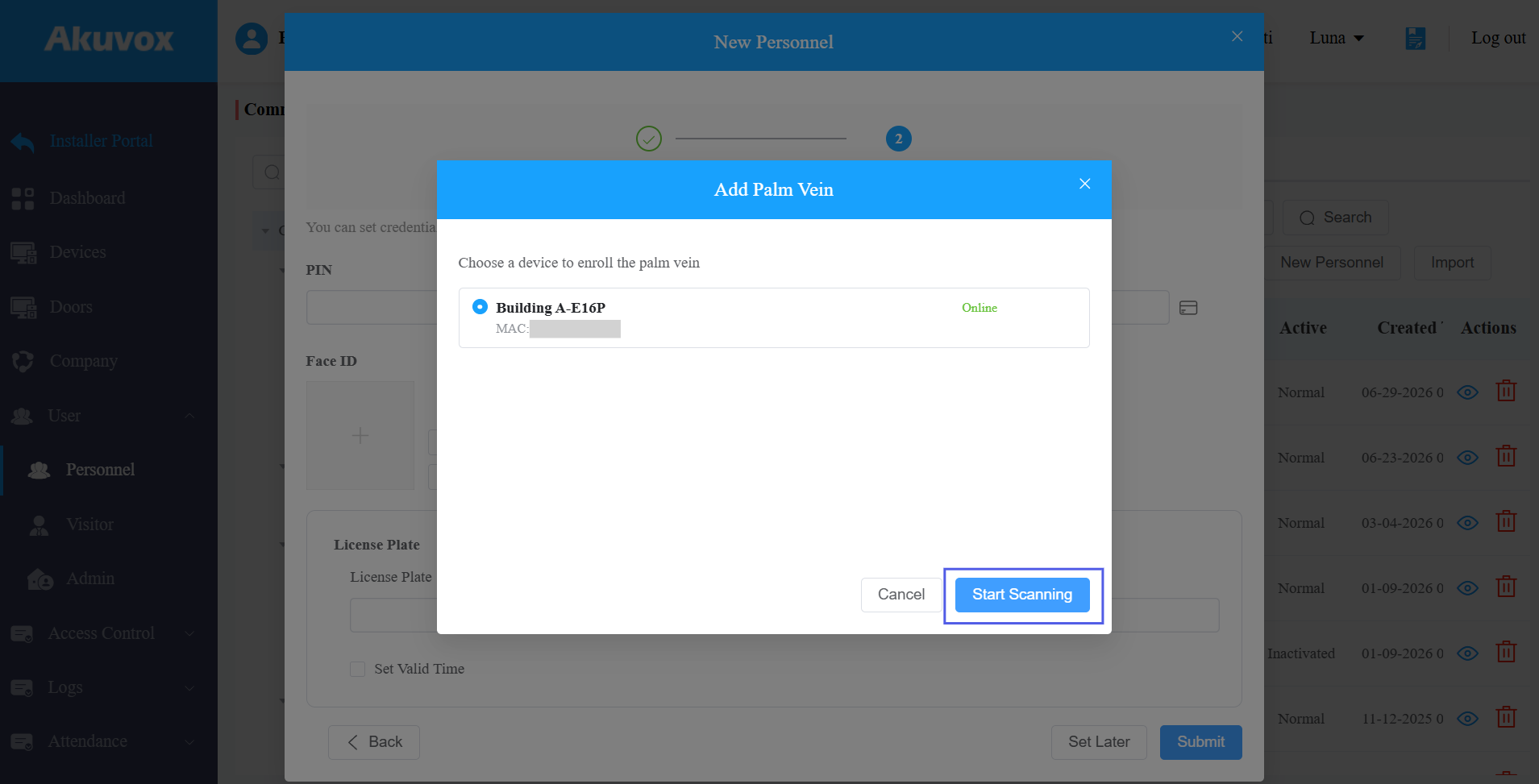
Click Start Scanning. The selected device enters enrollment mode and prompts the user to present their palm.
Follow the on-screen guidance to complete palm capture on the device.
Confirm the enrollment is successful on both the device and the cloud portal.
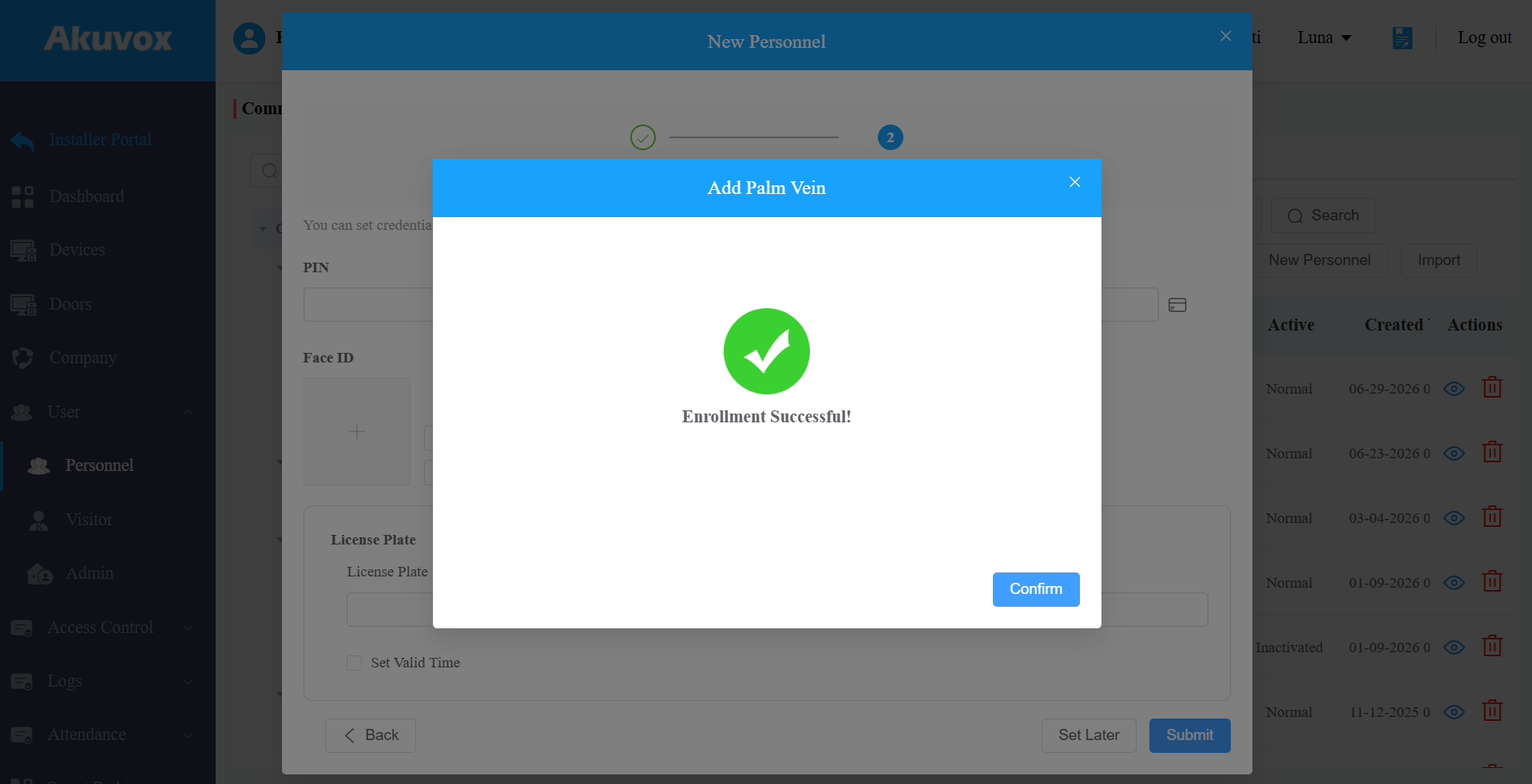
The cloud distributes the palm vein data to all devices that the user is authorized to access.
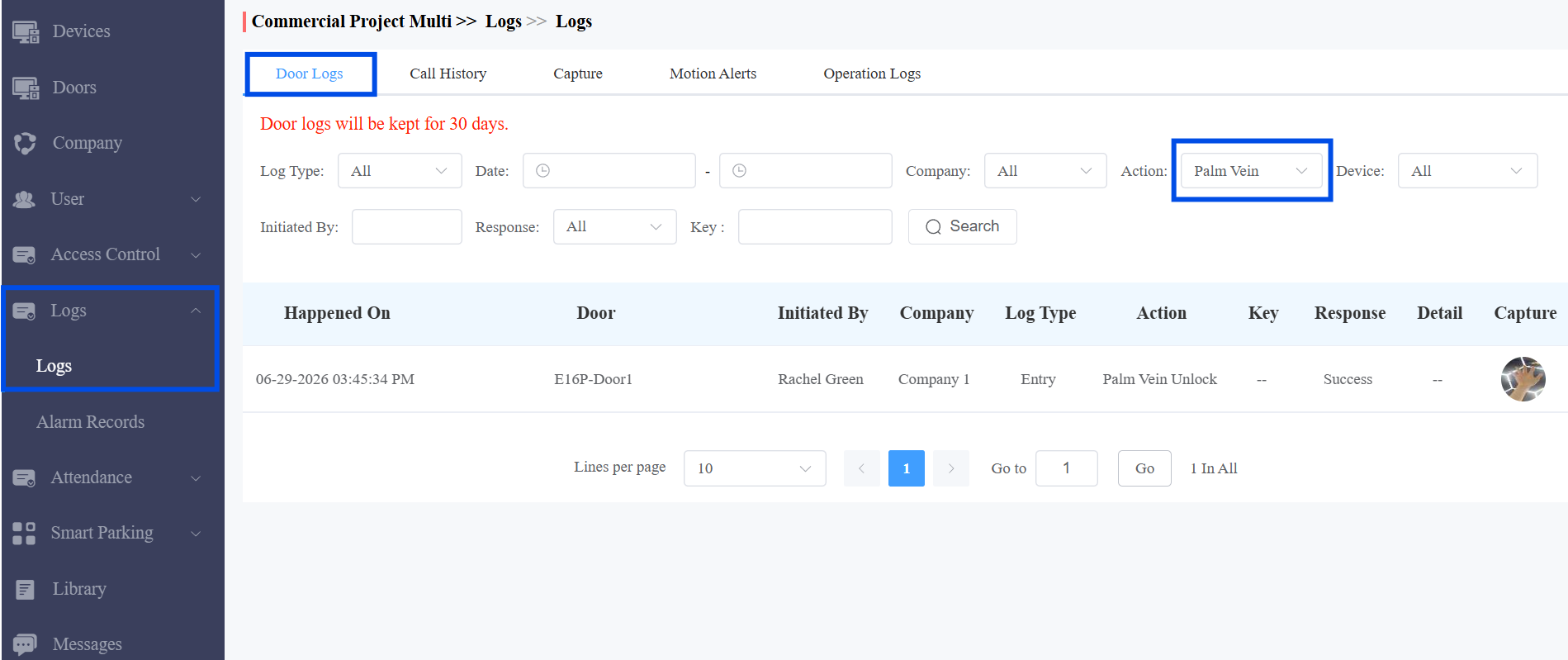
View Palm Vein Access Records
Navigate to Logs > Door Logs.
Apply the filter for action type Palm Vein.
Review the listed events.
Verification
Have the user attempt to open a door using the palm vein at an enabled door phone.
Check the Door Log and confirm a Palm Vein access event is recorded for that user and device.
If the user has access to multiple door phones, verify that the data has been distributed to each relevant device.
Troubleshooting
Issue | Possible Cause | Solution |
|---|---|---|
Enrollment device does not appear in the device list. | Device does not support palm vein recognition, or device is offline. | Confirm the device model supports palm vein; check device network connectivity. |
Palm vein data not distributed to door phones after enrollment. | Device is offline, or cloud sync is delayed. | Check device network status; wait for the device to reconnect and sync. |
User cannot open door with palm vein after successful enrollment. | Palm Vein is disabled under Access Method on the door phone. | Navigate to Device Management → Edit Door Phone → Access Method and enable Palm Vein. |
No palm vein events visible in Door Log. | Incorrect filter applied, or access attempt was made at a device without Palm Vein enabled. | Confirm the Door Log filter is set to Palm Vein; confirm the door phone has Palm Vein enabled. |
Enrollment fails during capture. | User did not present palm correctly, or device enrollment mode timed out. | Retry enrollment; ensure the user holds their palm still at the correct distance from the device. |