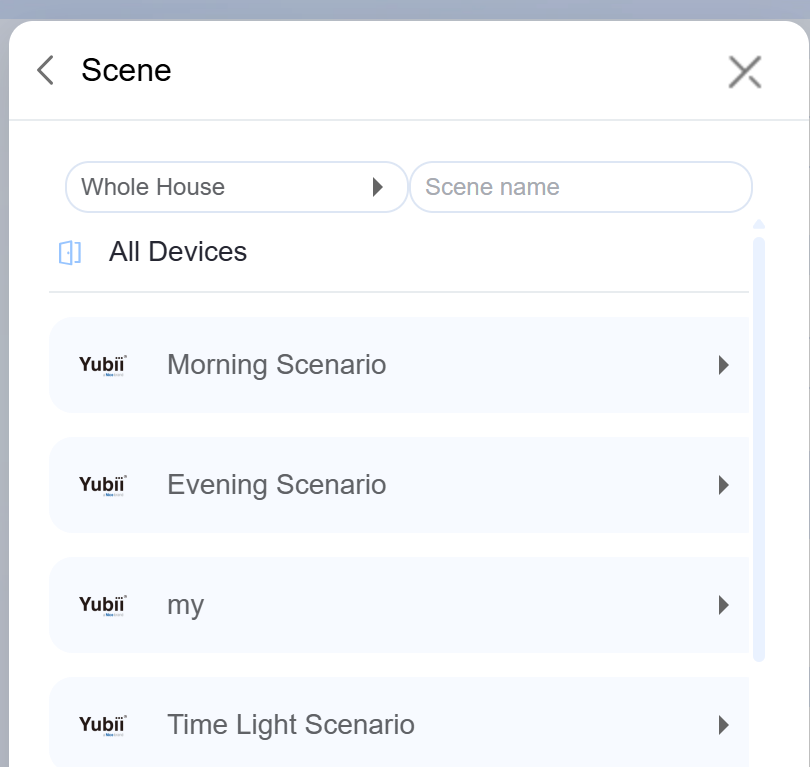
The akubela system can integrate with Fibaro gateways, allowing users to control both Fibaro and akubela devices directly through the akubela HyPanels or BelaHome app.
Before Getting Started
Check akubela panel compatibility and firmware version:
Supported Device | Required Firmware |
HyPanel Supreme | 1001.1.39.125 and later |
HyPanel Ultra | 281.1.39.128 and later |
HyPanel Pro | 71.1.39.137 and later |
HyPanel Plus | 52.1.39.116 and later |
HyPanel | 51.1.39.139 and later |
HyPanel (V2) | 251.1.39.113 and later |
HyPanel KeyPlus | 53.1.39.119 and later |
Confirm that your Fibaro gateway is one of the supported models:
Yubii Home
Home Center 1
Home Center 2
Home Center 3
Home Center 3 Lite
Prepare tools and devices:
akubela Hypanel
Fibaro Gateway
Network Devices (Router, Switch)
Sync and control limitations:
Third-party integrations set up in Fibaro cannot be automatically synced with the akubela system. To use them, check if akubela supports the integration and add it directly to akubela system. For details, refer to https://knowledge.akuvox.com/docs/third-party-integration-1.
Fibaro and akubela devices can be controlled and managed via akubela HyPanels, the web portal, or the BelaHome app. However, akubela devices cannot be controlled via the Fibaro app or web portal.
Rooms created in Fibaro will also appear in the akubela system, ensuring consistent room mapping across platforms.
For connecting Fibaro add-ons to the Fibaro Gateway, refer to https://manuals.fibaro.com/yubii-home/.
Connect Fibaro to akubela System
1. Configuration on Fibaro
(1) Ensure the Fibaro gateway and the akubela system are on the same LAN.
(2) Log in to the router providing the LAN connection to check the Fibaro gateway’s IP address, or use an IP search tool provided by Fibaro.
(3) Open a web browser, enter the Fibaro Home Center IP address to access its web portal, and log in using the default username and password.
TIP:
The default credentials are usually on the Fibaro device label. If you have changed them, make sure to remember the new login. If lost, contact Fibaro support.
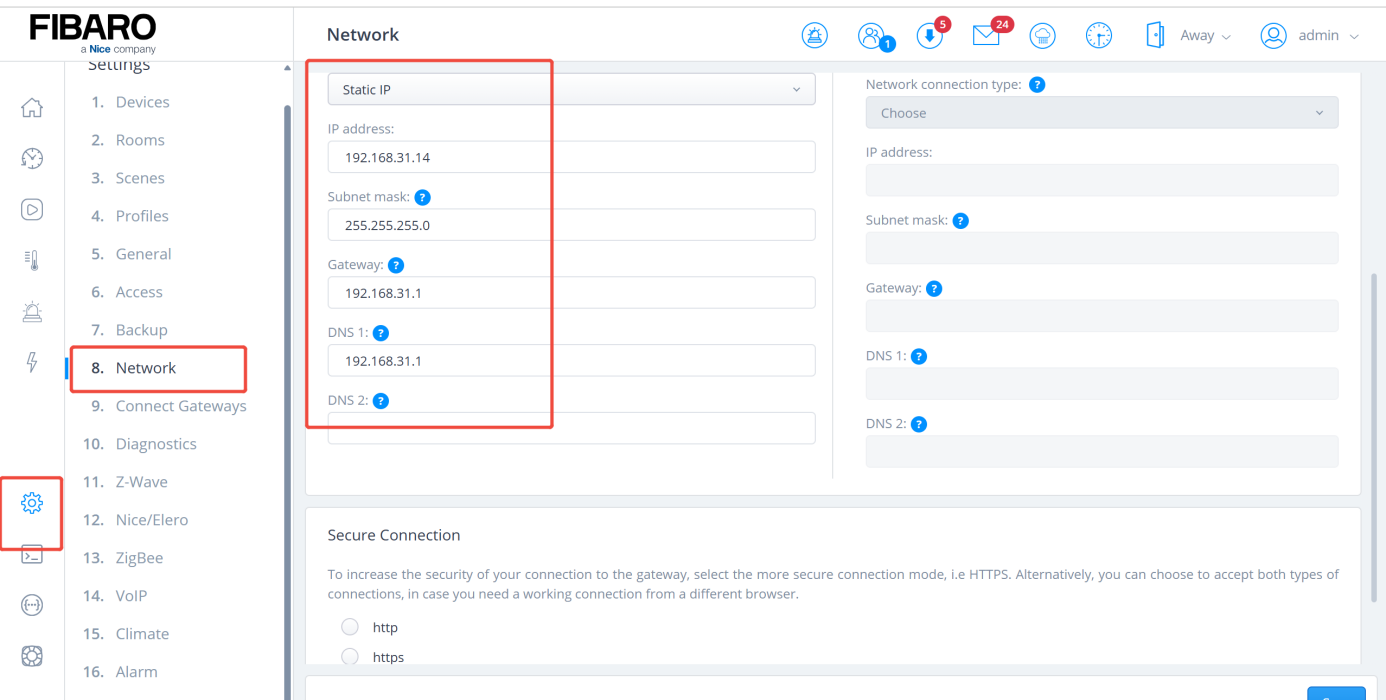
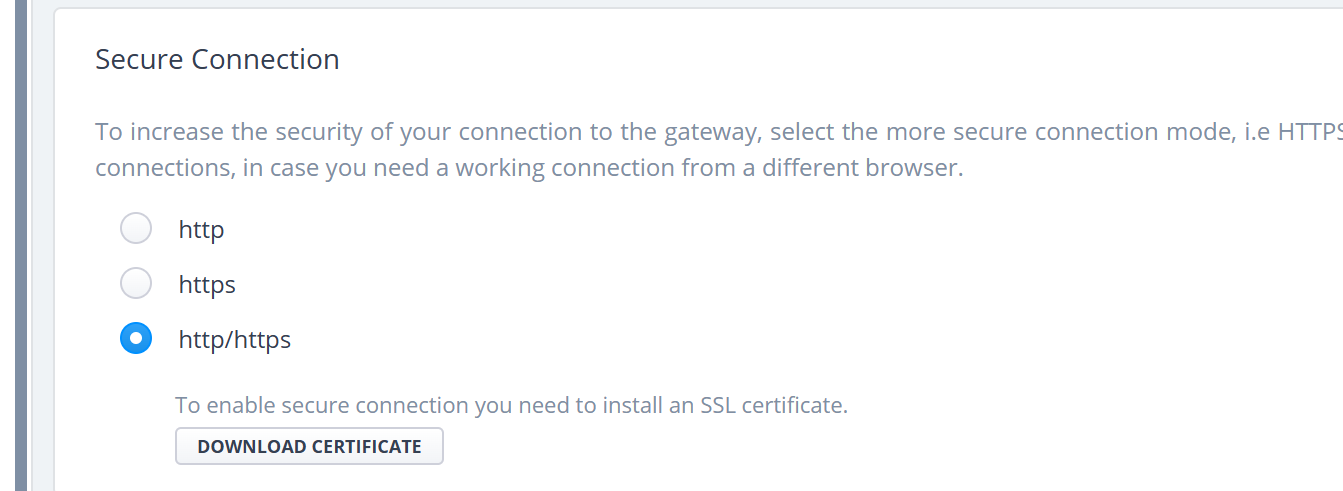
(4) Go to Setting > Network, set a static IP, and configure the Secure Connection to http or http/https.
2. Add Fibaro to akubela System
Add Fibaro via HyPanel
NOTE:
Only large-screen panels(HyPanel Pro, HyPanel Ultra, and HyPanel Supreme) can add third-party devices like Fibaro directly.
(1) On the Home screen, tap  at the top and select a room to add the device.
(2) Click  , then select Gateway > Center yubii.
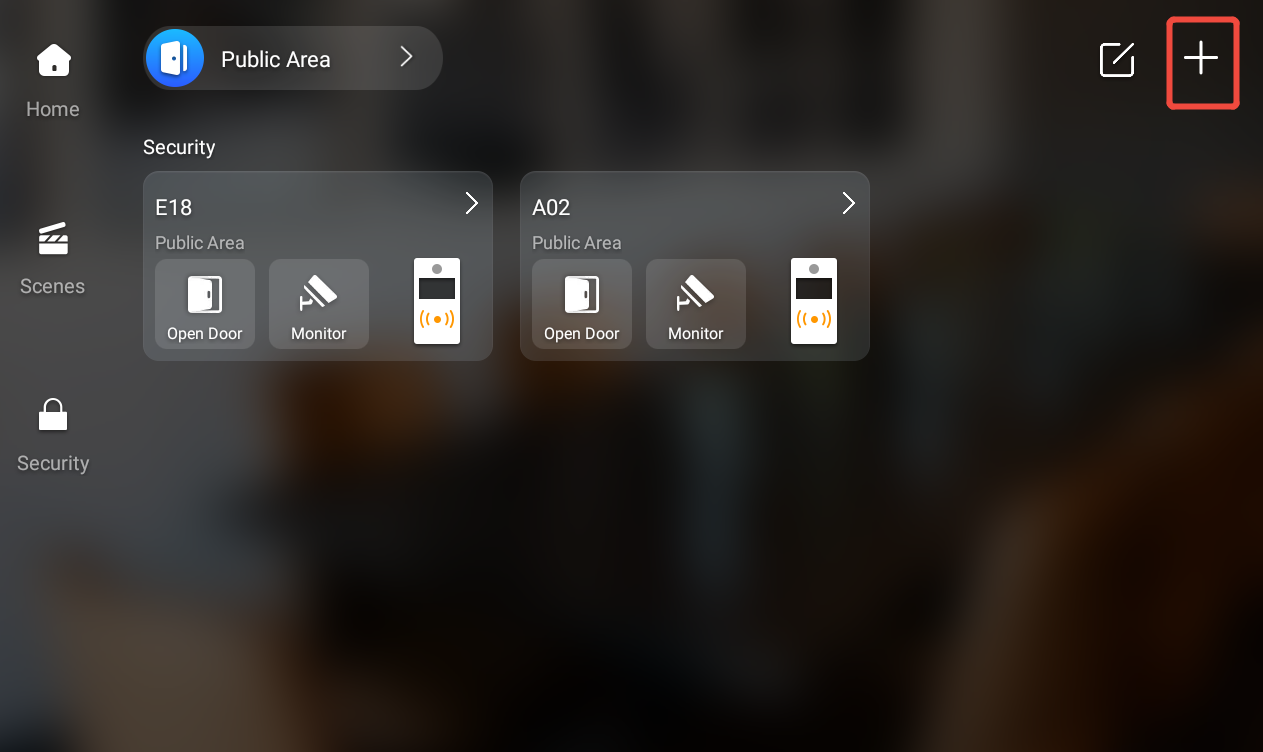
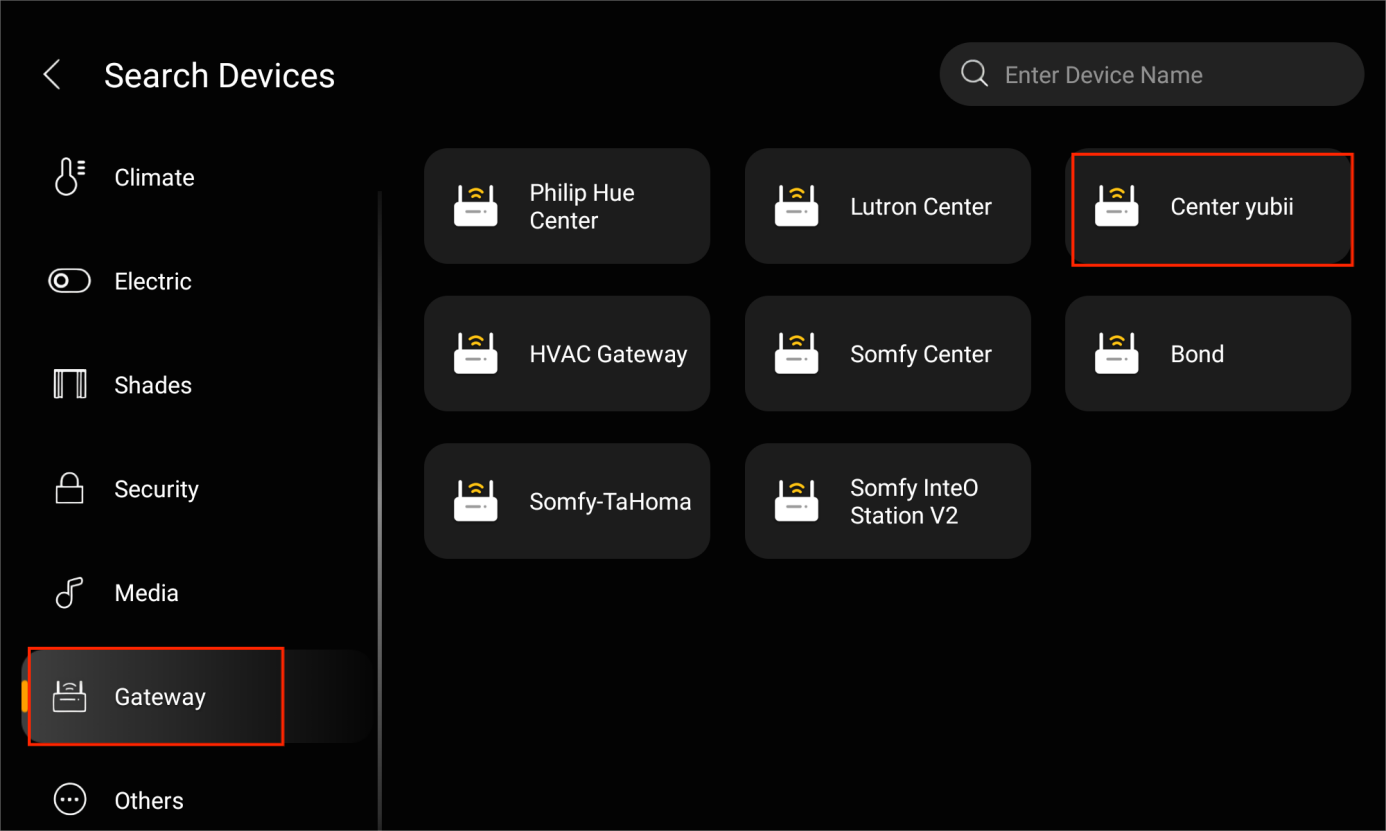
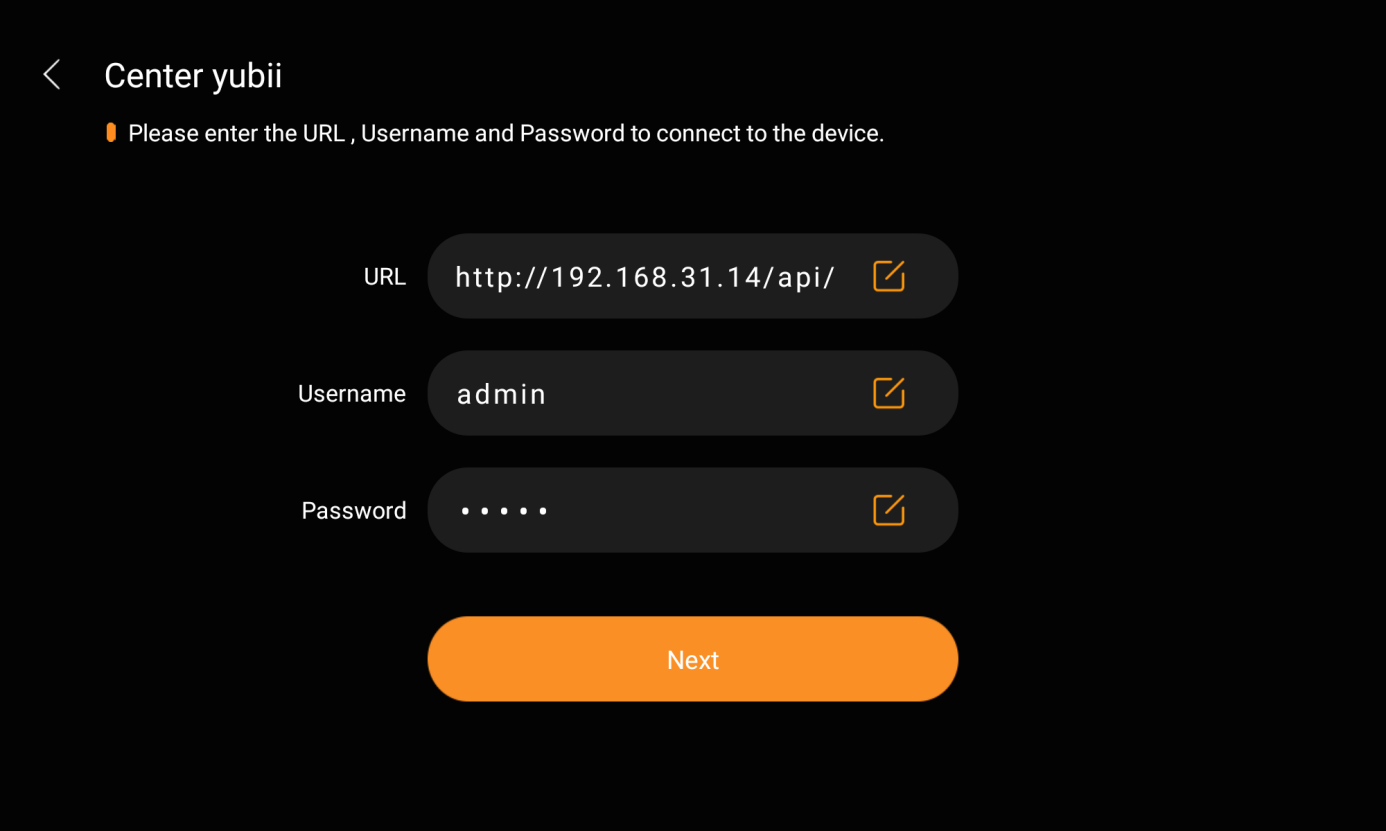
(3) Enter Fibaro home center URL in the format http://home center IP/api/, then enter the user name and password, and click Next.
TIP:
Use the default credentials on the device label unless changed. Contact Fibaro support if lost.
Do not include any spaces in the URL.
Add Fibaro via Web Portal
(1) Log in to the HyPanel’s device web portal with default credentials admin/admin.
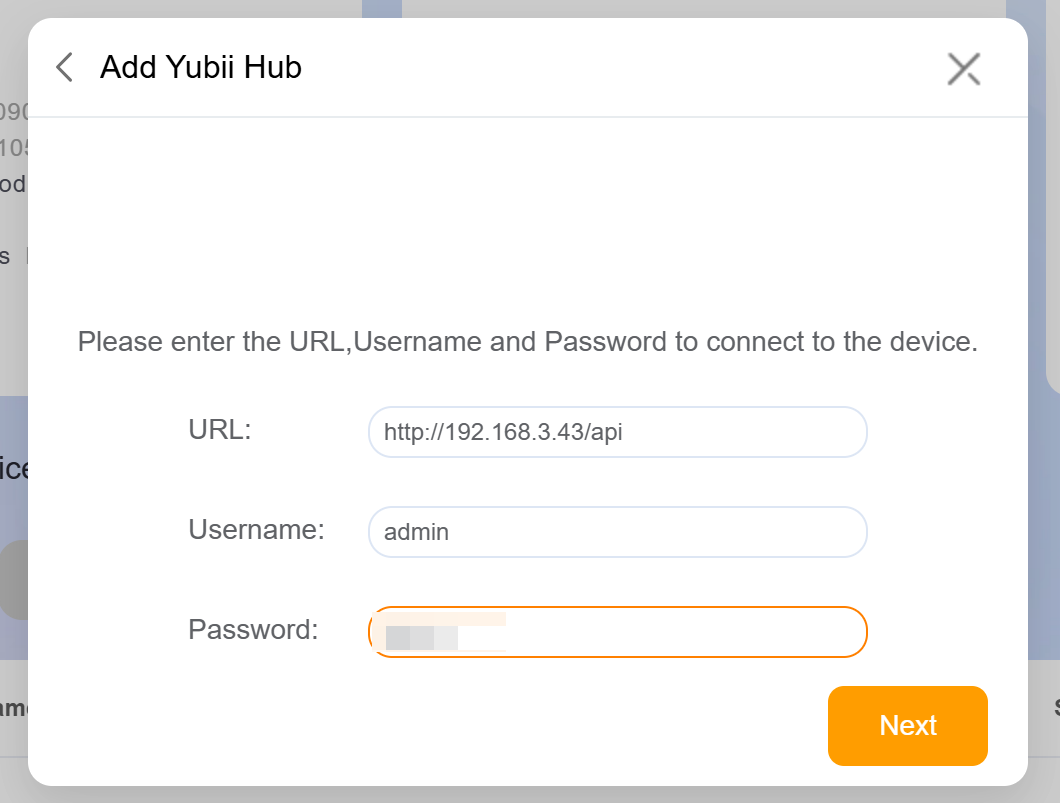
(2) Click + > Add Device > Select device type to add, then select Gateway > Yubii Hub.
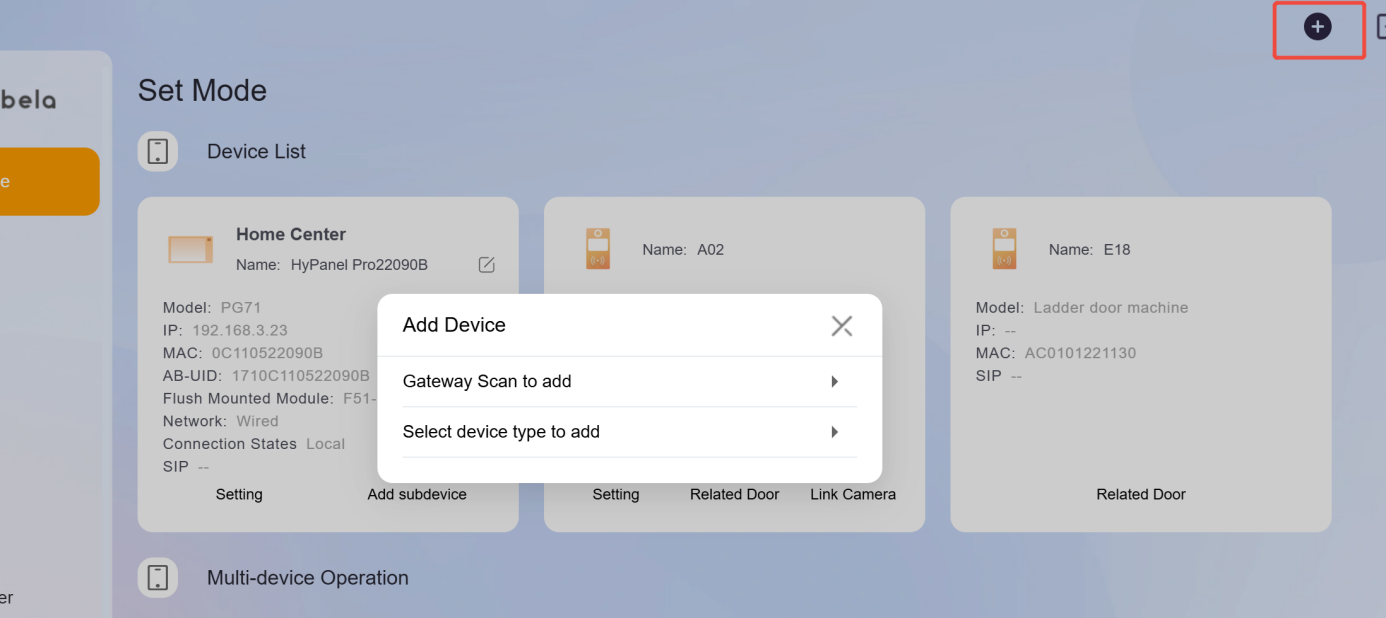
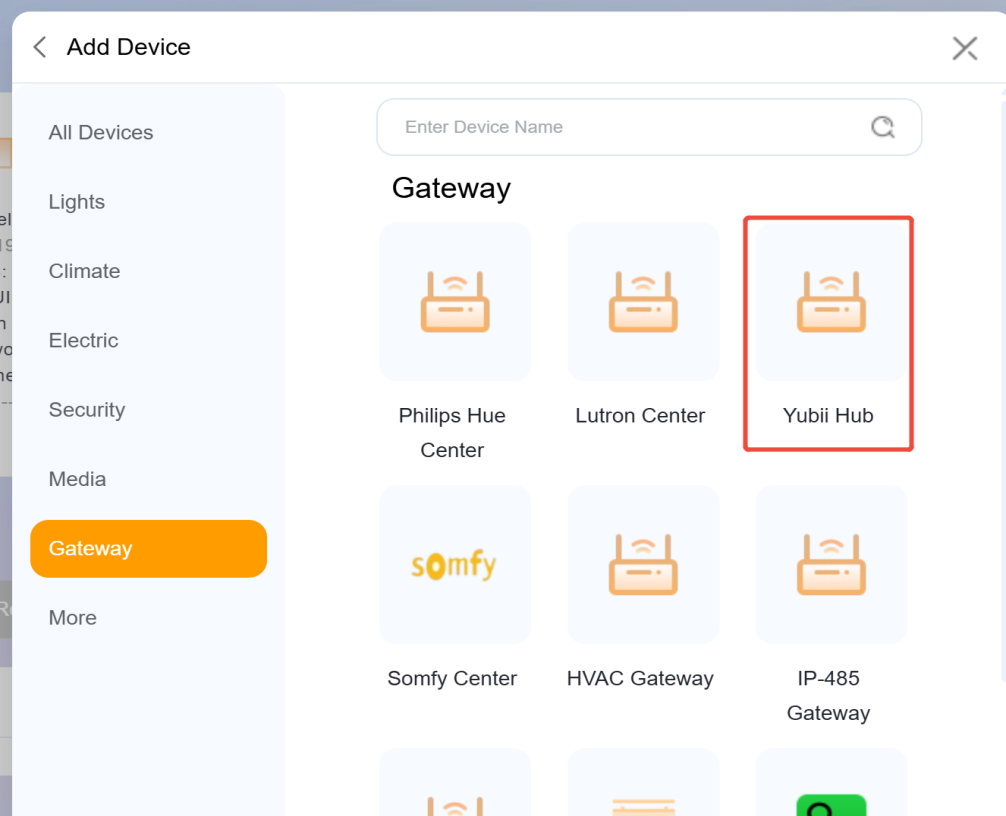
(3) Enter Fibaro home center URL in the format http://home center IP/api/, enter the user name and password, and click Next.
NOTE:
Use the default credentials on the device label unless changed. Contact Fibaro support if lost.
Do not include any spaces in the URL.
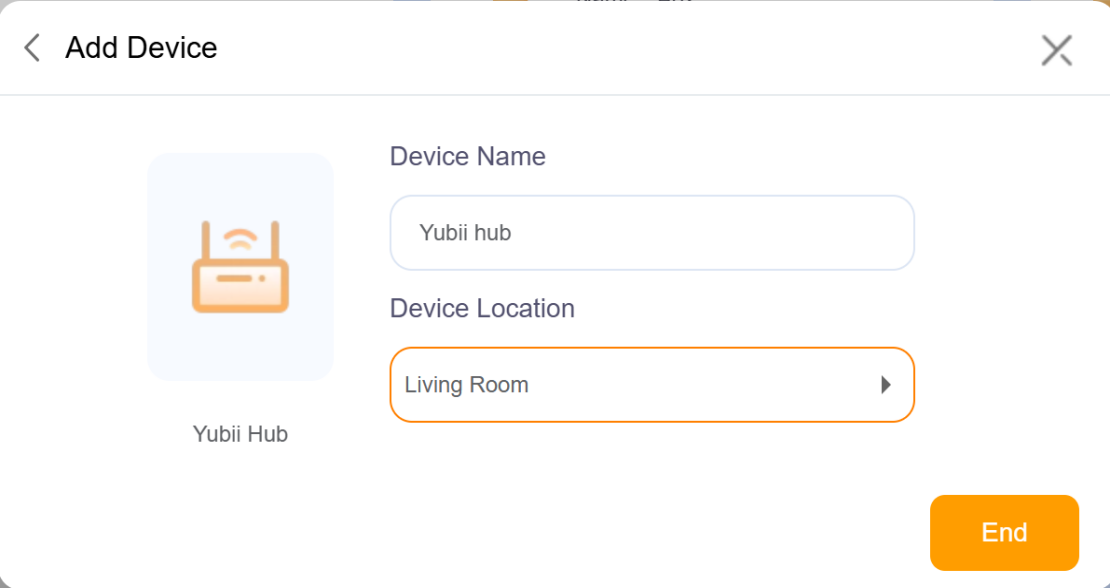
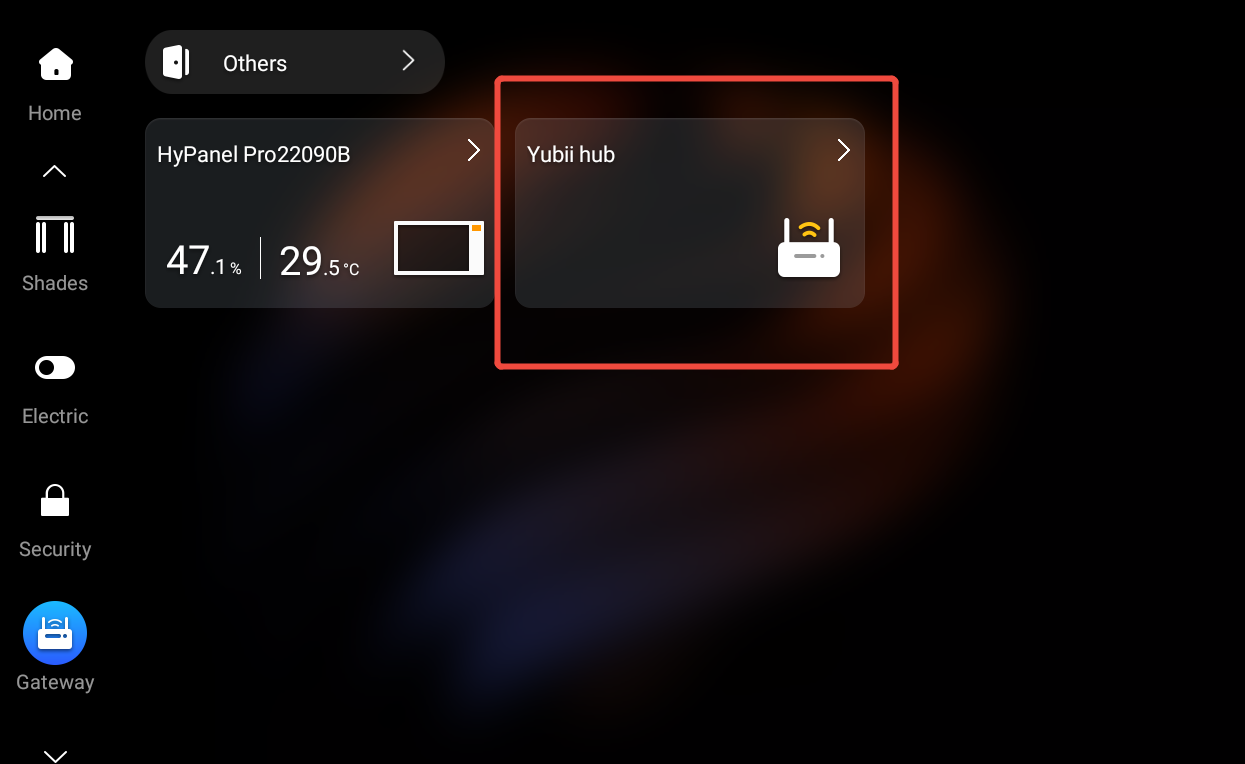
Once added, the Fibaro gateway will appear in the chosen room. Any rooms or devices previously configured in Fibaro will also appear on akubela HyPanels.
Control and Manage Fibaro Devices
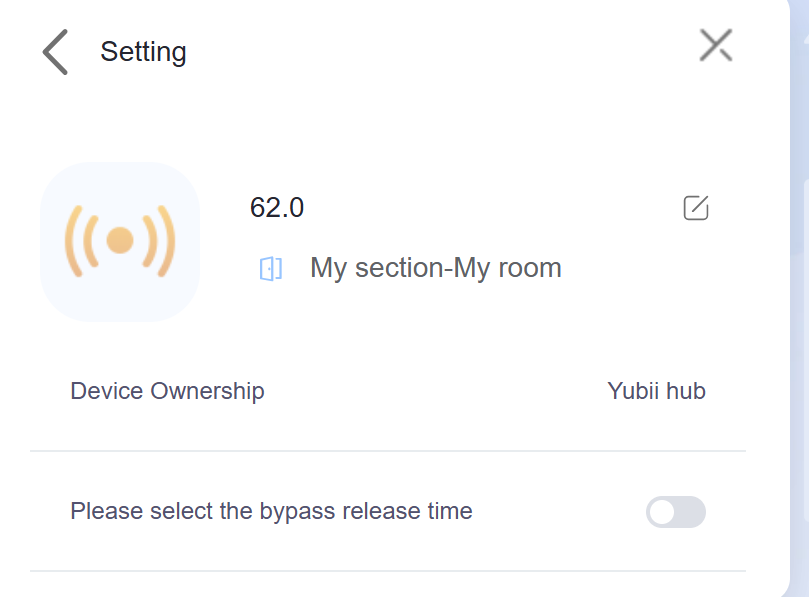
Device Control
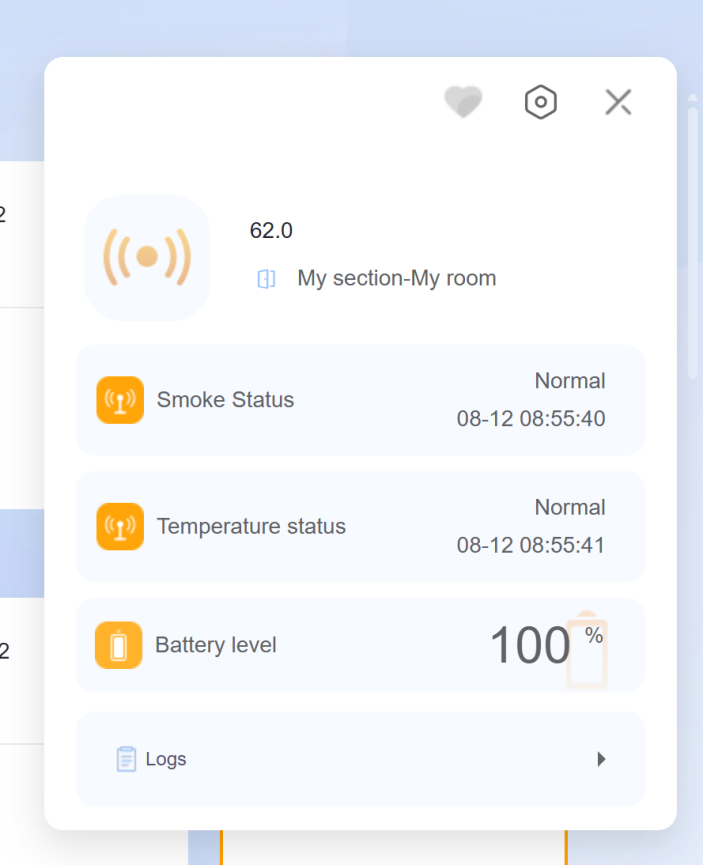
Click any synchronized Fibaro device to view basic information, edit the device name, or change its location.
NOTE:
You can remove Fibaro devices directly from akubela, but permanent deletion must be done through the Fibaro system.
Scene Control
Click any synchronized Fibaro scene to view details, edit the name, or change its location.
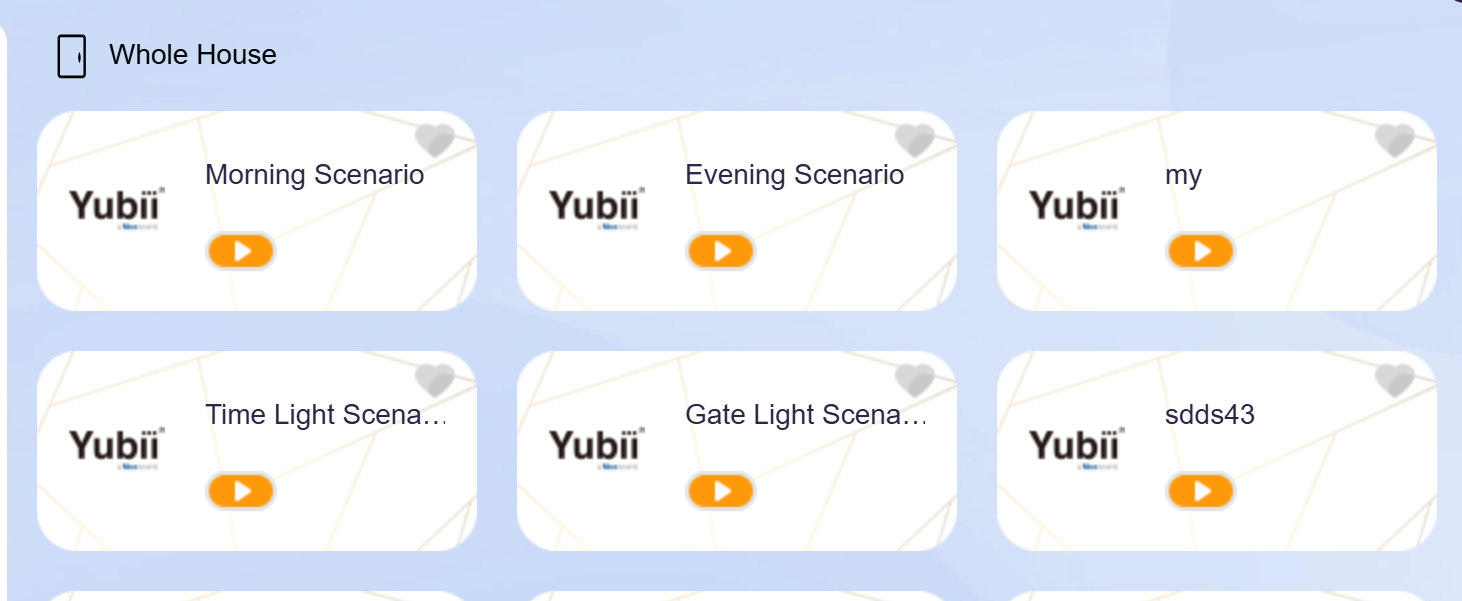
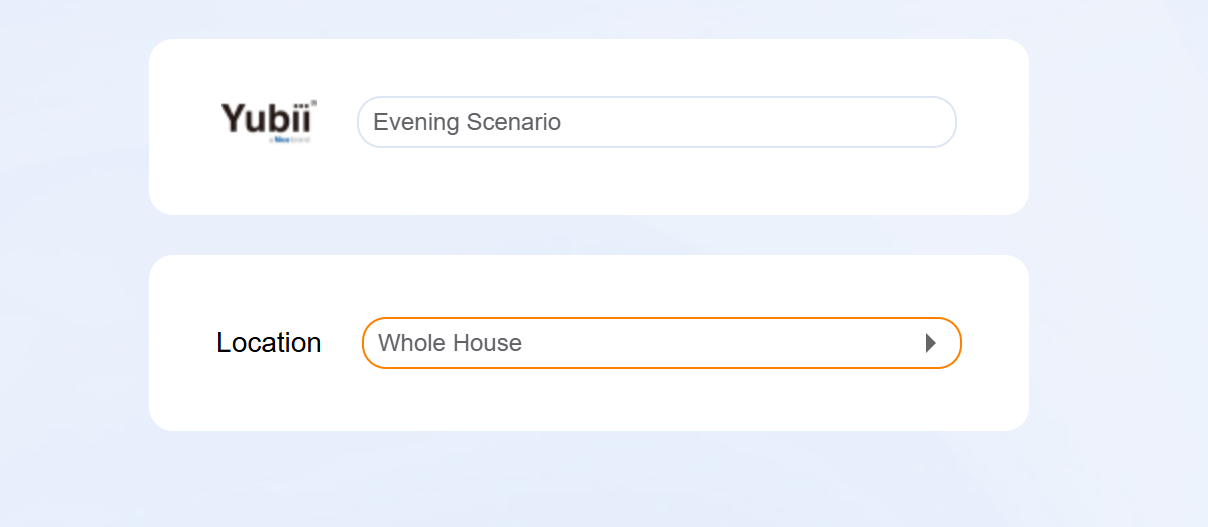
Fibaro scenes can also be used as triggers or tasks in new akubela scenes.
NOTE:
Removing a Fibaro scene from akubela does not delete it from the Fibaro system. Permanent deletion must be performed in Fibaro.