You can view available firmware versions, download firmware files, and remotely upgrade devices to specific versions. If needed, you can also grant remote upgrade permissions to designated installers.
View Firmware Details
Go to Device > Firmware to view all available firmware versions for akubela devices. You can:
Use filters to search for the required firmware.
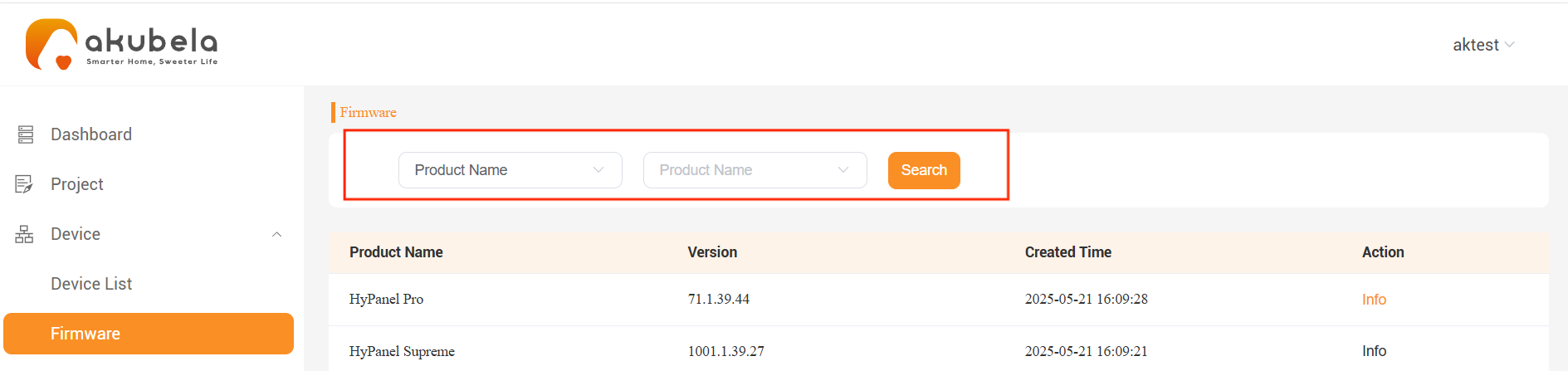
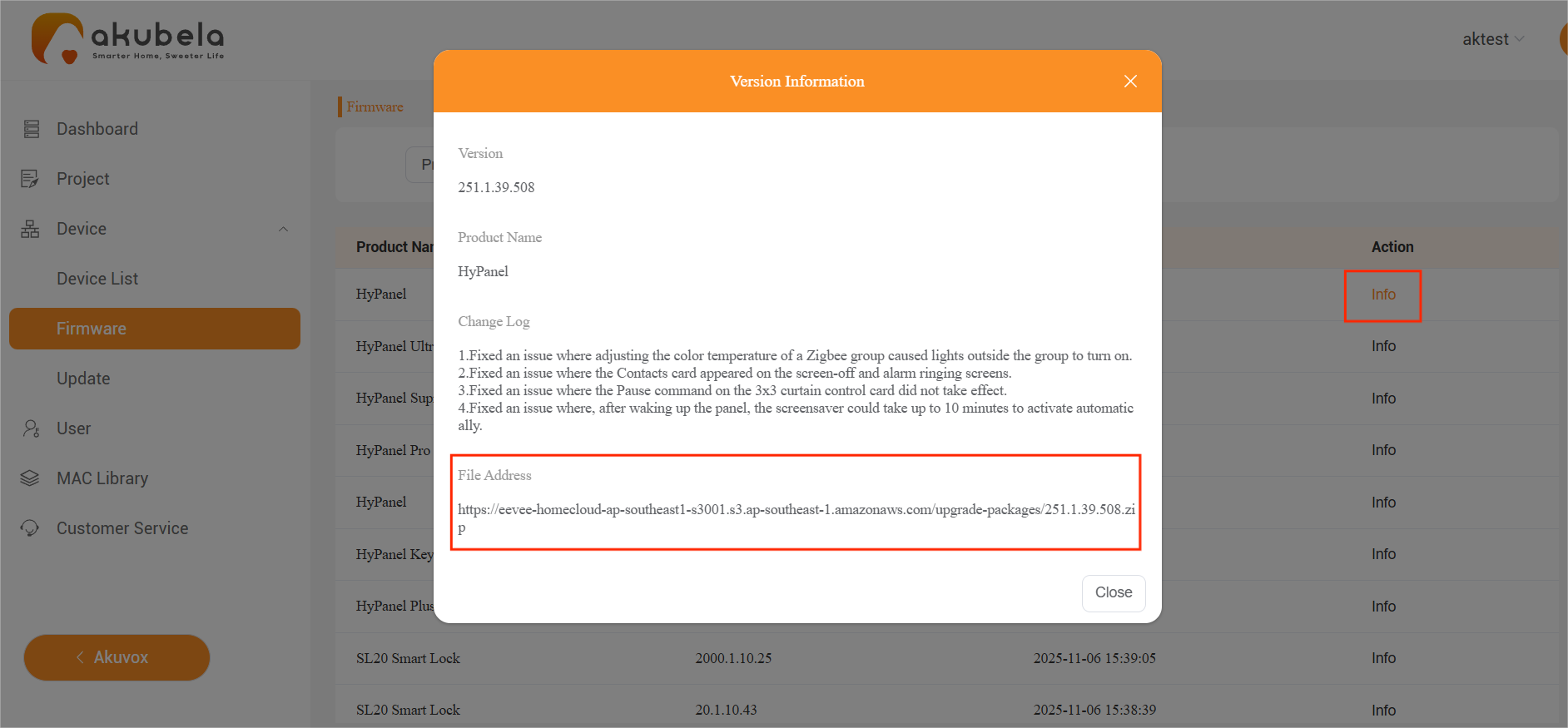
Click Info to view the change log for a firmware version.
Copy the firmware file’s URL and paste it into your browser to download it.
Upgrade Devices
TIP:
Distributors have the device upgrade permission by default, while the installers not. You can grant them this permissions by following the instructions here.
Start an Upgrade Task
Go to Device > Update > Add.
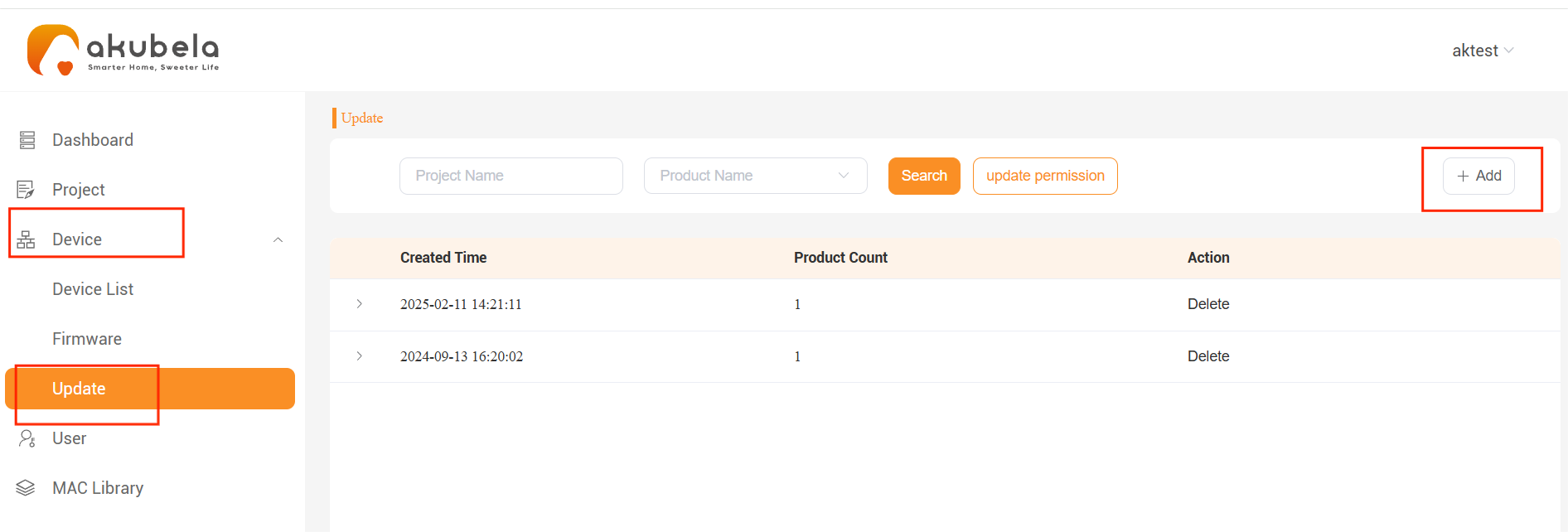
In the pop-up window:
Select the target project(s) from the left and click
 to move them to the right.
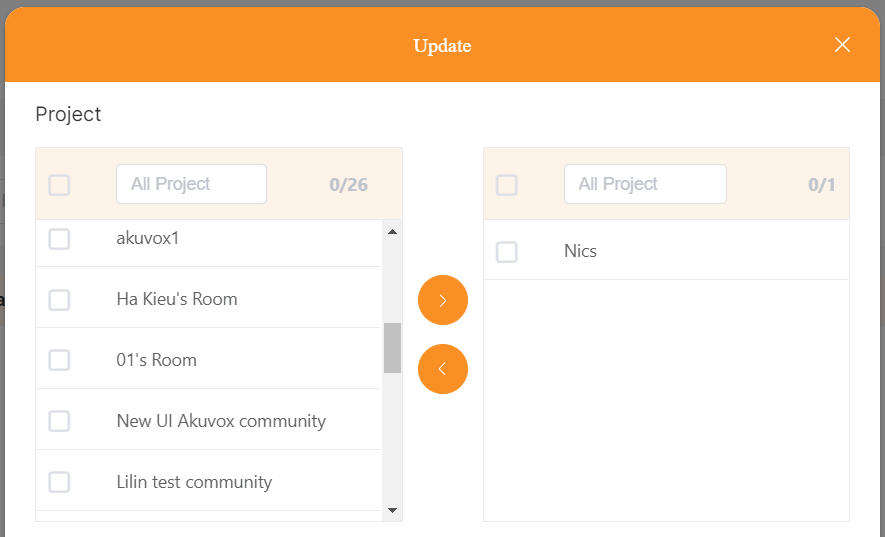
Choose the panel’s model and target firmware version.
Select the devices to be upgraded.
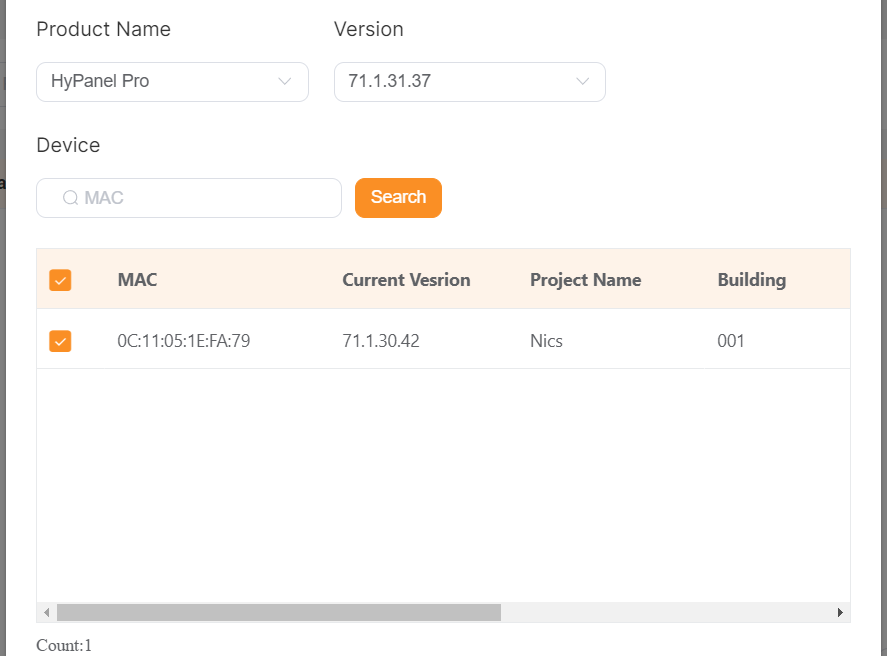
Choose whether the update requires user confirmation
Click Submit to begin the upgrade process.

Check Upgrade Results
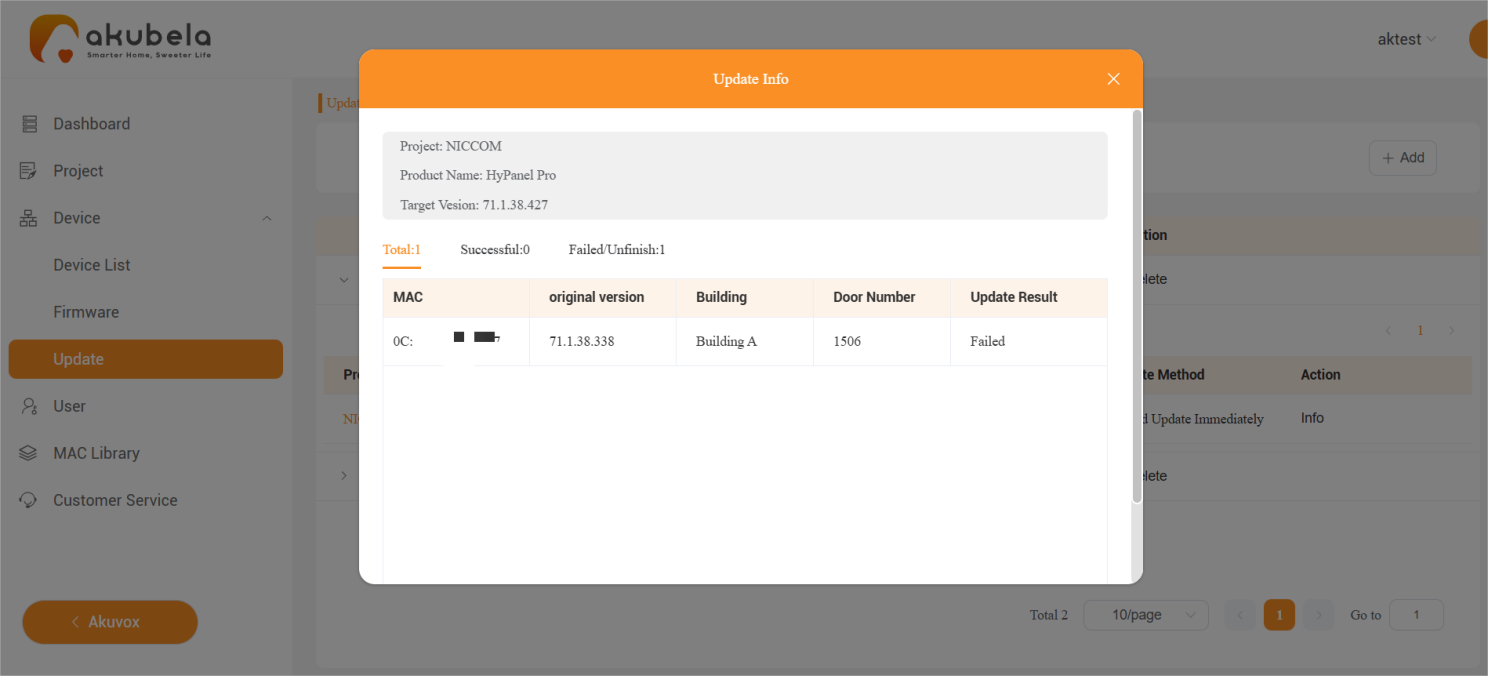
After initiating an upgrade, you can monitor its progress and outcome.
Click the
 next to the relevant upgrade record.
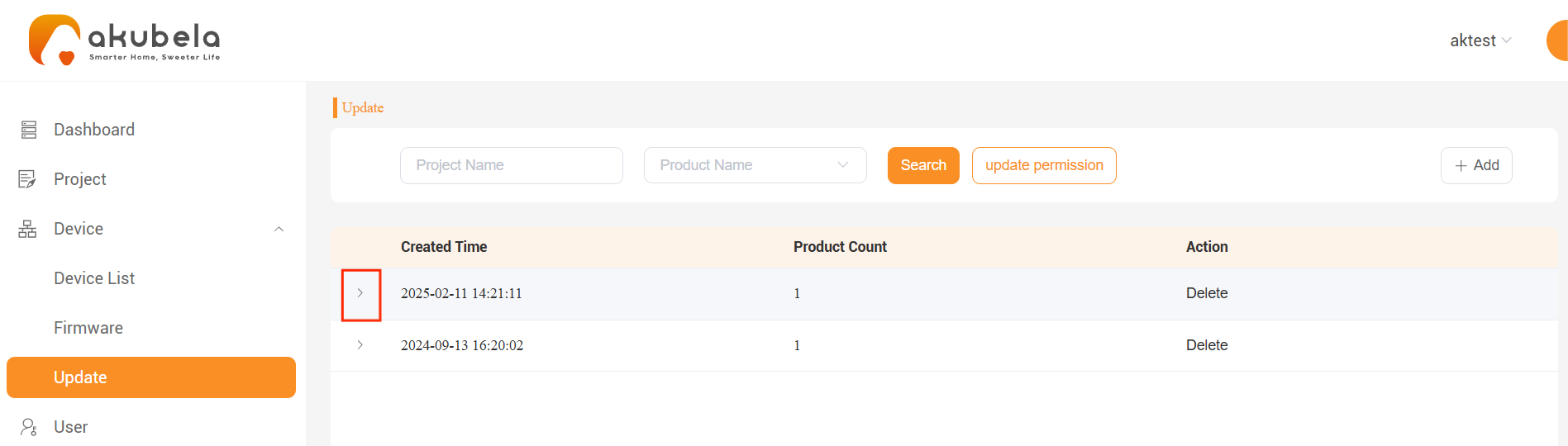
Click Info to view detailed progress and results.