Quick Dial by Number Replacement
La fonction de remplacement des numéros de composition simplifie les numéros longs et complexes de l’appareil, offrant des alternatives plus courtes et plus conviviales pour passer des appels. Il permet de remplacer plusieurs numéros de numéro, tels que les adresses IP ou les numéros SIP, par un seul chiffre simplifié.
Set it up on the Phone > Dial Plan interface. Click Add.
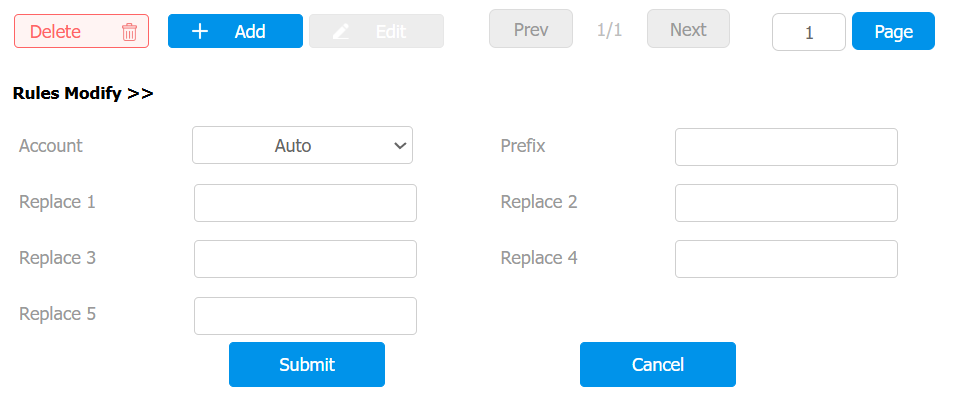
Account: Select the dial-out account.
- Auto: Dial-out using the registered account. When there are 2 registered accounts, Account 1 is the default.
- Account 1/2: Dial-out using the chosen account.
Prefix: Specify a short number to replace the specified dialed numbers.
Replace 1/2/3/4/5: Specify up to 5 numbers, which can be SIP numbers or IP addresses, to be replaced by the prefix. All these numbers will be called simultaneously when the caller dials the prefix.
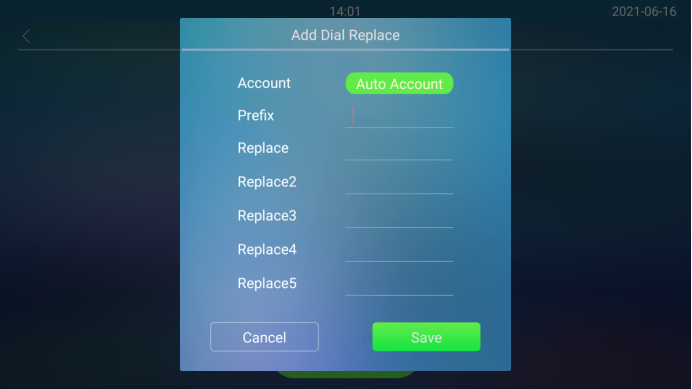
You can also set up the dial plan on the Setting > Replace Rule screen. Tap Add Dial Replace.
Dial Plan Numbers Import and Export
You can export and import dial plan numbers with a maximum of 1,000 for quick setup.
Set it up on the Phone > Dial Plan interface. The supported file format is XML and CSV.

Call Auto-answer Configuration
La fonction de réponse automatique permet à l’appareil de répondre automatiquement aux appels entrants sans intervention manuelle. Vous pouvez également personnaliser cette fonctionnalité en réglant la durée de la réponse automatique et en choisissant le mode de communication entre audio et vidéo.
To enable the Auto Answer feature, go to Account > Advanced > Call interface.
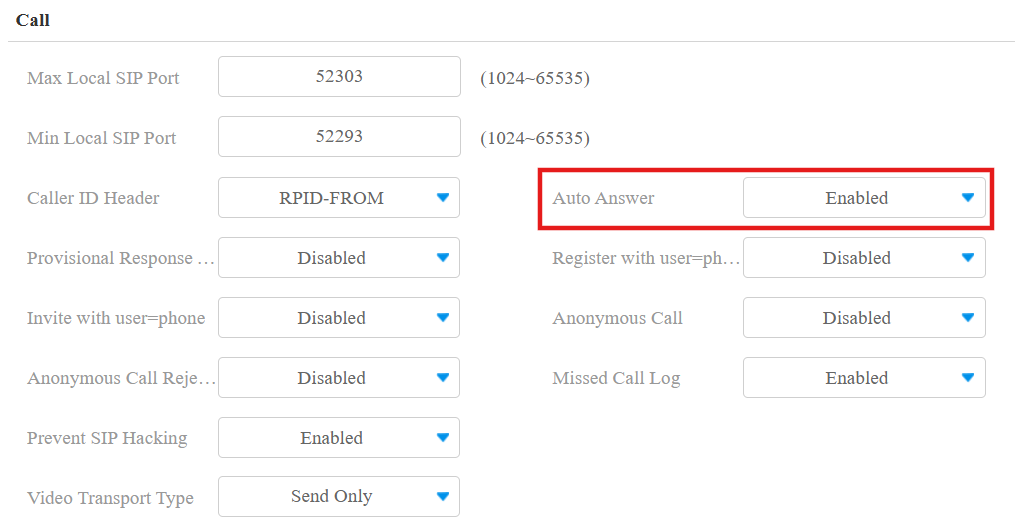
Once the feature is enabled, navigate to Phone > Call Feature > Auto Answer interface.
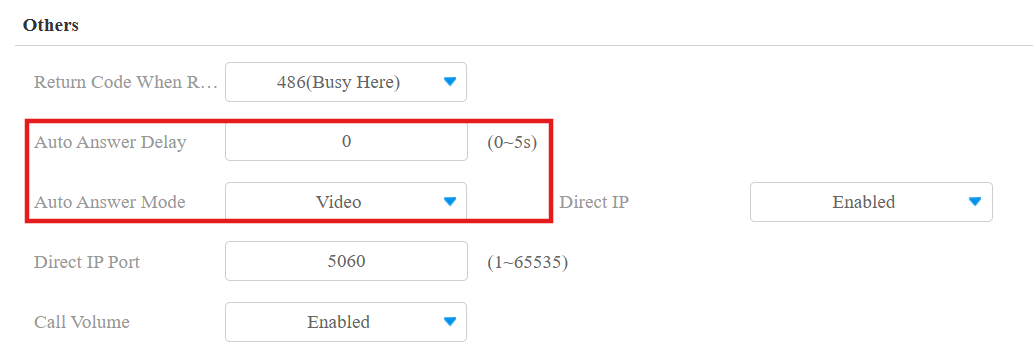
Auto Answer Delay: Set the time interval for the call to be automatically picked up after ringing. For example, if you set the delay time to 5 seconds, the door phone will answer the call automatically after 5 seconds.
Mode: Determine whether to auto-answer the call as a video or audio call.
Anonymous Call
You can set whether to answer or reject anonymous calls automatically.
Set it up on the Account > Advanced > Call interface.
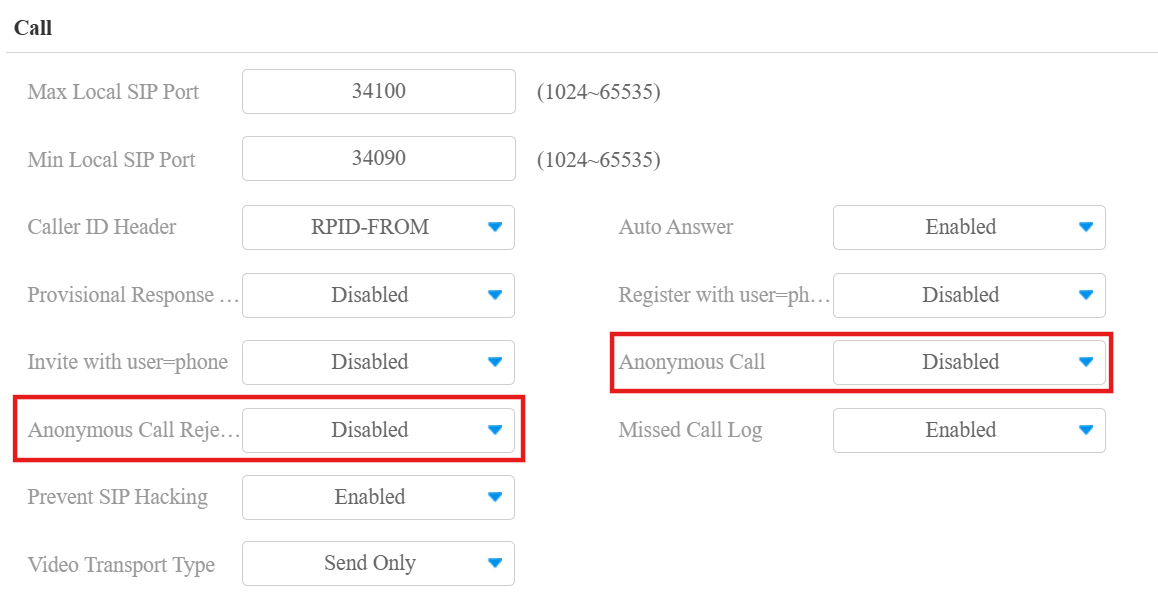
Anonymous Call: When enabled, the device will automatically answer anonymous calls.
Anonymous Call Rejection: When enabled, the device will automatically reject anonymous calls.
Sequence Call
L’appel de séquence est une fonctionnalité qui vous permet de composer un groupe de numéros dans un ordre prédéfini jusqu’à ce que l’un d’eux réponde. Cette fonctionnalité est prise en charge par Akuvox SmartPlus, qui fournit un ensemble de numéros d’appel de séquence pour l’application. Veuillez cliquer
pour la configuration détaillée.
To configure the sequence call, go to Intercom > Basic interface.

Time Out(Sec): Specify the time limit for the call between two sequential call numbers. For example, if the time value is set to 10, the call that is not answered in 10 seconds will be ended automatically and transferred to the next call number in order.
Group Call
Cette fonctionnalité permet aux utilisateurs d’appeler un groupe de contacts d’une simple pression. L’appareil prend en compte les appels de groupe locaux et les fonctionnalités SmartPlus. Pour en savoir plus sur la configuration détaillée, veuillez cliquer
.
You can configure the action when a group call is refused on the web Intercom > Basic > Group Call interface.

When Refused:
End This Call Only: The device will continue to call other numbers.
End All Calls: The calling ends.
Maximum Call Duration
Le téléphone de porte permet de définir la durée de l’appel pour recevoir l’appel depuis l’appareil appelant, car le côté appelant pourrait oublier de raccrocher l’interphone. Lorsque la durée de l’appel est atteinte, le téléphone porte met fin automatiquement à l’appel.
Set it up on the Intercom > Basic > Max Call Time interface.

Max Call Time: Specify the maximum duration of all calls. The door phone will end the call automatically when the time limit is reached.
Maximum Dial Duration
La durée maximale de numérotation est la limite de temps pour les appels entrants et/ou sortants sur le téléphone de porte. Si configuré, le téléphone porte terminera automatiquement l’appel si personne ne répond dans l’heure prédéfinie, qu’il soit entrant ou sortant.
Set it up on the Intercom > Basic > Max Dial Time interface.

Dial In Time: Specify the maximum duration of an incoming call. The door phone will automatically end the incoming call if it is not answered within the preset time.
Dial Out Time: Specify the maximum duration of an outgoing call. The door phone will automatically end the call it dialed out if there is no answer from the recipient within the preset time.
Hang Up After Open Door
Cette fonction met automatiquement fin à l’appel une fois la porte ouverte, permettant une réception fluide des appels suivants.
Set it up on the Intercom > Basic > Hang Up After Open Door interface.
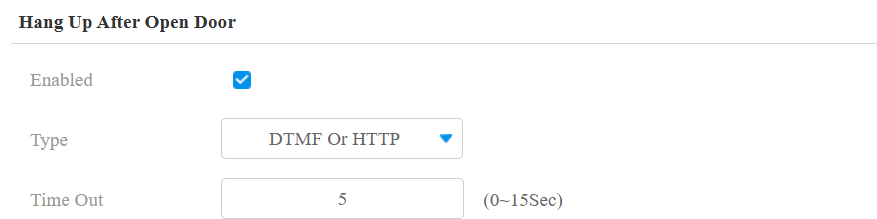
Type: Specify the door unlock method. If this specific method is used to release the door during a call, the door phone will end the call when the preset hang-up time is reached.
Time Out: Specify the hang-up time limit. The door phone will automatically terminate the call when the specific time is reached after the door is opened.
Two-way Video Call
La fonction vidéo bidirectionnelle permet une connexion visuelle avec les appelants et les destinataires via le téléphone de porte, offrant une conversation plus interactive et sécurisée.
Set it up on the Intercom > Basic interface.

Enabled: Disabled by default. Activate this feature to allow callers to see the called party's video stream during a video call.
In the following situations, two-way video calls can be established:
The device initiates a video call, and the other party with a camera answers it.
The other party with a camera initiates a video call, and the device answers it.
In all other cases, only audio communication is displayed.
Video Transport Type
You can select the video transport type for SIP call preview on the Account > Advanced > Call interface. The setting does not apply to IP calls.
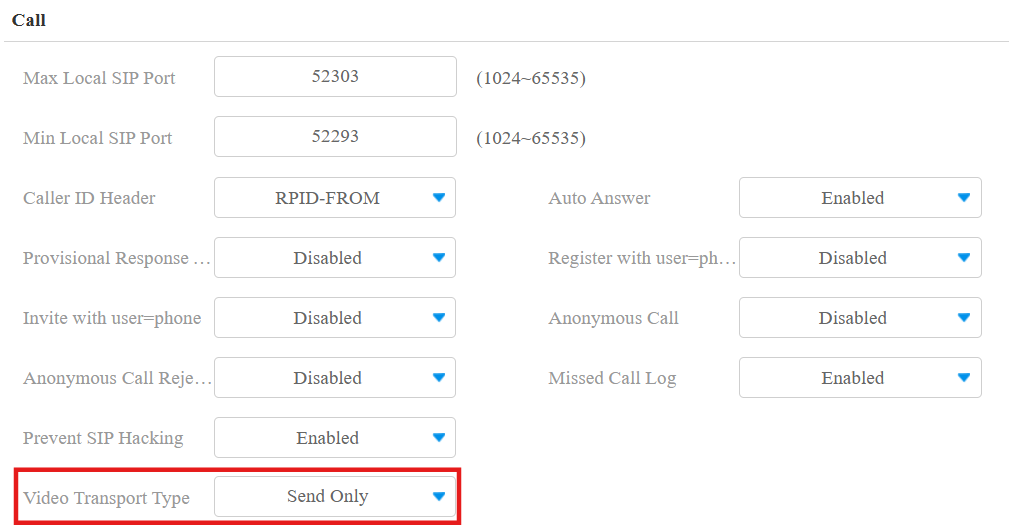
Video Transport Type: It is Send and Receive by default.
Inactive: Disable the function.
Send Only: The device sends the video stream to the other party.
Receive Only: The device only receives the video stream from the other party.
Send and Receive: The device can send and receive video streams to and from the other party.