MJPEG et RTSP sont les principaux types de flux de surveillance abordés dans ce chapitre.
MJPEG, ou Motion JPEG, est un format de compression vidéo qui utilise des images JPEG pour chaque image vidéo. Les appareils Akuvox affichent les flux en direct sur l’interface web et capturent des captures d’écran de surveillance au format MJPEG. Les paramètres liés à MJPEG déterminent la qualité vidéo et le statut on/off de la fonction de diffusion en direct.
RTSP signifie Real Time Streaming Protocol (Protocole de Streaming en Temps Réel). Il peut être utilisé pour diffuser la vidéo et l’audio des caméras tierces vers l’appareil. Vous pouvez ajouter le flux d’une caméra en ajoutant son URL. Le format URL des appareils Akuvox est rtsp:// D evice’s IP/live/ch00_0
ONVIF est un forum d’interface vidéo en réseau ouvert. Il permet à l’appareil de scanner et de découvrir des caméras ou des interphones avec des fonctions ONVIF activées. Les flux en direct obtenus via ONVIF sont essentiellement au format RTSP.
RTSP Stream Monitoring
La fonction RTSP permet aux moniteurs intérieurs Akuvox, ou aux appareils tiers, d’obtenir le flux en direct depuis le téléphone portier.
Vous pouvez configurer les identifiants d’authentification RTSP et les paramètres vidéo.
RTSP Basic Settings
To set it up, go to Surveillance > RTSP interface.
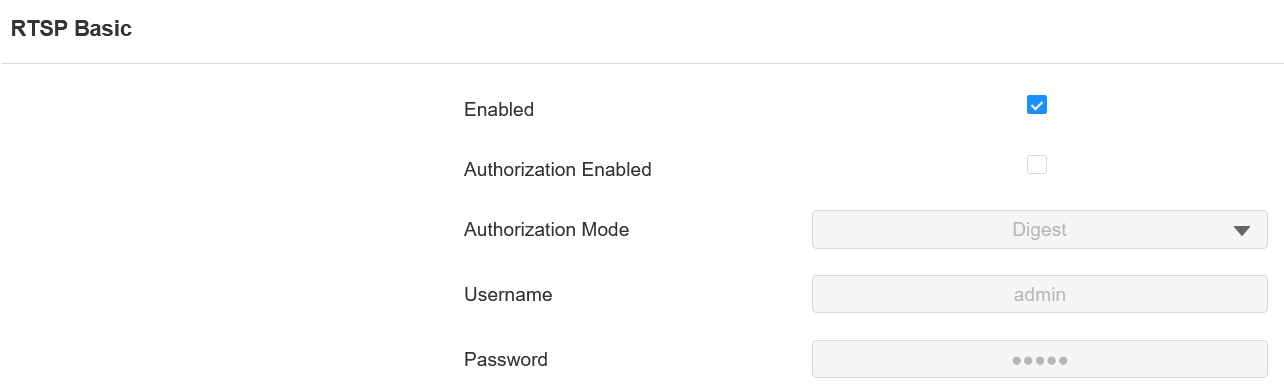
Authorization Enabled: When you enable the RTSP authorization, you are required to configure RTSP Authentication Mode, RTSP Username, and Password for authorization.
Authentication Mode: There are two options, Basic and Digest. Digest is the default authentication type.
Username: Set the username for authentication.
Password: Set the password for authentication.
RTSP Stream Setting
Le flux RTSP peut utiliser soit H.264, soit Mjpeg comme codec vidéo. Si vous choisissez H.264, vous pouvez aussi ajuster la résolution vidéo, le débit binaire et d’autres réglages.
To configure the RTSP stream, navigate to the web Surveillance > RTSP interface.
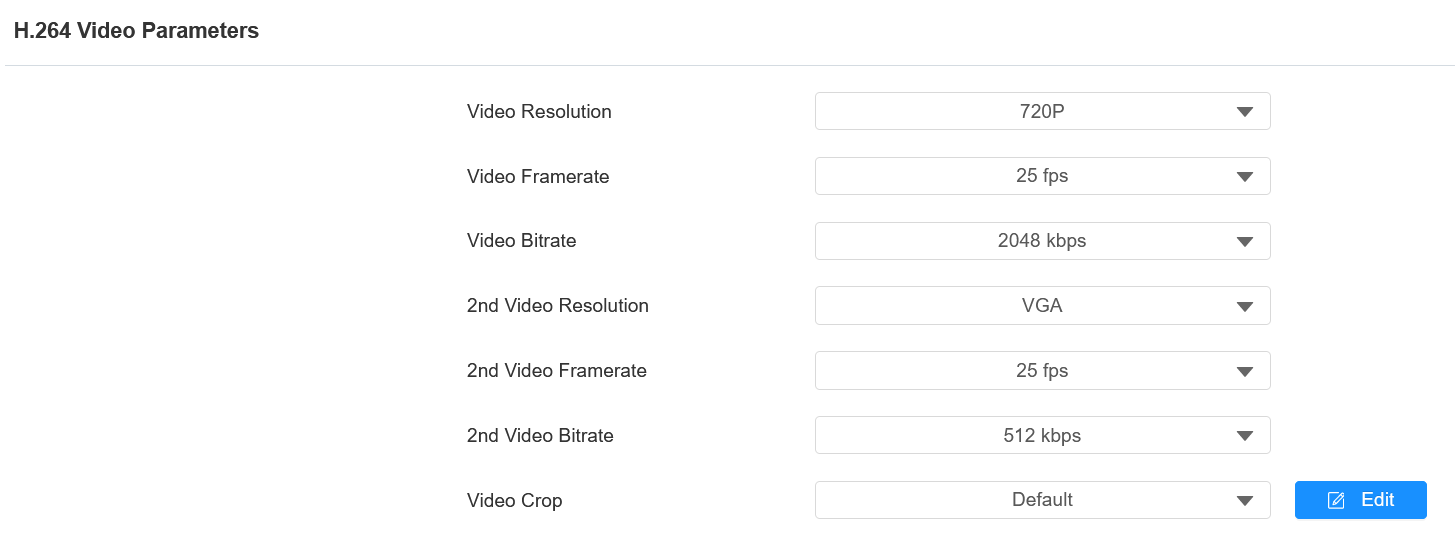
Video Resolution: Specify the image resolution, varying from the lowest QCIF(176x144 pixels) to the highest 1080P(1920x1080 pixels).
Video Framerate: Frames per second, refers to how many frames are displayed in one second of video. The default frame rate is 25fps.
Video Bitrate: The amount of video data transferred in a specific duration of time. A higher video bitrate means a higher possible quality, but also higher file sizes and more bandwidth.
2nd Video Resolution: Specify the image resolution for the second video stream channel.
2nd Video Framerate: Set the frame rate for the second video stream channel.
2nd Video Bitrate: Set the bit rate for the second video stream channel. The default is 512 kbps.
Video Crop:
Original: Display the full-screen video.
Default: Select the specific area of the video to be displayed. Click Edit to crop the video.
Tip
To view the audio and video stream using RTSP:
First channel: rtsp://Device’s IP/live/ch00_0
Second channel: rtsp://Device’s IP/live/ch00_1
MJPEG Image Capturing
Vous pouvez prendre une image de monitoring au format Mjpeg avec l’appareil. Pour cela, il faut activer la fonction Mjpeg et choisir la qualité d’image.
To set it up, go to Surveillance > MJPEG interface.

Enabled: Entering the specific URL into the browser can access either an image or a video from the camera.
Tip
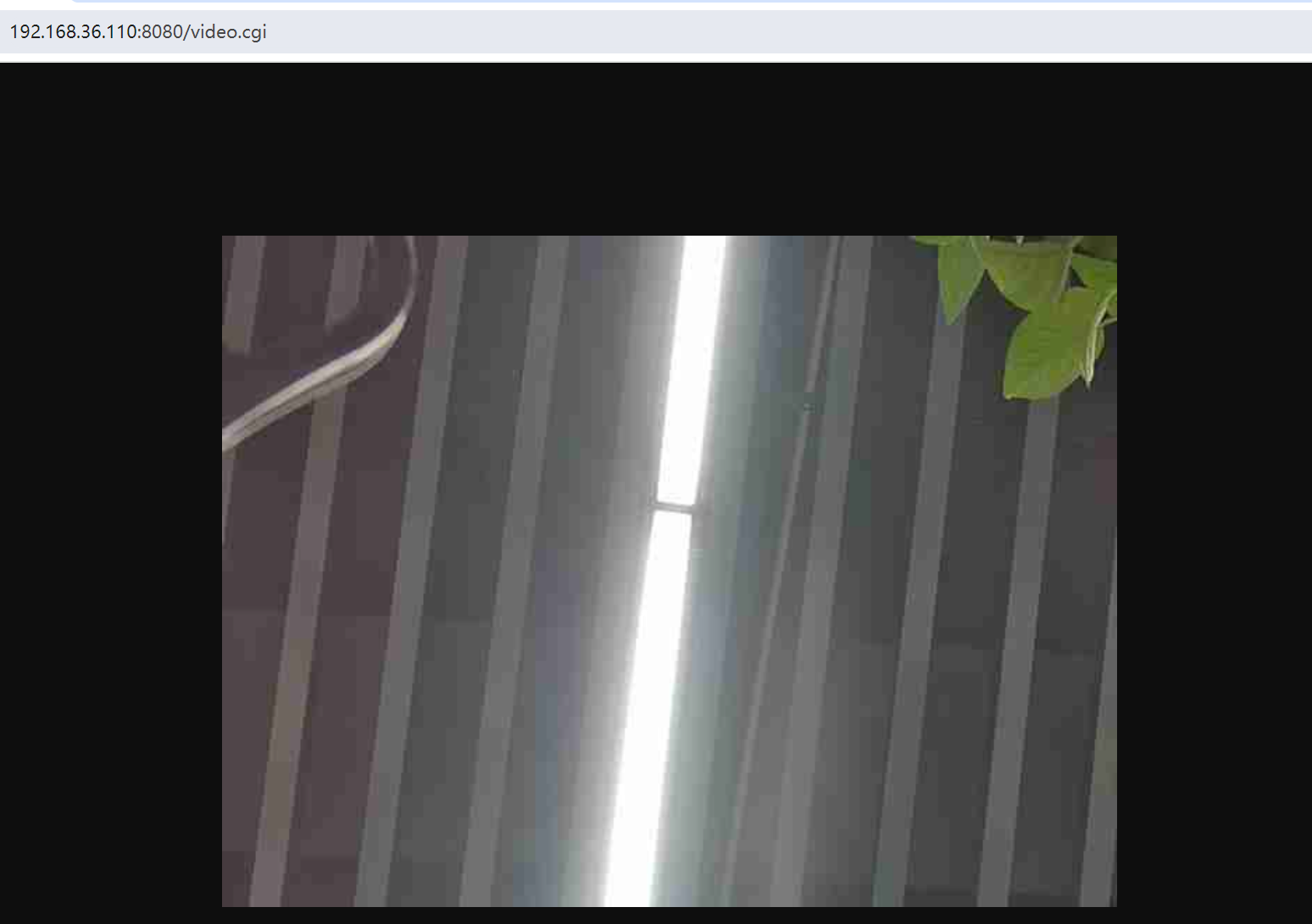
To view a dynamic stream, use the URL http://device_IP:8080/video.cgi.
For capturing a screenshot, use the following URLs, with the image formats varying accordingly:
http://device_IP:8080/picture.cgi
http://device_IP:8080/picture.jpg
http://device_IP:8080/jpeg.cgi
Image Quality: Specify the image resolution, varying from the lowest QCIF(176x144 pixels) to the highest 1080P(1920x1080 pixels).
Live Stream
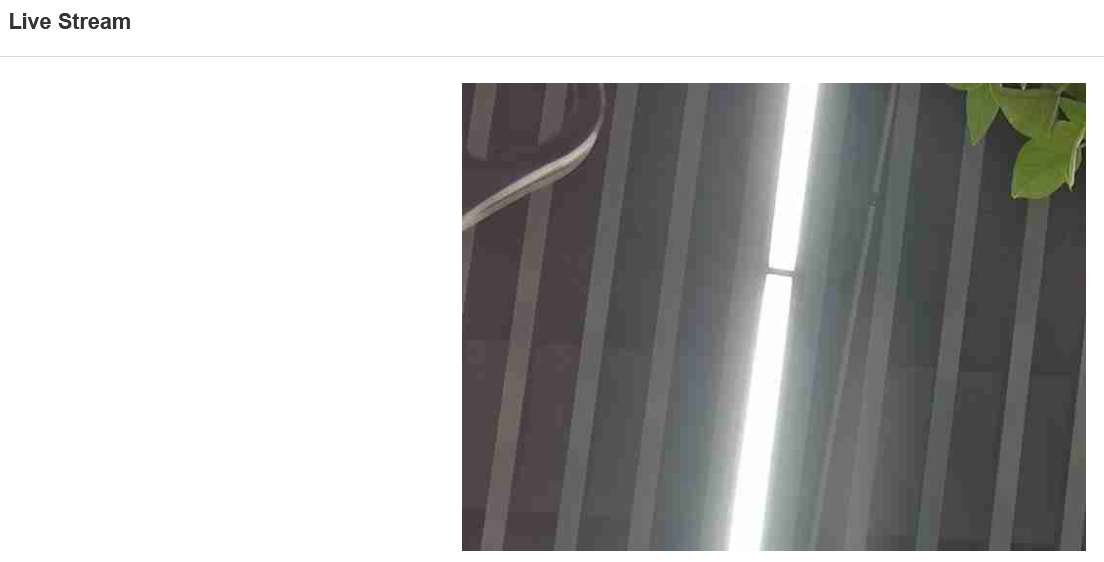
Il existe deux façons de vérifier la vidéo en temps réel depuis l’appareil. L’un d’eux est d’aller sur l’interface web de l’appareil et de visualiser la vidéo là-bas. L’autre est d’entrer la bonne URL dans le navigateur web et d’accéder directement à la vidéo.
See the live stream on web Surveillance > Live Stream interface.
Alternatively, as described in the MJPEG Image Capturing section, enter the correct URL into a web browser.
ONVIF
Vous pouvez accéder à la vidéo en temps réel depuis la caméra de l’appareil en utilisant le moniteur intérieur Akuvox ou d’autres appareils tiers comme le Network Video Recorder (NVR). Activer et configurer la fonction ONVIF sur l’appareil permettra à sa vidéo d’être visible sur d’autres appareils.
Cliquez ici pour voir un exemple d’utilisation de la fonctionnalité ONVIF : l’intégration avec le système NVR Uniview.
To set it up, go to Surveillance > ONVIF > Basic Setting interface.
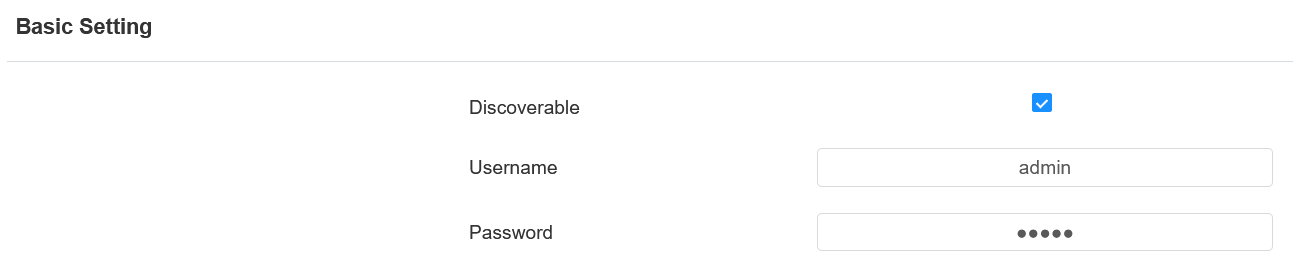
Discoverable: When enabled, the video from the device camera to be searched by other devices.
Username: Set the username required for accessing the device's video stream on other devices. It is admin by default.
Password: Set the password required for accessing the device's video stream on other devices. It is admin by default.
Tip
Once the settings are configured, to access the video stream on the third-party device, simply enter the ONVIF URL: http://Device’s IP:80/onvif/device_service.
Camera Mode
You can select the camera mode based on where the device is installed.
To select it, go to Surveillance > ONVIF > Camera interface.

Mode: Select Outdoor or Indoor mode based on the installation environment for better image quality.