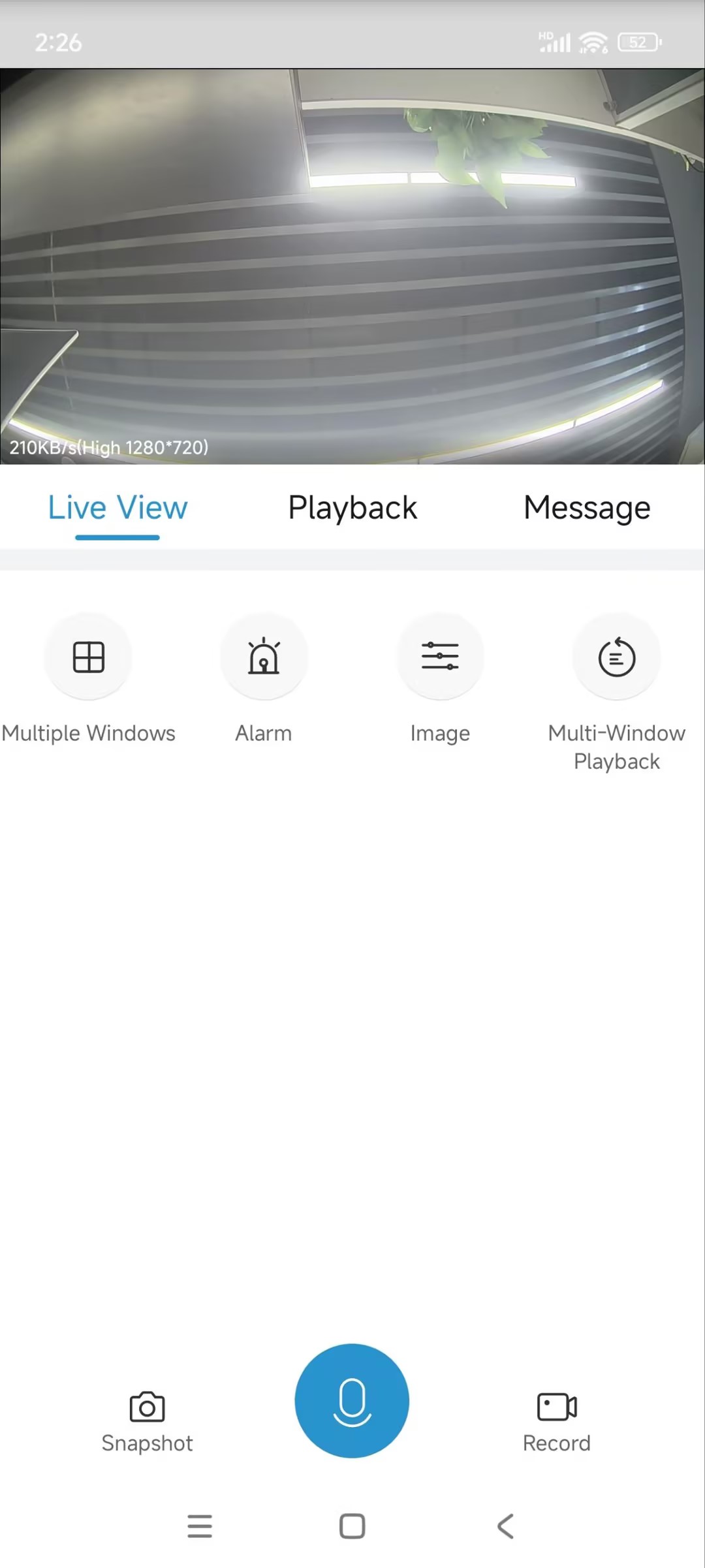
Akuvox door phones can be integrated with the Uniview NVR system, allowing users to view the monitoring streams of door phones by the Uniview app and web portal.
Note
The following device models with specific firmware versions or higher support this feature:
R29: 29.30.10.230;
R20: 320.30.10.150;
E12: 312.30.10.18.
The tested Uniview NVR model is NVR301-04-P4.
This article takes R20 as an example.
Before You Start
Make sure:
you have powered on the NVR with a 48V power supply and inserted an Ethernet cable into its Ethernet port. The RUN and NET indicator lights will stay blue.
your computer is on the same LAN as the NVR.
Set up the Door Phone
Use the device IP to log in to its web interface. The initial username and password are both admin.
Click Surveillance > ONVIF.
Enable the feature and customize the username and password.
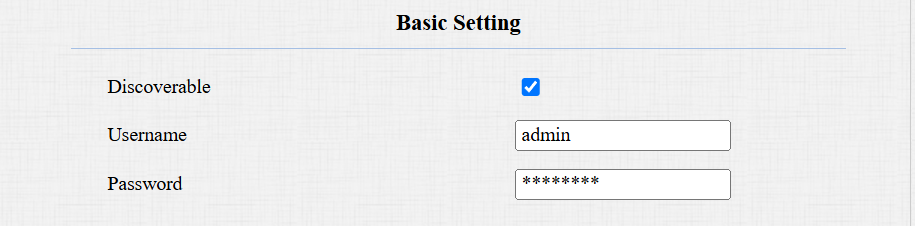
Click Submit.
Log in to NVR’s Web Portal
Find the NVR’s IP address for logging in to its web portal.
Download and install the maintenance tool from the official Uniview website.
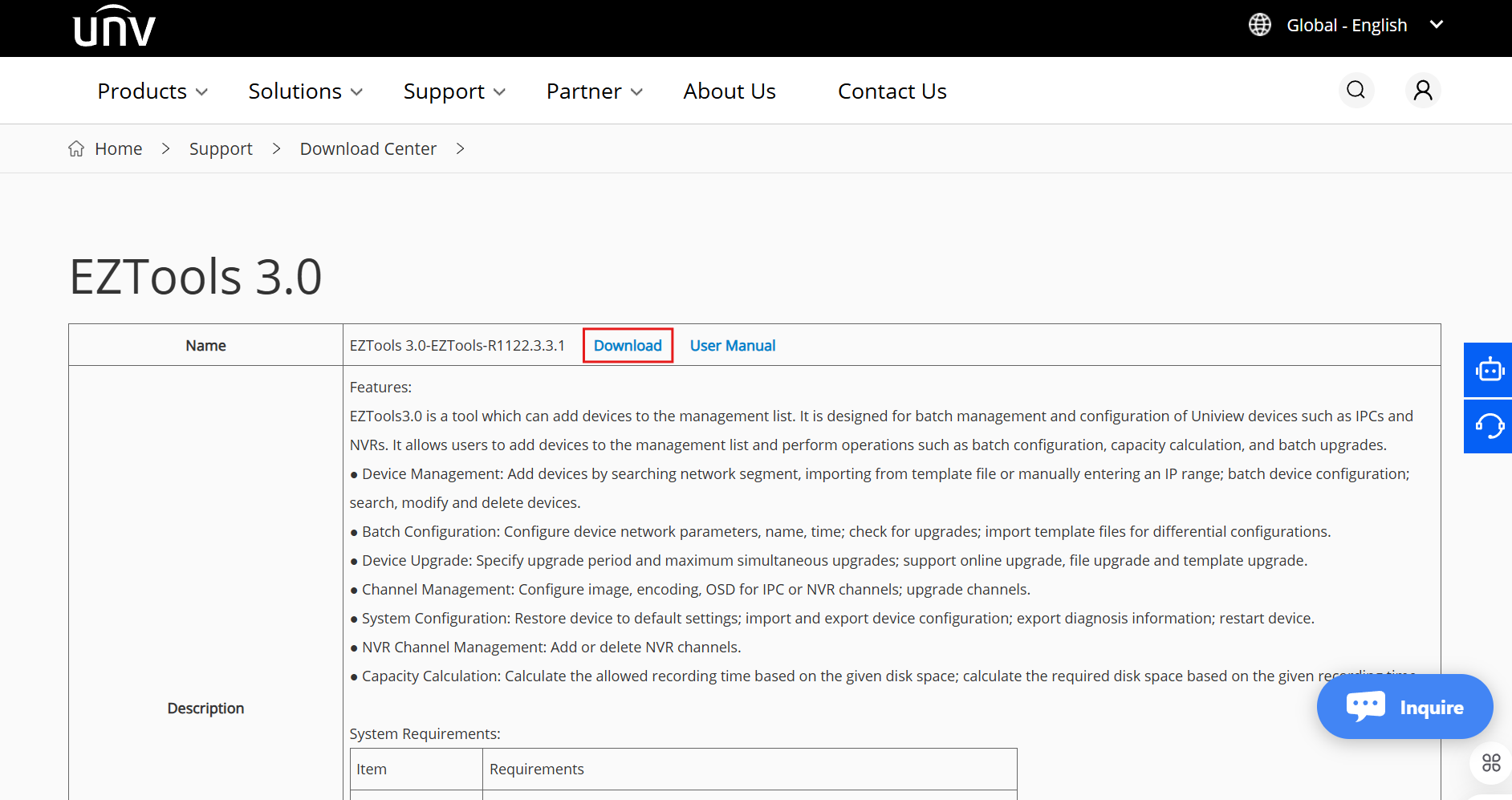
The device on the same LAN as your computer will display. You can see its IP address.
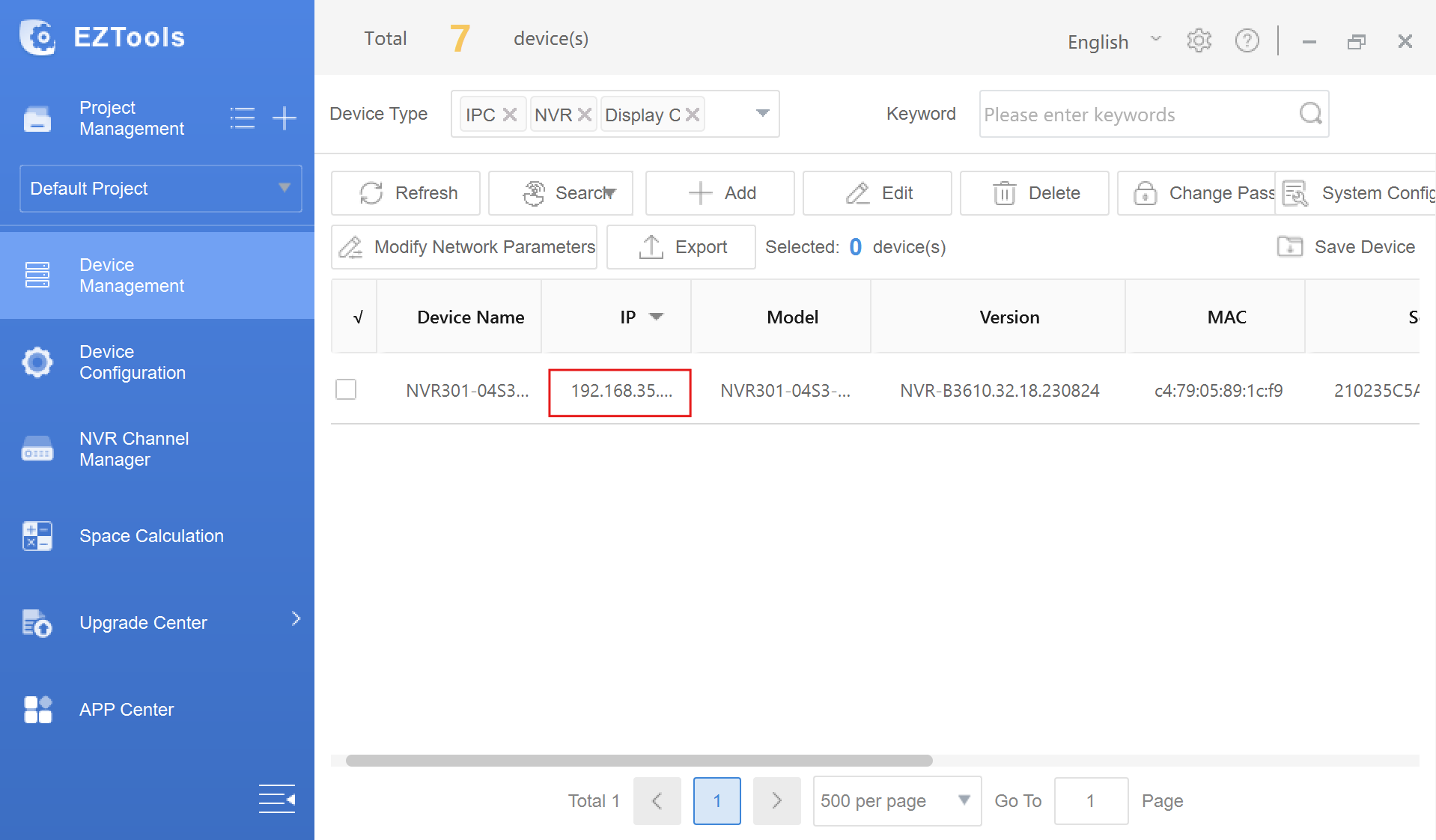
Enter the IP address in a browser.
Enter the Username and password. The initial username is admin, and the password is 123456.
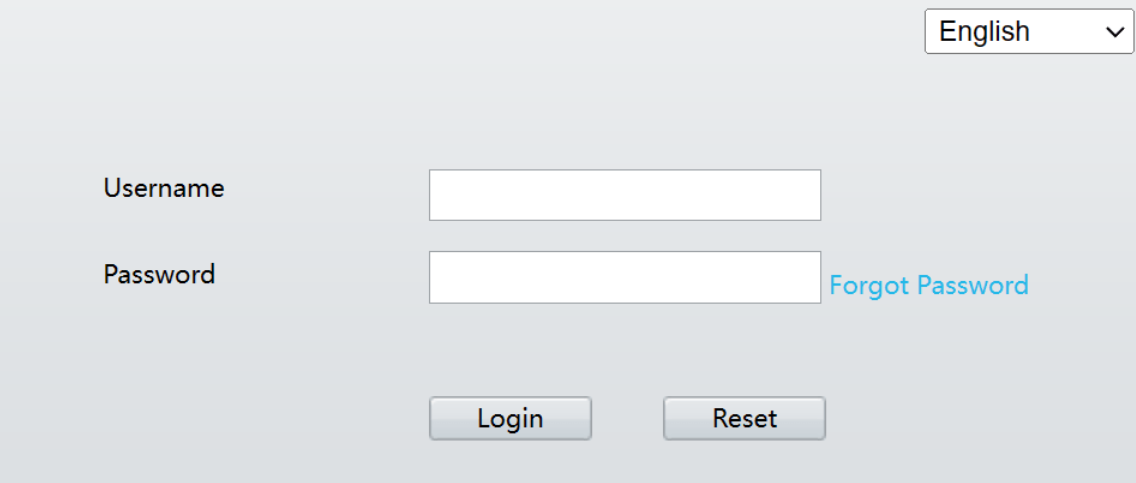
Click Login.
Add the Door Phone
Click Setup > Camera > Auto Search. Devices searched will be displayed.
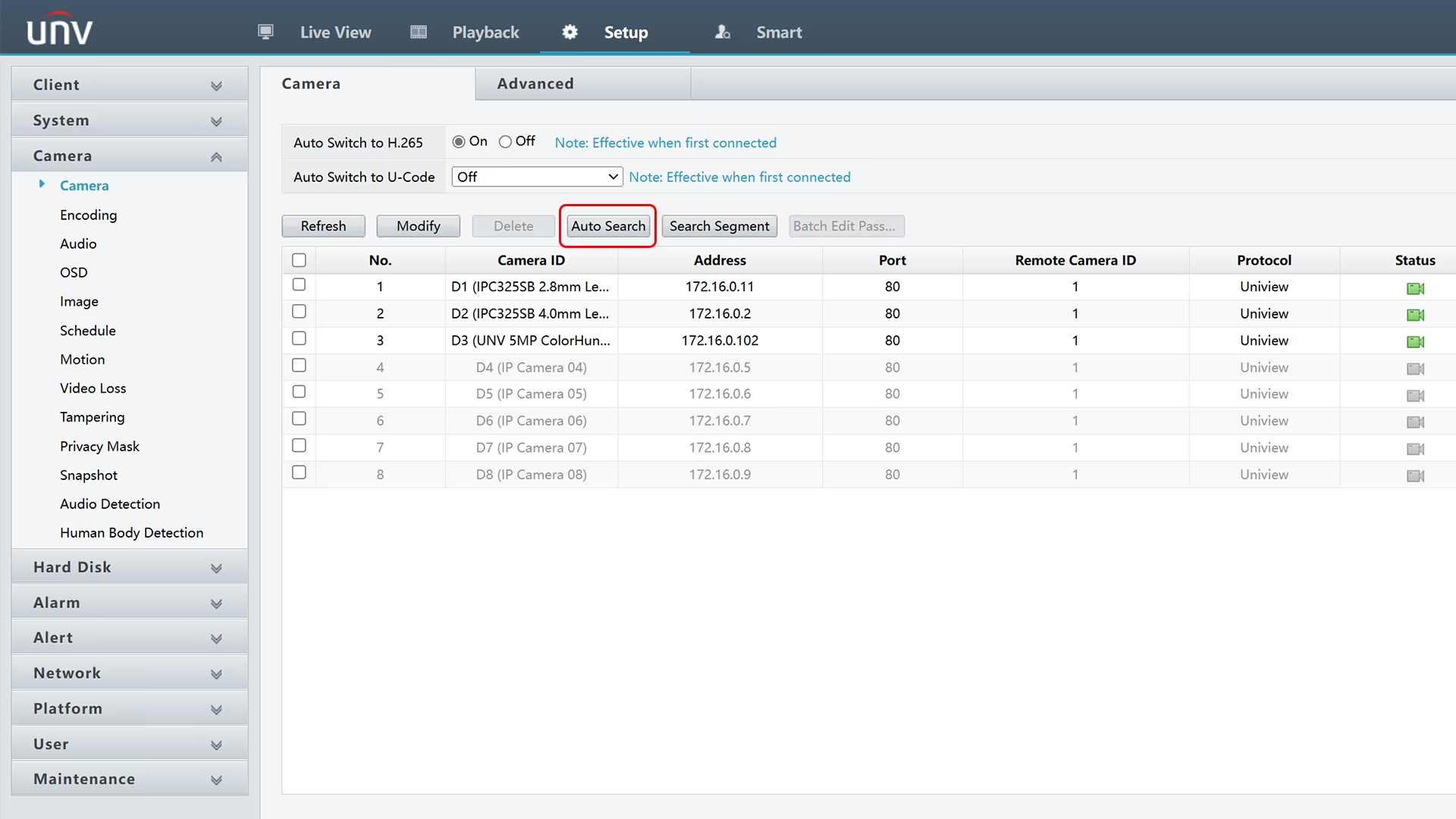
Check the target device and click OK.

Select an empty channel and then click Modify.
Set the Add Mode to IP Address.
Enter the door phone’s IP address, ONVIF username, and password.
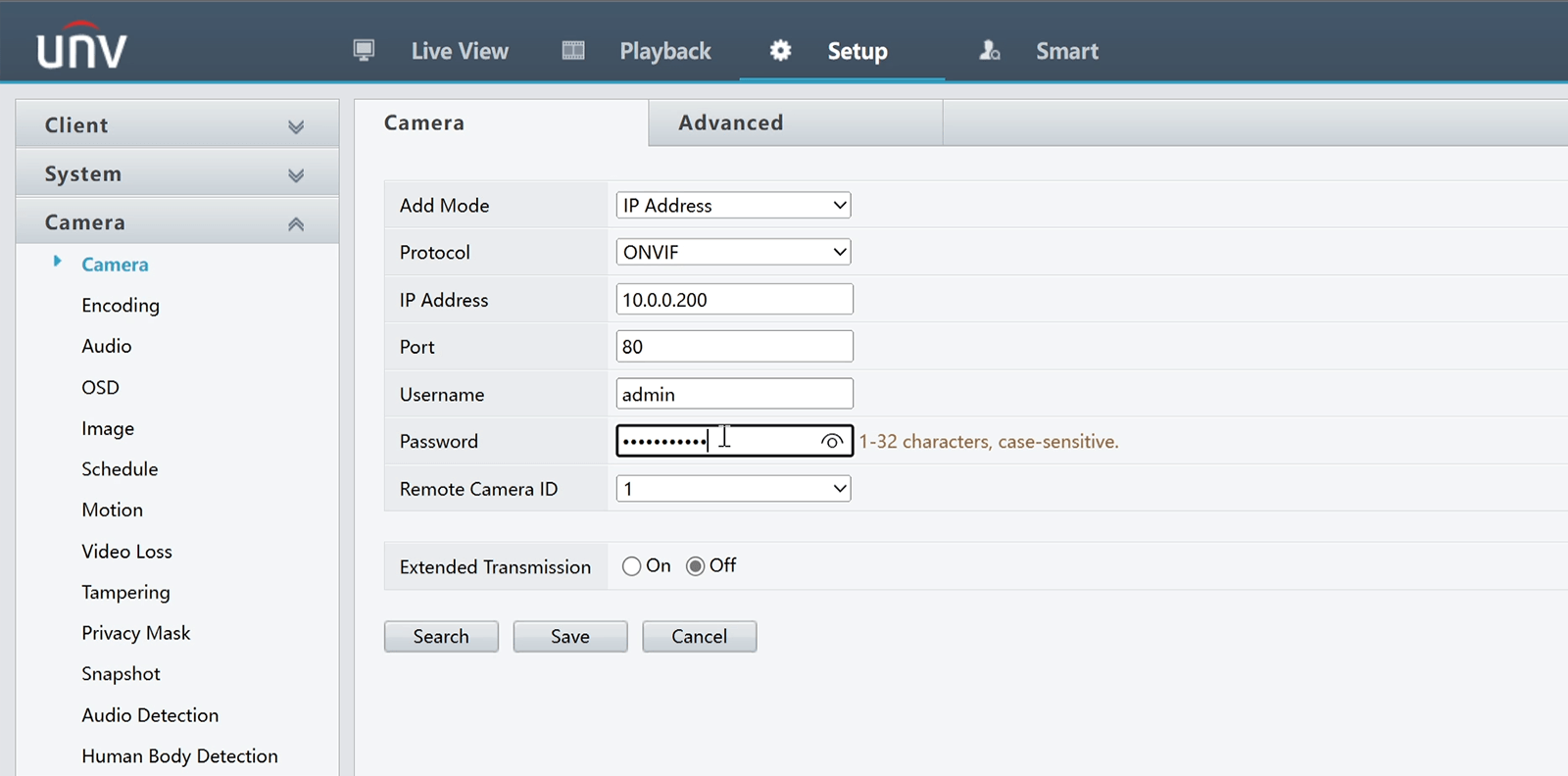
Click Save.
When adding succeeded, the device status will switch from  to
to  .
.
Click Live View on the upper menu and you can see the door phone’s live stream.
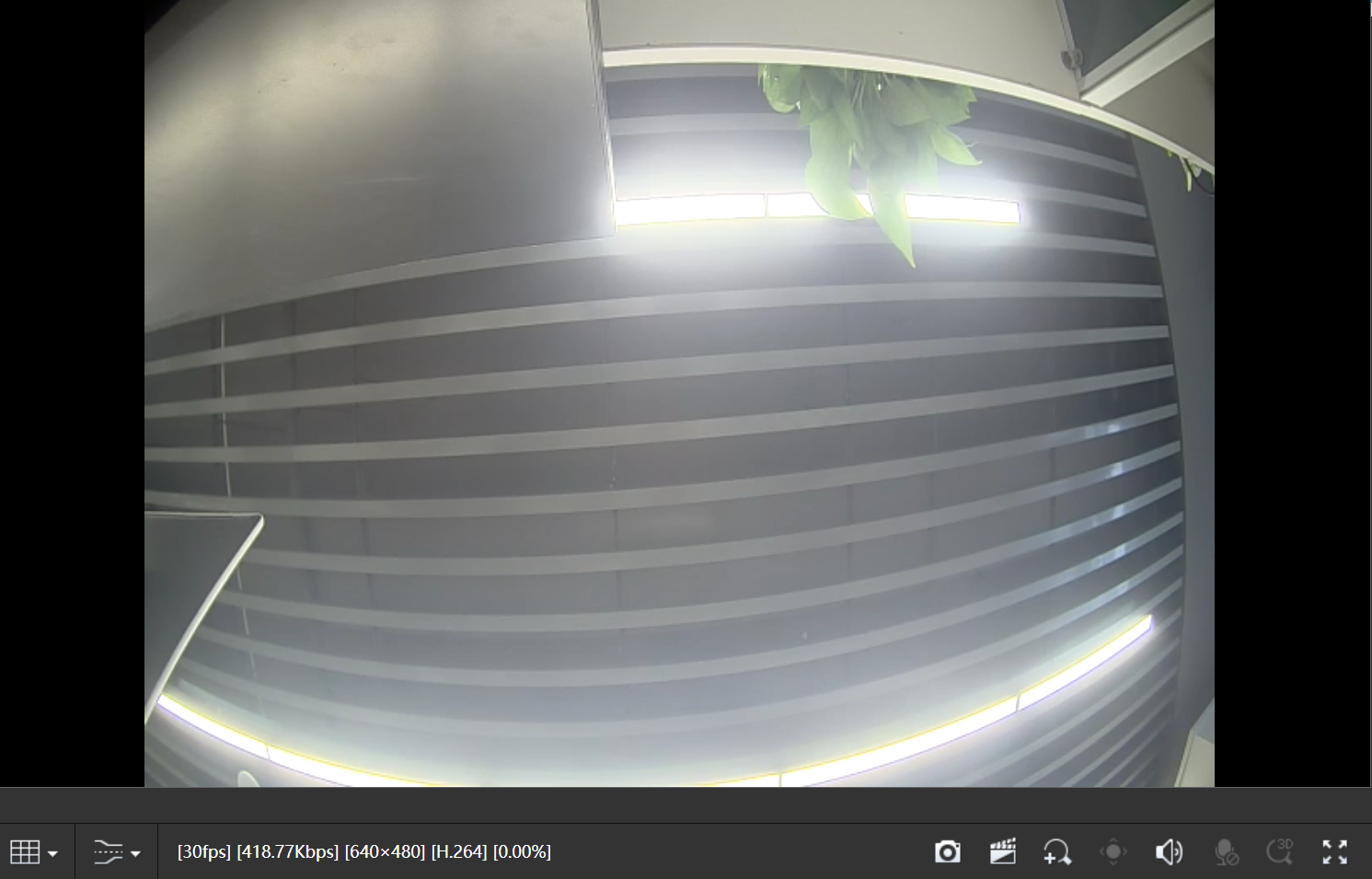
Users can monitor through the door phone with their Uniview apps.