Your HyPanel Pro
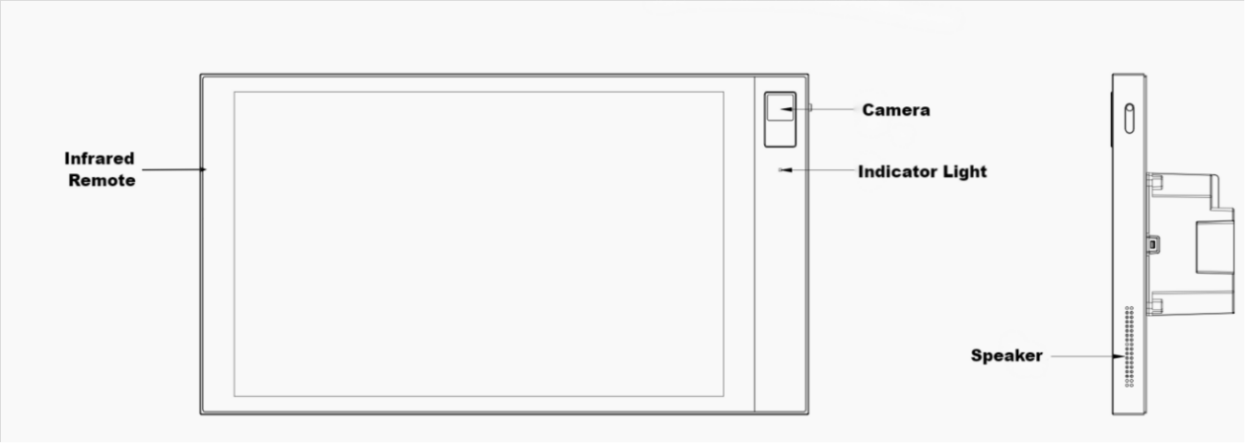
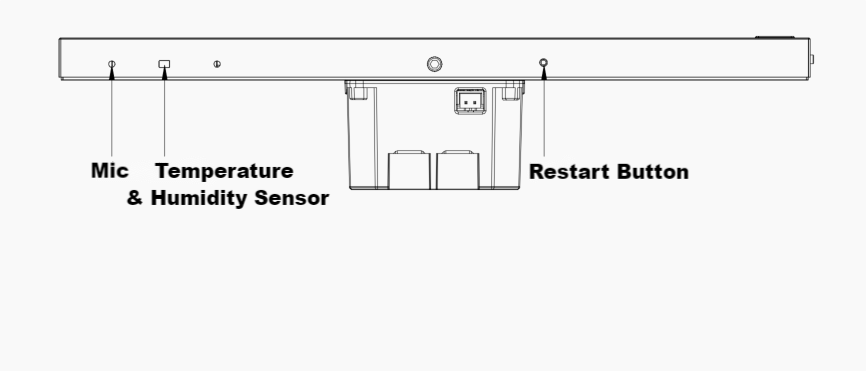
Indicator light
HyPanel Pro has an indicator light located under the camera to provide immediate visual feedback about the network connection status.
White Light: The panel is successfully connected to a network.
Red Light: The panel is not connected to the network.
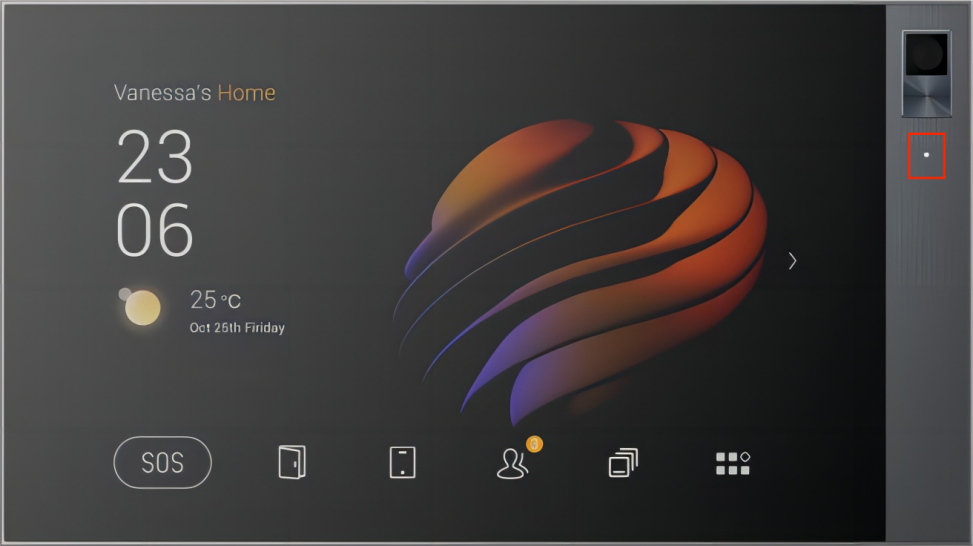
If you want to disable the light or customize its on-time, swipe down from the top edge of any screen, and tap  > Display > Indicator Light.
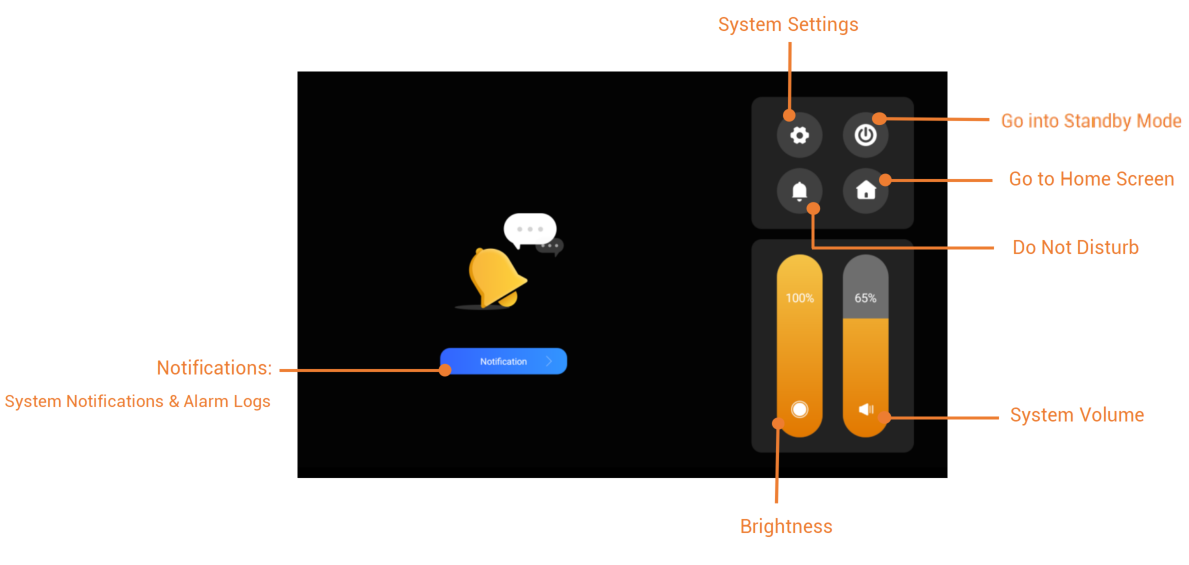
Control center
To open the Control Center for quick control, swipe down from the top edge of any screen.
Display orientation
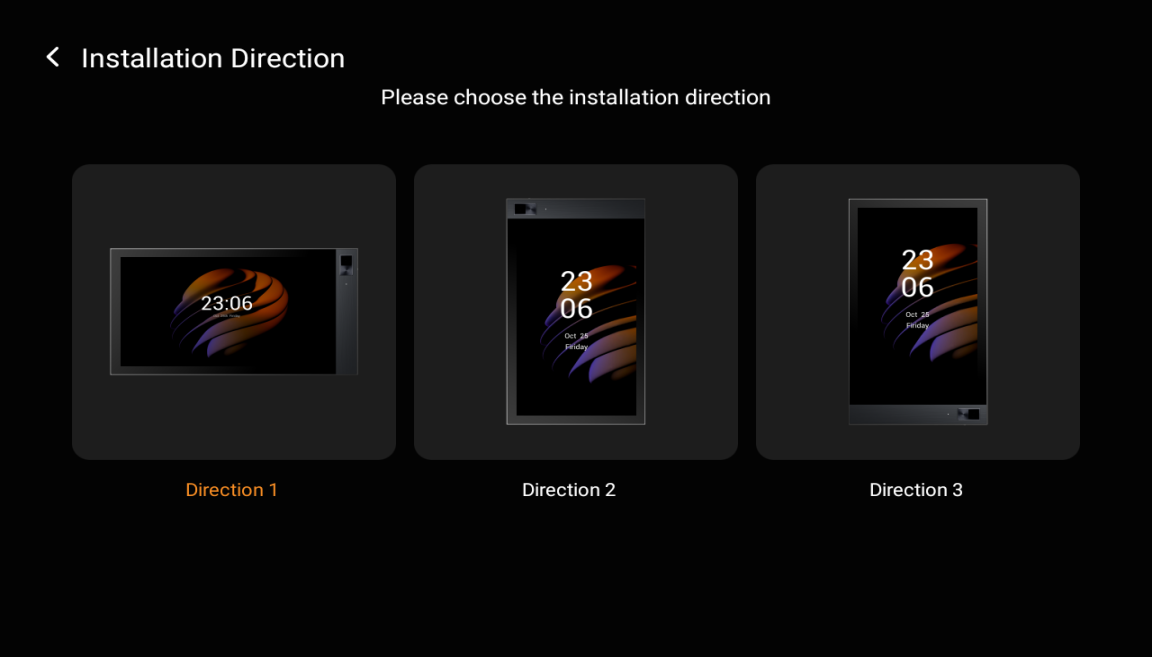
You can set the screen to vertical or horizontal based on how the device is installed.
To change the direction:
Swipe down from the top edge of any screen, and go to  > Display > Installation Direction.
Home screen
On the home screen, you can access features and functions by tapping icons and menus. You can also customize the wallpaper and the shortcuts displayed on the home screen.
TIP:
You can choose which feature to be available on the HyPanel Pro via the user web portal.
Category tabs
Besides the Scenes tab, when an application or a new type of device is added, a corresponding category appears on the left side. Here are some examples:
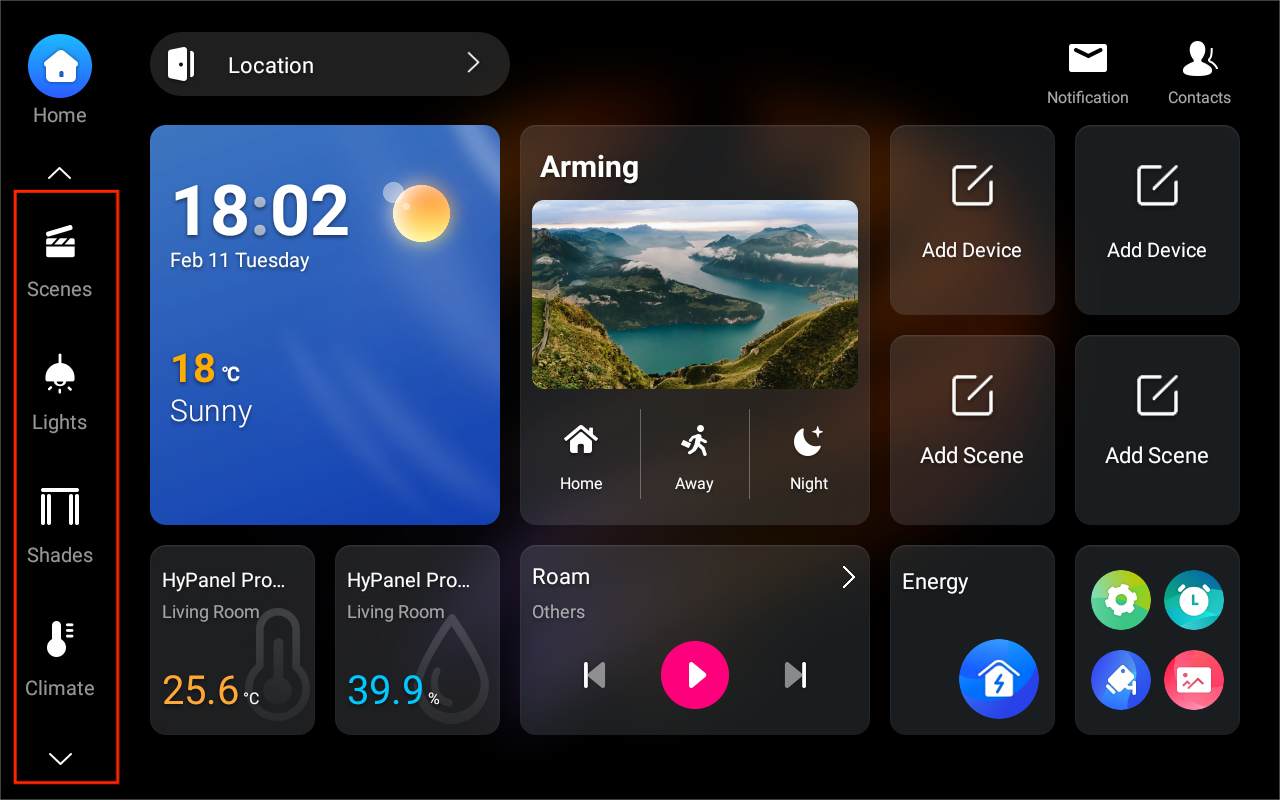
Lights: Lighting devices.
Shades: Shades, curtains, blinds, and more.
Climate: Air quality monitors, air conditioners, thermostats, cooling/heating system, and more.
Electric: Switches, relays, and more.
Security: Sensors such as motion sensors, door phones, locks, cameras, and more.
Media: Speakers, TV, and more.
Gateway: akubela panels.
More: IR controllers, customized remotes, and more.
Shortcut cards
You can add, remove, replace, or rearrange shortcut cards on Home screen.
Add cards
Tap and hold the blank area on the Home screen, then tap
 .
.
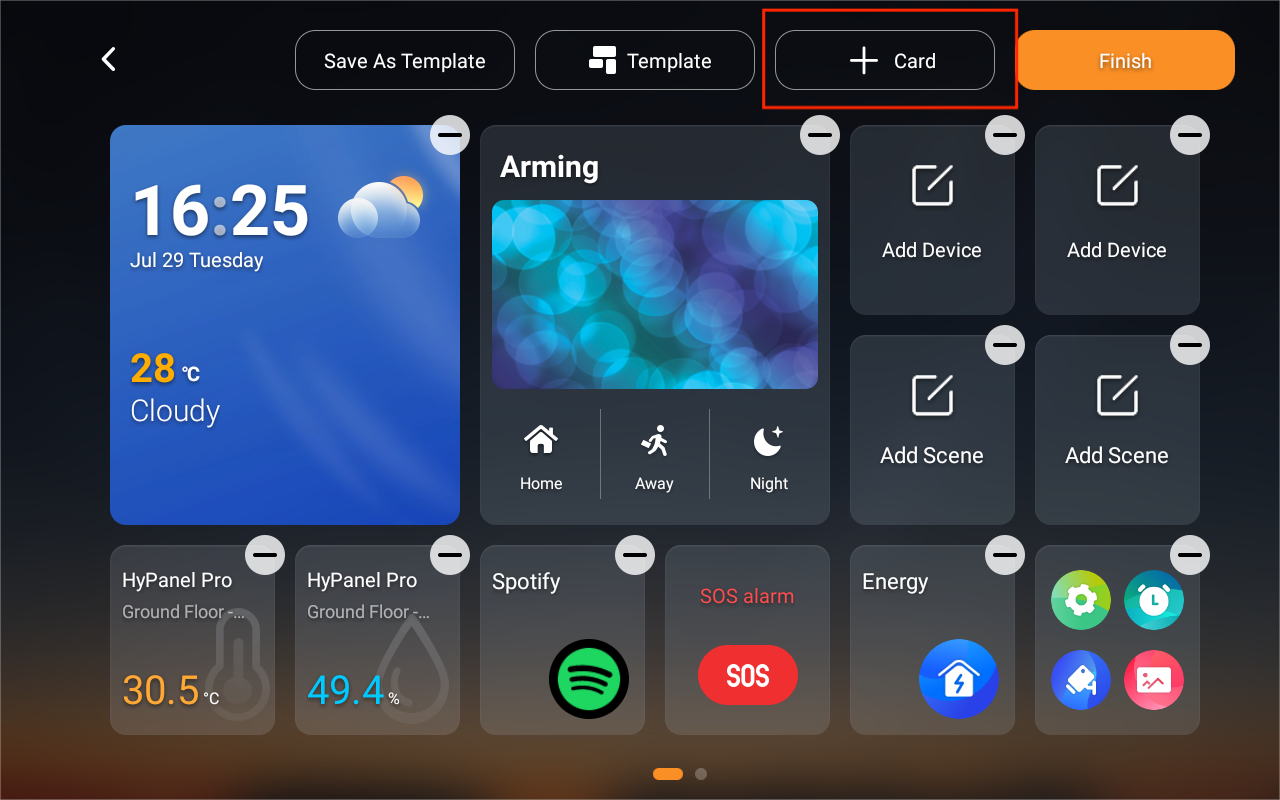
Select a category.
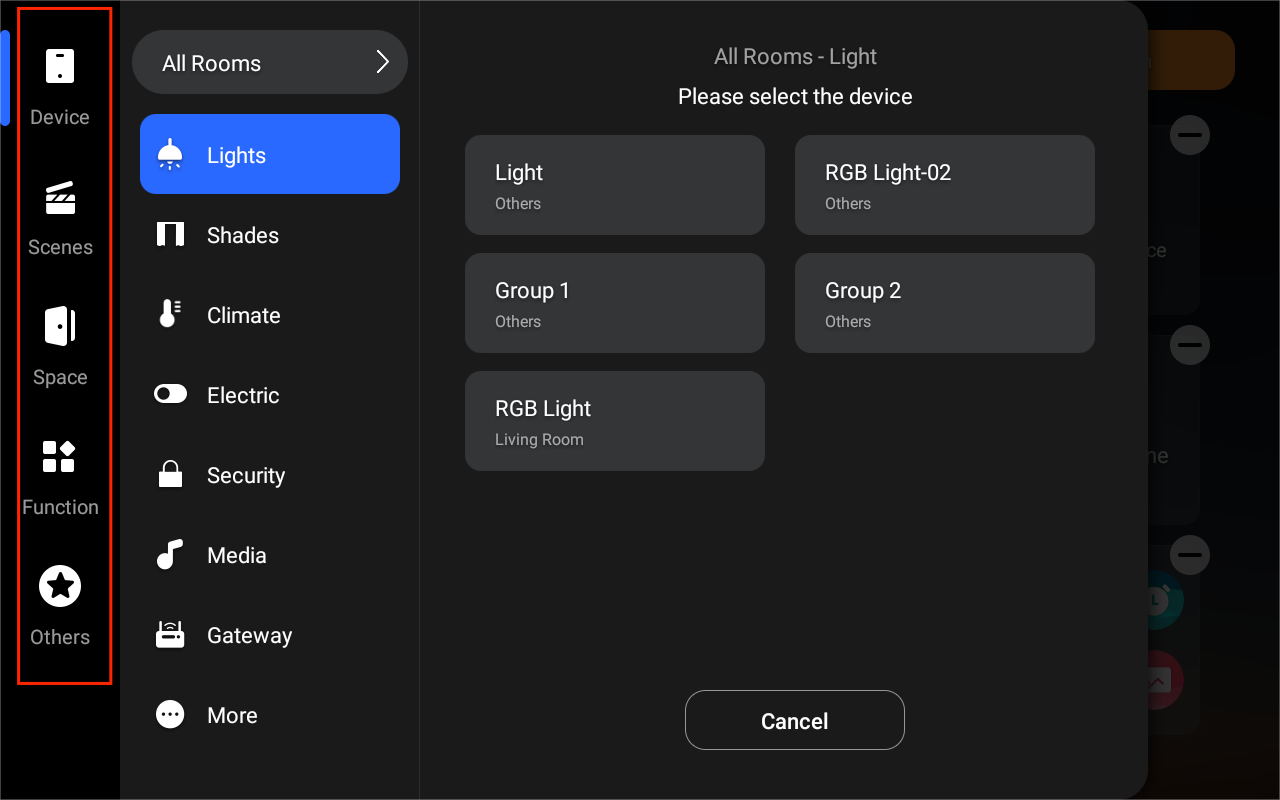
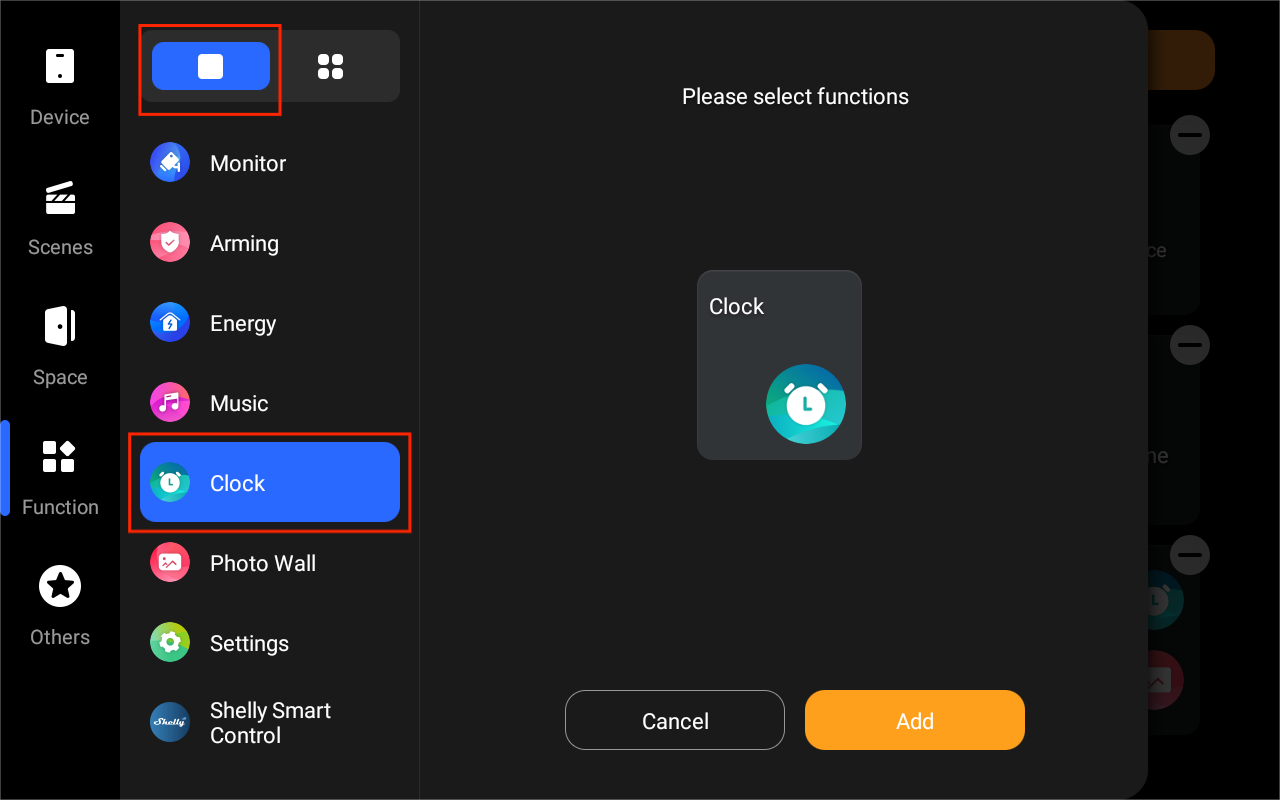
Choose the desired card(s):
To add one card, tap
 , then select the desired card.
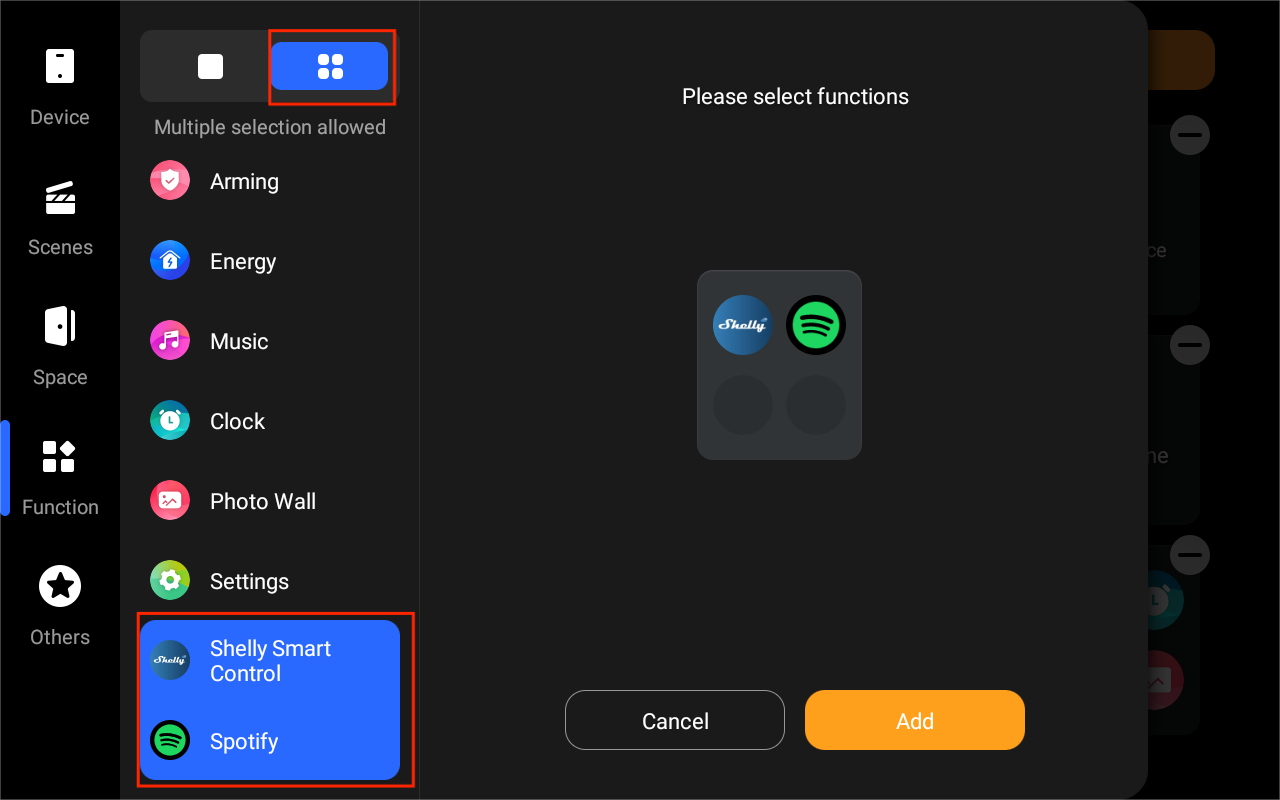
To add multiple cards into one drawer(not supported for Devices and Others categories), tap
 , and select the desired ones.
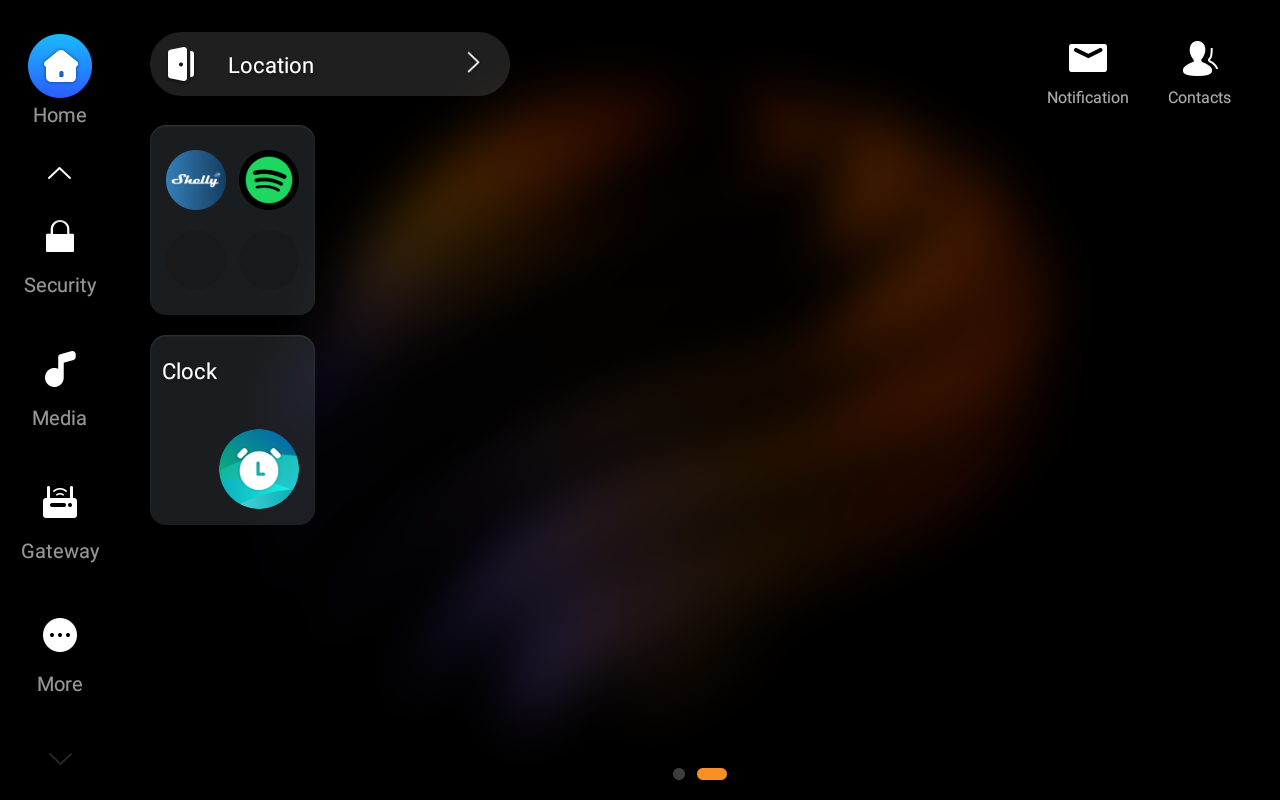
Tap Add > Finish. The new card and drawer will display on the Home screen.
Remove cards
You can remove cards individually or in batch.
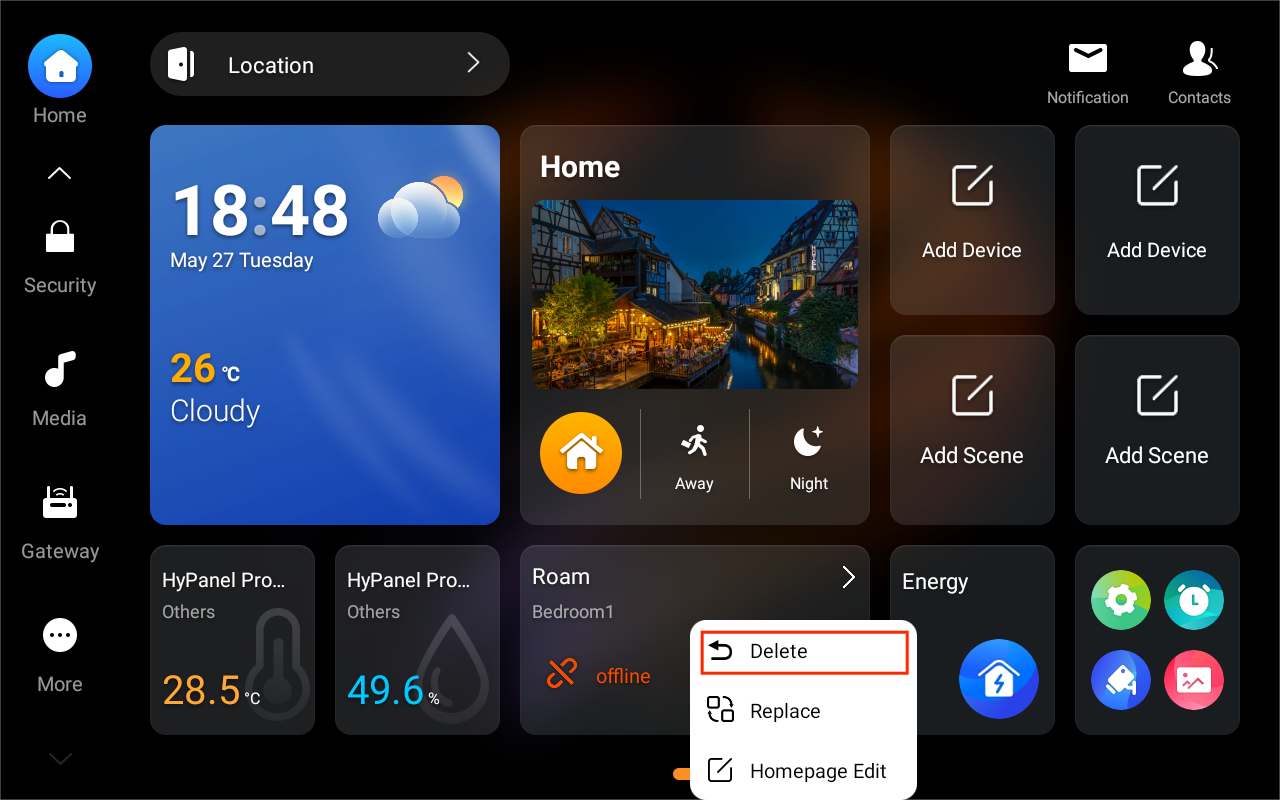
To delete one card: Tap and hold it, then select Delete.
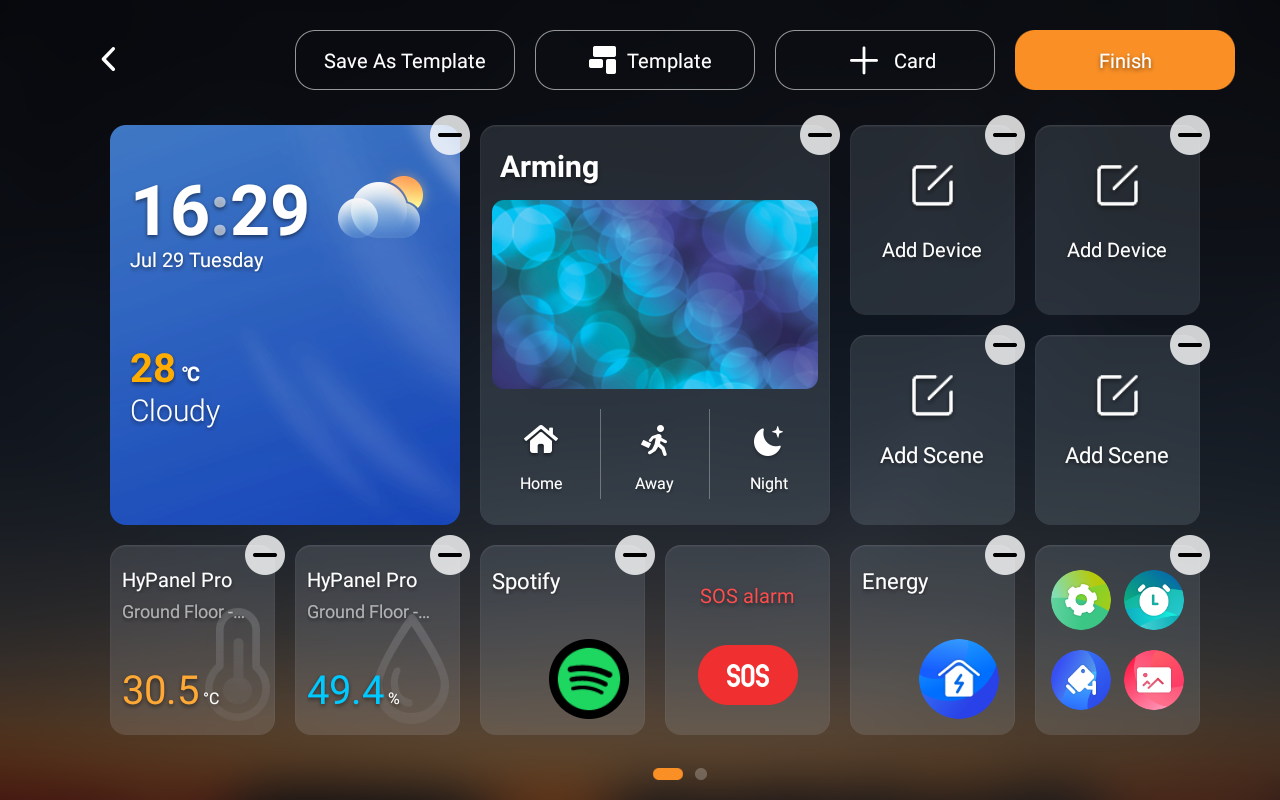
To delete multiple cards: Tap and hold the blank area on the Home screen, then tap
 .
.
Replace cards
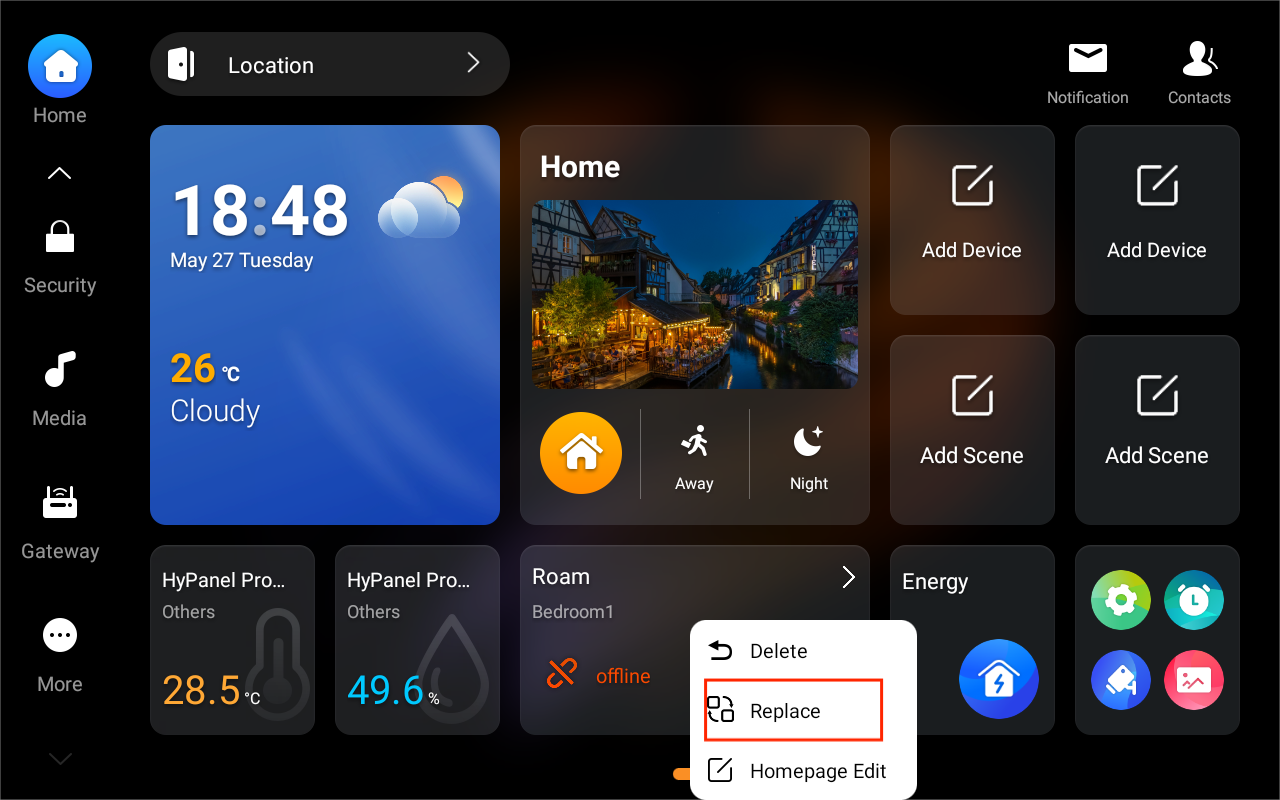
Tap and hold a card, tap Replace, and choose a new one.
Rearrange cards
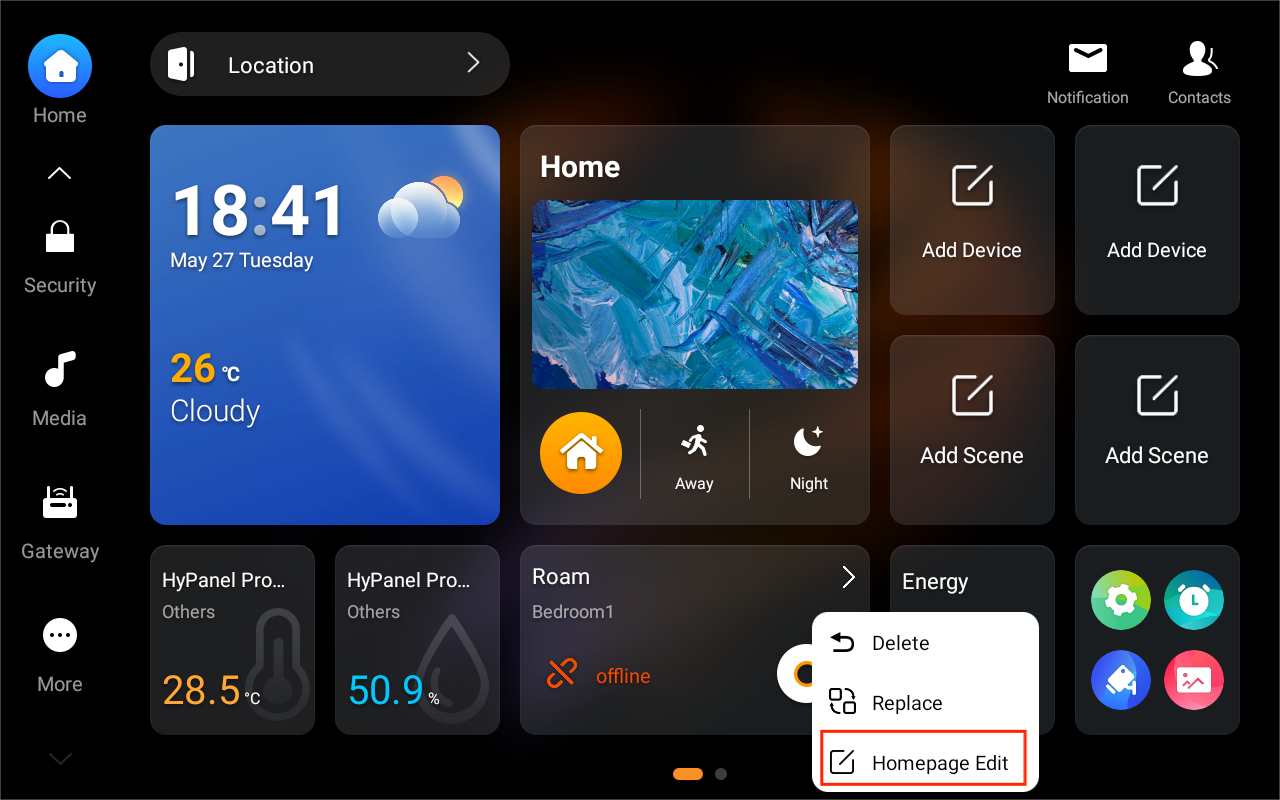
Tap and hold any card, tap  , then drag it to your desired place.
Display templates
The panel provides four default Home screen templates for displaying shortcut cards. You can also save your custom Home screen layout as a reusable template.
Save a custom template
To save your current Home screen layout as a template:
Tap and hold the blank area on the Home screen.
Tap
 .
.
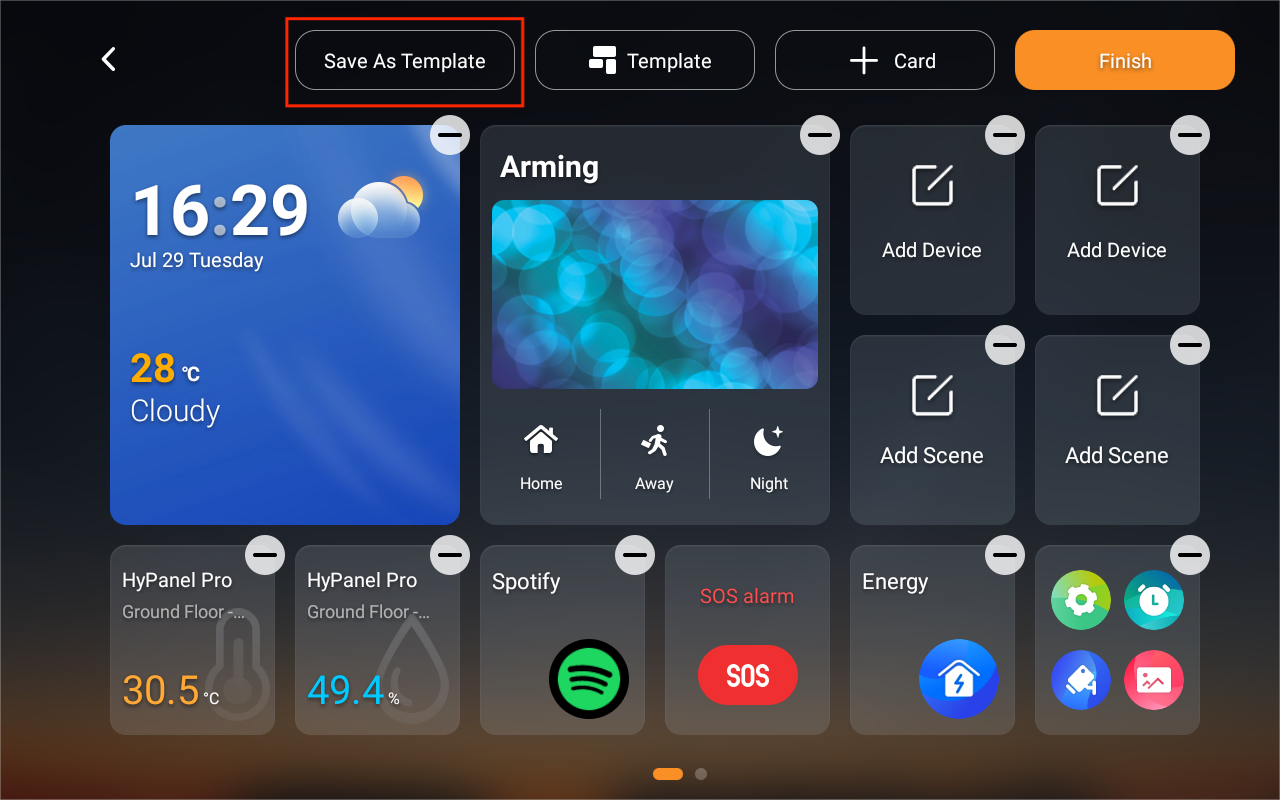
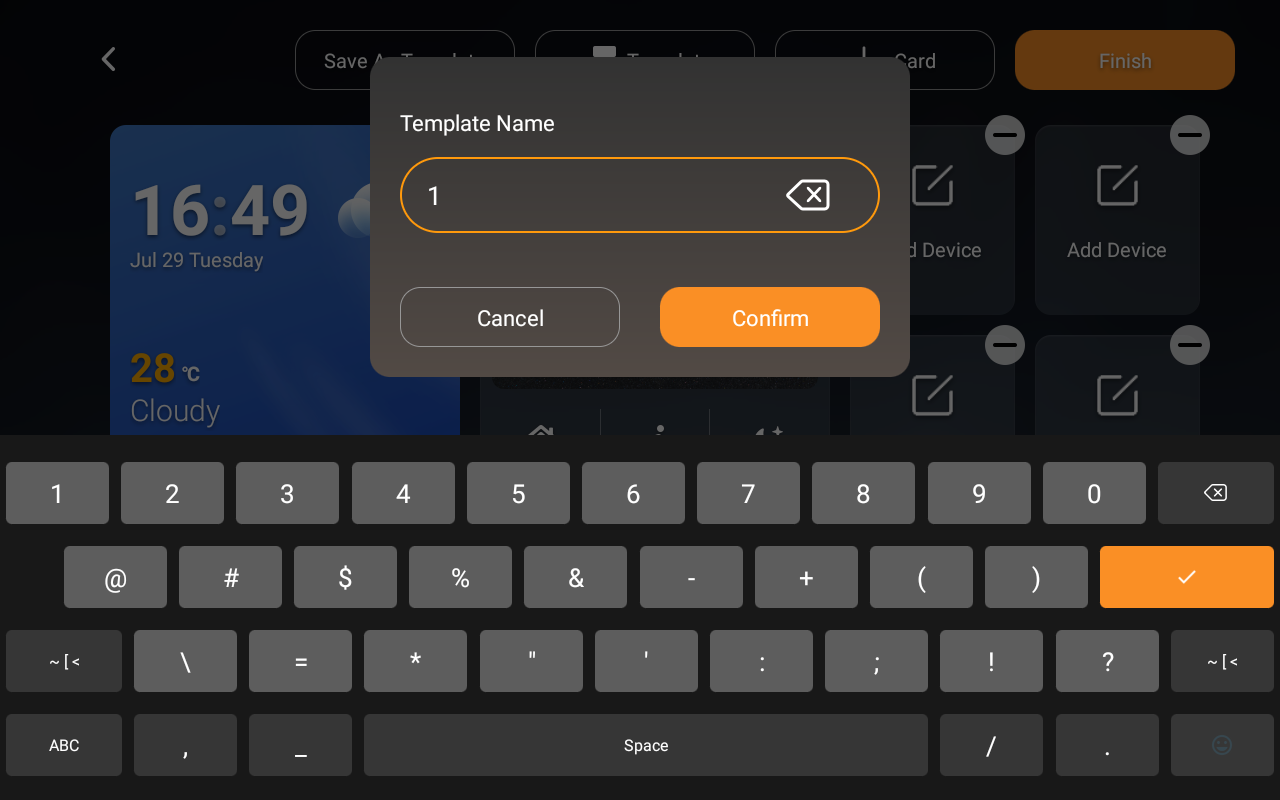
Name the template, then tap Confirm.
Your saved template will appear under Template > My Custom Pages.
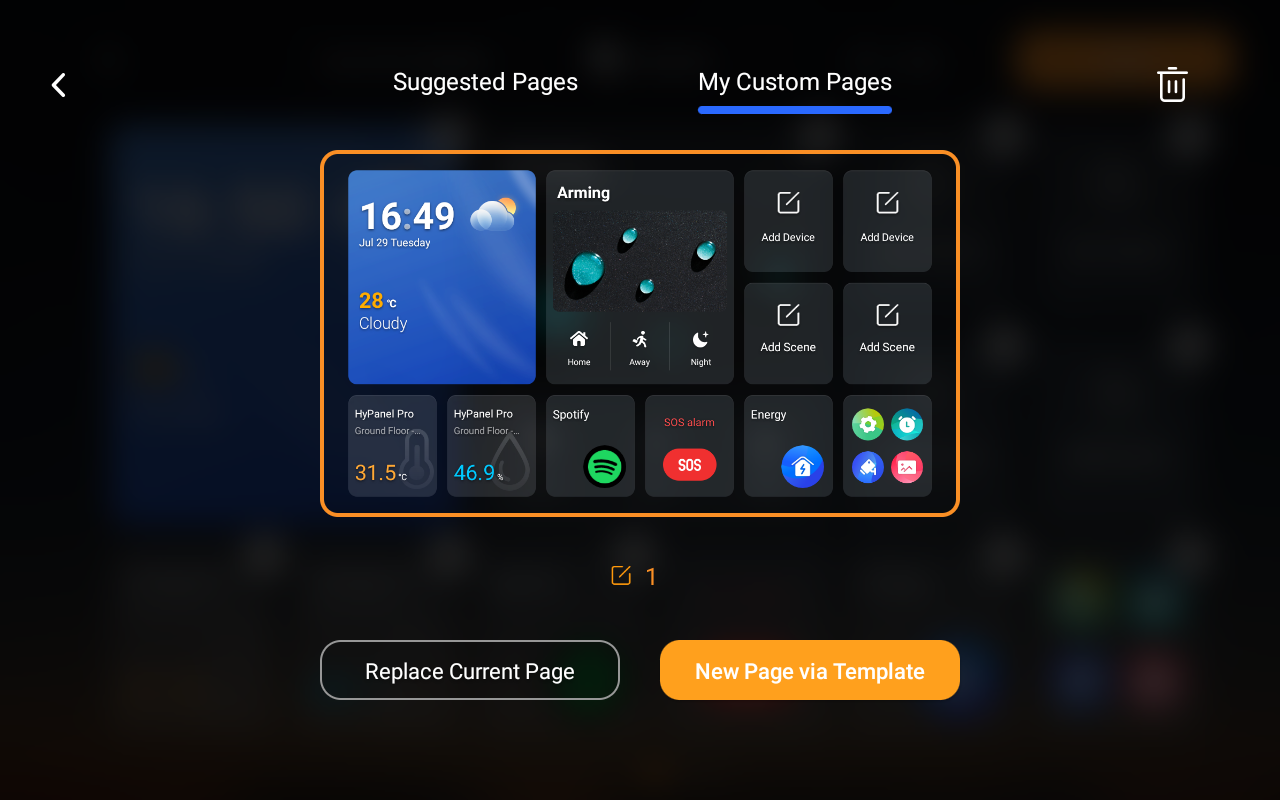
Change Home screen layout
You can either replace the current Home screen with a different template or add a new one.
Tap and hold the blank area on the Home screen.
Tap
 .
.
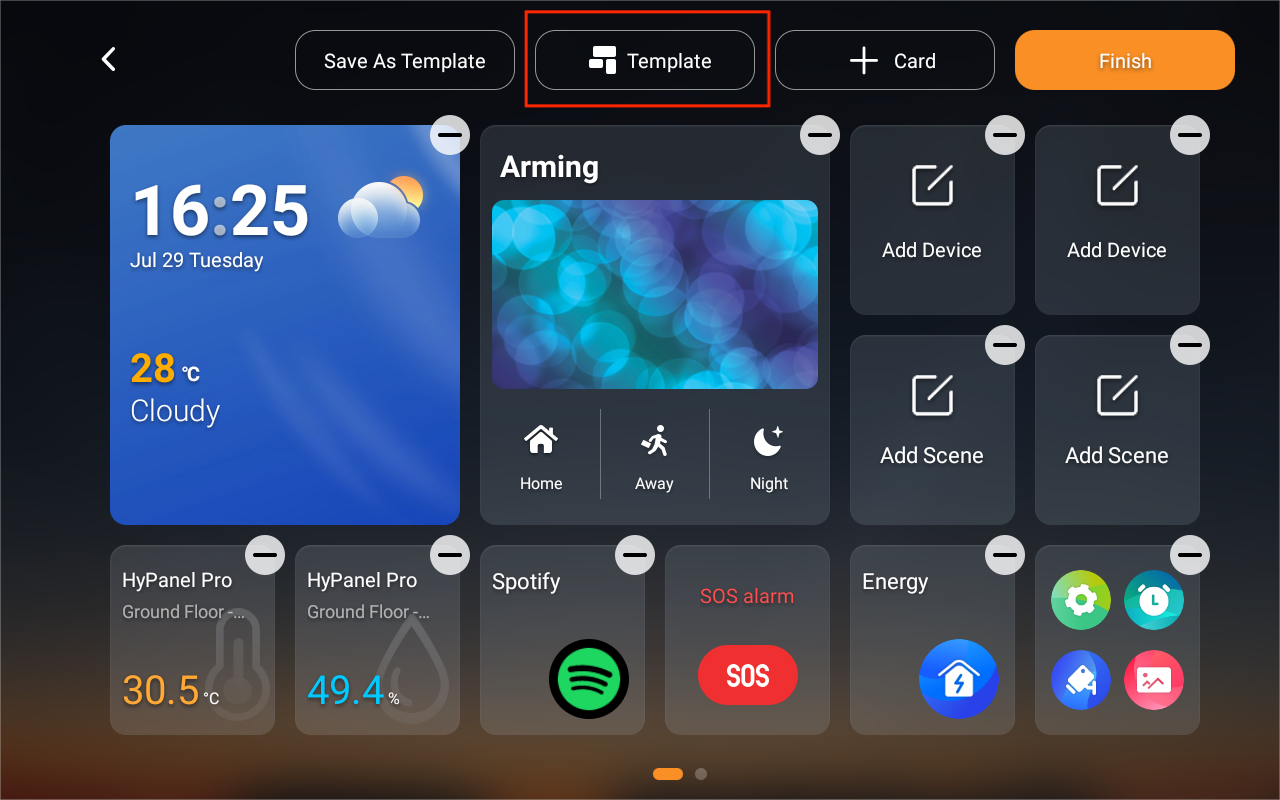
Select a default or custom template.
Choose whether to replace the current page or add a new one.
Wallpaper
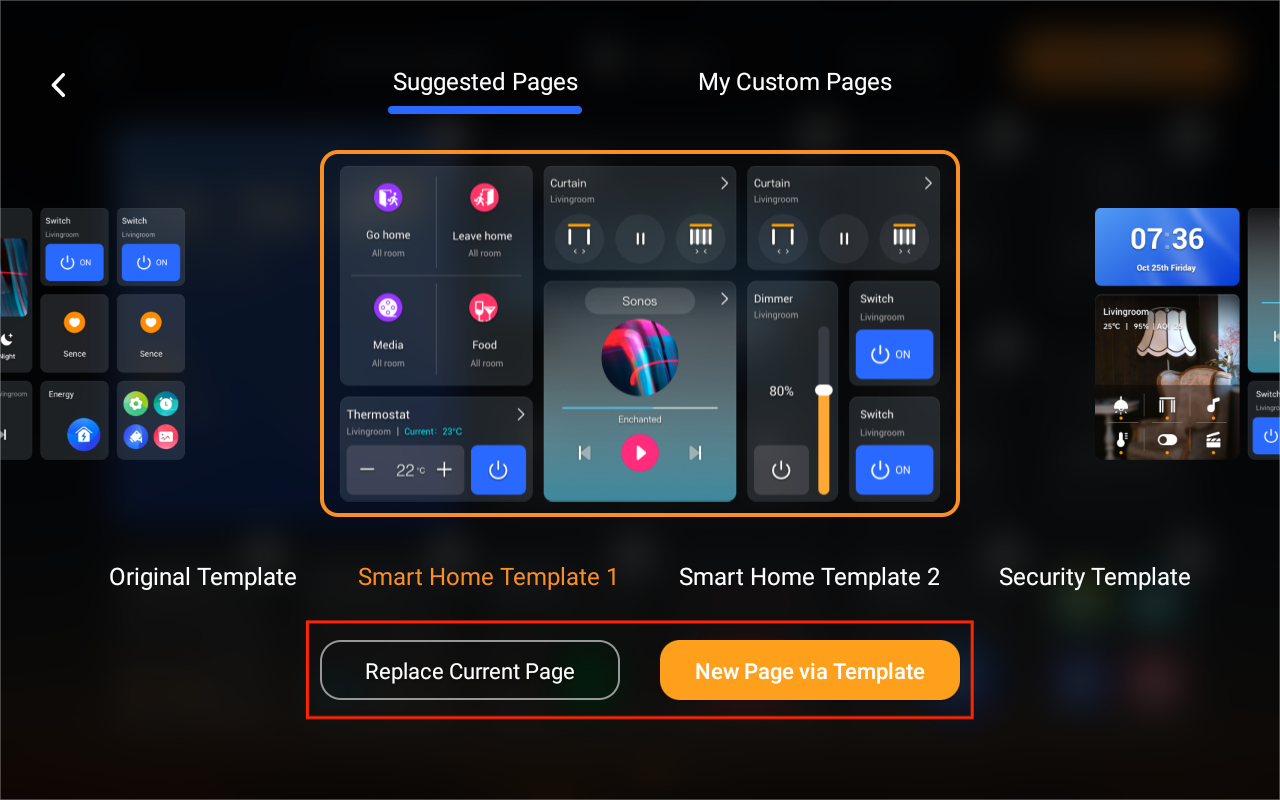
Tap  at the bottom right of the Home screen, tap Photo Wall, and select the desired photo.
Guest room control QR code
NOTE:
This feature is only available on panels used in hotel guest rooms for GRMS projects.
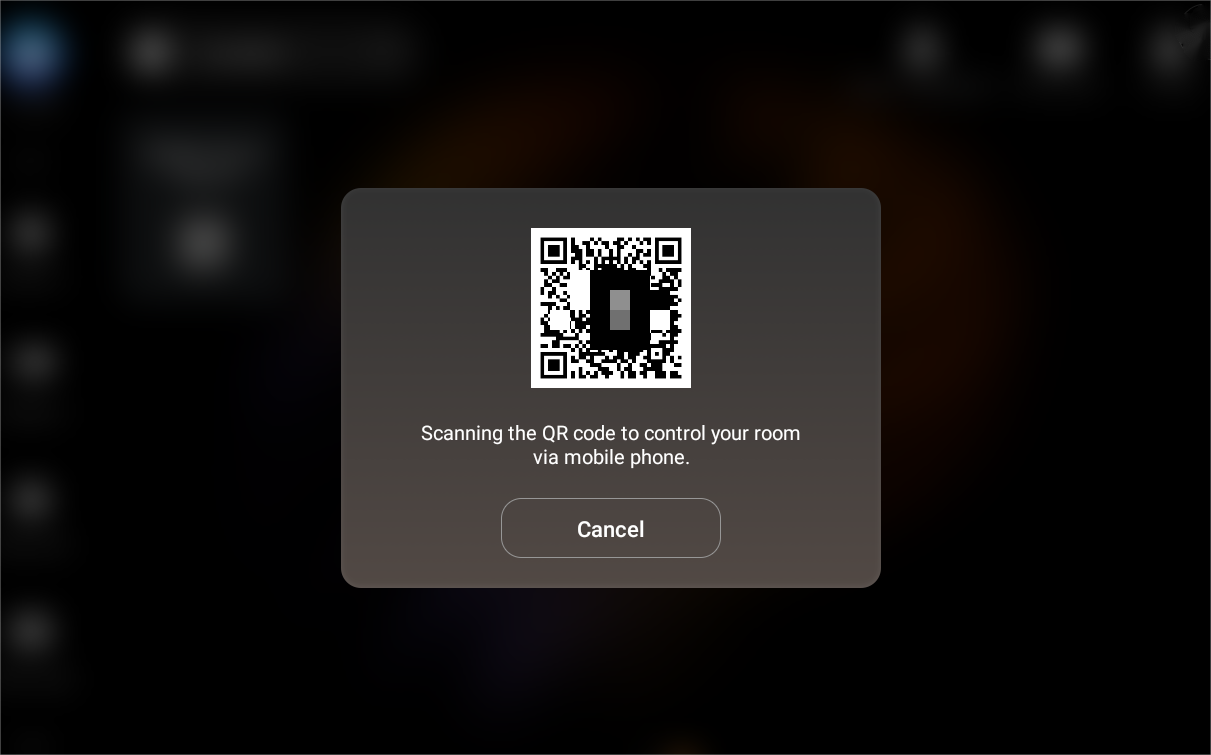
For panels in GRMS setups, a QR code will appear on the Home screen. Hotel guests can scan the code to control their room devices via an H5 web interface without downloading any app.
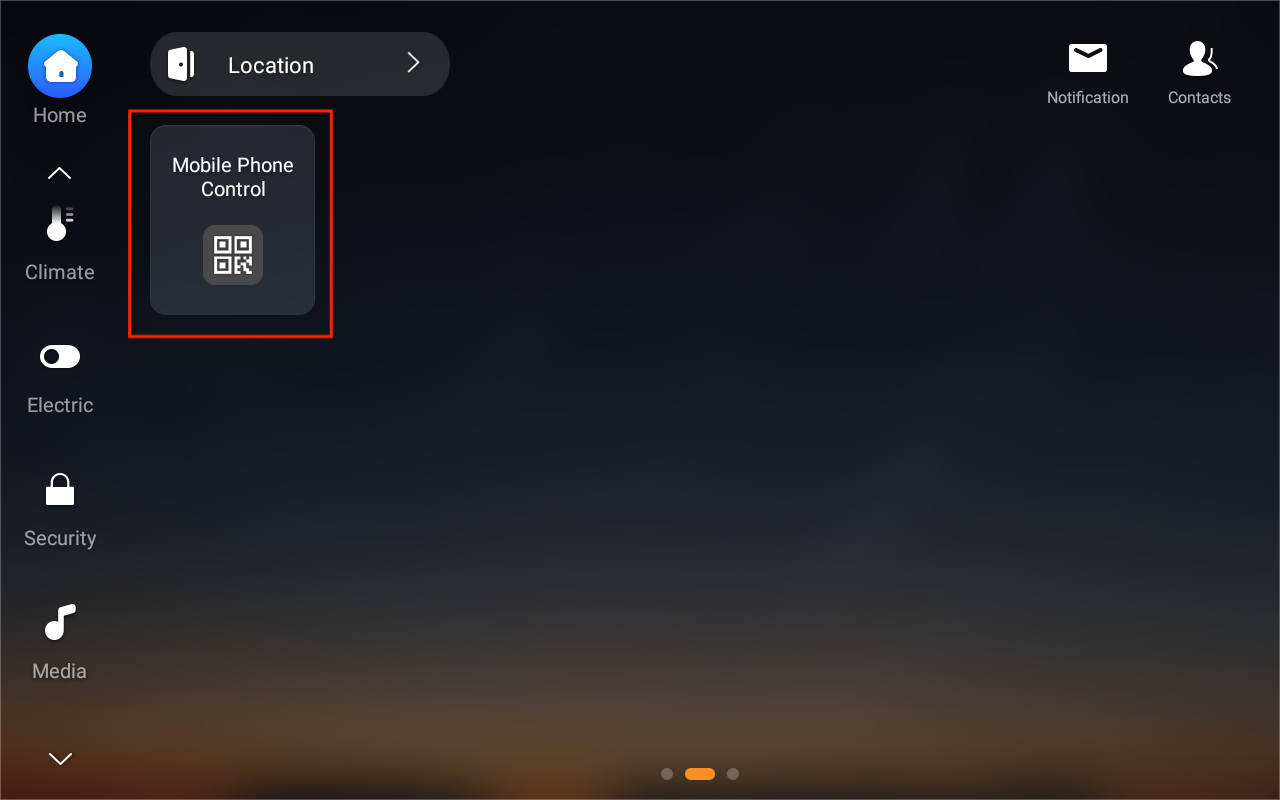
The QR code is active only during the guest’s stay.
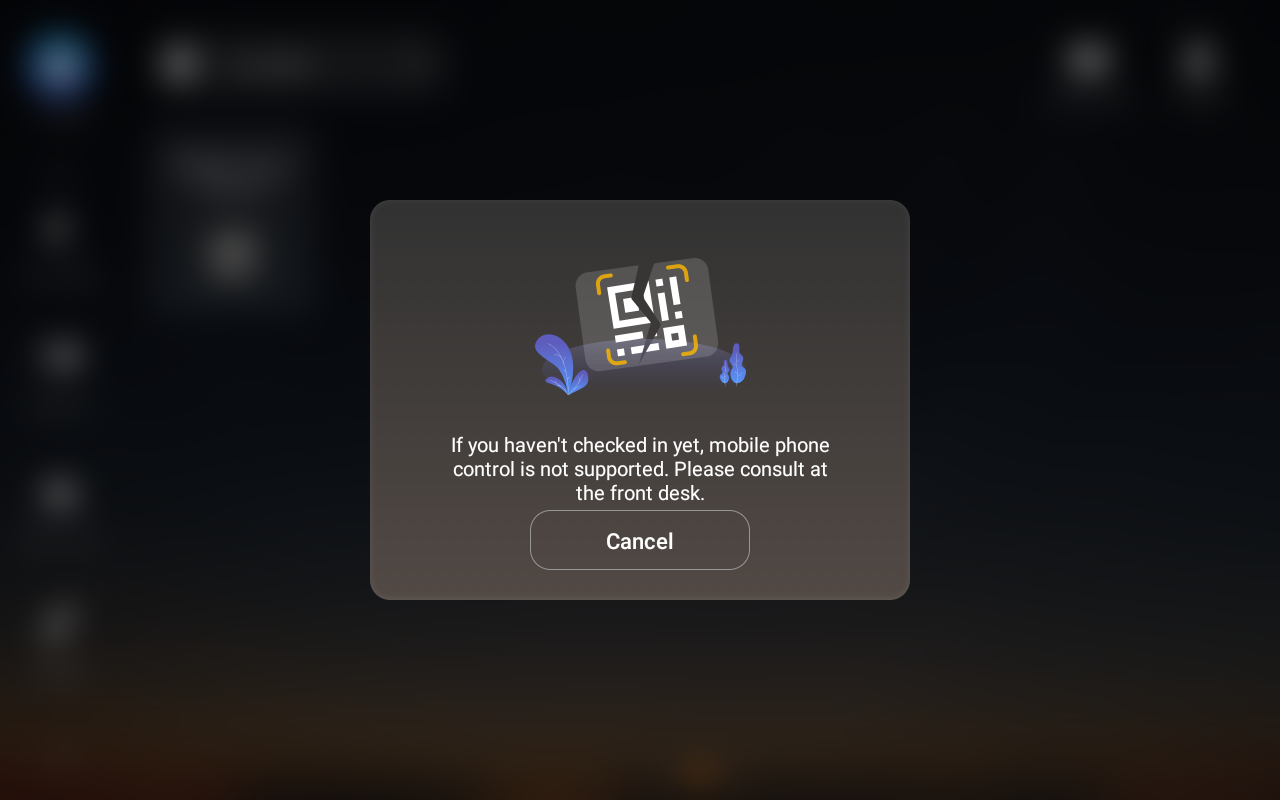
Once the guest checks out, the QR code becomes unavailable.
Lock Home Screen
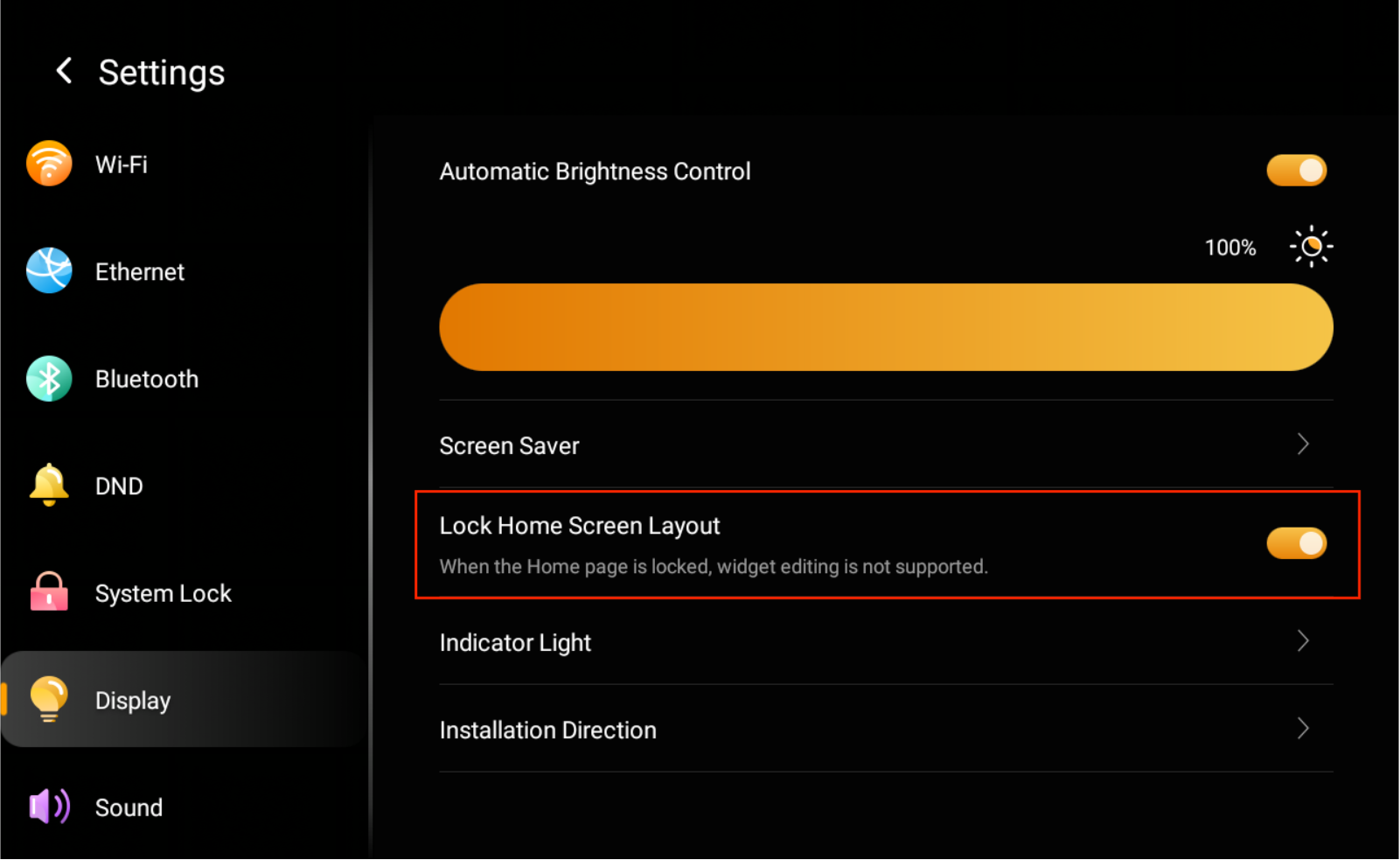
To prevent unauthorized or accidental changes to the Home screen, swipe down from the top edge of any screen, go to  > Display, and enable Lock Home Screen Layout.
Once enabled, the following actions will be disabled:
Adding, removing, replacing, or rearranging shortcut cards
Changing display templates
Modifying device settings
Deleting devices
Learn the server status
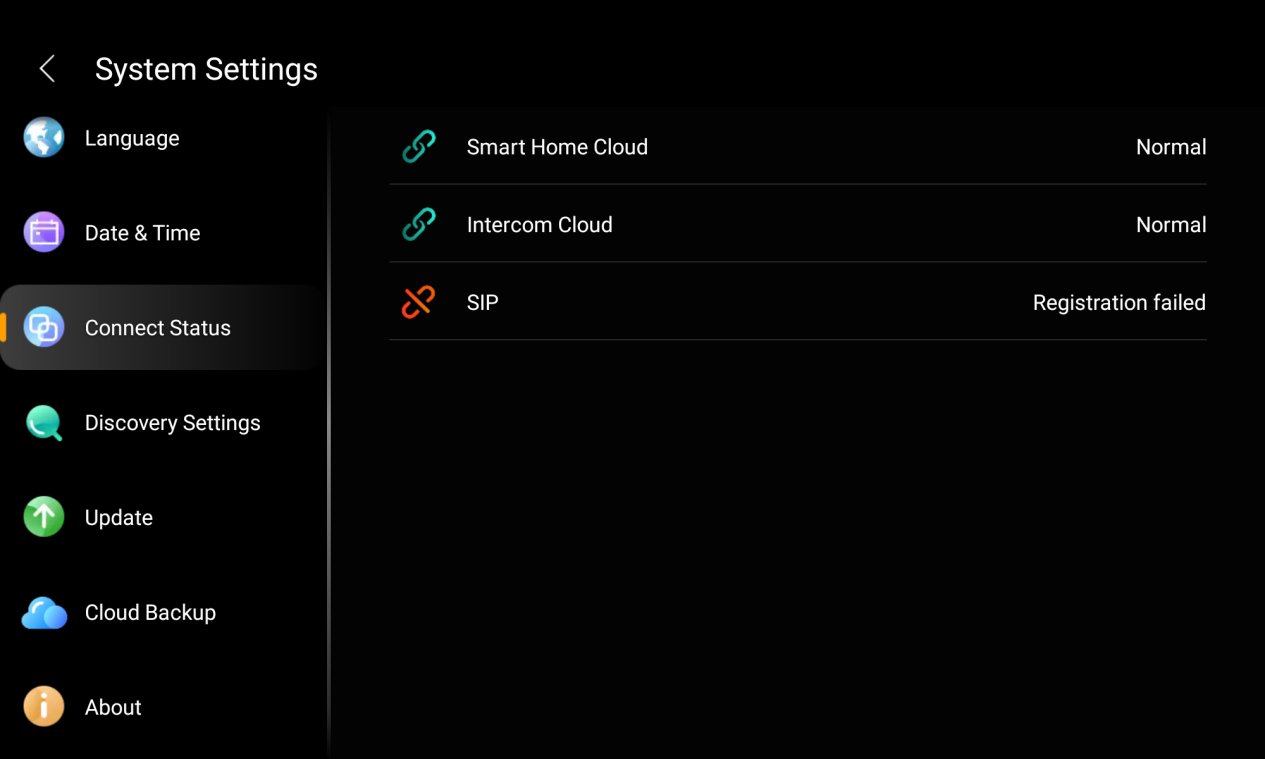
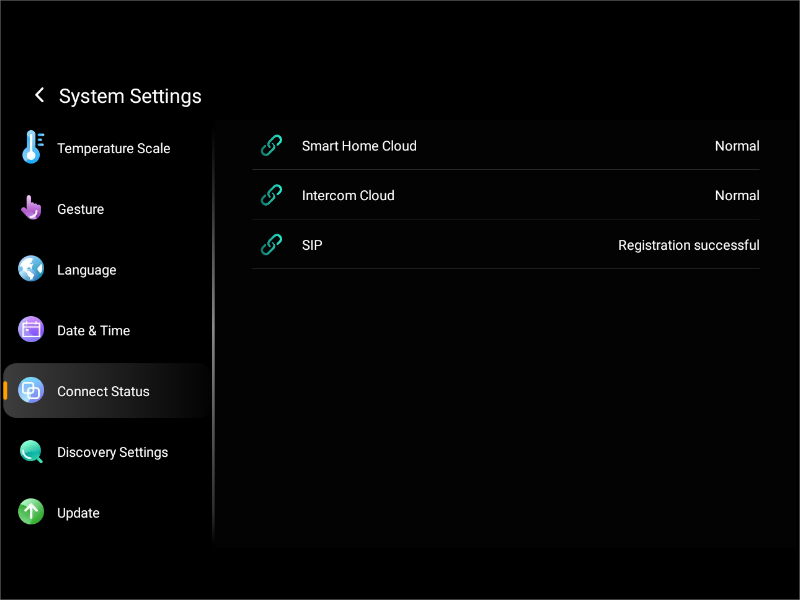
When you find some features do not work, you can firstly check if the server connection is normal.
Swipe down from the top edge of any screen, and tap
 > System Settings > Connect Status.
The status of your server connection will display in the center.
The screen that displays a green
 , it indicates that your device is successfully connected to the cloud server, and the communication with server is normal.
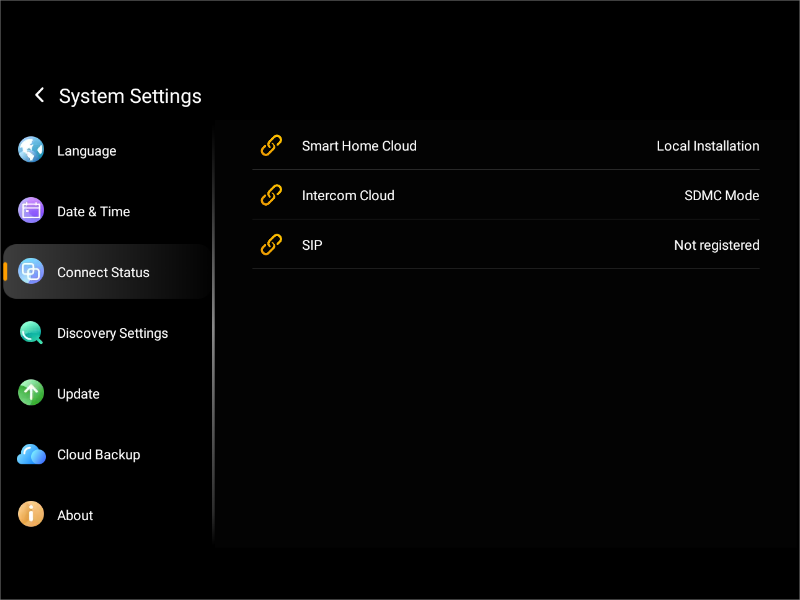
The screen that displays a yellow
 , it indicates that your device is being used locally without the cloud connection.
The screen that displays a red
 indicates an issue—such as cloud connection failure, SIP registration error, or other system abnormalities.
Please contact your service provider or the akubela technical team for assistance.