During the initial setup, you can choose Auto Discovery to connect devices in the same network into one family, regardless of cloud connectivity.
In this guide, we’ll be using HyPanel with firmware version 51.1.31.30 as the reference. The UIs and steps may vary depending on the devices and their versions.
Auto-Group Devices
Power on the panel.
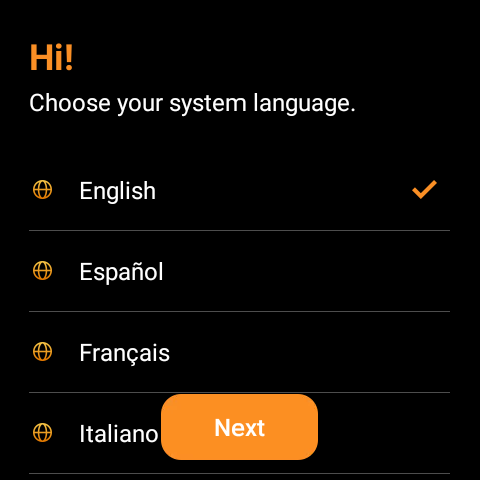
Select the system language.
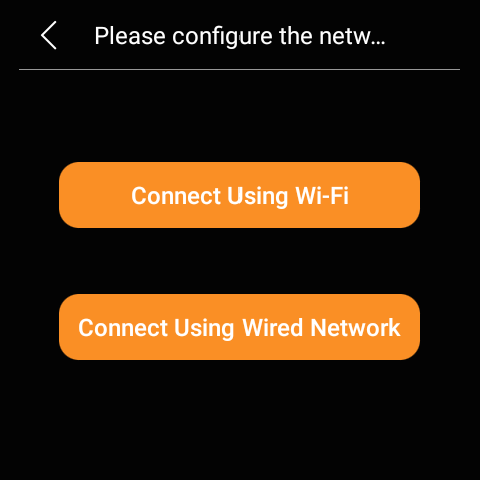
Connect the panel to either a wireless or wired network, ensuring the network cable is securely plugged in if choosing the wired option.
Note
For certain device versions, like the FANCOIL version, wired network connections are not supported. They will proceed directly to the Wi-Fi setup screen.
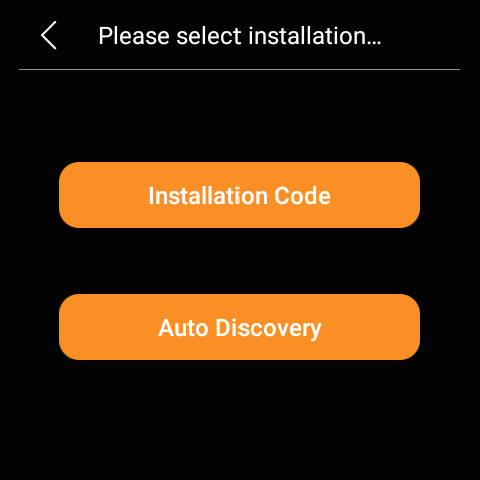
Select Auto Discovery when prompted to select an installation mode.
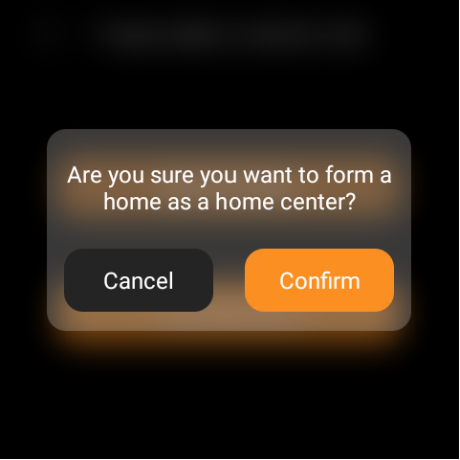
Select the device role.
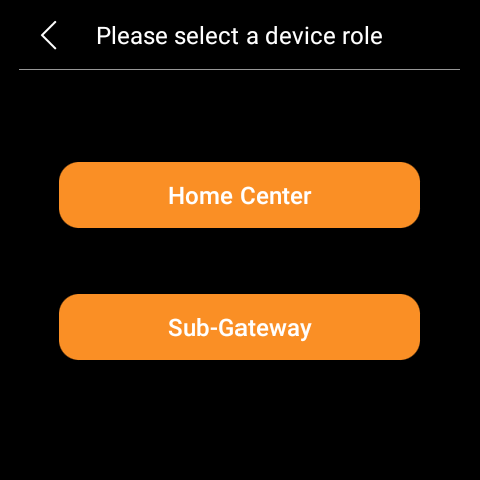
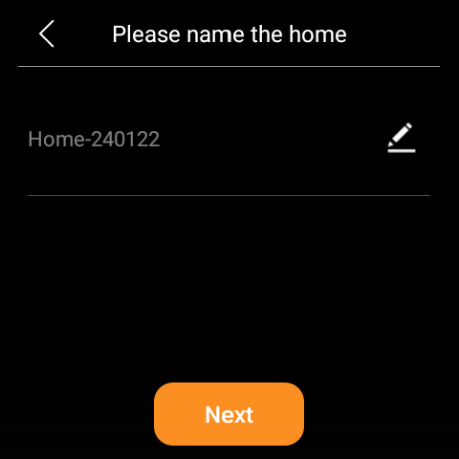
Home center
The home center is the main control hub for all devices in a home.
Note
Each home should have only one home center.
In older firmware versions, only one home center is allowed per network, whereas the following panels with newer firmware versions allow multiple home centers to coexist on the same local network.
Device
Version
HyPanel
51.1.25.10 and later
HyPanel Lite
41.1.25.4 and later
HyPanel Plus
52.1.23.42 and later
HyPanel KeyPlus
53.1.34.14 and later
HyPanel Lux
61.1.23.23 and later
HyPanel Pro
71.1.30.63 and later
HyPanel Ultra
281.1.31.18 and later
HyPanel Supreme
1001.1.31.37 and later
HyPanel Elite 7
42.1.36.15 and later
HyPanel Elite 10
159.1.39.137 and later
SmartPanel
933.1.31.19 and later
SmartPanel Elite 10
119.1.31.11 and later
Sub-Gateway
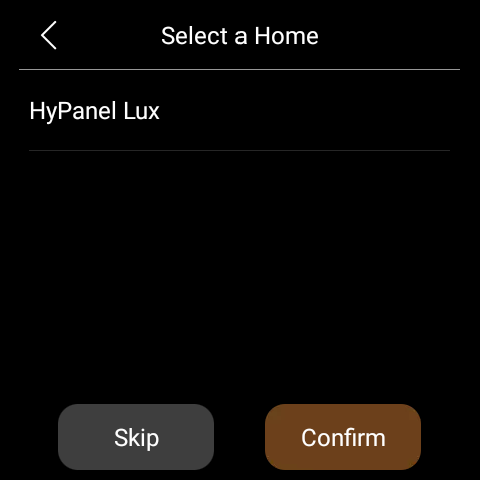
When selecting this option, the system will search all homes within the same network. You can decide whether to join a home.
To join a home
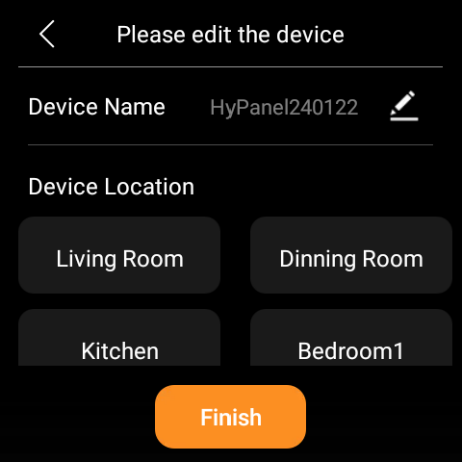
Select the desired one, specify the device’s name and location, then click Finish.
Not to join a home, or if there’s no existing home in the network
Select Skip, and then confirm the choice to use the device as a sub-gateway.
Note
Sub-gateway devices need to join a home center before they can be bound with homes. For detailed instructions, please see the “Join a sub-gateway to a home center” section below.
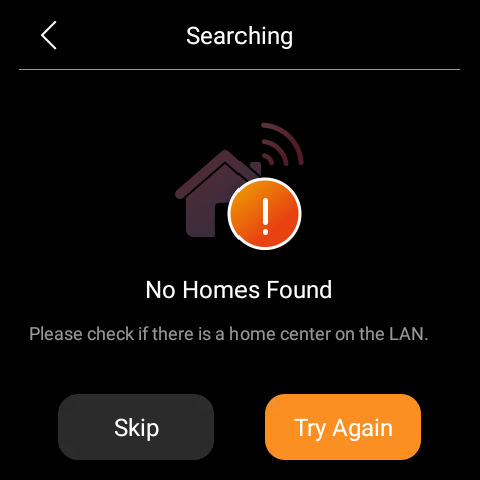
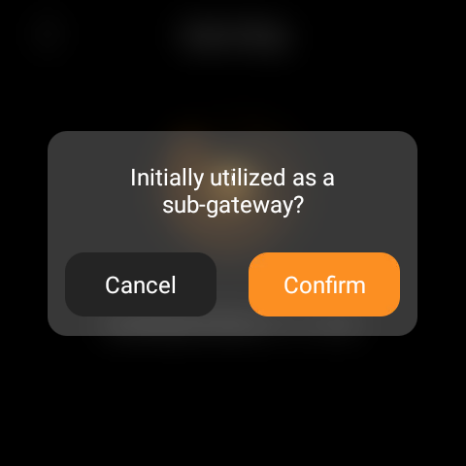
Once the initial setup is completed, the device is ready for use.
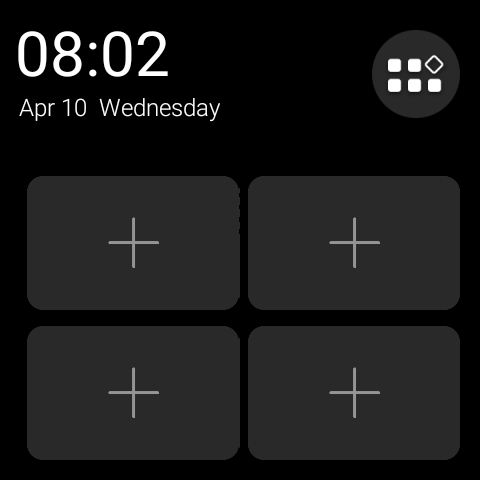
Important Settings after Initial Setup
Add door phones
After completing the initial setup, when the panel detects any door phones on the same network, it will show a list. Users can then select and add desired door phones to their homes.
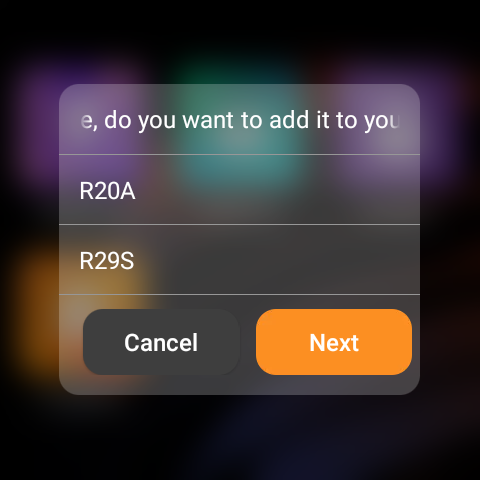
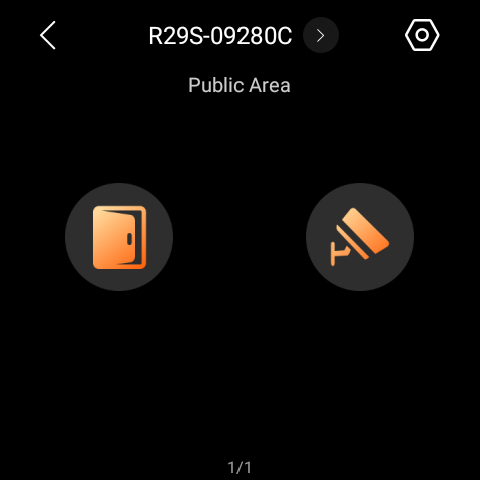
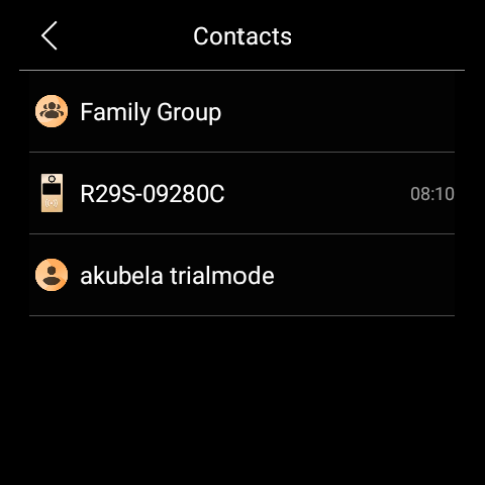
The added door phones can be found on the Security screen(for unlocking doors and viewing monitor streams) and Contacts screen(for making one-to-one calls).
Join a sub-gateway to a home center
To link a sub-device that isn’t associated with any home to one, do as the following:
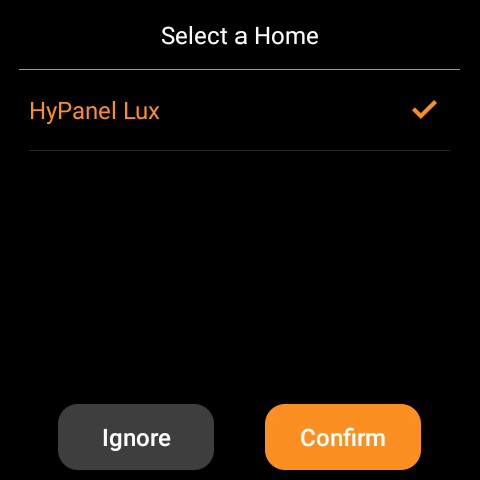
The system will search for homes in the same network and display a list. If not found, reboot both the gateway device and the specific home’s home center device.
Select the desired home and tap Confirm.
Connect devices to the Cloud
To enable remote control and access weather forecasts, devices must be connected to the Cloud. Follow this instructions to do so.