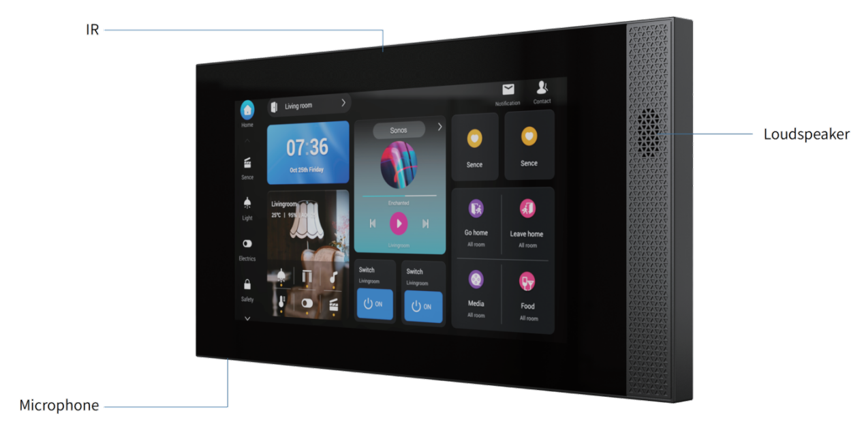
Your HyPanel Elite 7
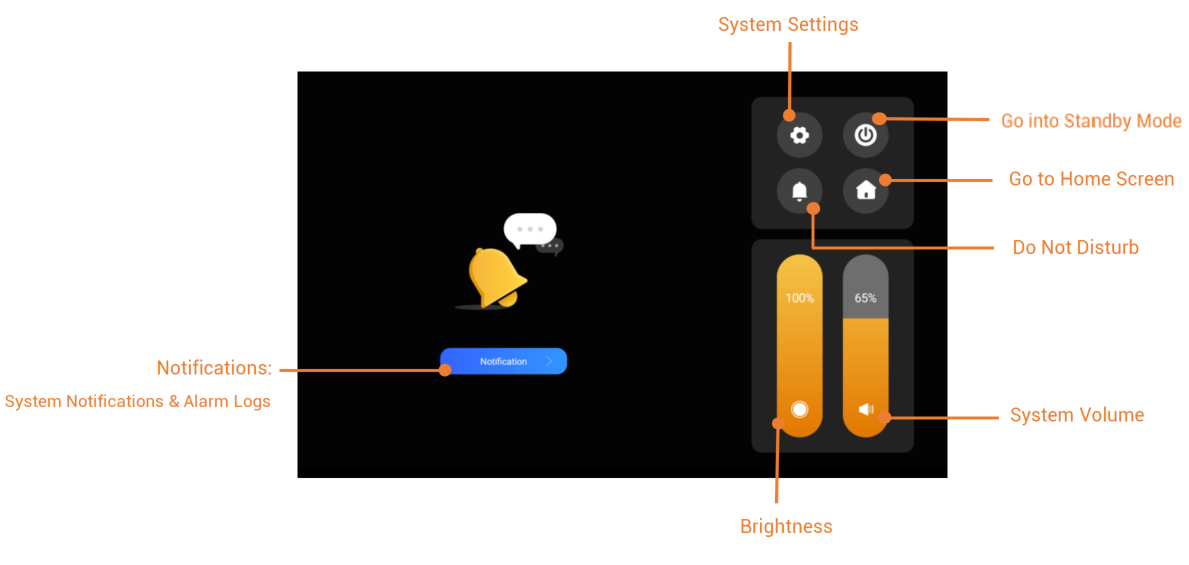
Control center
To open the Control Center for quick control, swipe down from the top edge of any screen.
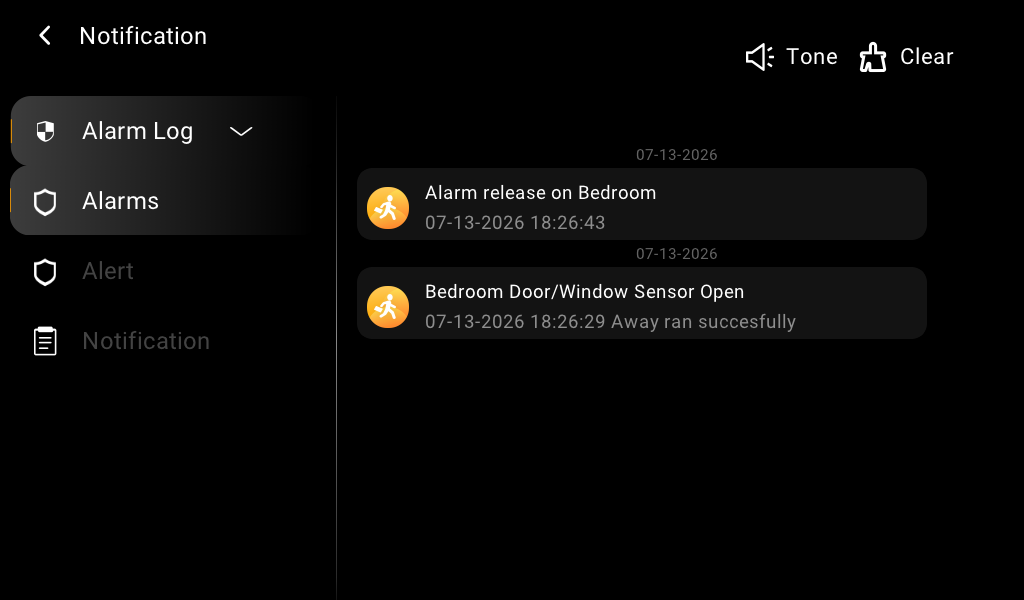
Notification center
To open the notification center, tap  on the Home screen. All alerts, alarms, and system notifications are displayed here, including false attempt and loitering alarms from smart locks.
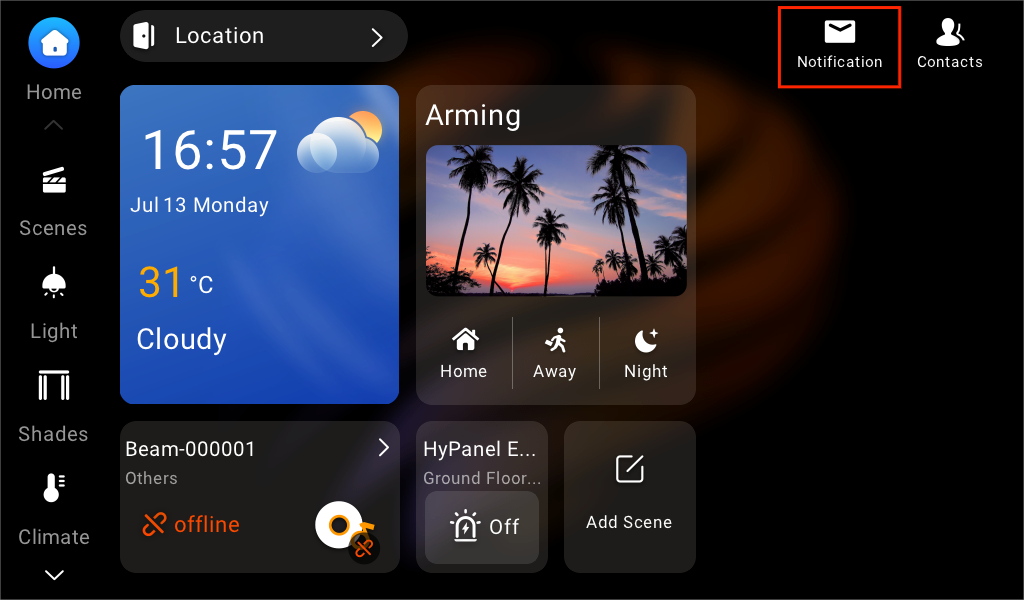
Home screen
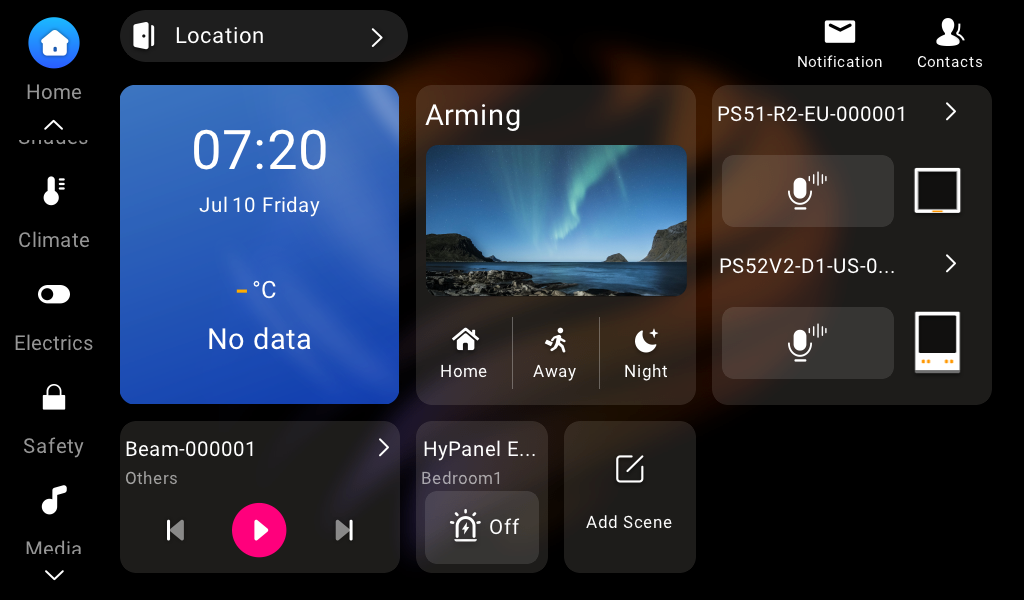
On the home screen, you can access features and functions by tapping icons and menus. You can also customize the wallpaper and the shortcuts displayed on the home screen.
Lock Home screen
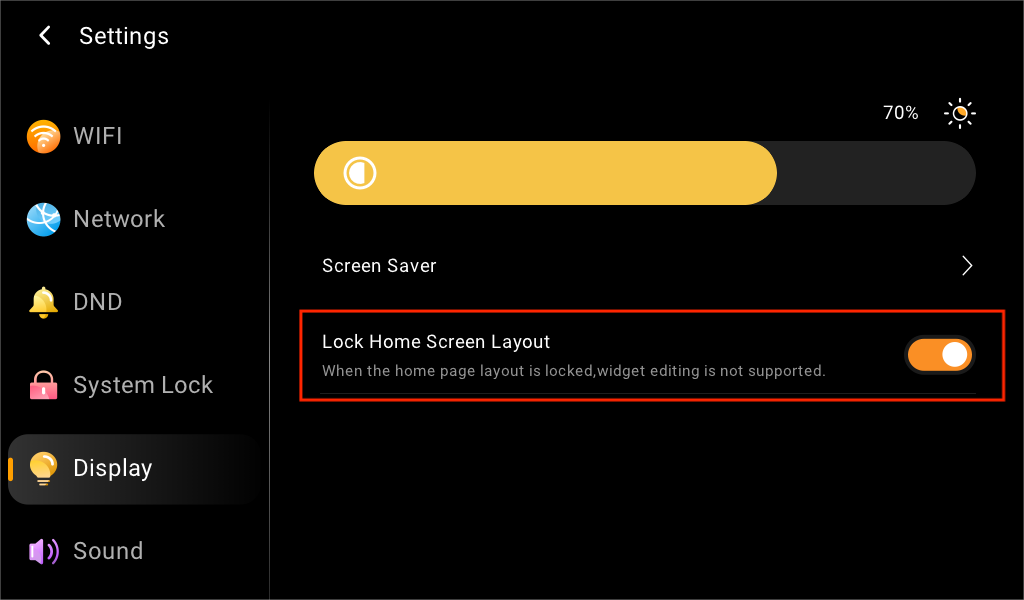
To prevent unauthorized or accidental changes, the Home screen lock is enabled by default. This feature restricts adding, removing, or rearranging shortcut cards.
To unlock the Home screen, swipe down from the top edge of any screen, go to  > Display, and turn off Lock Home Screen Layout.
Category tabs
Besides the Scenes tab, when an application or a new type of device is added, a corresponding category appears on the left side. Here are some examples:
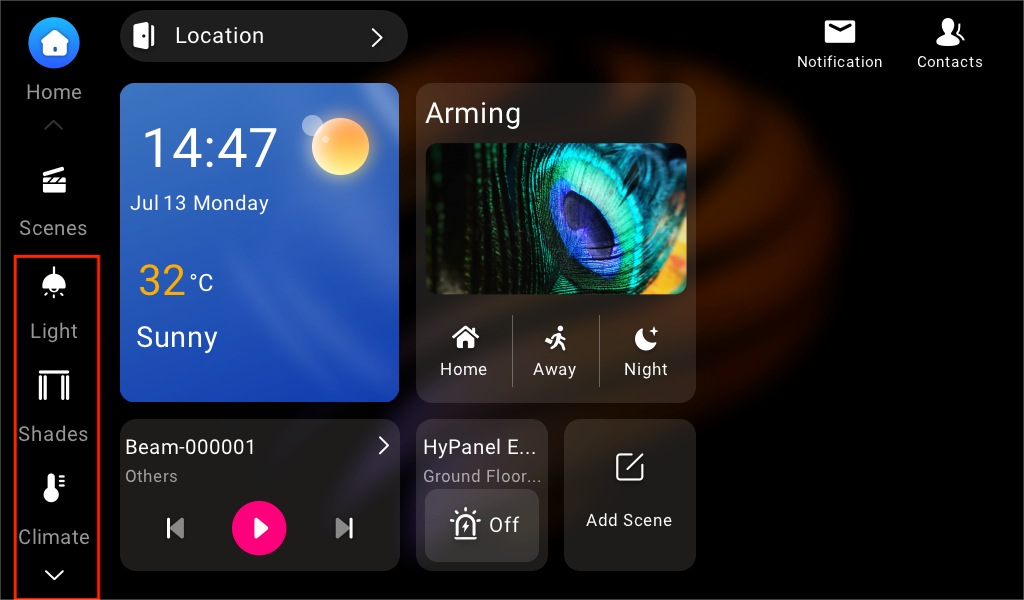
Lights: Lighting devices.
Shades: Shades, curtains, blinds, and more.
Climate: Air quality monitors, air conditioners, thermostats, cooling/heating system, and more.
Electric: Switches, relays, and more.
Security: Sensors such as motion sensors, door phones, locks, cameras, and more.
Media: Speakers, TV, and more.
More: akubela panels, IR controllers, customized remotes, and more.
Shortcut cards
Once the home screen is unlocked, you can add, remove, or replace shortcut cards on Home screen.
Add cards
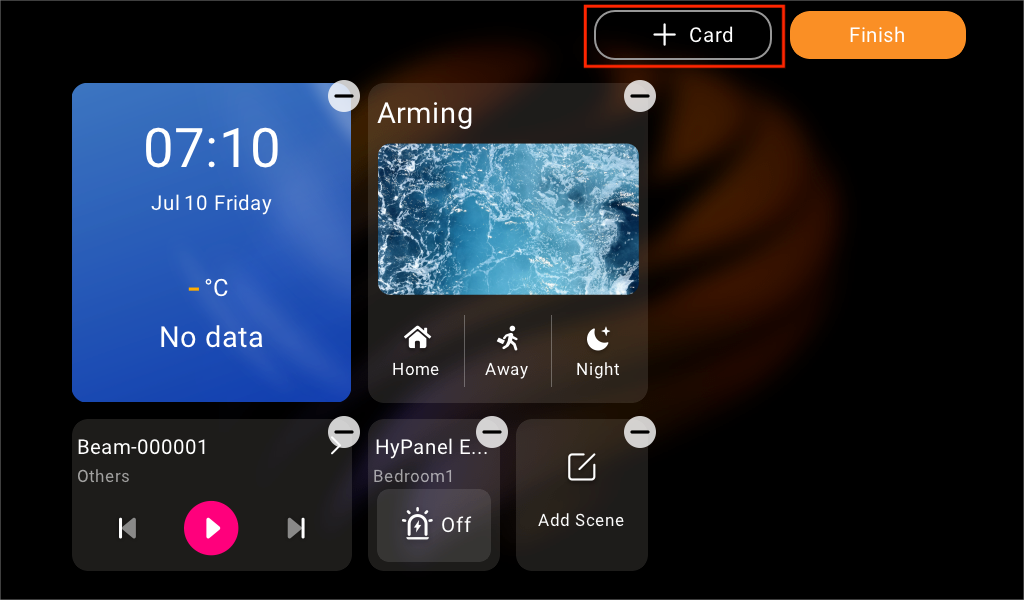
Tap and hold the blank area on the Home screen, then tap
 .
Select a category.
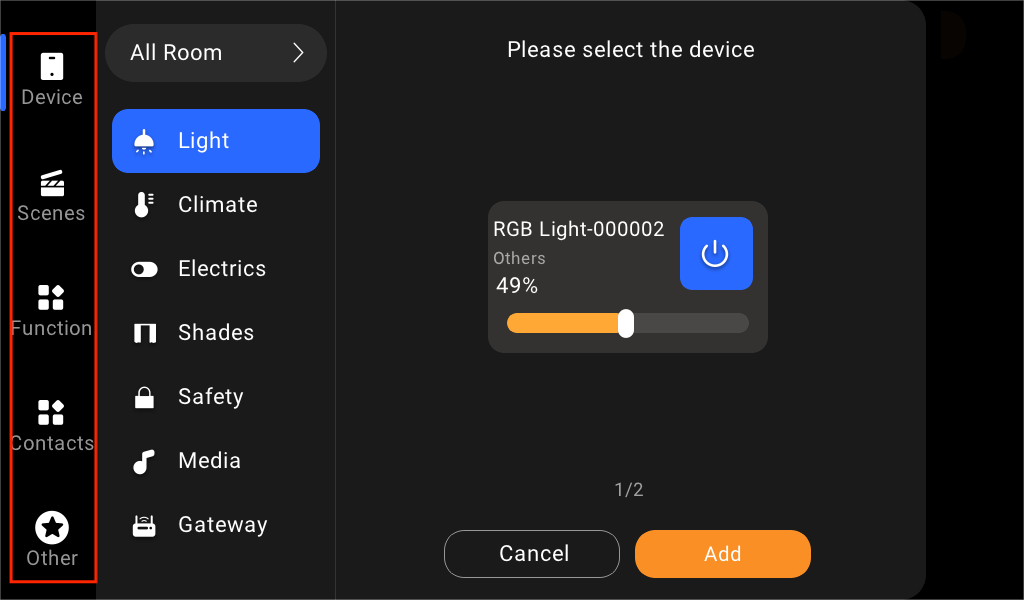
Choose the desired card(s):
To add one card, tap
 , then select the desired card.
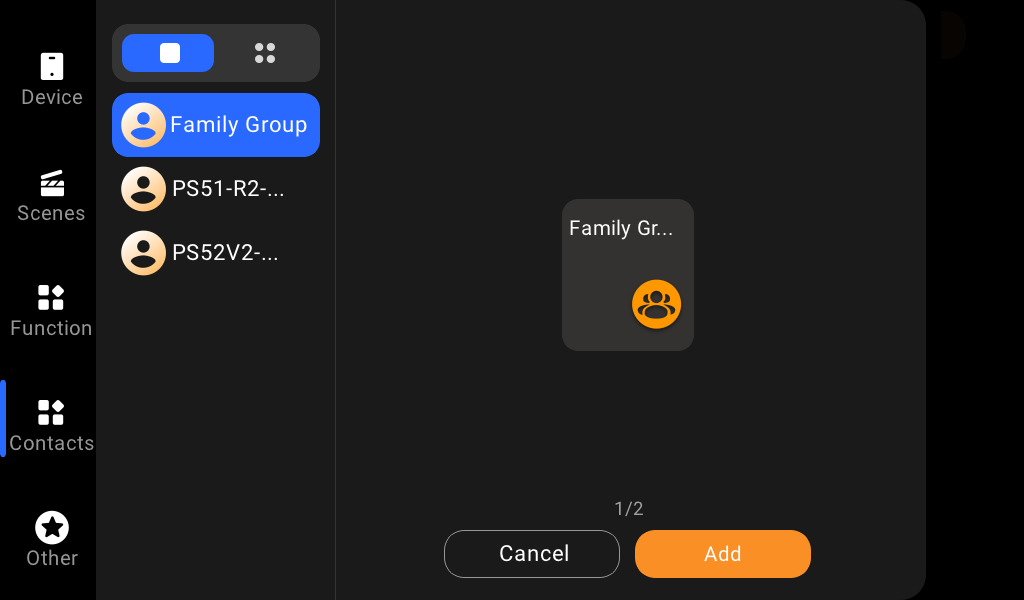
To add multiple cards into one drawer(not supported for Devices and Others categories), tap
 , and select the desired ones.
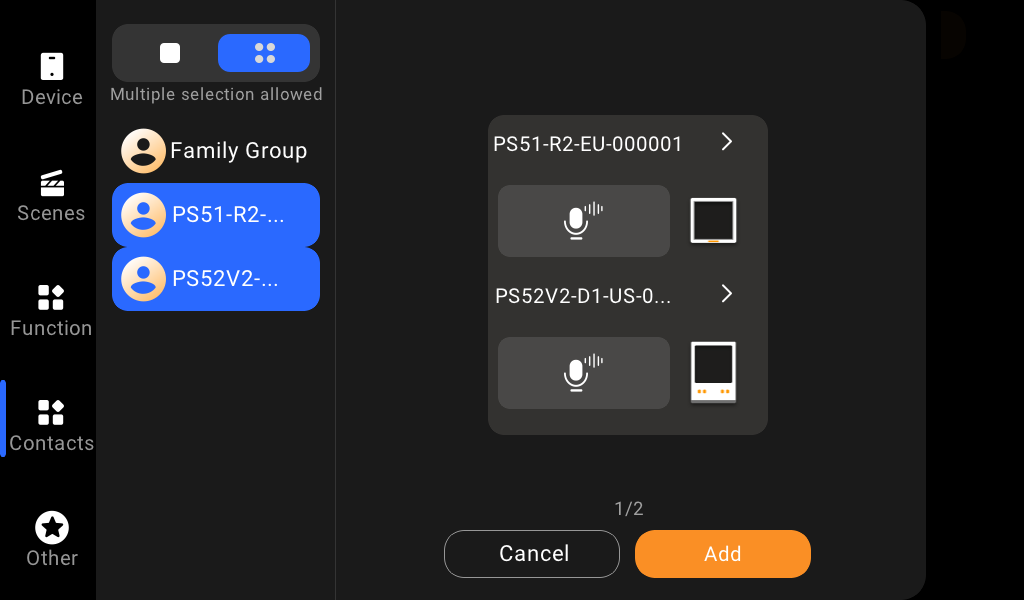
Tap Add > Finish. The new card and drawer will display on the Home screen.
Remove cards
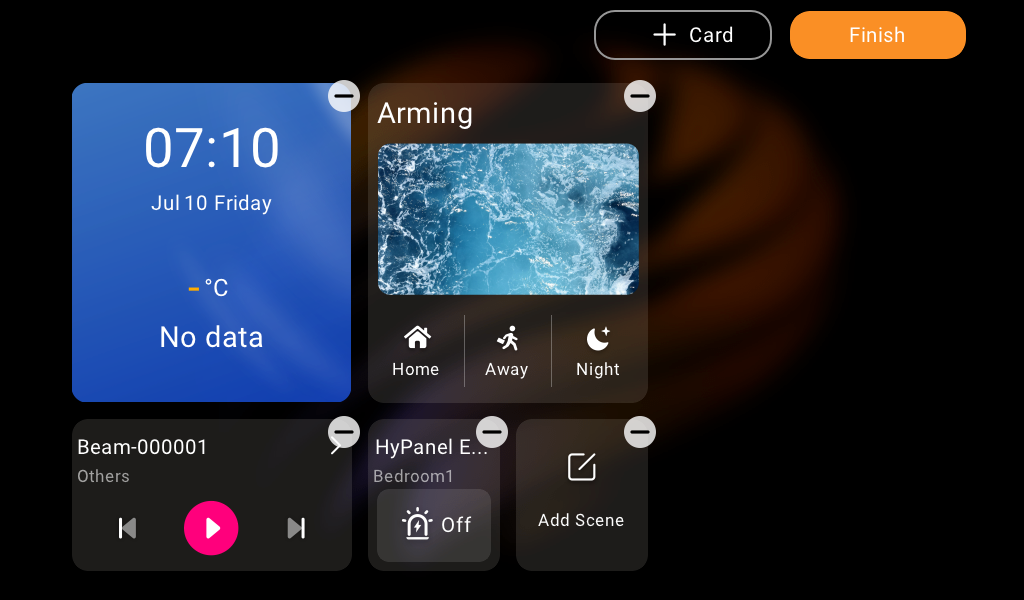
You can remove cards individually or in batch.
To delete a single card: Tap and hold it, then select Delete.
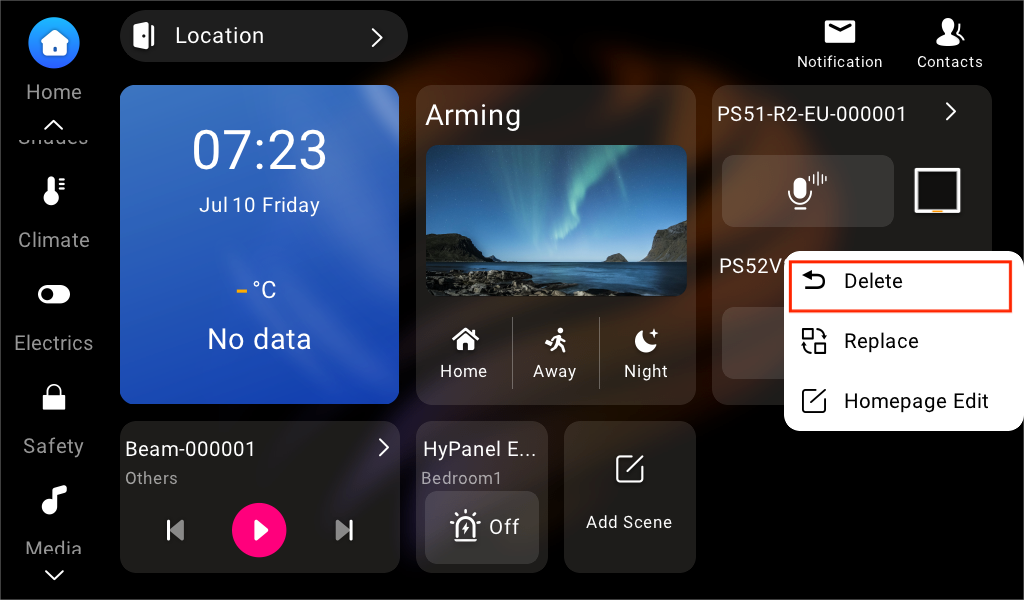
To delete multiple cards: Tap and hold the blank area on the Home screen, then tap
 .
Replace cards
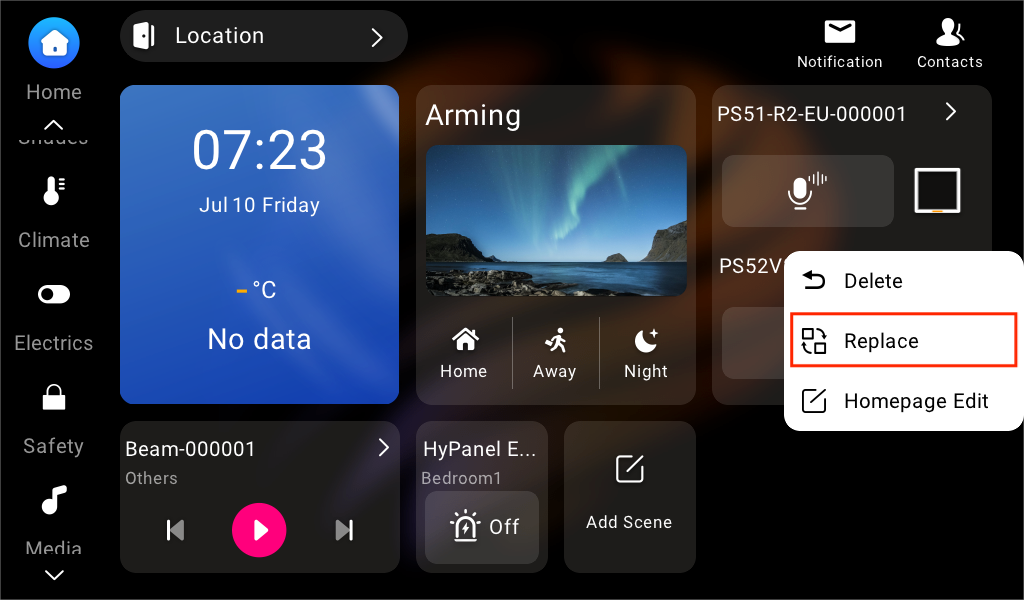
Tap and hold a card, tap Replace, and choose a new one.
NOTE:
The new card must be of the same type as the one being replaced.
Learn the server status
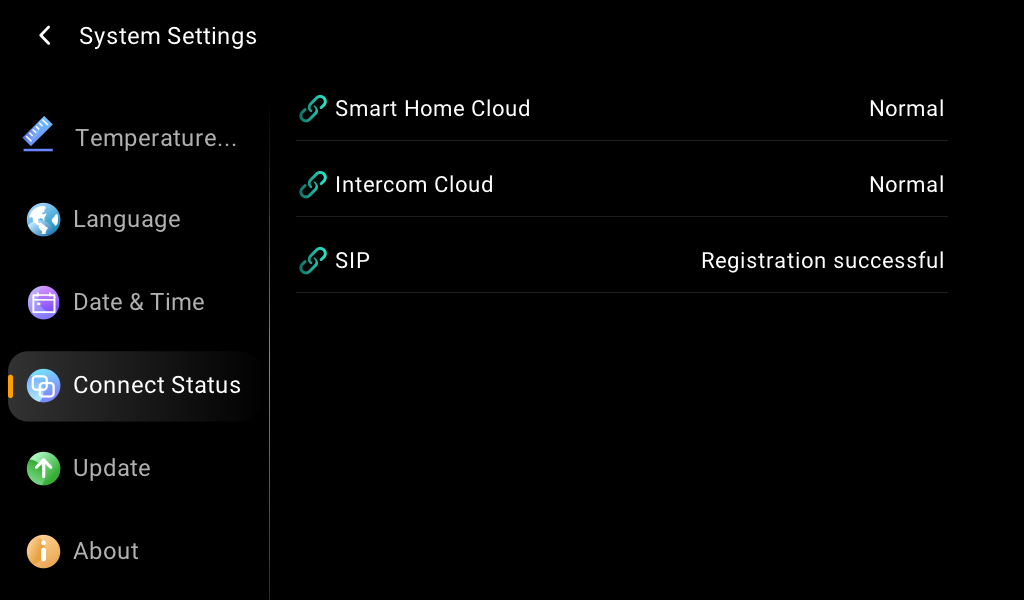
When you find some features do not work, you can firstly check if the server connection is normal.
Swipe down from the top edge of any screen, and tap
 > System Settings > Connect Status.
The status of your server connection will display in the center.
The screen that displays a green
 , it indicates that your device is successfully connected to the cloud server, and the communication with server is normal.
The screen that displays a yellow
 , it indicates that your device is being used locally without the cloud connection.
If the screen displays a red indicator
 , it means an issue has occurred. Contact your service provider or the akubela technical support team for assistance.