Your HyPanel Lux Vase
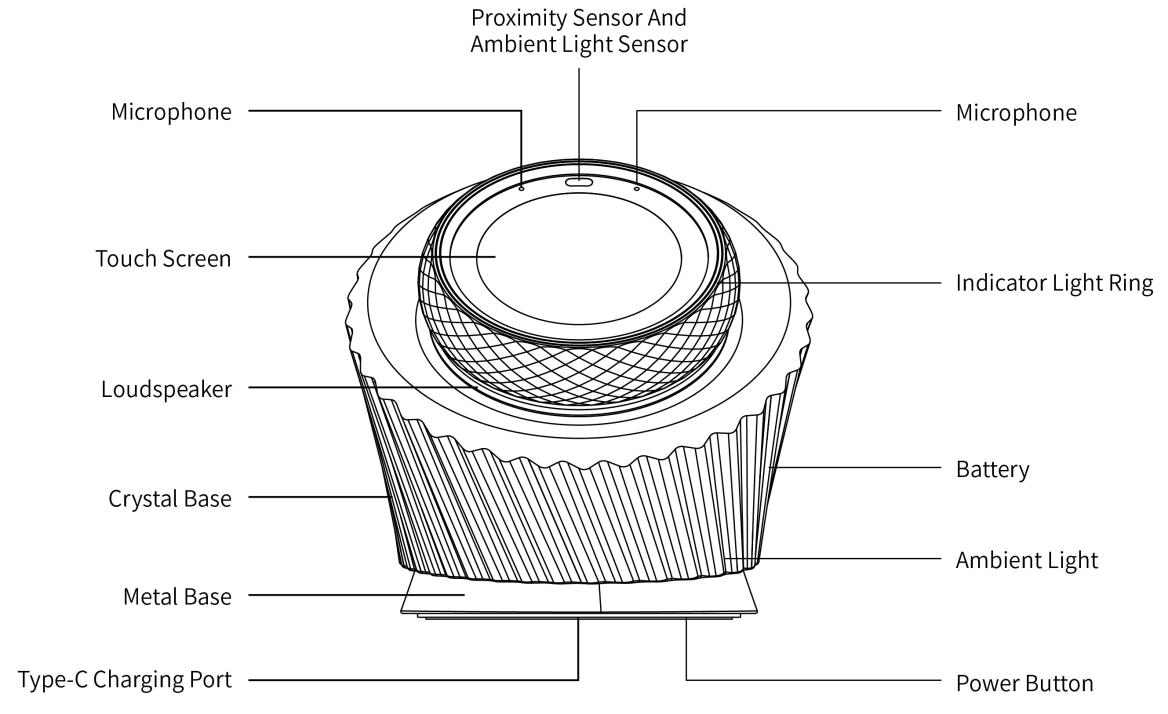
Charging port
NOTE:
It is strongly recommended to keep the device plugged in and charging during normal use.
The charging port of the HyPanel Lux Vase is located at the bottom of the base. Connect the device to a 5VDC/2A power supply using a USB-C cable.
Power button
The power button is located at the bottom of the base.
Action | Description | Remark |
Press once(screen on) | Turns off the screen and enters sleep mode | |
Press once(screen off) | Wake up the device | |
Press and hold for 0.5 seconds | Power on the device | |
Press and hold for 2 seconds | Open the shutdown dialog | If no action is taken after the dialog appears, the device will automatically shut down after 60 seconds |
Press and hold for 6 seconds | Force shutdown | Use when the device is unresponsive or frozen |
Knob
HyPanel Lux Vase features a multifunctional knob for interactive control:
Rotate the outer rim to navigate screens and select options.
When the screen is off or the device is in sleep mode, press the knob to wake the device up.
On regular operation screens:
Single press: Confirm an action, move to the next screen, or turn a device on or off.
Long press: Cancel the current action or return to the previous screen.
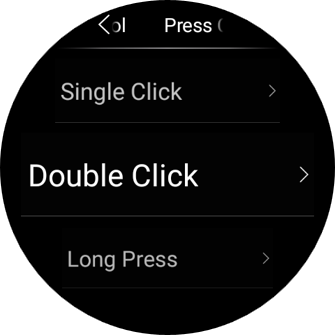
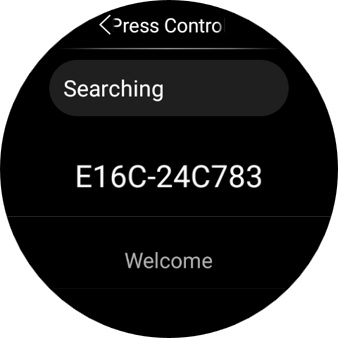
You can also customize the knob actions. Assign single press, double press, or long press to control a specific device or scene. To configure this, swipe down from the top edge of any screen, and tap  > System Settings > Press Control.
RGB light ring
The display is surrounded by an RGB light ring that changes color to reflect device activity. For example, it lights up blue when you receive a call and turns orange when an automation scene is triggered.
To customize the RGB light ring for specific scenarios or disable it entirely, swipe down from the top of any screen and go to  > Display > Indicator Light > RGB Light Ring.
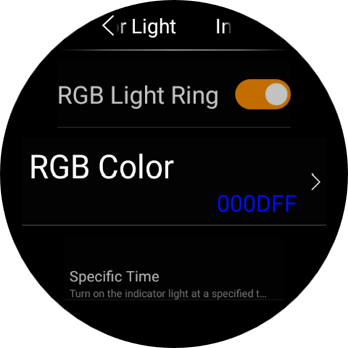
Base ambient light
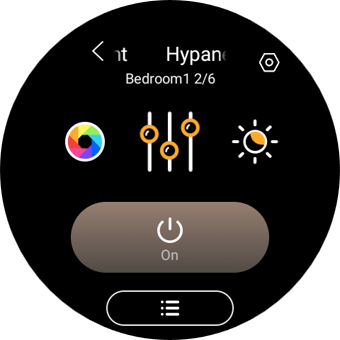
Like the RGB light ring, the device’s crystal base features built-in lighting that reflects device activity.
You can enable the base light and adjust its color, brightness, and lighting mode by going to Light > HyPanel Lux Desktop Light.
Home screen
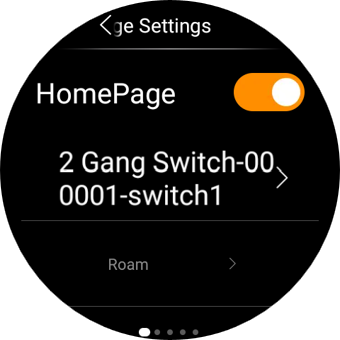
To quickly and easily access your frequently used devices and scenes, enable the Home Page feature by going to  > System Settings > HomePage Settings.
With HomePage enabled, you can:
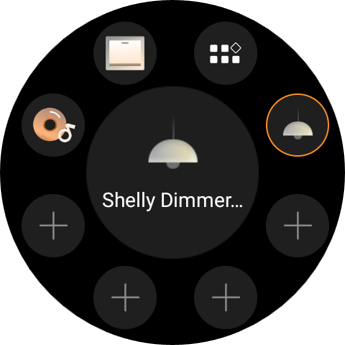
Add up to 8 shortcuts per homepage for quick control.
Create up to 5 homepages for easier navigation.
Function screen
When an application or a new type of device is added, a corresponding category appears here. Here are some examples:
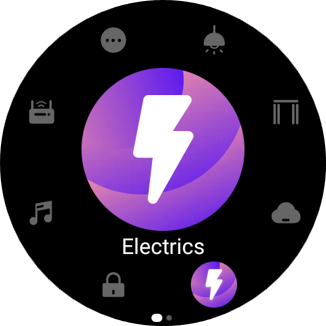
Lights: Lighting devices.
Shades: Shades, curtains, blinds, and more.
Climate: Air quality monitors, air conditioners, thermostats, cooling/heating system, and more.
Electric: Switches, relays, and more.
Security: Sensors such as motion sensors, door phones, locks, cameras, and more.
Media: Speakers, TV, and more.
Gateway: akubela panels.
More: IR controllers, customized remotes, and more.
Control center
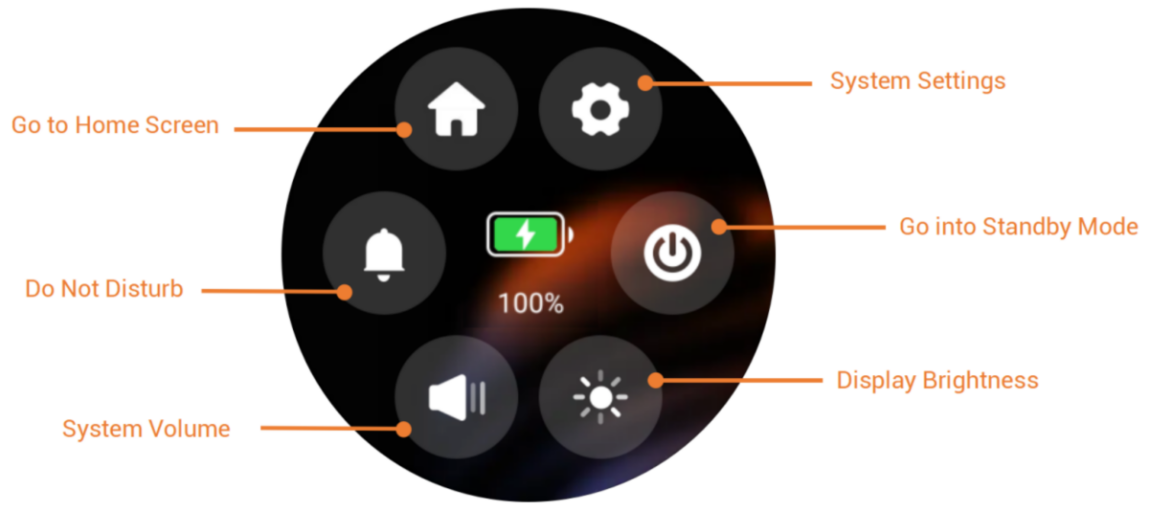
To open the Control Center (see below) for quick control, swipe down from the top edge of any screen.
Check the server status
When you find some features do not work, you can firstly check if the server connection is normal.
Swipe down from the top edge of any screen, and tap
 > System Settings > Connect Status.
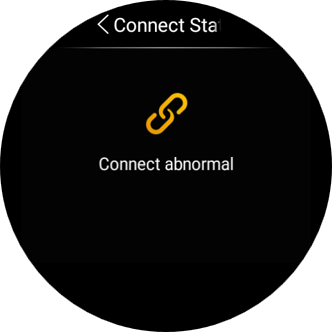
The status of your server connection will display in the center.
The screen that displays the following image indicates that your device is connected to the server already.
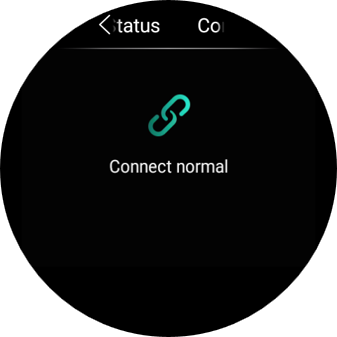
If it shows connection error, contact your service provider or akubela technical team for help.