Change your Wi-Fi network
Swipe down from the top edge of any screen, and tap
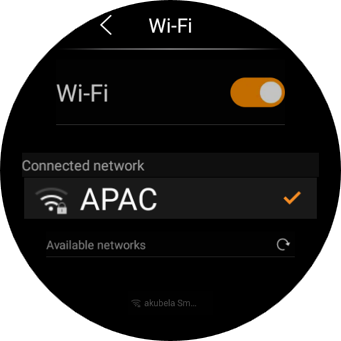
 > Wi-Fi.
Choose the network you want to join.
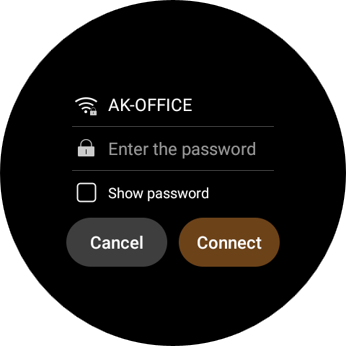
Enter the password if required, and tap
 > Connect.
TIP:
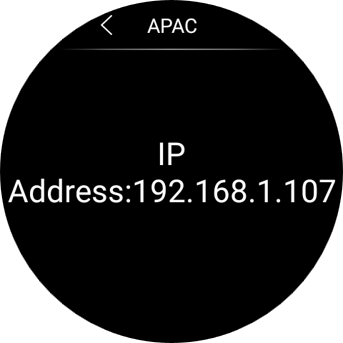
Tap the connected Wi-Fi icon to view the device’s IP address.
Put HyPanel Lux Vase in sleep mode
The HyPanel Lux Vase enters sleep mode under any of the following conditions:
The device is unplugged and the screen has been off for 10 minutes.
Pressing the power button once.
Swiping down from the top edge of any screen and selecting
 > Sleep > Confirm.
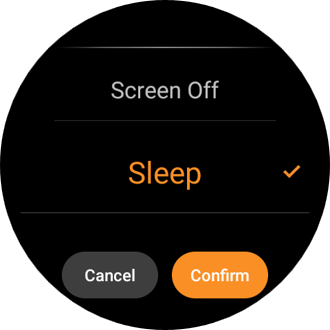
When in sleep mode, the device will not respond to motions, alarm clocks, or timers. Incoming calls automatically wake the device from sleep mode. Also, you can press the knob or power button to wake it up.
Put HyPanel Lux Vase in standby mode
In standby mode, the device remains responsive to motion, unlike in sleep mode.
To enter standby mode quickly:
Swipe down from the top edge of any screen, and tap  > Screen Off > Confirm.
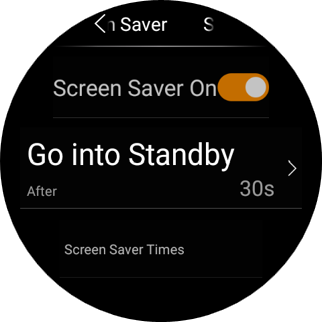
To customize the standby delay:
Go to
 > Display > Screen Saver > Go into Standby.
Choose the desired inactivity period (e.g., 1 minute) before the device automatically enters standby mode.
To wake up the device:
Tap the screen or press the power button once.
Change the screen saver settings
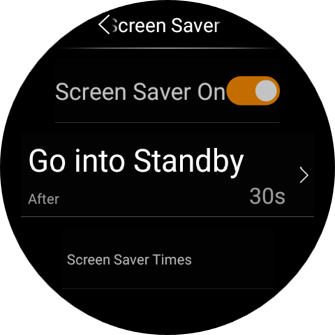
In Screen Saver Settings, you can turn the screen saver on or off, and choose its style.
Swipe down from the top edge of any screen, then tap
 > Display > Screen Saver.
Do any of the following:
Turn on or off the the toggle next to Screen Saver On.
When it is enabled, HyPanel Lux Vase in standby mode will display photos and images; when disabled, the display just stays off.
Schedule the screensaver to turn on automatically by setting Screen Saver Times.
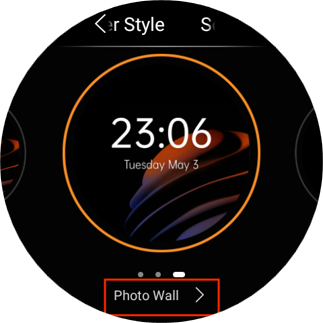
Choose a screen saver style.
Select Photo Wall if you want to display images.
TIP:
To add your preferred photos, log in to the BelaHome app and go to Me > Wallpaper, or access the user web portal with the family administrator account.
Set up Do Not Disturb
If you do not want to be disturbed by calls, messages, or notifications, you can turn on the Do Not Disturb (DND) feature.
Quickly turn DND on or off
You can manually turn the DND feature on by swiping down from the top edge of any screen and tapping  . The icon will turn to
 when the DND is enabled. Tap the icon again to turn the DND off.
This feature can also be set up by going to  > DND.
Schedule the DND to turn on automatically
To schedule a DND to turn on automatically at certain times, do as the following:
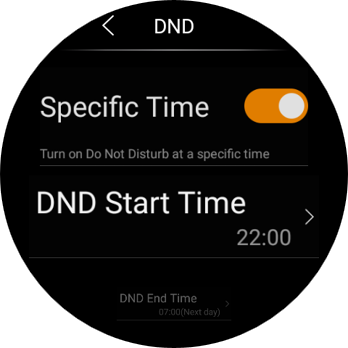
Swipe down from the top edge of any screen to open Control Center, and tap
 > DND.
Toggle on DND.
Toggle on Specific Time.
Set the DND Start Time and End Time. DND will be activated automatically during the designated period and deactivated outside these hours.
Specify the number of times the DND schedule will be repeated. The default setting is 1 time.
Once you set the times, all the calls and notifications will be silenced in this period, while the alarm still rings.
Protect your HyPanel Lux Vase
For better security, use screen lock or settings lock to prevent unintended access to your device or the settings screen.
Set up screen lock
Swipe down from the top edge of any screen and tap
 > System Lock.
Do any of the following:
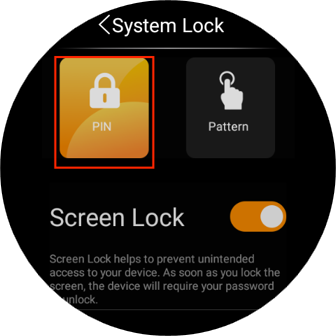
Tap PIN or/and Pattern and follow the onscreen instructions to set a screen lock directly.
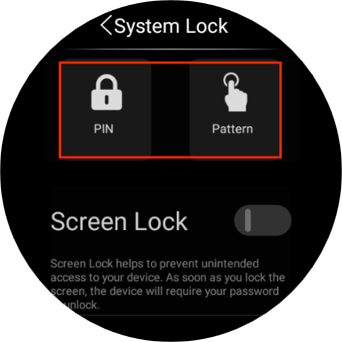
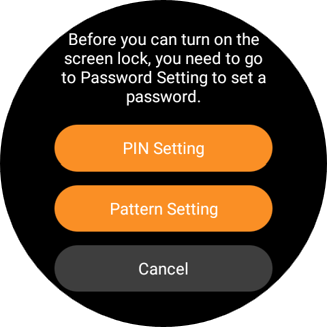
Toggle on Screen Lock to set a password to unlock the screen when you wake it, and follow the onscreen instructions.
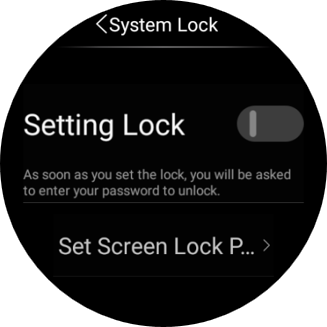
Toggle on Setting Lock to prevent unwanted access to the Settings screen, and follow the onscreen instructions.
NOTE:
The Screen Lock and the Settings Lock share the same pattern password. When both of the locks are enabled, you only need to draw the pattern password once to access the device and the Settings screen.
Clear or change screen lock
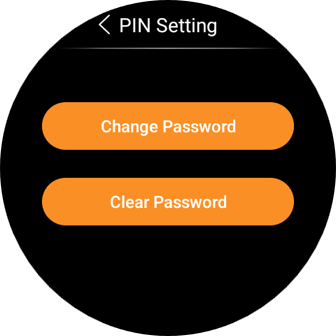
To modify or delete passwords, tap the relevant password type, choose between Change Password and Clear Password, and follow the onscreen instructions.
Forgot password
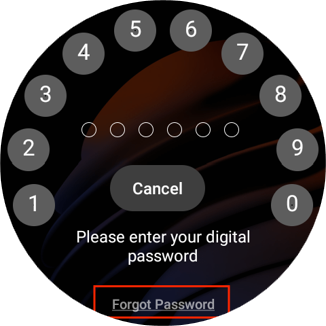
To clear the forgotten current password, tap Forgot Password on the password required screen and follow the onscreen instructions. Two resetting options are provided based on your cloud connection status.
Via reset email
If you’ve registered the administrator account and ensure that the devices are connected to the Internet, a password reset email will be sent to the family’s administrator email address once you tap Forgot Password. Follow the instructions included to clear the password.
On the user web portal
Log in to the user web portal, find the desired panel, and tap its
 > Reset > Reset Panel screen lock password.
Configure proximity sensor settings
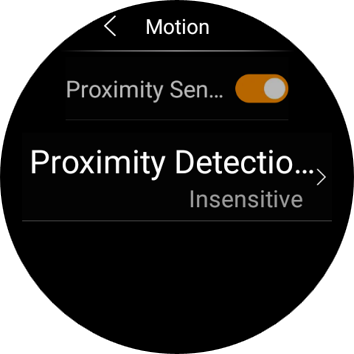
The panel features a built-in proximity sensor that detects when someone approaches. For example, it can automatically wake the screen as you get near, offering a touch-free and responsive experience.
To adjust the sensor settings:
Swipe down from the top edge of any screen.
Tap
 > Motion.
Do any of the following:
Enable/Disable the proximity sensor.
Adjust the sensitivity.