Parameter Setting Interface “Home Page x”, shown in Figure 2.3.1, configures the homepage layout and website navigation. You can configure up to two homepages can be configured, each with a maximum of 8 navigation links to pages or icons within multifunction pages. Parameters for each navigation function are the same, enabling linking to specified function pages or icons within pages. Below is an example of parameter settings for one navigation function.
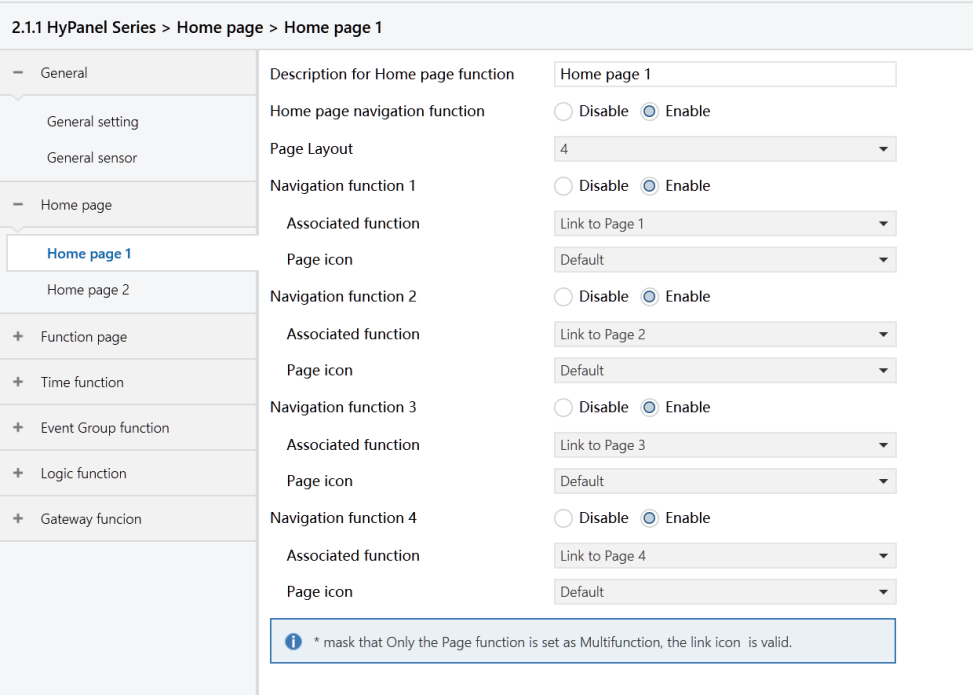
Figure 2.3.1 “Home Page x” Interface
Description for Home page function
Not applicable for HyPanel.
Home page navigation function
Set whether to enable the homepage navigation function.
Options:
Disable: The device directly displays function pages, allowing users to slide on the screen to select from multiple pages.
Enable: When Enable is selected, the following parameters become visible.
Page Layout
Set the homepage layout to specify the number of function pages displayed.
Options: 1/2/3/4/6/8
Each homepage can feature up to 8 navigation shortcut buttons. Simply click on the function page icons to navigate to the desired control page.
NOTE:
For HyPanel and HyPanel Lite, the first homepage allows a maximum of 4 navigation shortcut buttons, and the second homepage can have up to 6 buttons. If the set number of buttons exceeds the panel's maximum allowance, the excess will not be displayed.
Navigation function x,x=1 to 8
Set whether to enable navigation function’s page icon x.
Options:
Disable
Enable: Following parameters are visible when this option is selected.
Associated function
Set function page or icon within a multifunction page that “navigation function x" is linked to.
Options:
Link to Page 1...Link to Page 15: Link to desired function pages
Link to icon in Page 1*...Link to icon in Page 15*: Link to icons within multifunction pages
NOTE:
The linked function page, multifunction page and the icons within must be configured; otherwise, the link is invalid.
Page icon
This parameter is visible when “Link to function page” is selected in the “Associated function” parameter. It sets the icon used for the function page.
Options:
Default: Display default icons based on the linked function page.
Lighting
Scenario
...
Reception
Icon number
This parameter is visible when “ Link to icon in Page 1*” is selected in the “Associated function” parameter. It sets the linked icon’s number.
Options: 1/2/3/4/5/6/7/8
For example, selecting "Link to icon in Page 2*" in the Associated function parameter with the icon number set to 5 implies linking to the 5th icon on multifunction page 2. This linking of icons only works if the page function is set to multifunction. If the Associated function parameter is set to “Link to icon in Page 6*”, but Page 6 is not configured as multifunction, then the link is invalid.