If a user fails to open a door, you can check the failure reason in Door Logs and follow the corresponding solution in this guide.
This document helps you quickly identify the cause and resolve door access issues.
Supported Devices and Versions
Door opening failure reasons are only reported on devices that support this feature.
Model and version(or higher):
Model | Firmware Version | Model | Firmware Version |
|---|---|---|---|
A08 | 108.30.11.210 | EC33 | 33.30.1.107 |
R20 | 320.30.12.16 | R29 | 29.30.10.712 |
X915V2 | 2915.30.10.707 | A095 | 95.30.11.6 |
A094 | 92.30.11.106 | R28V2 | 228.30.11.17 |
X916 | 916.30.10.508 | S539 | 539.30.10.605 |
A01/A02 | 101.30.11.109 | S535 | 535.30.11.8 |
X912 | 912.30.12.207 | S538 | 538.30.10.705 |
R25 | 25.30.10.206 | E16V2 | 216.30.12.7 |
E16V3 | 416.30.12.5 | X910 | 2910.30.11.104 |
A05V2 | 205.30.11.114 | E12V2 | 312.30.11.106 |
S532 | 532.30.10.336 | E18 | 18.30.11.136 |
A15 | 1115.30.10.407 |
Check the Failure Reason
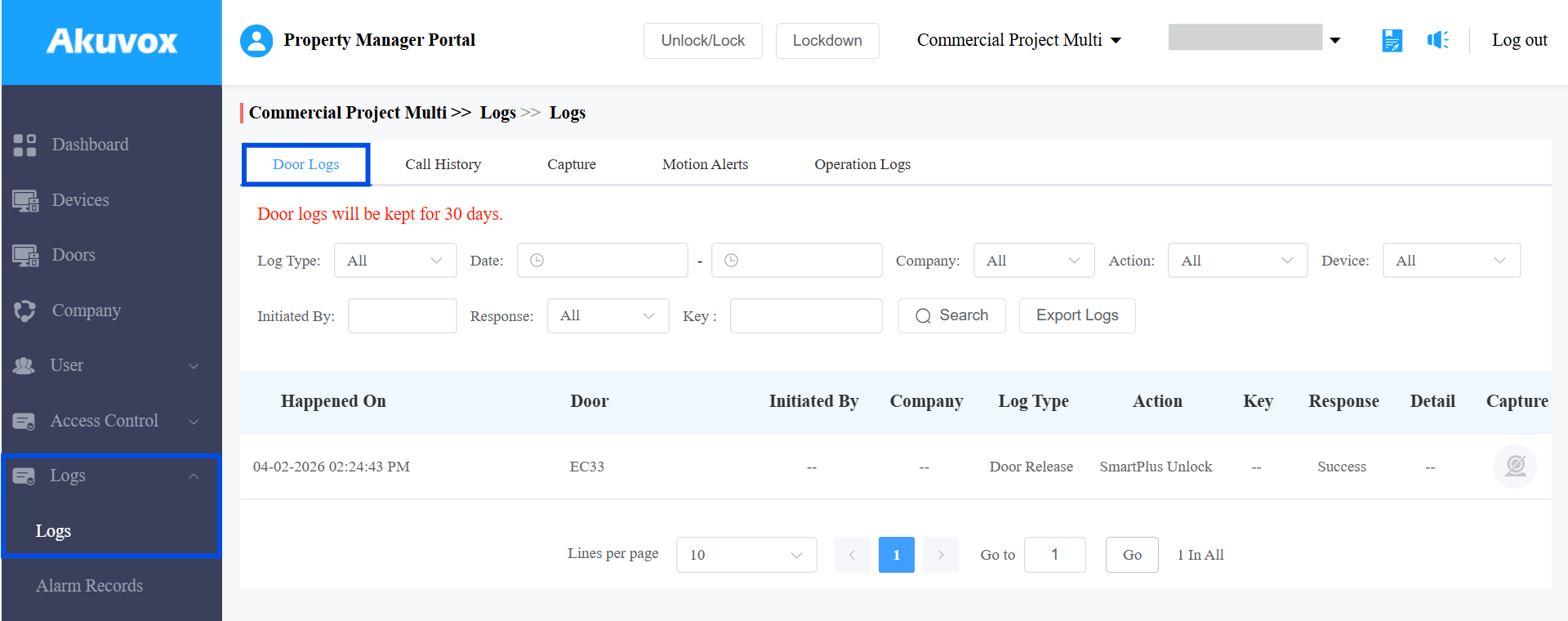
Log in to the cloud with your project manager account.
Go to Logs > Door Logs.
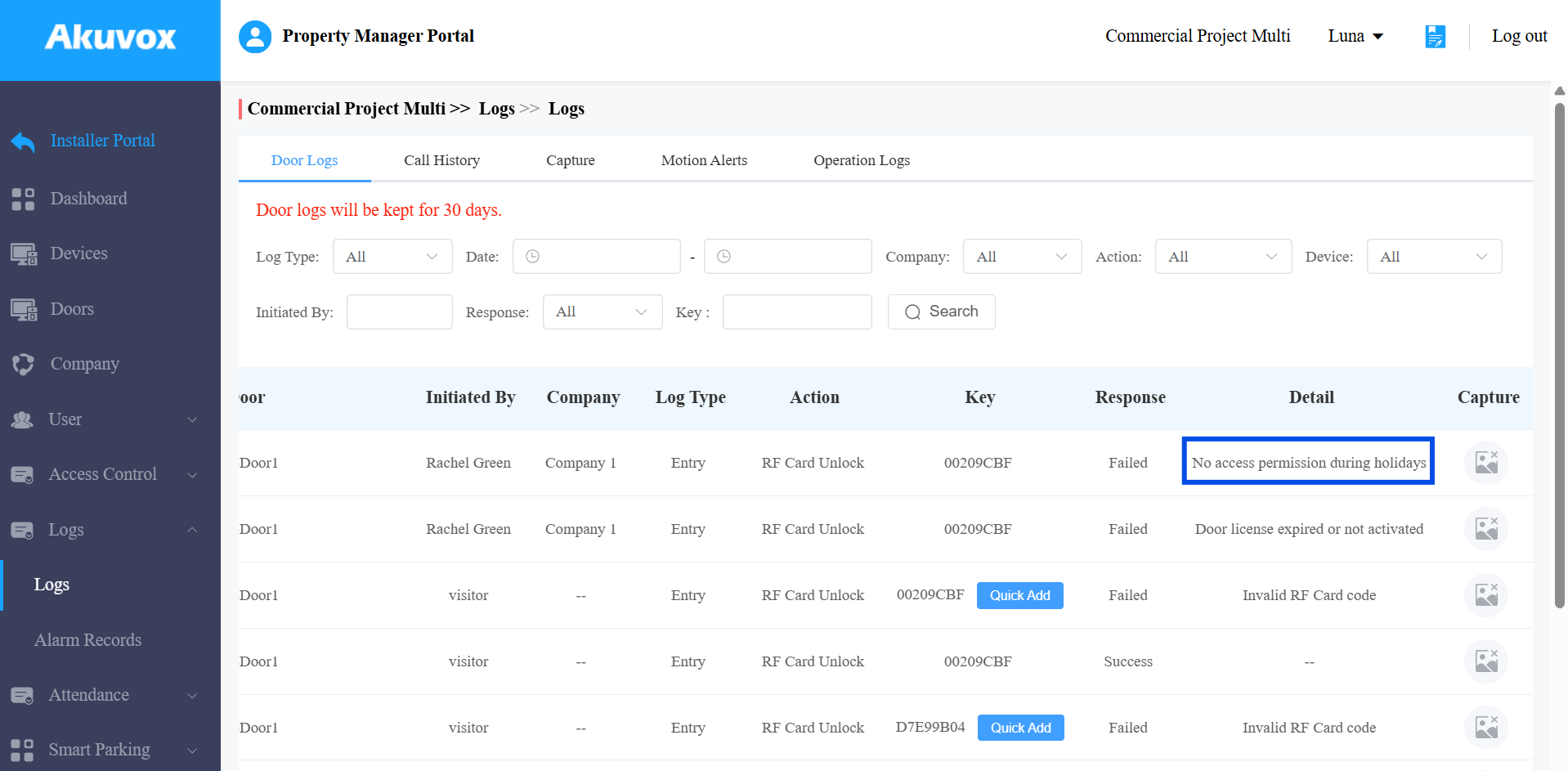
Check the Detail column to view the failure reason.
Door Opening Failure Quick Reference
Failure Reason | Possible Cause | Recommended Solution |
|---|---|---|
Invalid Credential | Credential not assigned to user | Assign credential to user |
Door license expired or not activated | Door subscription expired or not activated | Activate or renew door license |
No access permission | User not assigned to access group | Assign correct access group |
Not within the valid period | Visitor temporary credential expired | Create a new visitor credential |
No access permission during holidays | Holiday access restriction | Modify holiday access schedule |
Failure Reason Analysis and Solutions
Invalid Credentials
When the credential is not assigned to the user, it will display “Invalid [Credential Type]” in the Detail column.
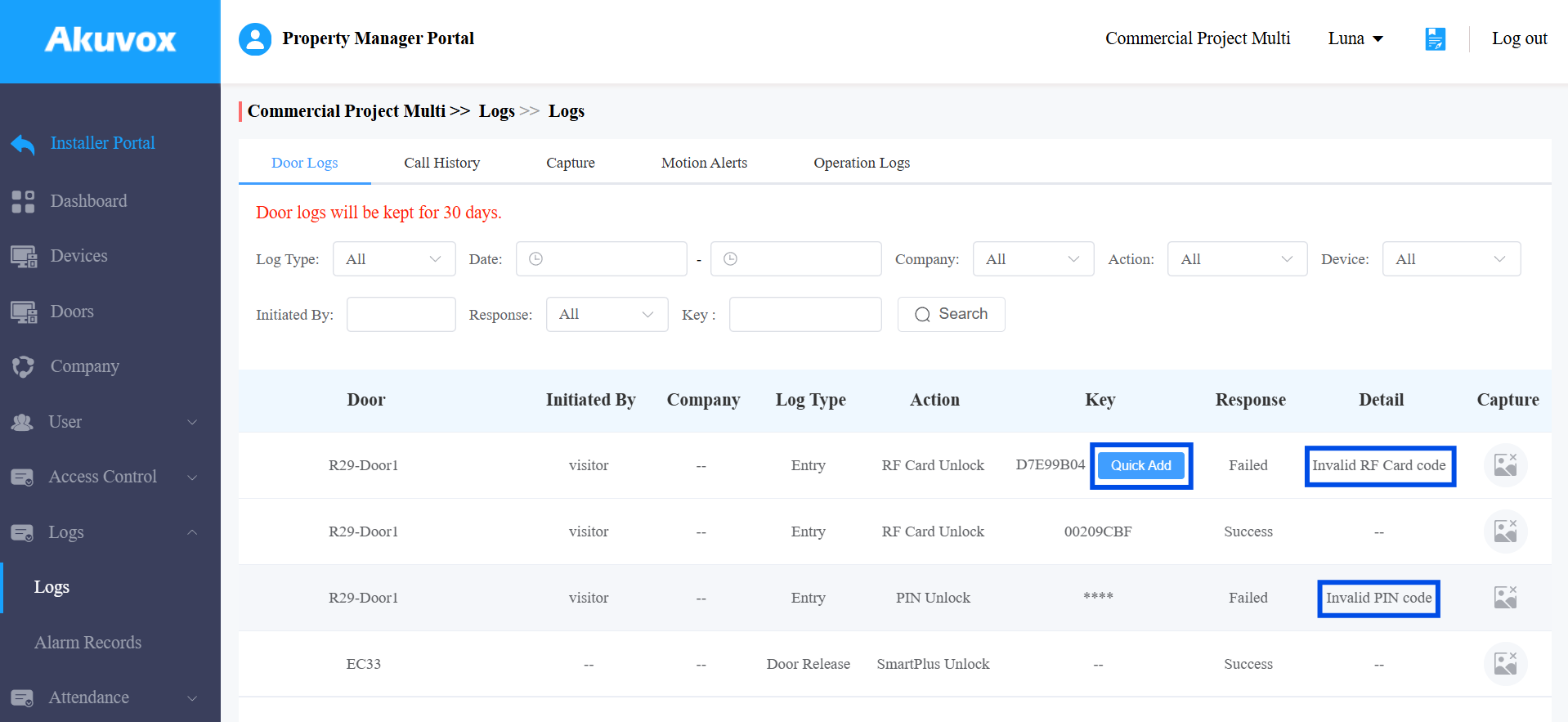
Solution: Assign the credential to a user.
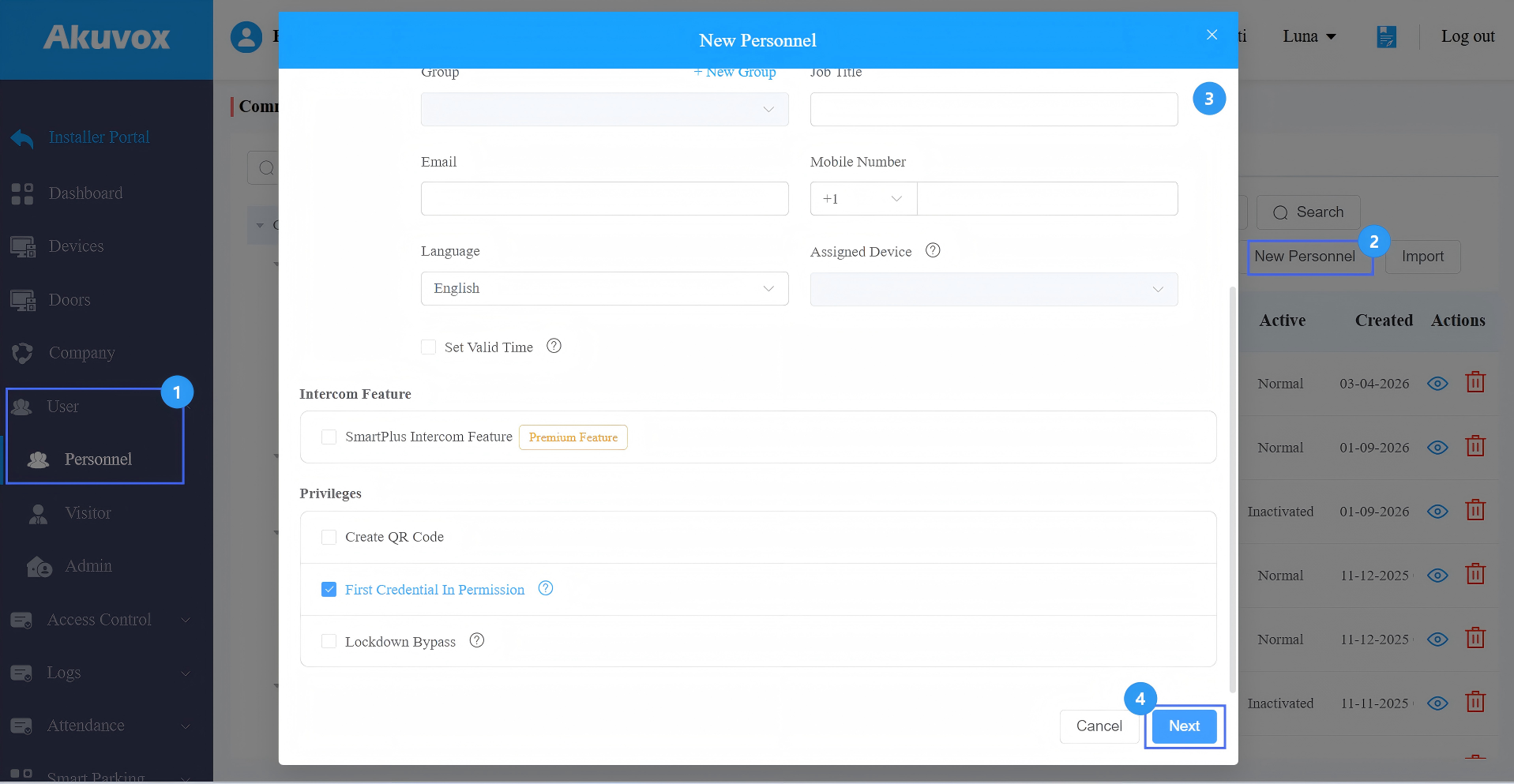
For a new user:
Click New Personnel and set up the user’s basic information and permissions.
Click Next to set up credentials.
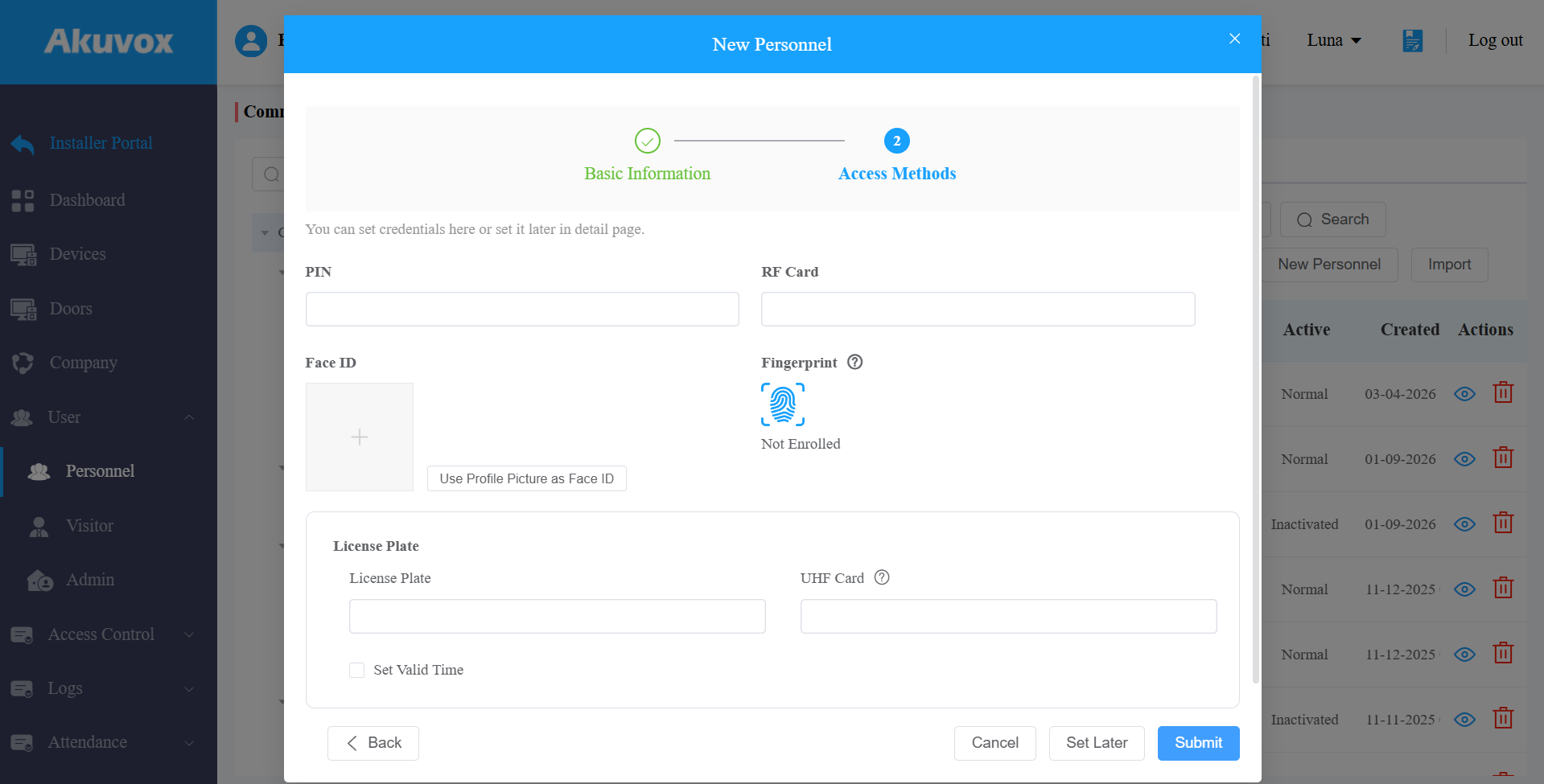
For a current user:
Click
 of the target user.
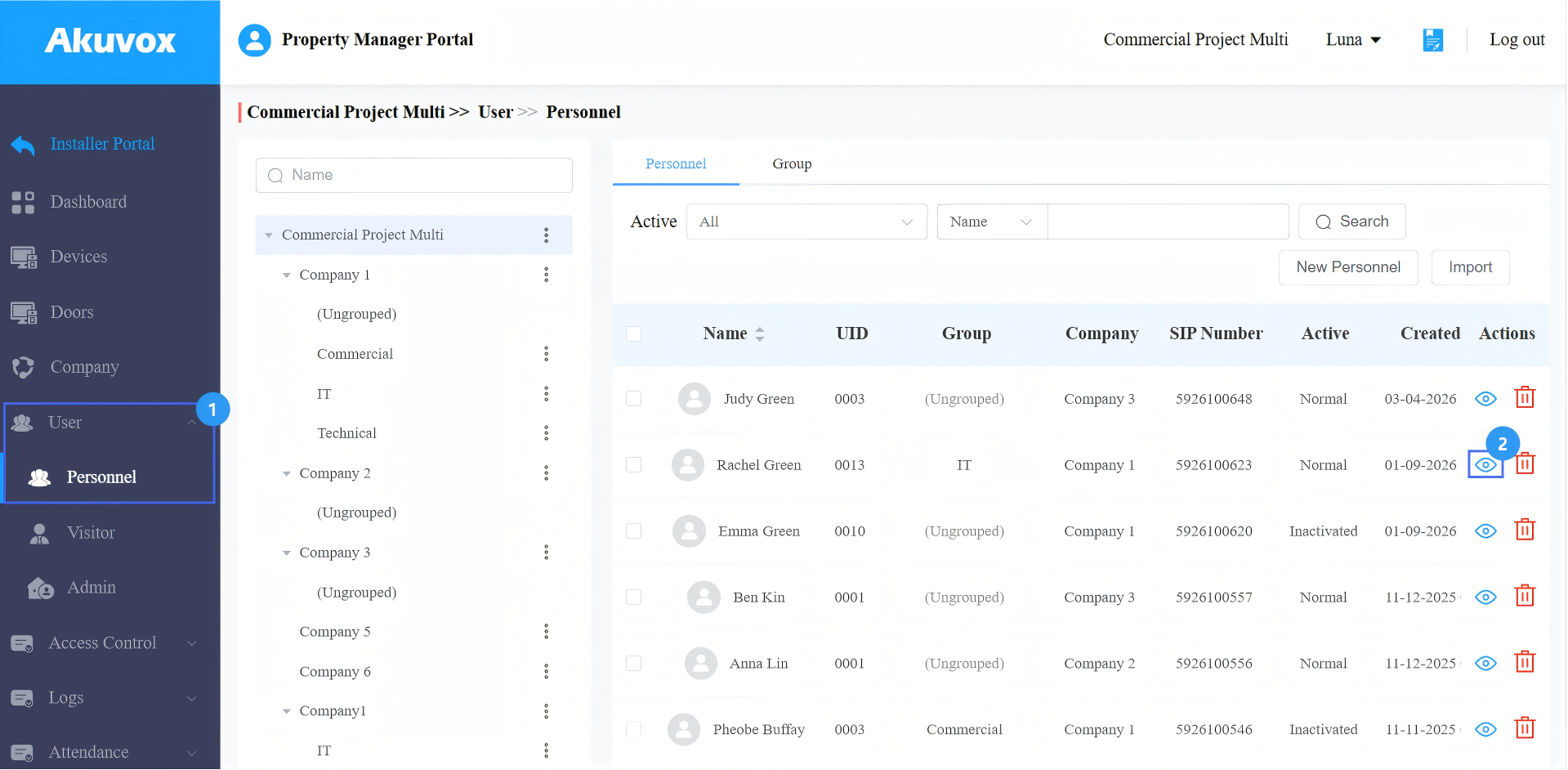
Click
 to add the credential.
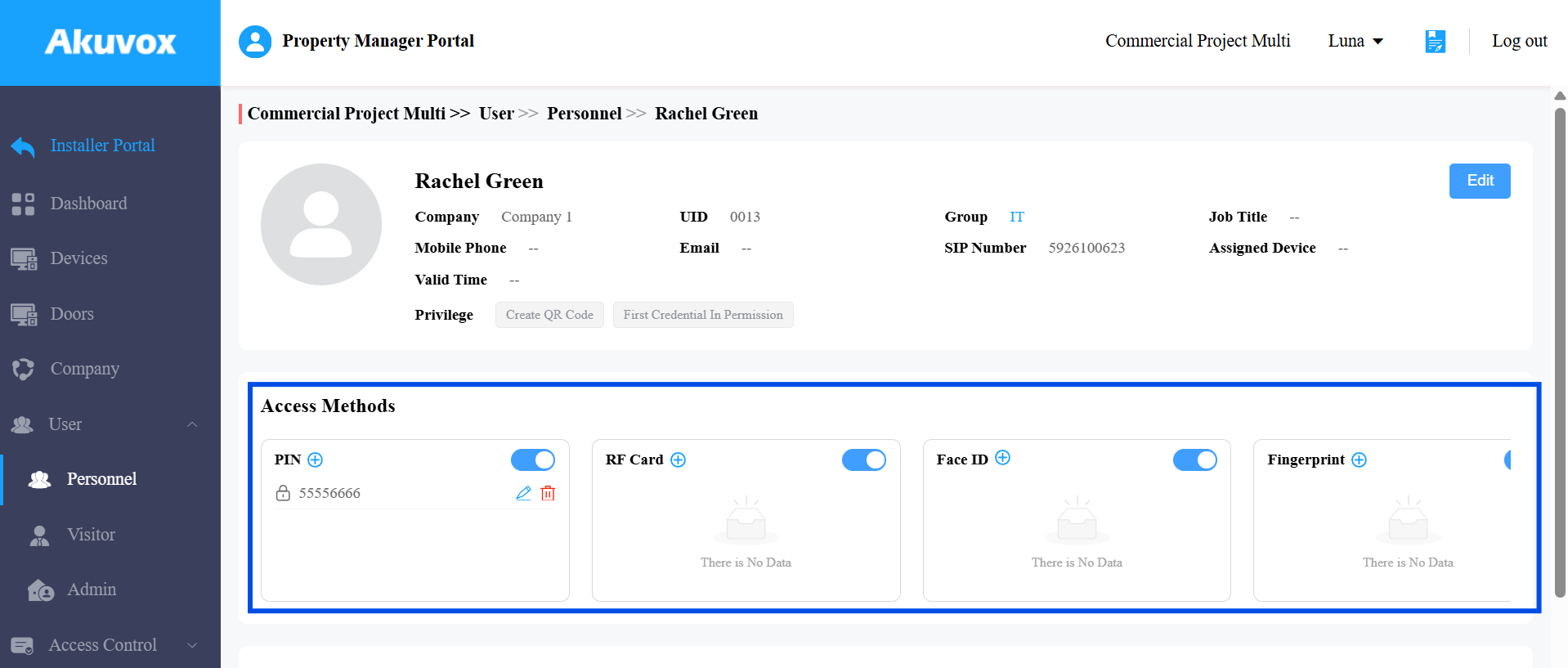
Tip
If the failure is caused by an unregistered RF card, you can use Quick Add in Door Logs to assign it directly.
Door License Expired or Not Activated
“Door license expired or not activated” will display when the door subscription has expired or the door is not activated.
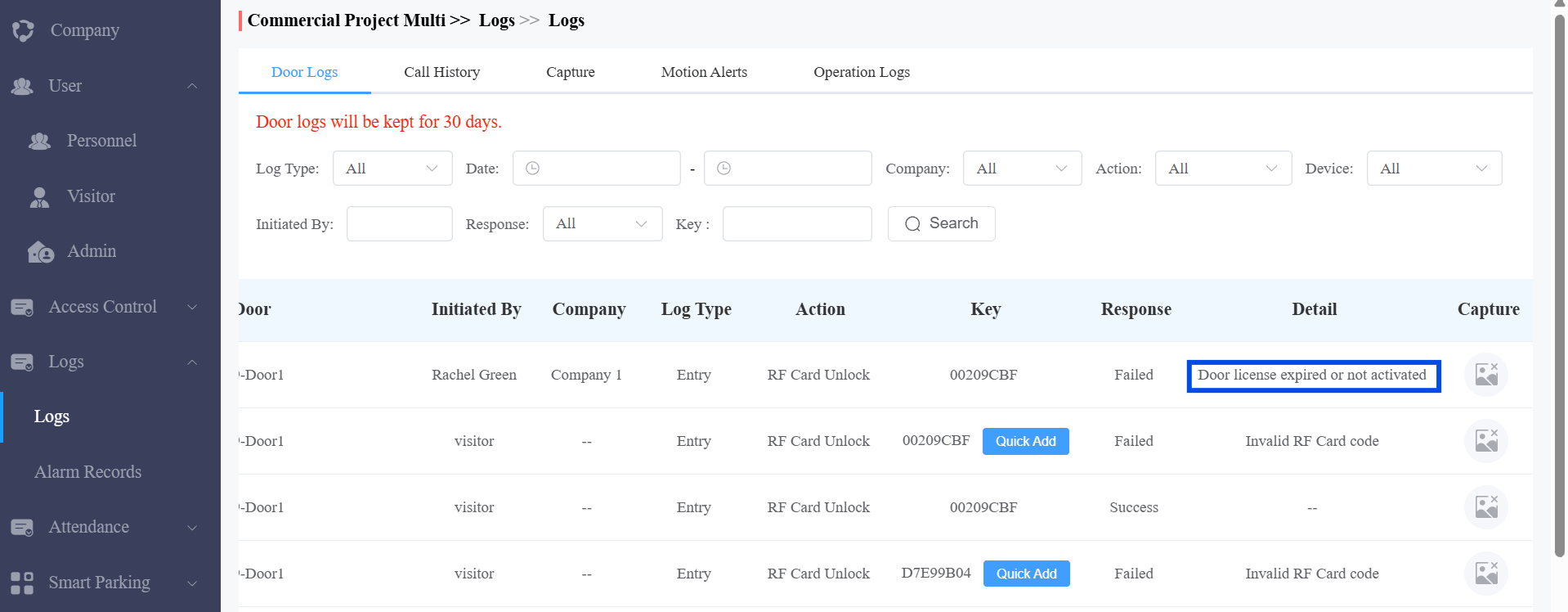
Solution:
If you do not have payment permission, contact your distributor to activate the license.
If you have the permission, activate or renew the license.
Go to Doors and find the unsubscribed door.
Click
 to activate or renew the door.
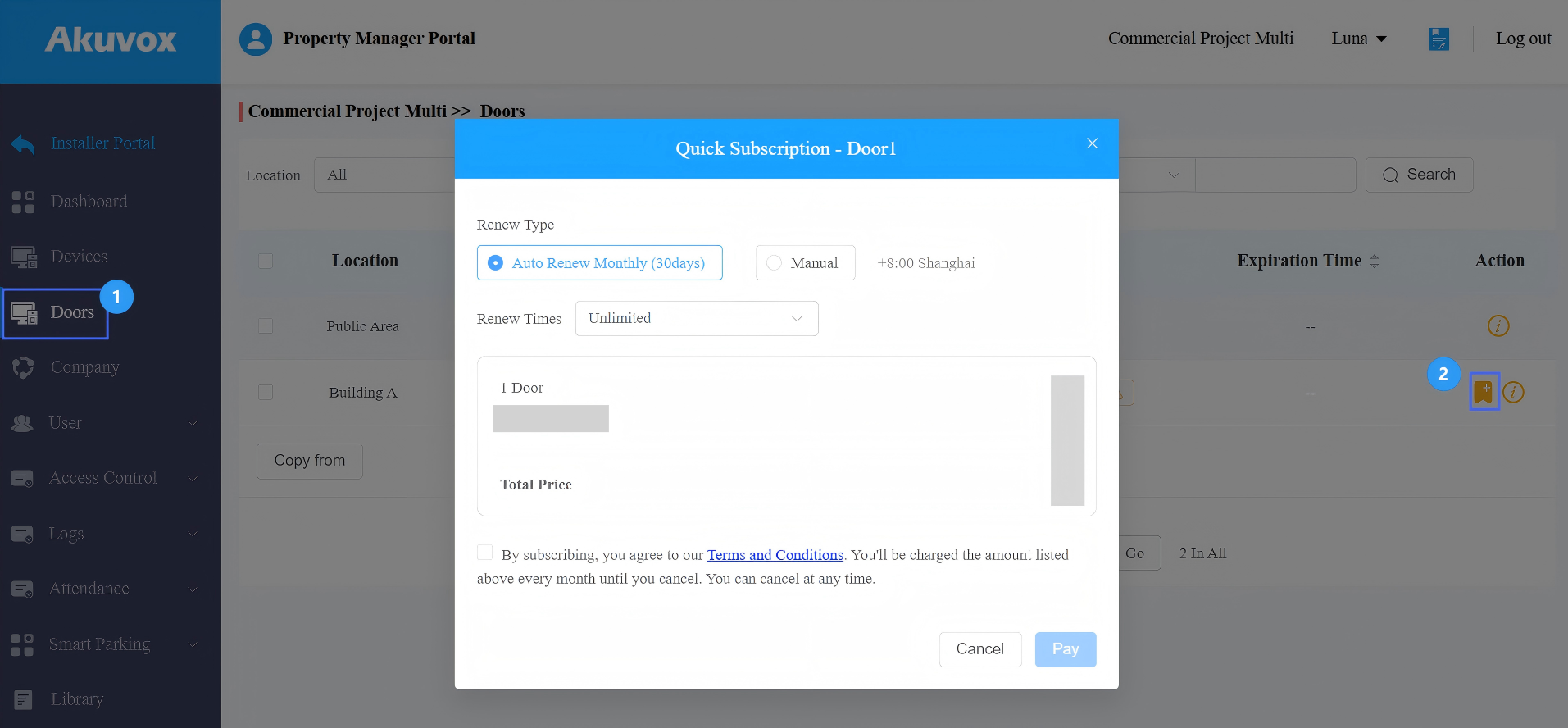
User Not in the Access Schedule
“No access permission or door license is not available” will display when the user is not in the access schedule or when the door is not activated or has expired.
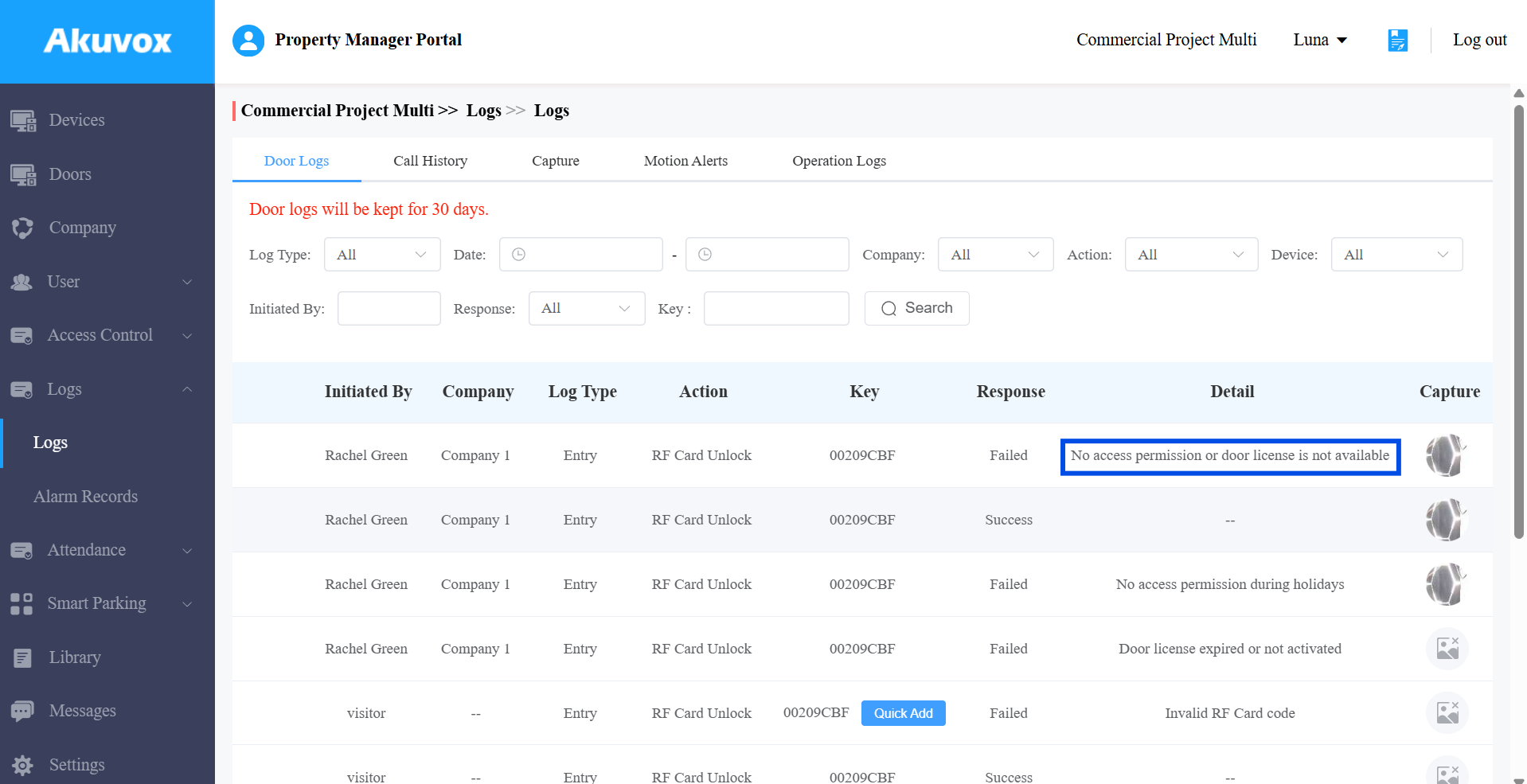
Solution:
For the door expiration issue, please refer to the Door License Expired or not Activated section.
Then, check the access group assigned to the user.
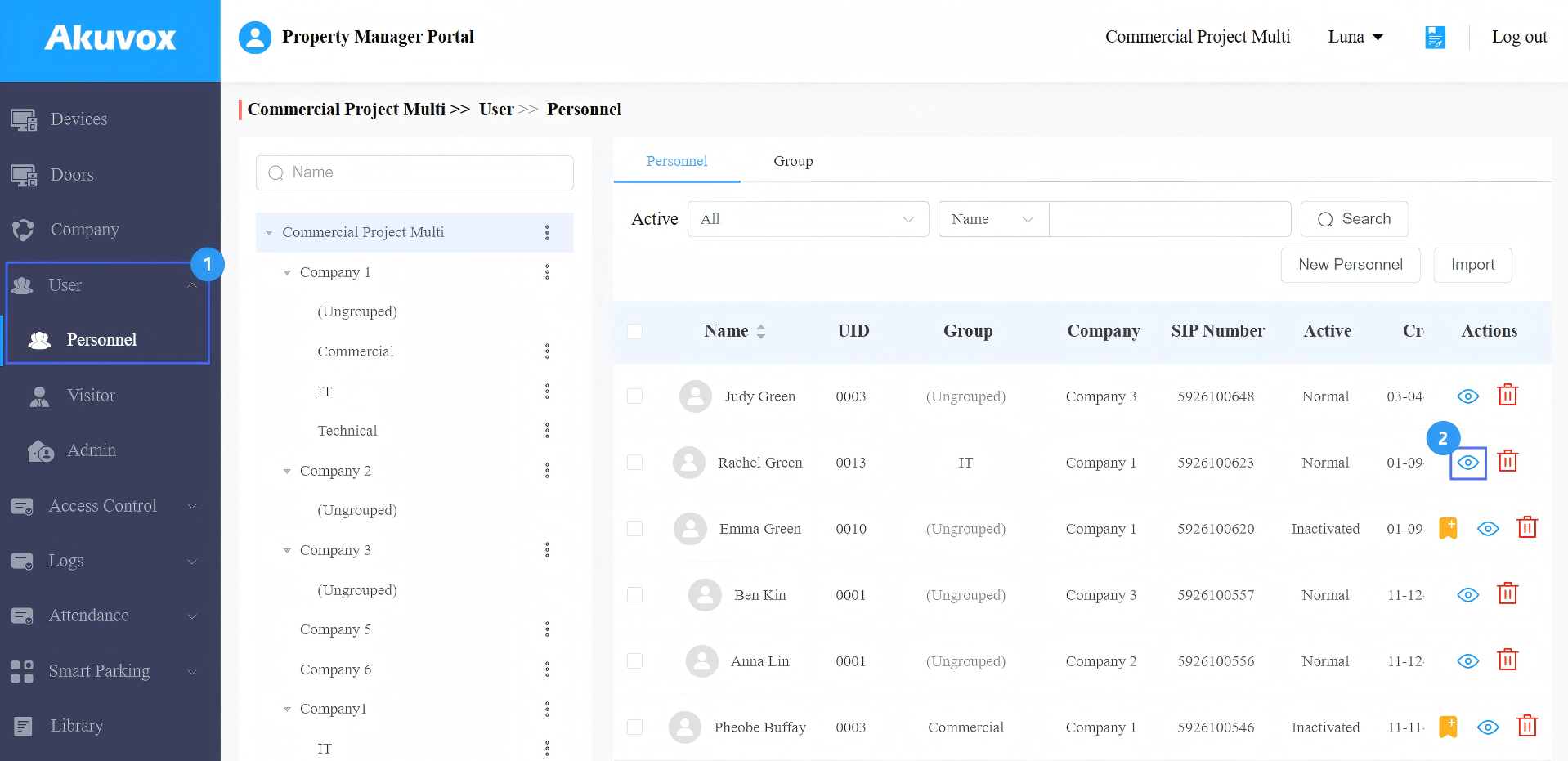
Go to User > Personnel.
Click
of the target user.
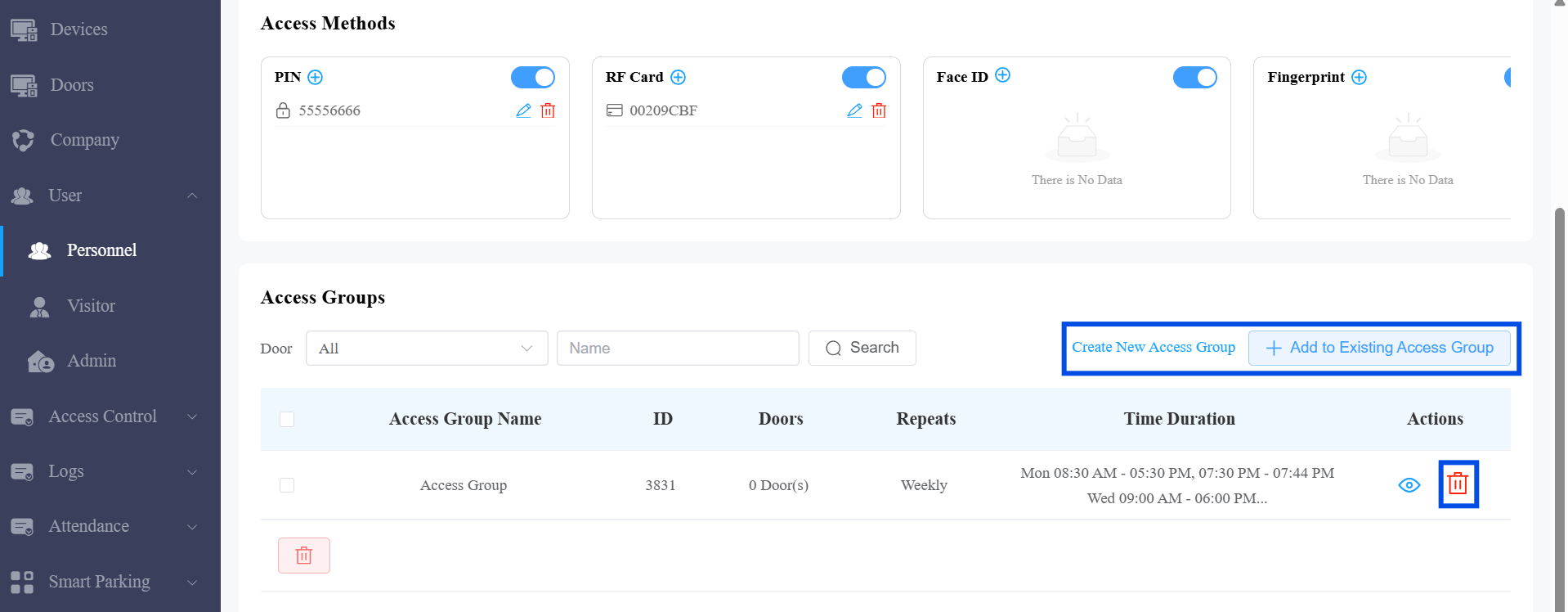
Remove the user from the access group. If
 is not available, that indicates that if the user inherits permissions from a user group, you need to remove the user from the group first.
 Assign the user to a new access group by clicking Create New Access Group or +Add to Existing Access Group that allows the user to open the door during the scheduled time.
Visitor Credential Not in Valid Time
“Not within the valid period” will display when the visitor‘s temp key expires.
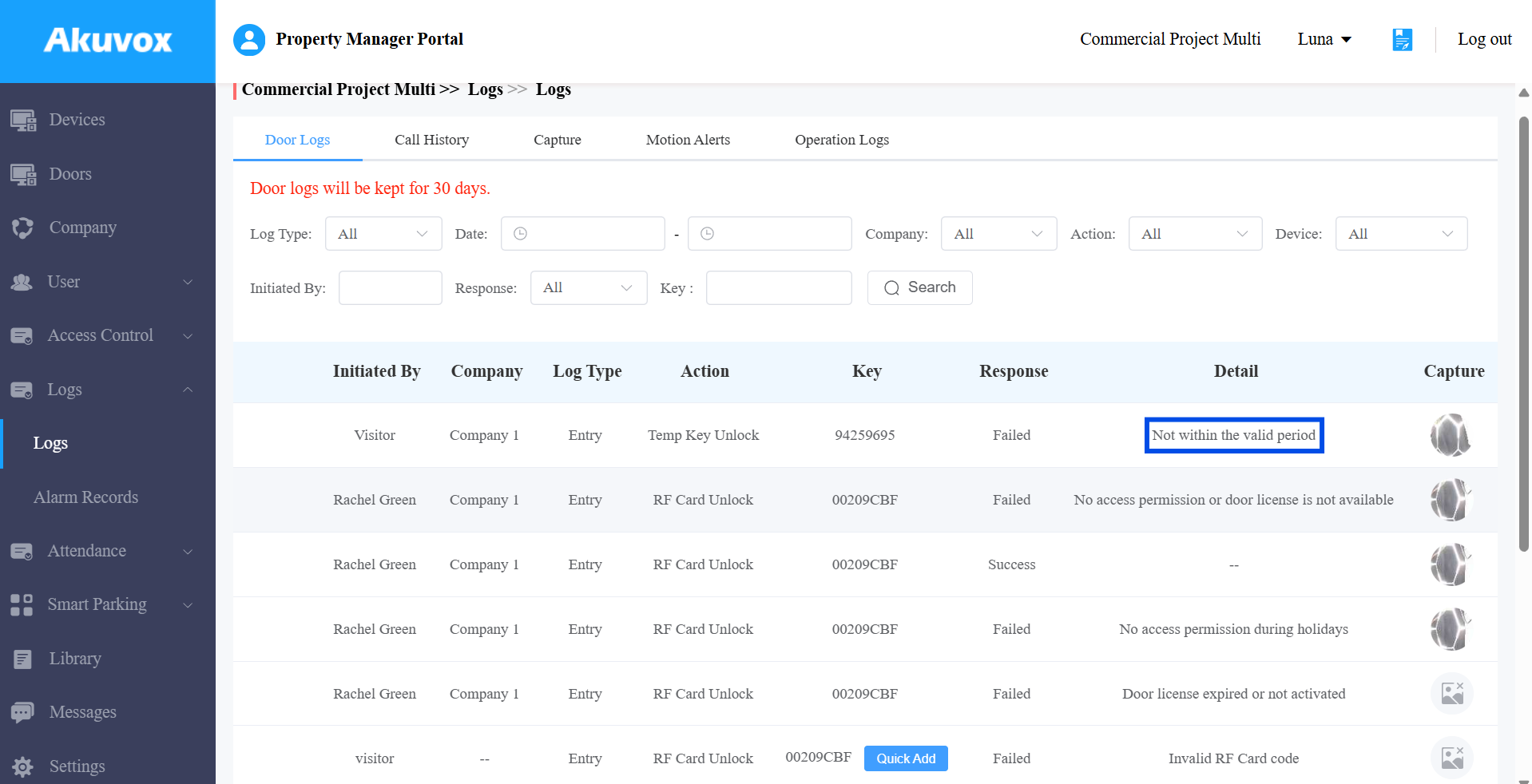
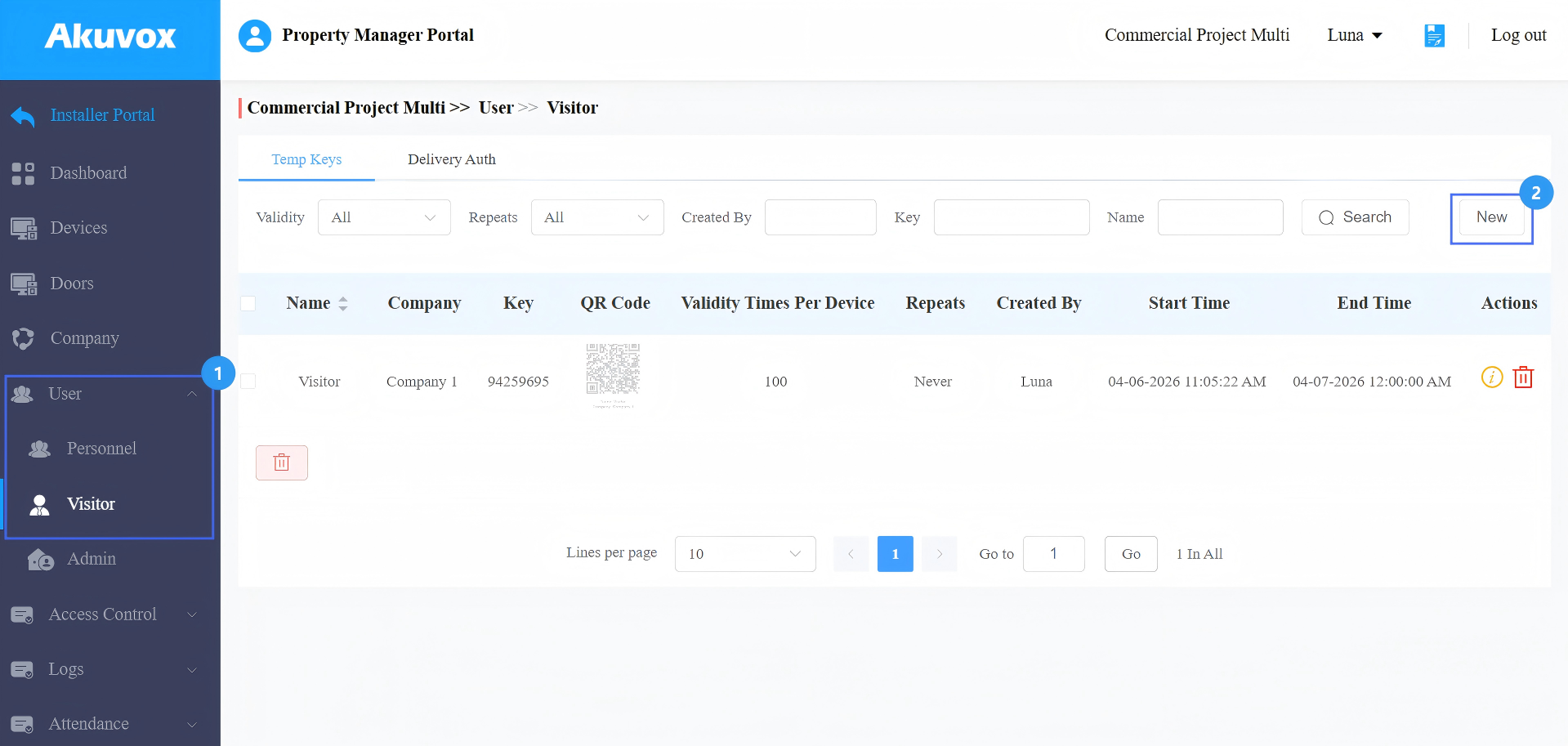
Solution: Create a new visitor credential.
Go to User > Visitor.
Click New to create a new temp key.
Holiday Restriction
“No access permission during holidays” will display when access is denied during a holiday period.
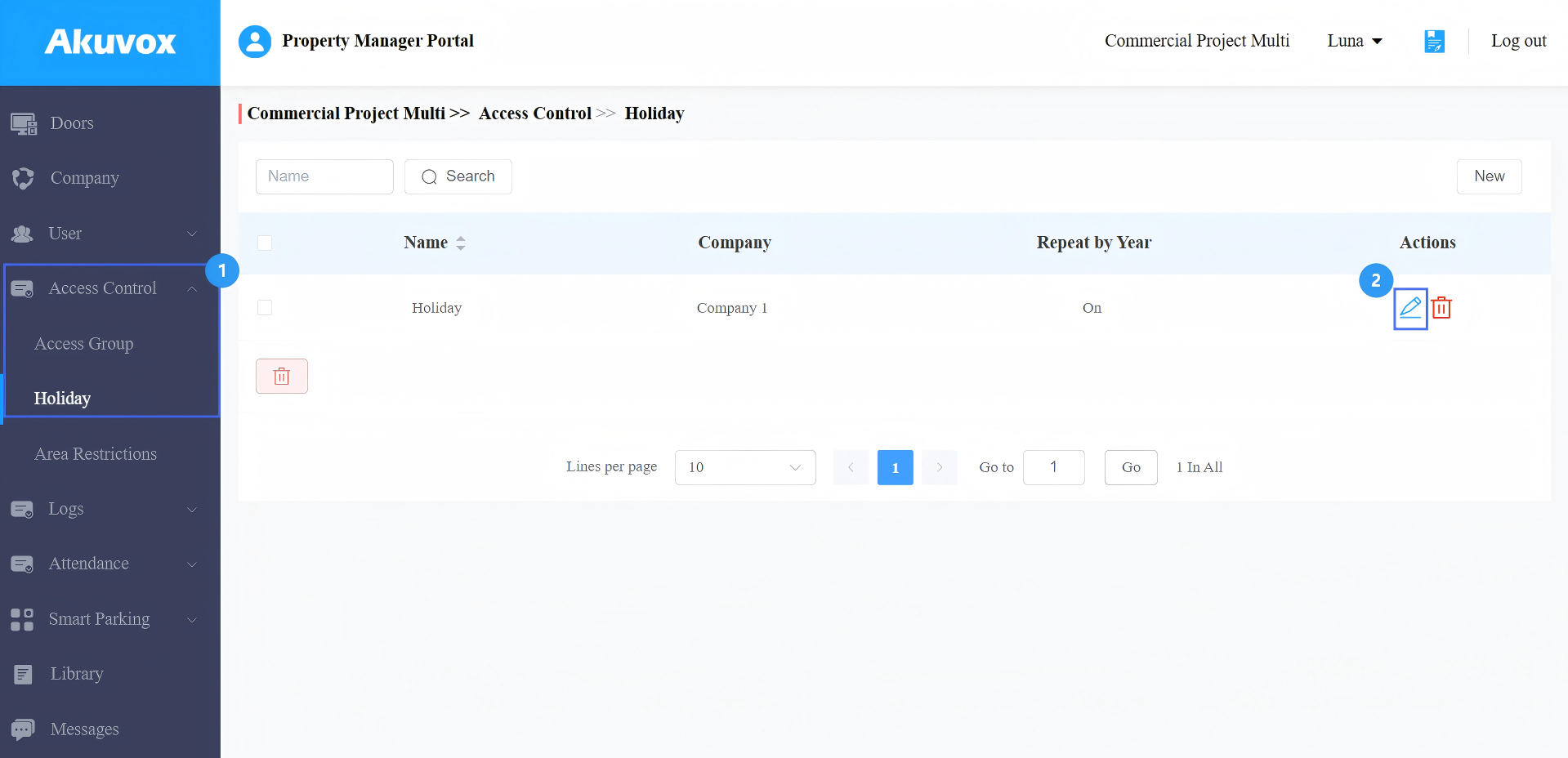
Solution: Modify holiday access settings.
Go to Access Control > Holiday.
Click
 of the target holiday schedule.
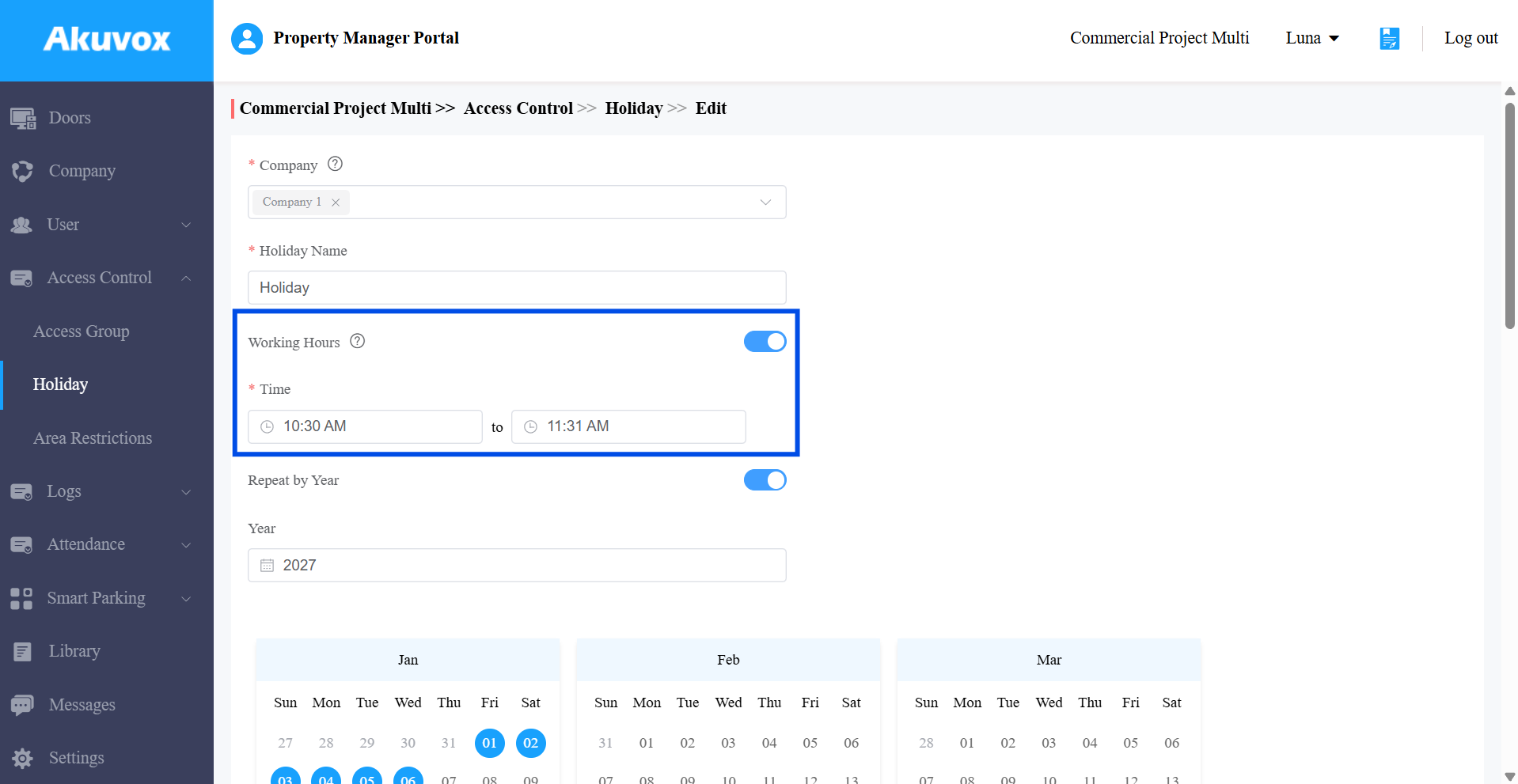
Enable Working Hours and set the time when the authorized users can enter.
When troubleshooting door opening failures, always verify:
Credential validity
Access group assignment
Access schedule
Door license status
Visitor validity period
Checking these items typically resolves most door access issues.