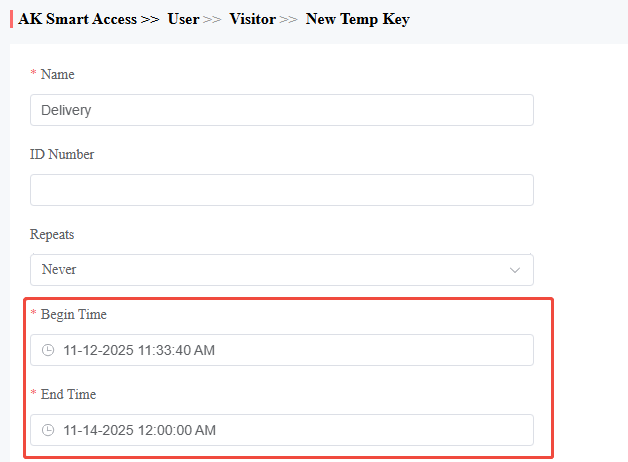
Possible Reason 1: Missing Door Permission for the User
Error Message
No access permission or door license is not available.

Cause
The user cannot access a door because their assigned Access Group does not include that specific door.
Solution
1. Go to Access Control - Access Group.
2. Check all doors that the group needs permission to access.

Possible Reason 2:Incorrect Time Duration for the Access Group
Error Message
No access permission or door license is not available.

Cause
The Access Group’s valid time range does not cover the current time. For example, an Access Group is set to 09:00 AM–06:00 PM, but the user attempts to access the door at 07:30 AM.
Solution
1. Go to Access Control - Access Group.
2. In the Time Duration field, adjust the start and end times to cover the required access window.

Note
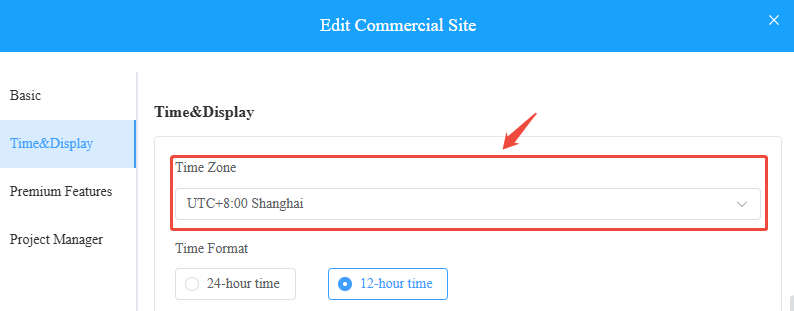
Please set the Time Zone according to the project location.
Possible Reason 3: Door Not Assigned to the Company
Error Message
No access permission or door license is not available.

Cause
If a door is not assigned to a company, you cannot create an Access Group for that company. As a result, the company’s groups and personnel will have no access to the unassigned door.
Solution
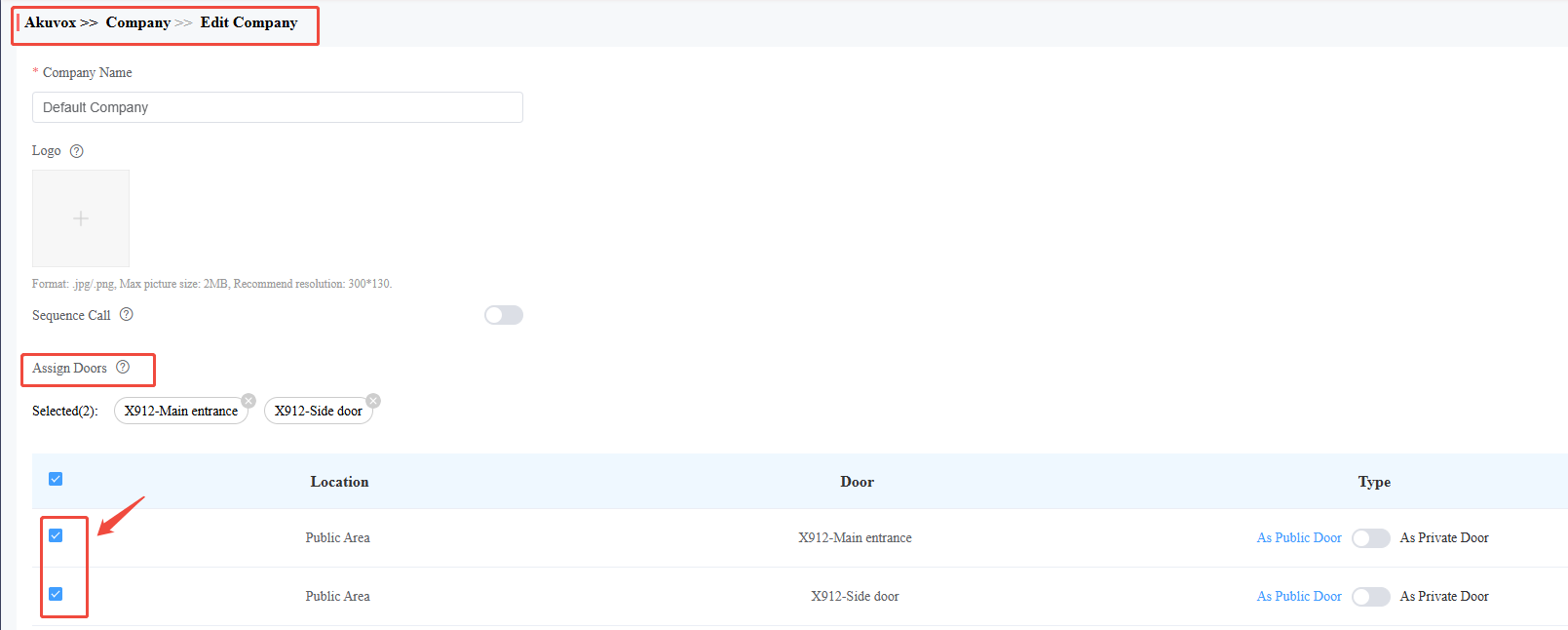
1. Go to Company - Assign Doors
2. In the Door list, check the box next to each door the company should have permission to use (e.g., X912-Main Entrance, X912-Side Door).
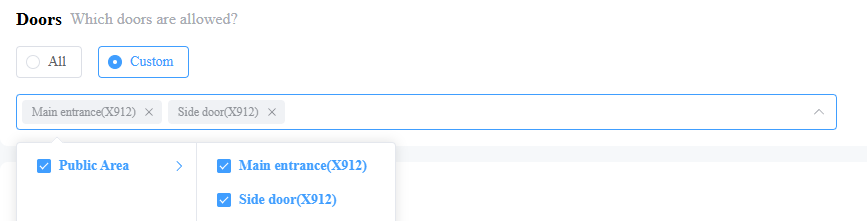
3. Go to Access - Group.
4. Check the box next to each door the company should have permission to use (e.g., X912-Main Entrance, X912-Side Door).
Possible Reason 4: Unconfigured Working Hours for Holidays
Error Message
No access permission during holidays.

Cause
The current day is set as a holiday, but the user’s access time falls outside the configured Working Hours (if no working hours are set, access is blocked by default).
Solution
Choose one of the following options based on your needs:
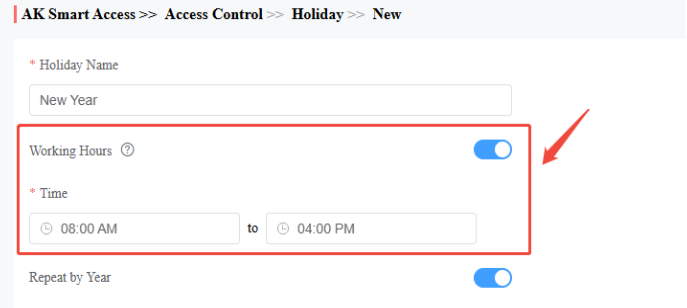
Option 1: Set up working hours for the holiday
1. Go to Access Control > Holiday.
2. Select the holiday that needs adjustment (e.g., New Year).
3. Enable the Working Hours.
4. Set the valid access time range for the holiday (e.g., 8:00 AM–04:00 PM).
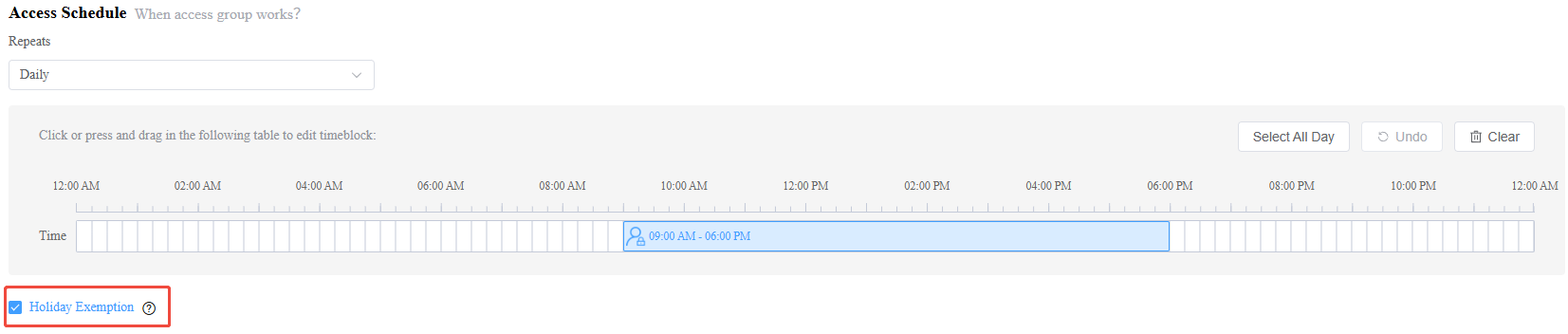
Option 2: Enable Holiday Exemption for the access group
1. Go to Access Control - Access Group - Access Schedule.
2. Enable Holiday Exemption, then it will exempt the access group from all holiday restrictions.
Possible Reason 5: Disabled Access Method
Error Message
Access method disabled.

Cause
The required access method (e.g., PIN, RF Card, Face Recognition) is disabled for the door or the user. For example, Door A does not allow PIN-based access, so users cannot unlock it with a PIN.
Solution
Choose one of the following options based on your needs:
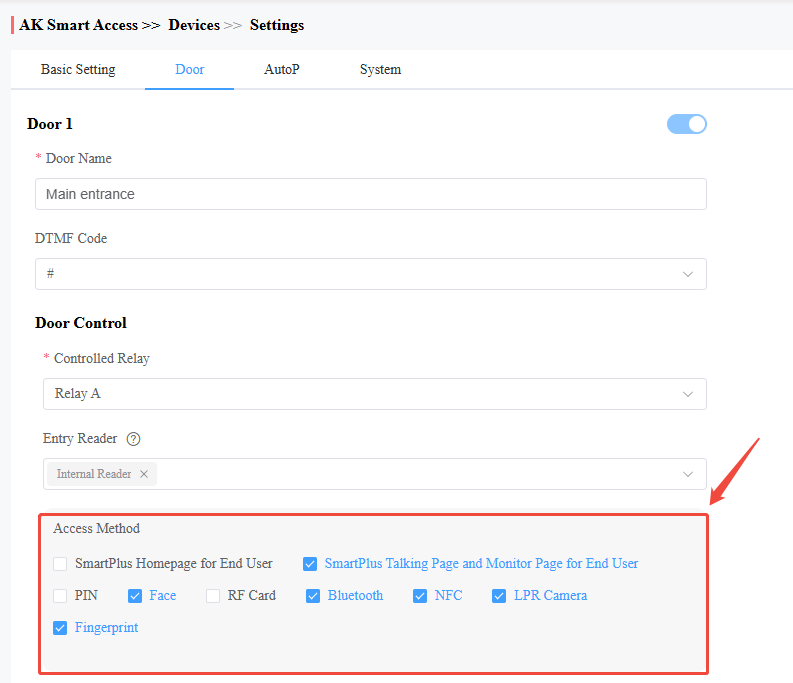
Option 1: Disable the access method on device
1. Go to Device - Door - Access Method.
2. Select the door with the disabled access method (e.g., Main Entrance).
3. In the "Access Method" list, check the box next to each method to enable (e.g., PIN, Face, RF Card, Bluetooth).
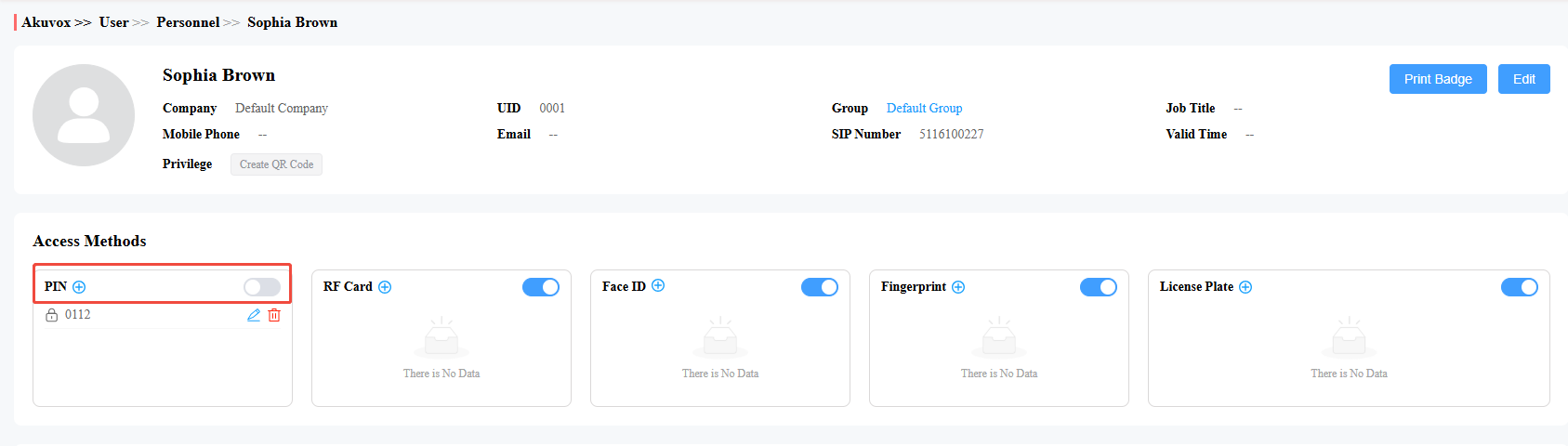
Option 2: Disable the access method of the user
1. Go to User - Personnel - Access Methods.
2. Check the box next to each method to enable (e.g., PIN, Face, RF Card).
Possible Reason 6: Anti-Passback Restrictions
Error Message
Anti-passback rule violated.

Cause
The door has anti-passback enabled, which restricts access based on entry/exit sequence rules (e.g., preventing re-entry without exiting first).
Solution
Choose one of the following options based on your needs:
Option 1: Log Violations Only (No Access Denial)
1. Go to Access Control > Area Restrictions.
2. Select the target area (e.g., "IT Room") and click "Edit".
3. Under "Anti-Passback", change the action from Deny Access to Log violations only.
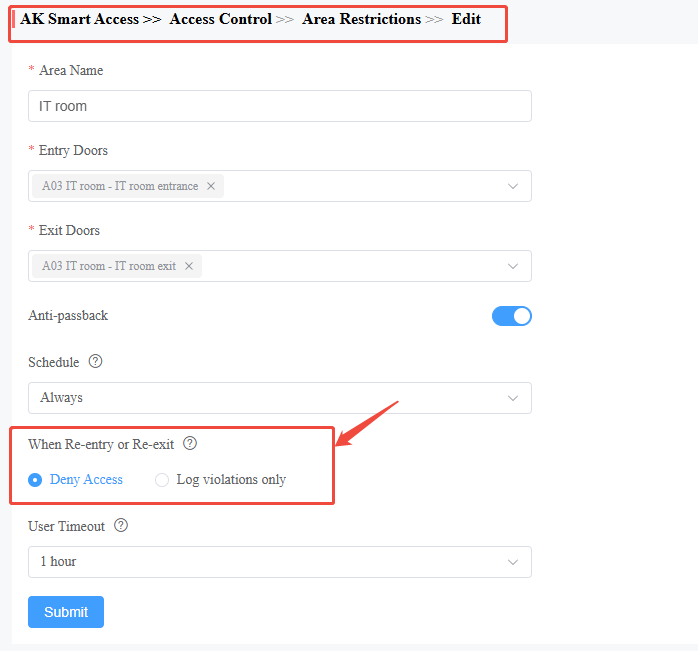
Option 2: Enable Anti-Passback Exemption for a Group
1. Navigate to Groups > Edit Group.
2. Check the box for Immune to Anti-Passback. Then, the personnel in this group will not be subject to the usual Anti-Passback rules.
Possible Reason 7: Door in Lockdown Mode
Error Message
Door Unlock Lockdown

Cause
The door is in Lockdown Mode—a security state that temporarily blocks all access to the door.
Solution
Choose one of the following options:
Option 1: Disable Lockdown Mode Globally
1. Log in to the Property Manager Portal.
2. Click Lockdown Off (this disables Lockdown for all doors marked Lockdown).
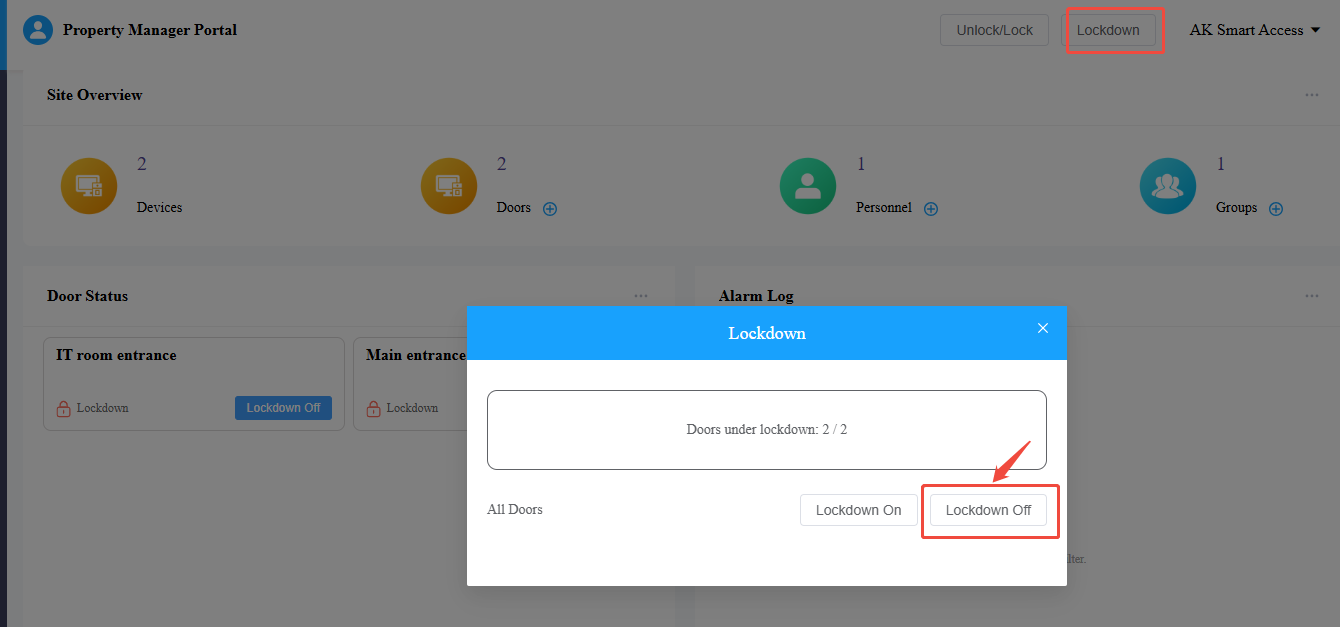
Option 2: Enable Lockdown Bypass for Authorized Users
1. Go to Personnel > Edit Personnel.
2. Navigate to the Privileges section.
3. Check the box for Lockdown Bypass.
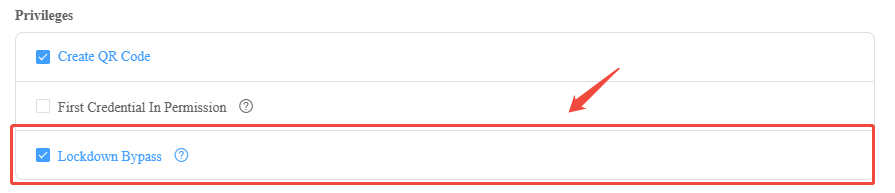
Possible Reason 8:License Not Within Valid Time Period
Error Message
Not within the valid period.

Cause
License plates and temporary keys are assigned a specific valid time period. If this time period does not cover the current time (i.e., the license plate has expired or is not yet active), the user will be unable to unlock the door.
Solution
Choose one of the following options:
Option 1: Correct the valid time for the user's license plate.
1. Go to User - Personnel - Access Methods.
2. Locate the user’s license plate entry and edit it.
3. Update the valid access time range to cover the required period (e.g., extend the end date or adjust the start time).
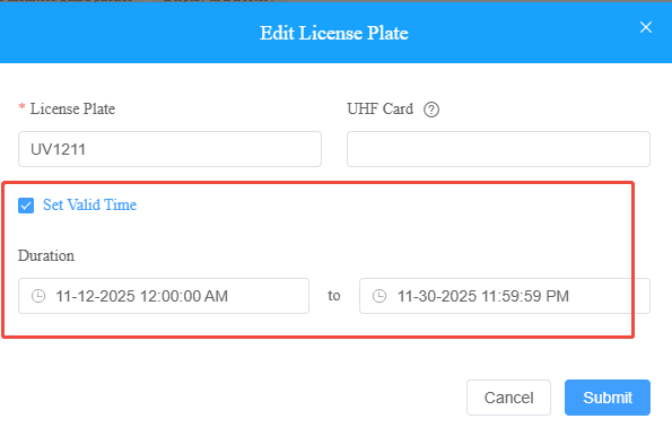
Option 2: Create a new Temp key with the correct duration.
1. Go to User - Visitor.
2. Click New button to create the temp key and set the correct Begin Time and End Time for its validity.