Akuvox door phones allow you to export user data and import it to another device in batch, making management more efficient and saving time compared to adding users one by one.
Refer to the chart for the number supported by different models.
Note
All exported user files(XML or CSV file) are stored in a TGZ compressed package. If you have modified the files, compress them into TGZ for importing.
Models | Supported Local User Number |
|---|---|
S539 | 50,000 |
S538 | 50,000 |
S535 | 20,000; supports 50,000 users on firmware version 535.30.11.42 or later. |
S532 | 10,000 |
X916 | 20,000 |
X915 | 20,000 |
X912 | 5,000 |
R29 | 20,000 |
R28/R27 | 5,000 |
R25 Series | 5,000 |
R20 Series | 4,000 |
E18/E16 | 20,000 |
E12/E13/DB01 | 5,000 |
A15 | 5,000 |
This article takes R29 and X915 as an example. The file exported from X915 will be imported into R29.
Export the File from X915
Use the device IP to log into its web interface. The initial username and password are both admin.
Click Directory > User and find Import/Export User.
Click Export to export the user data in XML or CSV files.

The exported files will be packaged in a TGZ archive named UserData.
.png)
Import the File to R29
Use the device IP to log into its web interface. The initial username and password are both admin.
Click Directory > User and find Import/Export User.
Click Select File and choose the exported TGZ file.
Click Import.
Note
Devices do not support directly importing the XML or CSV file. If you have modified the file, compress it into TGZ for importing.

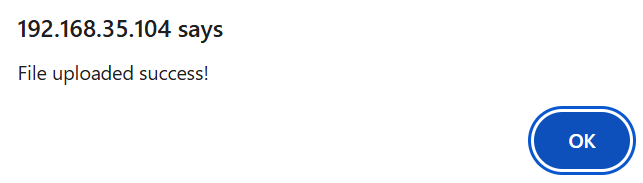
A prompt will inform you whether the import is successful.