Akuvox indoor monitors support installing third-party applications, which enriches user experience.
Note
Android indoor monitors support this feature, including the following models:
S567, S563, IT88, C316, C319, and X933.
This article takes the indoor monitor S567 as an example.
Install the Third-party App
Use the device IP to log in to its web interface. The initial username and password are both admin.
Click Device > Third Party APK.
Click Import and Select File. Choose the APK file from your local driver.
Click Install.
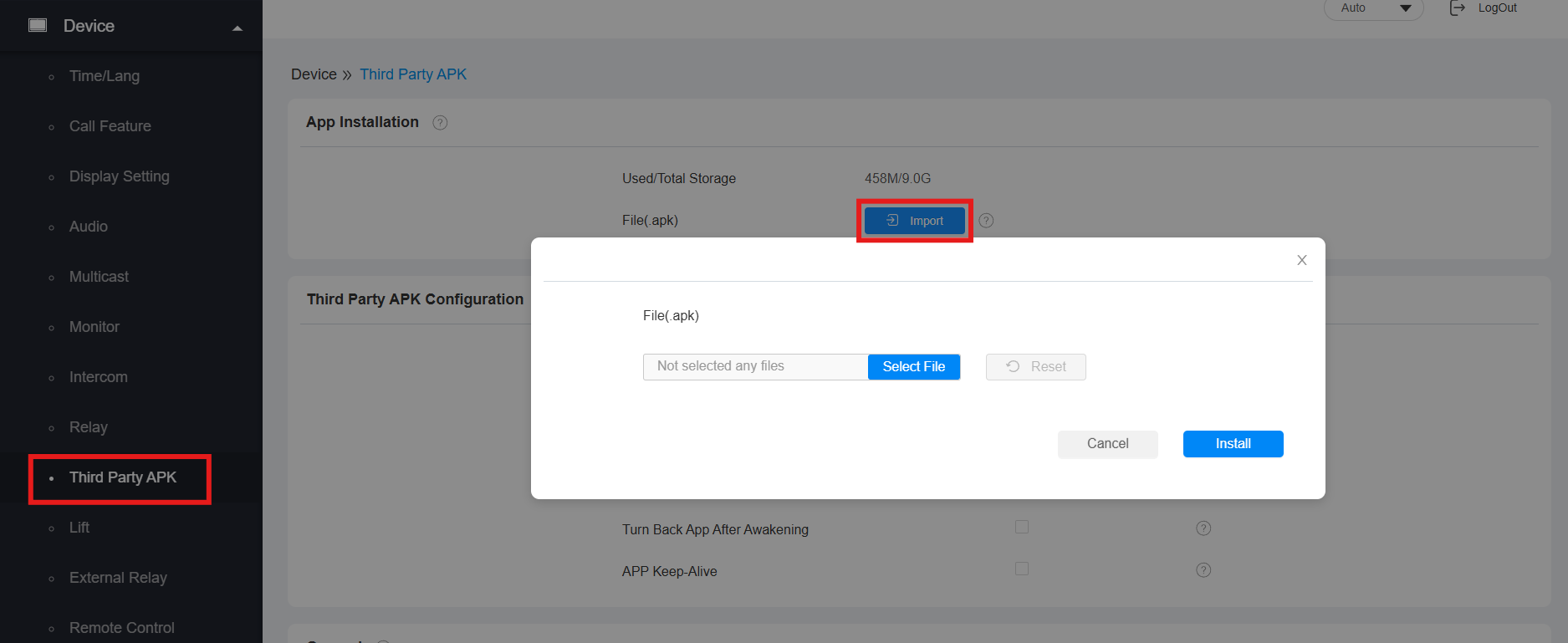
The installation will take some time. A pop-up will inform you whether the installation is successful.
Display the App Tab for Quick Access
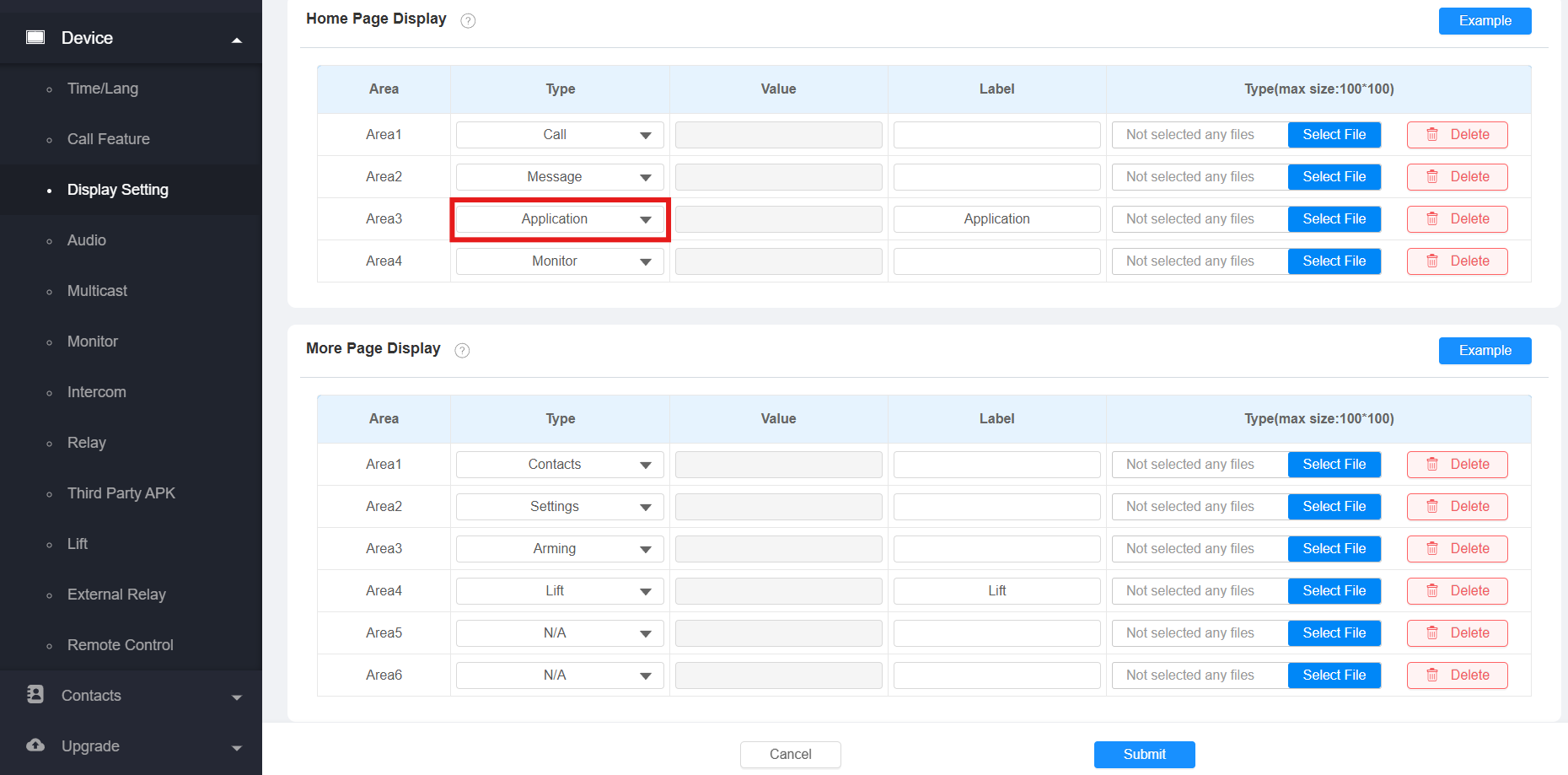
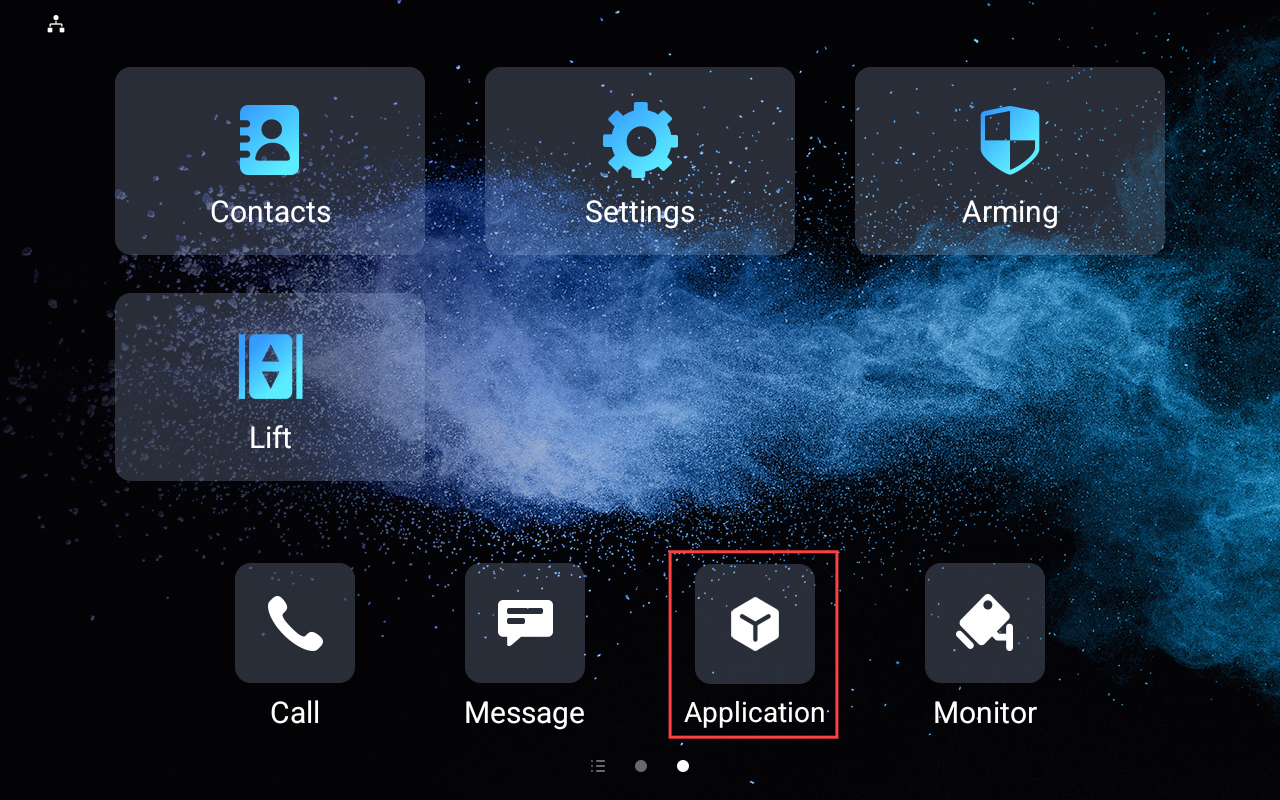
To quickly access the application, you can set the Application tab to be displayed on the Home or More screen of the device.
Click Device > Display Setting.
Select the desired area to display the Application tab.
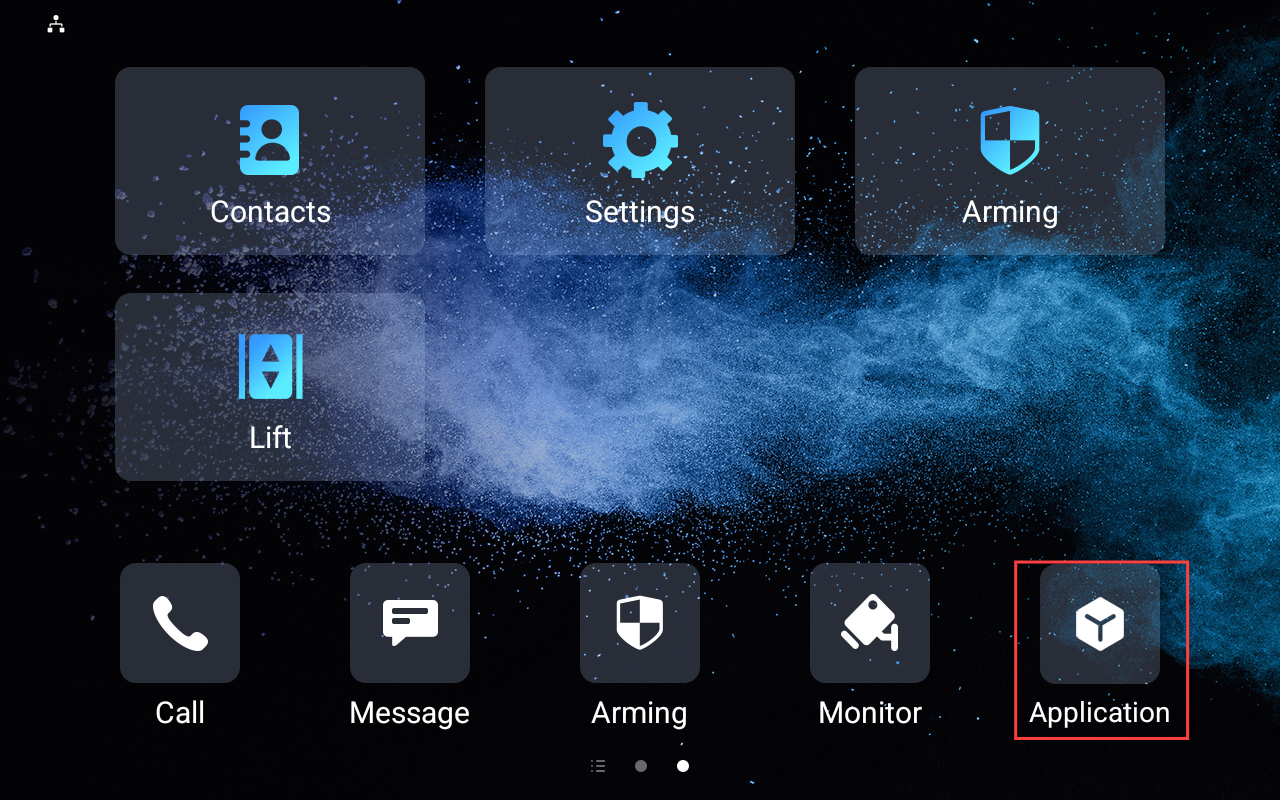
Tap it to access applications.
(1).png)
Access Apps in Admin Mode
The indoor monitor supports User and Admin modes. In Admin mode, you can access both the third-party and default applications.
Tap Settings > System Info.
Tap User Mode for about 10 times.
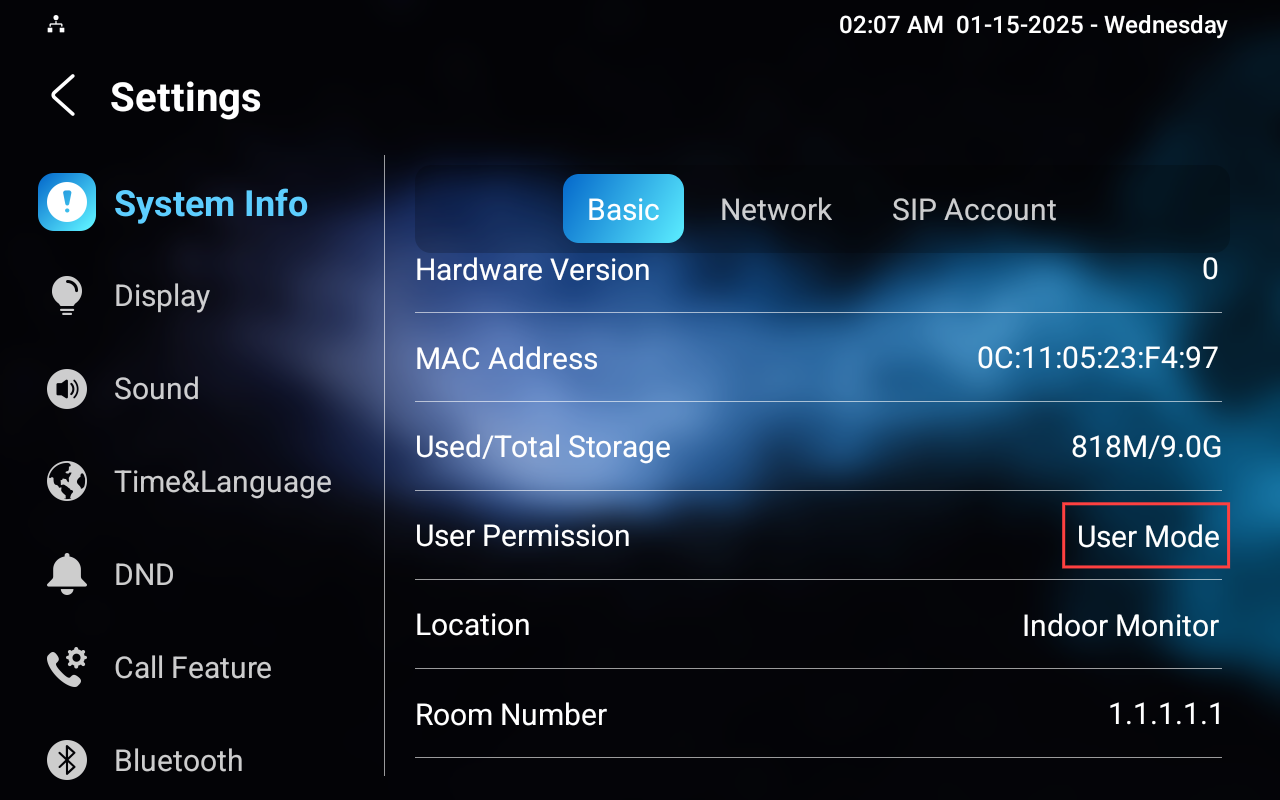
Select Admin Mode and tap Confirm.
(1).png)
The Application tab will display automatically.
(3).png)
Optional Setup of Third-party Apps
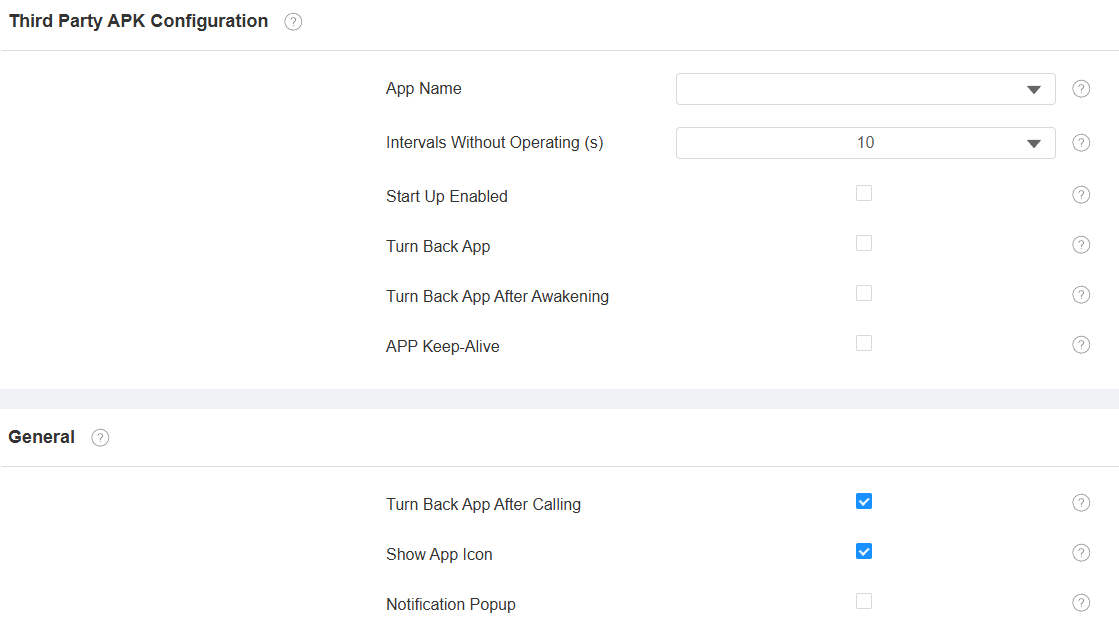
You can set up additional settings of third-party apps on the Device > Third Party APK interface.
Select the name of the app to be configured.
Set up desired options.
For example, if you enable the Turn Back App and set the Intervals Without Operating(s) to 10 seconds, the device will automatically return to the app screen 10 seconds after you exit the app.
Note
You can view the explaination of these options by:
hovering your mouse cursor over the question mark next to them.
going to the Integration with Third-party Devices chapter of a specific model’s administrator guide.