The Akuvox Installer Kit allows you to deploy devices conveniently and quickly with the installer kit tool for a community project.
Note
The firmware version of the installer kit tool should be 563.107.13.208 or higher.
This article takes the door phones R29 and E12, and the indoor monitor C313W V3.0 as examples.
Scenario One - Devices Can Access the Internet
Note
Before setting up the project, make sure:
the device MAC addresses are added to your distirbutor’s MAC library on the SmartPlus Cloud.
all devices are installed properly and powered on.
all devices are on the same LAN.
The door phone R29 is installed at the community's front gate.
The E12 is installed at an apartment door.
The C313 is in the apartment.
Create a Project
Tap New Project on the installer kit tool.
Customize the Project Name and select the Number of Buildings.
(1).png)
Click Next.
Add Apartment Devices that Support the Installer Kit Feature
If the door phone and indoor monitor are in the versions that support the installer kit feature, you can match them first instead of adding them one by one on the installer kit tool.
If not, or to add other device models, skip to the Add Apartment Devices that Do Not Support the Installer Kit Feature section.
E12: 312.30.10.241
R20: 320.30.11.45
C313 V3: 313.30.15.136
C313V2-2: 212.30.15.204
C313-LP-2: 311.30.15.231
S562: 562.30.15.24
S563: 563.30.1355.509
Set up C313’s location on its initial setup screen after booting the device for the first time or resetting it.
.bmp)
Set up the network and click Next.
The device will scan the door phone E12 on the same LAN. At the same time, the E12 will play a “ding” sound and flash the red indicator light.
Press the push button of the E12 in 5 seconds. Its information will be displayed on the C313.
Check the door phone and tap Confirm.
.bmp)
E12 and C313 will be automatically added as APT Devices to the project and displayed on the installer kit tool.
Repeat the above steps until all apartment devices are added.
Add Apartment Devices that Do Not Support the Installer Kit Feature
Tap Scan next to the APT Devices.
Tap the target device when scanning stops.
.png)
.png)
You can customize the APT name, floor, device name, etc.
Tap Submit.
(2).png)
Repeat the above steps until all apartment devices are added.
Add Public Devices
If the community project only has one building, there is no option to add devices in the public area of the whole community.
Tap Scan next to the Public Devices.
Check the target device when scanning stops.
You can click
 next to the device to set up the device name, inputs, network, etc.
(3).png)
Click Submit.
Save the Project
After confirming that all devices are added and configured, tap Next and then Save and Configure.
When the progress bar reaches 100%, a prompt will inform you whether the project has been successfully set up.
.png)
At this moment, the C313 will be displayed as a contact in the R29’s contacts list.
End users can call C313 by tapping the contact name on R29 or pressing the push button of E12.
Upload the Project to the SmartPlus Cloud
When devices can access the Internet, you can upload the project to the SmartPlus Cloud. The device MAC addresses should be added to your distributor’s MAC library on the Cloud first.
Tap Yes when you are asked whether the project should be added to the SmartPlus Cloud.
Fill in your installer account information and select the correct area for login.
(3).png)
Tap Save.
When the progress bar reaches 100%, a prompt will inform you whether the project is synchronized to the Cloud successfully.
.png)
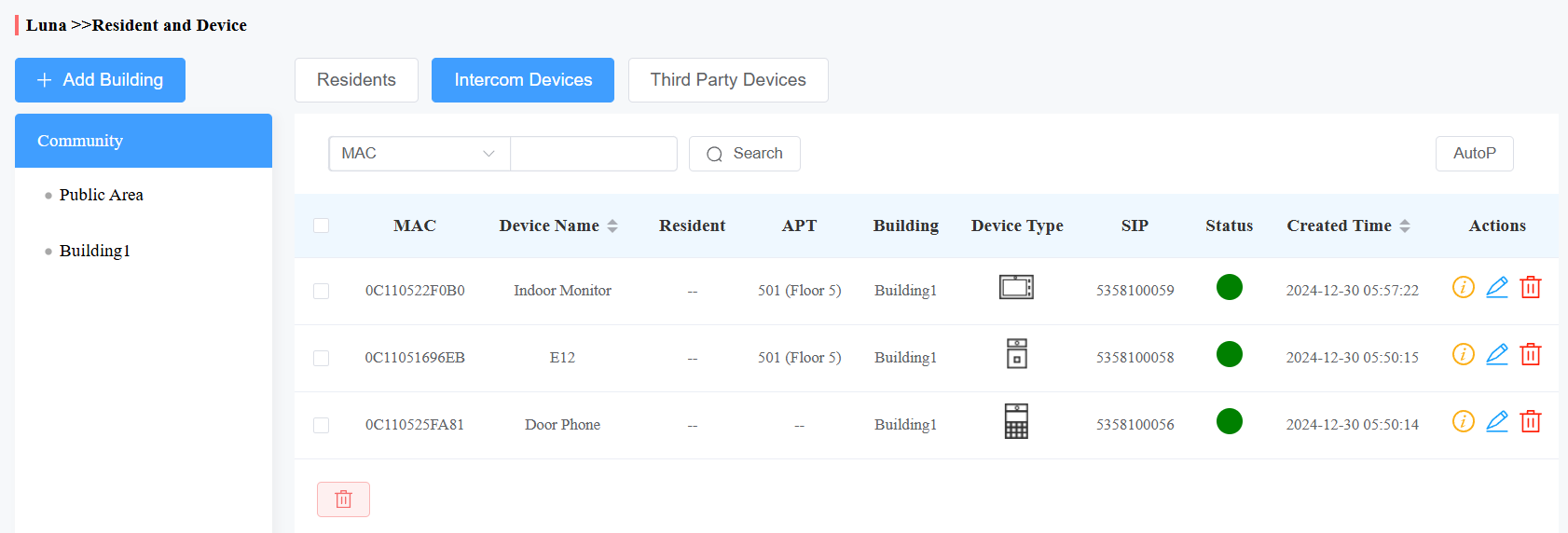
You can log into the SmartPlus platform with the installer account to check the added devices and make more settings.
Tip
You may need to reboot the devices to make them online.
After configuration, users can scan the QR code on the C313 to download and register the SmartPlus App account.
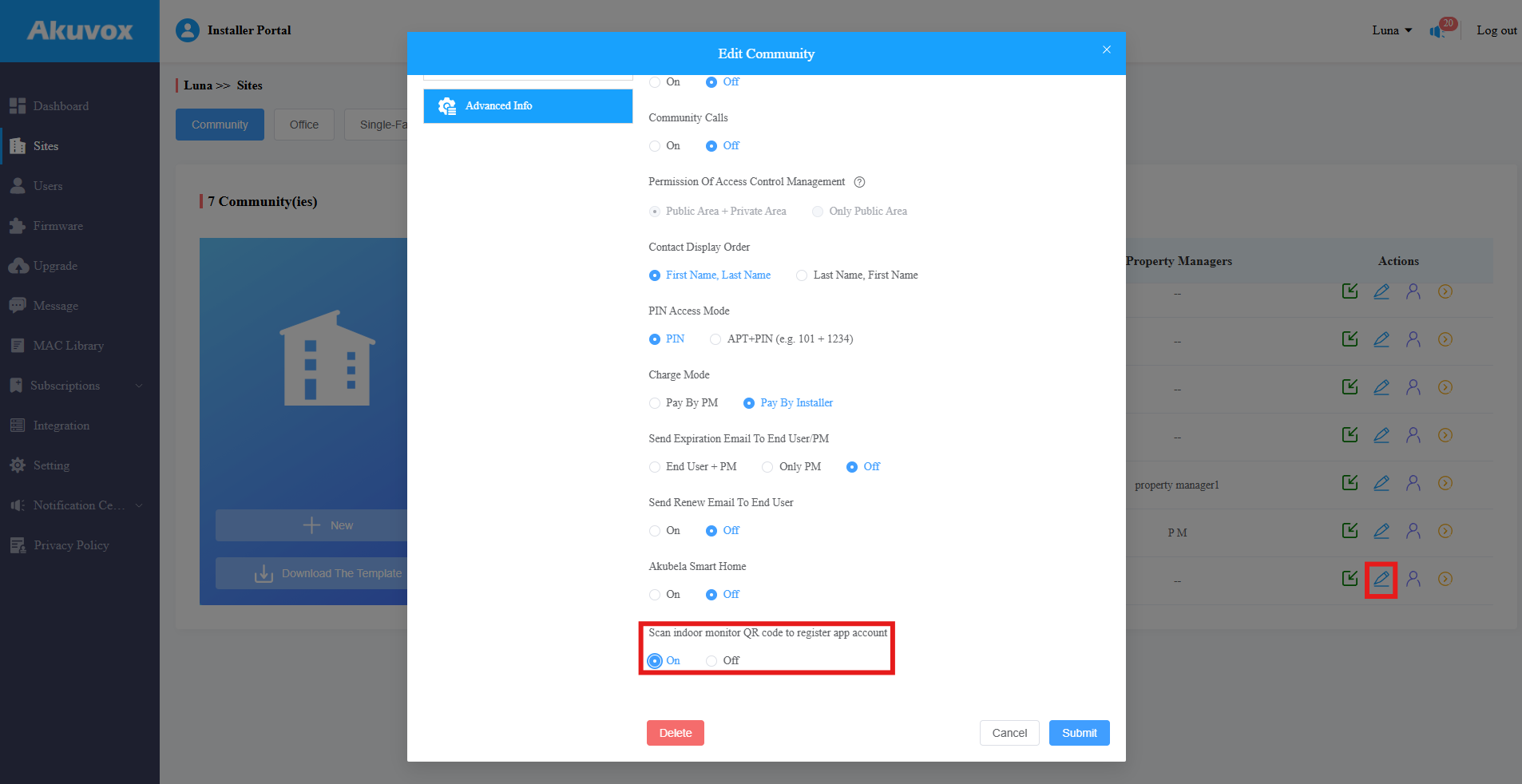
If the QR code fails to display, please click  of the project and check whether “Scan indoor monitor QR code to register app account” is enabled on the Advanced Info interface.
.bmp)
Scenario Two - Door Phones Access No Internet
Note
Make sure the device MAC addresses are added to your distirbutor’s MAC library on the SmartPlus Cloud before setting up the project.
Make sure devices are installed properly and powered on.
All devices should be on the same LAN.
The door phone R29 is installed at the community's front gate. The E12 is installed at an apartment door, and the C313W is in the apartment.
C313W can access the Internet via Wi-Fi.
Door phones have no Internet.
Create a Project
Tap New Project on the installer kit tool.
Customize the Project Name and select the Number of Buildings.
Tap Next.
App Apartment Devices
Tap Scan next to APT Devices.
Uncheck DHCP and set the static IP. You can customize other settings such as APT, floor, device name, etc.
(2).png)
Tap Submit.
Repeat the above steps until all department devices are added.
Add Public Devices
If the community project only has one building, there is no option to add devices in the public area of the whole community.
Tap Scan next to the Public Devices.
Click
next to the device name to set up the device network.Uncheck DHCP and set the static IP.
Click Submit.
Save the Project
After confirming that all devices are added and configured, tap Next and then Save and Configure.
When the progress bar reaches 100%, a prompt will inform you whether the project has been successfully set up.
At this moment, the C313 will be displayed as a contact in the R29’s contacts list.
End users can call C313 by tapping the contact name on R29 or pressing the push button of E12.
Upload the Project to the SmartPlus Cloud
When installer kit tool can access the Internet, you can upload the project to the SmartPlus Cloud.
The device MAC addresses should be added to your distributor’s MAC library on the Cloud first.
Tap Yes when you are asked whether the project should be added to the SmartPlus Cloud.
You will be asked to set up the network connection if installer kit tool has no Internet. You can redirect to the Wi-Fi setting screen.
Connect the installer kit tool to a target Wi-Fi by filling in the correct password.
(1).png)
Fill in your installer account information and select the correct area for login.
When the progress bar reaches 100%, a prompt will inform you whether the project is synchronized to the Cloud successfully.
Set up the C313 Network
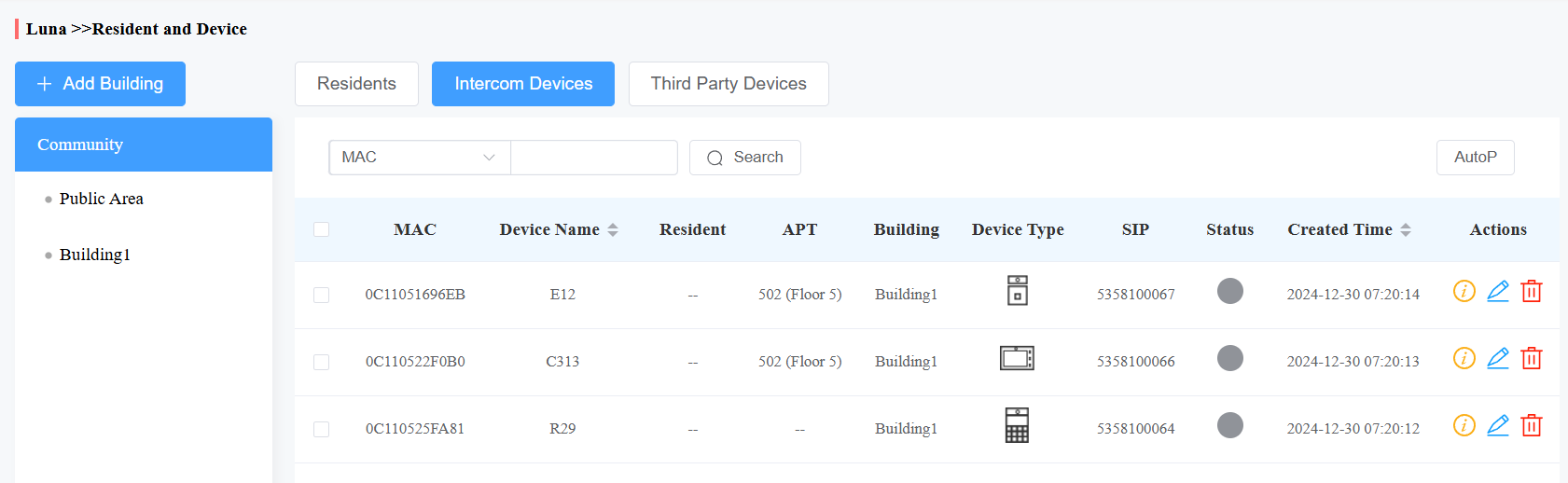
After creating a project and adding devices with the installer kit tool, you can log into the SmartPlus platform with the installer account to check the added devices.
At this moment, devices appear offline since they do not access the Internet.
Door phones need to connect to the SmartPlus Cloud via the indoor monitor C313.
Tap More > Settings > Advance > Network.
Enable WLAN and connect the C313 to a target Wi-Fi by filling in the correct password.
(1).bmp)
Once the C313 is connected to the Internet, a QR code will display on the device for end users to download and register the SmartPlus App account.
End users can
call the door phone, monitor through its video stream, and open its relay on the C313 and SmartPlus App;
initiate calls to the C313 and SmartPlus App at the same time by pressing the push button of E12 or tapping the C313’s name on the R29’s directory list.