Akuvox SmartPlus Cloud can be integrated with the Yunji robot.
When the robot arrives at residents’ rooms, the resident’s SmartPlus App/indoor monitor will push a notification.
Residents can summon the robot by tapping on the indoor monitor.
Note
The tested compatible model is Yunji GOGO Intelligent Double-Layer Delivery Robot.
S567 with the version 567.30.14.102 or higher supports the integration.
SmartPlus App’s version should be 7.20.0003(Android)/7.20.3(iOS) or higher.
For Installer: Configuration on the SmartPlus Cloud
You need to enable the integration and add the indoor monitor to the target apartment.
Note
This feature should be enabled by Akuvox for your distributor. Otherwise, it will not be available.
Enable the Integration
Log in to the SmartPlus Cloud platform with your installer account.
Click
 of the desired community.
Click Advanced Info and scroll to the Yunji Robot section.
Enable the feature.
Enter the Access Key ID and Access Key Secret. Please confirm them with the Yunji company.
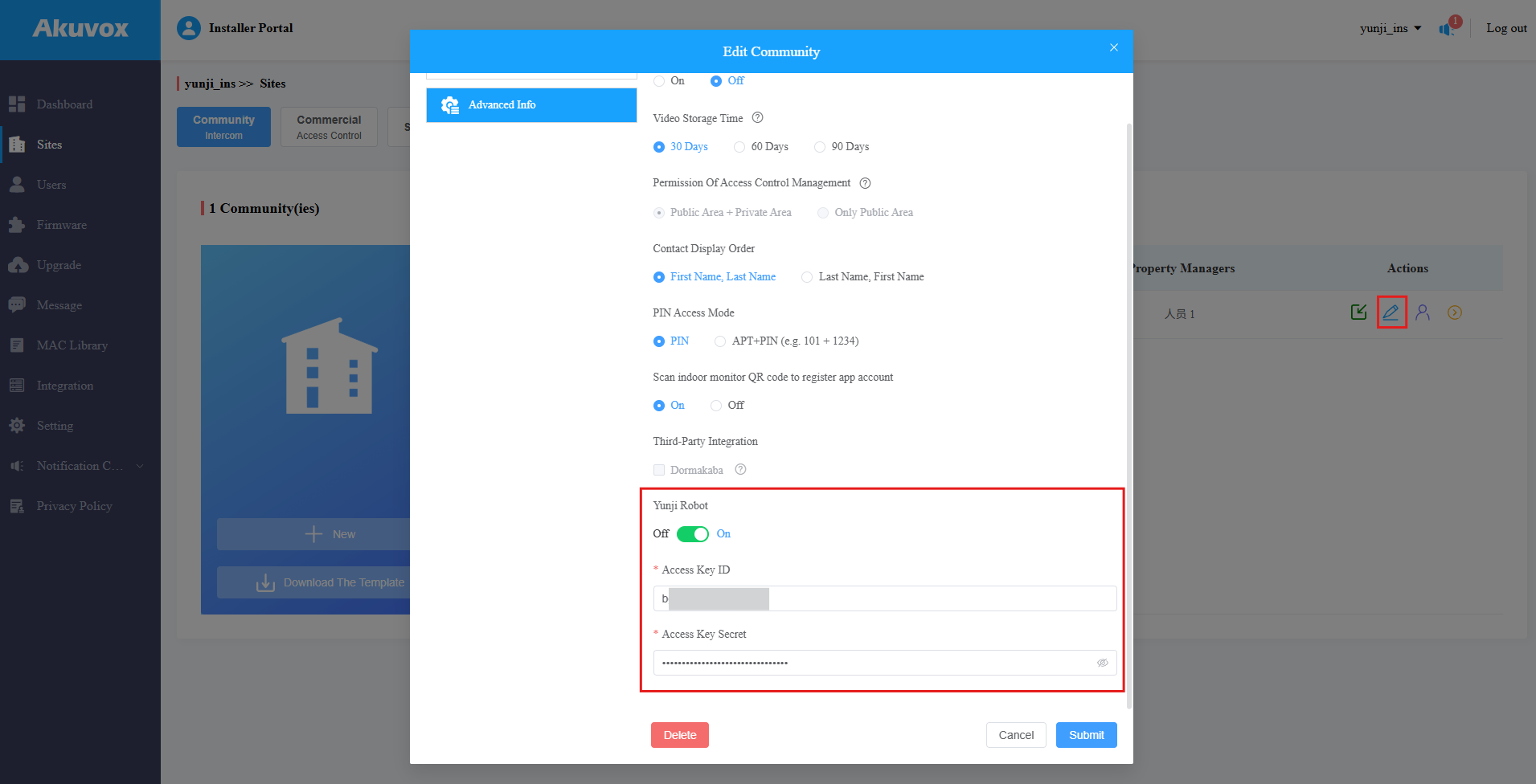
Click Submit.
Add the Indoor Monitor
Click the desired building.
Click
 of the desired apartment.
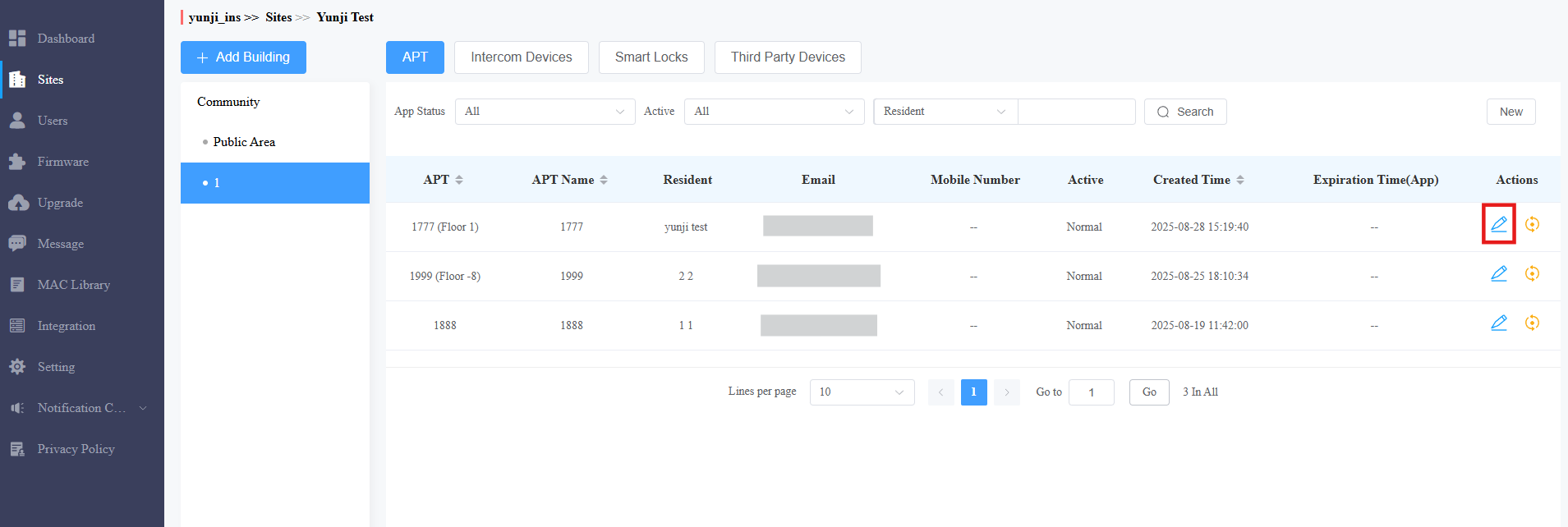
Scroll to the Intercom Devices section and click New on the right.
Enter the indoor monitor’s MAC and name.
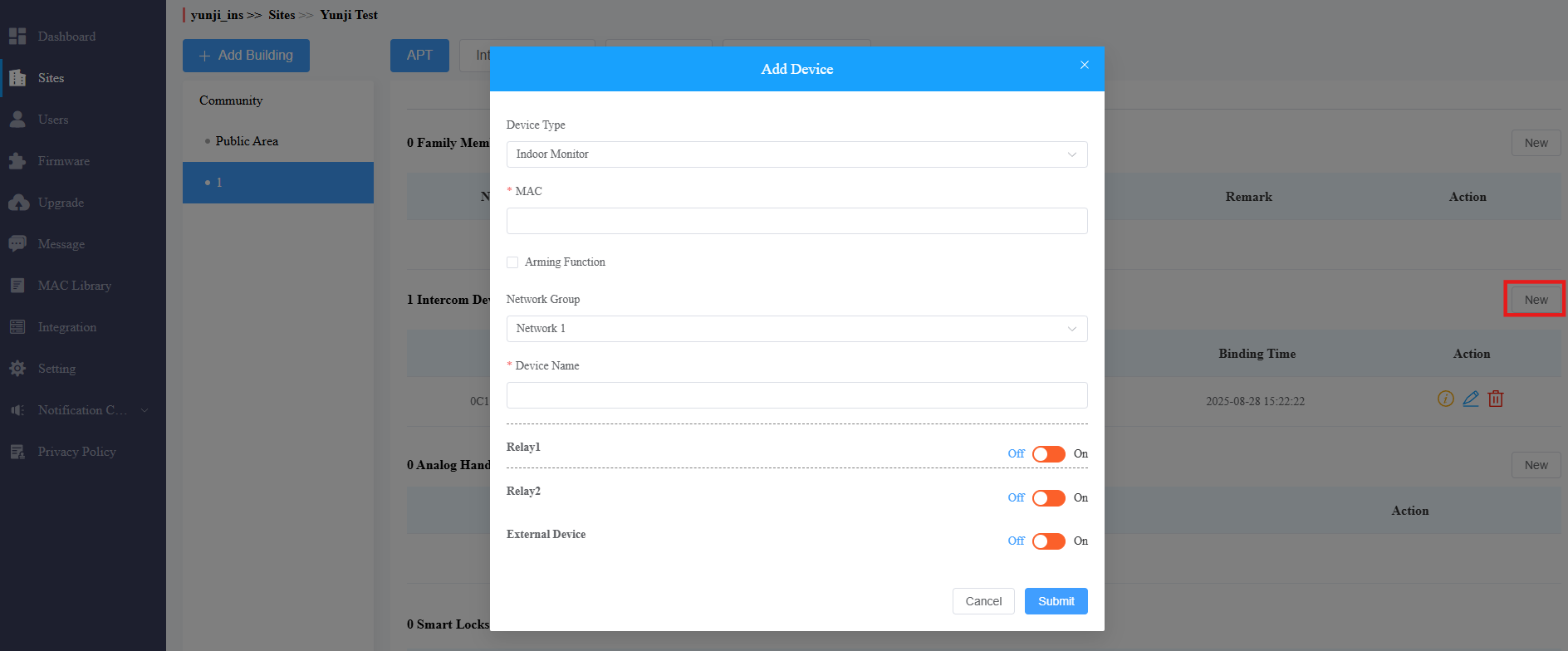
Click Submit.
For Installer: Configuration on the Indoor Monitor
Use the device IP(scanned by IP scanner) to log in to its web interface. The initial username and password are admin.
Go to the Device > Display Setting interface.
Select the desired area to display the Robot icon.
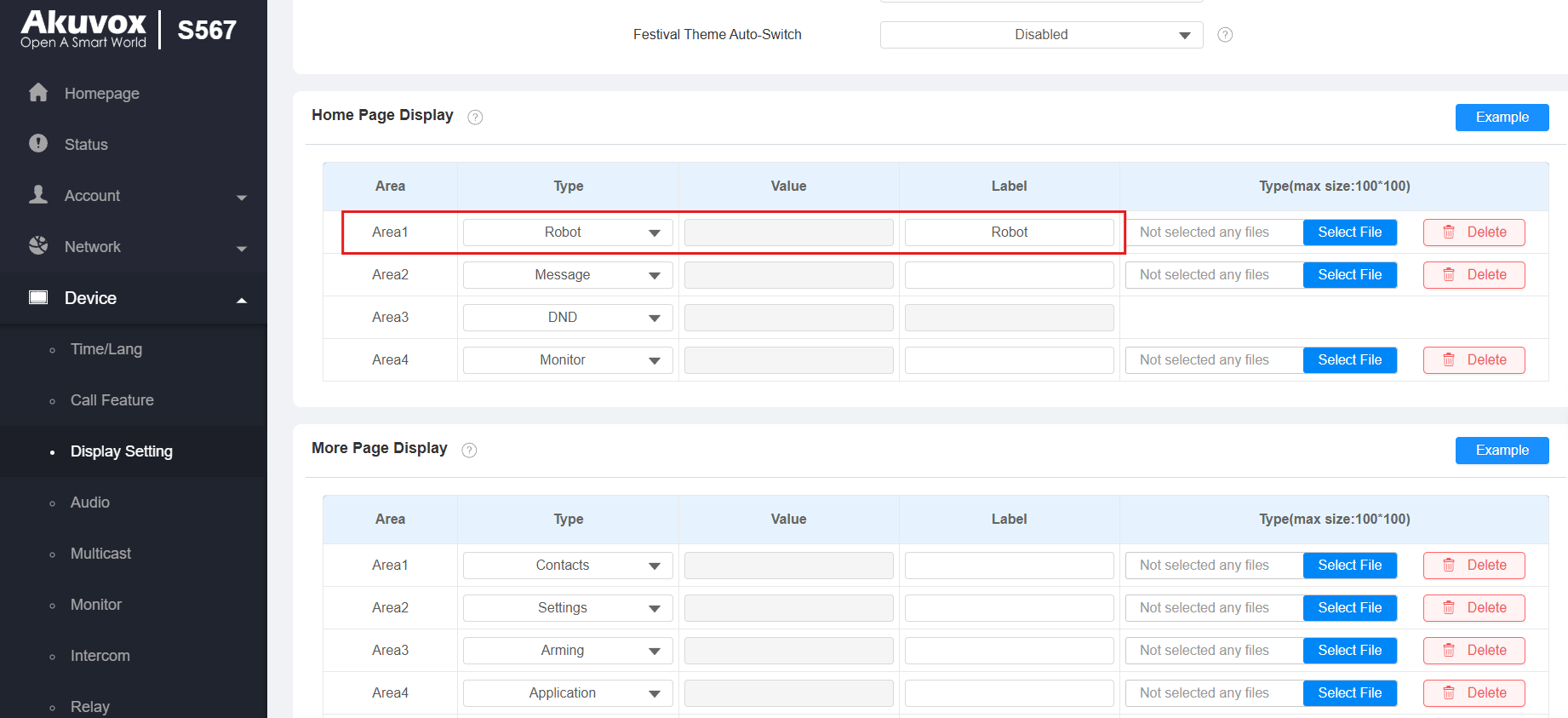
Click Submit.
For Property Managers: Deliver Items to Residents
Tap Deliver on the robot and enter the password.
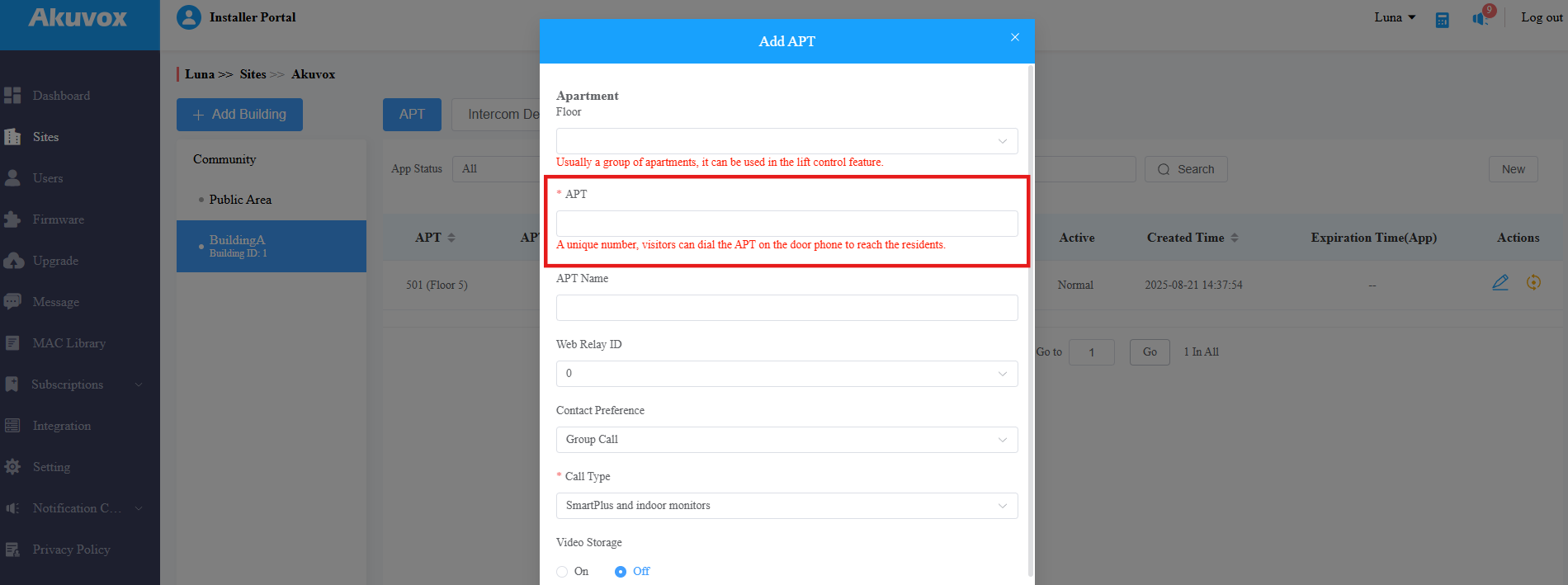
Enter the apartment number on the robot. Please note that the number entered should be consistent with the apartment number configured on the SmartPlus Cloud. Entering the wrong number will not initiate the robot.
Place the item in the upper/lower cabin and tap Deliver.
When the robot arrives at the resident’s apartment, the resident’s SmartPlus App/indoor monitor will push a notification.
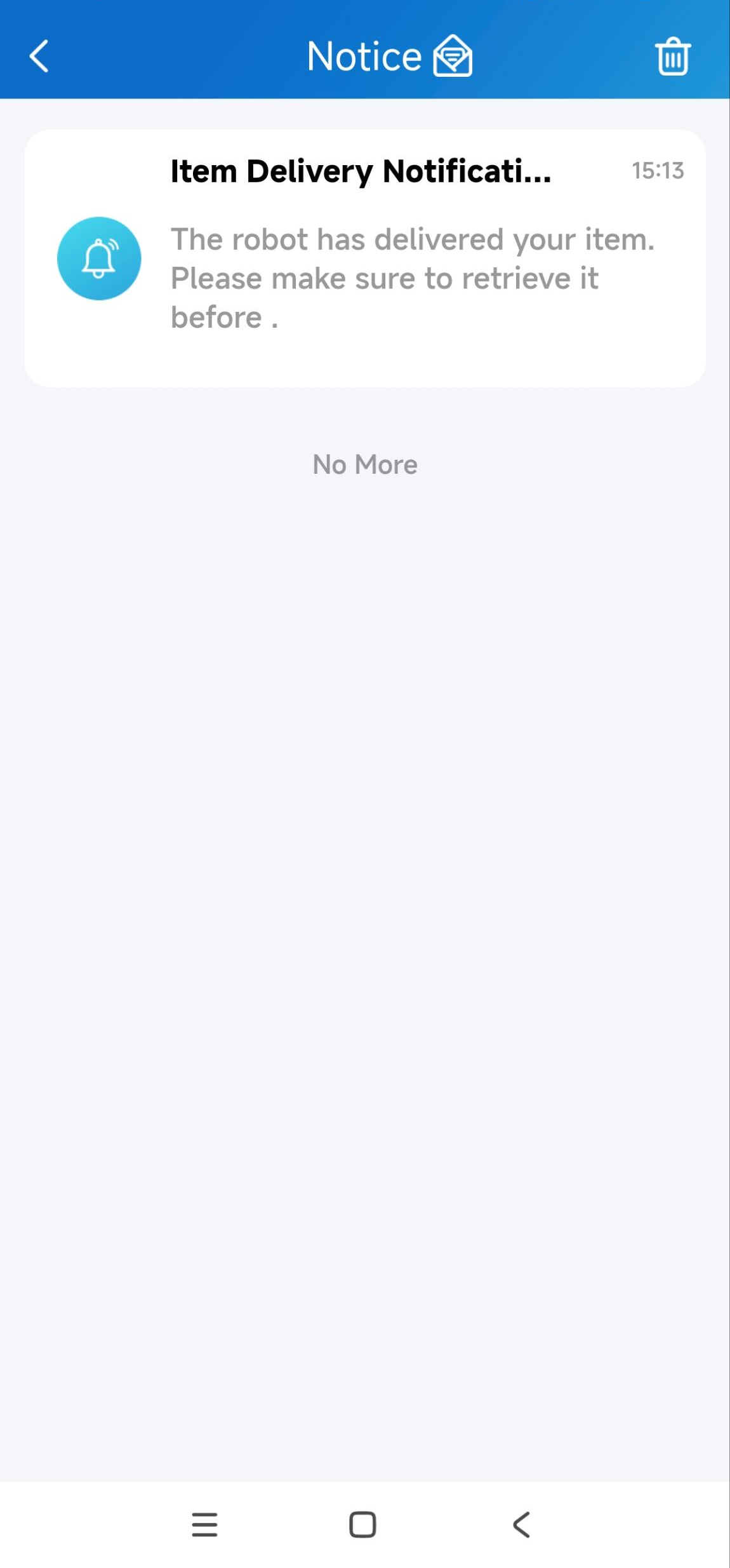
After the delivery, the robot will return to the standby point or charging dock.
See the feature demonstration video.
Note
To allow the robot to reach the designated floor, it must be integrated with the lift control system. For assistance with this feature, please contact Yunji Company.
For Residents: Summon the Robot on the Indoor Monitor
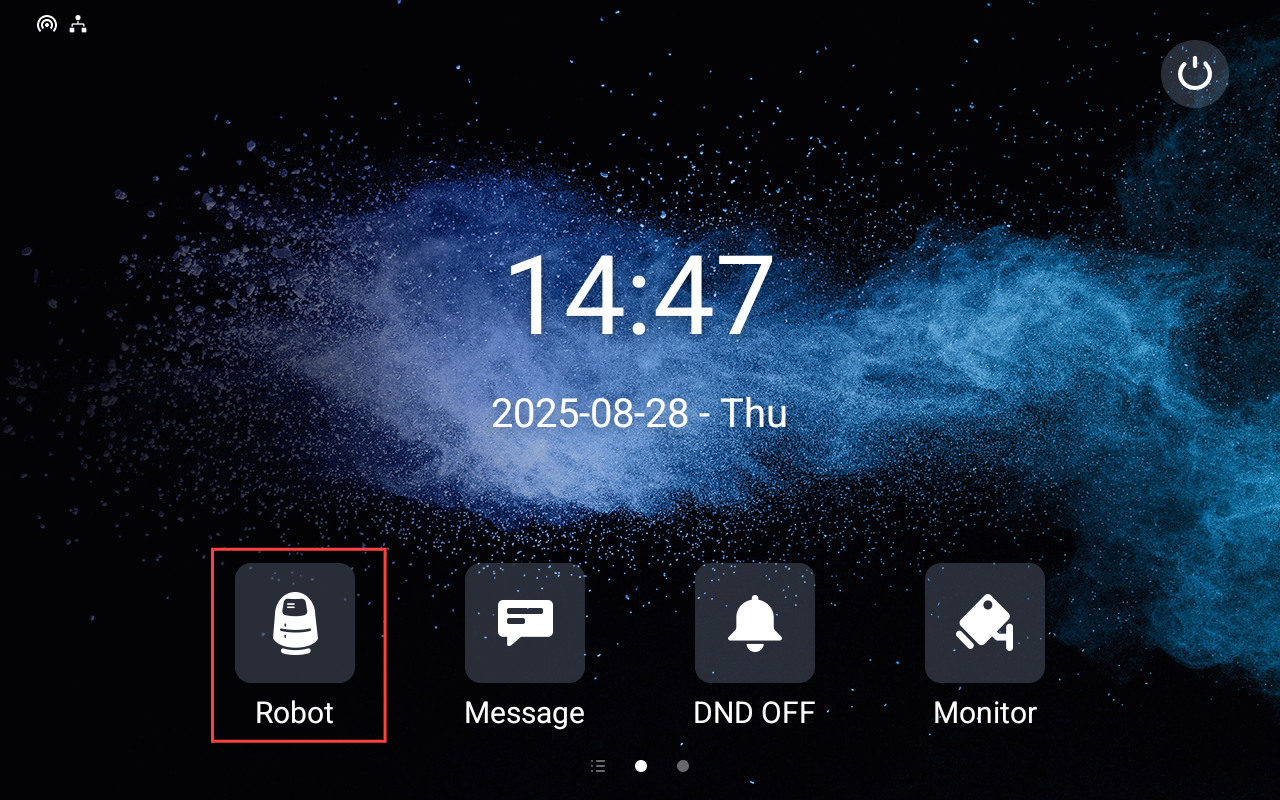
Tap Robot on the device and tap Summon Robot.
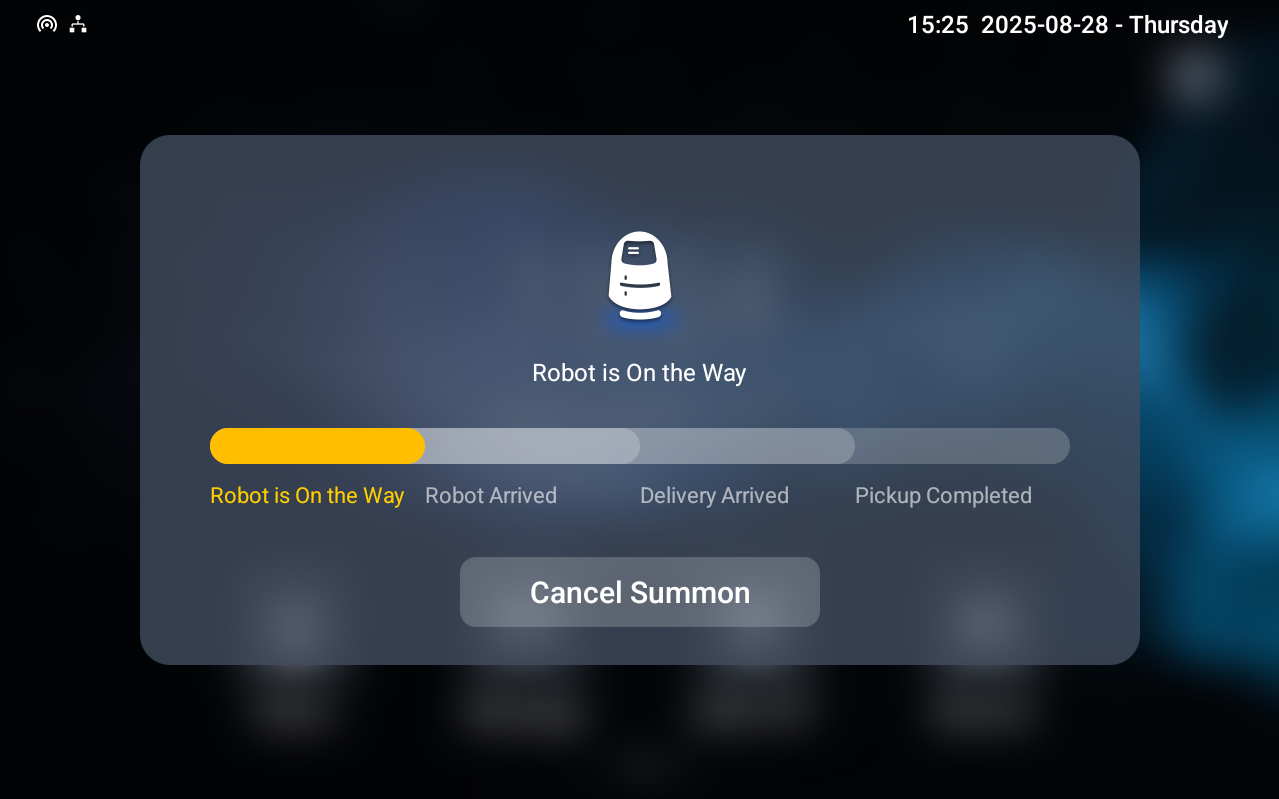
The system will summon the available robot. If no robot is available, the device will prompt “No robot available, please wait”.
When the robot arrives, the indoor monitor will push a notification and sound an alarm.
Tap Open on the robot and place your items in the robot’s upper or lower cabin.
Tap Deliver to send the robot to the designated place.
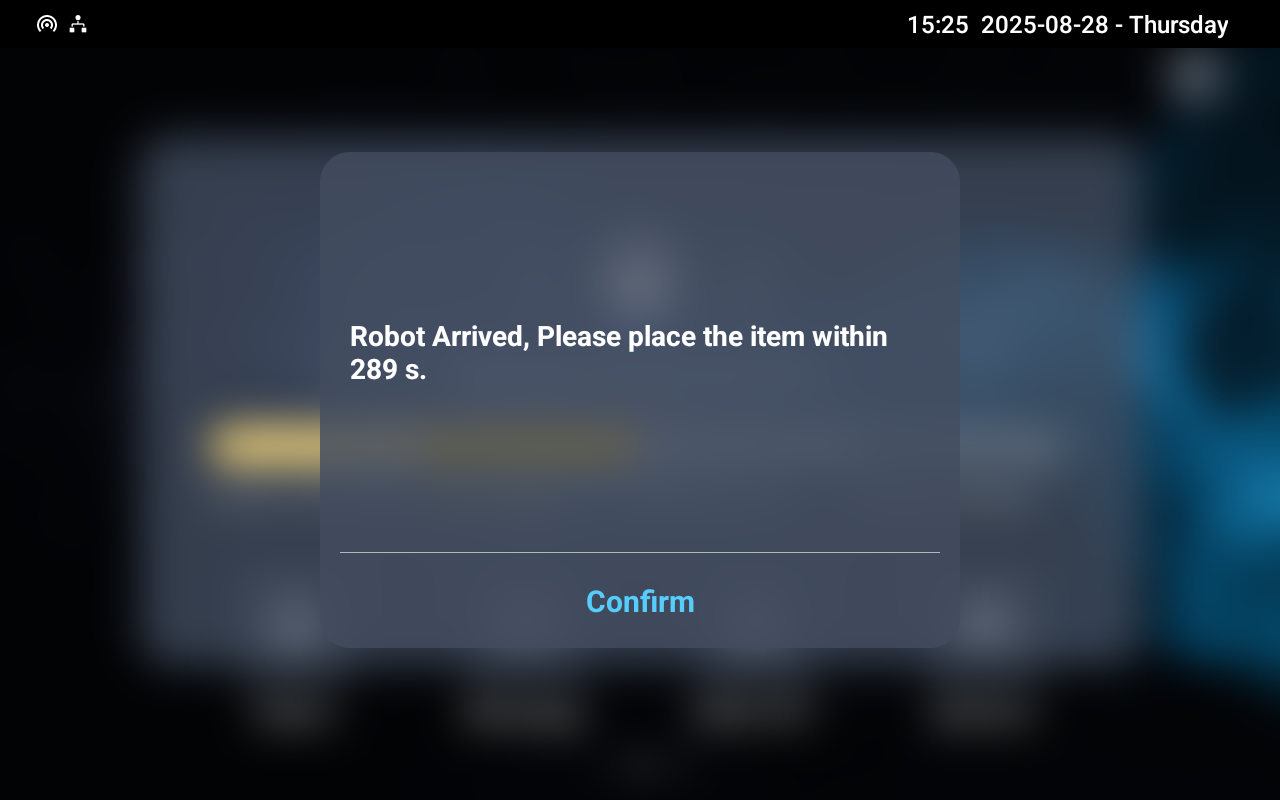
When the robot arrives at the delivery point, the property manager taps Open on the robot to pick up the item.
At the same time, Pickup Competed displays on the indoor monitor.
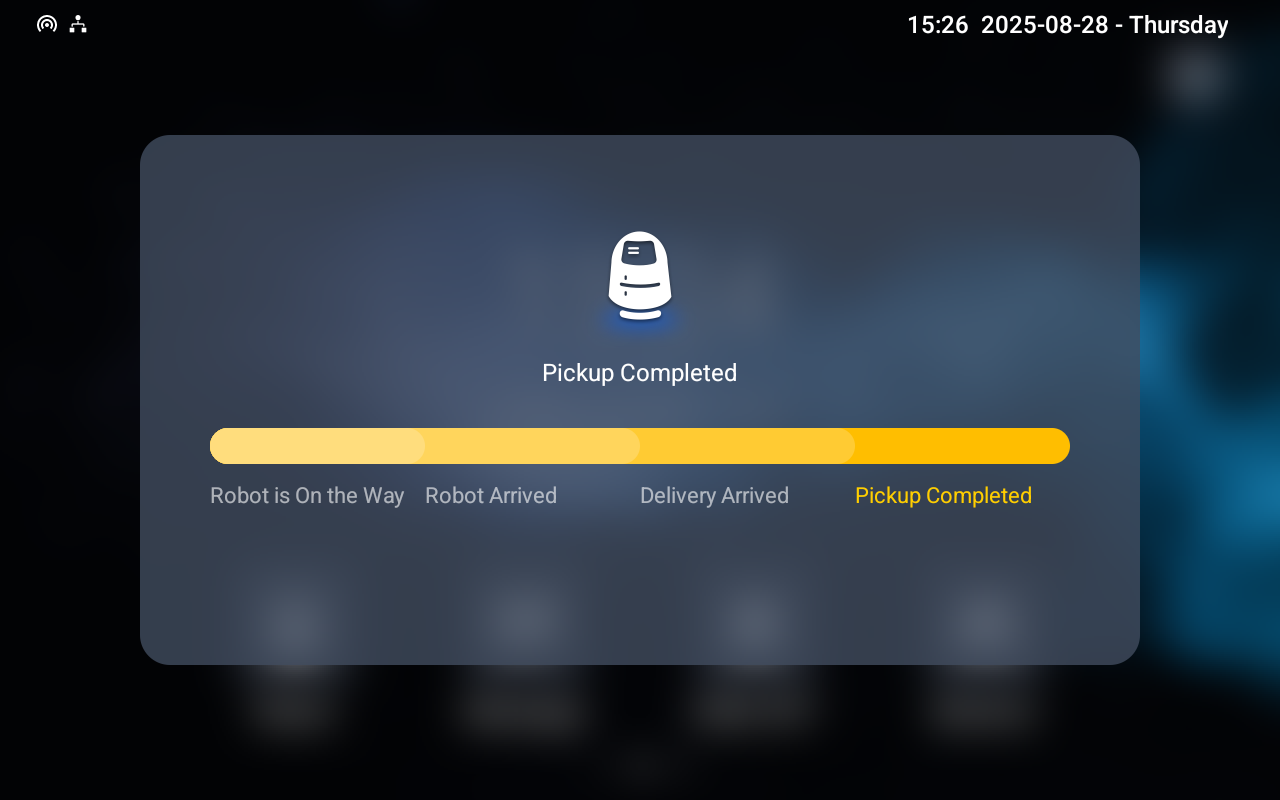
After the delivery, the robot will return to the standby point or charging dock.