HyPanel KeyPlus integrates with Apple HomeKit and Control4, and also supports third-party apps, providing effortless and convenient home control.
Apple HomeKit
After integration, you can control all scenes and devices in the home using Apple's Home app.
Ensure your Apple device and the HyPanel are connected to the same local network.
On the panel, swipe down from the top edge of any screen, then go to
 > Integration > Apple HomeKit(Beta).
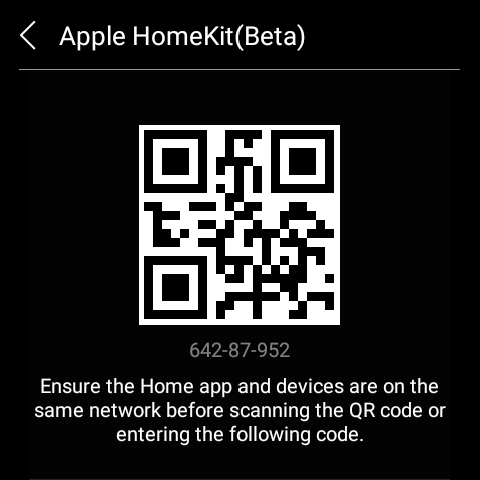
On your Apple device, open the Home app and sign in with your iCloud account. Tap Add or Scan Accessory.
Scan the QR code displayed on the panel.
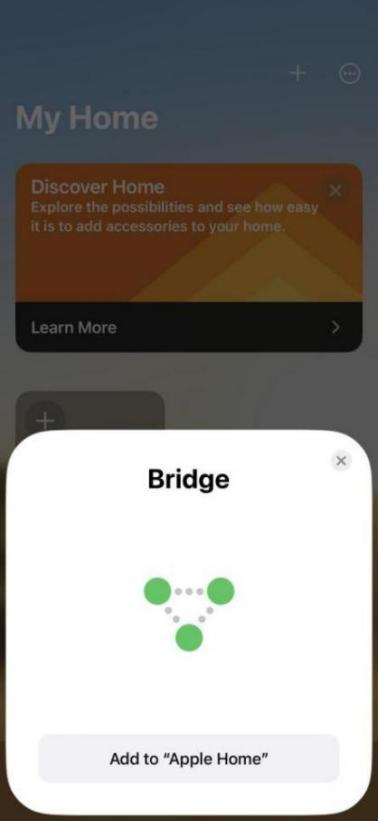
Tap Add to “Apple Home”, then select the bridge location.
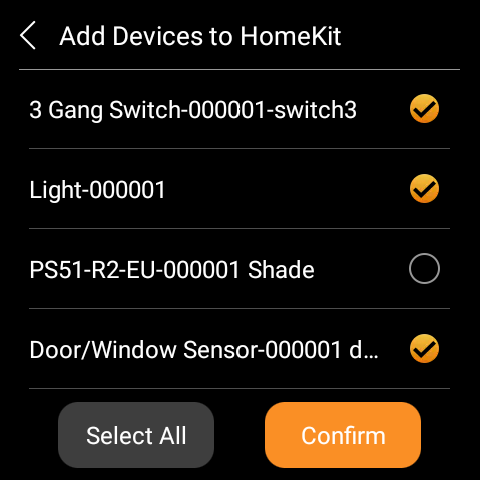
On the panel, select the devices you want to add to HomeKit, then tap Confirm.
Select the scenes you want to control in HomeKit, then tap Confirm.
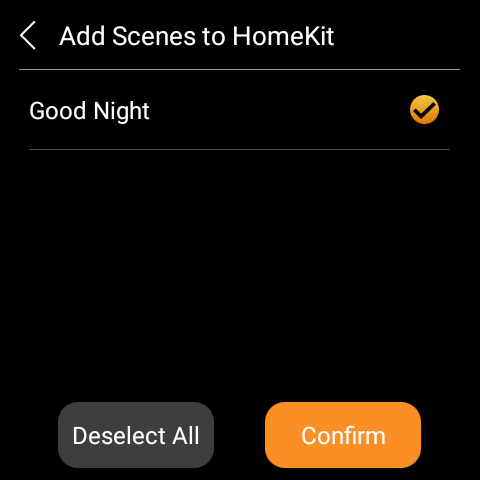
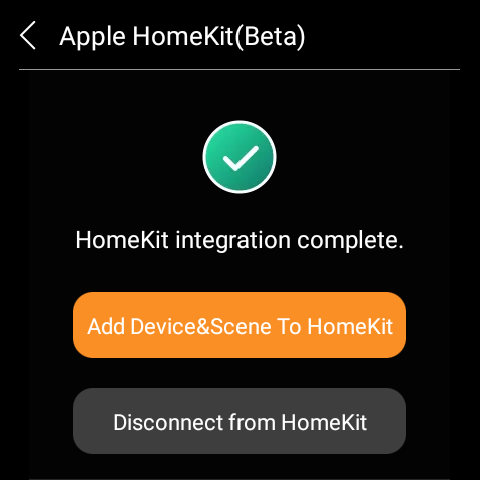
After setup is complete, the added devices and scenes will be available in the Home app. A confirmation message will also appear on the panel.
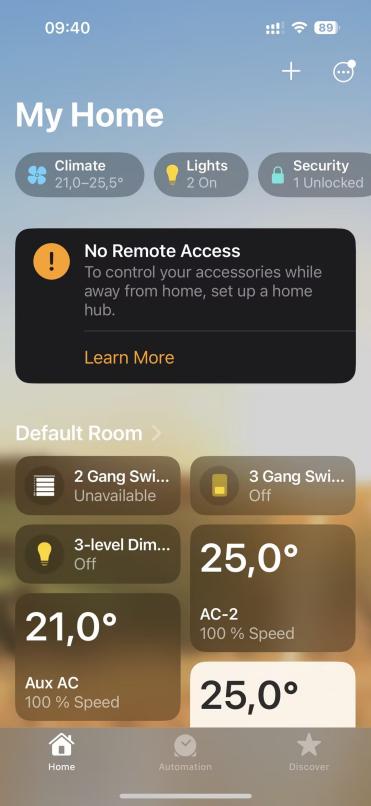
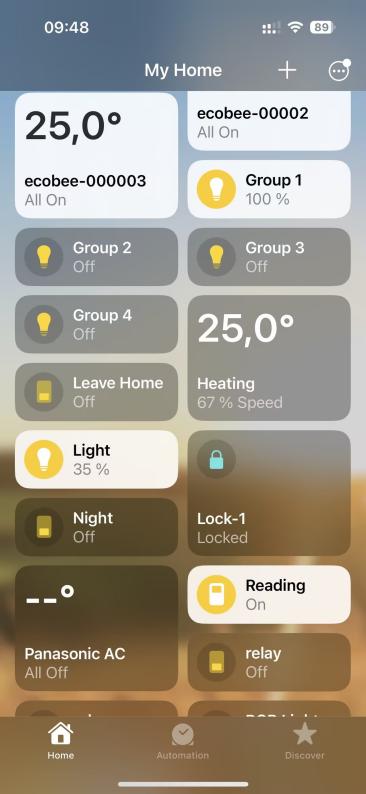
TIP:
You can control devices and scenes directly in the Home app or via Siri. Refer to this page for common Siri commands.
To disconnect, tap Disconnect from HomeKit on the panel, then go to Home app to remove bridge from your Home.
Control4 system
Once integrated, users can operate the Control4 system from both Control4 and HyPanel simultaneously.
Connect Control4 and HyPanel KeyPlus to the same local network.
Configure settings in Control4 Composer.
TIP:
See this guide for detailed instructions.
On the panel, swipe down from the top edge of any screen, then tap
 > Integration > Control4.
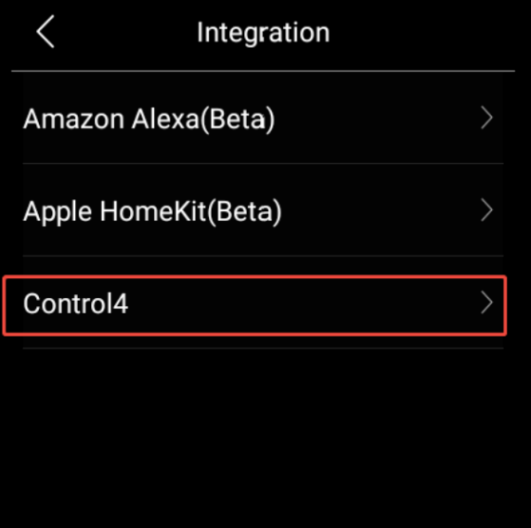
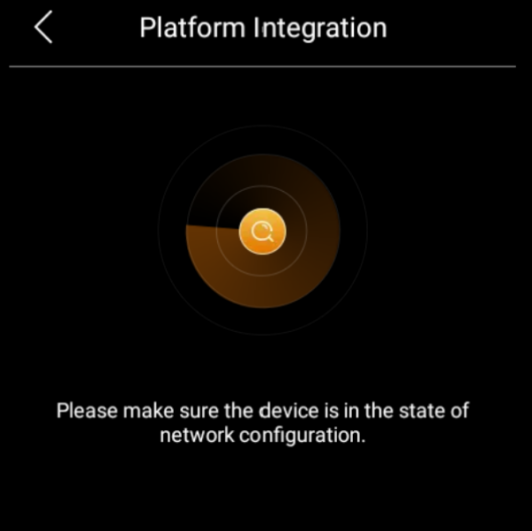
Refresh Composer. The HyPanel KeyPlus will appear, then double-click it to add.
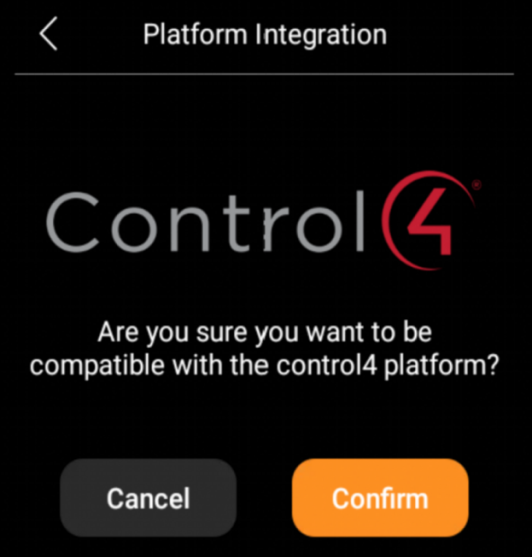
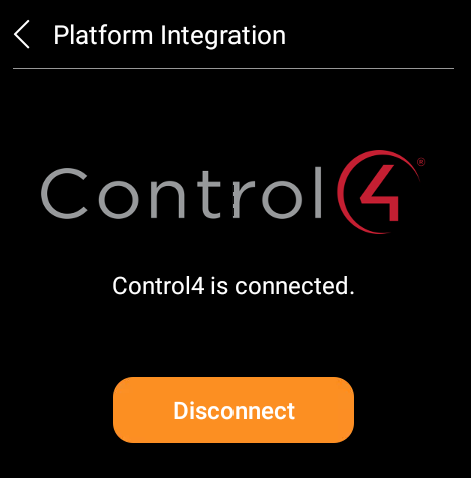
On the panel, tap Confirm. The HyPanel KeyPlus status will then show as connected.
TIP:
For other settings, see here.
Third-party applications
HyPanel KeyPlus allows for installing third-party apps through its device web portal. If you need to install any apps, please contact your service provider.
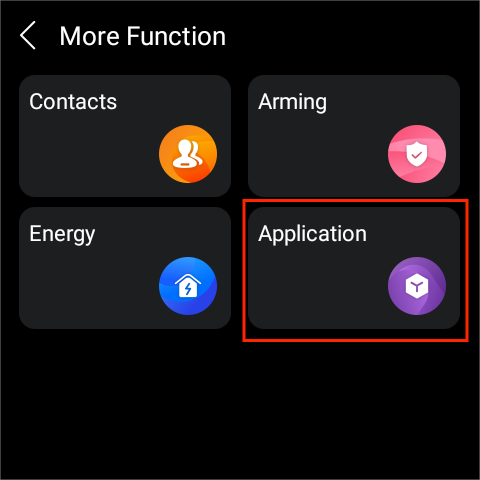
Upon successful installation, you can find the app by swipe down from the top edge of any screen and tapping  > Application.
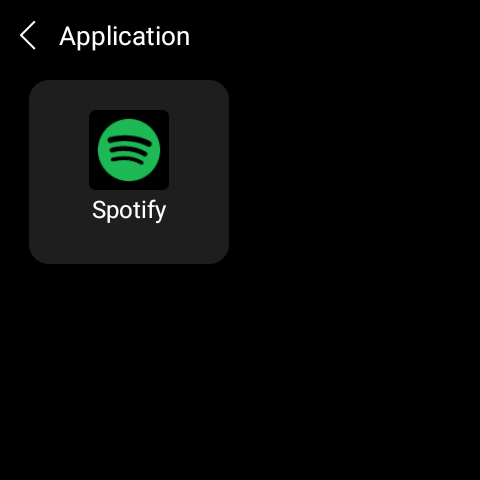
You can also add the app card to the homepage for quick control.
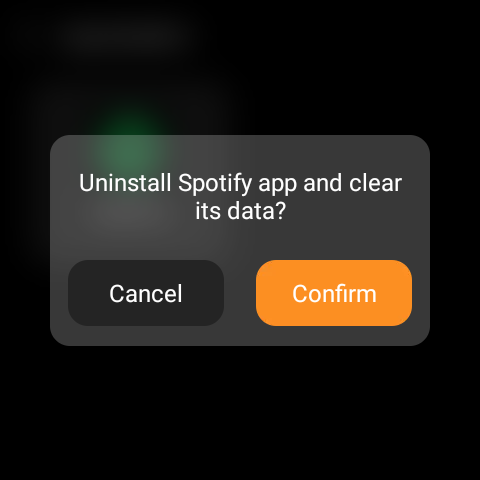
To uninstall the app, tap and hold the app card on the Application screen, and tap Confirm.