Akuvox door phones and access control terminals can be added to the Milesight VMS Enterprise system where users can view the monitoring streams.
Note
All Akuvox door phones and access control terminals(X915, R29, R20, E16, etc), except for E21, support the integration.
The tested Milesight VMS Enterprise version is V1.11.0.5-r3.
This article takes the door phone R29 as an example.
Before You Start
Make sure:
you have downloaded and installed the Milesight VMS Enterprise software.
Akuvox devices are on the same network as your computer.
Set the Door Phone
Use the device IP to log in to its web interface. The initial username and password are both admin.
Click Surveillance > ONVIF.
Check the box of Discoverable. It is enabled by default.
Customize the username and password for authentication.
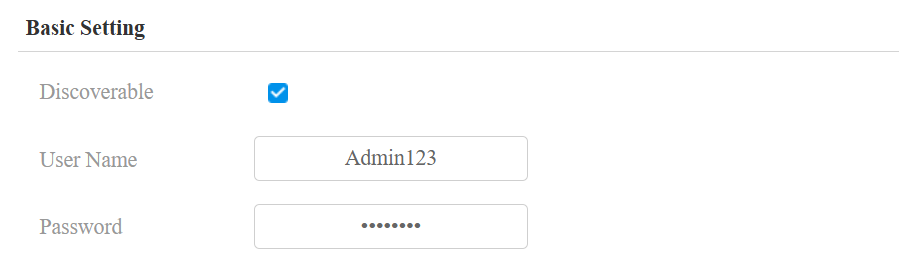
Click Submit.
Set the Milesight VMS Enterprise
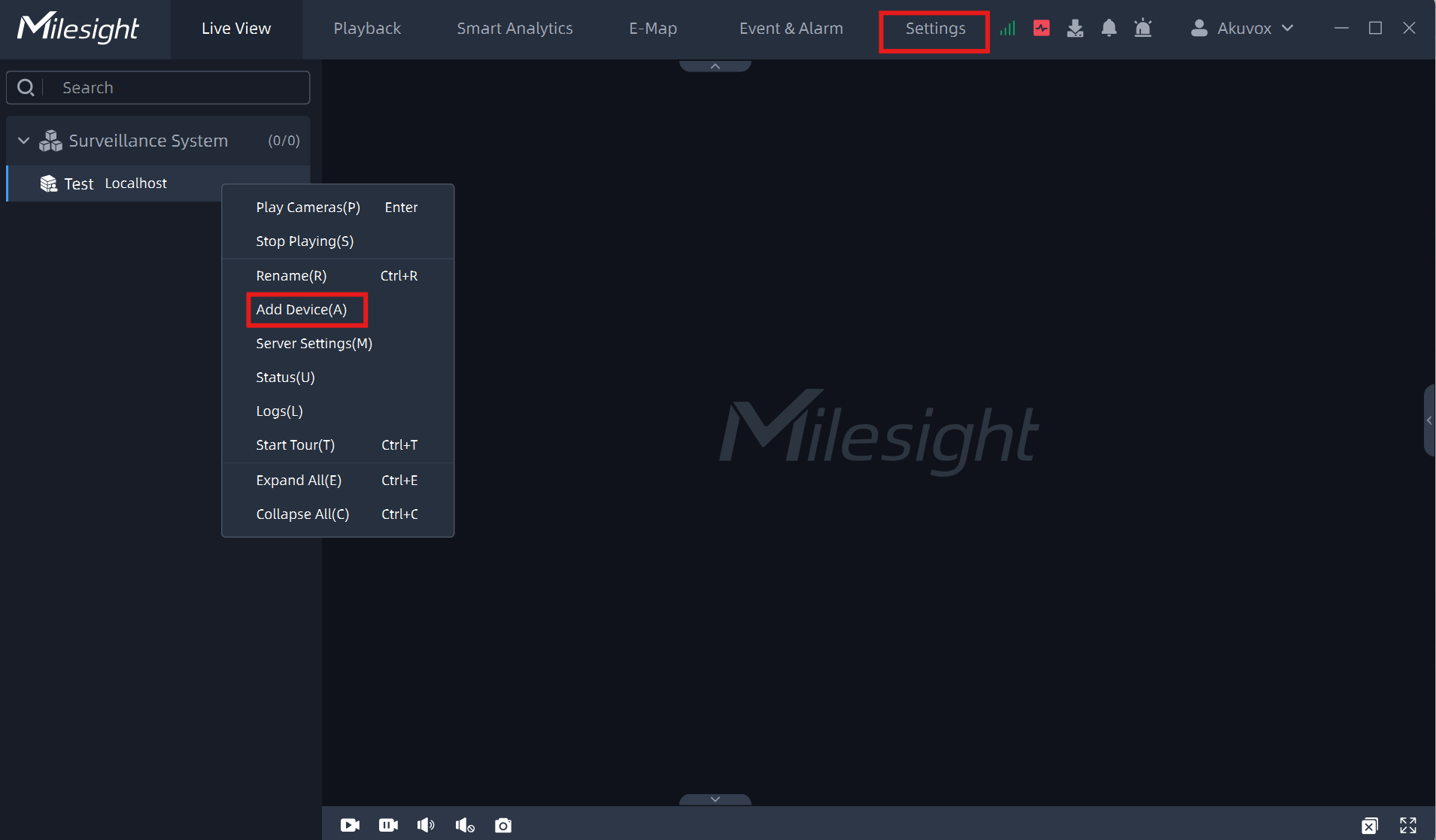
Right-click on your server name after logging in to the system. Or, click Setting on the upper menu.
Click Add Device.
The system will scan and display devices on the same network. You can also add devices manually by clicking Add Manually in the lower right corner.
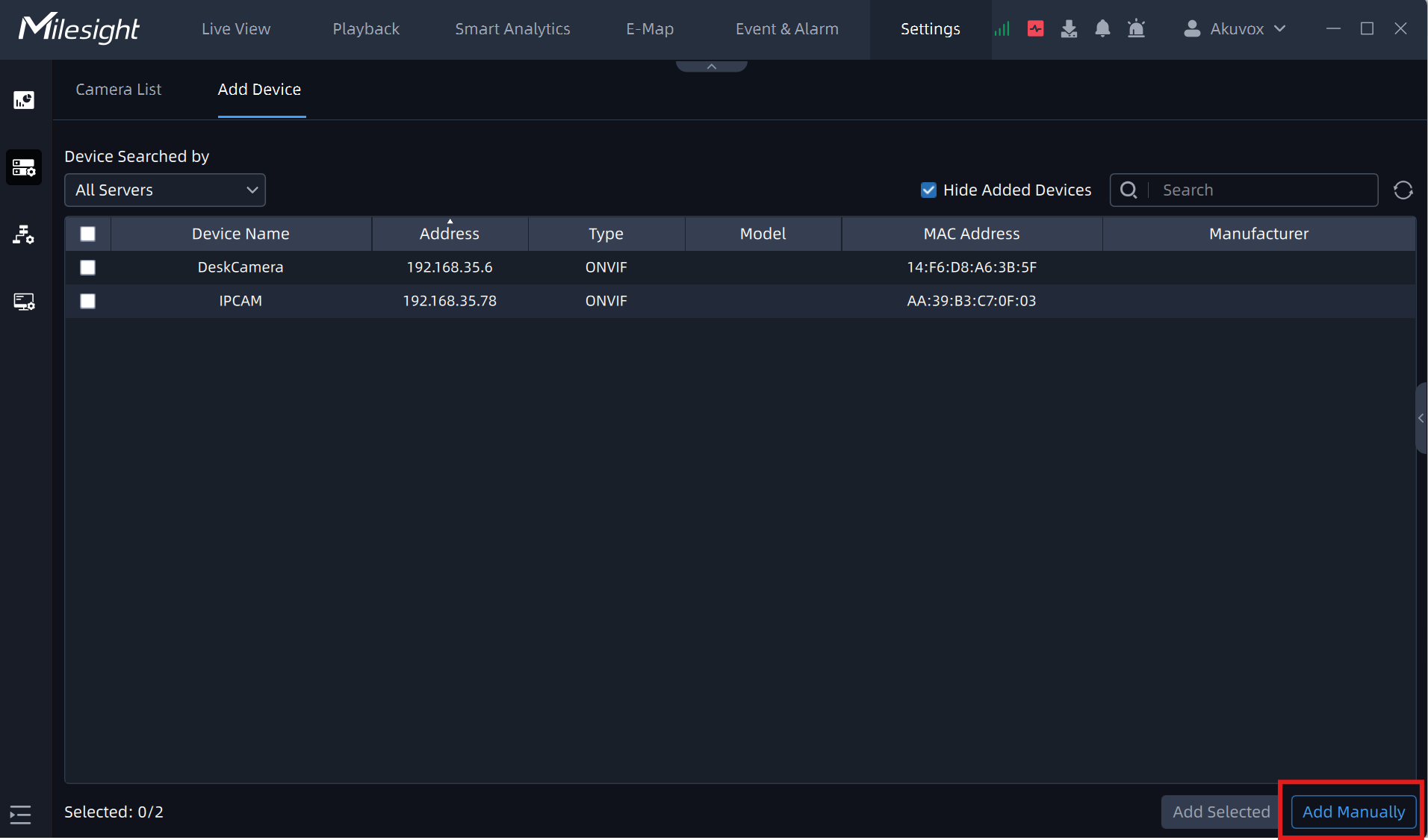
Enter the door phone’s IP address and enter the username and password set on the door phone.
You can customize the device name and port. Make sure the protocol is ONVIF.
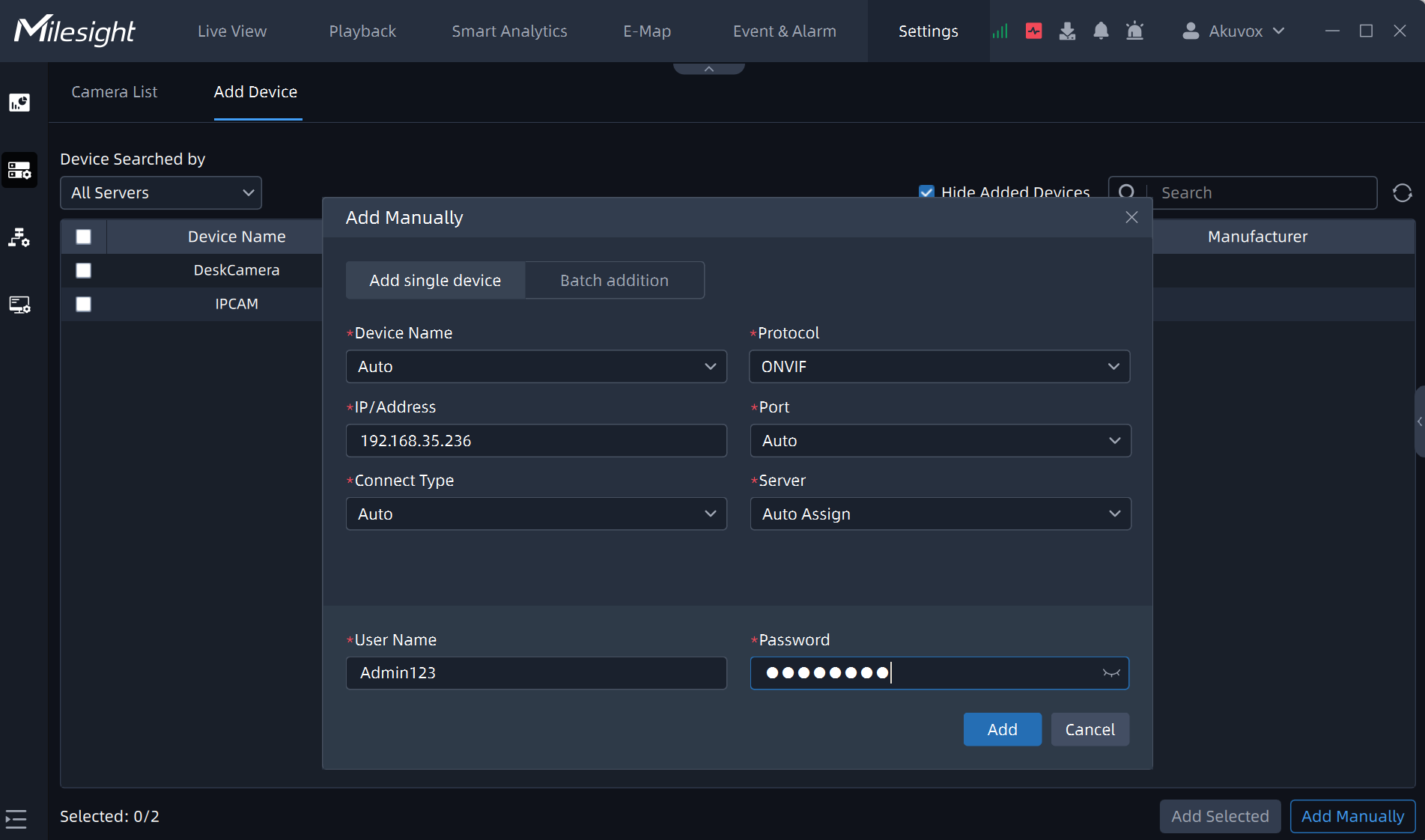
Click Add.
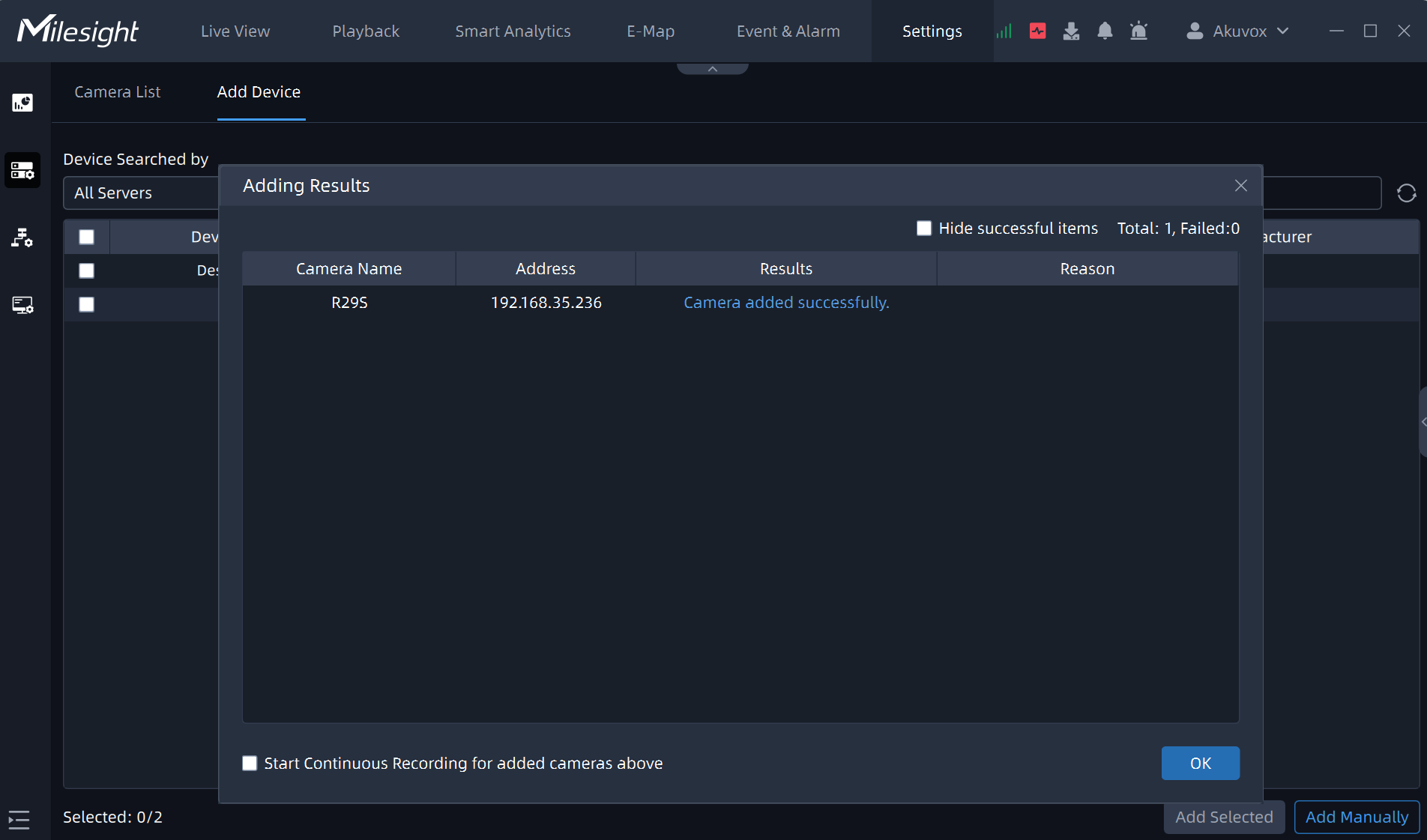
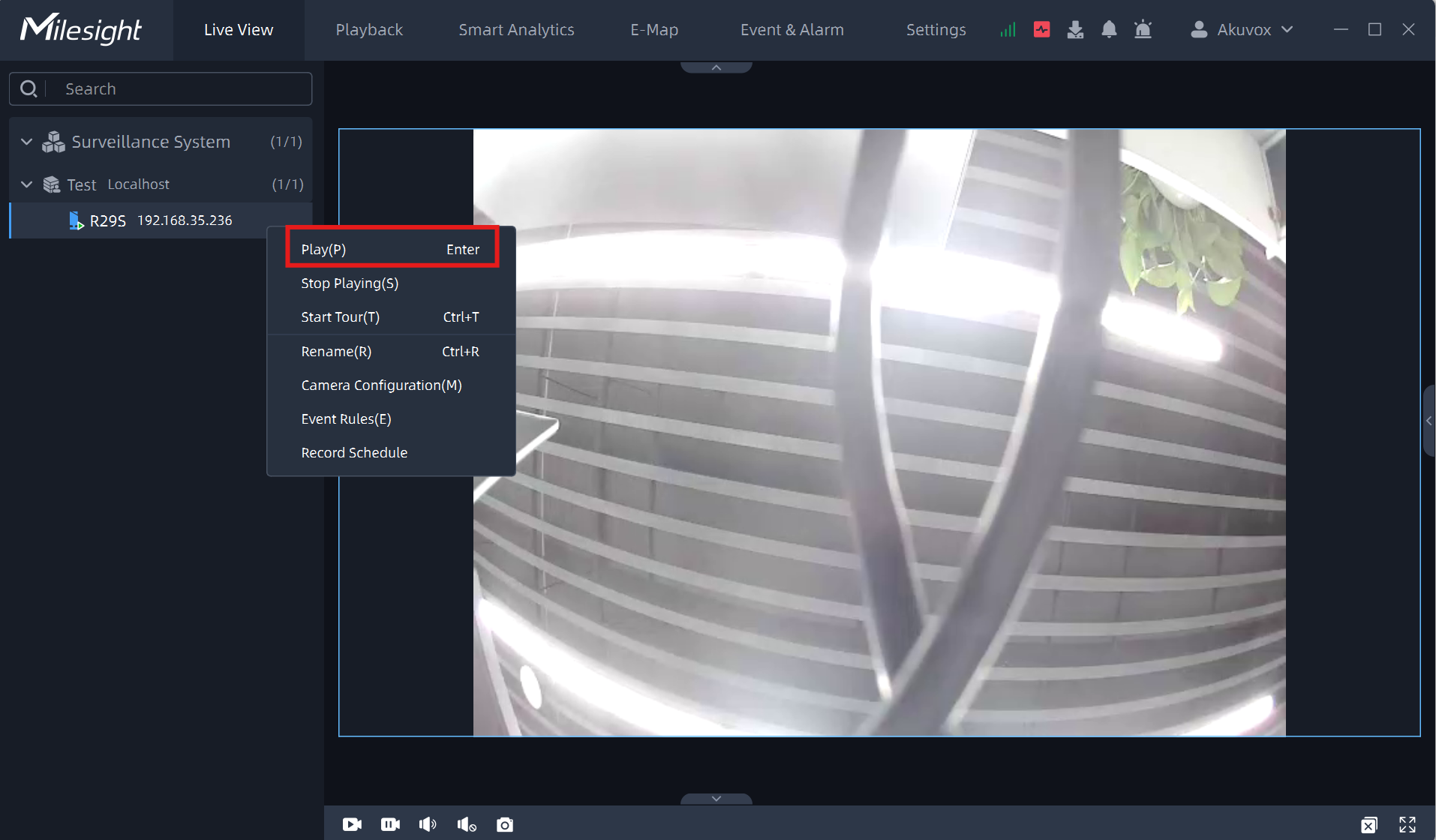
Click Live View on the upper menu to see that the R29 is in the list.
To display the video stream, press the Enter key or click Play after right-clicking on the device name.