Integration via Wiegand
The Wiegand feature enables the Akuvox device to act as a controller.
To set it up, navigate to the web Device > Wiegand interface.
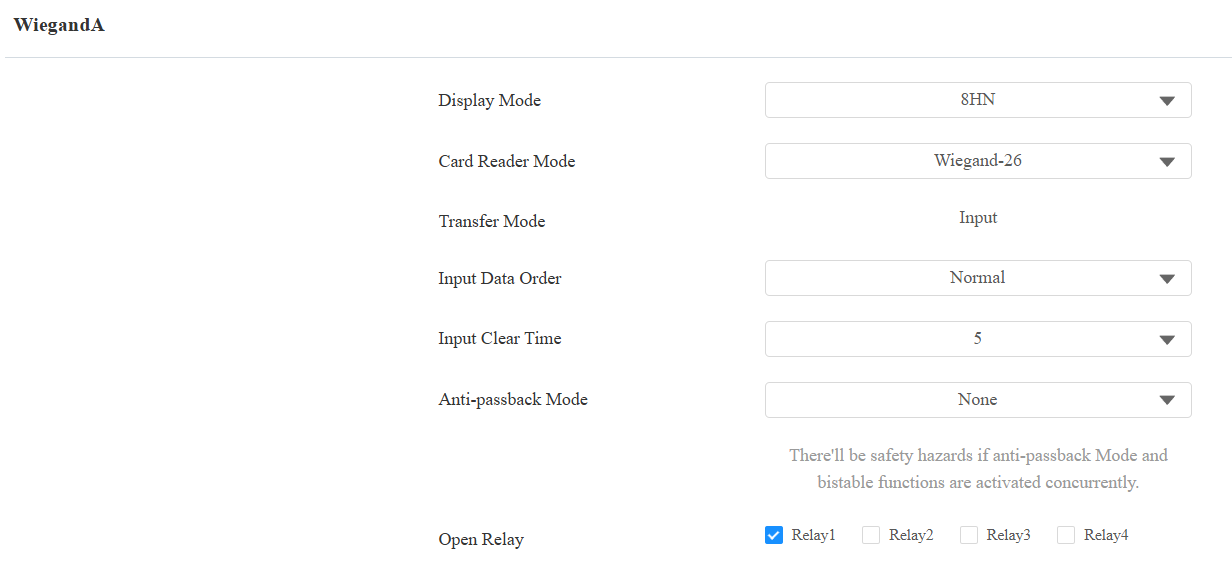
Display Mode: Select the Wiegand card code format from the provided options.
Ignore Facility Code: This option is available when 6H3D5D(WG26) is selected. When enabled, the first three bits of cards will be ignored for successful card reading.
Card Reader Mode: The transmission format should be identical between the access control terminal and the third-party device. It is Wiegand 26 by default.
When Customize is selected, further set up the following options:
Display Mode:
HEX(Hexadecimal): The default option. Base-16 numbering system that uses digits from 0 to 9 and letters from A to F.
DEC(Decimal): The base-10 numbering system that uses digits 0-9 only.
Total Number of Bits: Define the bit number of the card data for processing. The range is from 1 to 128. The default is 26.
Card Number Length: Specify the bits used to store card number, limited by the Total Number of Bits. For example, when the total bit number is 26, you can specify a length between 1 and 26 to be read as card code.
Use Site Code: Set whether to use the site code. You may need to enable it when third-party access control system requires the site code for processing the card's information.
When enabled, specify the bits read by the device, limited by the Total Number of Bits. For example, when the total bit number is 26, the range is from 1 to 26.
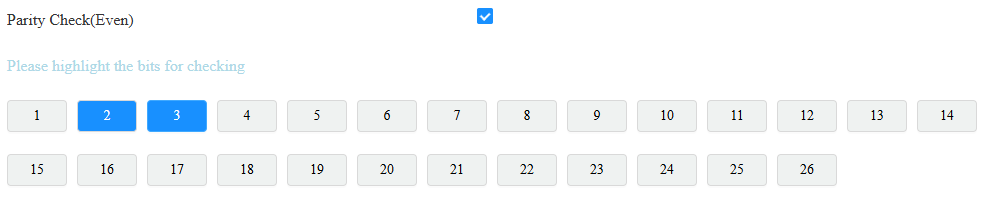
Parity Check(Even): When enabled, the sum of selected bits must be even to pass verification. For example, when the second and third bits are selected and their sum is even, the parity check passes.
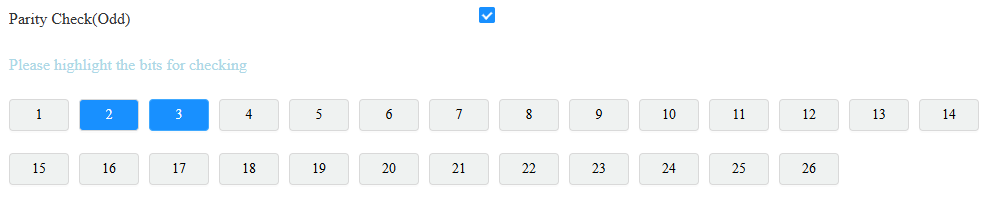
Parity Check(Odd): When enabled, the sum of selected bits must be odd to pass verification. For example, when the second and third bits are selected and their sum is odd, the parity check passes.
Tip
Parity check is a simple error detection mechanism used to ensure that data has not been corrupted during transmission or storage.
When it is enabled, the device will first perform the check. Only if the check passes will it read the card number.
Card Reading Example:
Suppose total number of bits is 32 and the card data is 0011 1000 0101 1100 0010 0100 0011 1110.
Display Mode
Card Number Length
Site Code
Parity Check
Card Code
HEX: 385C243E
13-32 Bits: C243E
1-12 Bits: 385
2-15 bits(Even): The sum is 7, fail to pass the check.
16-31 bits(Odd): The sum is 7, successfully pass the check.
C243E
Transfer Mode: It is Input by default. It means the device serves as a receiver, which allows users to open doors by swiping an RF card or entering a PIN code on the third-party card reader.
Input Data Order: Set the Wiegand input data sequence between Normal and Reversed. If you select Reversed, then the input card number will be reversed. For example, the card code is 00345678.
Normal: The code is 00345678 displayed on the device’s carding adding interface.
Reversed: The code is 00785634 displayed on the device’s carding adding interface.
Input Clear Time: When the interval of entering passwords exceeds the time, all entered passwords will be cleared.
Anti-passback Mode: Select from Entry and Exit. This mode restricts users from entering the door by following others.
For example, if the user follows someone else through the door, the next time he/she cannot swipe his/her card to pass the Entry/Exit door.
Open Relay: Select the relay triggered by Wiegand.
Integration via RS485
The device has six RS485 ports, 2 of which are used for the connection with the expanded access control board. The rest four are used for third-party integration, for example, you can connect A094 to the third-party RS485 card readers for access control.
Set it up on the web Device > RS485 interface.
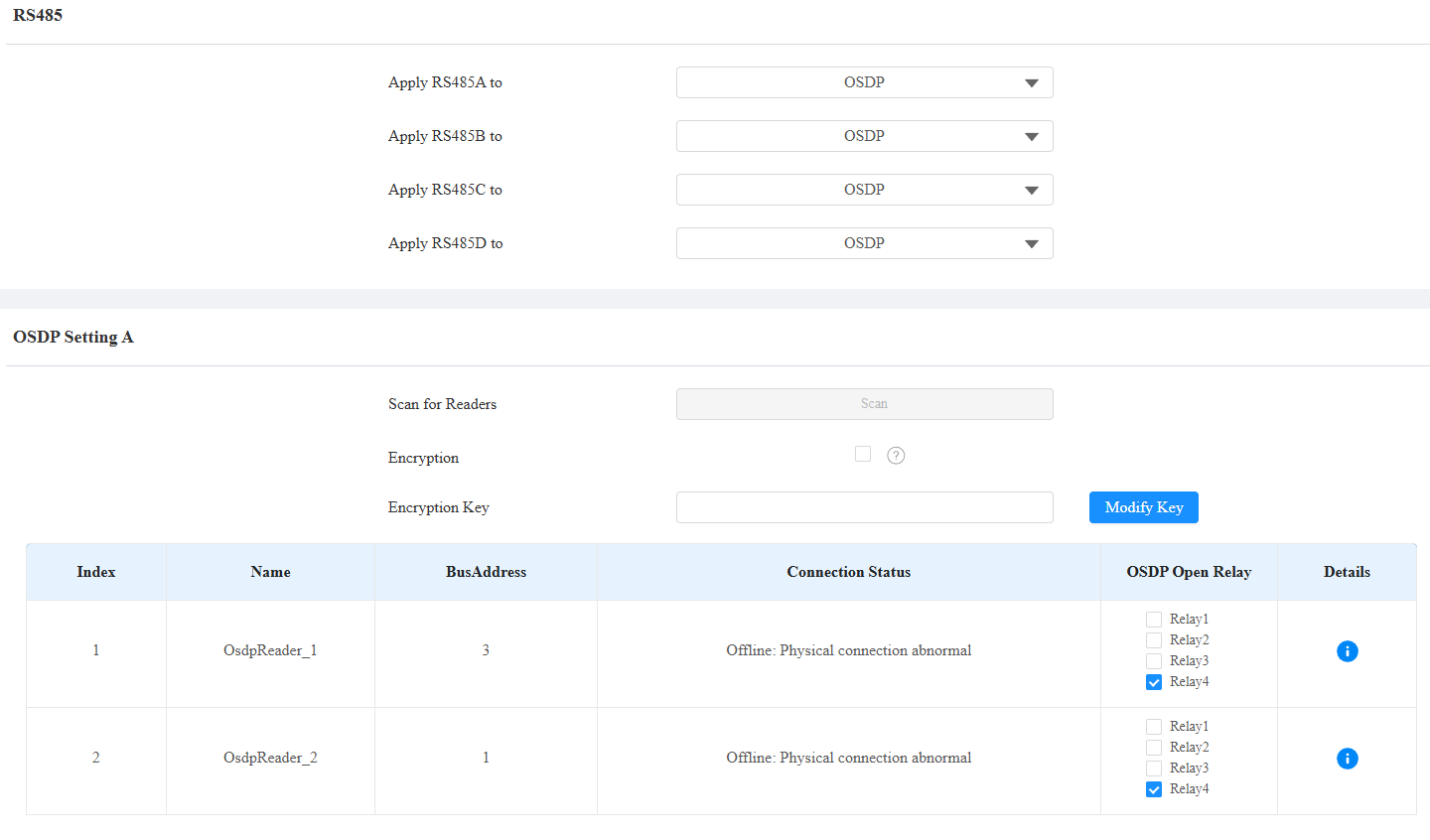
Apply RS485 To: OSDP card readers can be connected to A094 via RS485 A/B/C/D interfaces. One interface can support up to 4 readers. When the card reader is connected via RS485A/B, A094 can scan it and display its status on the web interface.
Tip
It is suggested to use RS485A/B for card reader connection. Using RS485C/D may lead to connection failure.
OSDP Setting A/B: The settings are available when OSDP is enabled.
Scan for Readers: Click Scan to detect the connected card reader.
Encryption: Check this option when the OSDP protocol is encrypted.
Encryption Key: Fill in the key when Encryption is checked. Please confirm the key with the card reader service provider.
Modify Key: Click to modify the encryption key, which must be 32 bits long and can include numbers (0-9) and letters (a-f, A-F).
Connection Status: Display whether the reader is online and connected properly.
OSDP Open Relay: Check the relay to be opened.
Details: Click to view the card reader’s information.
OSDP Setting C/D: The settings are available when OSDP is enabled.
Encryption: Check this option when the OSDP protocol is encrypted.
Key Value: Fill in the key when Encryption is checked. Please confirm the key with the card reader service provider.
OSDP Open Relay: Check the relay to be opened.
Virtual Door Mode:
It is disabled by default. Users can ONLY open relays that are checked on both the OSDP setting and Access Setting interfaces.
If it is enabled, users can open relays that are checked on the OSDP setting interface with their credentials, regardless of whether they are checked on the Access Setting interface.
Note
Click here to view the detailed configuration of the OSDP feature.
Integration via HTTP API
HTTP API is designed to achieve a network-based integration between the third-party device and the Akuvox device.
To set it up, navigate to the web Setting > HTTP API interface.
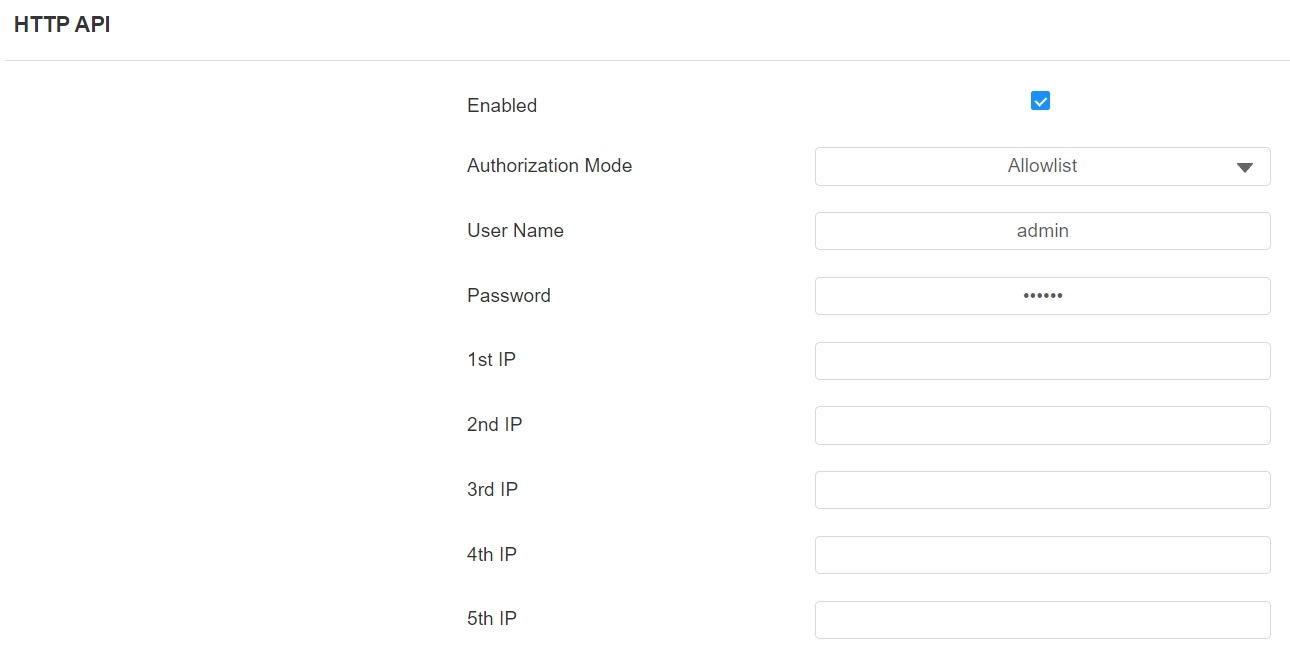
HTTP API Enable: Enable or disable the HTTP API function for third-party integration. If the function is disabled, any request to initiate the integration will be denied and return HTTP 403 forbidden status.
Authorization Mode:
None: No authentication is required for HTTP API as it is only used for demo testing.
Normal: This mode is for Akuvox developers only.
Allowlist: This mode requires you to enter the IP address of the devices you allow for the integration via HTTP API.
Basic: This mode requires you to fill in the authentication username and password. In the Authorization field of the HTTP request header, use the Base64 encoding method to encode the username and password.
Digest: The password encryption method only supports MD5. MD5( Message-Digest Algorithm) In the Authorization field of HTTP request header: WWW-Authenticate: Digest realm="HTTPAPI",qop="auth,auth-int",nonce="xx", opaque="xx".
Token: This mode is only used by Akuvox developers.
Username: Enter the user name when Basic or Digest authorization mode is selected. The default username is admin.
Password: Enter the password when Basic or Digest authorization mode is selected. The default password is admin.
1st IP-5th IP: Enter the IP address of the third-party devices when the Allowlist authorization is selected for the integration.
Power Output Control
The device can serve as a power supply for the external relays. Click here to view the power output requirements and the wiring example.
To set it up, navigate to the web Access Control > Relay interface.
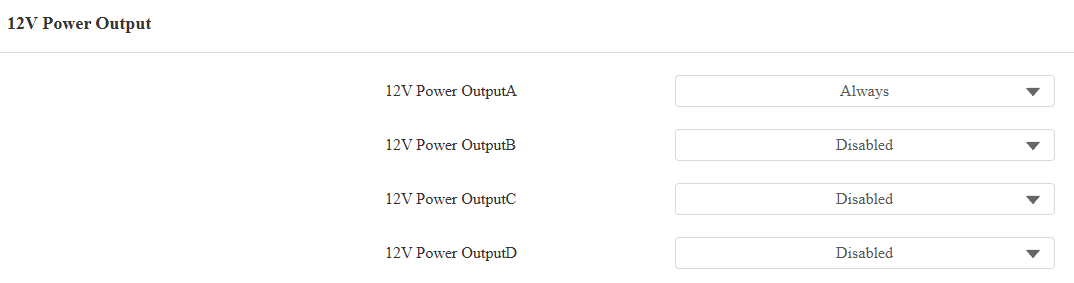
Relay ID: Specify the relay for the power supply output.
Power Output Type: Select the power output type.
Always: The device will provide a continuous power supply. The device's relay status will be changed from NC to NO status after the relay is triggered, thus cutting off the power out. The power supply will be resumed after the relay is reset.
Triggered by Open Relay: The device relay will be changed from NO to NC status after the relay is triggered, thus starting the power supply. The power supply will be cut off after the relay is reset. The relay can be reset automatically by the relay timeout(3, 5, or 10 seconds). For example, if you want the relay to be automatically reset 10 seconds after triggering, you can select 10 seconds, meaning 10 seconds of power output. It is 3 seconds by default.
Time Out(Sec): This option is available when Triggered by Open Relay is selected. Set the relay reset time.
Tip
The power output is 12V, and the maximum output amperage is 0.8A.