IP Call
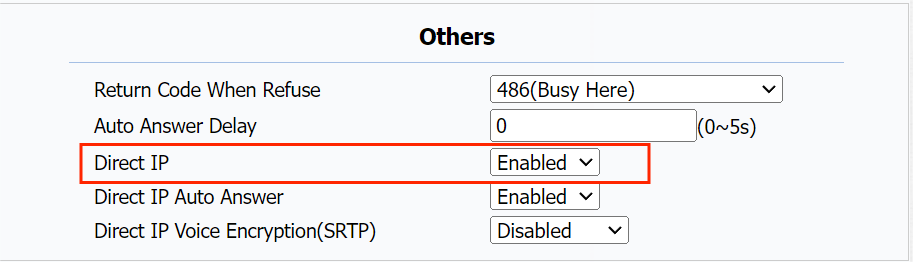
An IP call is a direct call between two intercom devices using their IP addresses, without a server or a PBX. IP calls work when the devices are on the same network.
To do so, go to Phone > Call Feature > Others.
SIP Call
Session Initiation Protocol(SIP) is a signaling transmission protocol used for initiating, maintaining, and terminating calls.
A SIP call uses SIP to send and receive data between SIP devices, and can use the internet or a local network to offer high-quality and secure communication. Initiating a SIP call requires a SIP account, a SIP address for each device, and configuring SIP settings on the devices.
SIP Account Registration
Each device needs a SIP account to make and receive SIP calls.
Akuvox intercom devices support the configuration of two SIP accounts, which can be registered under two independent servers.
Click here to view the SIP account registration example.
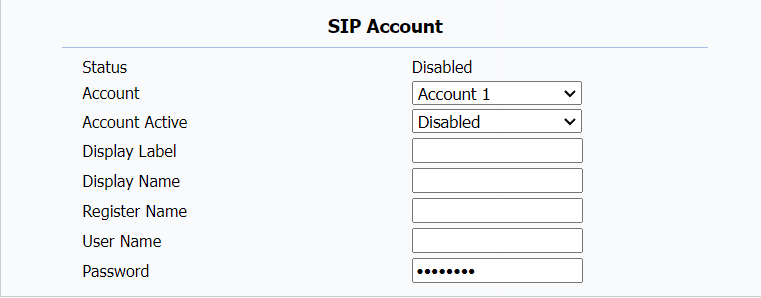
Go to Account > Basic > SIP Account. Register Name, User Name, and Password are obtained from SIP account administrator.
Parameters Set-up:
- Status: To see if the SIP account is registered or not.
- Account: Select the account (Account 1 only) to be configured.
- Account Active: To activate or deactivate the registered SIP account.
- Display Label: Optional. To configure the account label displayed on the screen.
- Display Name: Optional. To configure the account’s name displayed on the called device.
SIP Server Configuration
SIP servers enable devices to establish and manage call sessions with other intercom devices using the SIP protocol. They can be third-party servers or built-in PBX in Akuvox indoor monitor.
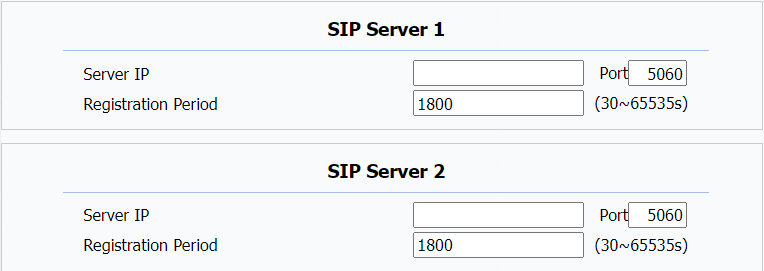
To configure the primary(SIP Server 1) and secondary(SIP Server 2) SIP servers, go to Account > Basic > SIP Server.
Parameter Set-up:
- Server IP: Enter the server IP address or its URL. The Server 1 is the primary SIP server, and the Server 2 is the backup one.
- Port: To set up SIP server port for data transmission.
- Registration Period: To set up SIP account registration time span. SIP re-registration will start automatically if the account registration fails during the registration time span. The default registration period is “1800”, ranging from 30-65535s.
Configure Outbound Proxy Server
An outbound proxy server is used to receive all initiating request messages and route them to the designated SIP server in order to establish a call session via port-based data transmission.
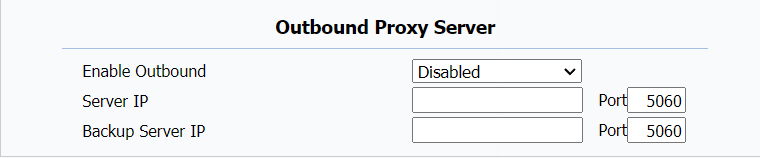
To set it up , go to Account > Basic > Outbound Proxy Server.
Parameters Set-up:
- Server IP: Enter the SIP address of the primary outbound proxy server.
- Port: Enter the Port number for establishing call session via the primary outbound proxy server
- Backup Server IP: To set up Backup Server IP for the backup outbound proxy server.
- Port: Enter the port number for establishing call session via the backup outbound proxy server.
Configure Data Transmission Type
Akuvox intercom devices support four data transmission protocols: User Datagram Protocol(UDP), Transmission Control Protocol(TCP), Transport Layer Security(TLS), and DNS-SRV.
To set this up, go to Account > Basic > Transport Type.

Parameters Set-up:
- Transport Type: To select from 4 SIP message transmission types.
- UDP: Select UDP for unreliable but very efficient transport layer protocol. UDP is the default transport protocol.
- TCP: Select TCP for Reliable but less-efficient transport layer protocol.
- TLS: Select TLS for Secured and Reliable transport layer protocol.
- DNS-SRV: Select DNS-SRV to obtain DNS record for specifying the location of servers. And SRV not only records the server address but also the server port. Moreover, SRV can also be used to configure the priority and the weight of the server address.
NAT Setting
Network Address Translation(NAT) lets devices on a private network use a single public IP address to access the internet or other public networks. NAT saves the limited public IP addresses and hides the internal IP addresses and ports from the outside world.
To register SIP accounts on third-party servers in a Wide Area Network(WAN), you need to enable the RPort feature on the intercom devices to establish a stable connection.
To enable NAT, go to Account > Basic > NAT.

Parameters Set-up:
- NAT: To select STUN (short for Simple Traversal of UDP over NATS) to enable the function, then you need to install a NAT sever. The default is Disable.
- Stun Server Address: To enter the STUN server IP.
- Port: To enter the STUN server port. The default port is 3478.
To make advanced configuration, go to Account > Advanced > NAT.
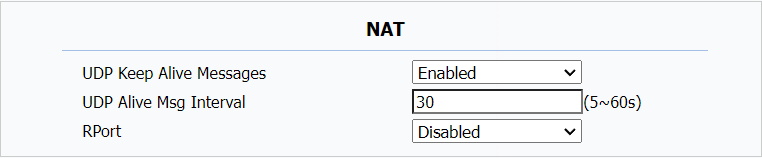
Parameters Set-up:
- UDP Keep Alive Messages: If enabled, the device will send out the message to the SIP server so that the SIP server will recognize if the device is in online status.
- UDP Alive Msg Interval: To set the message sending time interval from 5-60 seconds. The default is 30 seconds.
- RPort: To enable the Rport when the SIP server is in WAN (Wide Area Network).
Audio Codec for SIP Call
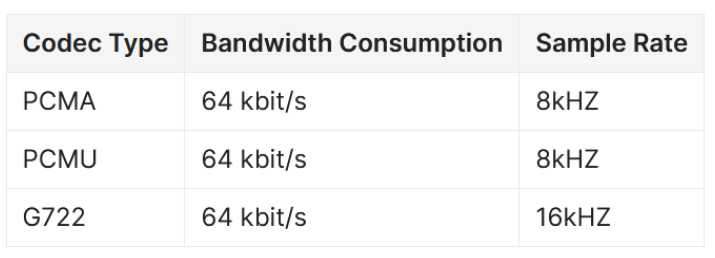
The door phone supports three types of Codec (PCMU, PCMA, nd G722) for encoding and decoding the audio data during the call session. Each type of Codec varies in terms of sound quality. You can select the specific codec with different bandwidths and sample rates flexibly according to the actual network environment.
To make the configuration, go to Account > Advanced > Codecs.
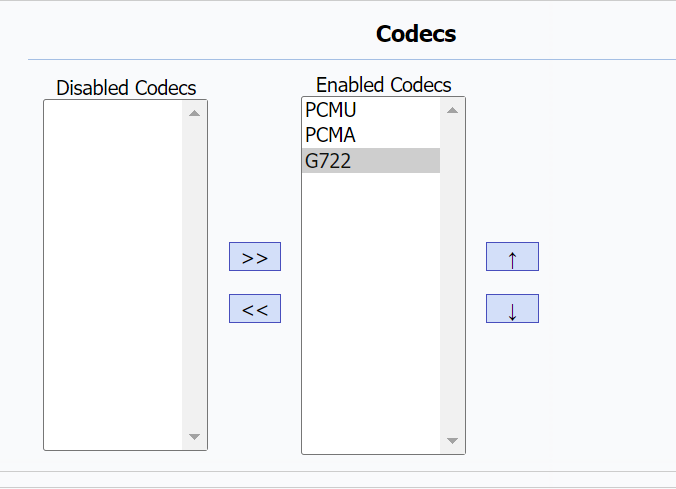
The following are the bandwidth consumption and sample rate of the 3 codec types.
Other SIP Call Settings
For other SIP call related settings, go to Account > Advanced > Call.
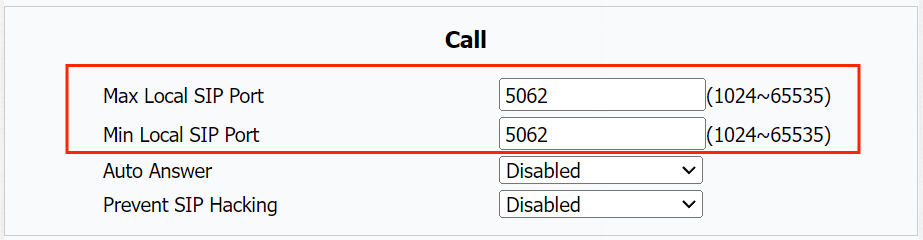
Parameters Set-up:
- Max Local SIP Port: To set the highest port number that can be used for SIP traffic on a device. The default port is 5062.
- Min Local SIP Port: To set the lowest port number that can be used for SIP traffic on a device. The default port is 5062.