The Door Held Open feature allows authorized users to schedule door hold-open periods through the SmartPlus App. As installers, you can enable or disable this feature by configuring the associated device on SmartPlus Cloud.
Compatible Model and Minimum Version
Model | Version | Model | Version |
|---|---|---|---|
S539 | 539.30.10.213 | S538 | 538.30.10.705 |
S535 | 535.30.10.233 | S532 | 532.30.10.228 |
X916 | 916.30.10.210 | X915 V2 | 2915.30.10.202 |
X912 | 912.30.11.49 | X910 | 2910.30.10.240 |
R29 | 29.30.10.139 | R28 V2 | 228.30.10.135 |
R25A | 25.30.10.22 | R25K | 25.30.10.117 |
R20 V5.0 | 320.30.10.246 | E12 | 312.30.11.18 |
E16 V2 | 216.30.10.106 | E16 V3 | 416.30.11.206 |
A01/A02 | 101.30.10.33 | E18 | 18.30.10.236 |
A05 V2 | 205.30.10.104 | A03 | 103.30.10.111 |
A094 | 92.30.10.112 | A08 | 108.30.1.16 |
A095 | 95.30.10.110 | A15 | 1115.30.10.407 |
WR01 | 1401.30.11.221 |
Enable Door Held Open on SmartPlus Cloud
Log in to the SmartPlus Cloud portal with your installer account.
Click Communities on the dashboard.
Navigate to a specific community by clicking
 .
.Click
 of the target resident.
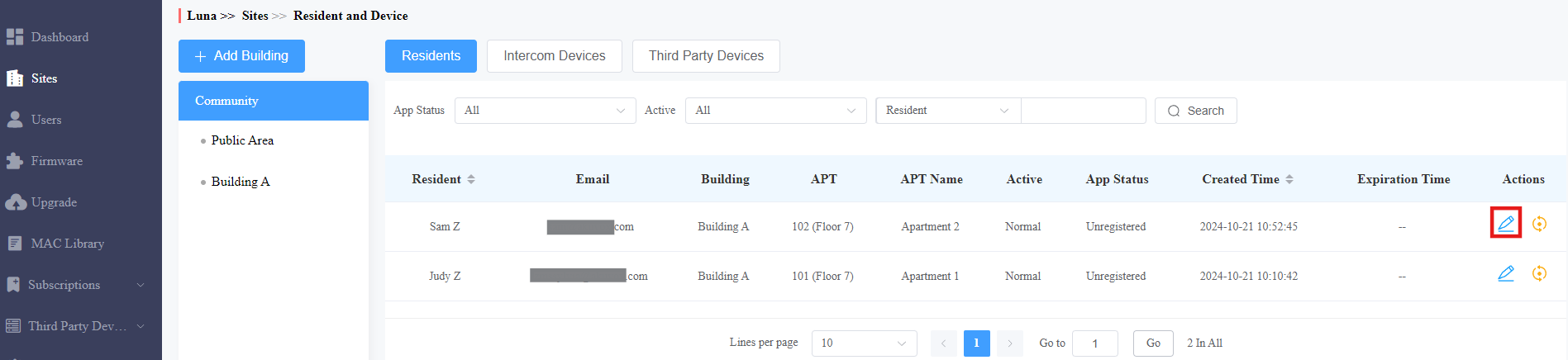
Scroll to the Intercom Devices part. Edit or add a door phone or an access control terminal.
Select Yes for the Allow Users to Set Door Hold Open option.
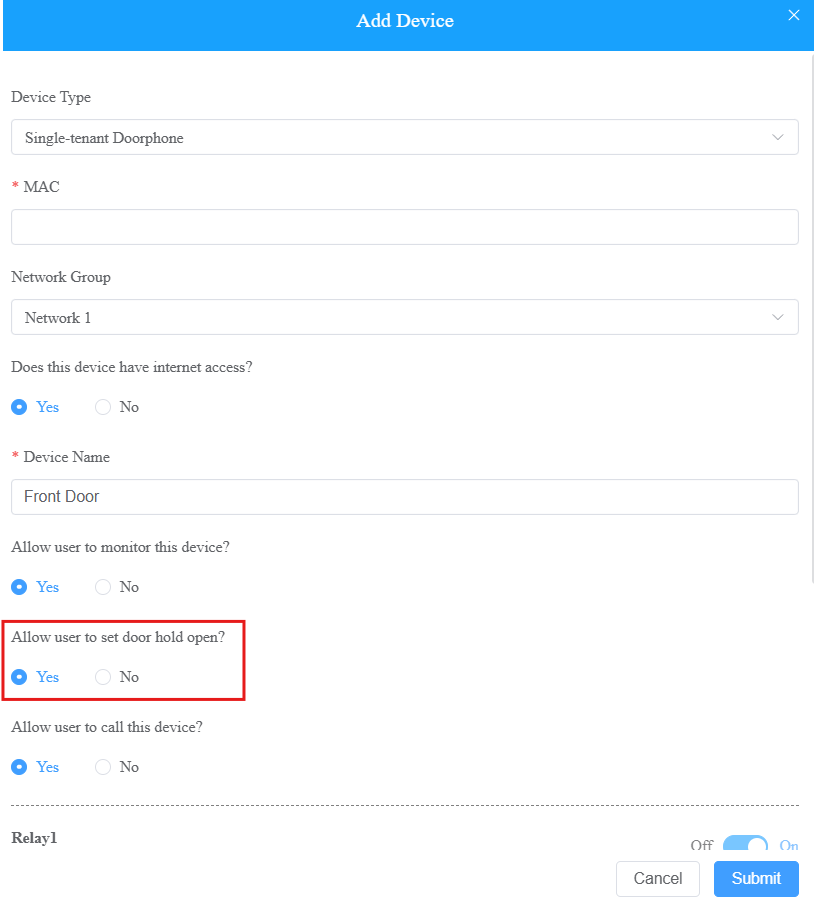
Click Submit to save the settings.
After the feature is enabled, eligible users can configure door hold-open schedules through the SmartPlus App.