Language
To select the device language, go to Device Setting > Time/Lang > LCD Language interface.
The device’s LCD supports the following languages:
English, Simplified Chinese, Traditional Chinese, Czech, Portuguese, Spanish, Italian, Dutch, French, German, Hebrew, Polish, and Arabic.

You can switch the device's web language in the upper-right corner.
The device web supports the following languages:
English, Simplified Chinese, Traditional Chinese, Czech, Portuguese, Spanish, Italian, Dutch, French, German, Hebrew, Polish, and Arabic.
Custom Language
You can customize the configuration names and prompt texts on the device and its web portal such as the file name error warning.
Export the .json file for editing. You may edit it with the notepad on your computer.
Import the .json file and its size should be smaller than 1 MB.
File Example:
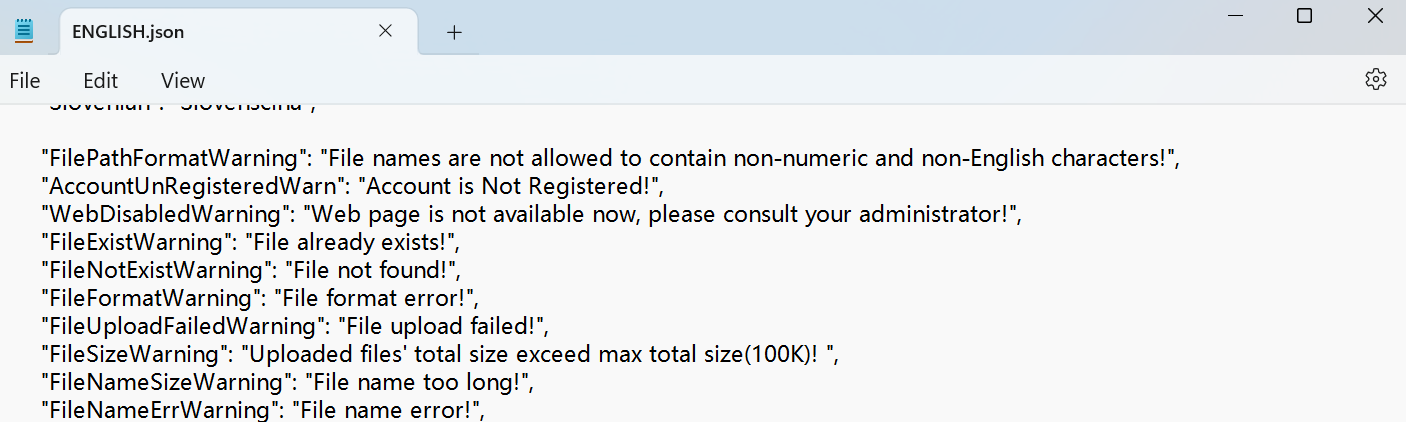
Set it up on the Device Setting > Time/Lang > Custom Language interface.

Time
The time settings on the web interface allow you to configure the NTP server address for automatic time and date synchronization. Once a time zone is selected, the device will notify the NTP server of the chosen time zone, enabling it to synchronize the time zone settings on your device.
To set it up, go to Device Setting > Time/Lang > Time interface.
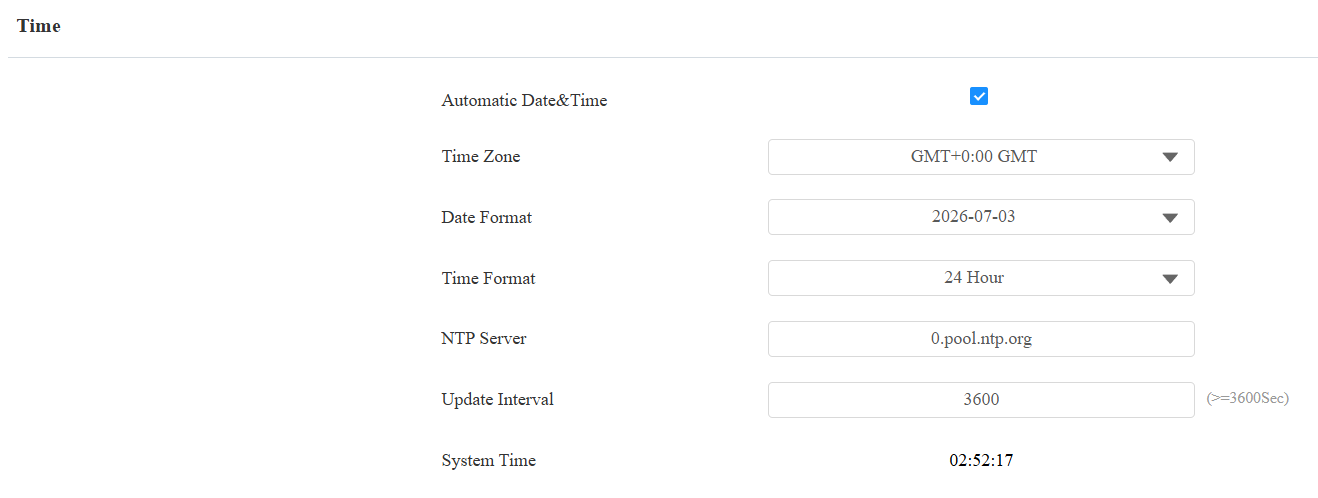
Automatic Date&Time: The automatic date is switched on by default, which allows the date & time to be automatically set up and synchronized with the default time zone and the Network Time Protocol(NTP) server. You can also set it up manually by switching off the automatic date and entering the time and date.
NTP Server: The NTP server address for updating the time. The default NTP server address is 0.pool.ntp.org.
Update Interval: Set the time update interval. For example, if you set it to 3600 seconds, the device will send a request to the NTP server for the time update every 3600 seconds.
System Time: Display the current device time.