Call Logs
To check calls—including dial-out, received, and missed calls—within a specific period, you can view the call log on the device's web interface. If needed, you can also export the call log from the device.
Check call logs on the web Status > Call Log interface. The device supports 2,000 call logs, which can be exported in a CSV file by clicking Export.
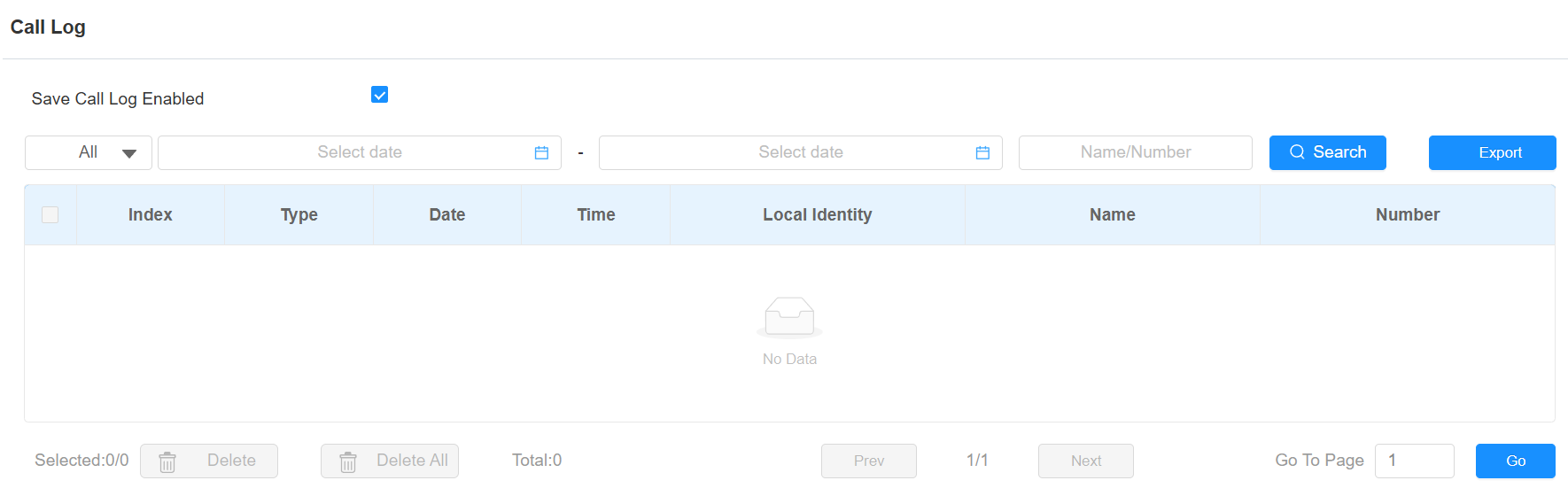
Call History: There are four specific types of call logs: All, Dialed, Received, and Missed.
Start Time - End Time: Search the desired call log by entering a certain period.
Name/Number: Search the desired call log by entering the name and number.
Door Logs
To search and review various types of door access history, simply check the door logs on the device's web interface.
Check door logs on the Status > Access Log interface. The device supports 50,000 door logs, which can be exported in a CSV or XML file by clicking Export.
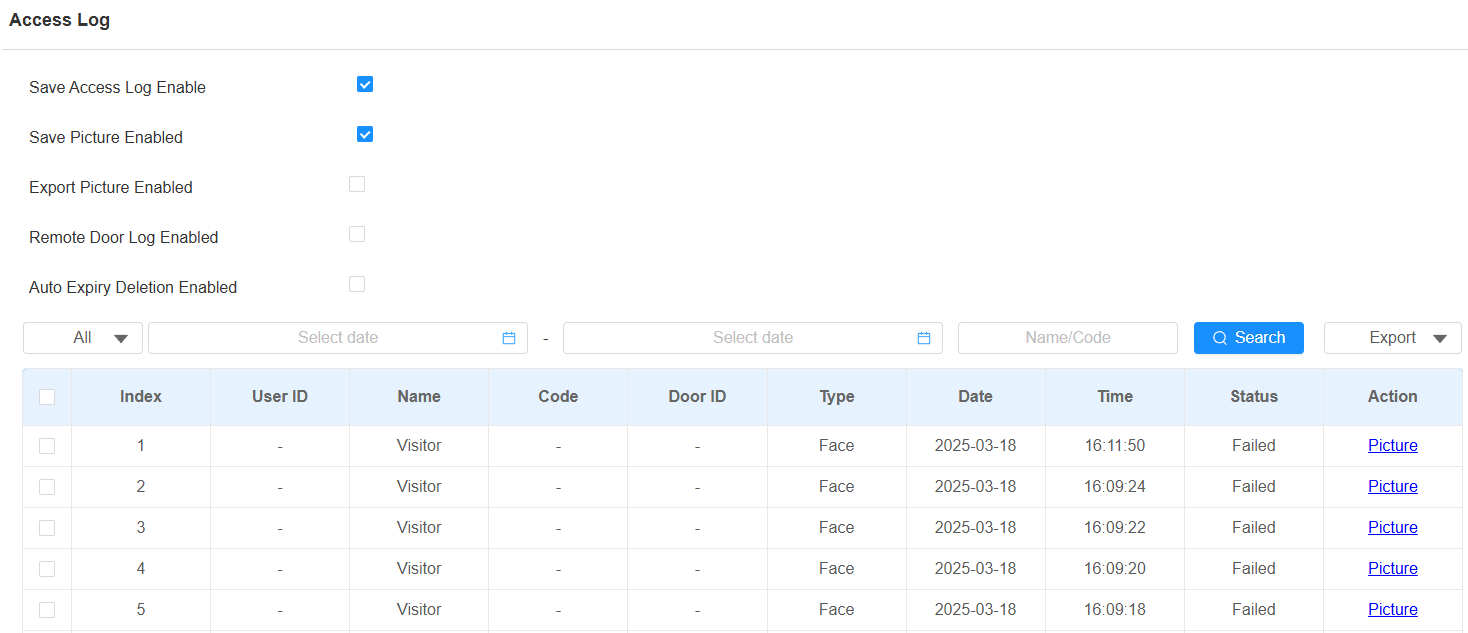
Save Picture Enabled: When enabled, the device will capture pictures of the door opening, and you can click Picture in the Action column to view the screenshot.
Export Picture Enabled: Set whether to export the captured images when exporting the door logs.
Remote Door Log Enabled: Set the remote server to store the door logs.
Auto Expiry Deletion Enabled: Set whether to delete logs automatically when they exist for a certain days.
Expiry Time: Specify how long the logs can be retained. It ranges from 0 to 90 days.
Status: Display Successful and Failed door-opening records.
Start Time - End Time: Search the desired call log by entering a certain period.
Name: Display user name. If it is an unknown key or card, it will display Unknown.
Code: If the door is opened by RF cards, the card code will be displayed. If the door is opened by an HTTP command, it will be empty.
Type: Display the access methods.
Temperature Logs
To check the temperature log, go to Status > Temperature Log interface. The device supports 50,000 temperature logs, which can be exported in a CSV or XML file by clicking Export.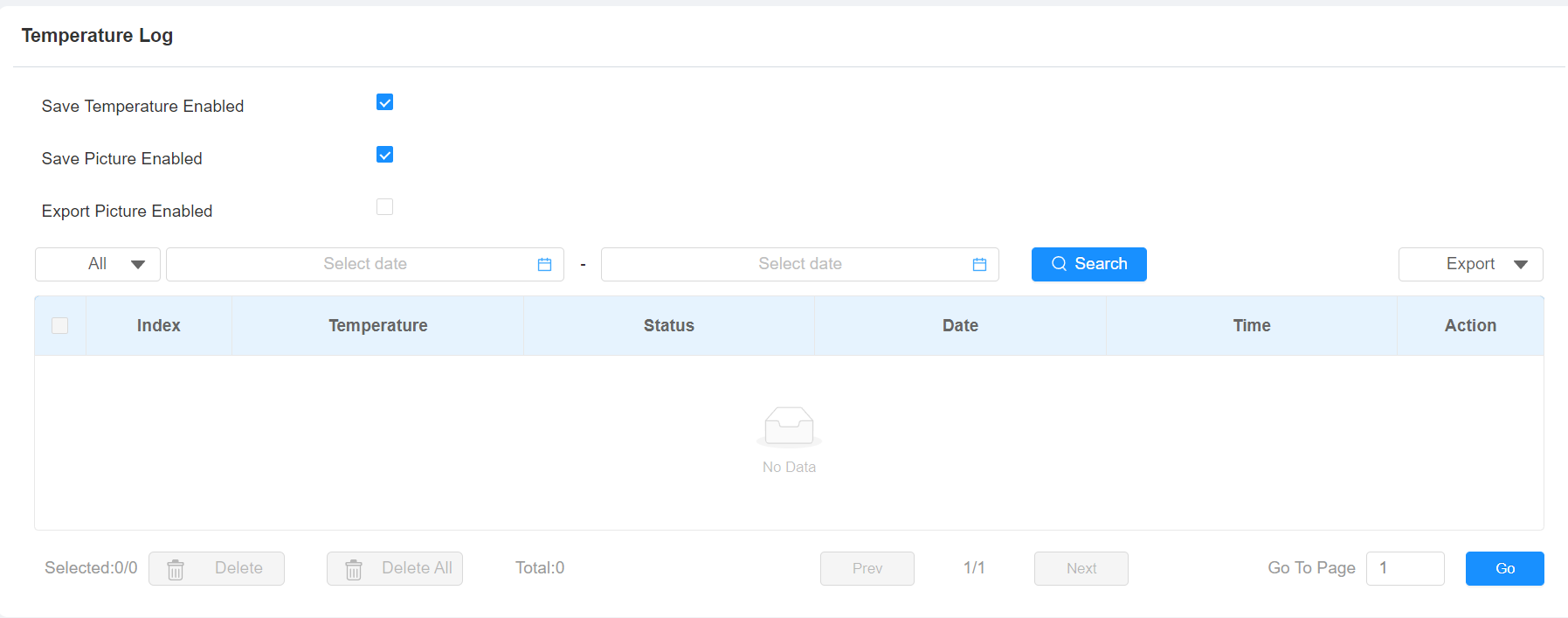
Save Picture Enabled: When enabled, the device will capture pictures of the temperature detection, and you can click Picture in the Action column to view the screenshot.
Export Picture Enabled: Set whether to export the captured images when exporting the temperature logs.
Export Logs to SD Card
When the device has an SD card inserted, you can export logs to it on the Advanced > Export Log screen.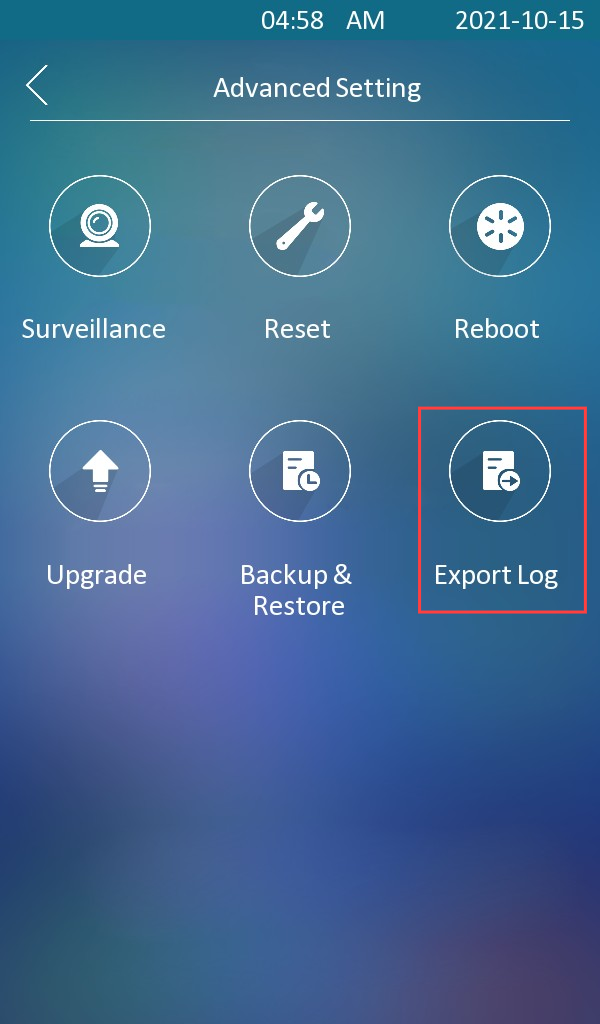
Event Logs
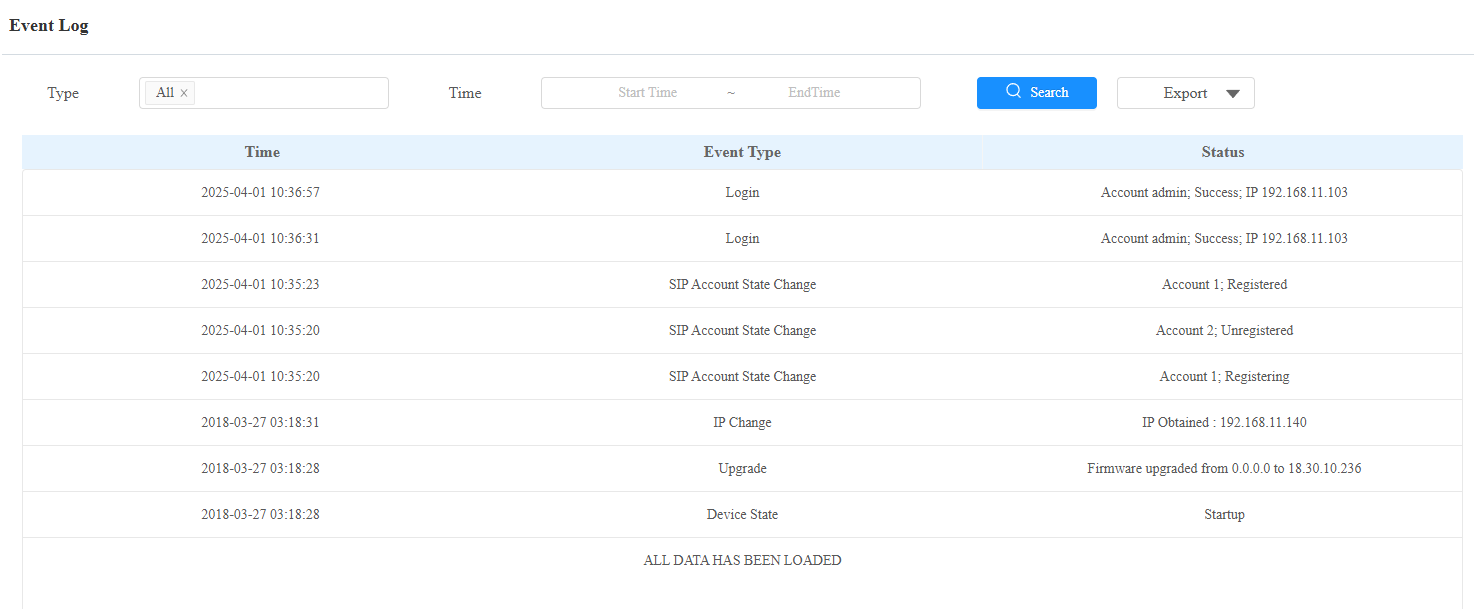
The event logs record the key events such as the status change of input, relay, tamper alarm, etc. This helps track the status and changes of the device.
Check event logs on the Status > Event Log interface. The device supports up to 100,000 logs, which can be exported in CSV format.