Integration via Wiegand
The Wiegand feature enables the Akuvox device to act as a controller or a card reader.
Set it up on the web Device > Wiegand > Wiegand interface.
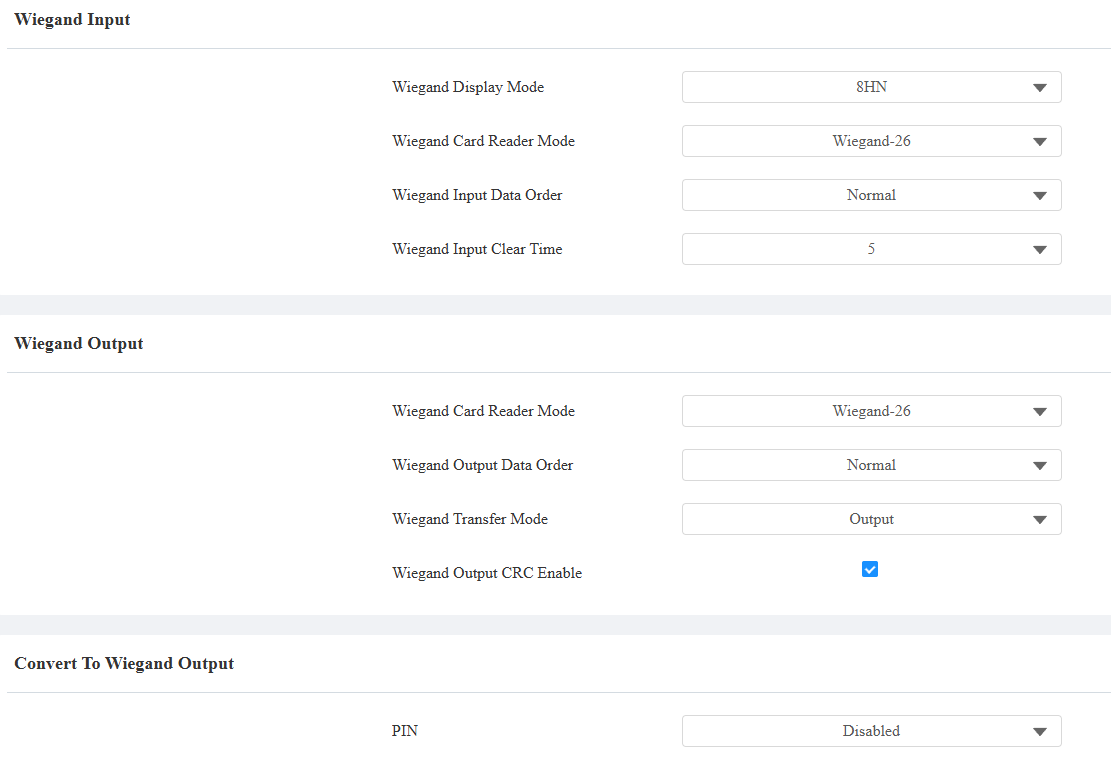
Wiegand Input: The device serves as a relay controller.
Wiegand Display Mode: Select the Wiegand card code format from the provided options: 8H10D, 6H3D5D, 6H8D, 8HN, 8HR, RAW, 8HR10D, and 6H3D5D-R.
Wiegand Card Reader Mode: The transmission format should be identical between the door phone and the third-party device. It is automatically configured.
Wiegand Input Data Order: Set the Wiegand input data sequence between Normal and Reversed. If you select Reversed, then the input card number will be reversed.
Wiegand Input Clear Time: When the interval of entering passwords via Wiegand exceeds the time. All entered passwords will be cleared. The default is 5 seconds.
Wiegand Output:
Wiegand Card Reader Mode: The transmission format should be identical between the door phone and the third-party device. It is automatically configured.
Wiegand Output Data Order: Determine the sequence of the card data after the Wiegand conversion.
For example, if the card data is 0x11 0x22 0x33 0x44 0x55, it will be 0x33 0x44 0x55 after the Wiegand conversion(e.g., Wiegand 26). If Reversed is selected, the card data is 0x55 0x44 0x33.
Wiegand Transfer Mode:
Output: The device serves as a sender and can directly output the data such as card code.
Convert To Card No. Output: The device serves as a sender and cannot directly output the data such as the face data.
Wiegand Output CRC Enable: It is enabled by default for Wiegand data inspection. Disabling it may lead to integration failure with third-party devices.
Convert To Wiegand Output: Available when Output is Wiegand Transfer Mode. This option determines the output PIN format.
Disabled: Turn off the feature.
8 bits per digit: When users press "1" on the keypad, the binary data will be transmitted in 8 bits, "11100001".
4 bits per digit: When users press "1" on the keypad, the binary data will be transmitted in 4 bits, "0001".
All at once: After users enter the whole PIN code, the data will be transmitted according to the Wiegand card reader mode. For example, “123456” will be converted to “01e240” in Wiegand 26.
Note
Click here to view more information on Wiegand settings including:
Akuvox devices work as Wiegand input/output;
Wiegand Card Reader Connection.
Integration via HTTP API
HTTP API is designed to achieve a network-based integration between the third-party device and the Akuvox device.
Set it up on the web Setting > HTTP API interface.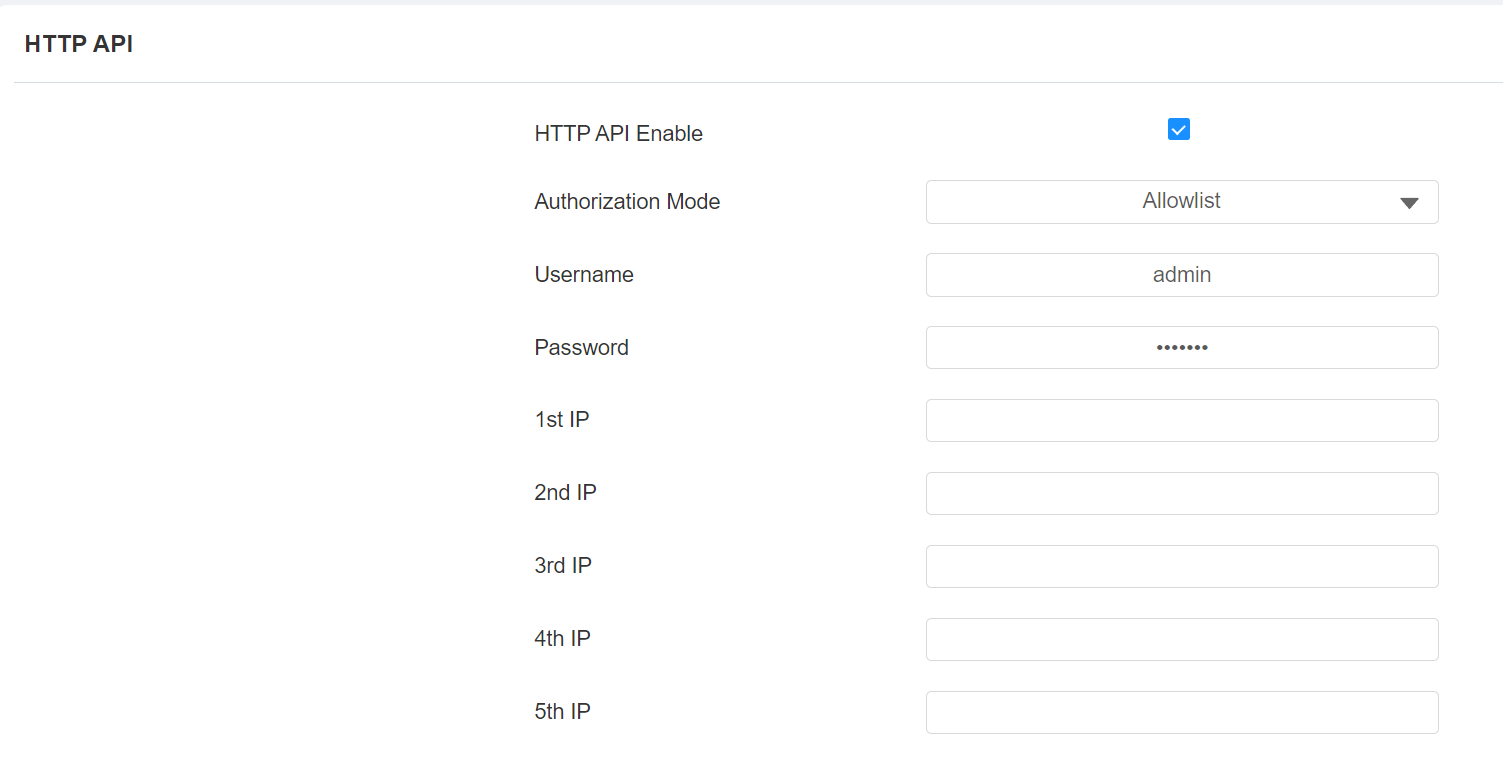
Enabled: Enable or disable the HTTP API function for third-party integration. If the function is disabled, any request to initiate the integration will be denied and return HTTP 403 forbidden status.
Authorization Mode: It is Digest by default. You are required to fill in the username and password for the authentication. In the Authorization field of the HTTP request header, use the Base64 encoding method to encode the username and password.
User Name: Enter the user name for authentication. The default is admin.
Password: Enter the password for authentication. The default is admin.
1st IP-5th IP: Enter the IP address of the third-party devices when the Allowlist authorization is selected for the integration.
Please refer to the following description for the authentication mode:
NO. | Authorization Mode | Description |
|---|---|---|
1 | None | No authentication is required for HTTP API as it is only used for demo testing. |
2 | Allowlist | If this mode is selected, you are only required to fill in the IP address of the third-party device for the authentication. The allowlist is suitable for operation in the LAN. |
3 | Basic | If this mode is selected, you are required to fill in the username and password for the authentication. In the Authorization field of the HTTP request header, use the Base64 encoding method to encode of username and password. |
4 | Digest | The password encryption method only supports MD5. MD5( Message-Digest Algorithm) in Authorization field of HTTP request header: WWW-Authenticate: Digest realm="HTTPAPI",qop="auth,auth-int",nonce="xx", opaque="xx". |
5 | Token | This mode is used by Akuvox developers only. |
Integration with Third-party Access Control Server
The device can transmit access credentials to a third-party server without doing any verification. The generation and verification of the data are conducted on the third-party server.
To set it up, go to Access Control > Relay > Third Party Integration interface.

List:
None: Disable the function.
General: Transmit the QR code-linked HTTP URL in Akuvox’s method.
HTTP URL: Enter the HTTP command format provided by the third-party service provider. After scanning the QR code, the HTTP command will carry the dynamic QR code information automatically before it is sent to the QR code server for verification. See the example: http://{Server IP}:8090/api/visitor/scan?codeKey={QRCode}&deviceId={DeviceID}.
Device ID: The device ID is provided by the third-party server. It will be added to the HTTP command automatically when using a QR code for door access.
Customize: Transmit QR code, RF card, and PIN data in a customized method.
Prompt on LCD: Select Default to adopt the Akuvox door phone’s door-opening prompt; Select Return Value to use the return value from the third-party server as the prompt.
Remote Verification: Check the access method to be verified by the third-party server.
HTTP URL: Enter the HTTP command format provided by the third-party service provider. After scanning the QR code, swiping the card, or entering the PIN, the HTTP command will carry the credential data automatically before it is sent to the server for verification. See the example: http://{Server IP}:8090/api/visitor/scan?codeKey={QRCode}/{CardCode}/{Pin}&deviceId={DeviceID}.
Device ID: The device ID is provided by the third-party server. It will be added to the HTTP command automatically when using a QR code, RF card, or PIN for door access.
HAOSEN: Choose to integrate with the HAOSEN server.
Remote Verification: Check the access method(s) to be verified by the third-party server.
Verification URL: Enter the URL provided by the third-party service provider. It is used to verify the face image, QR code, and card code. For example, http://{Server IP}:8001/openapi/xw/checkcustomer.
Access Log URL: Enter the URL provided by the third-party service provider. It is used to send the access log to the third-party server. For example, http://{Server IP}:8001/openapi/xw/access.
Heart Beat URL: The address is used to receive the heartbeat packet. The packet is sent every minute, and when the integration settings change. For example, https://{Server IP}:3538/openapi/xw/heartBeat.
Device ID: This ID should match the ID assigned to the device in the third-party system.
Power Output Control
The device can serve as a power supply for the external relays. Click here to view power output requirements.
Set it up on the Access Control > Relay >12V Power Output interface.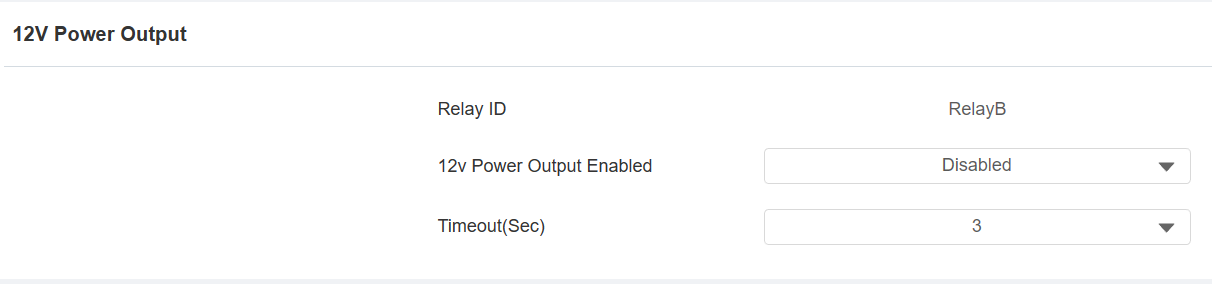
12V Power Output:
Disabled: Disable the power output function.
Always: Provide continuous power to the third-party device.
Triggered By Open Relay: Provide power to the third-party device via 12 output and GND interface during the timeout when the status of relays is shifted from low to high.
Timeout (Sec): Select the power supply time duration after the relay is triggered from 3, 5, and 10 seconds. It is 3 seconds by default. The power output is 12V, and the maximum output amperage is 0.8A.
Security Relay A: The device can work with the security relay.