Call Logs
To check calls—including dial-out, received, and missed calls—within a specific period, you can view the call log on the device's web interface. If needed, you can also export the call log from the device.
Navigate to Phone > Call Log interface.
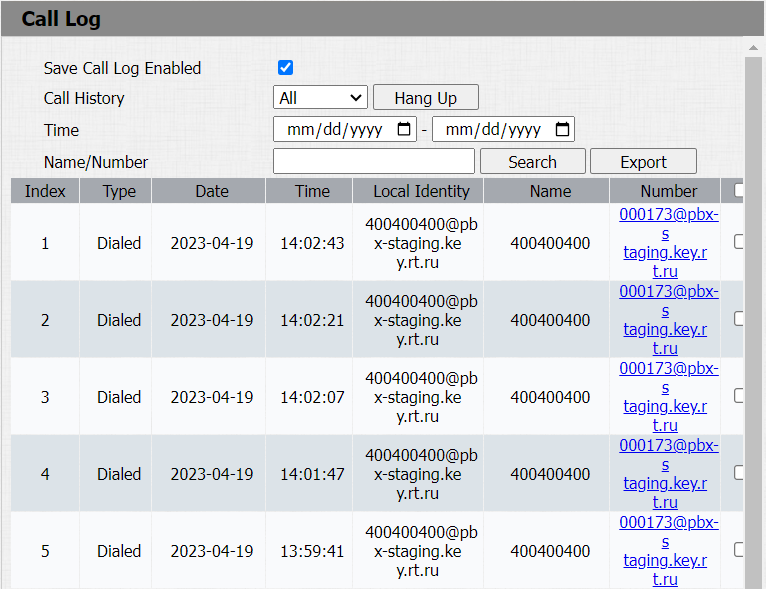
Parameter Set-up:
- Call History: select call history among four options: All, Dialed, Received, and Missed for the specific type of call log to be displayed.
- Time: select the specific time span of the call logs you want to search, check, or export.
- Local Identity: displays the door phone’s SIP account or IP number that receives incoming calls.
- Name/Number: select the Name and Number options to search call log by the name or by the SIP or IP number.
Door Logs
To search and review various types of door access history, simply check the door logs on the device's web interface.
Go to Phone > Door Log interface.
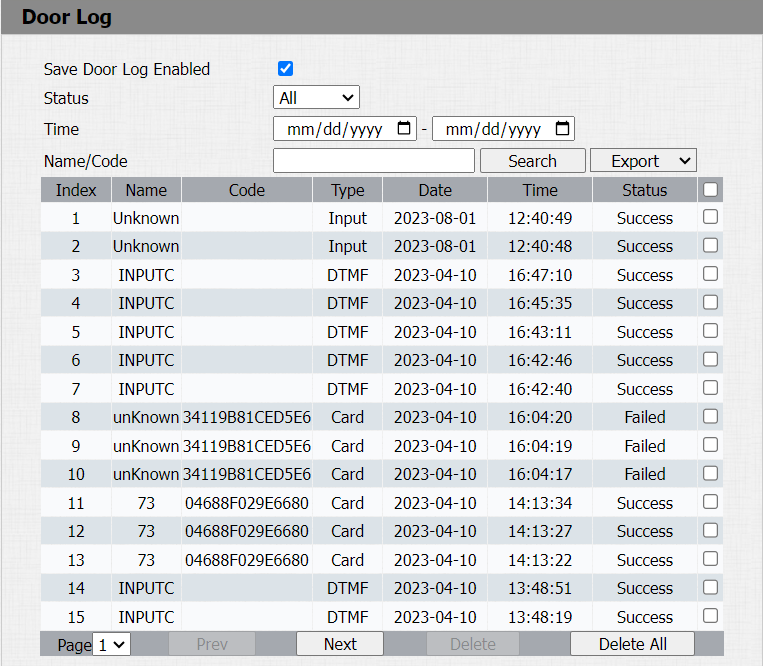
Parameter Set-up:
- Status: select between Success and Failed options to search for successful door accesses or failed door accesses.
- Time: select the specific time span of the door logs you want to search, check, or export.
- Name/Code: select the Name and Code options to search door log by the name or by the PIN code.
- Index: the order of the call logs.
- Name: if it is a locally added key or card, the corresponding added name will be displayed. If it is an unknown key or card, it will display Unknown.
- Code: if opening the door via PIN code, the corresponding PIN code will be displayed. If opening the door via RF cards, the corresponding card number will be displayed, and if the door is opened by an HTTP command, it will be empty.
- Type: if opening the door via PIN code, Password will be displayed. If opening the door via RF cards, Card will be displayed, and if the door is opened by HTTP command, Http will be displayed.