8.1. Upgrade Firmware
8.1.1. Local Upgrade
Download the required firmware from Knowledge Base.
Log in to the G32 device web portal.
If G32 is the home center: Connect your computer and G32 to the same network, then use the IP Scanner to find the G32 IP address. The default login credentials are admin.
If G32 is a sub-gateway of a panel: Enter the home center’s IP address in a browser and tap Setting to access the G32 device web portal. The login credentials are the same as those of the Home Center.
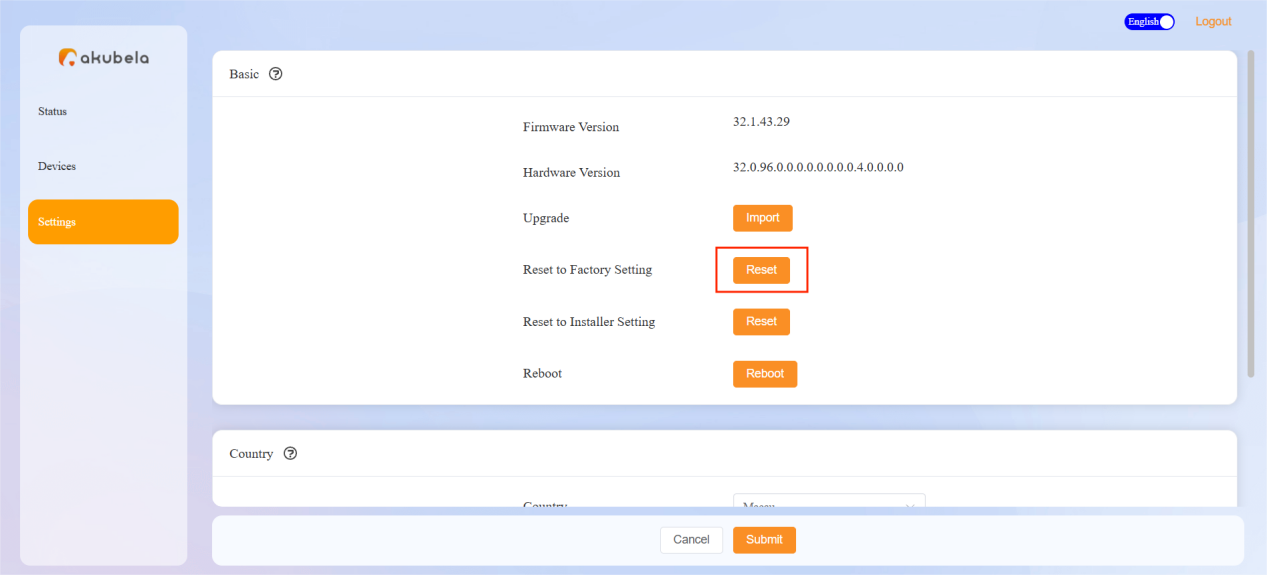
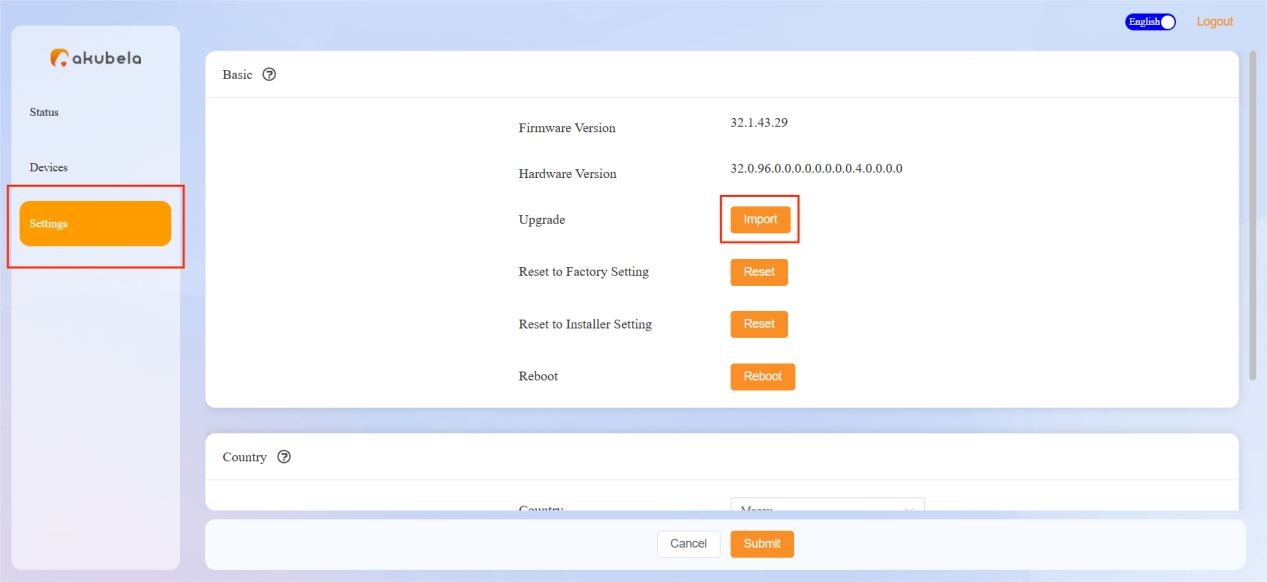
Click Settings > Import, then upload the downloaded firmware file.
8.1.2. Cloud-based Upgrade
Log in to the akubela Cloud with a distributor account or an installer account with update permission.
Go to Device > Update > Add.
Select the program, device model, target device, and update method.
Click Submit.
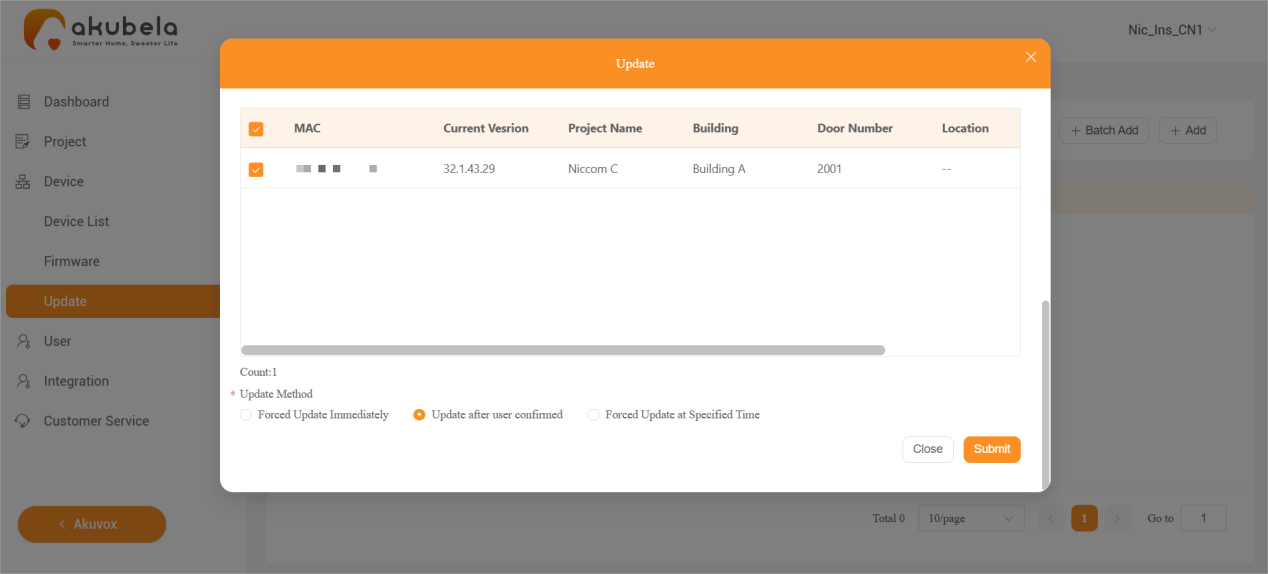
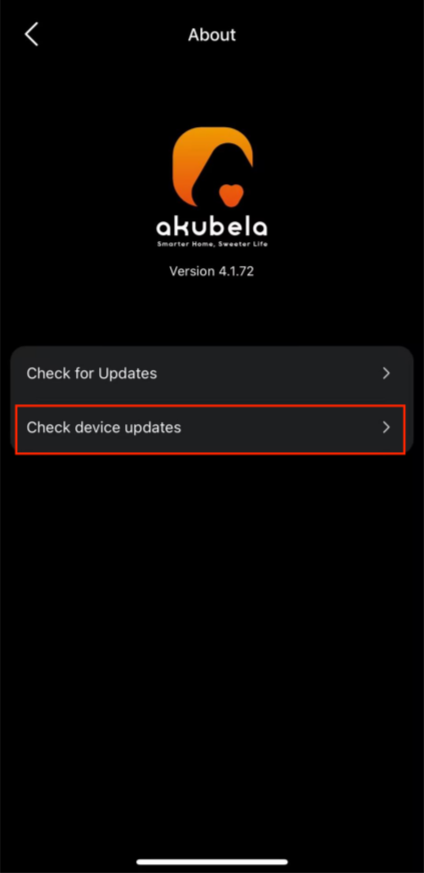
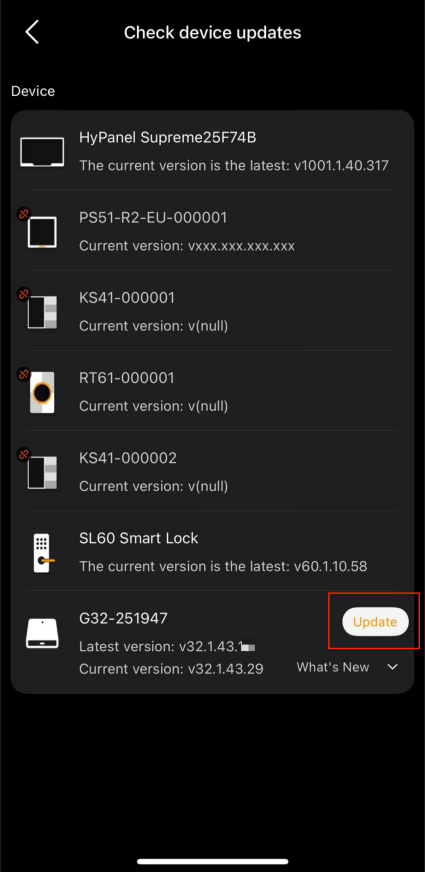
If the update method is set to Update After User Confirm, the family administrator needs to open the BelaHome app and go to Me > About > Check device updates. Find the target G32 and tap Update.
8.2. Restart
Use either of the following methods to reboot G32:
Press and hold the G32 physical button for 3-10 seconds, then release it.
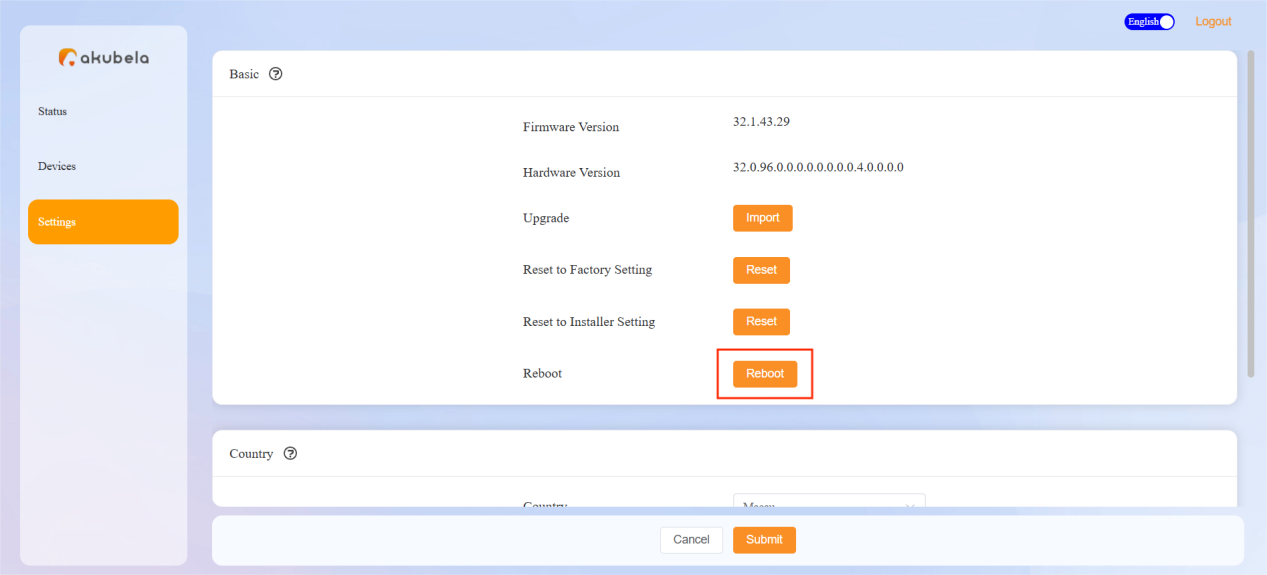
Log in to the G32’s device web portal, and go to Settings > Reboot > Reboot.
8.3. Reset to Installer Settings
Log in to the G32 device web portal.
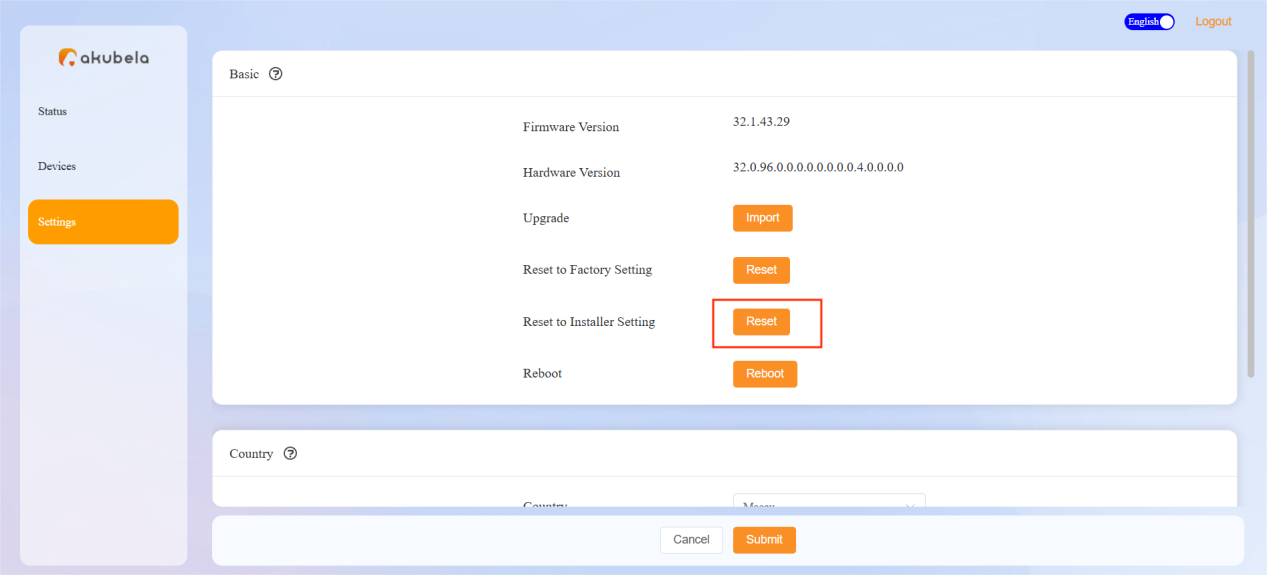
Go to Settings > Reset to Installer Setting > Reset.
8.4. Factory Reset
Use either of the following methods to factory reset G32:
Press and hold the G32 Reset pinhole for 2 seconds, then release it.
Log in to the G32’s device web portal, then go to Settings > Reset to Factory Setting > Reset.