G32 can work as a Matter Bridge to expose selected devices and manual scenes from the akubela home to up to five compatible Matter ecosystems, including Apple Home, Amazon Alexa, Google Home, and Samsung SmartThings.
7.1. Select Devices and Scenes to Synchronize
Create a synchronization list by selecting the devices and scenes to expose through the Matter Bridge. The list applies to all third-party Matter ecosystems connected through the Matter Bridge.
NOTE:
If a synchronized device is renamed, moved to another space, added, deleted, or otherwise modified, synchronize the device again for the changes to be reflected in the third-party ecosystem. When you synchronize again, all previously bridged devices and newly selected devices are synchronized.
7.1.1. Select Devices
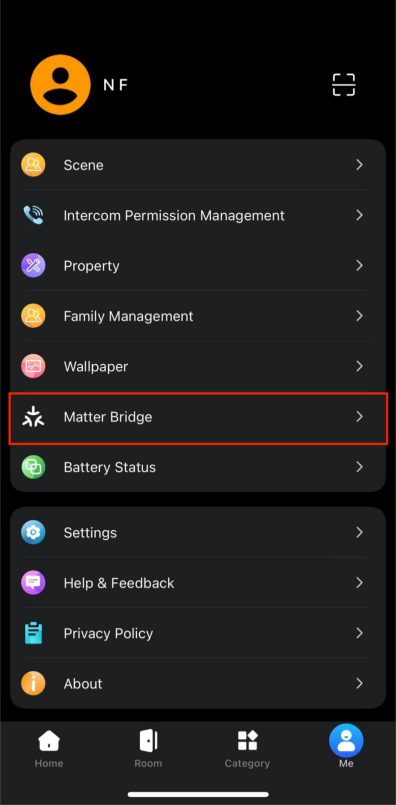
In BelaHome, go to Me > Matter Bridge.
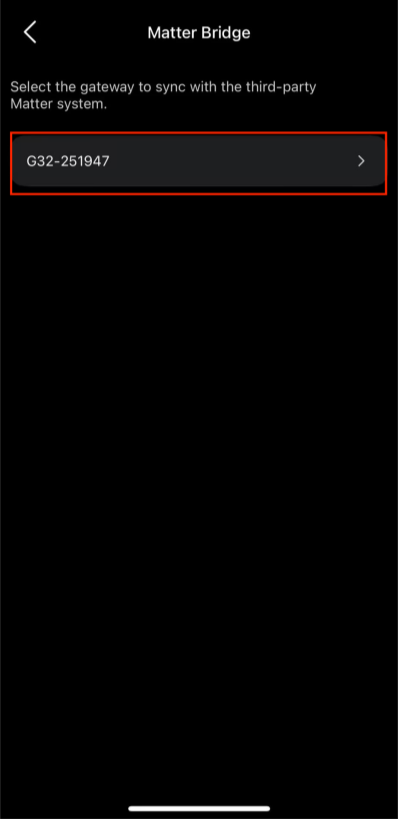
Select the target G32 gateway.
On the Device tab, view the devices connected to the selected gateway.
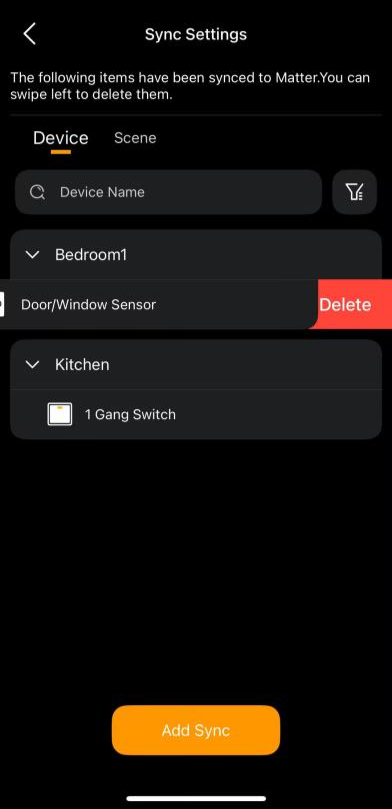
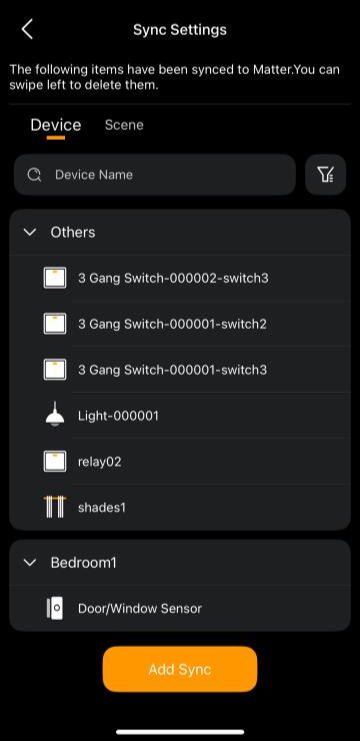
To exclude a device from Matter Bridge synchronization, swipe left on the device and tap Delete. Otherwise, all devices displayed on this page will be synchronized.
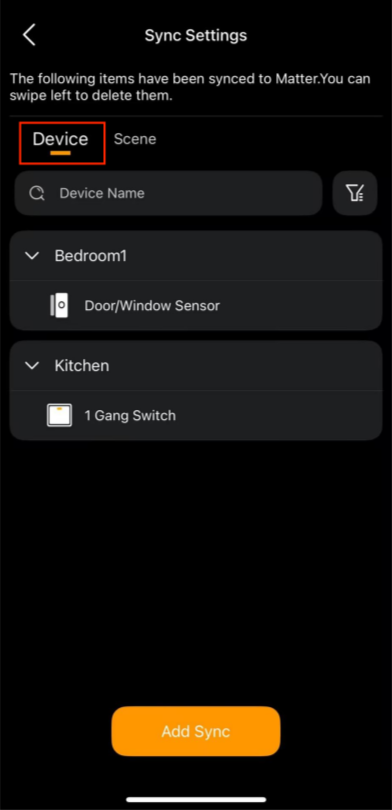
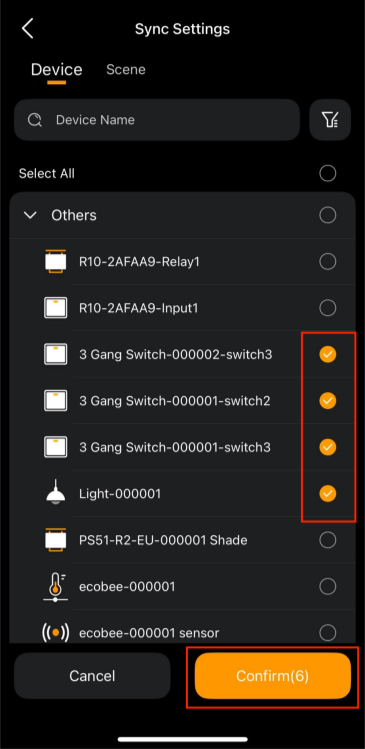
Tap Add Sync. If required, select devices connected to another gateway in the same home to add them to the synchronization list, then tap Confirm.
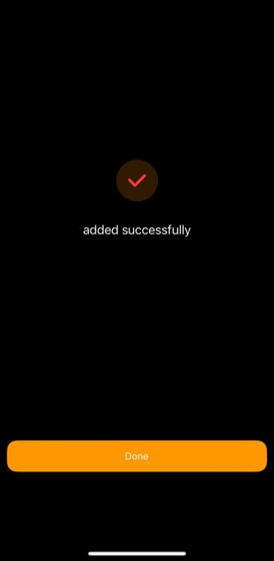
Tap Done to return to the synchronization settings page and view the synchronized device list.
7.1.2. Select Scenes
On the Matter Bridge page, select the target G32 gateway and open the Scene tab.
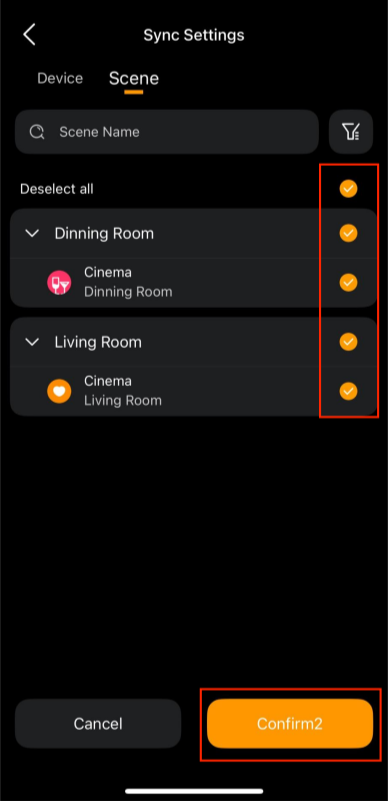
Select the scenes that you want to expose through Matter Bridge, then tap Confirm.
NOTE:
Only manual scenes (with a manual click condition) are displayed and can be synced.
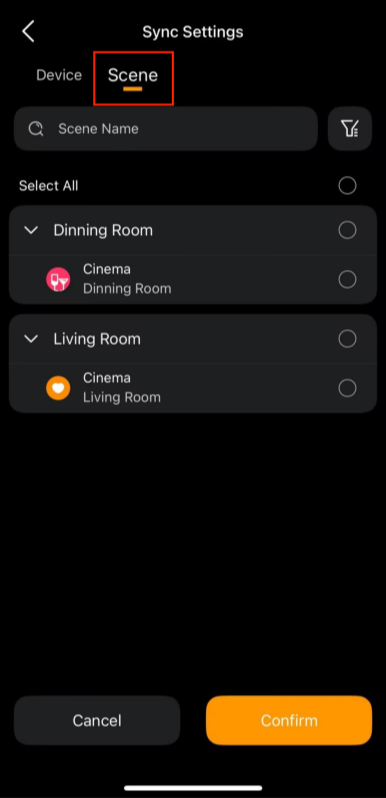
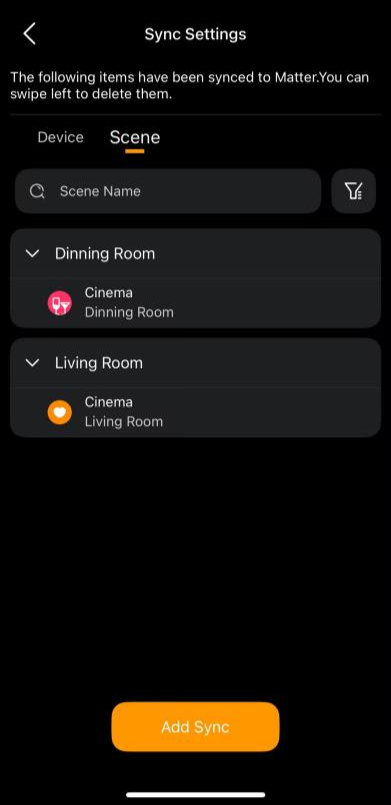
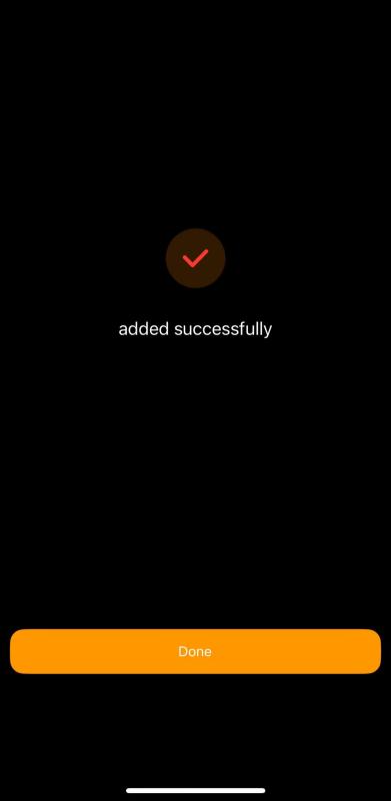
Tap Add Sync > Done. The synchronization settings page displays the synchronized scene list.
7.2. Locate Matter Pairing Code
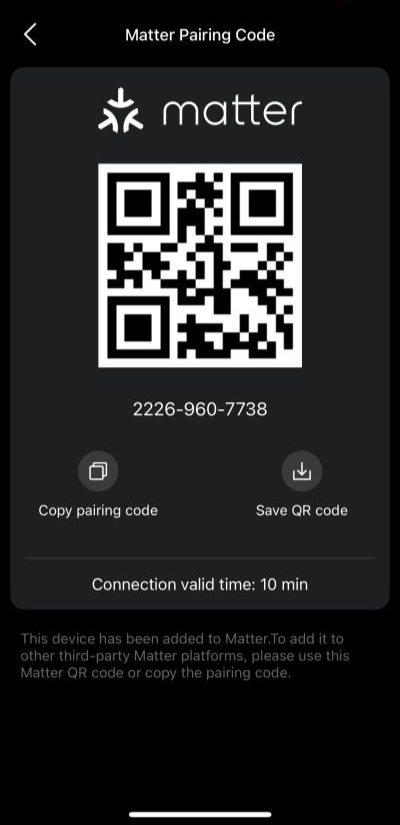
A Matter pairing code is required to add G32 to a third-party Matter ecosystem.
The code is valid for 10 minutes. If it expires, generate a new code.
Option 1: In the BelaHome App
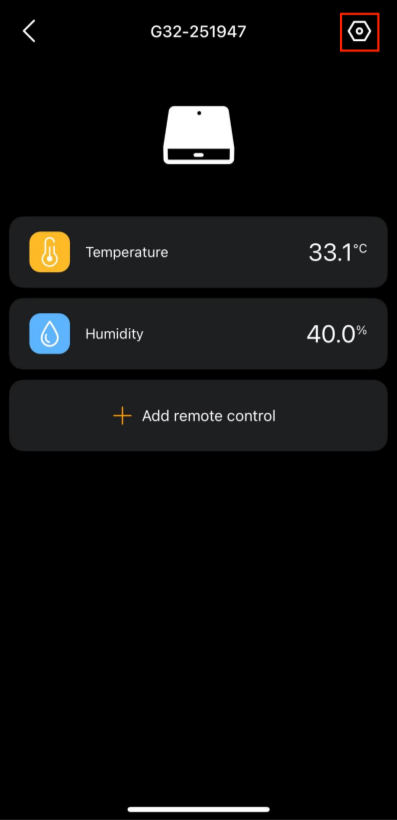
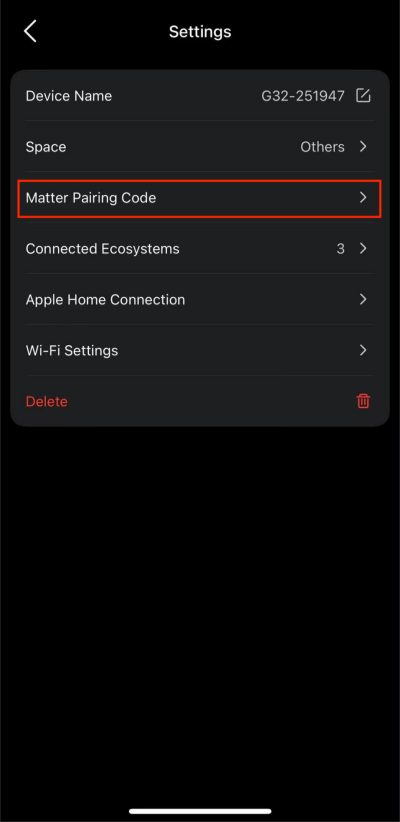
Go to Category > More > [G32 device card] >  > Matter Pairing Code.
Option 2: On the G32 Device Web Portal
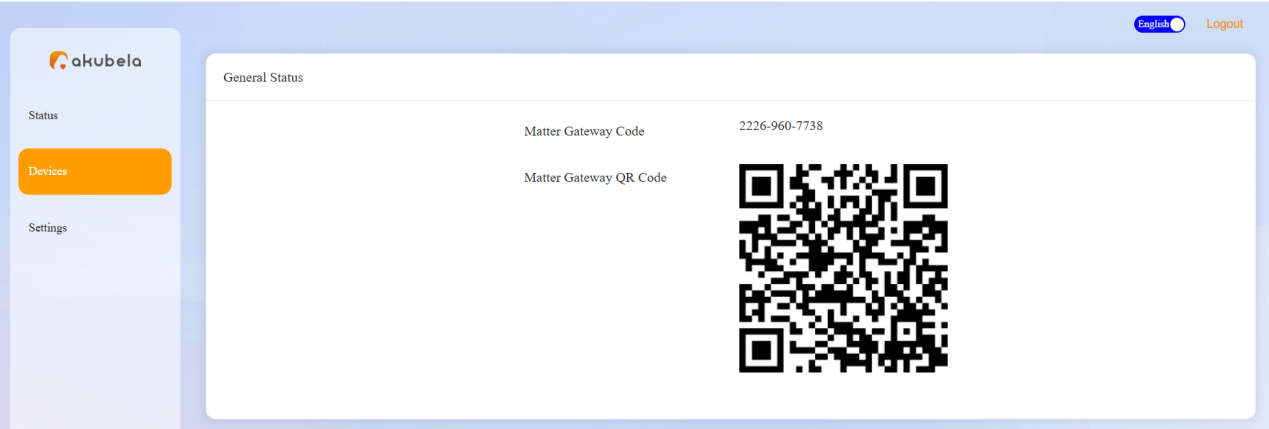
Log in to the G32’s device web portal.
If the G32 is the home center: Connect your computer and G32 to the same network, then use the IP Scanner to find the G32 IP address. The default login credentials are both admin.
If the G32 is a sub-gateway of a panel: Enter the home center’s IP address in a browser and tap Setting to access the G32 device web portal. The login credentials are the same as those of the Home Center.
Go to Devices.
7.3. Apple Home
7.3.1. Requirements
The iOS version must be 18 or later.
The iPhone and G32 must be connected to the same local network when pairing.
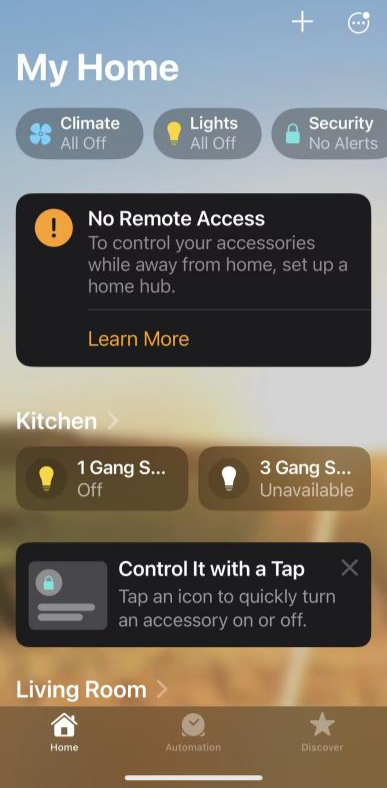
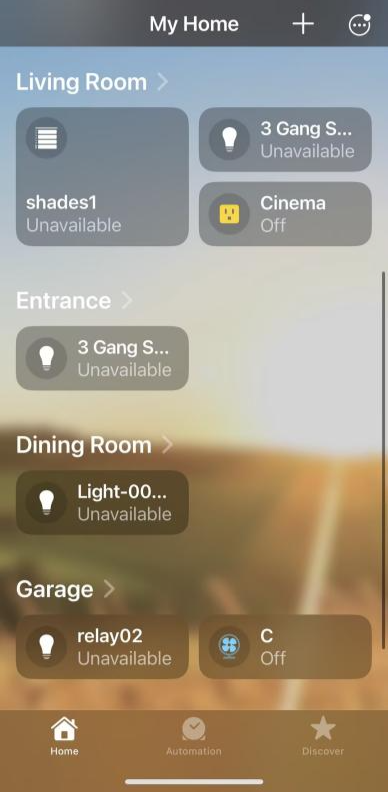
Remote control of bridged devices and scenes requires an Apple home hub, such as an Apple TV or HomePod, to be added to the home.
Without an Apple home hub, bridged devices and scenes can only be controlled from within the local network.
7.3.2. Connect G32 to Apple Home
In BelaHome, go to Category > More > [the G32 device card].
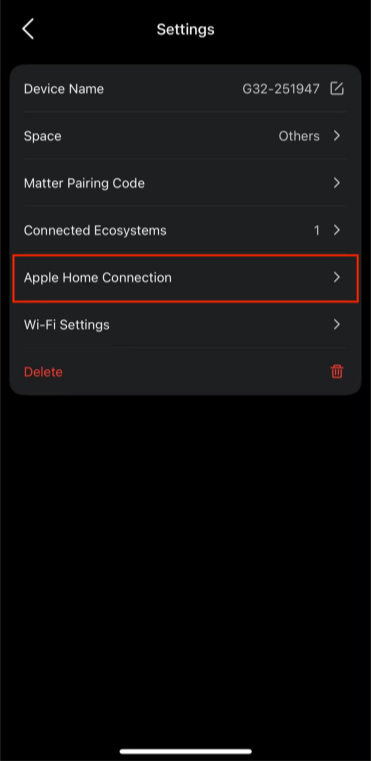
Tap
 > Apple Home Connection > Add to Home.
Choose a home, then tap Continue.
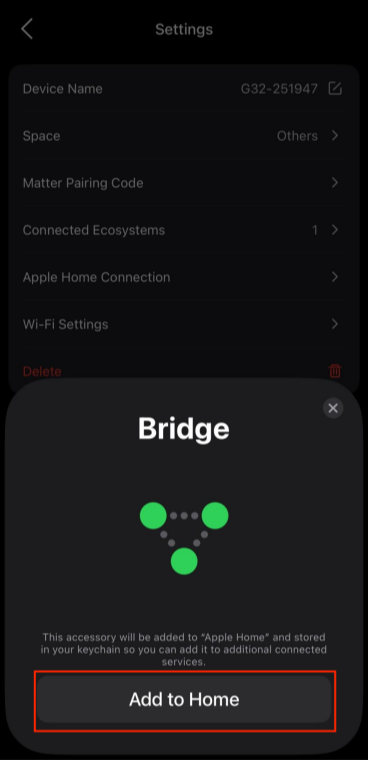
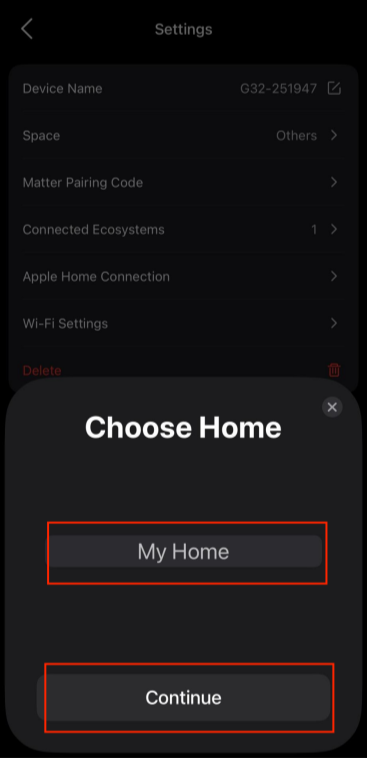
Follow the onscreen instructions to add G32 as the bridge to Apple Home.
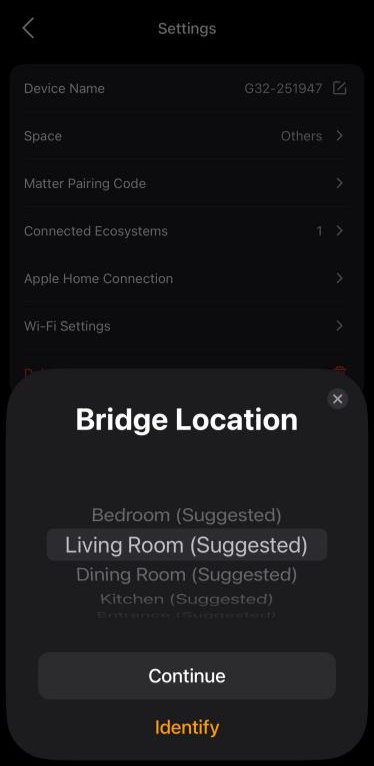
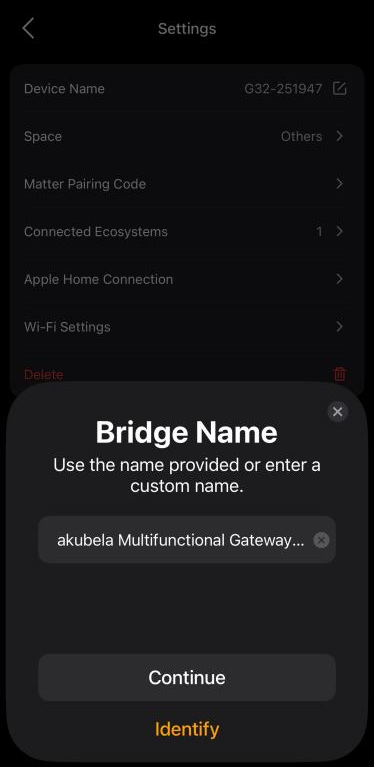
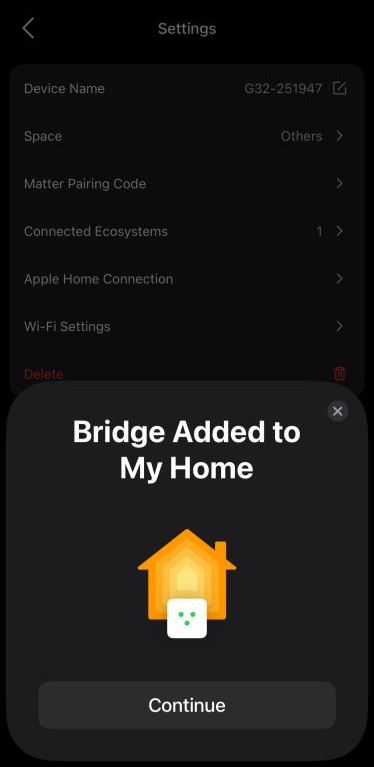
Tap Continue and follow the onscreen instructions to add and configure all synced devices and scenes.
Method 2
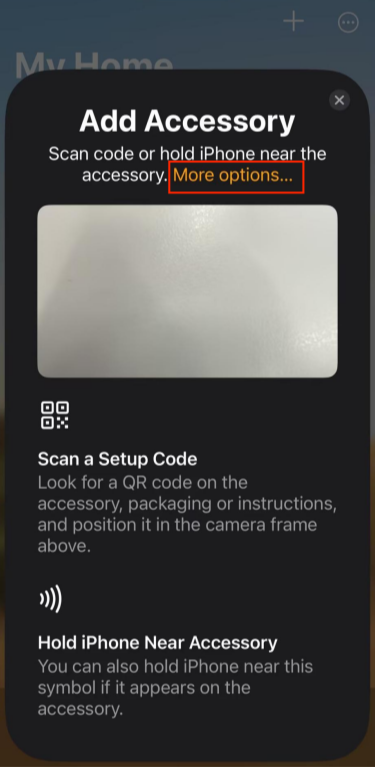
Open the Home app. Create or open a home, then tap + > Add or Scan Accessory.
Use either of the following methods to pair G32.
Scan the Matter pairing code generated by BelaHome.
Tap More Options to search for nearby accessories. If G32 cannot be found, tap My Accessory Isn't Shown Here > Enter Code and enter the pairing code manually.
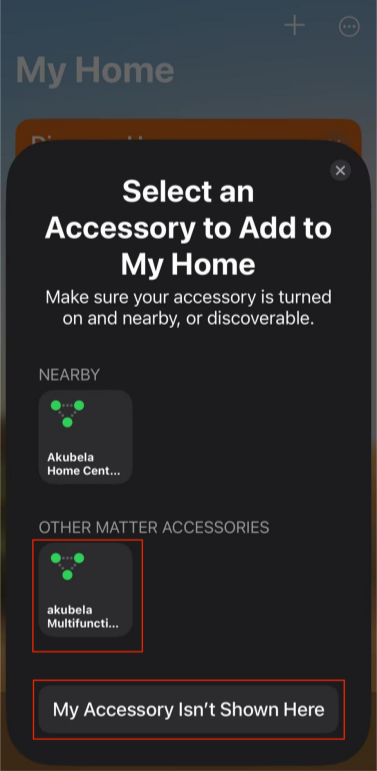
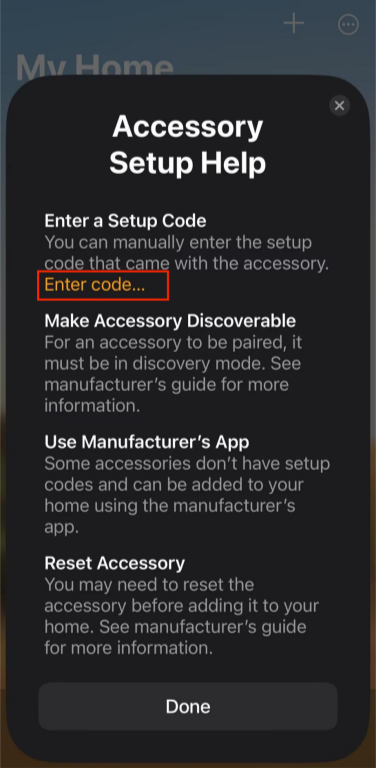
Follow the on-screen instructions to add the devices and scenes selected for Matter Bridge synchronization.
Complete the setup.
7.4. Google Home
7.4.1. Requirements
IPv6 must be enabled on the Wi-Fi network used by the devices. Otherwise, G32 may appear offline in Google Home.
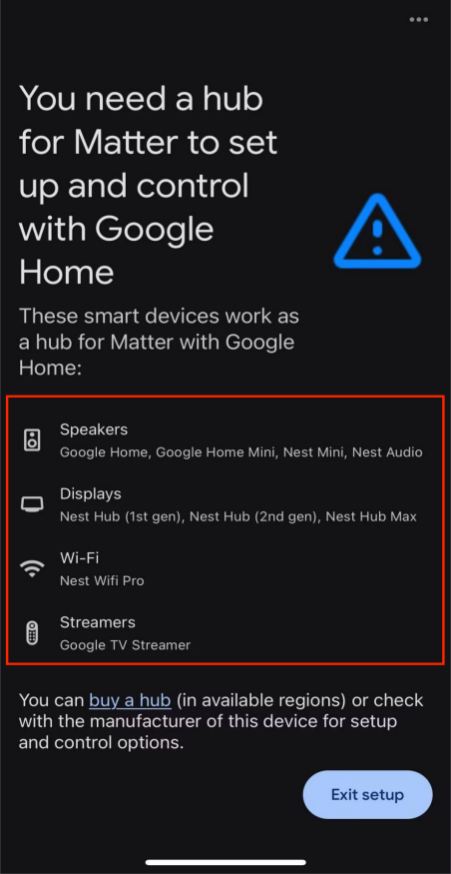
Google Home requires a compatible hub to control Matter devices. Supported hub devices include Google Home, Nest Mini, and Nest Hub.
7.4.2. Connect G32 to Google Home
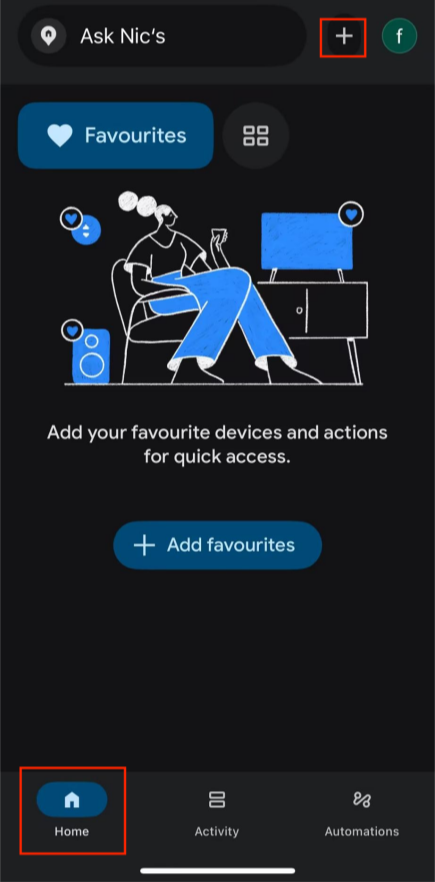
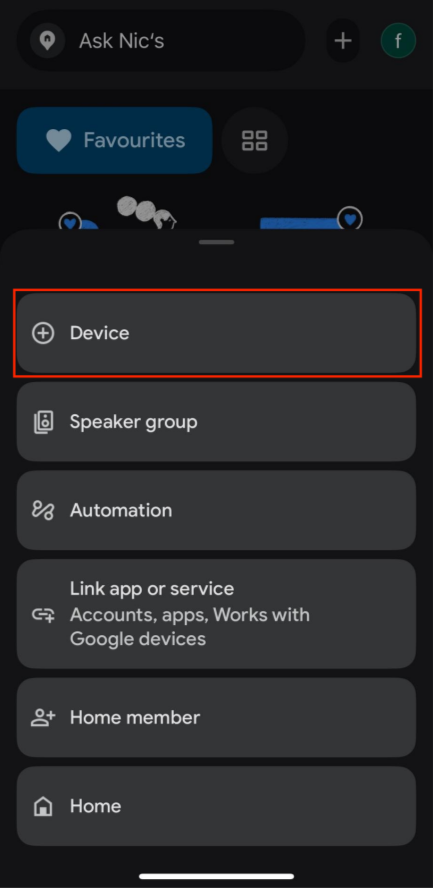
Open the Google Home app and tap Home > + > Device.
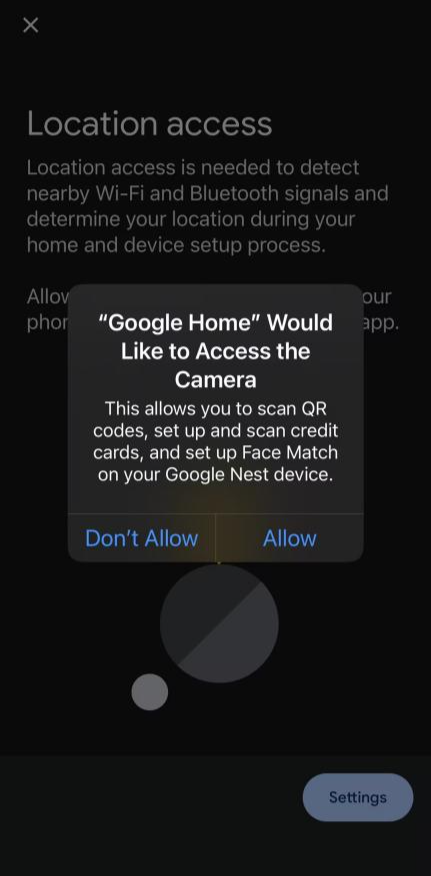
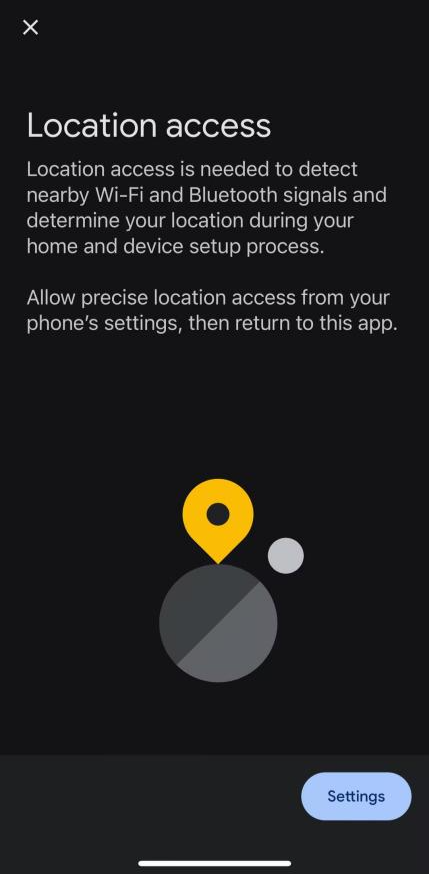
Enable the Camera permission and Location Services on your phone, then tap Continue.
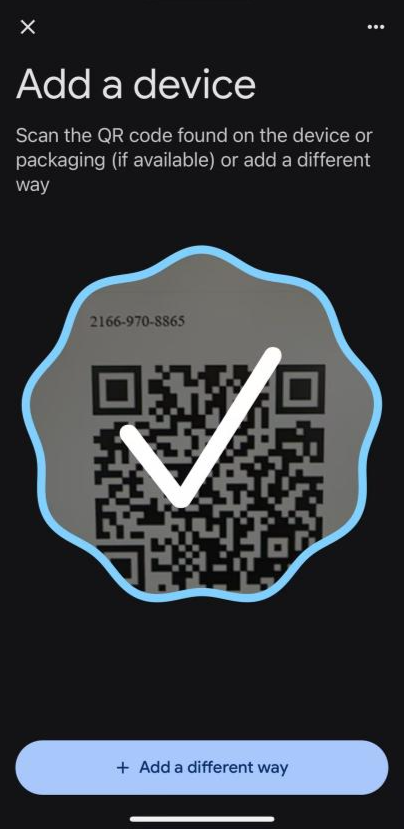
Scan the G32 Matter pairing QR code.
Tap Next and wait for Google Home to detect G32.
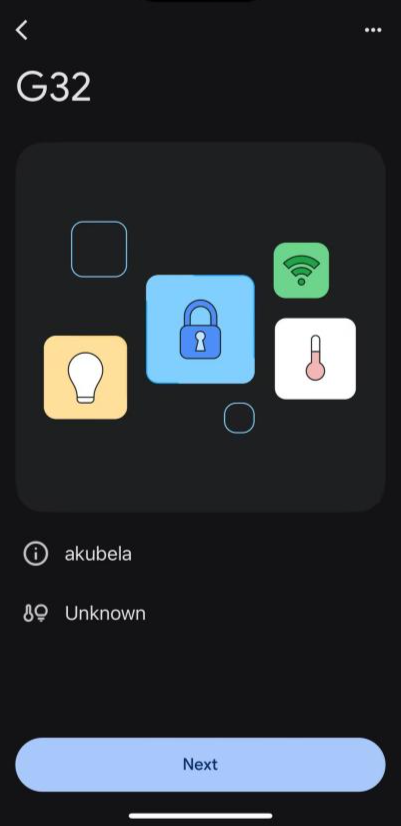
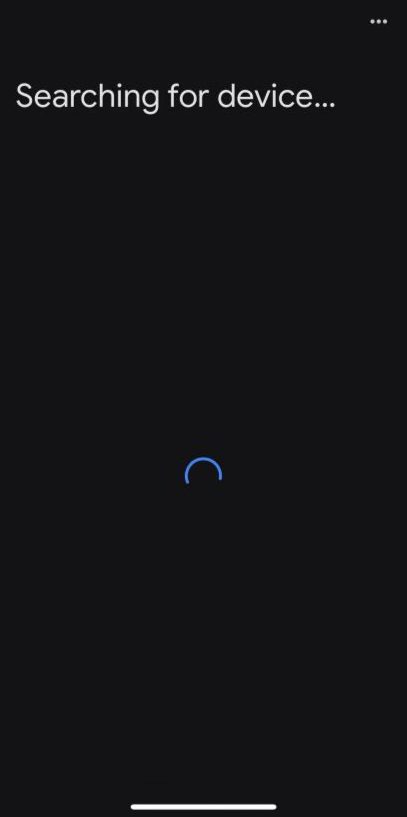
Follow the on-screen instructions to complete the setup.
7.5. Amazon Alexa
7.5.1. Requirements
Alexa can only add Matter-certified devices.
Alexa requires a compatible devices that supports Matter bridging before adding G32. Supported bridge devices include Echo (4th generation or later), Echo Dot (4th generation or later), Echo Show 10 (3rd generation), Echo Studio, eero 6, eero 6+, and eero Pro 6E.
7.5.2. Connect G32 to Alexa
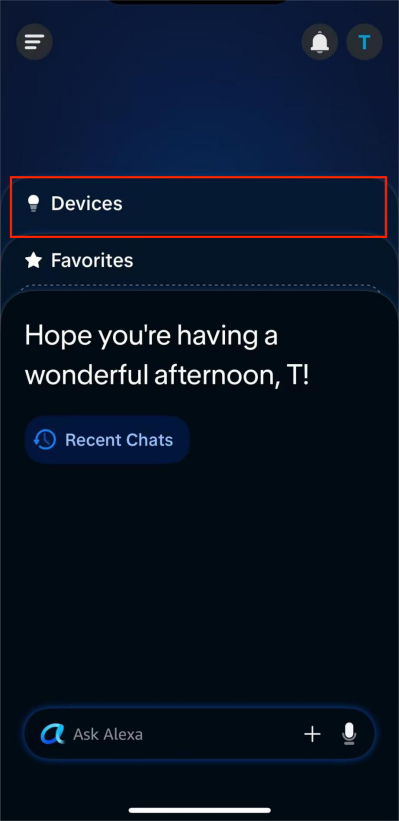
Open the Alexa app.
Go to Devices > + > Add Device.
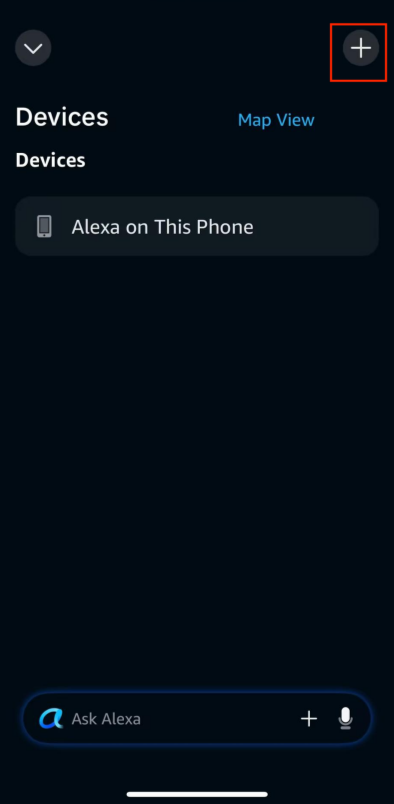
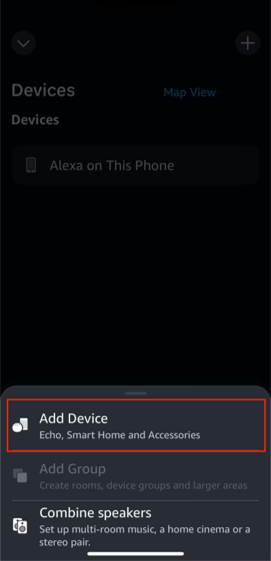
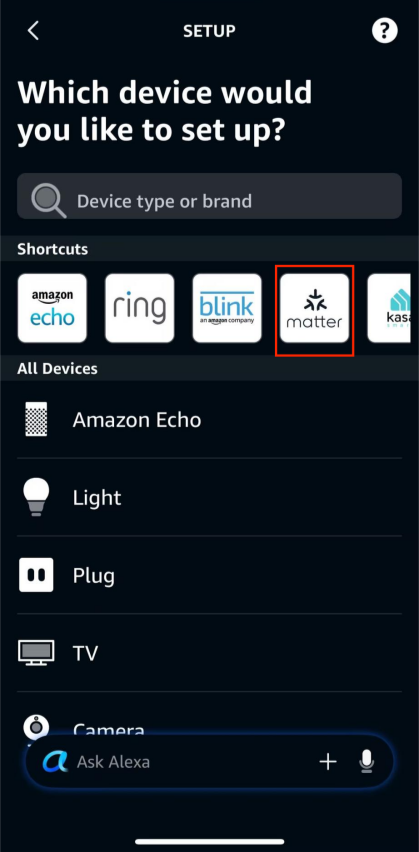
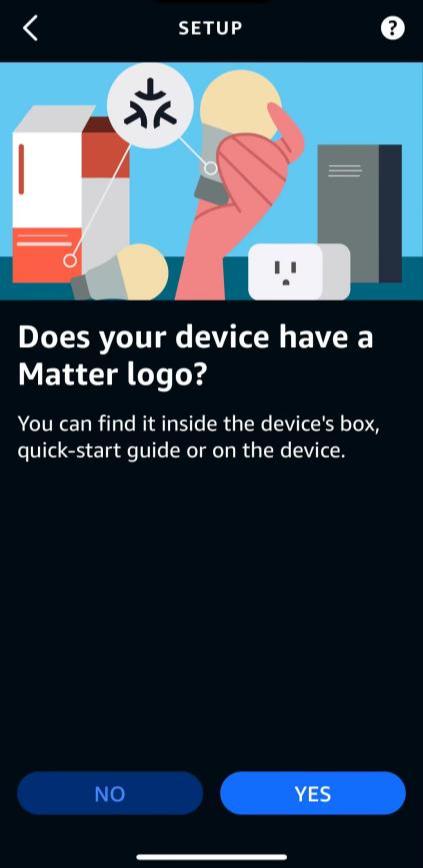
Select Matter. Follow the on-screen instructions to add the G32.
7.6. Samsung SmartThings
7.6.1. Requirements
Use a compatible SmartThings controller, such as SmartThings Station.
G32, the phone, and the SmartThings controller must be connected to the same local network.
Disable AP Isolation / Client Isolation on the router.
Make sure G32 is powered on and all bridged devices are online.
7.6.2. Connect G32 to SmartThings
On the phone, enable Bluetooth, Local Network, and Location permissions.
Open the SmartThings app and follow the on-screen instructions to add SmartThings Station.
Tap Devices > + > Add > Matter.
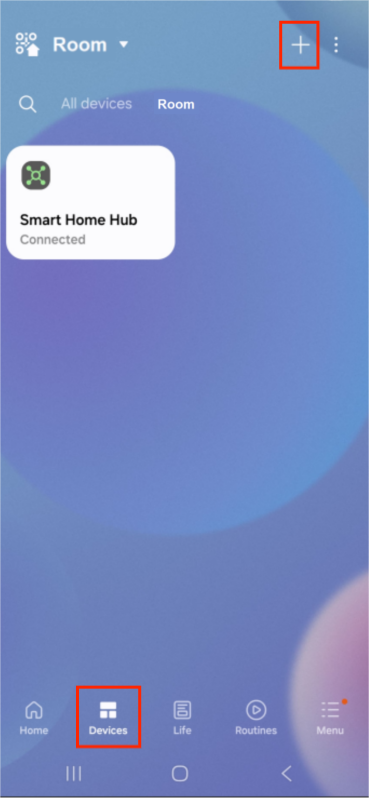
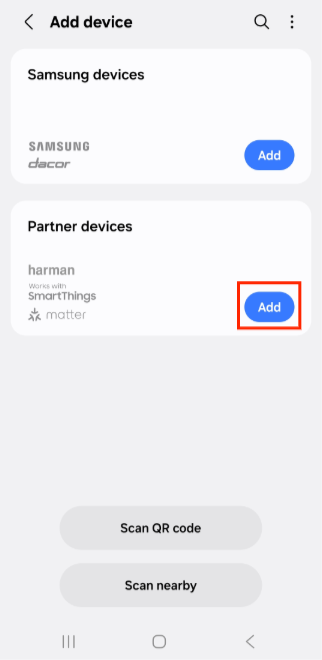
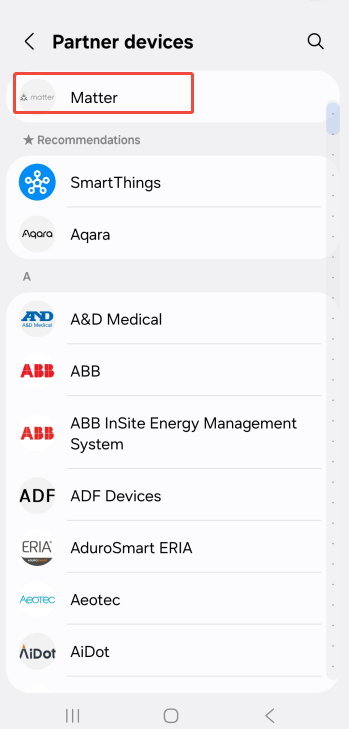
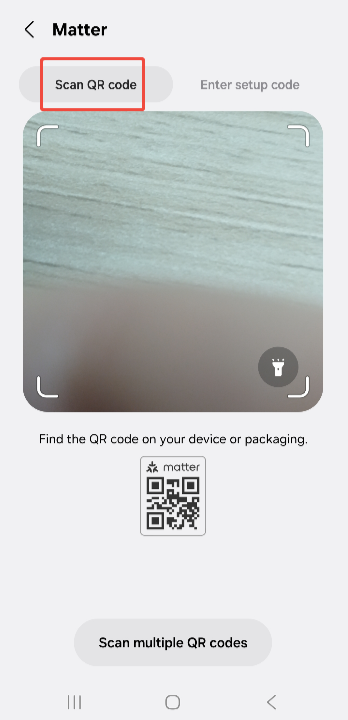
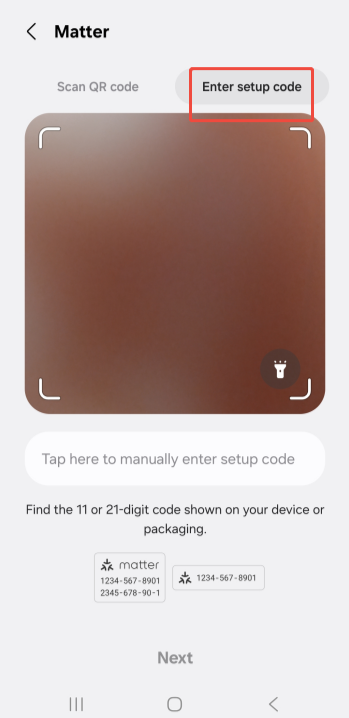
Scan the Matter QR code or manually enter the 11-digit paring code.
Follow the onscreen instructions to complete the setup.
7.7. View Connected Ecosystems
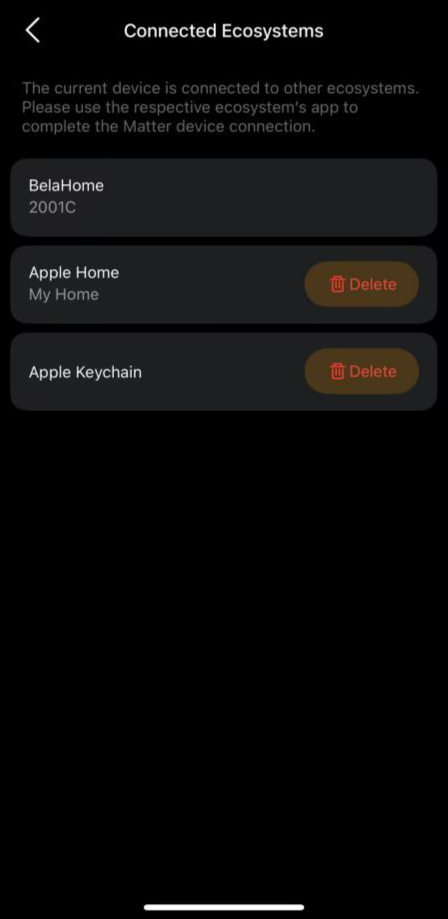
Matter devices can be added to up to 5 ecosystems, including the BelaHome app.
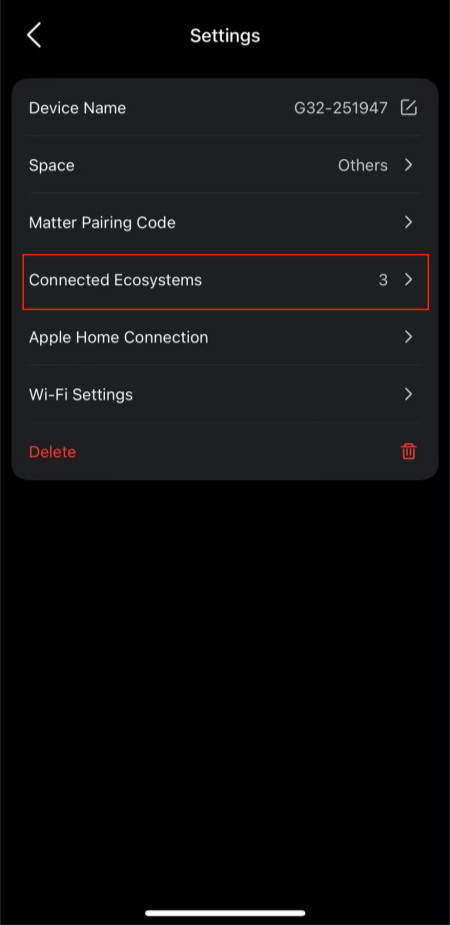
All connected ecosystems are displayed under Category > More > [G32 device card] >  > Connected Ecosystems.
7.8. Disconnect from Third-party Ecosystems
Via the BelaHome app
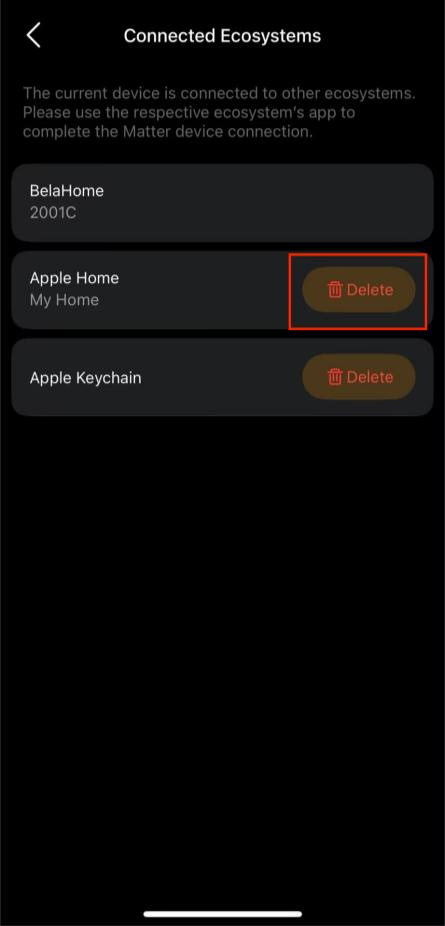
Go to Category > More > [G32 device card] >  > Connected Ecosystems, find the target ecosystem, and tap Delete.
After an ecosystem is disconnected, G32 and the synchronized devices and scenes can no longer be controlled through that third-party system. They are not deleted from the third-party system automatically.
The procedure varies by third-party system. Follow the instructions provided by the third-party ecosystem to remove G32.