A remote button (pendant) provided by Akuvox can be used to make a call or open the door, particularly for the elderly and children in emergencies.
Note
The working distance between the pendant and the indoor monitor is up to 30 meters in buildings.
What You Should Know
Akuvox offers two kinds of pendants that support different radio frequencies (RF).
Only S567(Android 14), C315, C317, C319, R15P, and IT82 support using pendants.
The S567’s version should be 567.30.114.401.
Models | Support RF |
C315 | 869 |
C317 | 869 |
C319 | 869 |
IT82 | 869 |
R15P | 869/433 |
S567 | 869 |
In this article, we take C319 as an example.
Add a Pendant
1. On the device screen, tap Settings > Advance Settings > RF Settings to enter the configuration screen. Enter the password to access the Advance Settings screen. The default is 123456.
2. Tap the bar icon of the desired RF Key.
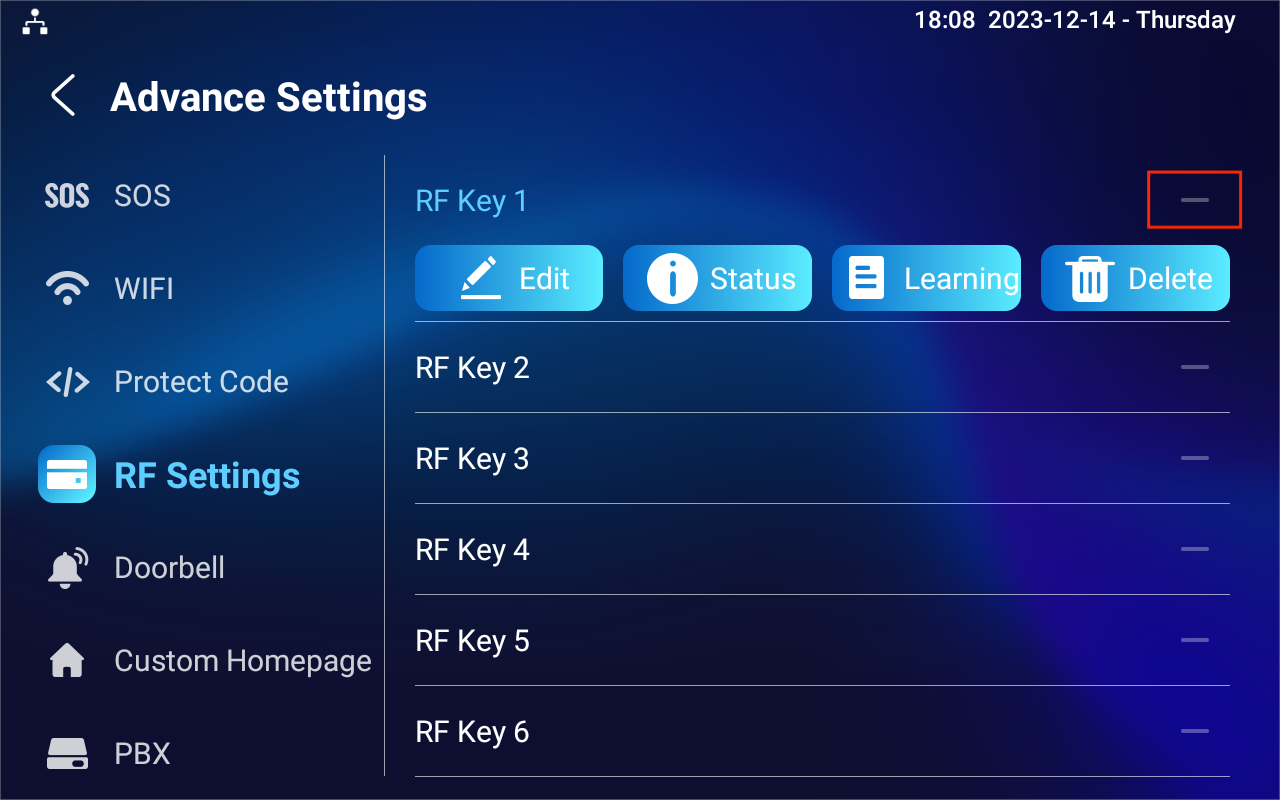
3. Tap Learning while long-pressing the pendant.
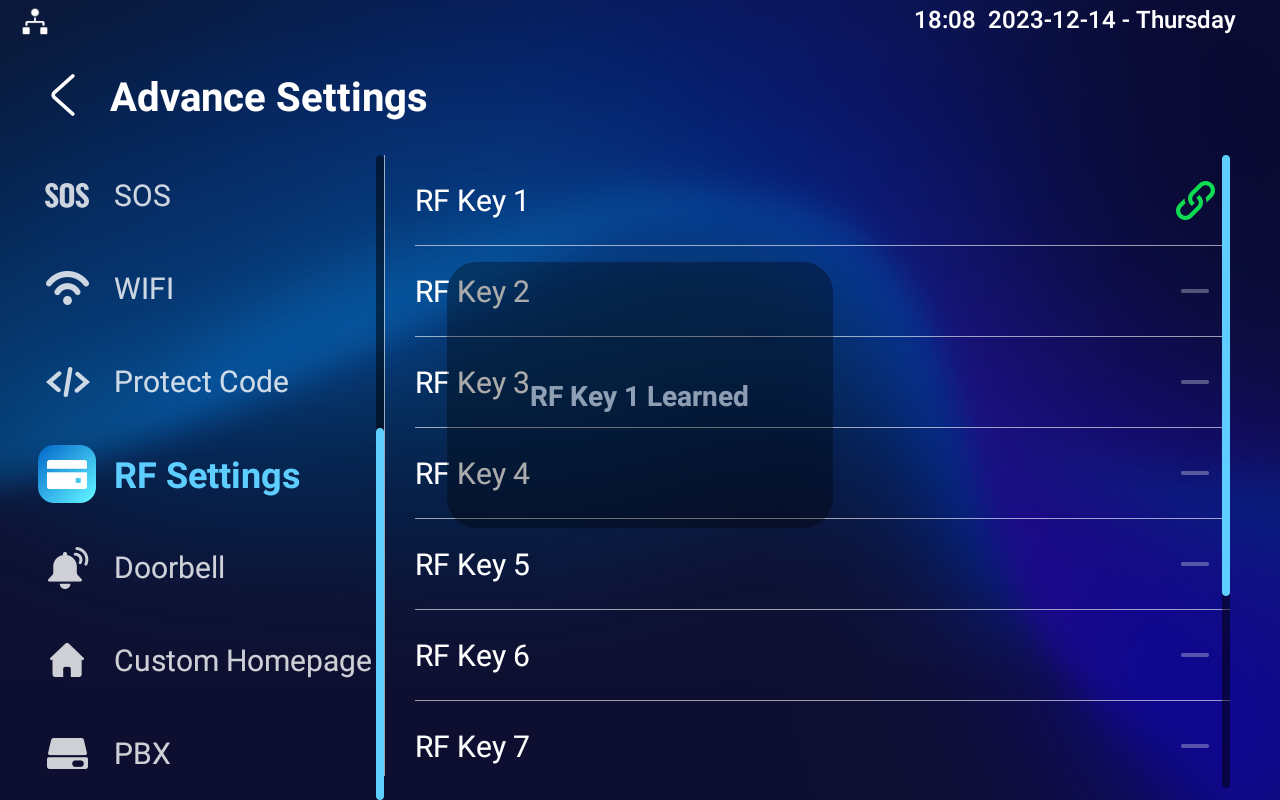
When successfully matching, a prompt "RF Key X Learned" will pop up, and a green link icon will appear on the right side of the RF Key.
Make a Call
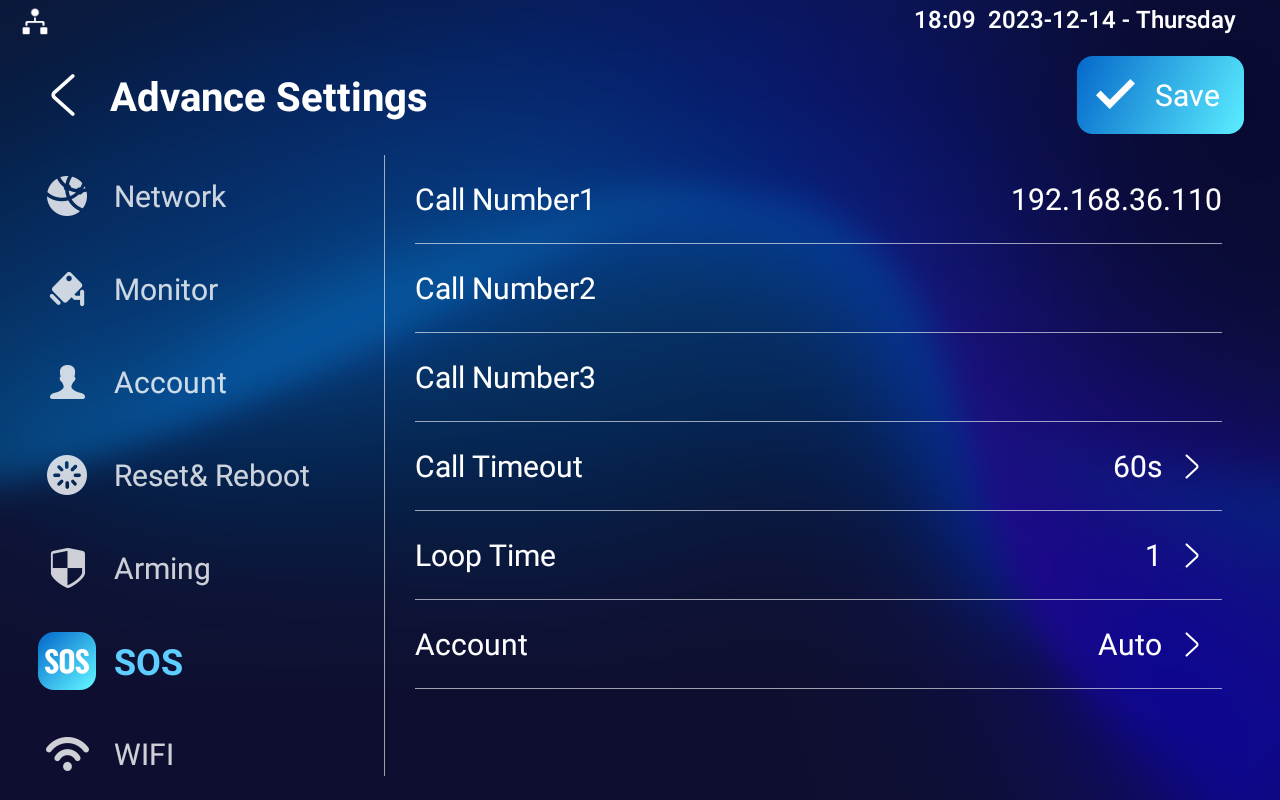
To make a call, the SOS number(s) need to be set up.
1. Tap Settings > Advance Settings > SOS to enter the number setting screen.
2. Enter the target SIP/IP numbers and tap Save.
Then, configure the calling feature.
1. On the Settings > Advance Settings > RF Settings screen, tap Edit of the added RF Key.
2. In Short Press When Idle and/or Long Press When Idle field, select Assistance Call.
Short Press When Idle: When users press the pendant once, the device will make a call to the target SOS number.
Long Press When Idle: When users long-press the pendant, the device will make a call to the target SOS number.
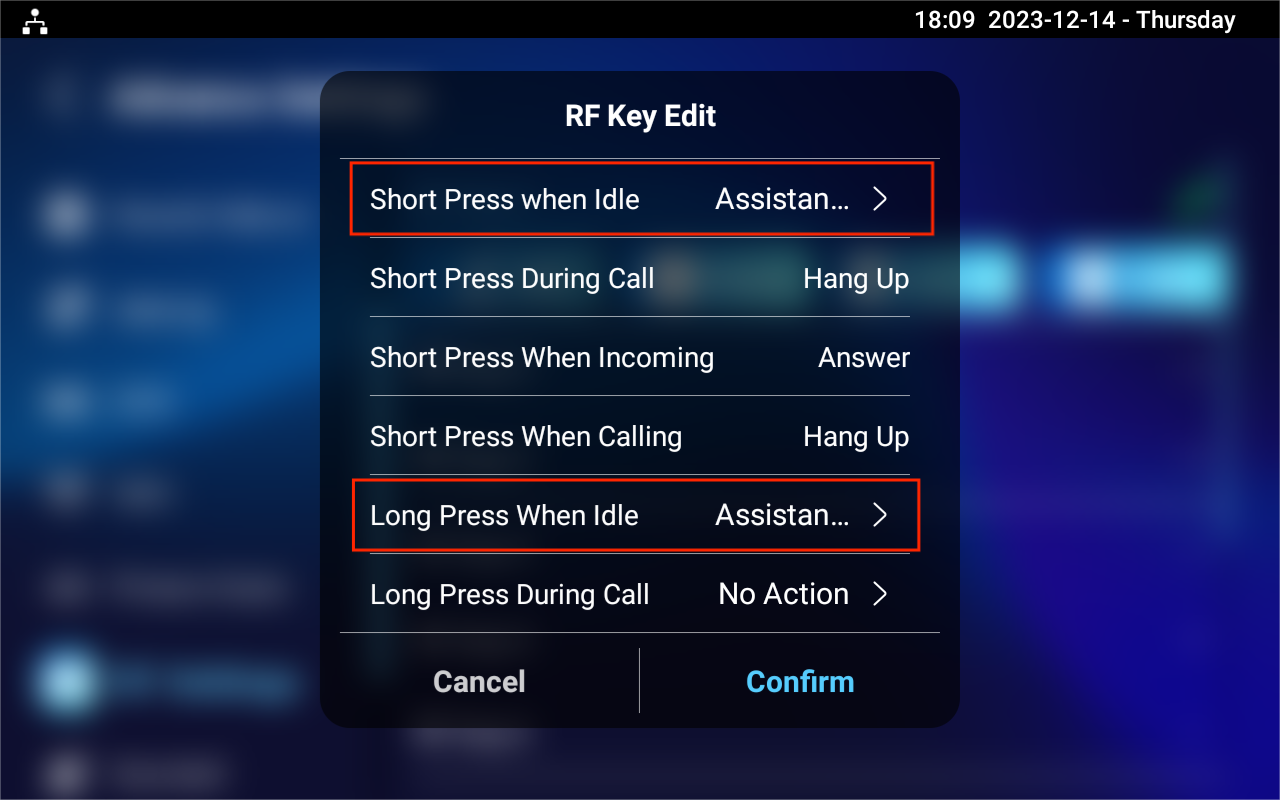
3. Tap Confirm to save the configuration.
After the configuration, users can press the pendant to call.
Open the Door
If users want to open the door by pressing the pendant, you need to configure unlock buttons and relays. Users can long-press the pendant to open the door when the device is in standby mode or during a call.
Open the Door when the Device is on Standby
Step 1
Before enabling the Unlock feature for the pendant on the device, ensure you have set up the HTTP command for door opening on the web interface. Please see here.
Then, enable the Unlock feature for the pendant.
1. On the Settings > Advance Settings > RF Settings screen, tap Edit of the added RF Key.
2. In the Long Press When Idle field, select Unlock.
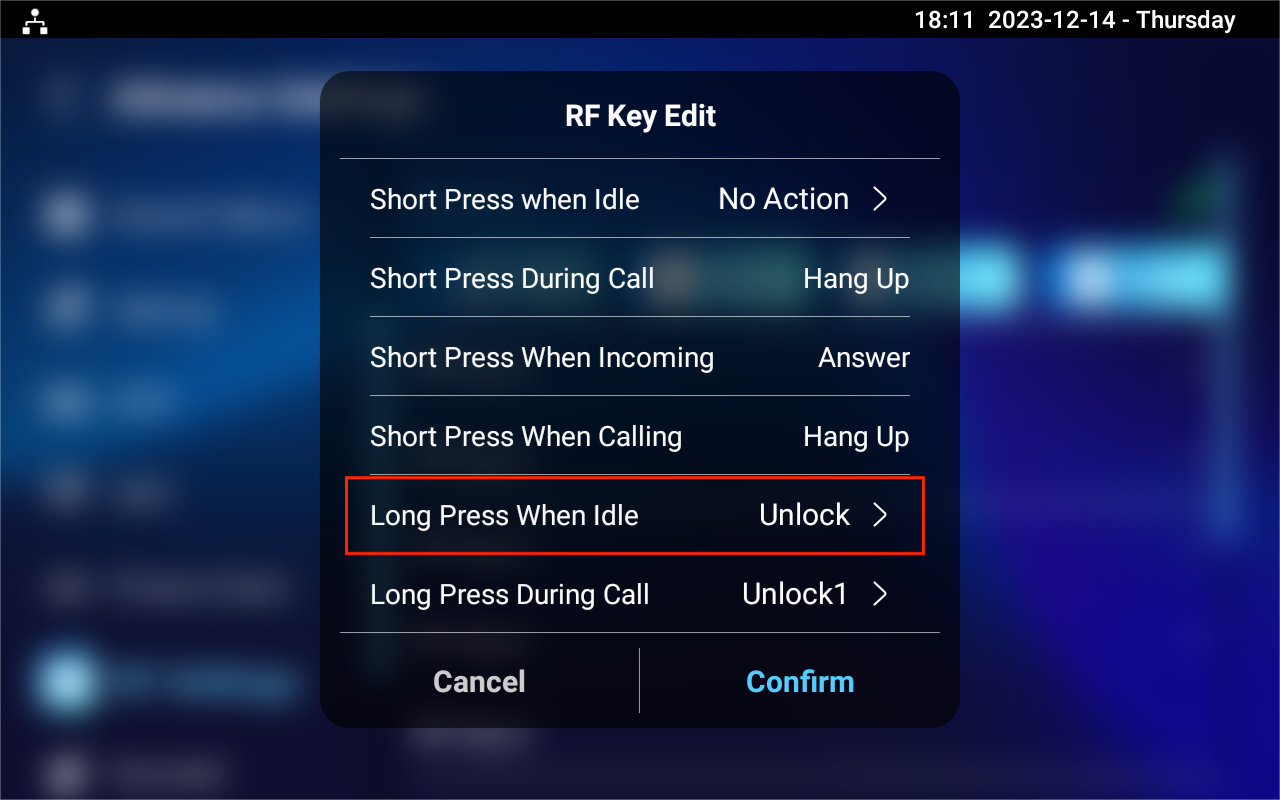
3. Tap Confirm to save the configuration.
Open the Door during a Call
Step 1
Before proceeding with the configuration, ensure you have set up the relays. Please refer to the following articles:
Remote Relay by HTTP: Open Door via HTTP Command.
Remote Relay by DTMF: Open the Door During a Call Using DTMF.
Web Relay Action: Configure Web Relay.
On the Web Interface
Then, enable the Unlock feature for the pendant.
1. Log in to the device's web interface with the username and password. The default is admin.
2. Navigate to the Device > Relay > SoftKey in Talking Page interface.
3. Enable the desired key and select the relay type that is configured.

4. Name the unlock button in the Display Name field. Click Submit to save the configuration.
On the Device Screen
5. On the Settings > Advance Settings > RF Settings screen, tap Edit of the added RF Key.
6. In the Long Press During Call field, select the configured unlock button.
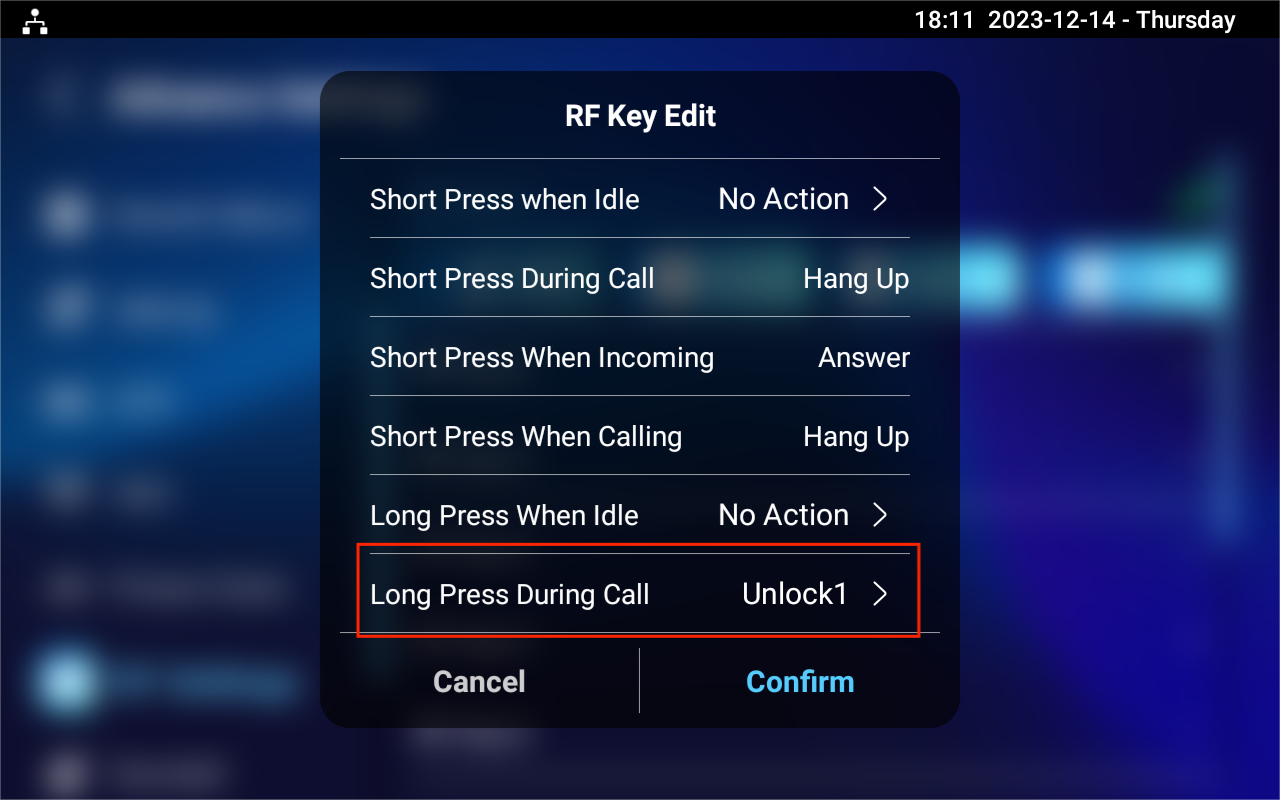
After configuration, users can press the pendant to open the door during a call.