Auto-answer feature enables Akuvox door phones to pick up calls automatically. This feature saves time when users have to handle a large volume of calls.
All Akuvox door phones support this feature. This article takes R29 as an example.
Enable Auto-Answer for SIP Calls
Before using auto-answer for SIP calls, make sure the device's SIP account is registered.
Tip
See how to register SIP account: Register SIP Account.
Use the device IP to log into its web interface with the username and password. The default is admin.
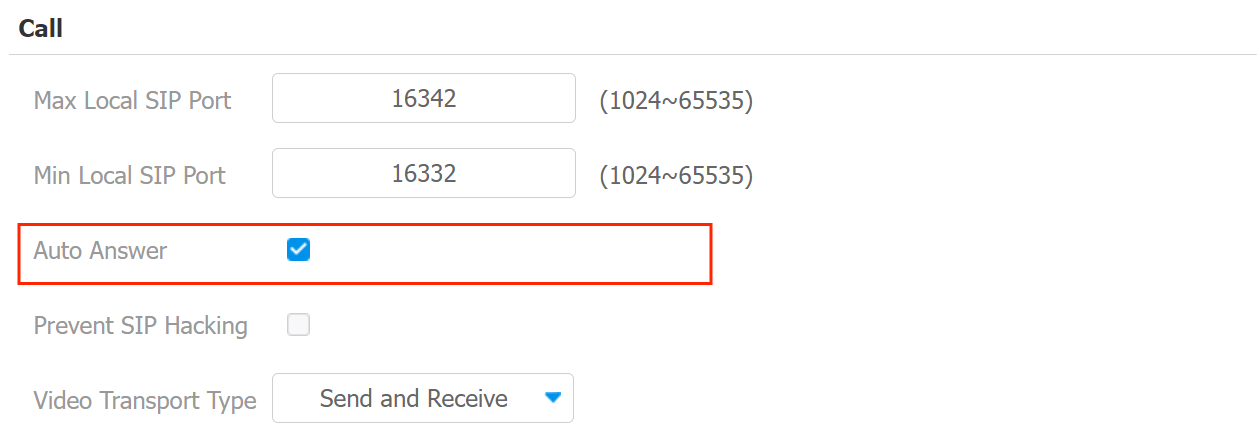
Go to Account > Advanced > Call interface. Enable Auto Answer.
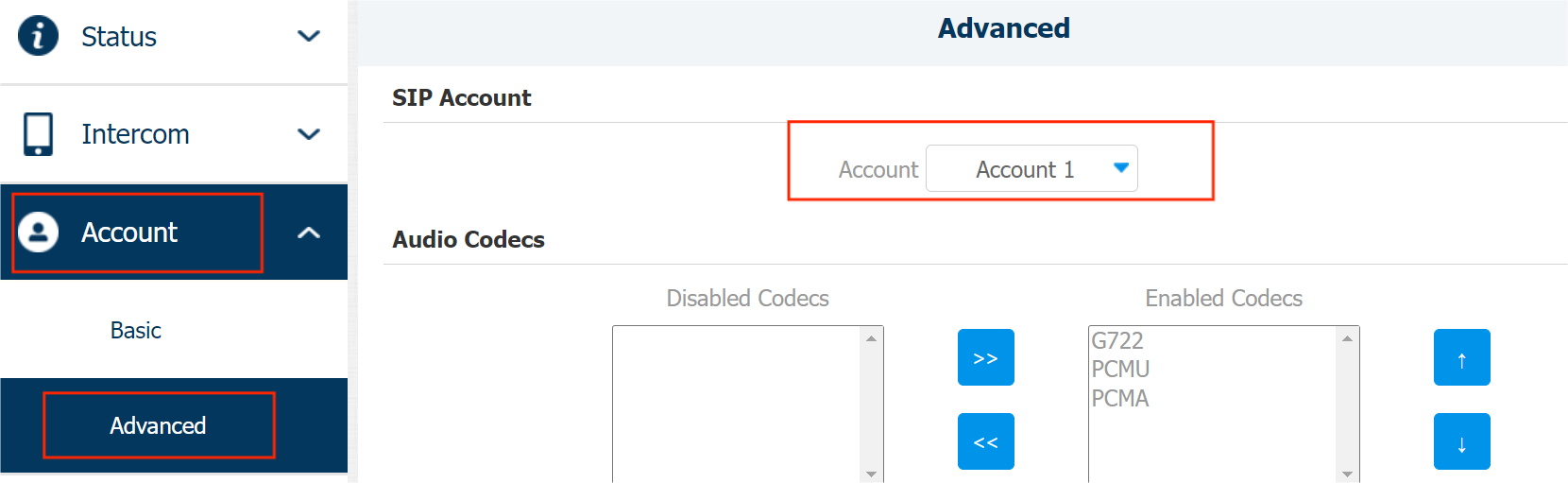
Scroll up to the SIP Account section. Select the desired SIP account to apply the auto-answer feature. For example, if you select Account 1, SIP calls made to the account will be answered automatically.
Click Submit to save the configuration.
Enable Auto-Answer for IP Calls
Before using auto-answer for IP calls, make sure that the calling and called devices are within the same local network and that the direct IP call function is turned on. Check the function on the Intercom > Call Feature interface.
Use the device IP to log into its web interface with the username and password. The default is admin.
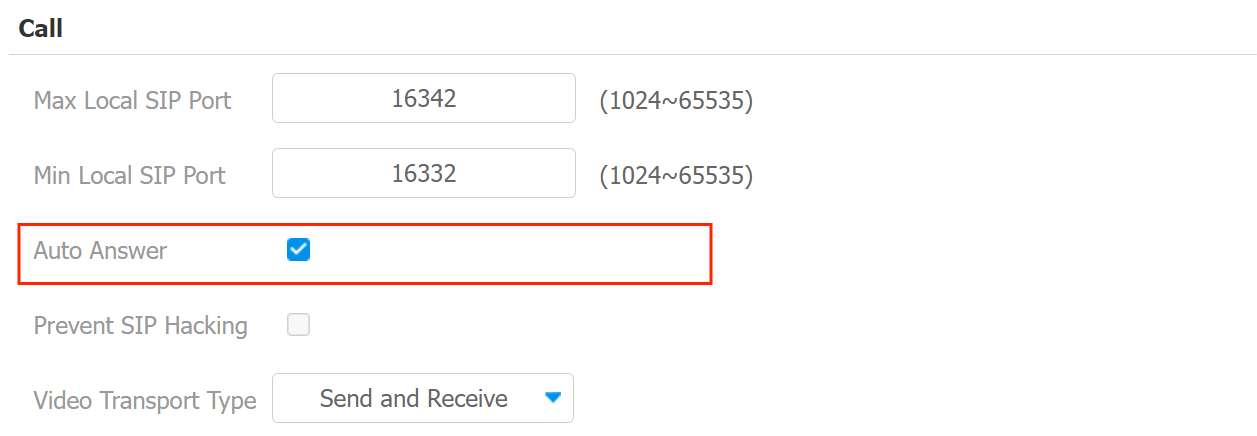
Go to Account > Advanced > Call interface. Enable Auto Answer.
Note
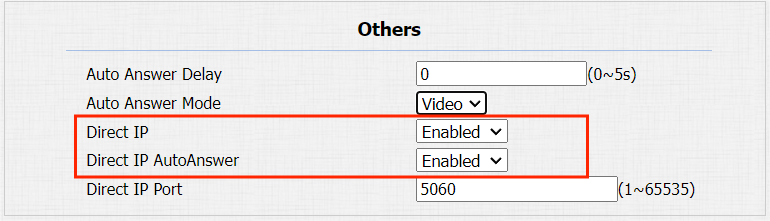
For E20 and E21, you need to enable Direct IP and Direct IP Auto Answer on the Phone/Device > Call Feature > Others interface.
Optional Configuration
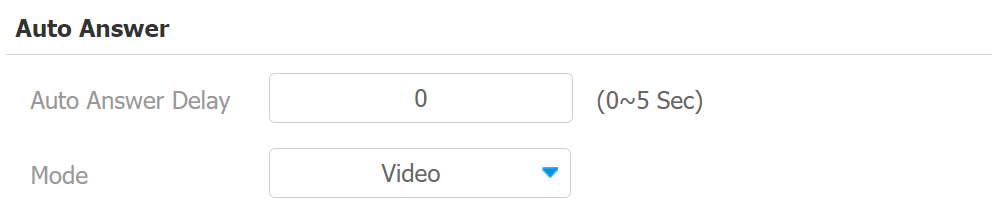
You can configure auto-answer delay time and mode by navigating to Intercom > Call Feature > Auto Answer interface.
Auto Answer Delay determines how many seconds it will take the door phone to answer the call. If you set it to 3, the door phone will answer the call after 3 seconds.
Mode determines whether the calling party receives the audio or video stream.