MJPEG and RTSP are the primary monitoring stream types discussed in this chapter.
MJPEG, or Motion JPEG, is a video compression format that uses JPEG images for each video frame. Akuvox devices display live streams on the web interface and capture monitoring screenshots in MJPEG format. Settings related to MJPEG determine video quality and the on/off status of the live stream function.
RTSP stands for Real Time Streaming Protocol. It can be used to stream video and audio from the third-party cameras to the device. You can add a camera’s stream by adding its URL. The URL format of Akuvox devices is rtsp://Device’s IP/live/ch00_0
ONVIF is an Open Network Video Interface Forum. It enables the device to scan and discover cameras or intercom devices with activated ONVIF functions. Live streams obtained through ONVIF are essentially in RTSP format.
MJPEG Video Stream
You can take a monitoring image and view video streams in MJPEG format with the device.
To set it up, go to the Surveillance > RTSP > MJPEG Video Parameters interface.
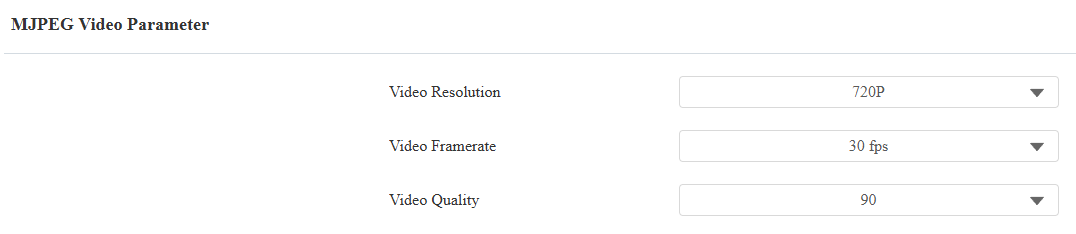
Video Resolution: Specify the video resolution from the lowest QVGA(240×320 pixels) to the highest 1080P(1920×1080 pixels). The default is 720P.
Video Framerate: It is 30 fps by default.
Video Quality: It is 90 by default.
MJPEG Authorization
You can enable MJPEG authorization to limit access to the MJPEG images and videos.
To set it up, go to the Surveillance > RTSP > RTSP Basic interface.
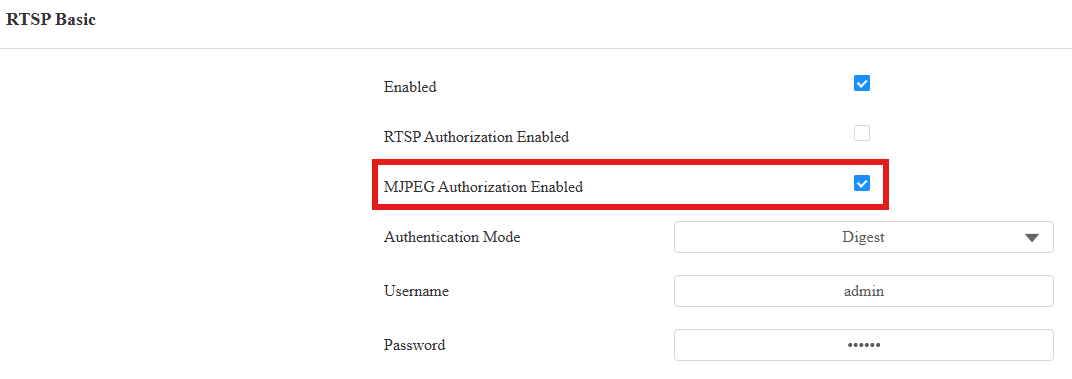
MJPEG Authorization Enabled: Once enabled, accessing the door phone’s real-time image or video by entering the URL into the browser requires verification of the Authentication Mode, RTSP Username, and RTSP Password.
Tip
To view a dynamic stream, use the URL http://device_IP:8080/video.cgi.
For capturing a screenshot, use the following URLs, with the image formats varying accordingly:
http://device_IP:8080/picture.cgi
http://device_IP:8080/picture.jpg
http://device_IP:8080/jpeg.cgi
For example, if you want to capture the jpg format image of the door phone with the IP address 192.168.1.104, you can enter http://192.168.1.104:8080/picture.jpg on the web browser.
RTSP Stream Monitoring
The RTSP feature allows Akuvox indoor monitors or third-party devices to obtain the live stream from the device.
You can set up the RTSP authentication credentials and video parameters.
To set it up, go to the Surveillance > RTSP > RTSP Basic interface.
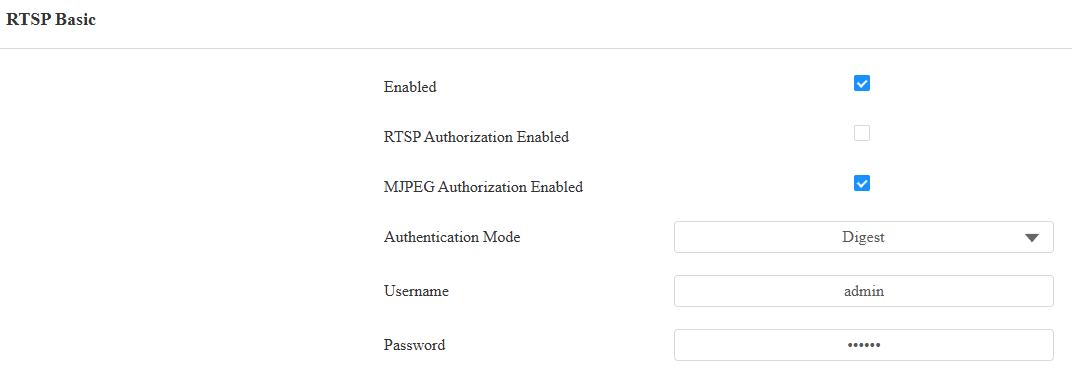
RTSP Authorization Enabled: Once enabled, configure RTSP Authentication Mode, RTSP Username, and RTSP Password. These credentials are required for accessing the door phone's RTSP stream from other intercom devices like indoor monitors.
Authentication Mode: It is Digest by default, which uses hashing instead of the easily reversible Base64 encoding. A token is used for verification.
Username: Set the username for authorization.
Password: Set the password for authorization.
RTSP Stream Setting
The RTSP stream can use either H.264 or Mjpeg as the video codec. If you choose H.264, you can also adjust the video resolution, bitrate, and other settings.
To configure the RTSP stream, navigate to the web Surveillance > RTSP > RTSP Stream interface.
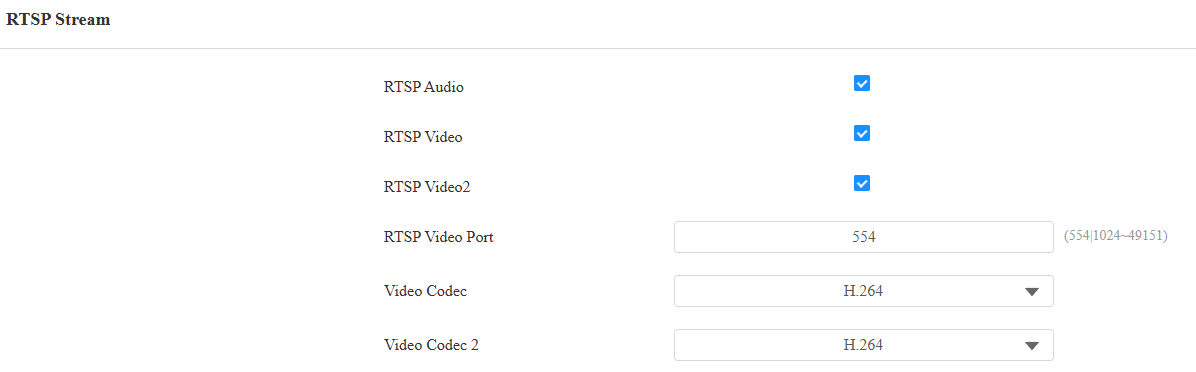
RTSP Audio: Allow the door phone to send audio information to the monitor via RTSP.
RTSP Video: The door phone can send the video information to the monitor. After enabling the RTSP feature, the video RTSP is enabled by default and cannot be modified.
RTSP Video 2: Akuvox door phones support 2 RTSP streams; you can enable the second one.
RTSP Video Port: Specify the video port.
Video Codec/Video Codec 2: Choose the video codec between H.264 and MJPEG.
Tip
To view the audio and video stream using RTSP:
First channel: rtsp://Device’s IP/live/ch00_0
Second channel: rtsp://Device’s IP/live/ch00_1
H.264 Video Parameters Setup
Set up the H.264 video parameters for the RTSP video stream on the Surveillance > RTSP > H.264 Video Parameters interface.
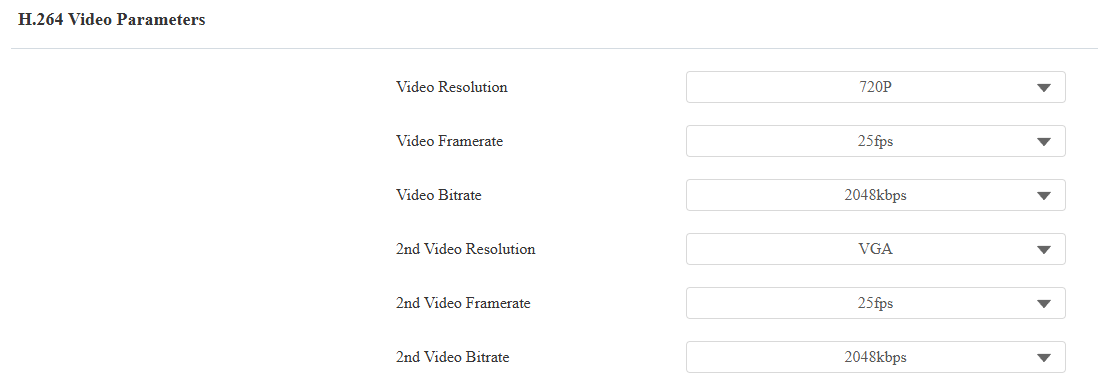
Video Resolution: Specify the image resolution, varying from the lowest QVGA(240×320 pixels) to the highest 1080P(1920×1080 pixels). The default is 720P.
Video Framerate: Frames per second refers to how many frames are displayed in one second of video. The default is 25fps.
Video Bitrate: The amount of video data transferred in a specific duration of time. A higher video bitrate means a higher possible quality, but also higher file sizes and more bandwidth. The default is 2048kbps.
2nd Video Resolution: Specify the image resolution for the second video stream channel. The default is VGA.
2nd Video Framerate: Set the frame rate for the second video stream channel. The default is 25fps.
2nd Video Bitrate: Set the bit rate for the second video stream channel.
RTSP OSD Setting
This feature is used to add a watermark to the RTSP video or picture. It is disabled by default.
To set it up, go to the Surveillance > RTSP > RTSP OSD Setting interface.
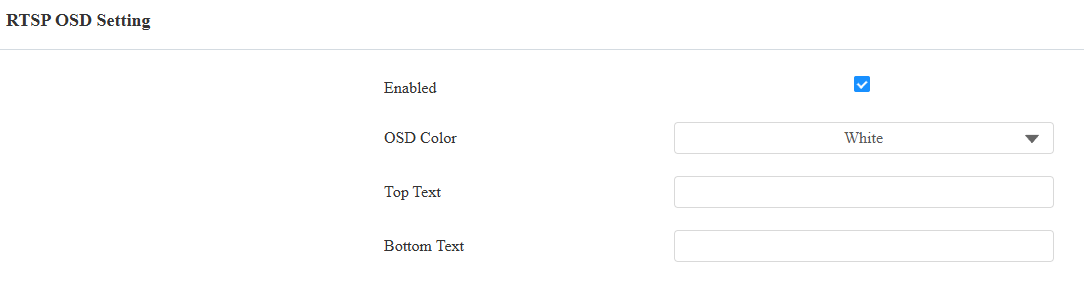
OSD Color: Select the color from White, Black, Red, Green, or Blue.
Top/Bottom Text: Customize the OSD content.
ONVIF
You can access the real-time video from the device's camera using the Akuvox indoor monitor or other third-party devices like Network Video Recorder(NVR). Enabling and setting up the ONVIF function on the device will allow its video to be visible on other devices.
Click here to view an example of using the ONVIF feature: the integration with Uniview NVR System.
To set it up, go to the web Surveillance > ONVIF interface.
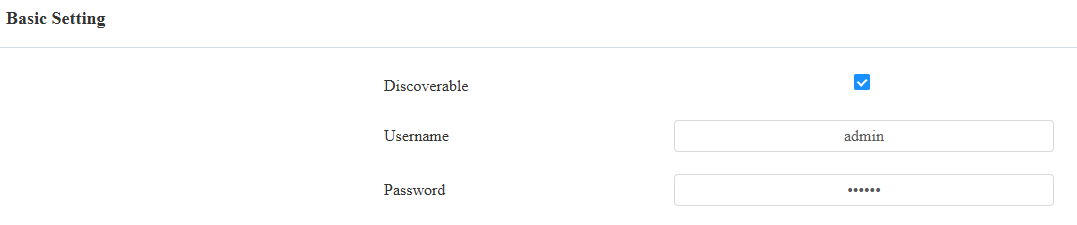
Discoverable: When enabled, the video from the door phone camera is searchable by other devices.
Username: Set the username required for accessing the door phone's video stream on other devices. It is admin by default.
Password: Set the password required for accessing the door phone's video stream on other devices. It is admin by default.
Tip
Once the settings are configured, to access the video stream on the third-party device, simply enter the ONVIF URL: http://Device’s IP:80/onvif/device_service.
Some NVRs can send door-opening requests to the device and control door opening. You can enable or disable the function by turning on or off a switch on the same interface as the ONVIF feature.

Live Stream
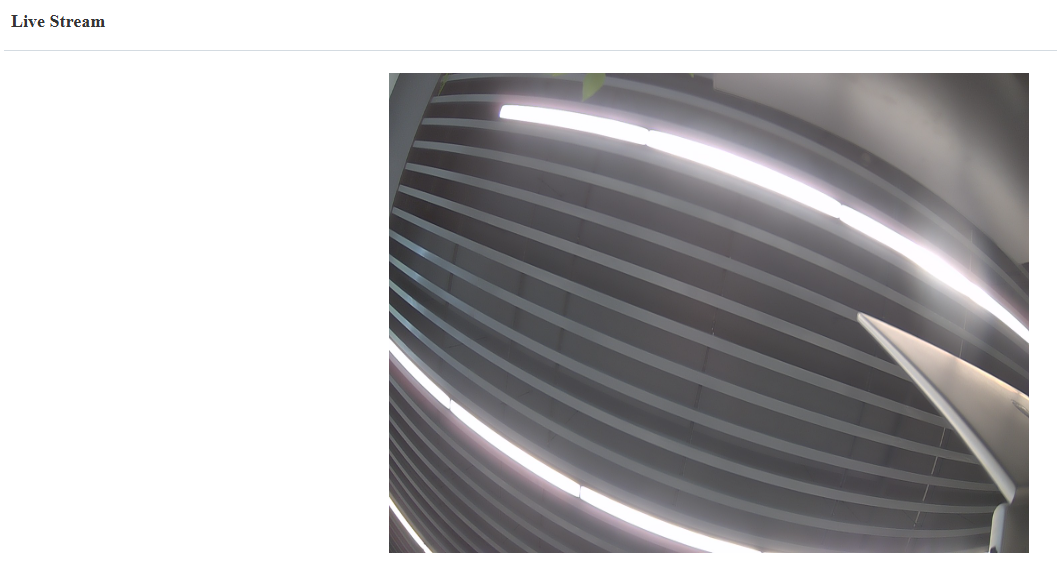
There are two ways to check the real-time video from the device. One is to go to the device web interface and view the video there. The other is to enter the correct URL on the web browser and access the video directly.
View the video stream on the Surveillance > Live Stream interface.
Camera Mode
High Dynamic Range (HDR) is a technology used in photography, videography, and display devices to enhance image quality by capturing a wider range of brightness and color.
Linear refers to a straightforward representation of brightness in images. Linear images are commonly used in controlled lighting environments, such as indoor scenes, where consistent brightness is present.
You can set the camera mode between HDR and Linear on the Device > Camera interface. It is HDR by default.
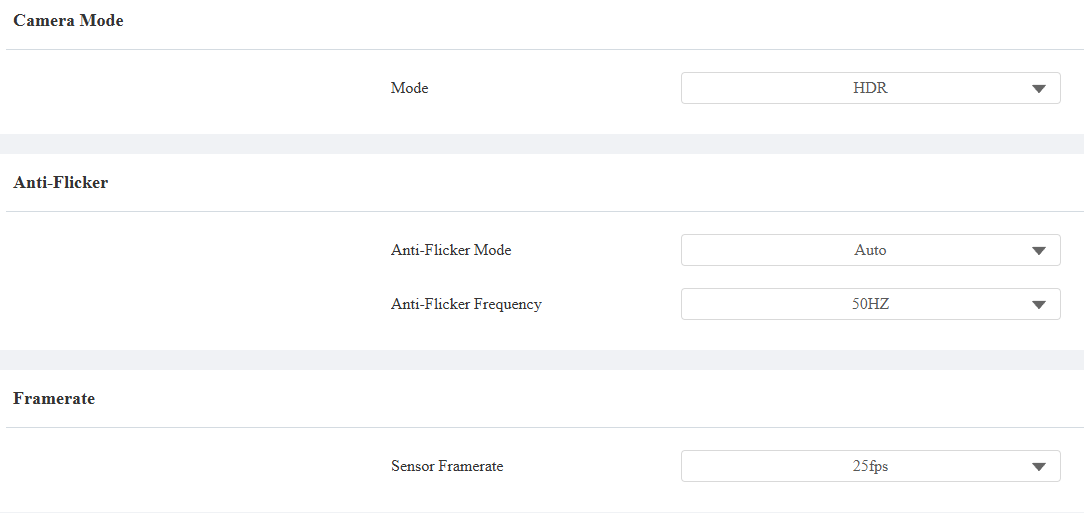
Anti-Flicker Mode: The anti-flicker feature reduces or eliminates flickering in images or videos caused by varying light sources.
Auto: The device will switch automatically between 50Hz and 60Hz anti-flicker frequency.
Manual: Select the anti-flicker frequency manually.
Off: Disable the anti-flicker function.
Anti-Flicker Frequency: Select the anti-flicker frequency between 50Hz and 60Hz.
Sensor Framerate: Adjust the camera frame rate.
30fps: Better for applications needing higher smoothness.
25fps: Suitable for standard video recording and playback, especially under a 50Hz power frequency to minimize flicker.
Data Transmission Type for Third-party Camera
You can select the data transmission type between the device and a third-party camera when it is connected to the SmartPlus Cloud.
To set it up, go to the Surveillance > RTSP > Third Party Camera interface.

UDP: An unreliable but very efficient transport layer protocol.
TCP: A less efficient but reliable transport layer protocol. It is the default transport protocol.