Device Network Configuration
To ensure normal functioning, make sure that the device has its IP address set correctly or obtained automatically from the DHCP server.
On the Device
Check and configure the network connection on the device Settings > Advance Settings > Network screen.
(1).png)
DHCP: DHCP mode is the default network connection. If the DHCP mode is turned on, the device will be assigned by the DHCP server with an IP address, subnet mask, default gateway, and DNS server address automatically.
If you turn off the DHCP mode, the device will be changed to static IP mode, and the IP address, subnet mask, default gateway, and DNS server address have to be manually configured according to the actual network environment.
IP Address: Set up the IP address when the static IP mode is selected. To access the device’s web settings, your computer should be on the same local network as the device.
Subnet Mask: A subnet mask tells your device which IP addresses are part of your local network and which ones are not. For example, if the subnet mask is 255.255.255.0, it means that devices with similar starting IPs (like 192.168.1.x) are in the same network.
Gateway: The gateway is like a bridge between your device and other networks, such as the internet. Usually, it’s the IP address of your router.
DNS Type: Domain Name System(DNS) is the overall system or network that handles the translation of domain names (like www.example.com) into IP addresses (like 192.0.2.1), which computers use to identify each other on a network.
DDNS: Dynamic DNS. It is obtained automatically through the DHCP server.
Static DNS: When selected, you need to enter the DNS manually.
Preferred & Alternate DNS Server: The preferred and alternate DNS servers. The device will connect to the alternate server when the primary one is unavailable.
Hotspot Enabled: With it enabled, the device can provide a network for other devices.
Preferred Network: Specify the preferred network connection, WLAN or Ethernet. It is Ethernet by default. When Ethernet is unavailable, the device will automatically switch to a WLAN connection and vice versa.
Note
You can press System Info and then press Network on the Settings screen to check the device’s network status.
The default code to enter advanced settings is 123456.
On the Web Interface
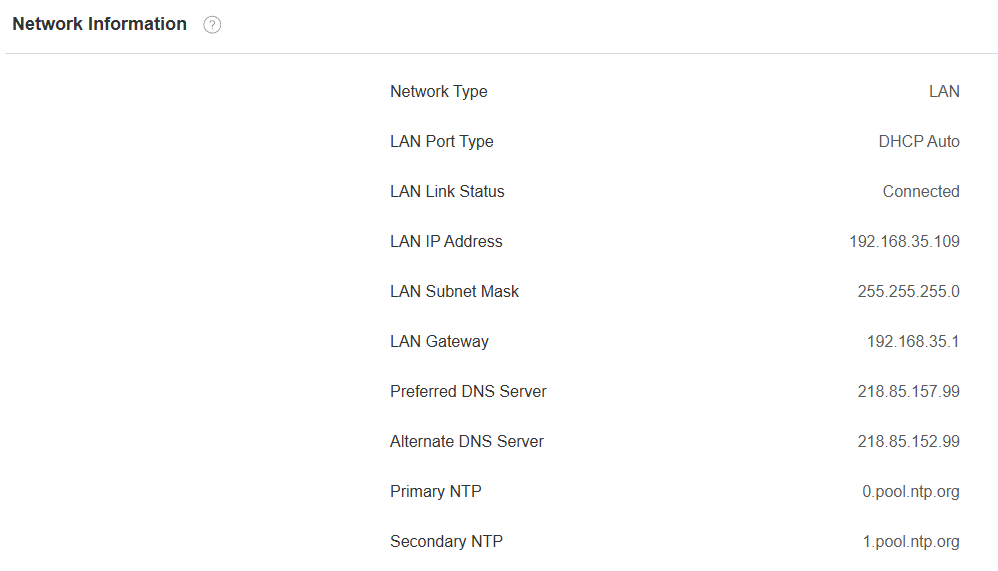
Check the network on the web Status > Network Information interface.
Check and configure the network connection on the device web Network > Basic > LAN Port interface.
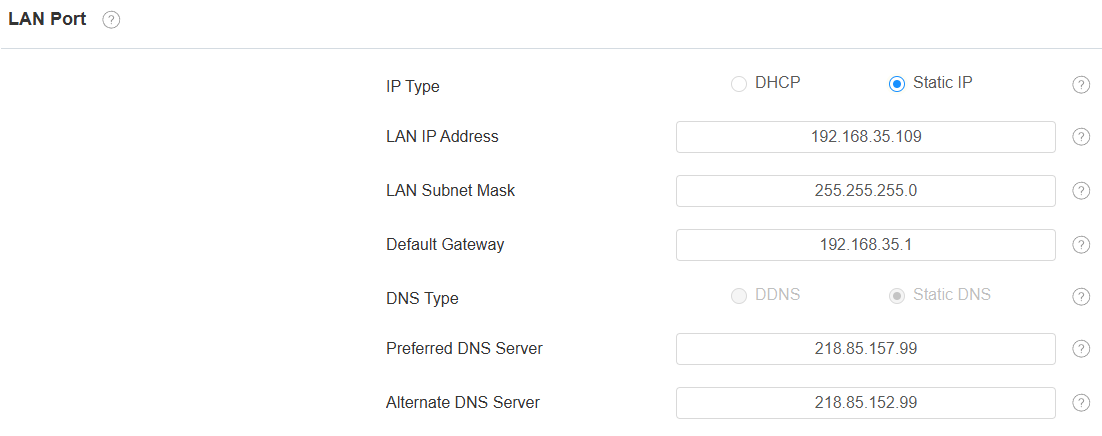
IP Type:
DHCP mode will enable the indoor monitor to be assigned by the DHCP server with IP address, subnet mask, default gateway, and DNS address automatically.
Static IP allows you to enter the IP address, subnet mask, default gateway, and DNS address manually according to the actual network environment.
LAN IP Address: Set up the IP address when the static IP mode is selected. To access the device’s web settings, your computer should be on the same local network as the device.
LAN Subnet Mask: A subnet mask tells your device which IP addresses are part of your local network and which ones are not. For example, if the subnet mask is 255.255.255.0, it means that devices with similar starting IPs (like 192.168.1.x) are in the same network.
Default Gateway: The gateway is like a bridge between your device and other networks, such as the internet. Usually, it’s the IP address of your router.
DNS Type: Domain Name System(DNS) is the overall system or network that handles the translation of domain names (like www.example.com) into IP addresses (like 192.0.2.1), which computers use to identify each other on a network.
DDNS: Dynamic DNS. It is obtained automatically through the DHCP server.
Static DNS: When selected, you need to enter the DNS manually.
Preferred/Alternate DNS Server: The preferred and alternate DNS. The device will connect to the alternate server when the primary server is unavailable.
To enable the WLAN hotspot, go to the Network > Advanced > WLAN Hotspot interface.

Device Deployment in Network
To facilitate device control and management, configure Akuvox intercom devices with details such as location, operation mode, address, and extension numbers.
Deploy the device in the network on the web Network > Advanced > Connect Setting interface.
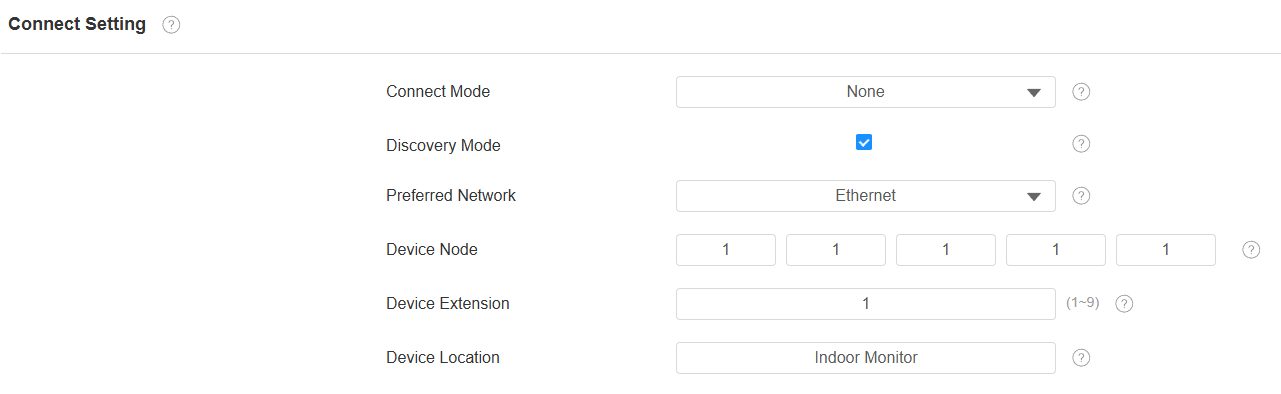
Connect Mode: It is automatically set up according to the actual device connection with a specific server in the network, such as SDMC, Cloud, or None.
None: None is the default factory setting, indicating the device is not in any server type. Devices connect directly to each other or within a local area network (LAN) without relying on external servers.
Cloud: The device is connected to the SmartPlus Cloud, a cloud-based system simplifying property access management. The Cloud mode allows devices to interact intelligently with one another and the mobile SmartPlus App, backing up data daily and on different hosts. It suits projects requiring smart, flexible, and secure deployment and management.
SDMC: The device is connected to the SDMC, a management platform designed for on-premise projects. The SDMC mode manages and backs up data remotely on a local network. It also boasts many features suitable for projects requiring high privacy, lower cost, and centralized management.
Discovery Mode: Enabled by default. Available for the None server mode. The device can be discovered by other devices in the network. When disabled, the device will be concealed and not be discovered by other devices.
Preferred Network: Specify the preferred network connection, WLAN or Ethernet. It is Ethernet by default. When Ethernet is unavailable, the device will automatically switch to a WLAN connection and vice versa.
Device Node: Available for the None server mode. It can be used to call the device. Specify the device address by entering device location information from left to right: Community, Building, Unit, Floor, and Room in sequence.
Device Extension: Available for the None server mode. The device extension number ranges from 0 to 10.
Device Location: The location in which the device is installed and used.
You can also set up the device node, extension number, and location on the Settings > Advance Settings > Discovery Setting screen.
.png "screenshots (97).png")
Device NAT Setting
Network Address Translation(NAT) lets devices on a private network use a single public IP address to access the internet or other public networks. NAT saves the limited public IP addresses and hides the internal IP addresses and ports from the outside world.
To register SIP accounts on third-party servers in a Wide Area Network(WAN), you need to enable the RPort feature on the intercom devices to establish a stable connection.
To set up NAT, go to Account> Basic > NAT interface.

Stun Server Address: Set the SIP server address in the Wide Area Network(WAN).
Port: Set the SIP server port.
Then go to Account > Advanced > NAT interface.

RPort: Enable the RPort when the SIP server is in the WAN for the SIP account registration.
Device Web HTTP Setting
This function manages device website access. The device supports the HTTPS remote access method.
To set it up, go to the Network > Advanced > Web Server interface.

HTTPS Port: Set the HTTPS port within the valid range.
Device Bluetooth Setting
You need to enable the Bluetooth feature on the device before you can pair the indoor monitor with other Bluetooth-featured devices.
To set it up, go to Settings > Bluetooth screen.
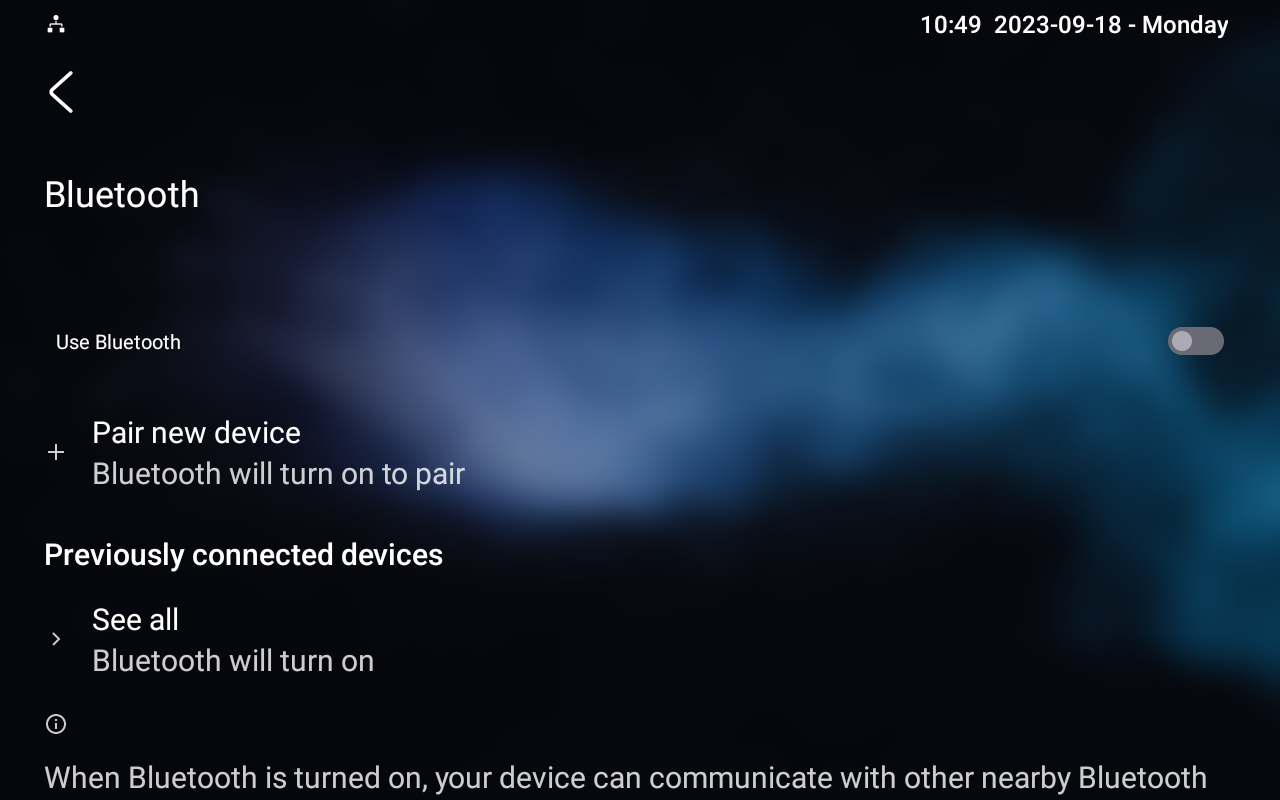
Use Bluetooth: When enabled, other Bluetooth devices will display.
Pair new device: Tap to pair with available Bluetooth devices.
Previously connected devices: Tap See all to view the previously connected devices.
Device Wi-Fi Setting
Set the Wi-Fi on the device Settings > WIFI screen.
Tap the desired Wi-Fi and enter the password to connect.
(2).png)
Set As DHCP Server: Use Wi-Fi as the DHCP server.
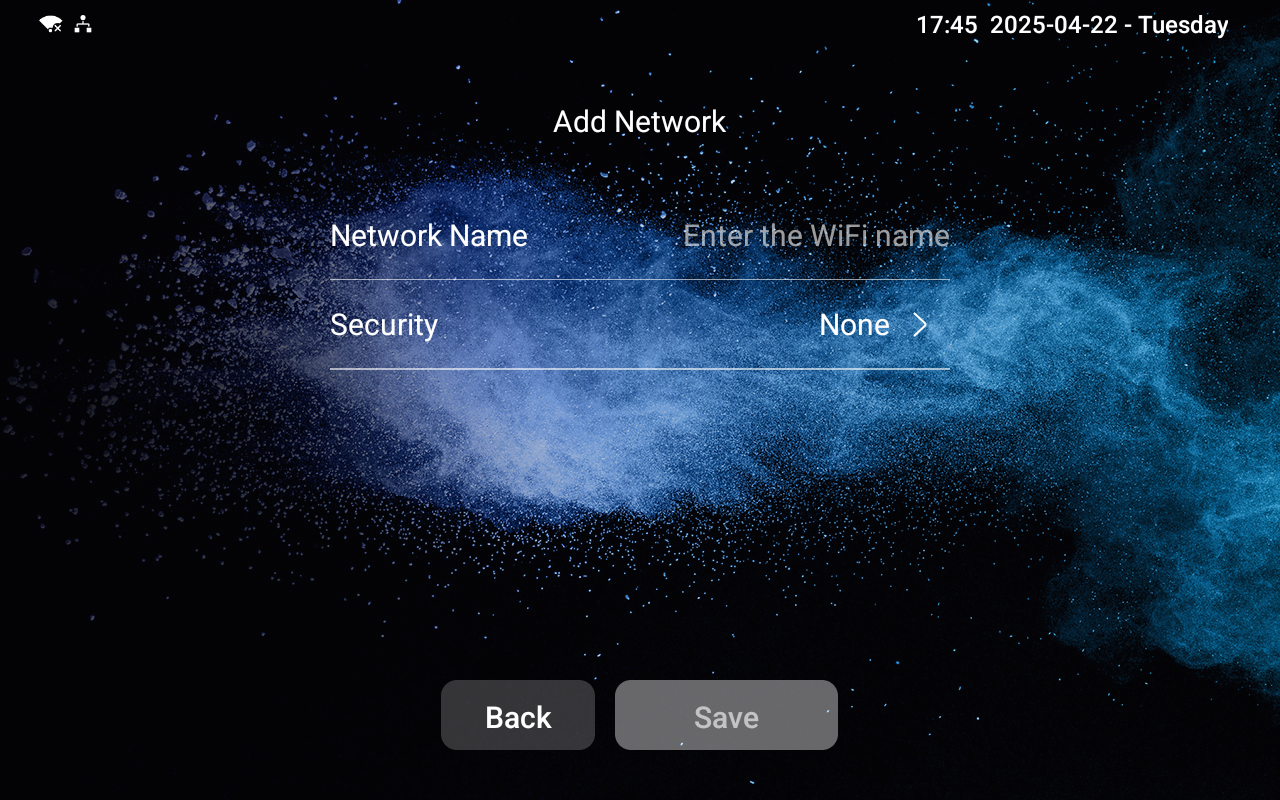
Add Network: Tap to add a Wi-Fi manually.
Security: Select the network encryption type and enter the password for connection. The default is None.