The GRMS platform supports an offline lock solution (with SL10 and SL11 locks) that allows issuing and managing three types of cards: guest cards, staff cards, and authorization cards.
NOTE:
Ensure all locks are properly installed and bound to the corresponding rooms.
The Offline Solution feature must be enabled by your service provider. Otherwise, the Card Operations menu and Card Access (Offline) interface will not be available.
Connect a Card Encoder
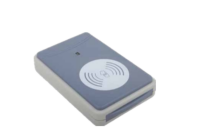
All card issuance and return operations must be performed using a physical card encoder.
Contact your service provider to obtain the card encoder and the required GRMS CardLink Service software.
Install the GRMS CardLink Service software on the computer.
Connect the card encoder to the computer using a USB cable.
Guest Card Management
Guest cards are issued for room guests and are used to access assigned room locks (SL10/SL11). Offline lock environments support RF Cards only for physical room access.
NOTE:
During any write, renew, or return process, do not remove the card from the reader until the platform displays a confirmation success message. Premature removal will cause write failures or corrupt card data.
Read Card
To audit or verify the contents of a card:
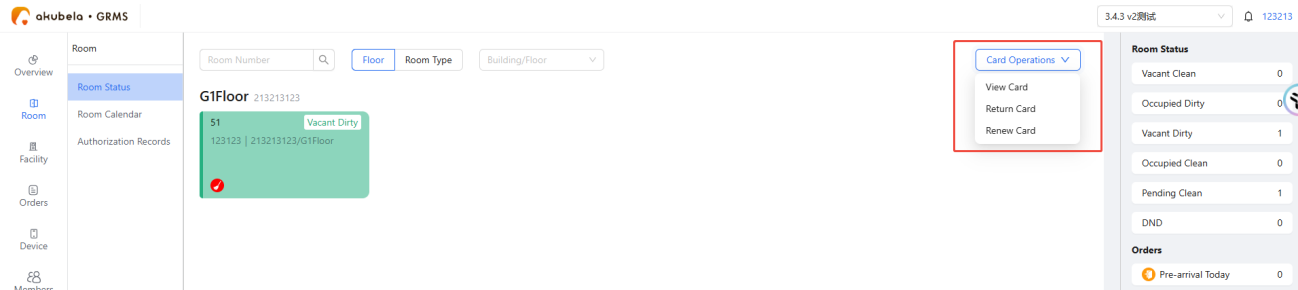
Go to Room > Room Status > Card Operations > View Card. A reading window will pop up.
Place the physical card flat on the encoder.
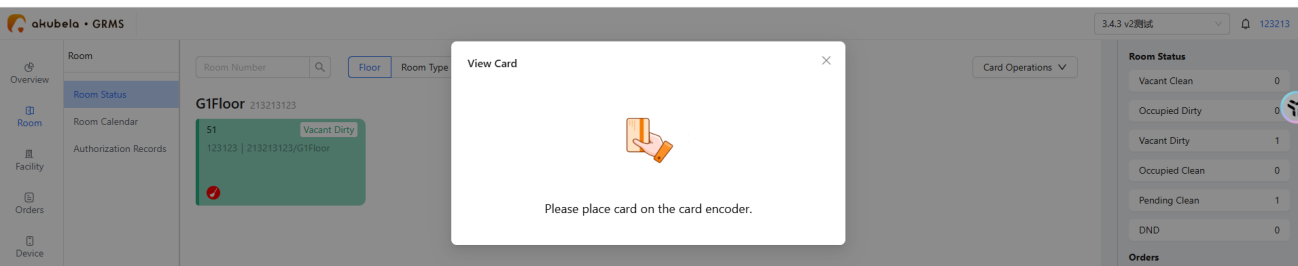
Once data decoding completes, the screen will display the card's ownership and metadata profile (supports verification of Guest, Staff, or Authorization cards).

Issue Guest Card
Complete the room check-in sequence on the dashboard.
Go to the reservation's Assign Access Rights interface.
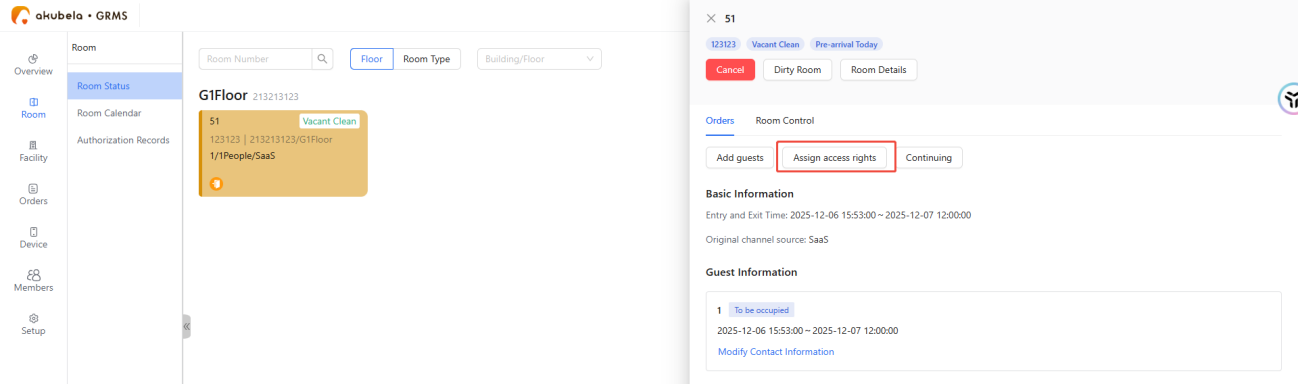
Click Issue Card.
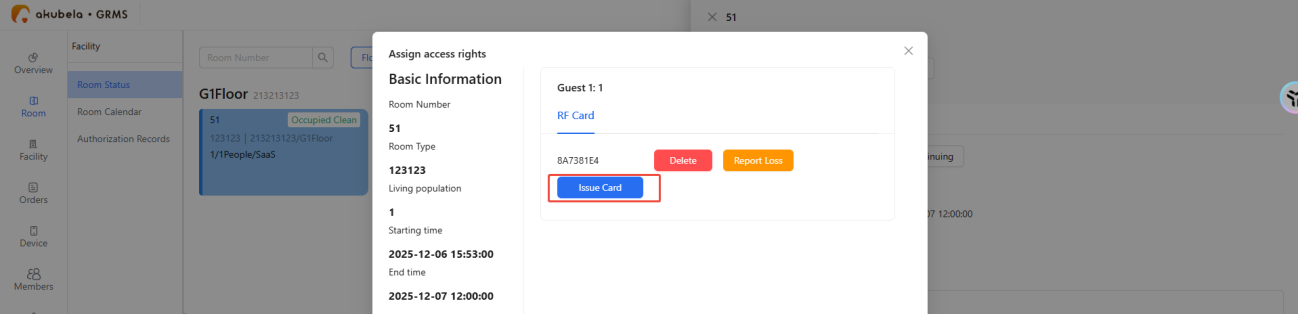
Place a new or authorization card on the encoder.
Wait for the platform to confirm the write is successful. The card is now ready to unlock the target room's SL10/SL11 smart lock.
Return Card
To check out a card, use one of the two methods below.
Method 1: Standard Erasure via Card Operations
NOTE:
This guest card return workflow cannot process staff cards.
Click Room > Room Status > Card Operations > Return Card.
Place the card onto the encoder and click Continue.

Wait for the system to clear card data.
Method 2: Row Deletion & Damaged Card Revocation
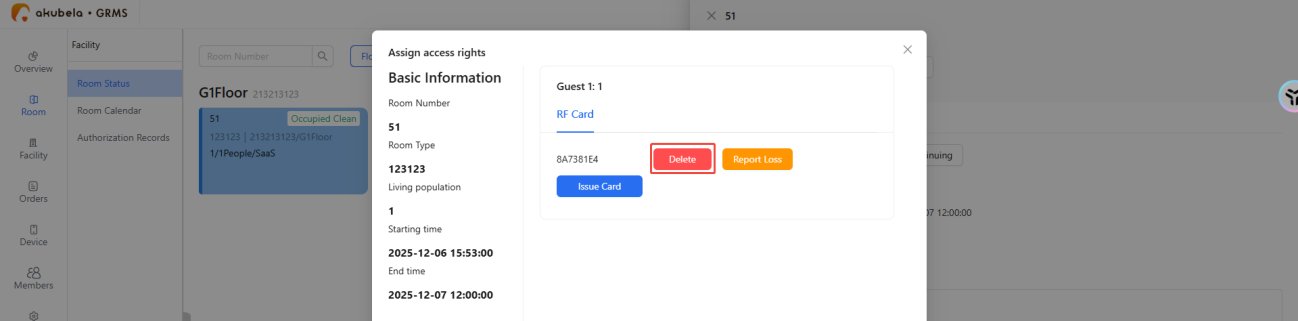
Go to room details interface and click Assign Access Rights.
Click Delete.
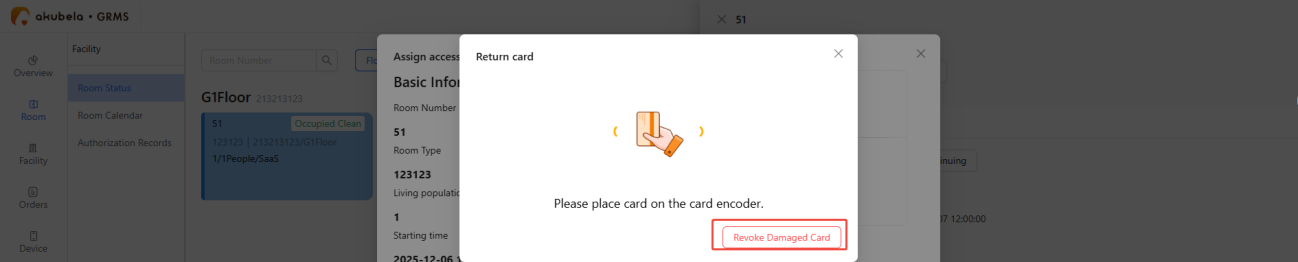
Optional: Click Revoke Damaged Card to remove card binding on the platform.
NOTE:
Revoke Damaged Card only removes platform binding. It does NOT erase data stored on the physical card. You must perform a standard Return Card (Method 1) to completely blank the card before assigning it to a new guest.
Renew Card (Stay Extension)
Go to Card Operations > Renew Card.

Place the guest card on the reader and click Continue.
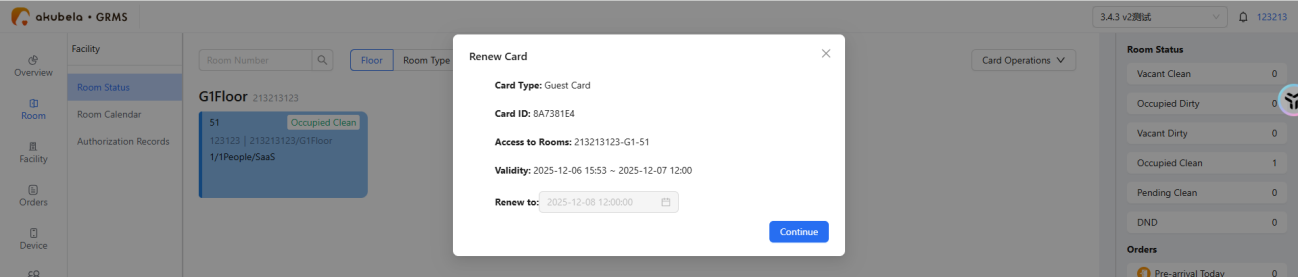
Wait for completion.
Report Loss & Reissue Card
When a guest loses an active card, use this security override loop to safely replace it:
Go to room details interface and click Assign Access Rights, and click Report Loss.
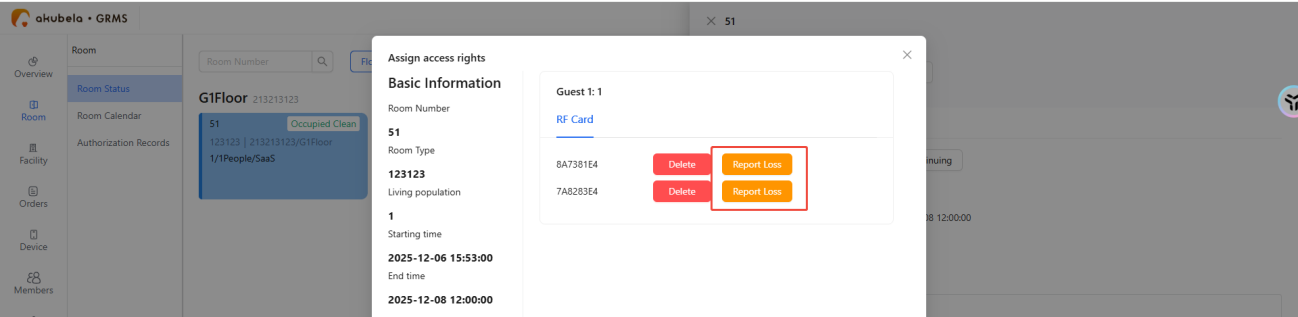
The system displays all affected related cards. Affected cards include those with overlapping or earlier start times.
Click Confirm.
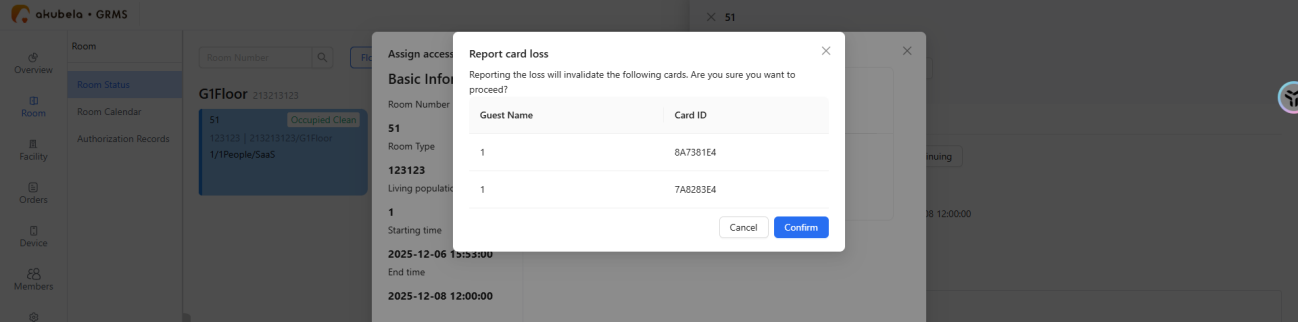
Affected cards are marked with a red warning icon. Click Reissue Card for affected cards.
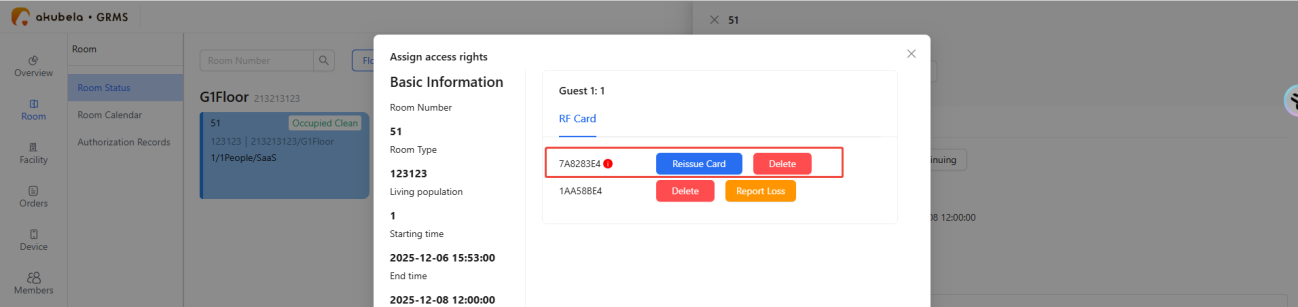
Hold a new card or Authorization card on the encoder to initialize the replacement data block
Complete writing process.
Staff Card Management
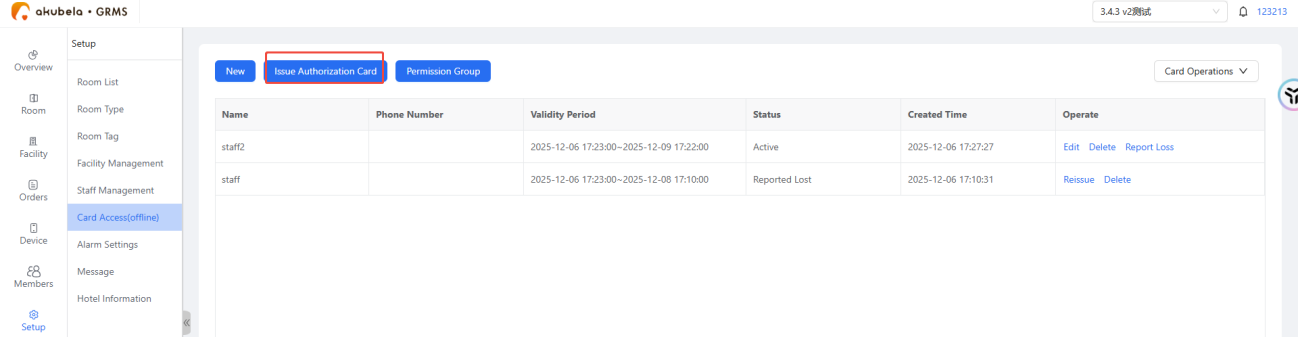
Staff configurations are managed via the Setup > Card Access (Offline) interface.
Add Permission Groups
Before issuing staff cards, a permission group must be configured.
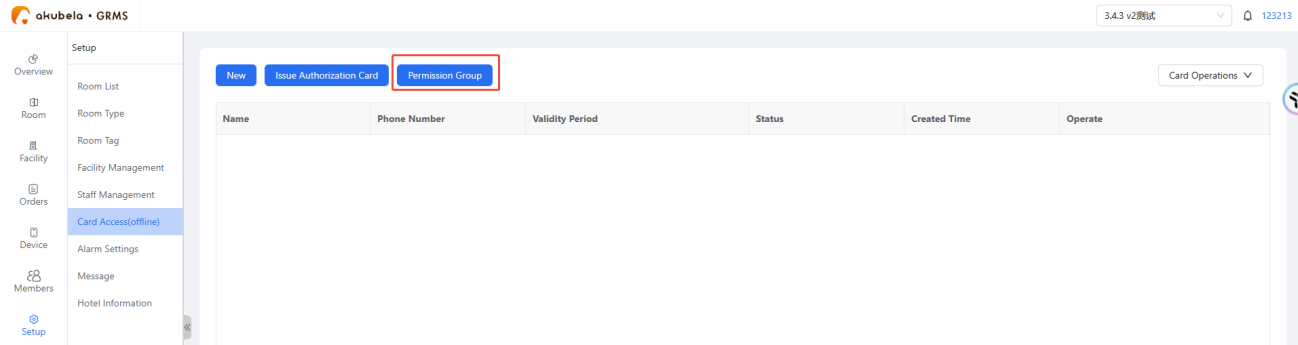
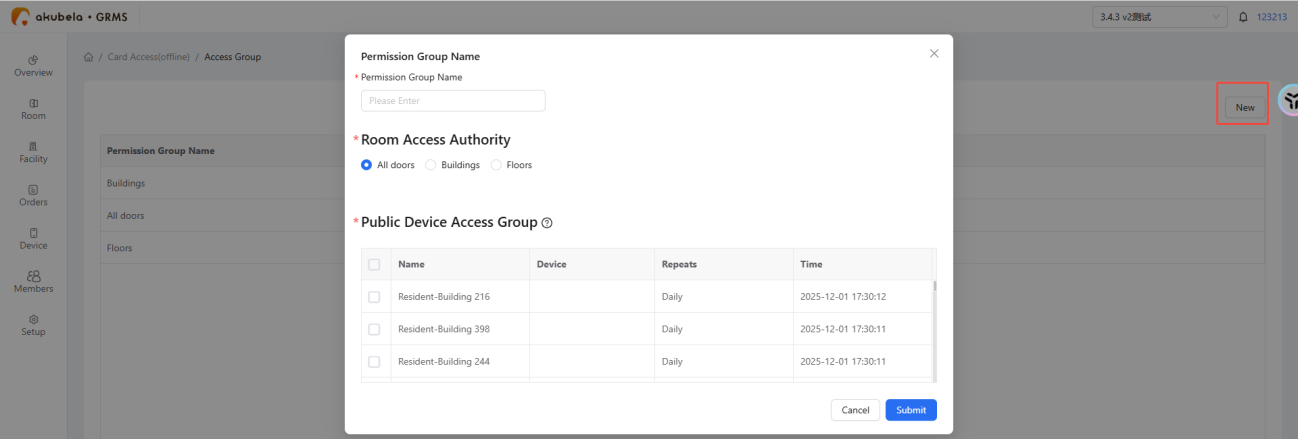
Go to Setup > Card Access (Offline) > Permission Group > New.
Name the group.
Select the validity range:
All Doors: Grants access to all SL10/SL11 locks in the project.
Buildings: Restricts lock access strictly to all SL10/SL11 units within designated buildings.
Floors: Restricts lock access to specific floors within designated buildings.
Select the public device access group.
Click Submit.
View Card
Go to Setup > Card Access (Offline) > View Card > Card Operations.
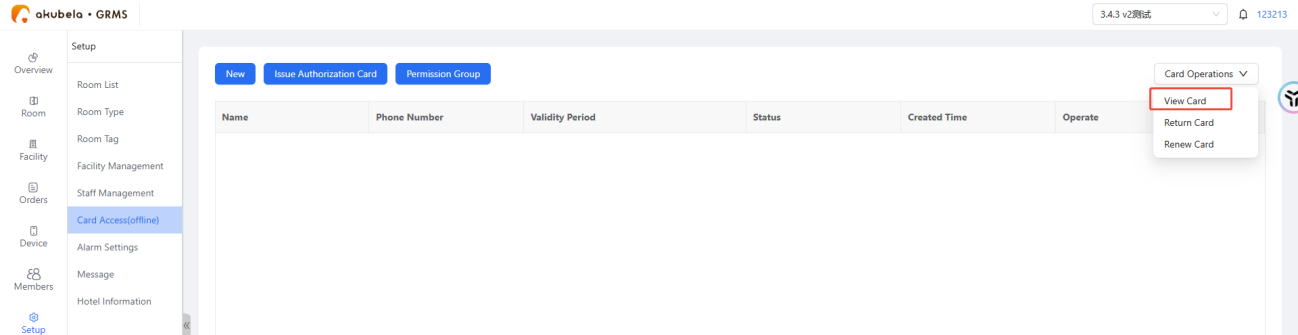
Place the card on the encoder.
System displays card information.
Issue Staff Cards
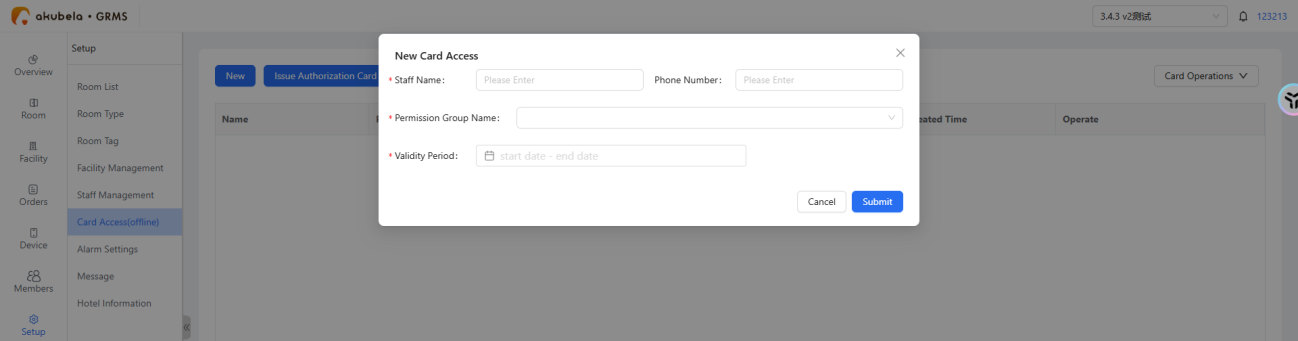
Go to Setup > Card Access (Offline) > New.
Choose the appropriate Permission Group and specify the Validity Period.
Click Submit.
Place a new or authorization card on the encoder.
Wait for writing completion.
Edit Staff Cards
Go to Setup > Card Access (Offline) > [specific staff] > Edit.
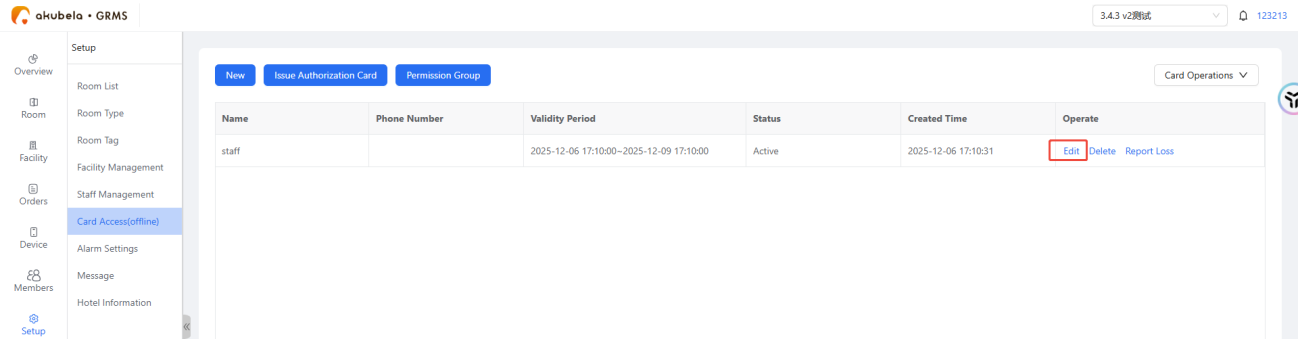
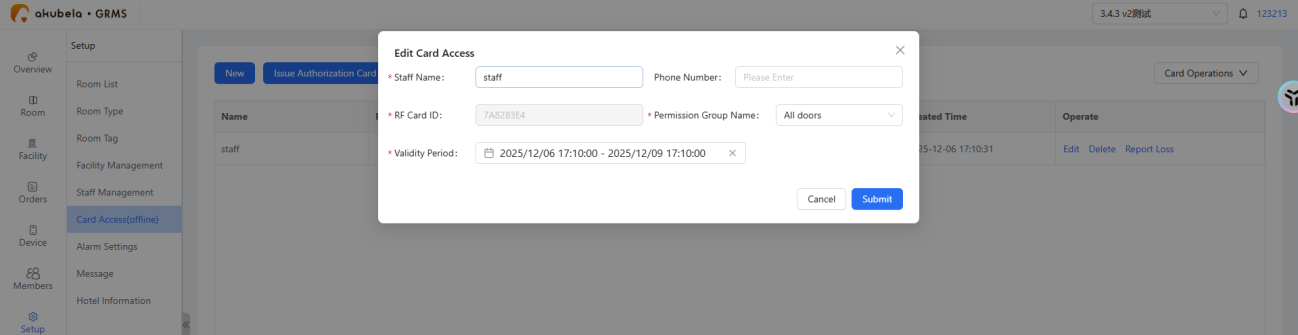
Changing Staff Name or Phone Number: click Submit directly.
Changing Permission Group or Validity Period: place the original physical staff card onto the encoder, click Submit.
Renew Cards
Go to Setup > Card Access (Offline) > Card Operations > Renew Card.
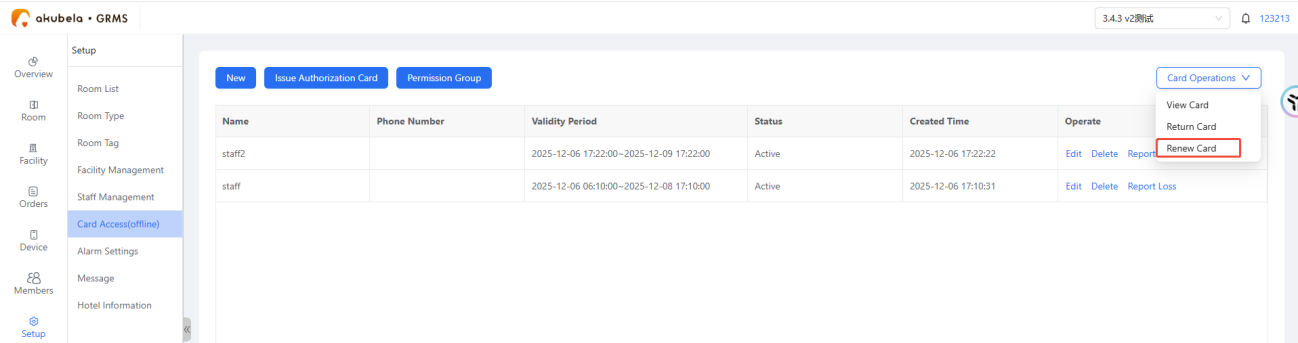
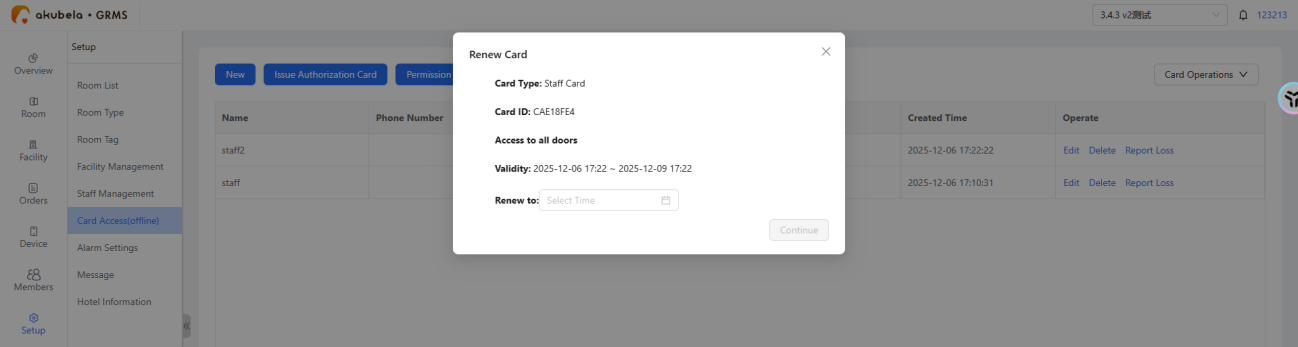
Place the employee card on the encoder.
Ensure new expiry time is later than current expiration.
Click Continue.
Return Cards
Method 1
Click Setup > Card Access (Offline) > Card Operations > Return Card.
Place card on encoder and click Continue.
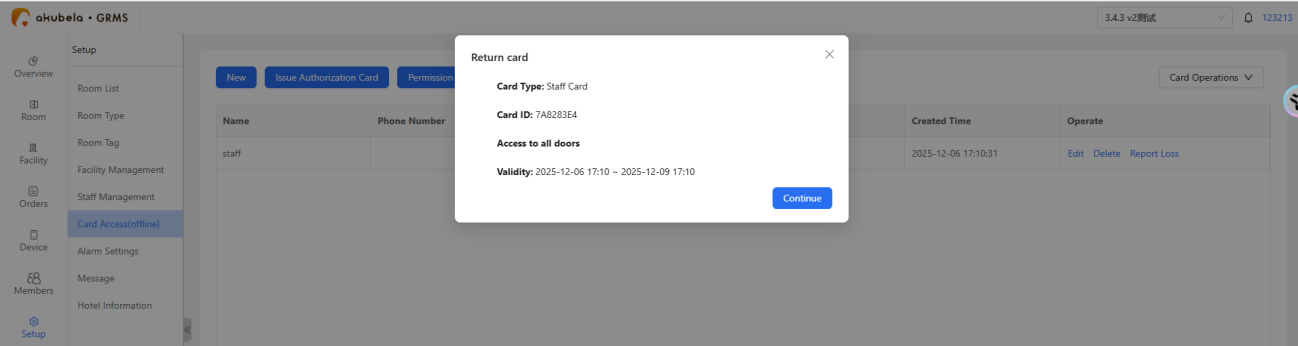
Method 2
Click Delete in the active staff row listings.
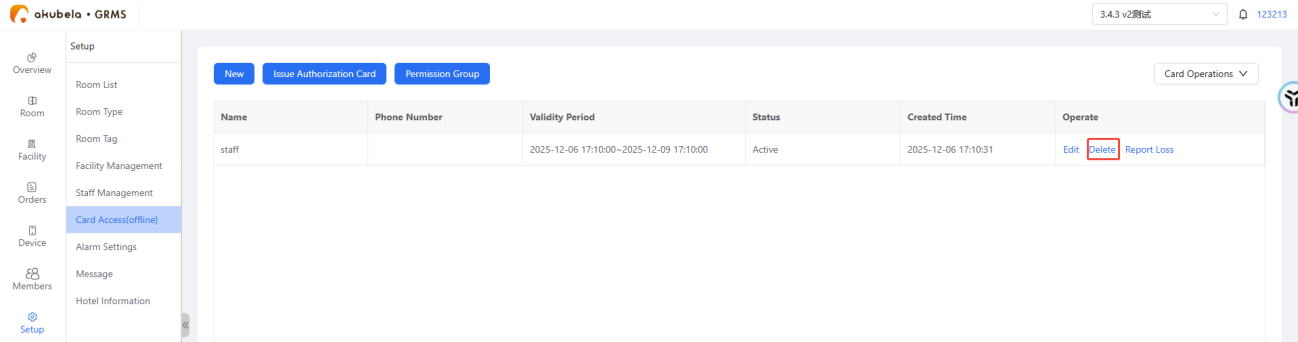
Optional: Use Revoke Damaged Card to remove platform binding only.
The physical card must still be cleared using Return Card before reuse.
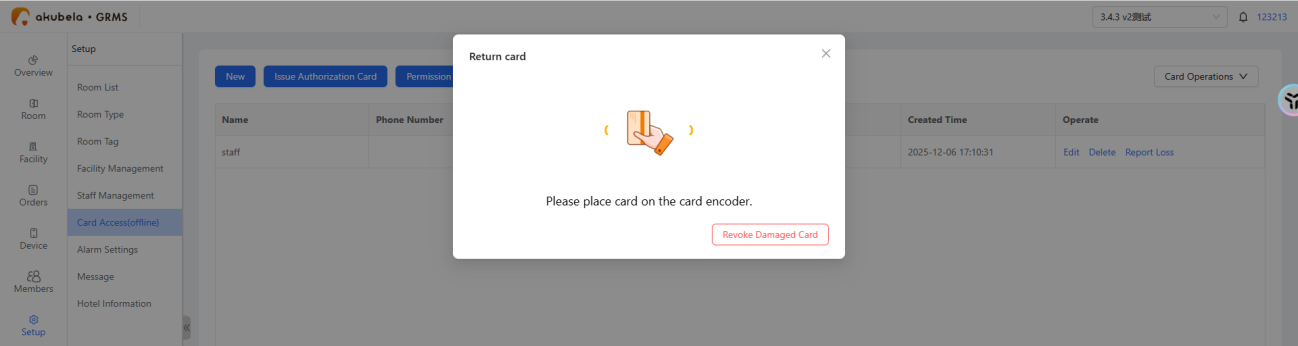
Staff Card Loss & Reissuance
The return process can only be applied to active cards. Expired, pending, or already dead-listed staff lines will hide this option.
Go to Setup > Card Access (Offline).
Find the target card and click Report Loss.
The system flags peer cards within that exact permission group sharing a similar or earlier start time.
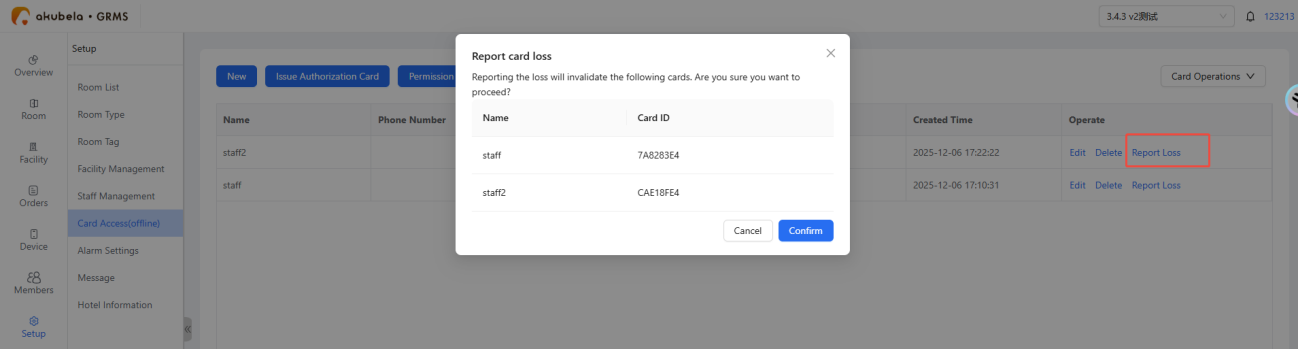
Click Confirm, holding a replacement card on the encoder to complete the process.
NOTE:
The newly reissued staff card must be physically swiped once at the room's SL10/SL11 lock to take effect.
Authorization Cards
Authorization Cards act as master administrative tools within the offline lock framework.
Core Capabilities:
Resetting SL10/SL11 locks
Issuing guest cards
Issuing staff cards
Handling lost card reissue operations
To Issue:
Go to Setup > Card Access (Offline) > Issue Authorization Card.
Place a completely clean, unassigned card on the encoder to initialize it.