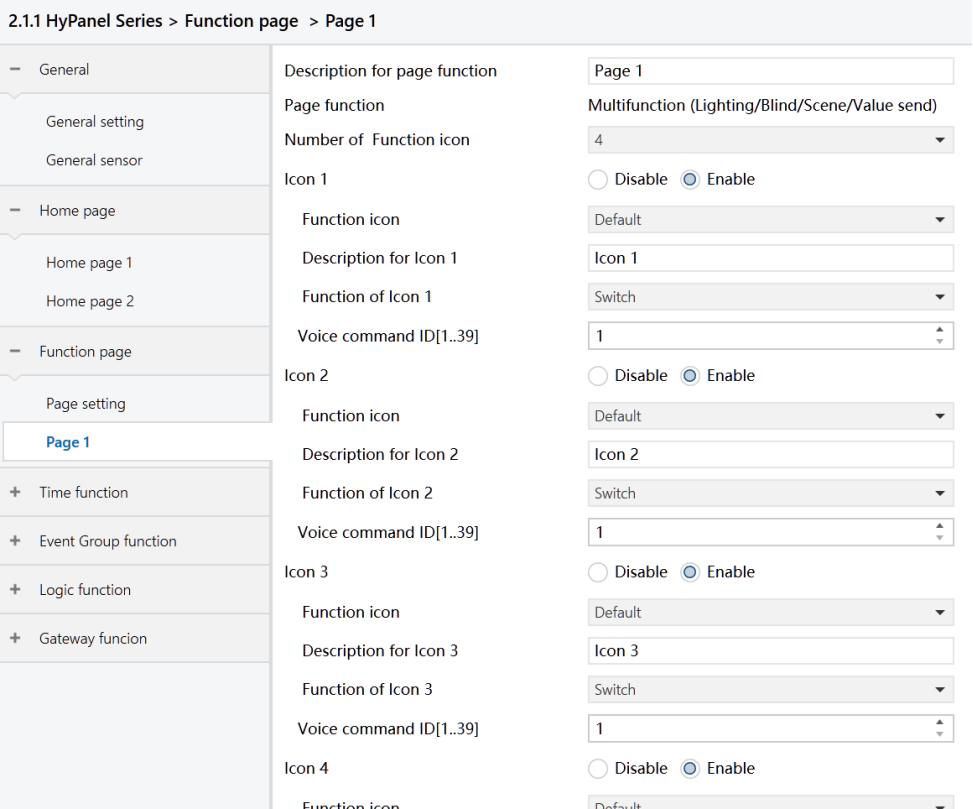
Figure: Page x interface
Description for page function
Name the function page, allowing up to 15 characters, with a maximum display of 5 Chinese characters.
Page function
Set the functionality of the page.
Options:
Multifunction (Lighting/Blind/Scene/Value send)
HVAC
Air conditioner
Background Music
RGB dimming RGB/W
Air Quality display
Floor heating
Ventilation System
Energy Metering display
The display of interface depends on the selected function. Page 1-5 can are restricted to the “Multifunction” options, while pages 6-15 support settings for all functions.
The following sections will detail the parameter settings for each function. This section mainly focuses on parameter settings for the “Multifunction” option, including lighting, blinds, scenes, and value send.
Number of Function icon
Set the number of icons displayed on the multifunction page.
Options: 1/2/3/4/6/8.
Note
For HyPanel and HyPanel Lite, each multifunction page allows a maximum of 6 icons, while HyPanel Pro supports up to 8 icons per page.
Icon x,x=1... 8
Set whether to enable the function of icon x.
Options:
Disable
Enable
Function icon
Set the icon to be used.
Options:
Default: Icon displayed are determined by the selected function.
No icon, only text
Ceiling light
...
General
Description for Icon x
Set the name displayed on the screen for Icon x, with a maximum of 12 characters (4 Chinese characters).
Function of Icon x
Set the functionality of Icon x.
Options:
Switch
Switch/Dimming
Value send
Open/close Blind
Roller Blind(without slat)
Venetian Blinds(with slat)
Blind(open/close/stop)
Blind(up/down/stop)
Scene control
Color temperature Dimming
Option Description:
Switch: control the switch
Both "Switch" and "Switch Status" objects are visible. To clarify, "Switch" refers to the operation object of the switch actuator, while "Switch Status" indicates the current state object. When "Switch Status" receives a response from the switch actuator, the icon updates correspondingly.
Switch/Dimming: control both switching and dimming
Visible objects include "Switch," "Brightness dimming," "Brightness Status," and "Relative dimming." Short pressing opens or closes the switch, while long pressing opens a brightness slider. Additionally, it supports relative dimming with two buttons: up and down.
Additionally, “Brightness dimming” controls the brightness of the dimming driver, and “Brightness Status” reflects the brightness status object of the dimming driver.
Value send
Send values of different data types.
Open/close Blind: control curtains
Support adjusting the curtains position by dragging the slider(displayed in percentage) or pressing three control buttons: open, close, and stop.
Roller Blind(without slat): control roller blinds
Support adjusting the blind position by dragging the slider(displayed in percentage) or pressing three control buttons: up, down, and stop.
Venetian Blinds(with slat):controls venetian blinds
Support adjusting the blind position and slat angle by dragging the slider(displayed in percentage) or pressing three control buttons: up, down, and stop.
Blind (open/close/stop): applicable for curtains
Control curtains using three buttons: open, close, and stop.
Blind (up/down/stop): applicable for roller blinds
Control roller blinds using three buttons: up, down, and stop.
Scene control
Activate scenes by touching or tapping, and support long-pressing operations for scene saving.
Color temperature Dimming: control switching and color temperature adjusting
Visible objects include “Switch”, “Brightness dimming”, “Brightness Status”, “Relative dimming”, “Color Temperature”, and “Color Temperature Status”. Short pressing opens or closes the switch, while long pressing opens the dimming sub-page featuring sliders for brightness and color temperature adjustment. Additionally, it supports relative dimming with two buttons: up and down.
The following parameters are visible when the “Value send” is selected.
- Datatype of object
Set the object type of the sent value.
Options:
1bit[On/Off]
2bit[0…3]
4bit[0…15]
1byte[0…255]
1byte[0…100%]
2byte[0…65535]
- Output value when press
Set the value sent by the object during operation. The range of values is determined by the selected object type.
- Long operation function
Set whether to enable long-pressing function.
Options:
Disable
Enable: When selected, the “Output value when long operation” parameter become visible.
- Output value when long operation
Set the value sent by the object during long-pressing. The range of values is determined by the selected object type.
The following parameters are visible when the “Scene control” is selected.
- Output scene NO.
Set the scene number sent by the object during operation.
Options: 1.. 64
Scene numbers 1 to 64 correspond to actual telegrams values ranging from 0 to 63.
- Storage scene via long operation
Set whether to enable saving scenes via long operation.
Options:
Disable
Enable
The following parameters are visible when the “Color Temperature Dimming” is selected.
- Min.Color Temperature[1000-5000K]
Set the minimum color temperature value when using dual-color dimming.
Options: 1000-5000K.
- Max.Color Temperature[6000-10000K]
Set the maximum color temperature value when using dual-color dimming.
Options: 6000-10000K.
Voice command ID
Not applicable for HyPanel.