Modify Web Interface Password
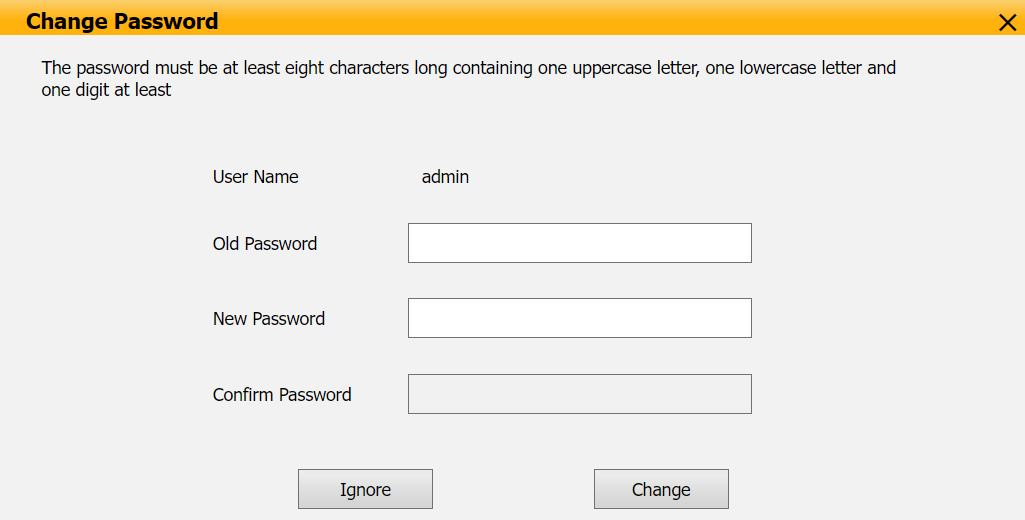
You can modify the device web interface login password for both administrator and user accounts.
Go to the Security > Basic interface. Select admin for the administrator account and select user for the user account.
Click Change Password to modify the password.

Scroll to the Account Status section to enable or disable the use of the user account.

Modify System Password
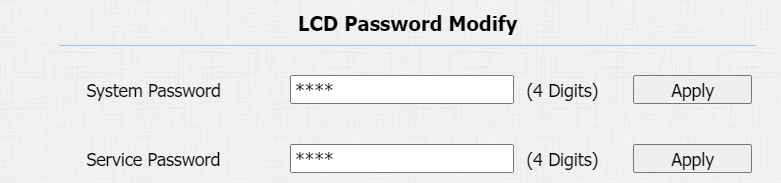
The system password is used to access the device’s admin settings.
The default is 2396. You can change the password on the Security > Basic > LCD Password Modify interface.
Tip
You can also change the system password directly on the device by pressing “*2396#”.
Press “2” to enter the Admin Access screen.
Select Set Admin Password to change the system password.
Modify Service Password
The service password is used to quickly access the Access Methods Settings on the device.
The default is 3888. You can change the password on the Security > Basic > LCD Password Modify interface.
Tip
You can also change the service password directly on the device by pressing “*3888#”.
Press “2” to enter the Admin Access screen.
Select Set Service Password to change the service password.
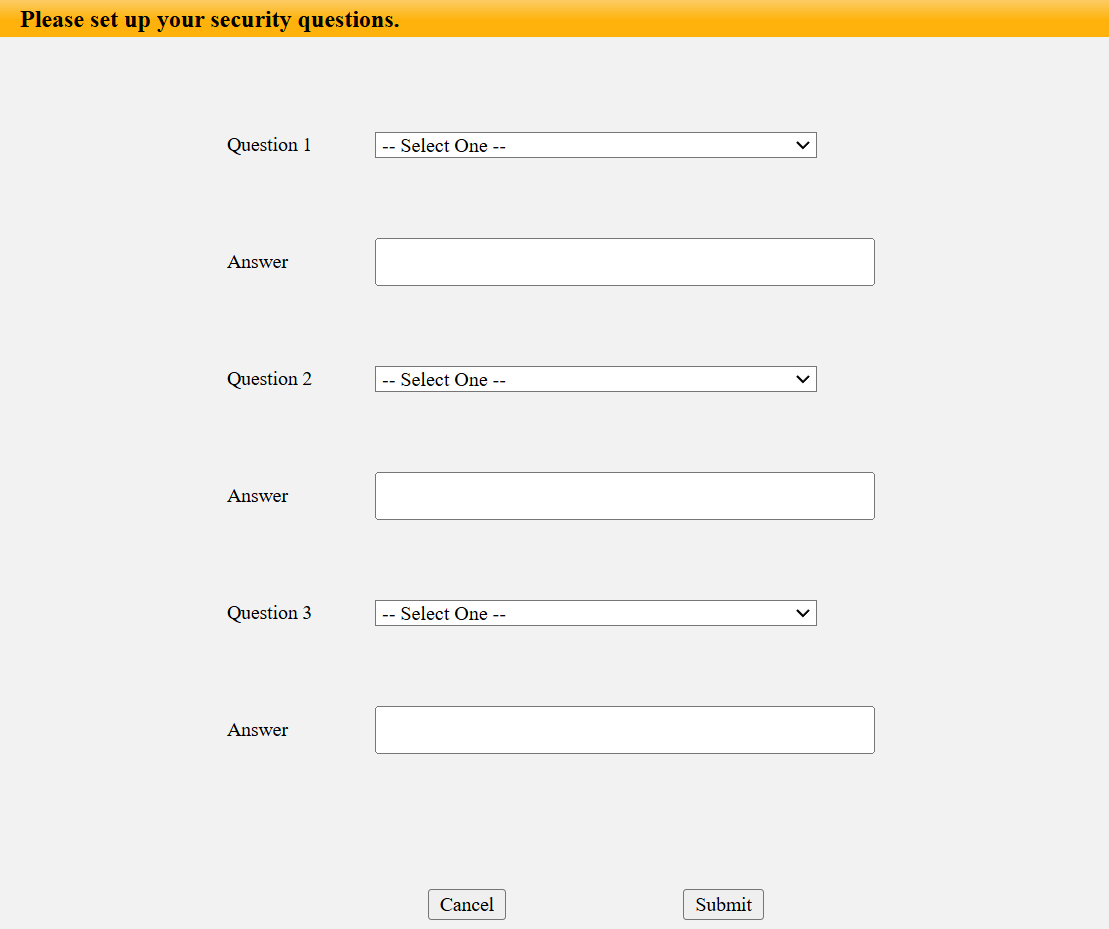
Modify Security Questions
Security questions allow you to reset the web password if you forget it. After setting up the security questions, you can click "Forget Password" on the login interface, enter the answers, and a password reset window will pop up.
If you do not set up the security questions, clicking "Answer security questions" will prompt you to "Please contact your service provider".
To set it up, go to the Security > Basic interface.

You are required to fill in the right password before modifying the security questions.